Auto Tagging — tags every topic by what it is about
- Category AI Tools
- Downloads 39
- Compatibility IC5: 5.0.0+
- Updated
Description
Auto Tagging — tags every topic by what it is about
Tagging only works if people do it, and people do not do it. Your tag list gets built with care, gets used properly for a fortnight, and then quietly stops being used at all. Everything posted after that is untagged, so tag pages go stale, filtering misses things, and the vocabulary you designed is doing nothing.
This reads each new topic and applies the tags that actually fit it.
It matches meaning, not words
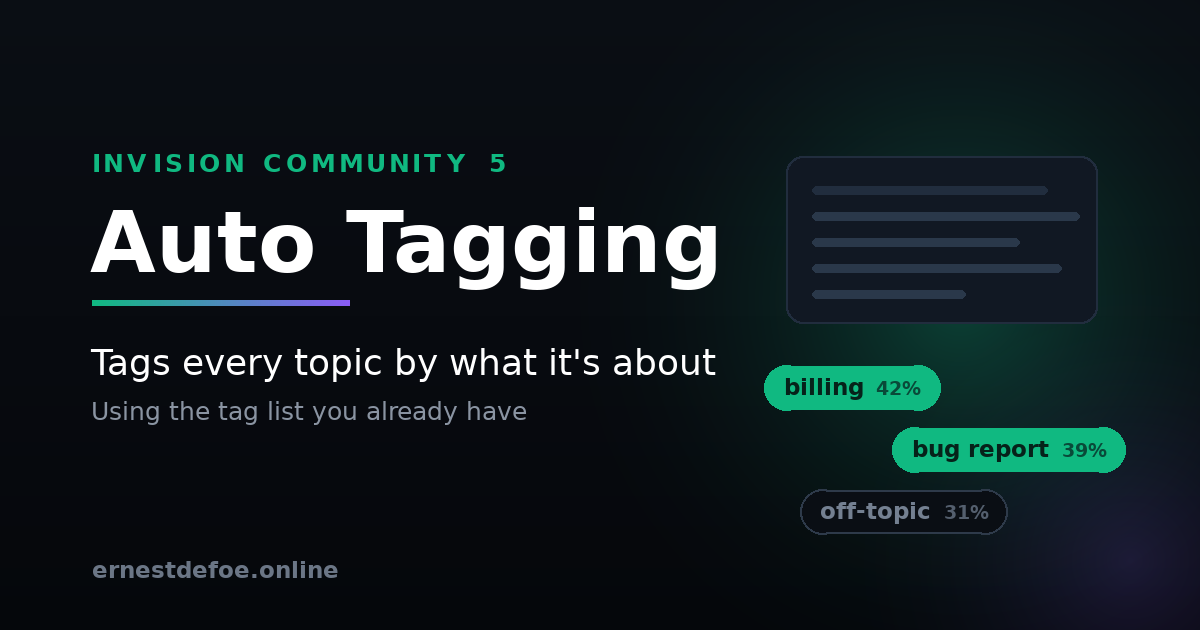
A topic titled "my card keeps getting declined and I was charged twice" gets tagged billing — a word that appears nowhere in it. Invision's own tag box offers autocomplete over text the author has already typed, which cannot do this. Matching here is done on meaning, so a topic reaches the right tag even when it shares no vocabulary with it at all.
It uses your tags. Only your tags.
Nothing is invented and nothing new appears in your tag list. The app reads the tags you have already defined and chooses between them, so the vocabulary stays exactly as you designed it. Disable a tag and it stops being applied.
It also learns what each tag means in your community, not in general. A tag is understood partly from the topics that already carry it, so build on a woodworking forum and build on a gaming forum end up meaning quite different things — as they should.
It will not touch work someone did by hand
This is the part worth reading carefully. Adding a tag in Invision Community is not actually an operation the platform offers — saving tags replaces every tag on the item. A tagging tool that gets that wrong will silently delete tags your moderators set, and nobody will connect the loss to the app that caused it.
Auto Tagging always writes the complete set: existing tags, the new ones, and the item's prefix. By default it leaves anything already tagged completely alone.
Honest about confidence
Every match carries a score, and there is a threshold below which nothing is applied. The defaults are set to tag less rather than tag wrongly — a wrong tag is worse than a missing one, because someone has to find it and undo it.
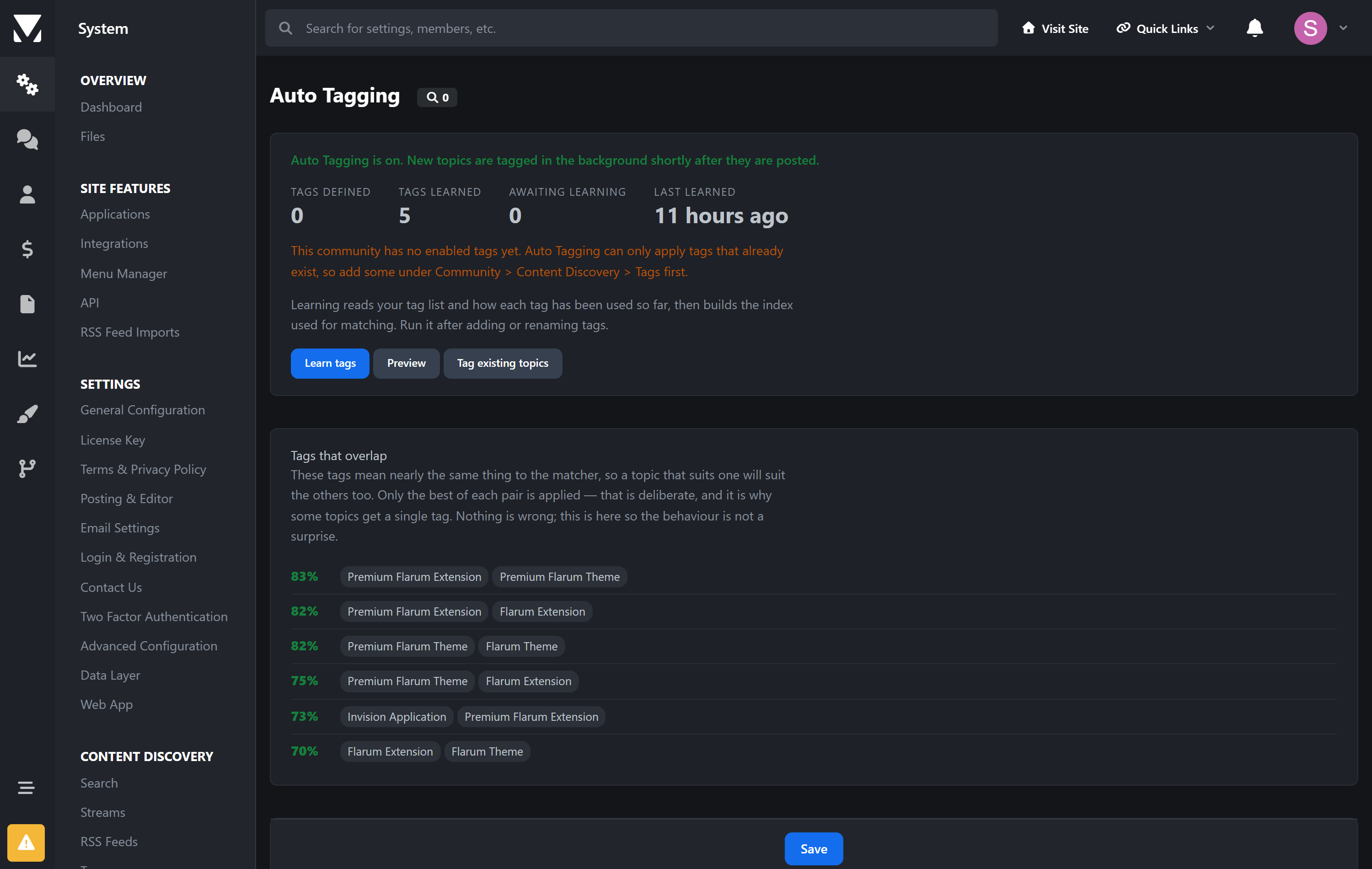
There is a Preview screen that scores real topics from your own community and shows you the numbers, so you can pick a threshold from evidence rather than from a guess. It tags nothing while you do it.
Fits around the site rather than into it
Posting never waits. Tagging happens in the background after the topic is saved. Nobody sits watching a spinner while an API is called.
Backfill on demand. Tag the topics you already have, batched so a large community does not arrive as one enormous bill.
Scope it. Restrict it to certain forums, and list any tags it must never apply — solved and staff pick mean something procedural that only a person should decide.
Respects your limits. It will not push an item past your site-wide maximum tags per item.
One key, one bill. If you run Related Topics or AI Assistant, it can borrow their embeddings key instead of asking for another.
No core files are edited. Upgrading Invision Community will not break it.
What it costs to run
Auto Tagging needs an embeddings API key — Voyage AI or OpenAI. This is not a subscription to me; you hold the account and pay the provider directly.
Embeddings are among the cheapest things either provider sells. Your tag list is processed once and then only when it changes, and each new topic is a single small request. For an ordinary community this runs to a trivial amount per month, and there is no charge at all while nothing is being posted.
Requirements
Invision Community 5.0 or newer (self-hosted)
Forums
Tags enabled, with at least a few tags defined
An embeddings API key from Voyage AI or OpenAI — or Related Topics / AI Assistant already installed, in which case it can share theirs
Create an account or sign in to leave a review
There are no reviews to display.