Jump to content
View in the app

A better way to browse. Learn more.

Invision Marketplace

A full-screen app on your home screen with push notifications, badges and more.

To install this app on iOS and iPadOS
  1. Tap the Share icon in Safari
  2. Scroll the menu and tap Add to Home Screen.
  3. Tap Add in the top-right corner.
To install this app on Android
  1. Tap the 3-dot menu (⋮) in the top-right corner of the browser.
  2. Tap Add to Home screen or Install app.
  3. Confirm by tapping Install.

Everything you need for your community

Everything you need for your community

Invision Community 5
  • Category Member Tools
  • Downloads 53
  • Compatibility IC5: 5.0.0+
  • Updated
Create custom formatting buttons for the editor

Overview

Create custom formatting buttons for the editor

Description

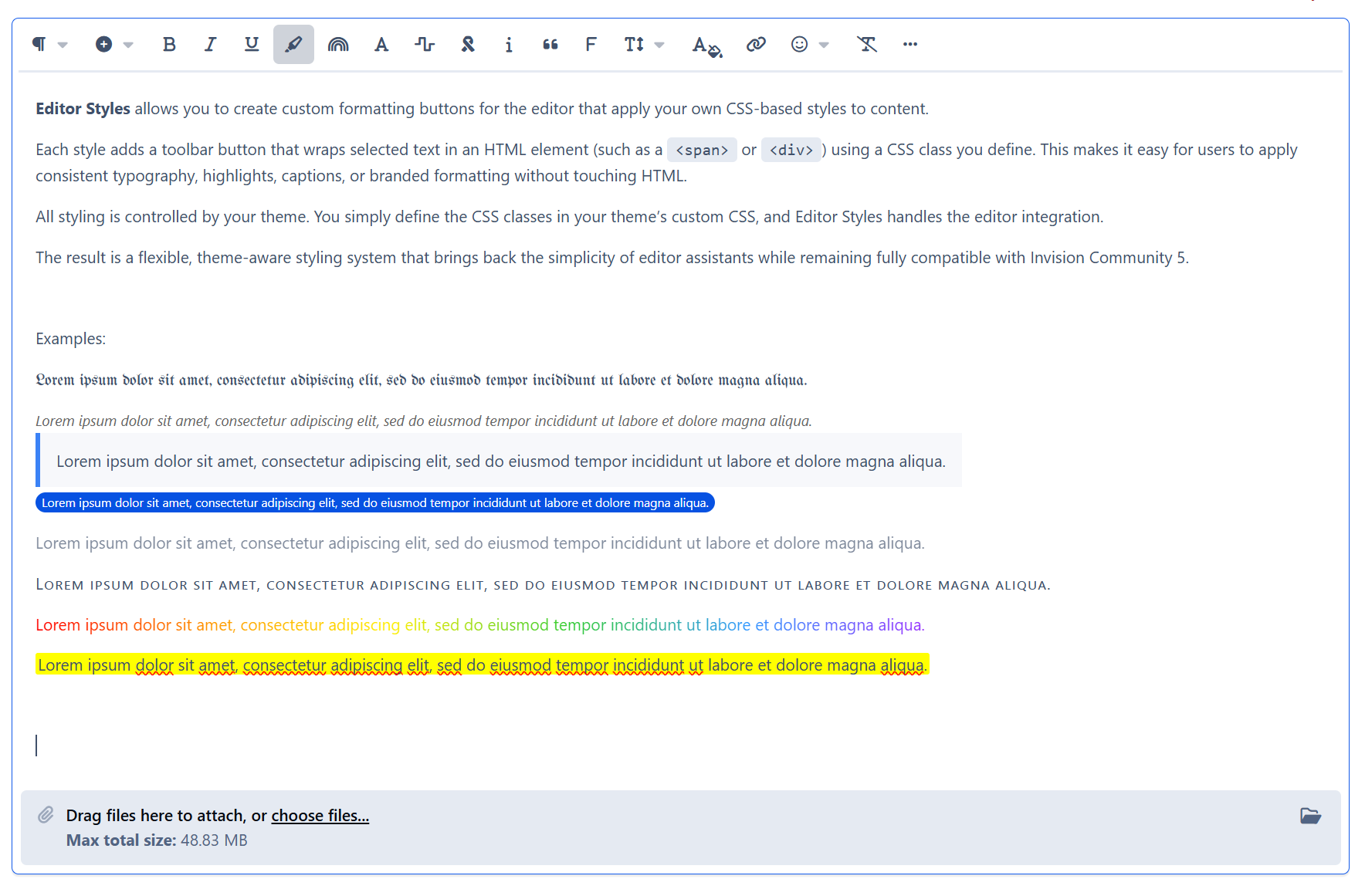
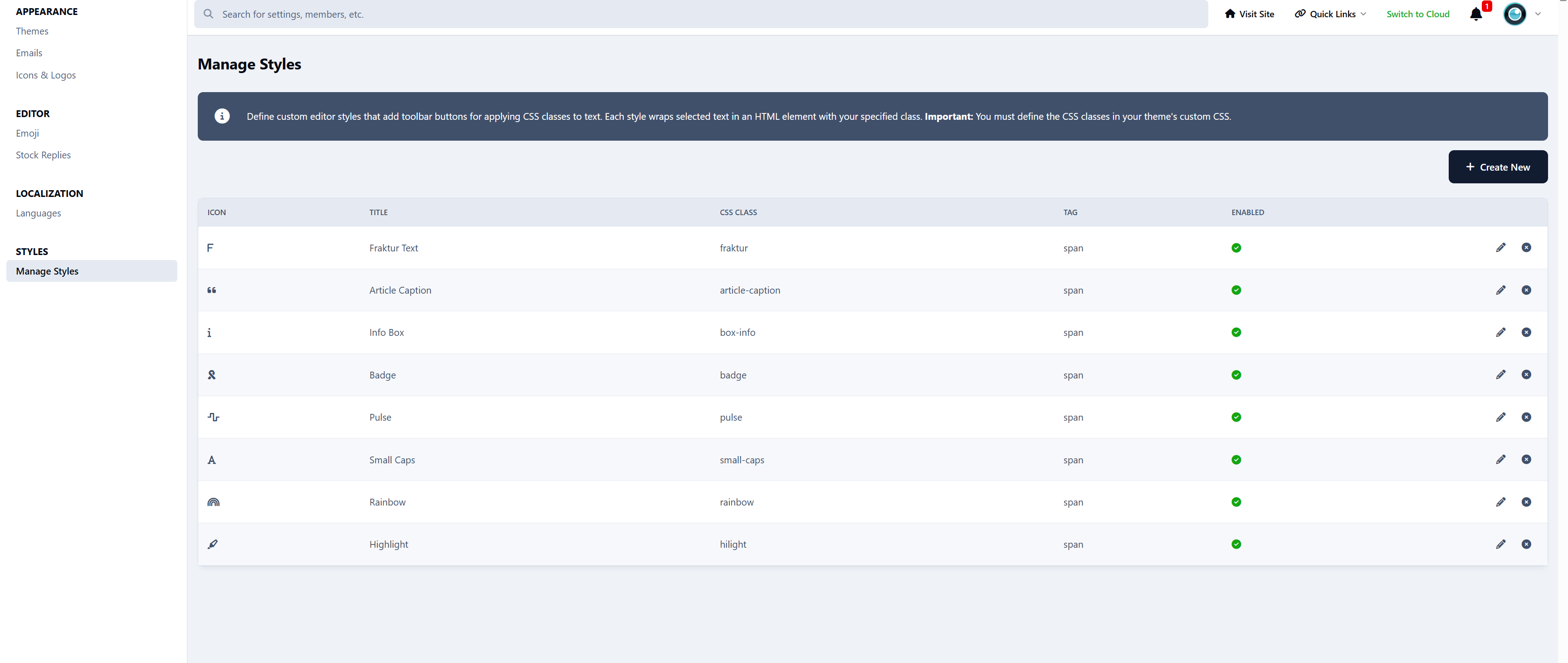
Editor Styles allows you to create custom formatting buttons for the editor that apply your own CSS-based styles to content.

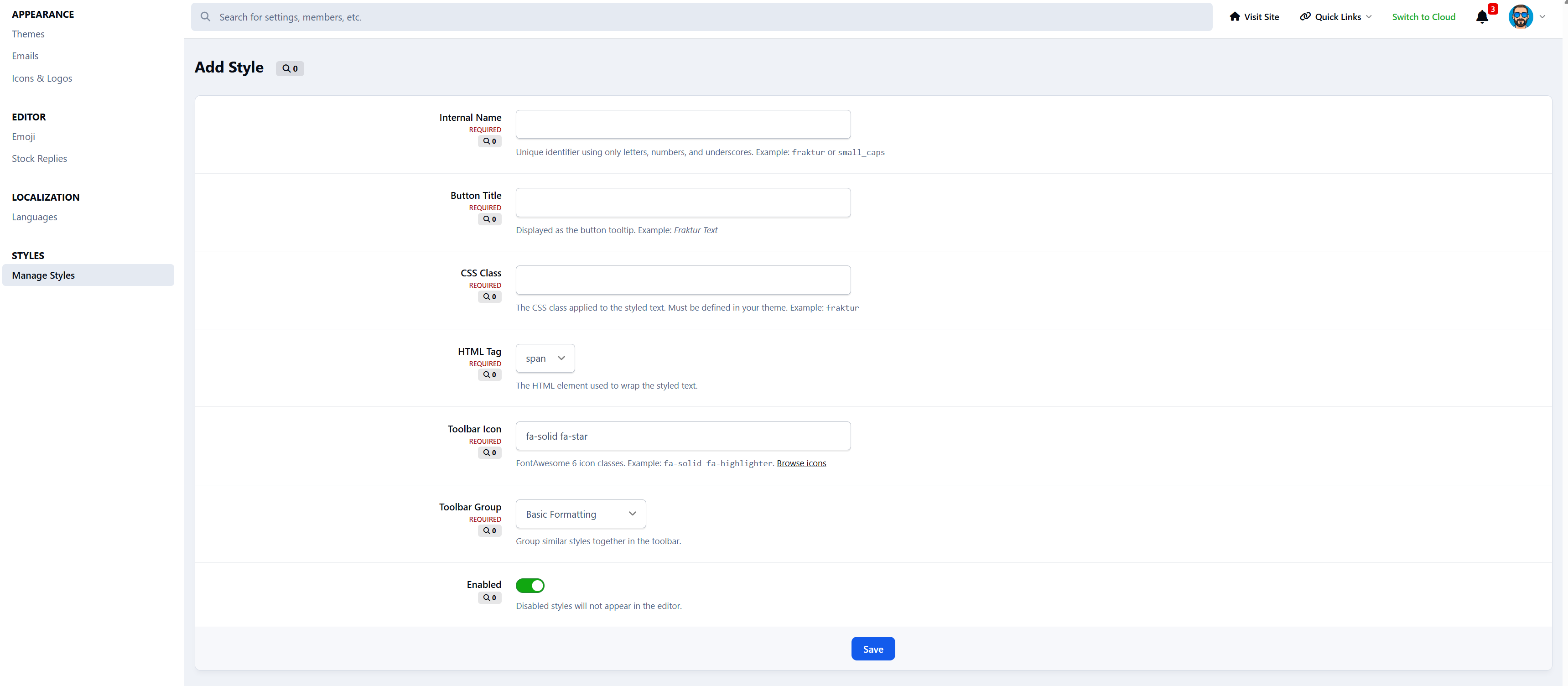
Each style adds a toolbar button that wraps selected text in an HTML element (such as a <span> or <div>) using a CSS class you define. This makes it easy for users to apply consistent typography, highlights, captions, or branded formatting without touching HTML.

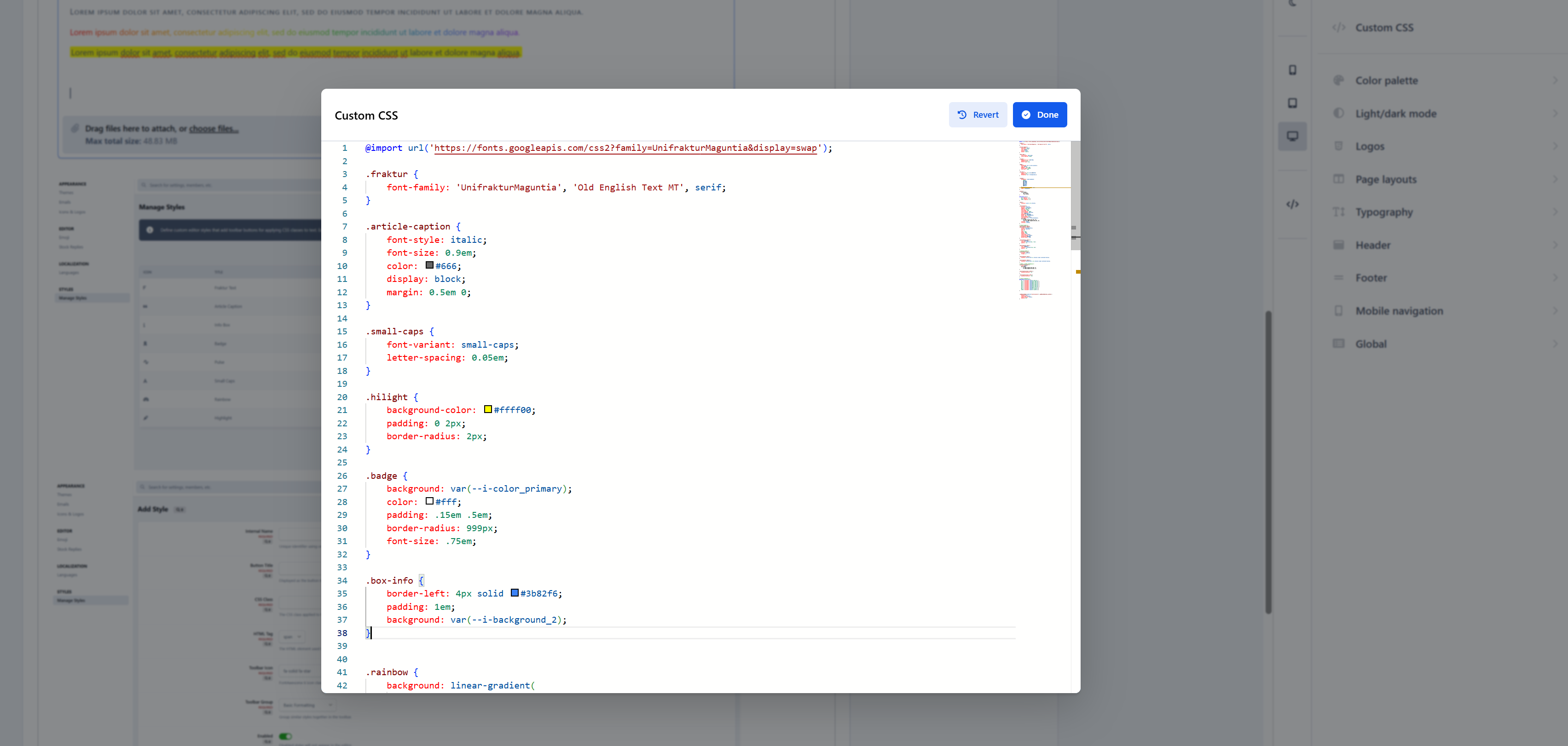
All styling is controlled by your theme. You simply define the CSS classes in your theme’s custom CSS, and Editor Styles handles the editor integration.

The result is a flexible, theme-aware styling system that brings back the simplicity of editor assistants while remaining fully compatible with Invision Community 5. You can add as many as you like, and as crazy as you want to go.


Live Demo: https://demo.invisionite.com/index.php?/topic/12-editor-styles-examples/ (Due to theme-awareness, you must select the default Invision theme)

User Feedback

Create an account or sign in to leave a review


I asked Cedric 5 hours ago for help with this functionality. Just a few hours later it is available as a free app. Truly amazing!

Response from the author:

Happy to help!

Configure browser push notifications

Chrome (Android)
  1. Tap the lock icon next to the address bar.
  2. Tap Permissions → Notifications.
  3. Adjust your preference.
Chrome (Desktop)
  1. Click the padlock icon in the address bar.
  2. Select Site settings.
  3. Find Notifications and adjust your preference.