Jump to content
View in the app

A better way to browse. Learn more.

Invision Marketplace

A full-screen app on your home screen with push notifications, badges and more.

To install this app on iOS and iPadOS
  1. Tap the Share icon in Safari
  2. Scroll the menu and tap Add to Home Screen.
  3. Tap Add in the top-right corner.
To install this app on Android
  1. Tap the 3-dot menu (⋮) in the top-right corner of the browser.
  2. Tap Add to Home screen or Install app.
  3. Confirm by tapping Install.

Everything you need for your community

We will be moving to a new server soon, some downtime is expected.

Everything you need for your community

Invision Community 5
  • Category Member Tools
  • Downloads 37
  • Compatibility IC5: 5.0.0
  • Updated
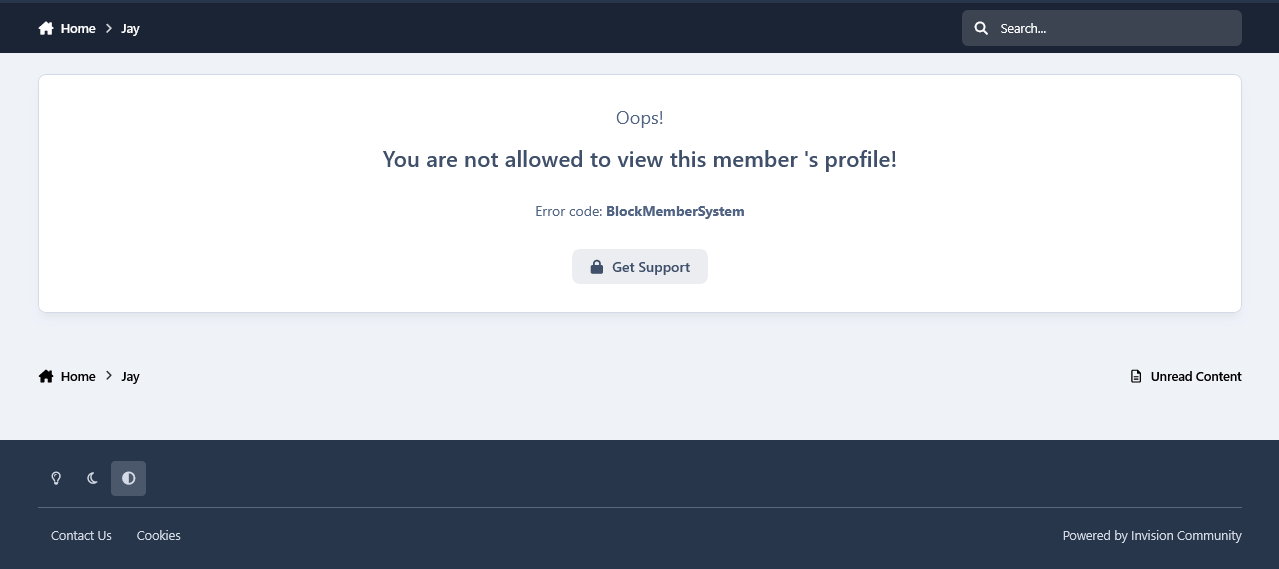
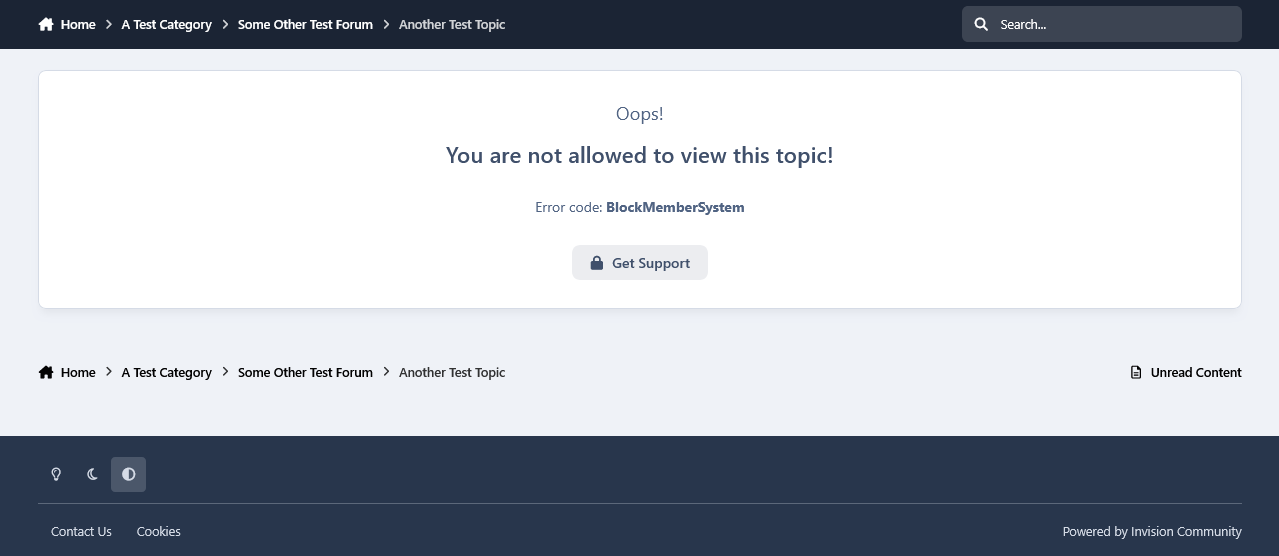
Gives members control as to who can view their profiles and read their topics.

Overview

Gives members control as to who can view their profiles and read their topics.

Description

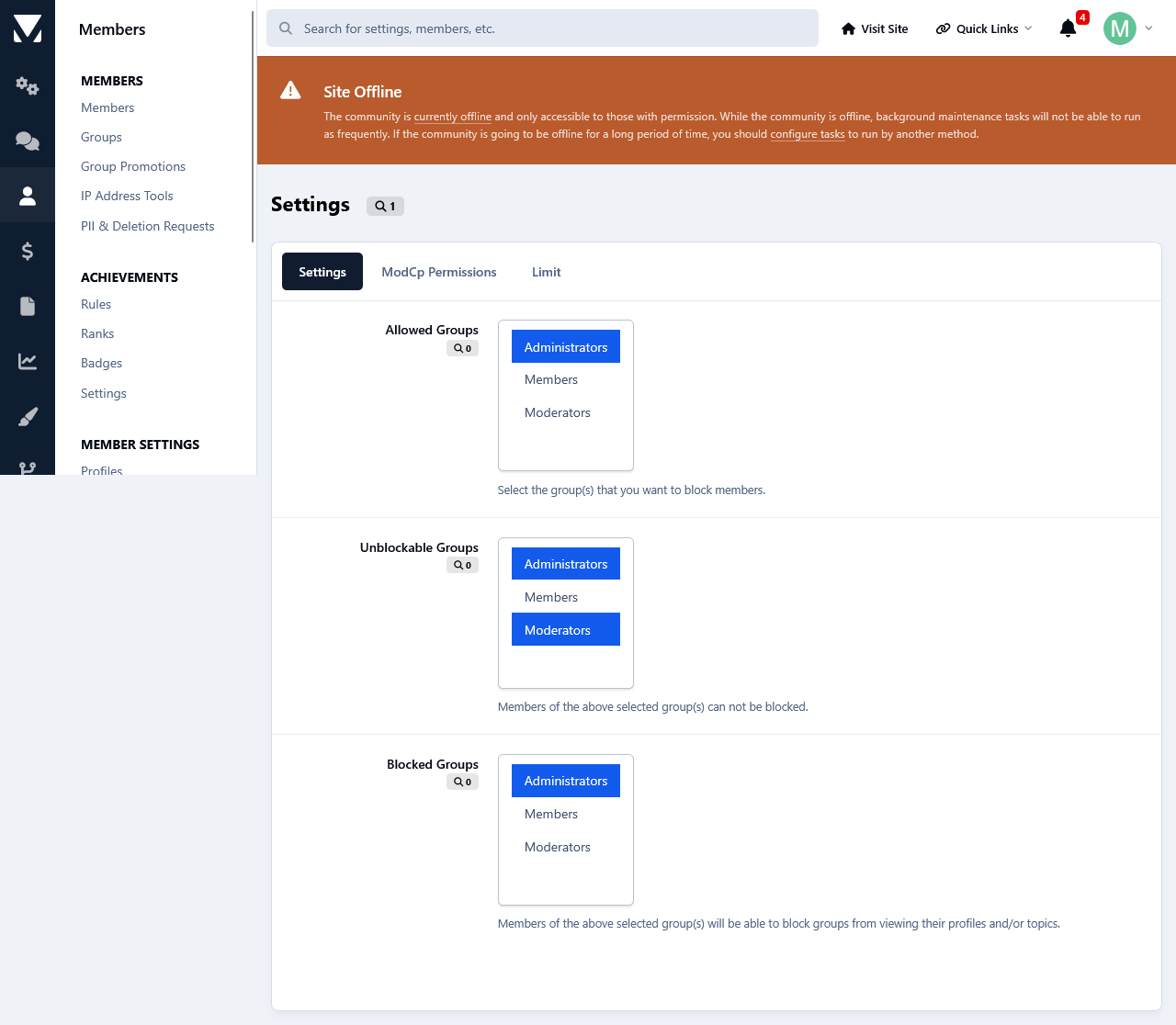
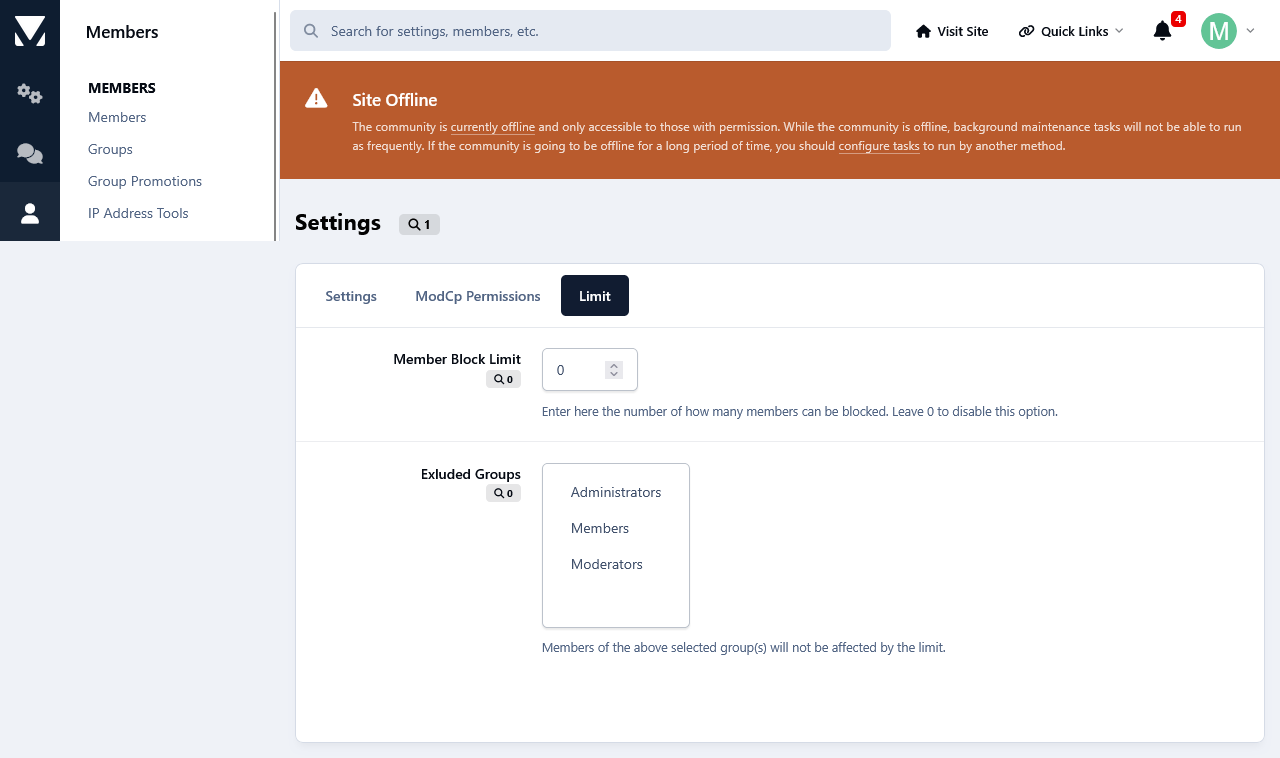
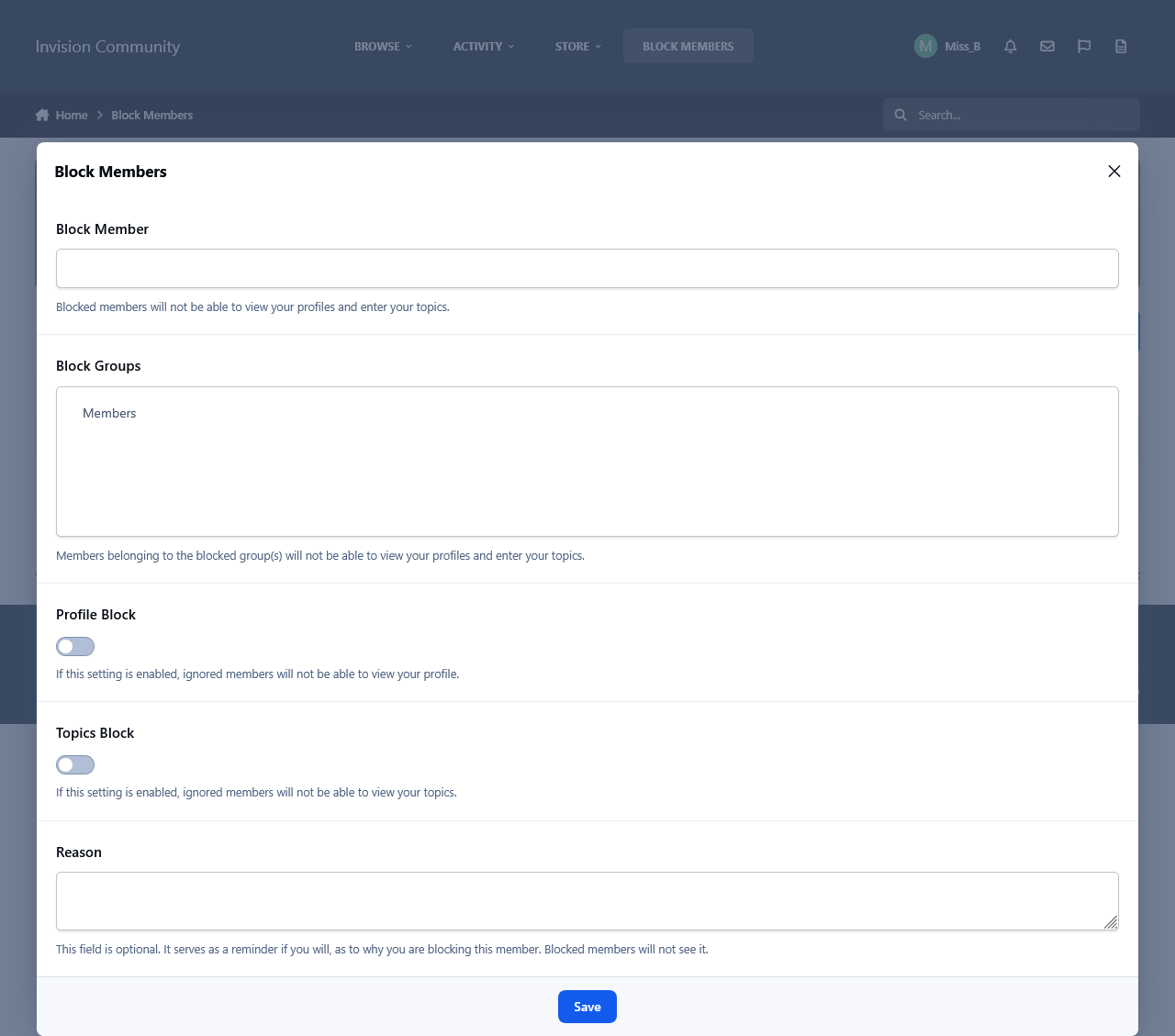
  • This app will give your members, with the appropriate permissions to block other members and/or groups from viewing their topics and profiles. Personal Messages are not included since they can be blocked if you ignore someone. When a member blocks someone, they can enter a reason as well. This is to server as a reminder if you will will, as to why that member has been blocked. They, blocked members, will not see it.

Group Protection:

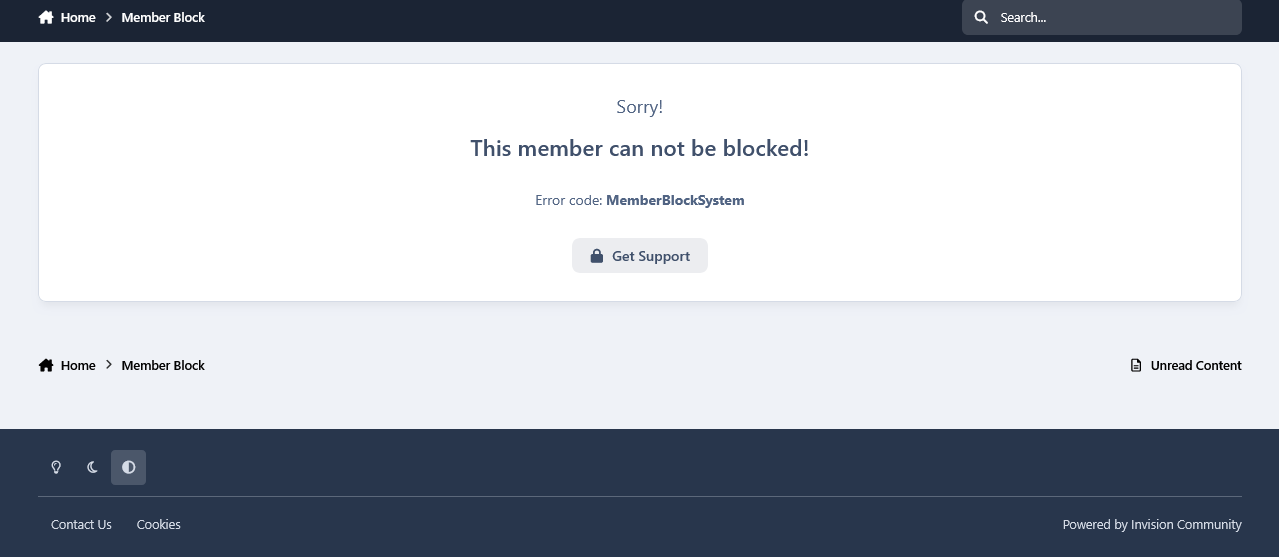
  • Member belonging to certain groups, like admins and moderators for example, are unblockable.

Blocked Members Log:

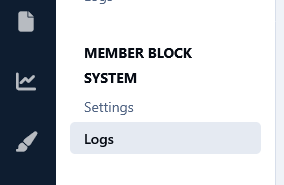
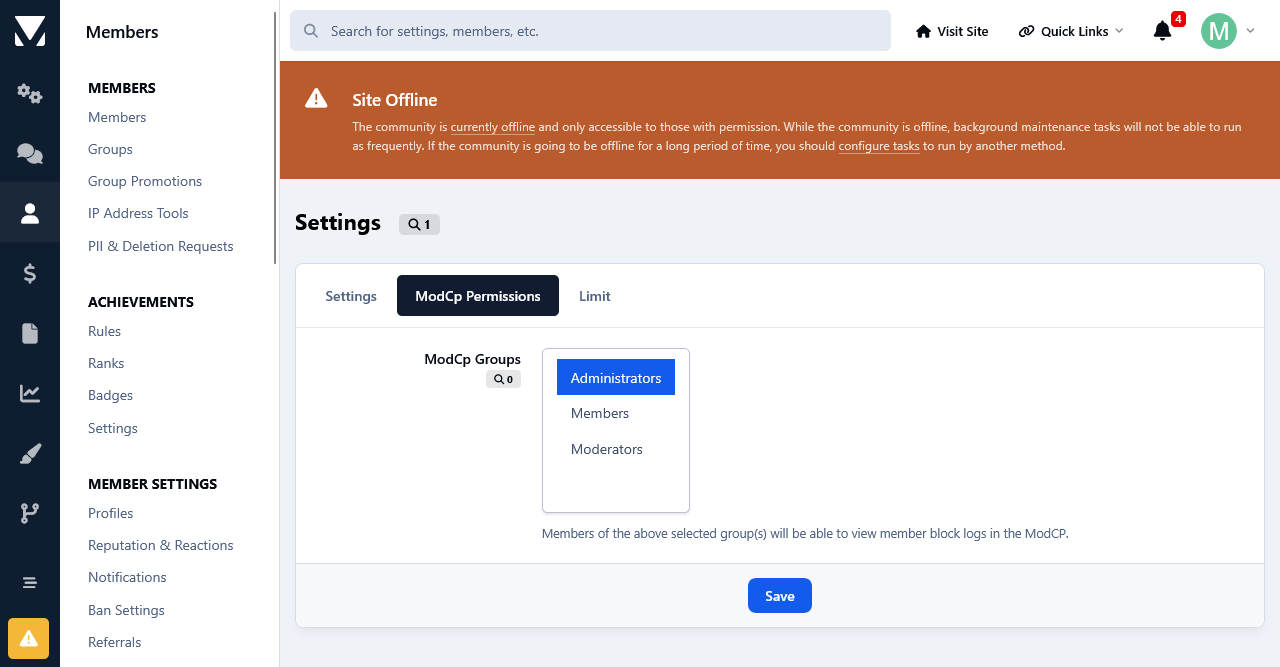
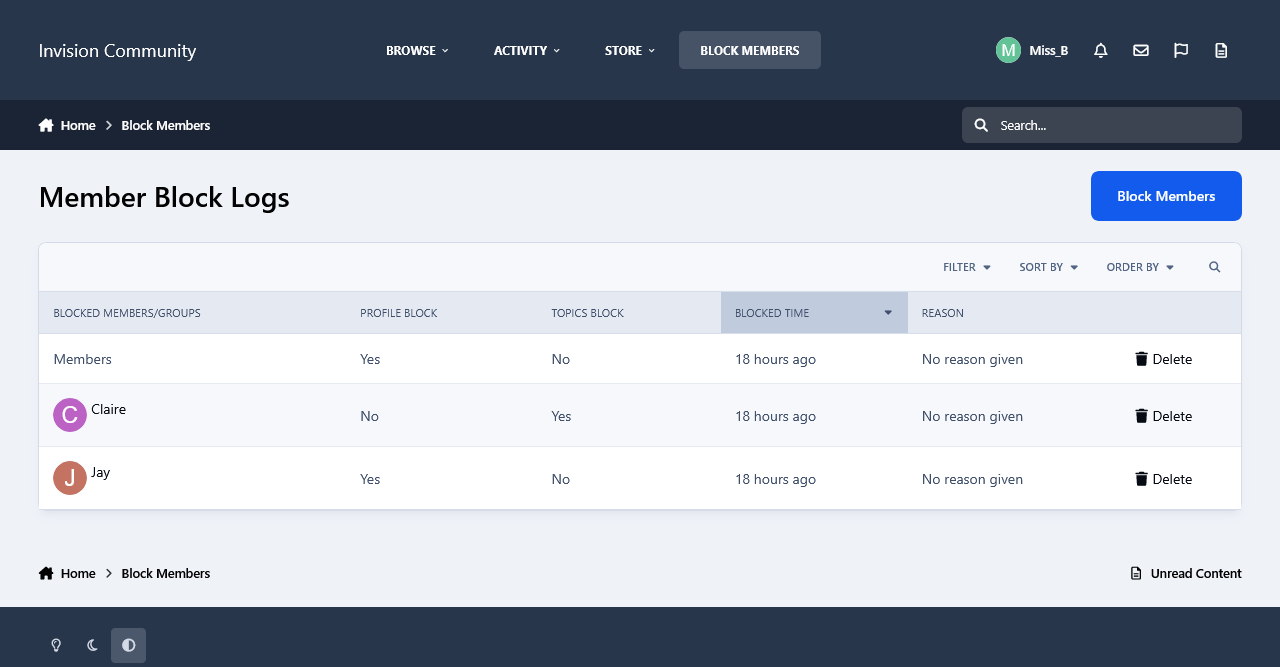
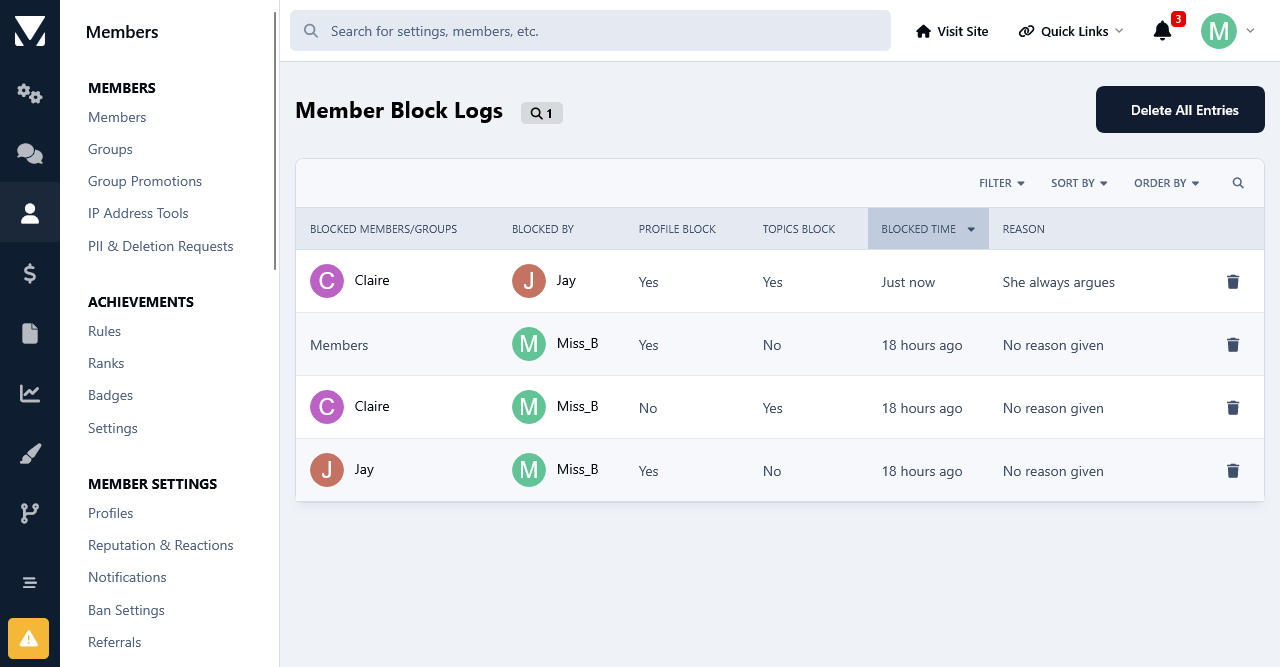
  • A complete overview log of who is blocking whom is available in the Admin Panel and Mod CP. The latter is accessible only to groups with the appropriate permissions. Both logs have a search option as well.

User Feedback

Create an account or sign in to leave a review

There are no reviews to display.

Configure browser push notifications

Chrome (Android)
  1. Tap the lock icon next to the address bar.
  2. Tap Permissions → Notifications.
  3. Adjust your preference.
Chrome (Desktop)
  1. Click the padlock icon in the address bar.
  2. Select Site settings.
  3. Find Notifications and adjust your preference.