Notifications Icons
Invision Community 5
Invision Community 4
- Category Member Tools
- Downloads 97
- Compatibility IC5: 5.0.0+ IC4: 4.6.0+
- Updated
Overview
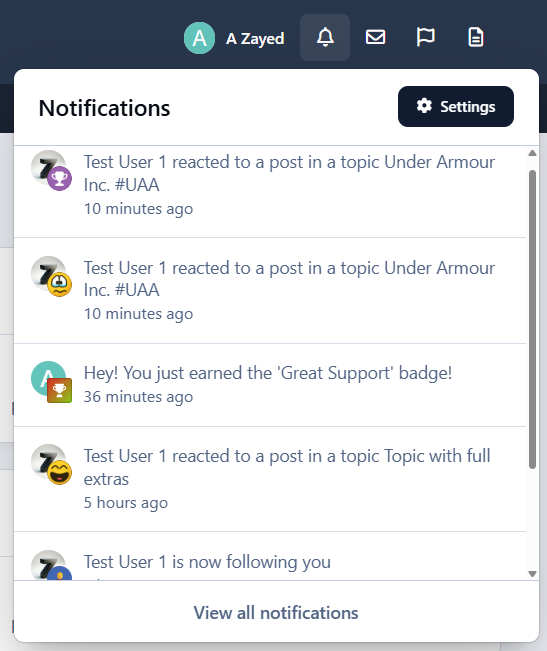
Notifications Icons is a lightweight yet powerful application designed to visually enhance your community’s notification system. It places intuitive icons next to each notification item, improving readability and user engagement across both inline notification pages and the top AJAX notification dropdown.Description
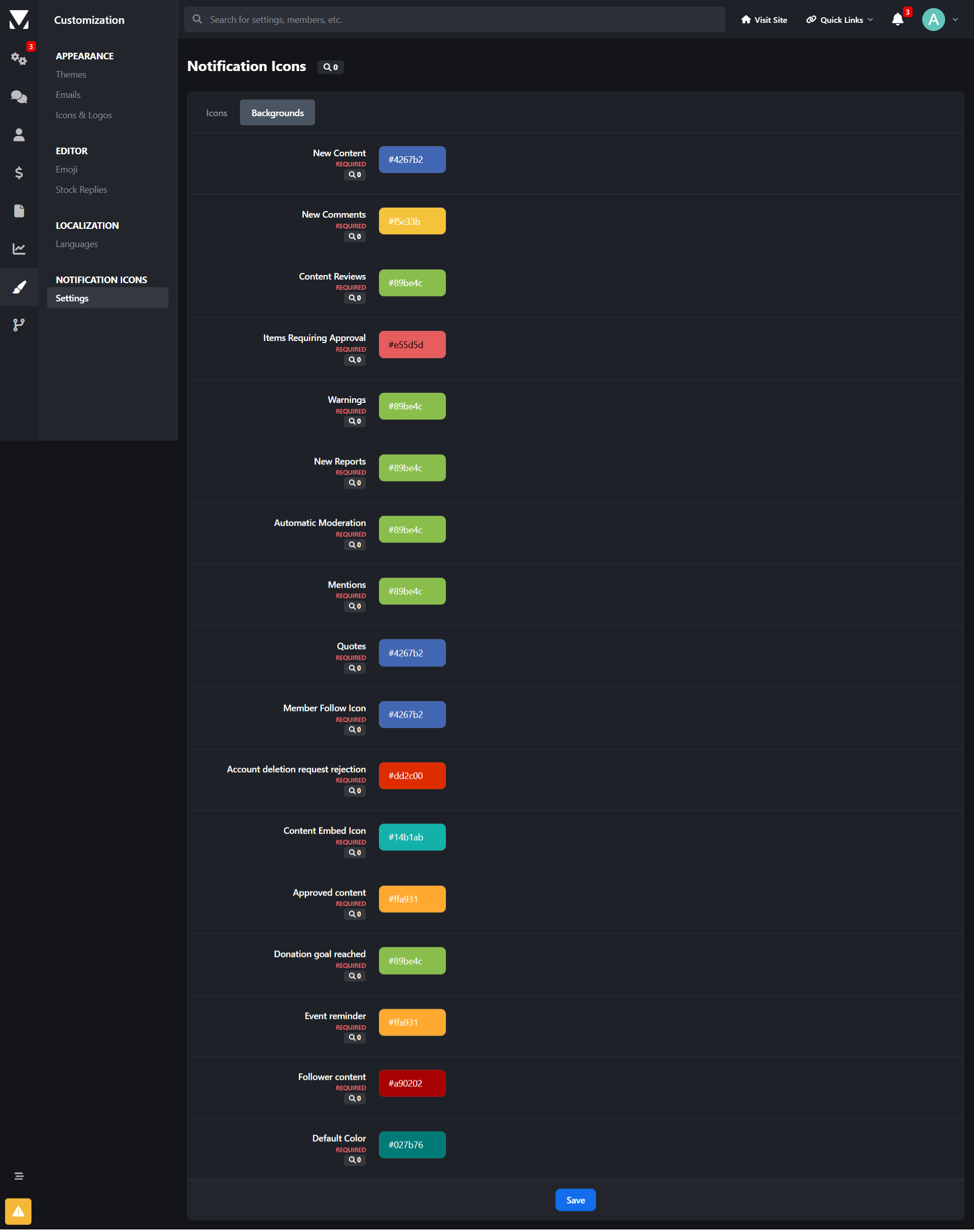
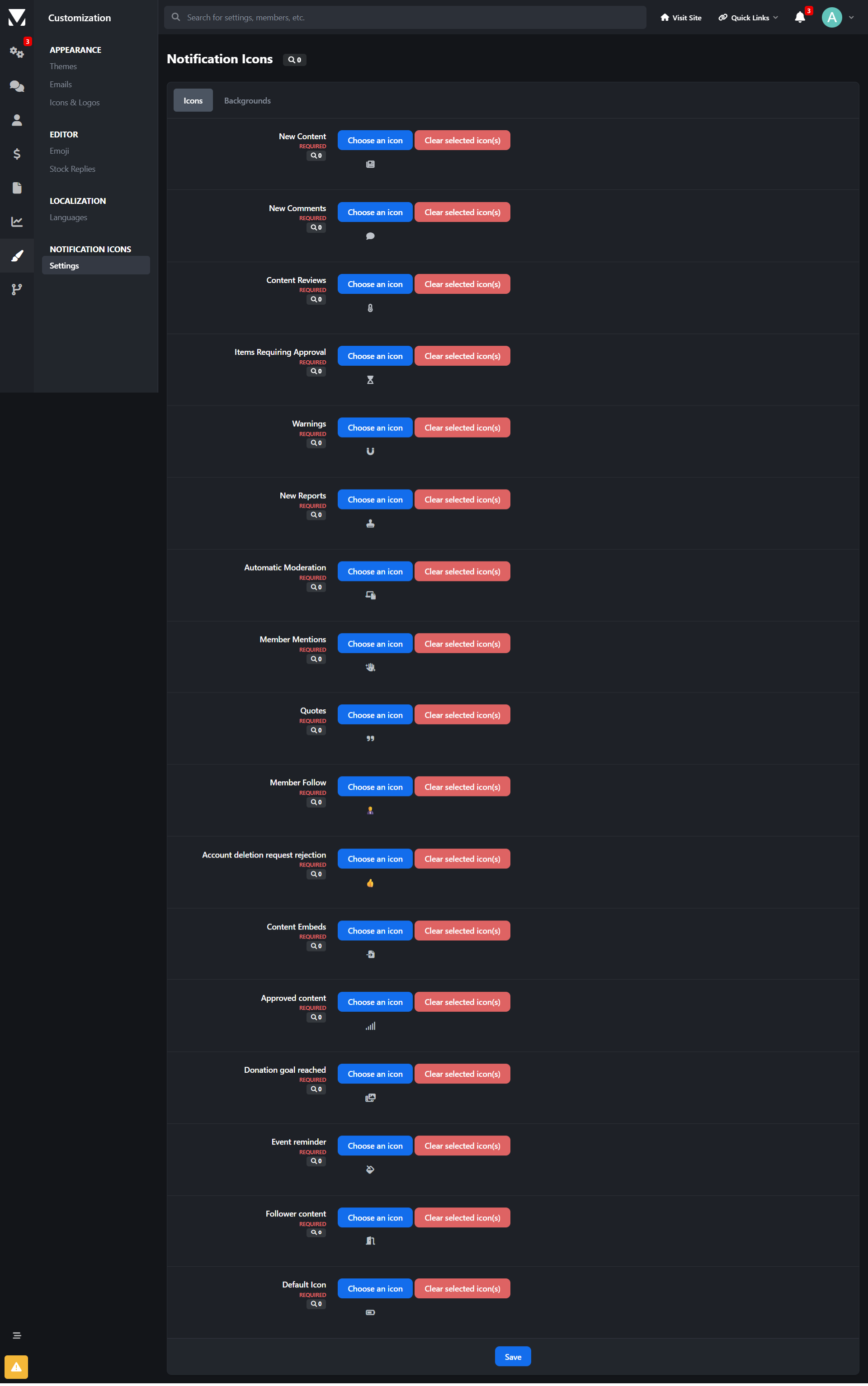
The application offers full customization of notification icons and background styles, allowing administrators to visually distinguish different notification types with ease. Whether it’s new content, reactions, moderation alerts, or member interactions, the application ensures users instantly understand what each notification represents.
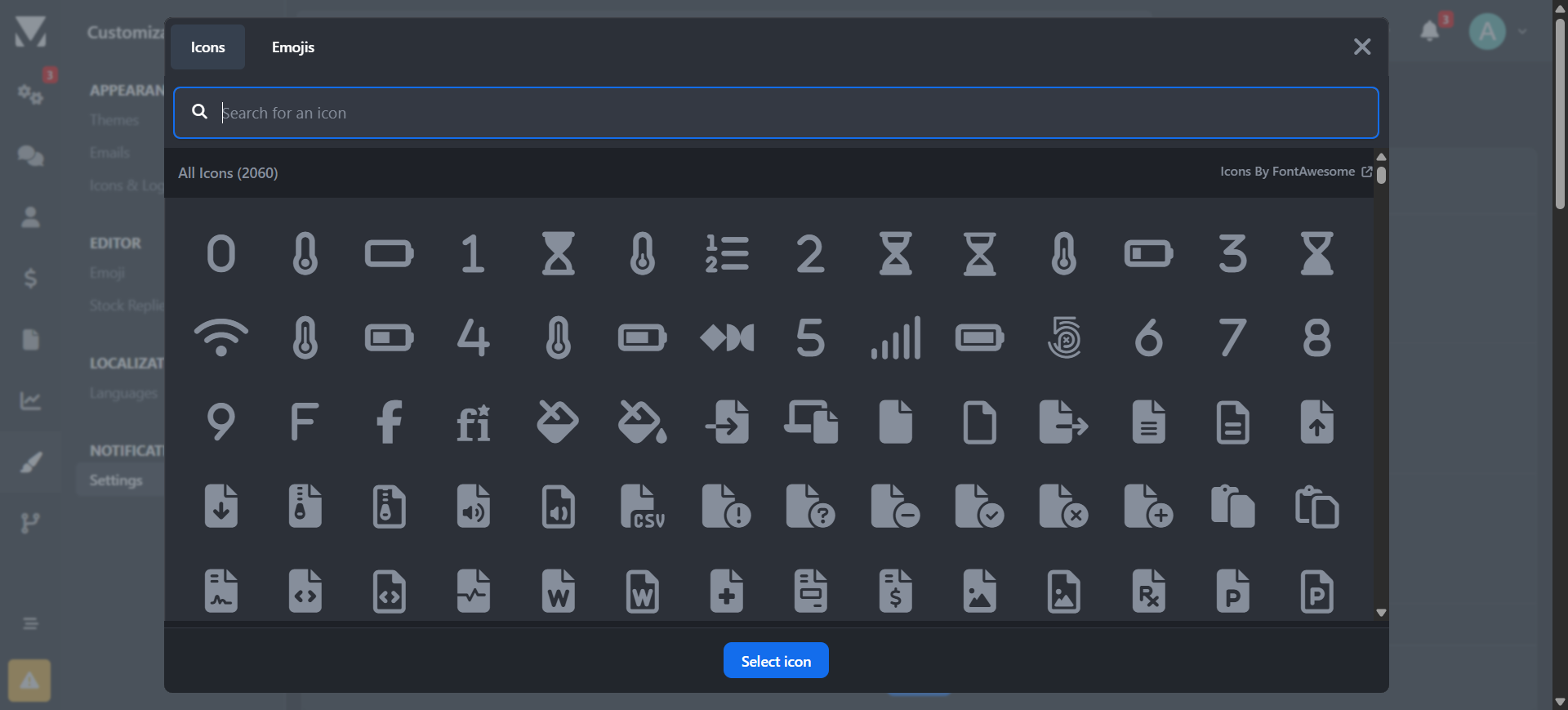
"Notifications Icons" integrates seamlessly with existing notification systems with the built in IPS5 icon/emoji picker form field, giving you access to a wide range of familiar and professional icons.
Key Features
Icon support for inline notifications and AJAX notification box
Fully customizable icons and backgrounds
Covers all content-based and member-based notifications
Default fallback icon for custom notifications
Lightweight and performance-friendly
Easy setup and configuration
Installation Notes
Some communities may need to clear caches after installation for icons to display correctly.
Why Choose "Notifications Icons"?
Because notifications should be seen, understood, and acted on instantly - not read twice.
Create an account or sign in to leave a review
There are no reviews to display.