Invision Community 5
- Category Member Tools
- Downloads 56
- Compatibility IC5: 5.0.0
- Updated
Overview
This app will give your members a new option for their profiles, which is who can view them.Description
This app will give your members a new option for their profiles, which is who can view them.
Privacy Settings:
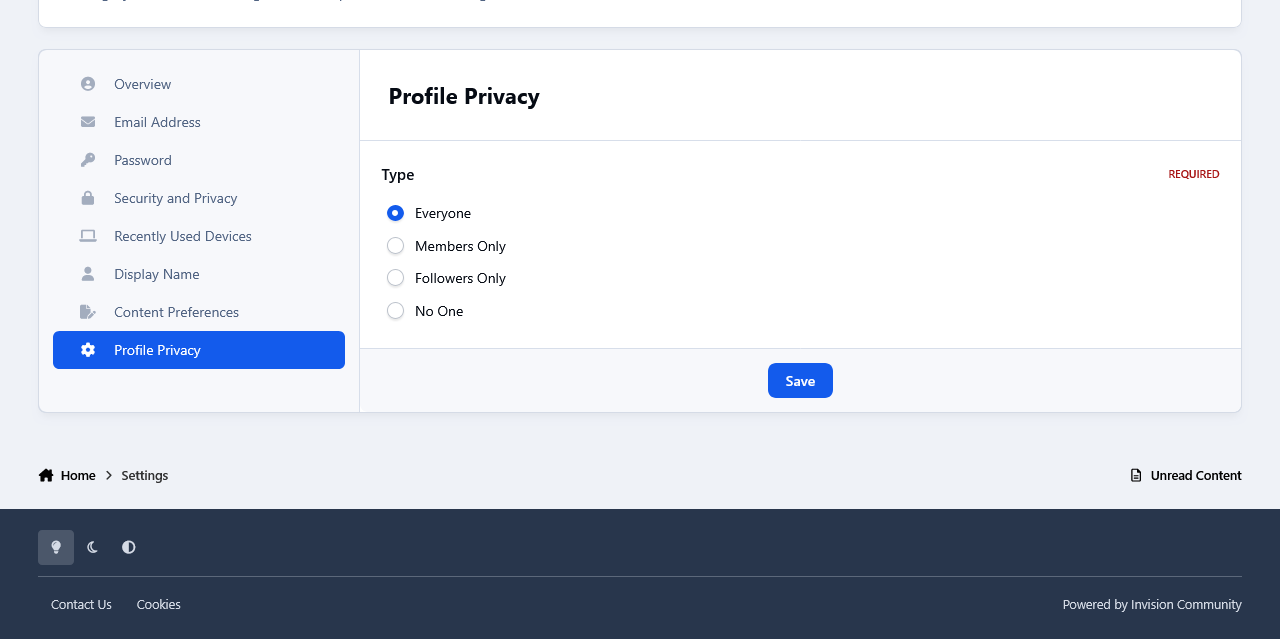
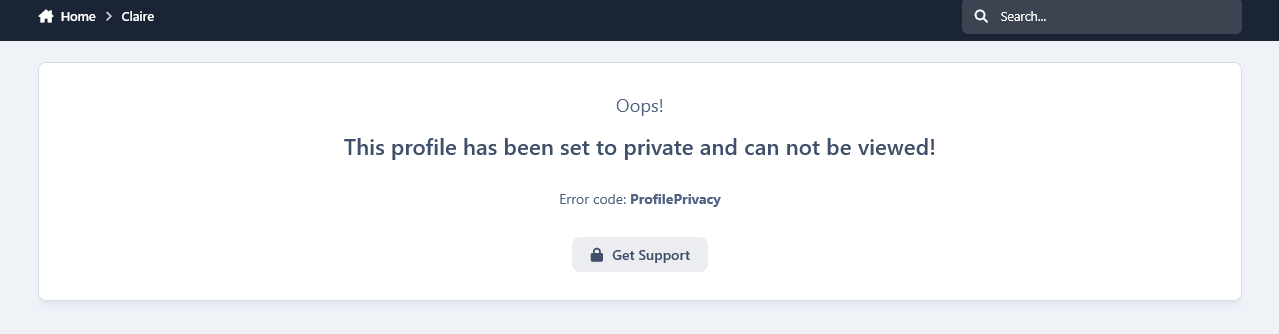
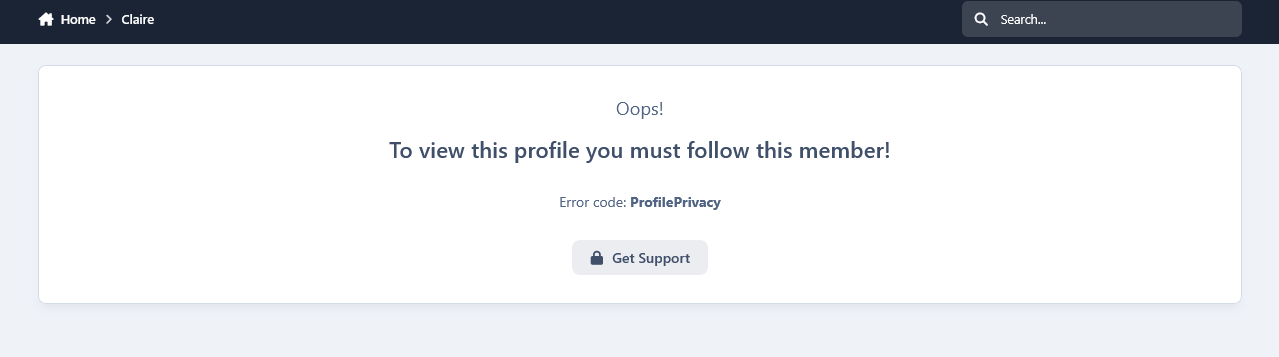
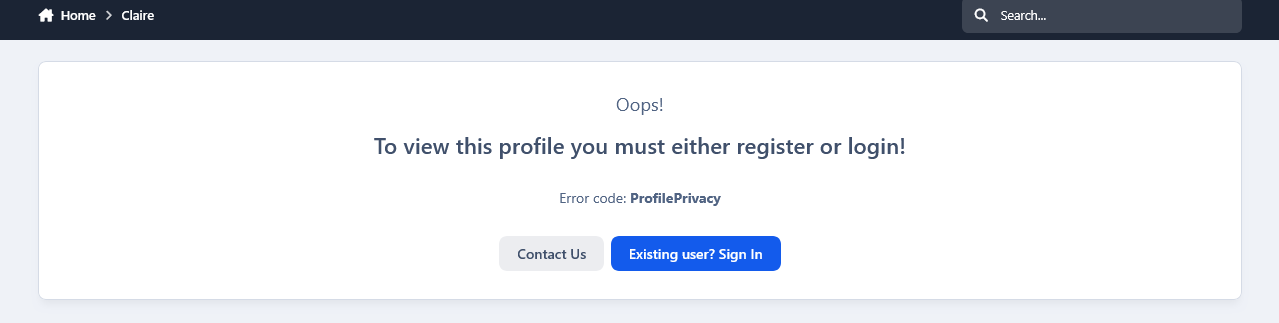
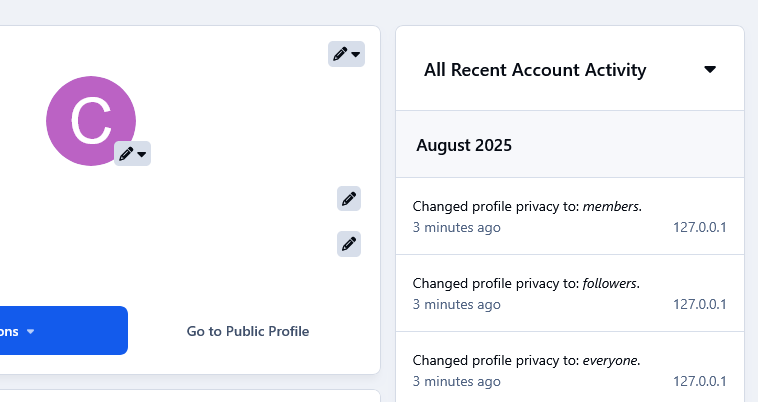
Members can turn their profiles visible for members only, for their followers only or they can turn them private so no one will be able to view them but groups with the appropriate permissions set by the admin. By default it is set to everyone.
Members History Logs:
Admins can view how members set their privacy from members history logs.
Logs:
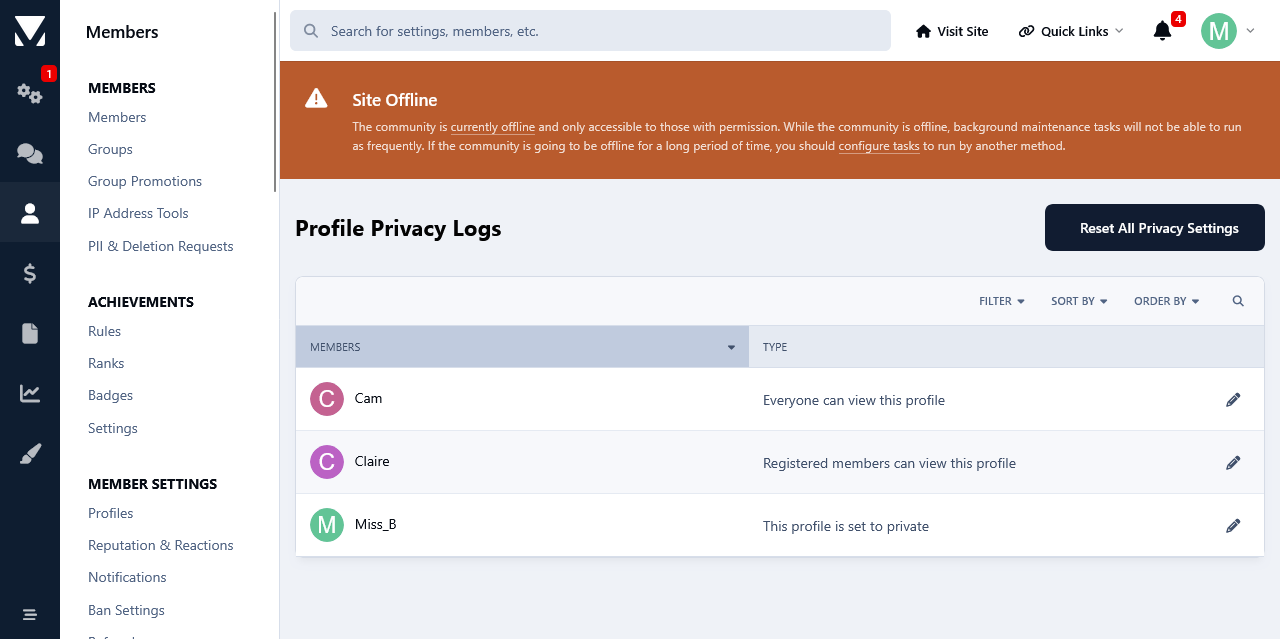
Admins can view all members privacy settings from the app's log page. There they can edit members privacy settings as well as reset all privacy settings to Everyone.
Filtering:
Admins can filter each privacy setting to see the members who selected them.
Search:
From the log page admins can also search for a member 's privacy settings.
Banned Members:
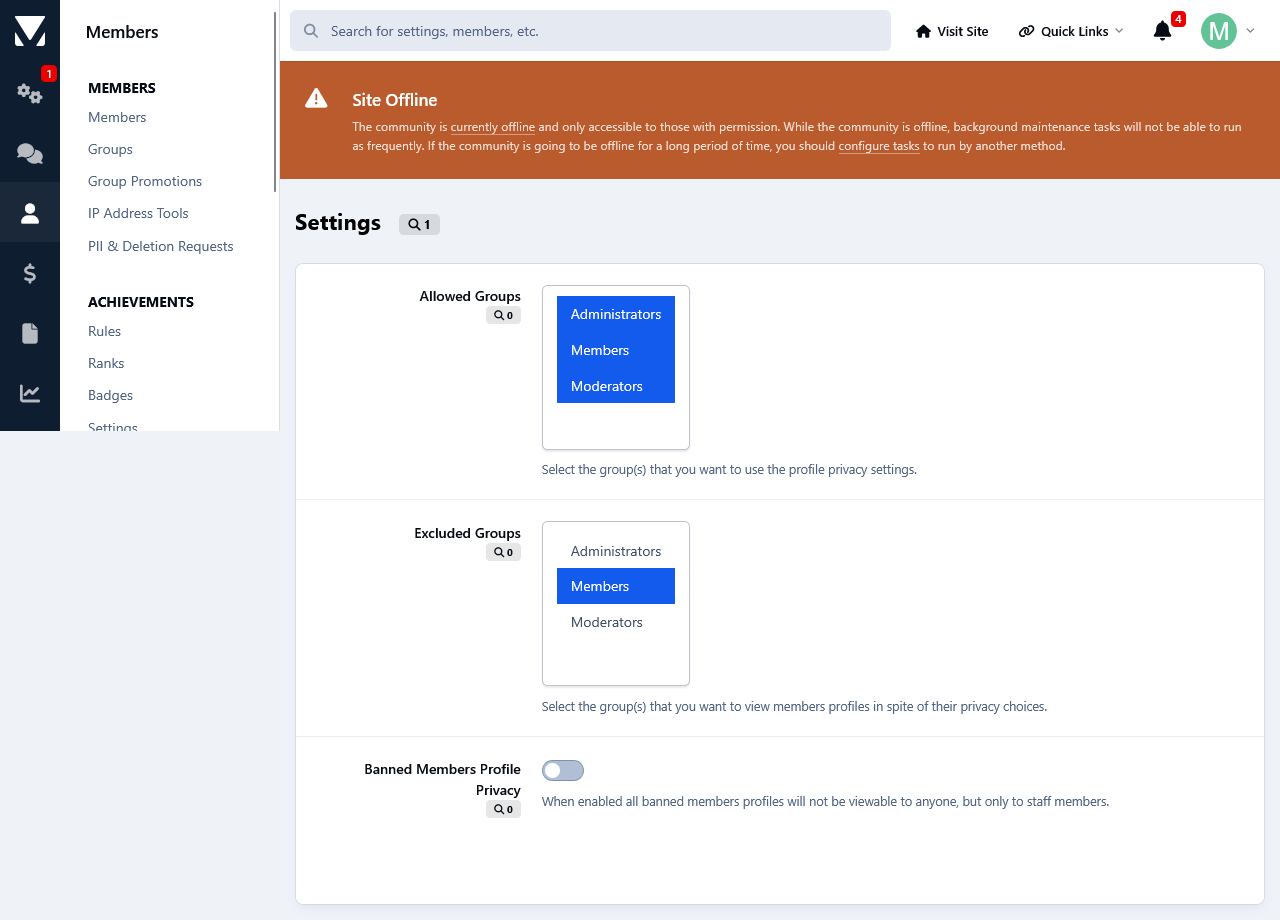
Admins can make banned members profiles unviewable for everyone, but the staff members.
Create an account or sign in to leave a review
There are no reviews to display.