Jump to content
View in the app

A better way to browse. Learn more.

Invision Marketplace

A full-screen app on your home screen with push notifications, badges and more.

To install this app on iOS and iPadOS
  1. Tap the Share icon in Safari
  2. Scroll the menu and tap Add to Home Screen.
  3. Tap Add in the top-right corner.
To install this app on Android
  1. Tap the 3-dot menu (⋮) in the top-right corner of the browser.
  2. Tap Add to Home screen or Install app.
  3. Confirm by tapping Install.

Everything you need for your community

We will be moving to a new server soon, some downtime is expected.

Everything you need for your community

Invision Community 5
  • Category Member Tools
  • Downloads 21
  • Compatibility IC5: 5.0.0+
  • App Version 1.0.2
  • Updated
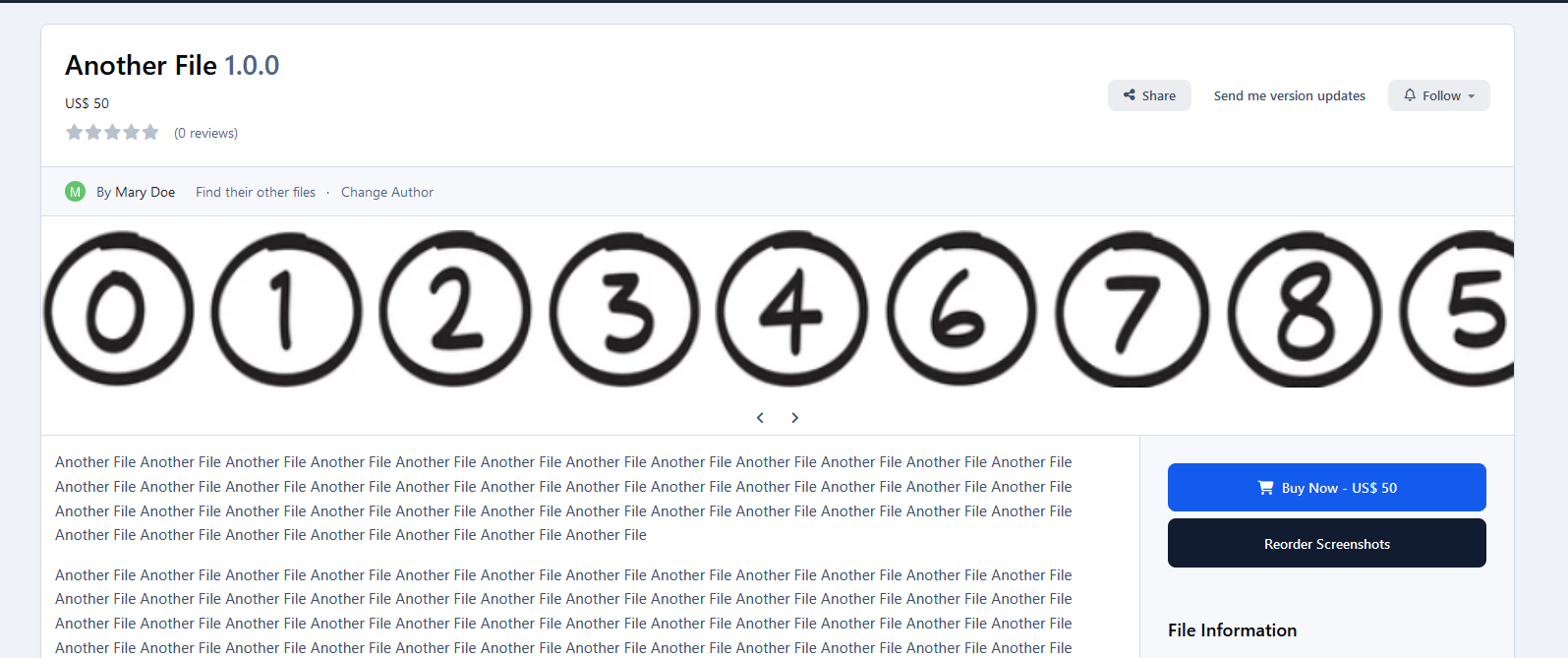
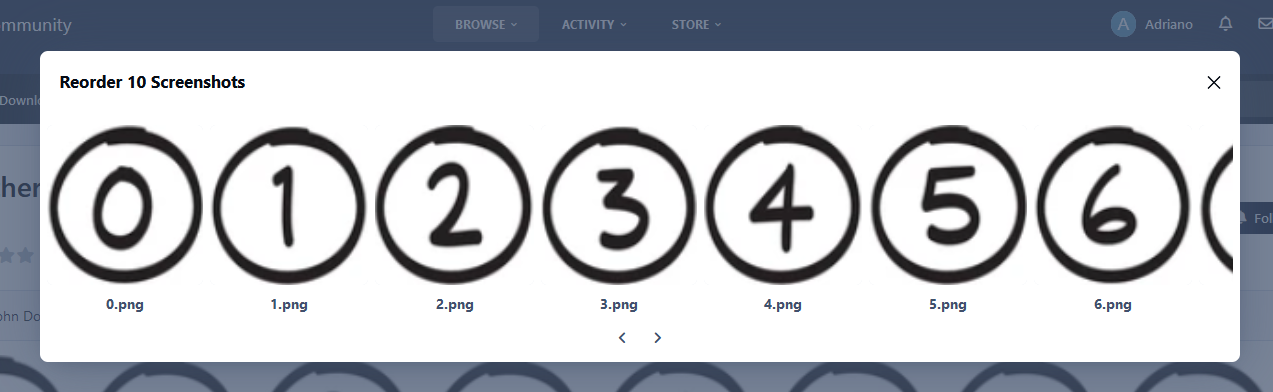
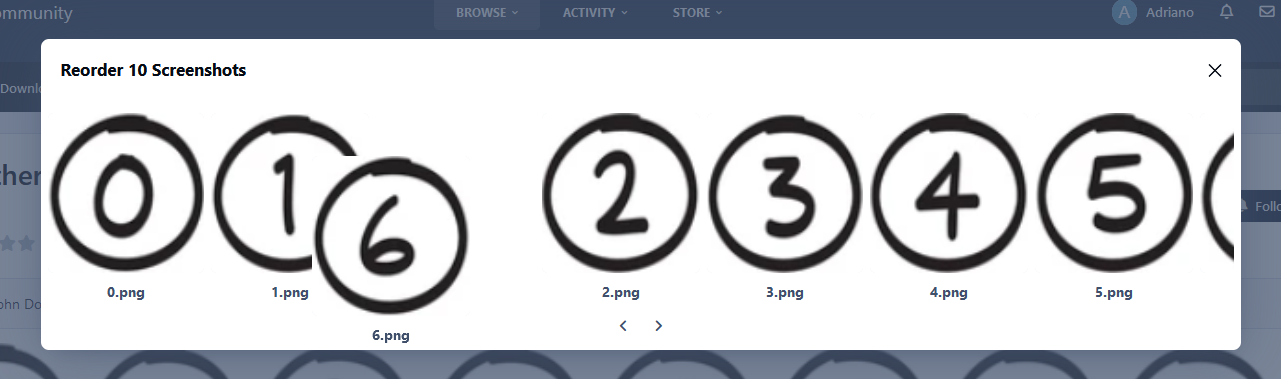
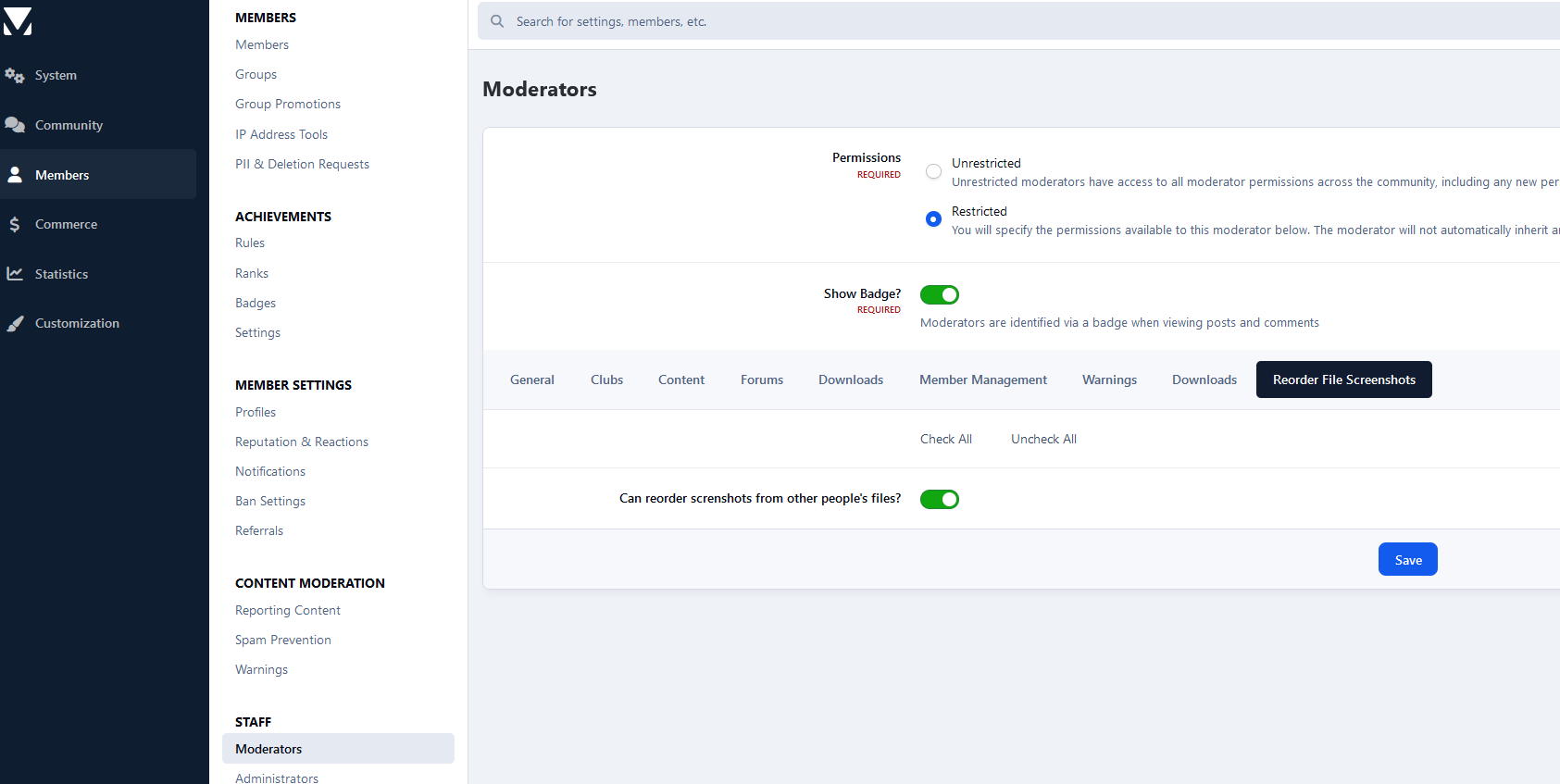
This application enables the file's author, as well as moderators with the necessary permissions, to set the desired order for the screenshots within the download file.

Overview

This application enables the file's author, as well as moderators with the necessary permissions, to set the desired order for the screenshots within the download file.

Description

This application enables the file's author, as well as moderators with the necessary permissions, to set the desired order for the screenshots within the download file.

Requirement:

User Feedback

Create an account or sign in to leave a review

There are no reviews to display.

Configure browser push notifications

Chrome (Android)
  1. Tap the lock icon next to the address bar.
  2. Tap Permissions → Notifications.
  3. Adjust your preference.
Chrome (Desktop)
  1. Click the padlock icon in the address bar.
  2. Select Site settings.
  3. Find Notifications and adjust your preference.