Scheduled Comments
Invision Community 5
Invision Community 4
- Category Member Tools
- Downloads 87
- Compatibility IC5: 5.0.x IC4: 4.7.X
- App Version 2.0.3
- Updated

Overview
This application adds the ability to schedule comments for any content type within your board.Description
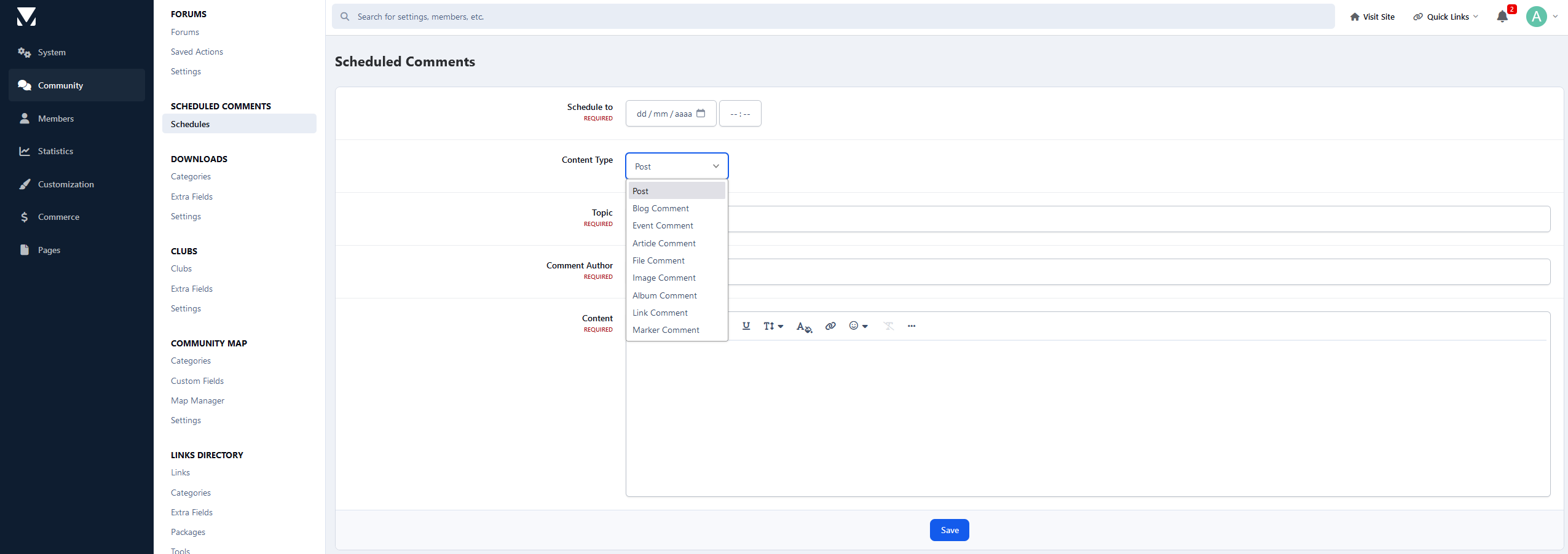
This application adds the ability to schedule comments for any content type within your board, such as posts in topics and comments in Downloads, Blogs, Pages, Gallery, Events, and in all 3rd-party apps that support Comment systems, like Tutorials, Videos Directory, Links Directory, Games, Movies, Music, Lyrics, Staff Applications System, Raffles System, Quizzes, and several others.
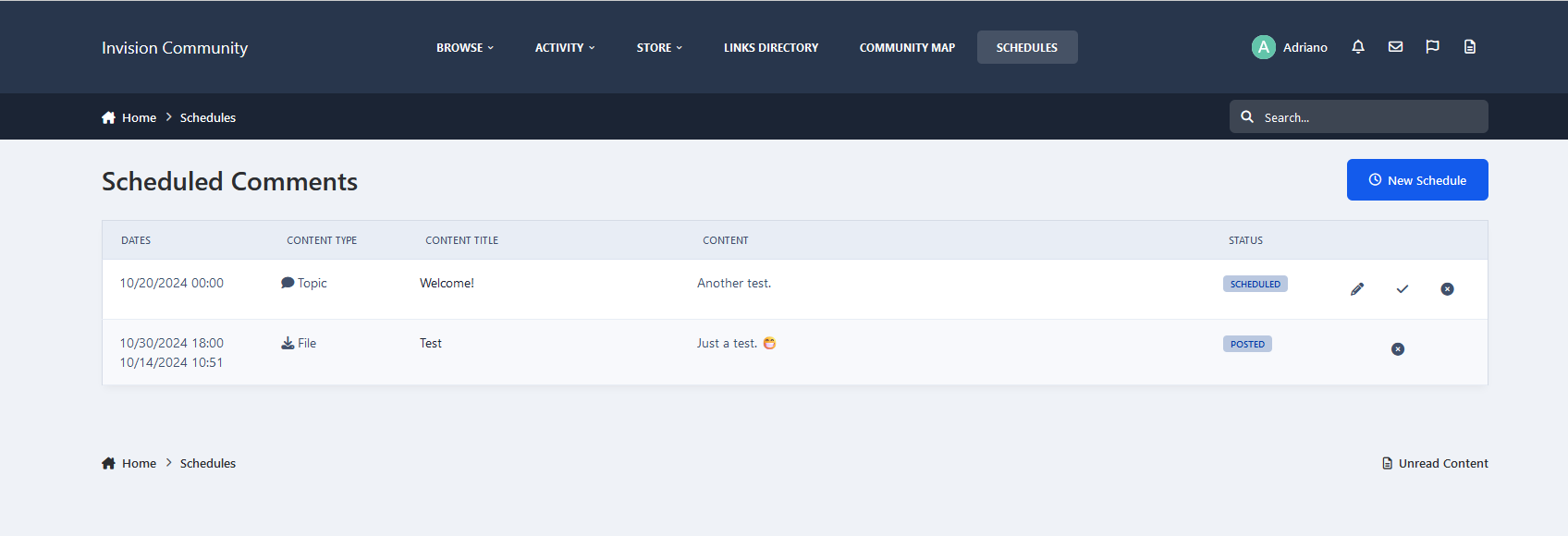
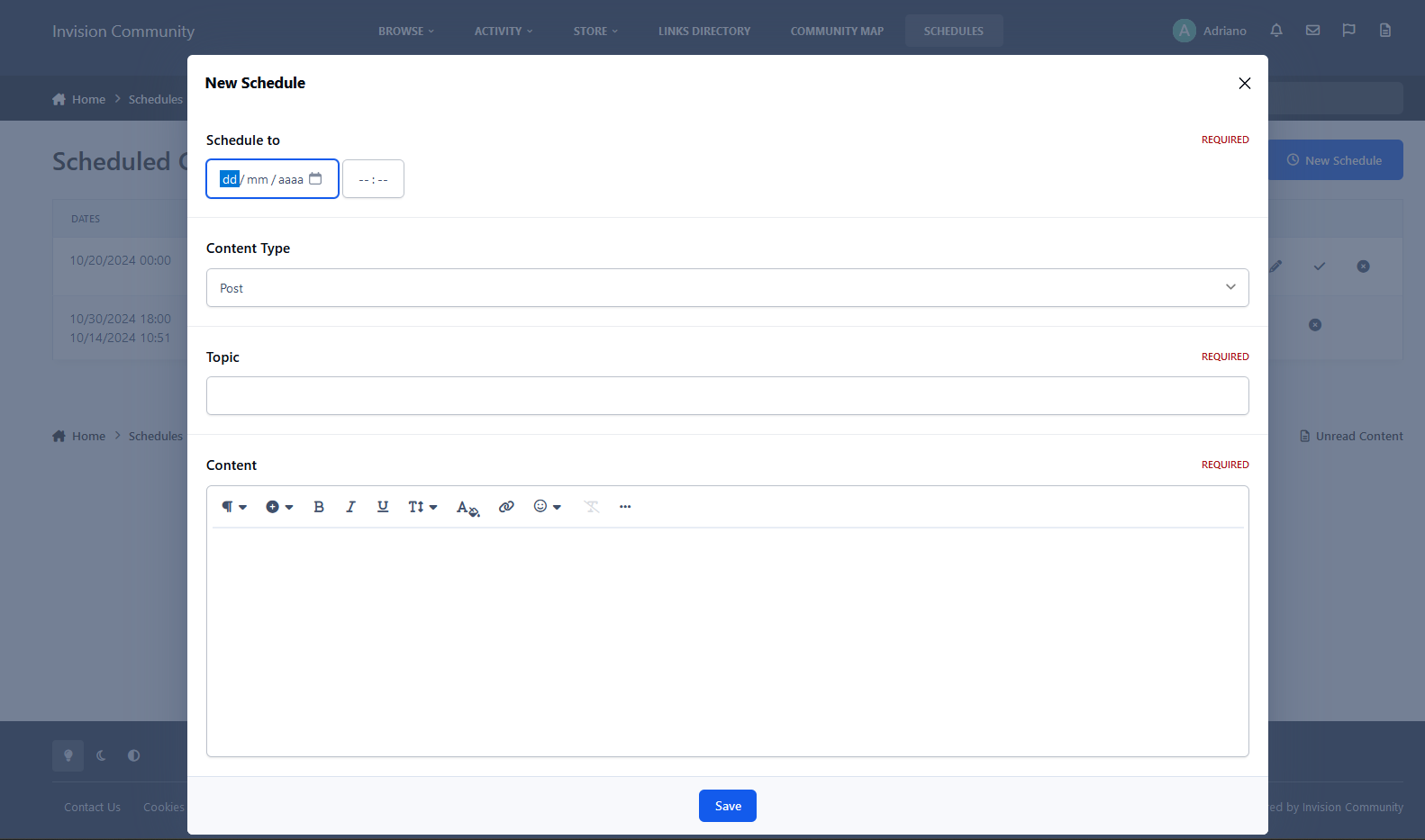
Admin CP & Front End: You can choose the content item, type the comment content, and a date/time to post the comment. You can also change the schedule status to PAUSED, which means it won’t be posted while paused.
Admin CP: Beyond that, you can choose who will be the comment author and if you want to post it anonymously.
Front End: If you’re a user with permission to use the application (a moderator with proper permission or a user from chosen groups by the admin), you will be the content author. You can, however, choose if the comment will be posted anonymously if you have permission to do so.
Setting up a cron job is highly recommended to make sure the comment will be posted at the desired time.
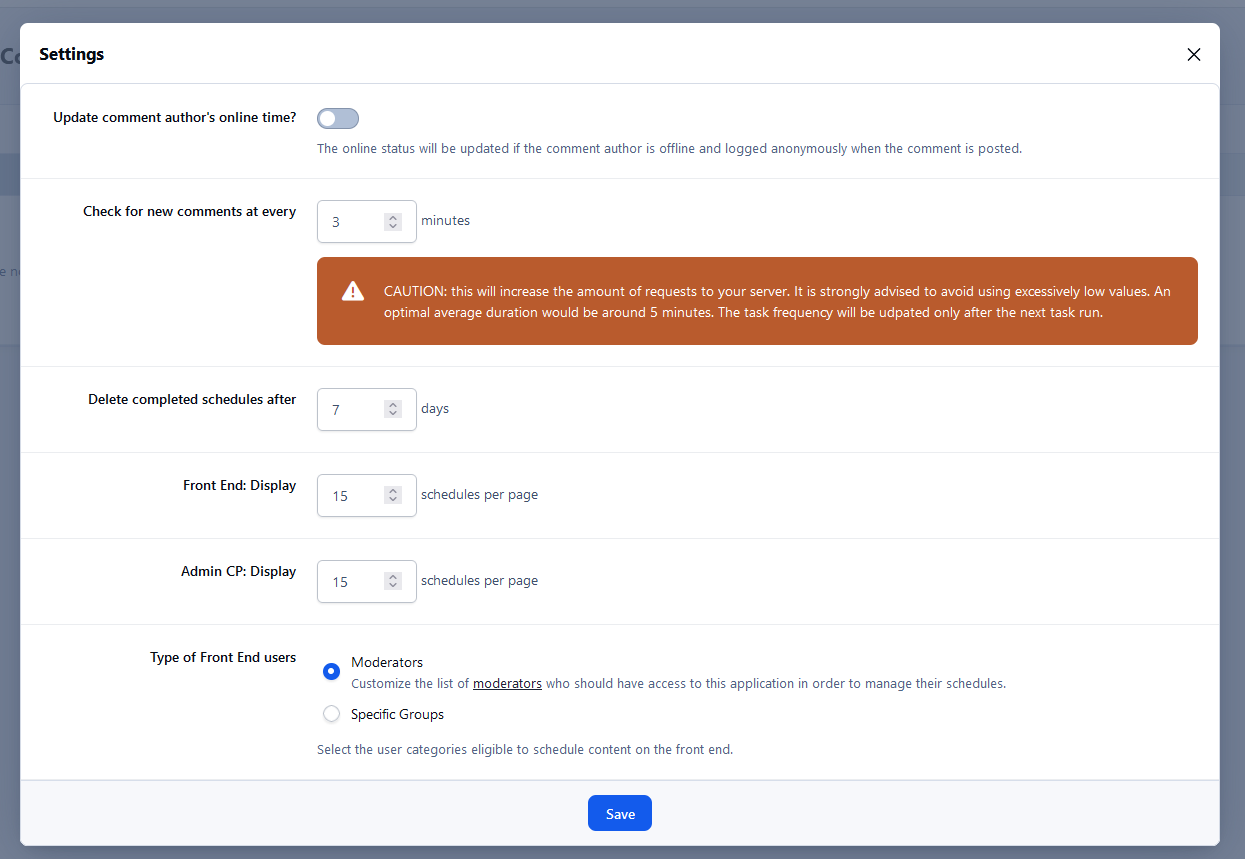
Settings:
Task frequency (in minutes)
Number of days to delete completed schedules
Number of scheduled records to be displayed on ACP and in the front end
Type of user to use the schedule system: moderators or specific user groups
Create an account or sign in to leave a review
There are no reviews to display.