Invision Community 4
- Category Member Tools
- Downloads 51
- Compatibility IC4: 4.7.x
- App Version 1.0.6
- Updated

Overview
Task Manager for Invision Community. Allows users with access to create boards, columns, and task cards. You can change the status of tasks, as well as assign them to specific users, who will receive a notification after assignment and more.Description
Boards
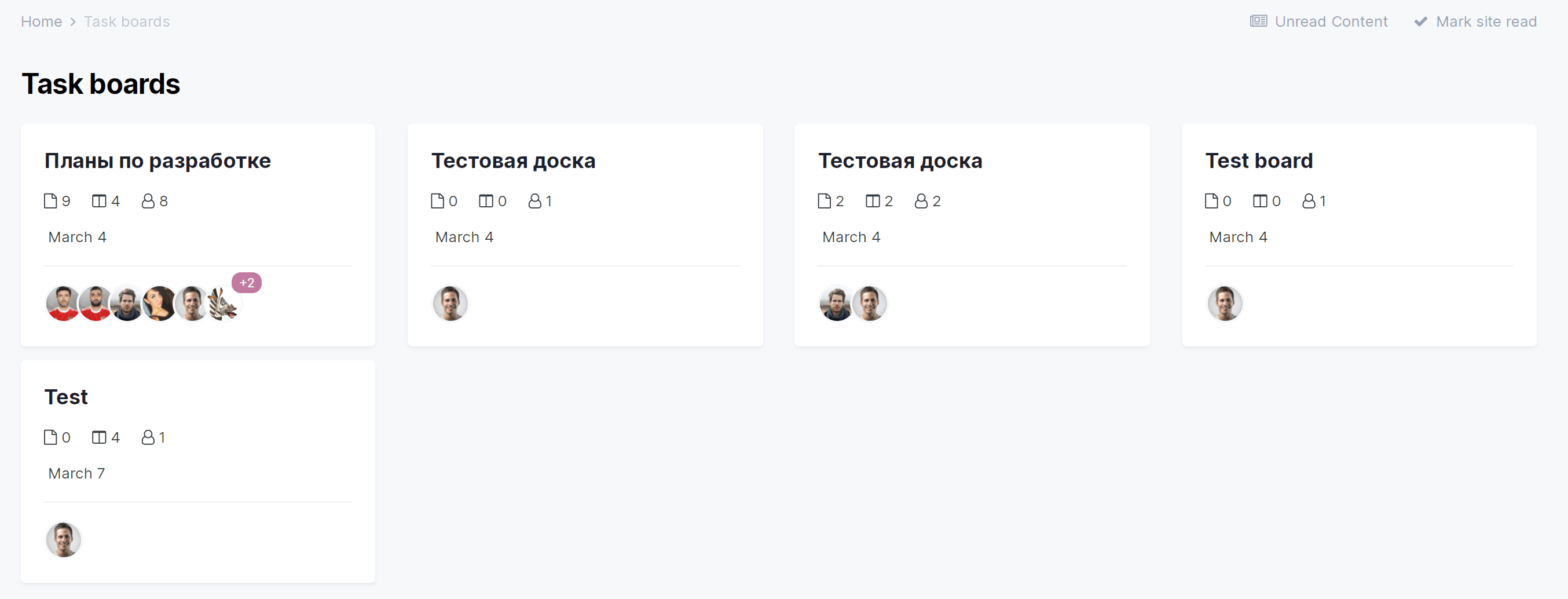
In the ACP, you can create an unlimited number of task boards.
Each board can have its own description.
The board card contains information on how many columns, tasks and editors it contains.
The board has an activity section where all user actions are recorded.
Columns
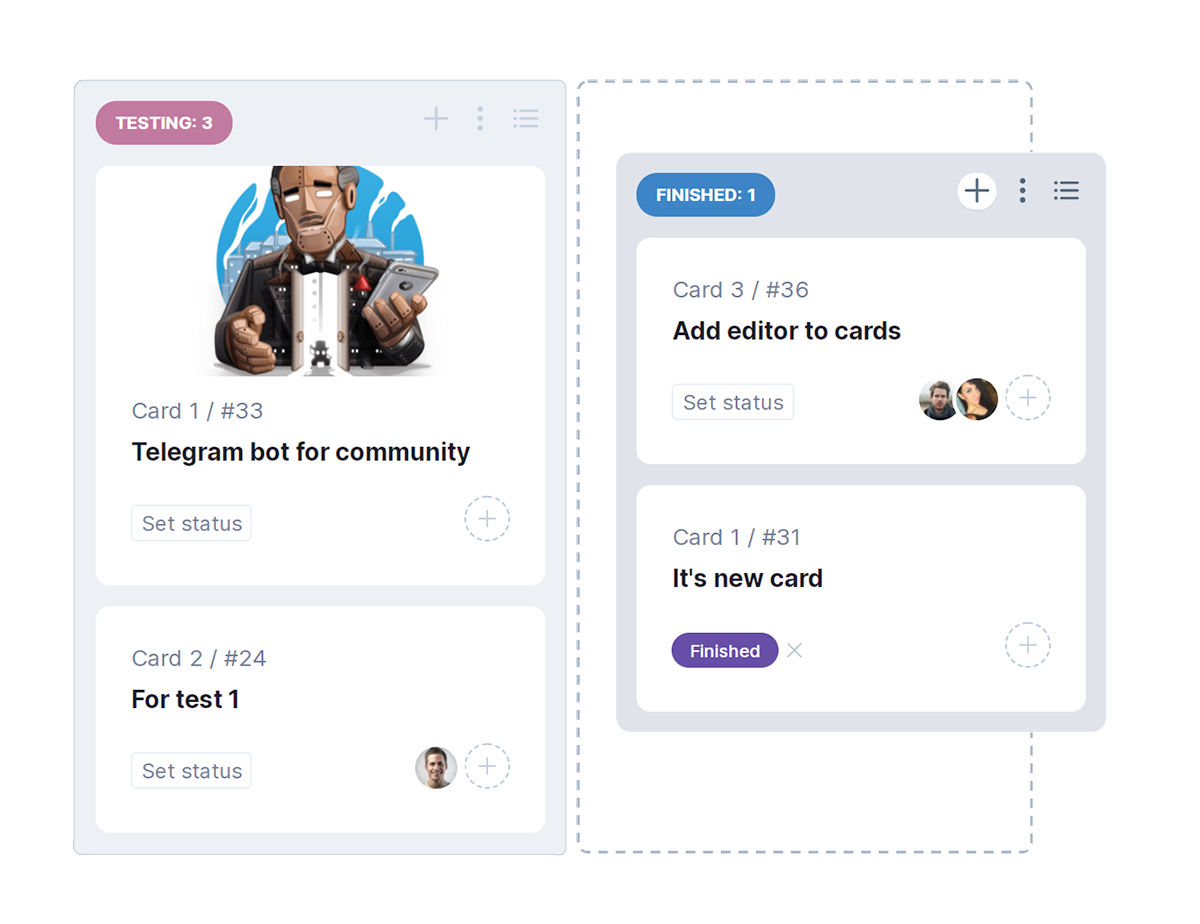
Columns of tasks exist in a specific board and contain cards (tasks).
Each column has its own name and highlight color.
Columns can be swapped on the fly using Drag-and-drop technology.
Columns can only be created by board editors, and you can add an unlimited number of them.
Task cards
The card has its own name, description, background color and cover.
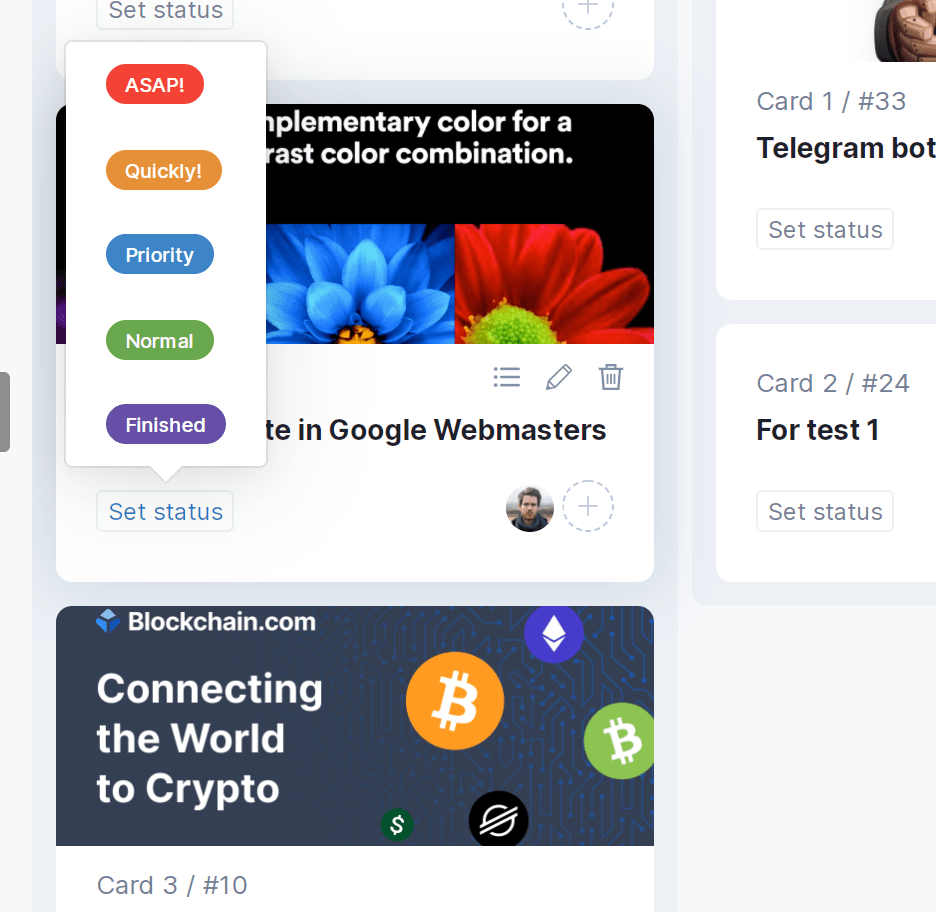
Cards can be swapped on the fly using Drag-and-drop technology, as well as transferred between columns.
Cards (tasks) can be assigned to other users.
After assigning a task, the user will receive a notification. He will also be able to change the status of the card.
Create an account or sign in to leave a review
There are no reviews to display.