Jump to content
View in the app

A better way to browse. Learn more.

Invision Marketplace

A full-screen app on your home screen with push notifications, badges and more.

To install this app on iOS and iPadOS
  1. Tap the Share icon in Safari
  2. Scroll the menu and tap Add to Home Screen.
  3. Tap Add in the top-right corner.
To install this app on Android
  1. Tap the 3-dot menu (⋮) in the top-right corner of the browser.
  2. Tap Add to Home screen or Install app.
  3. Confirm by tapping Install.

Everything you need for your community

We will be moving to a new server soon, some downtime is expected.

Everything you need for your community

Invision Community 5
Invision Community 4
  • Category Member Tools
  • Downloads 40
  • Compatibility IC5: 5.0.0+ IC4: 4.6.0+
  • Updated
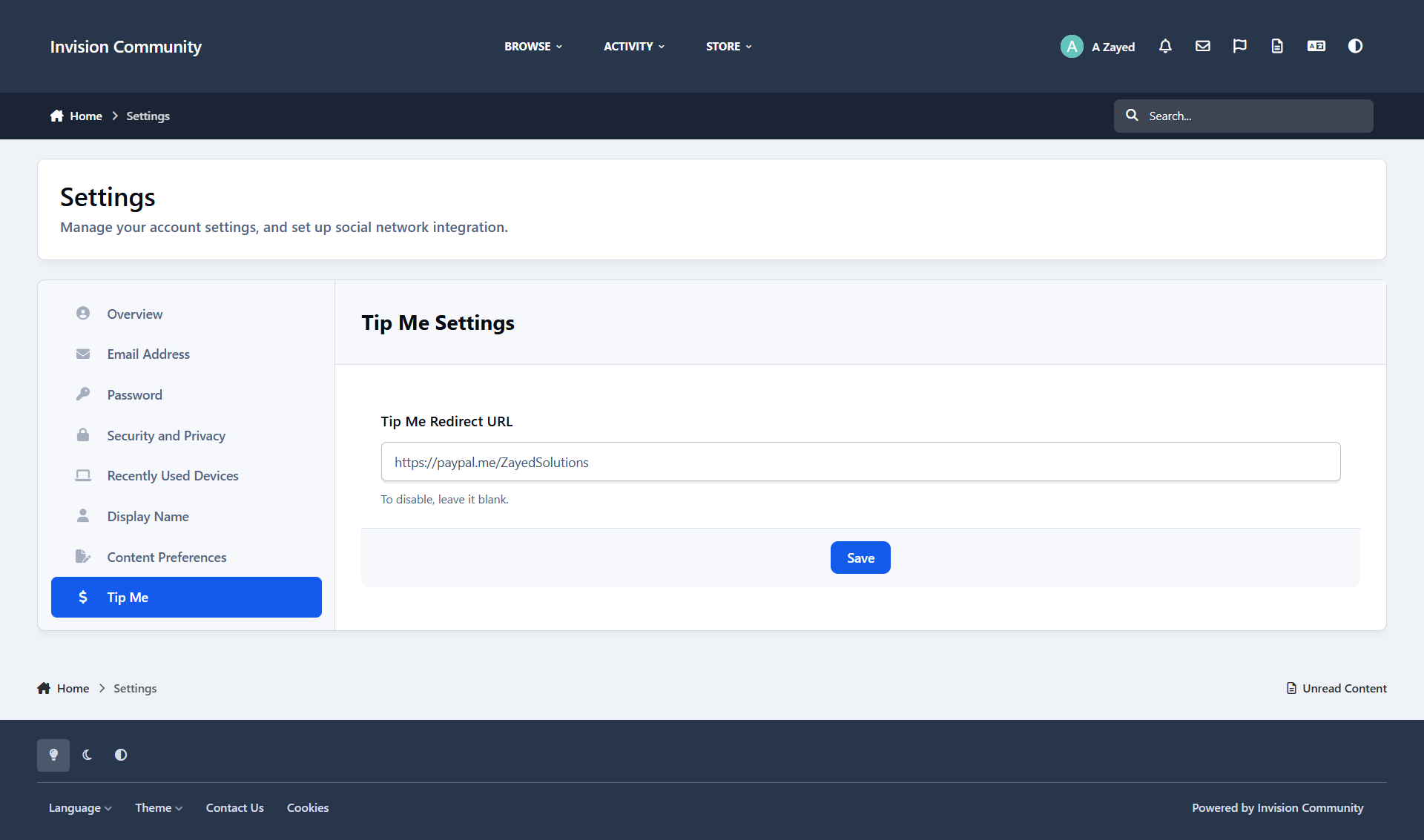
Flexible tipping and tip-jar management with full visibility and click tracking.

Overview

Flexible tipping and tip-jar management with full visibility and click tracking.

Description

Enable secure, customizable tipping across your community.
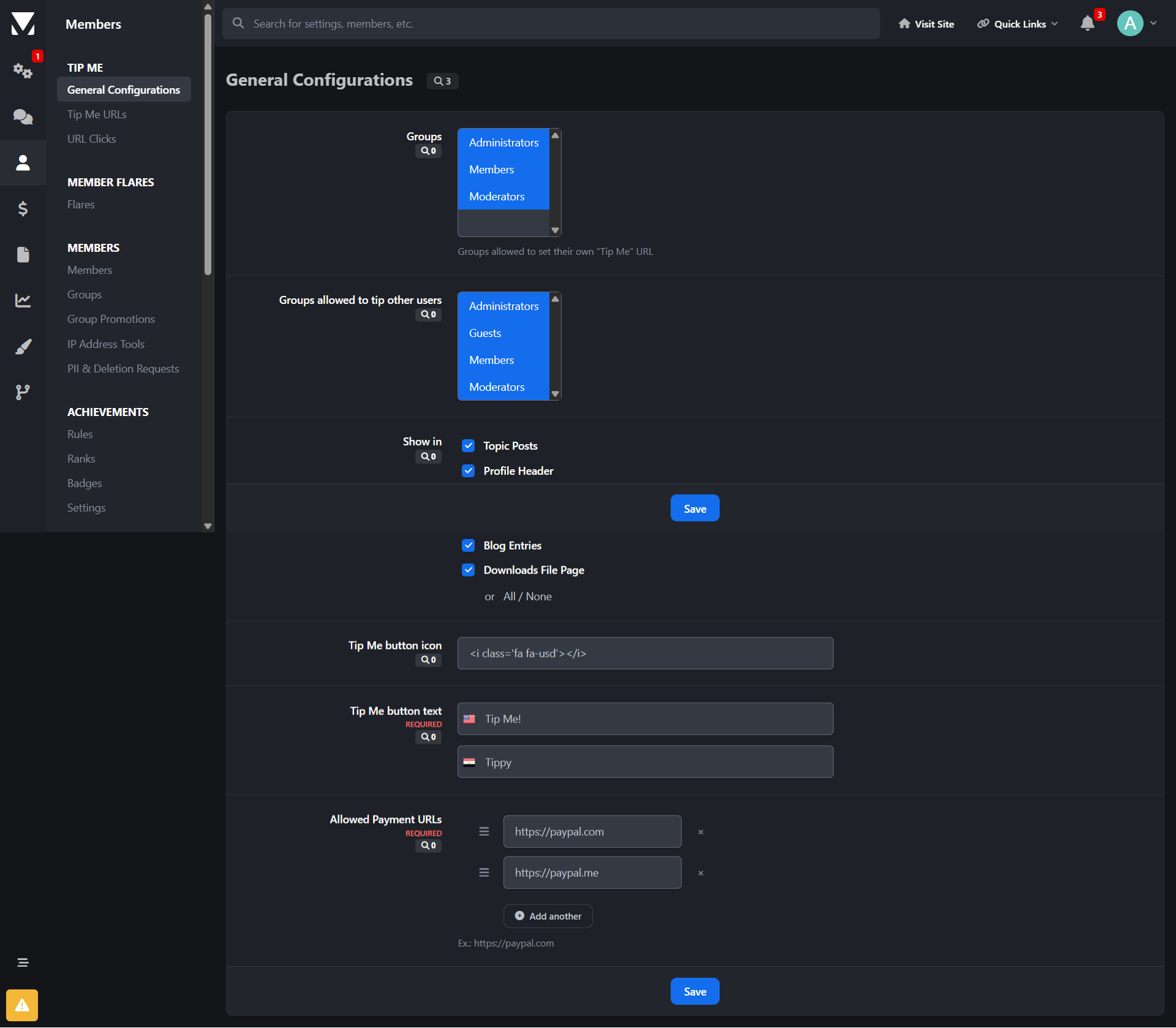
This app allows administrators to control which user groups can set their own tip-jar URLs or tip other users, customize tip button text, and define supported payment services.

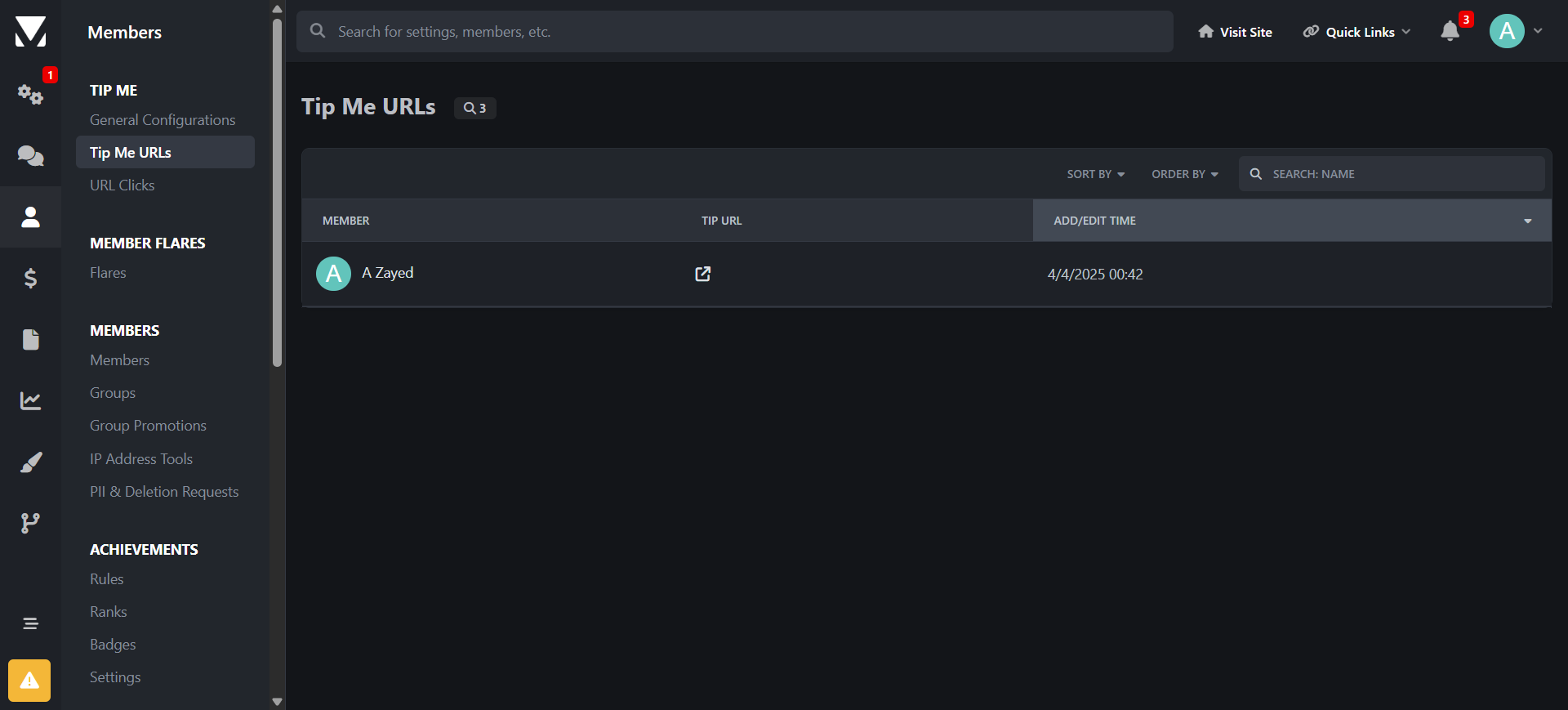
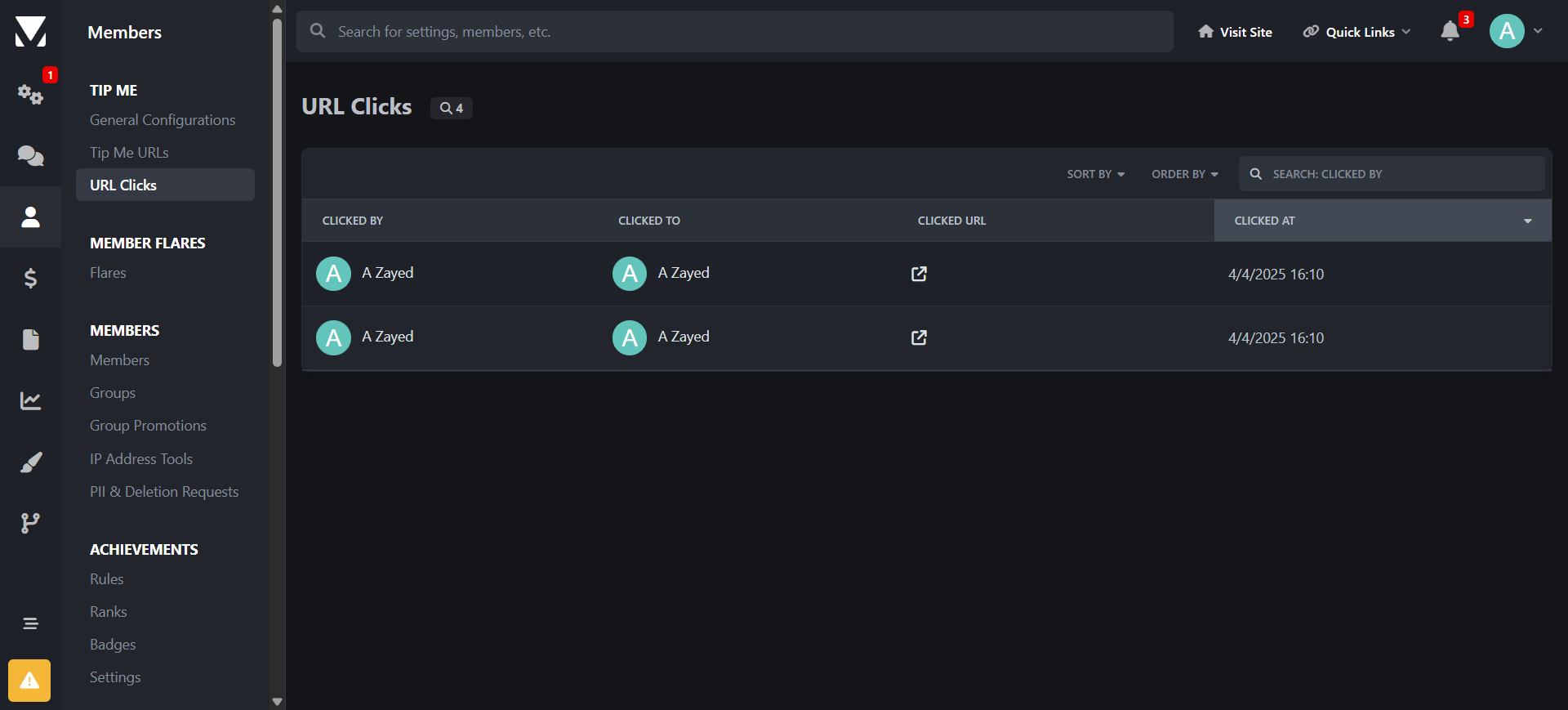
Admins can view all user-defined URLs in one place, track every tip-related click from a centralized page, and monitor engagement across the platform.

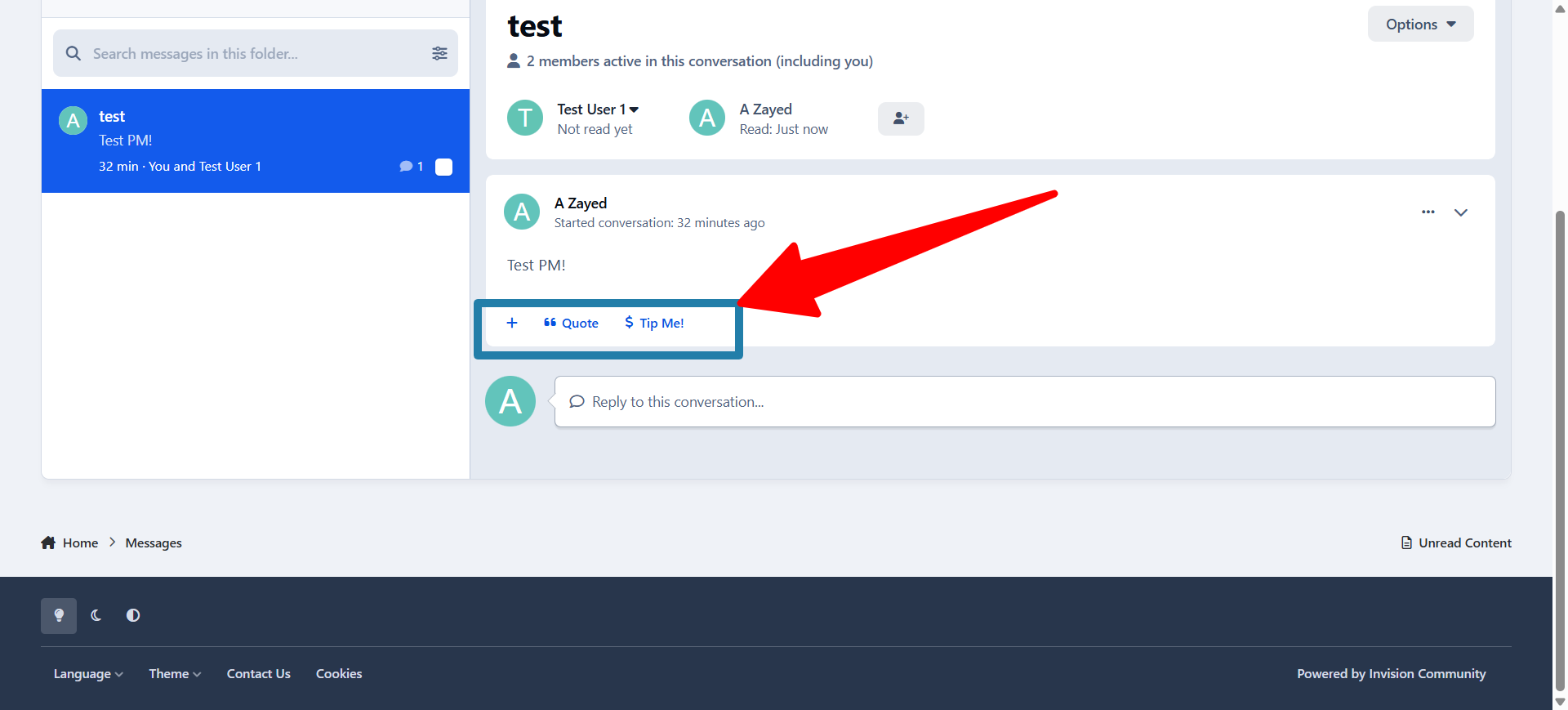
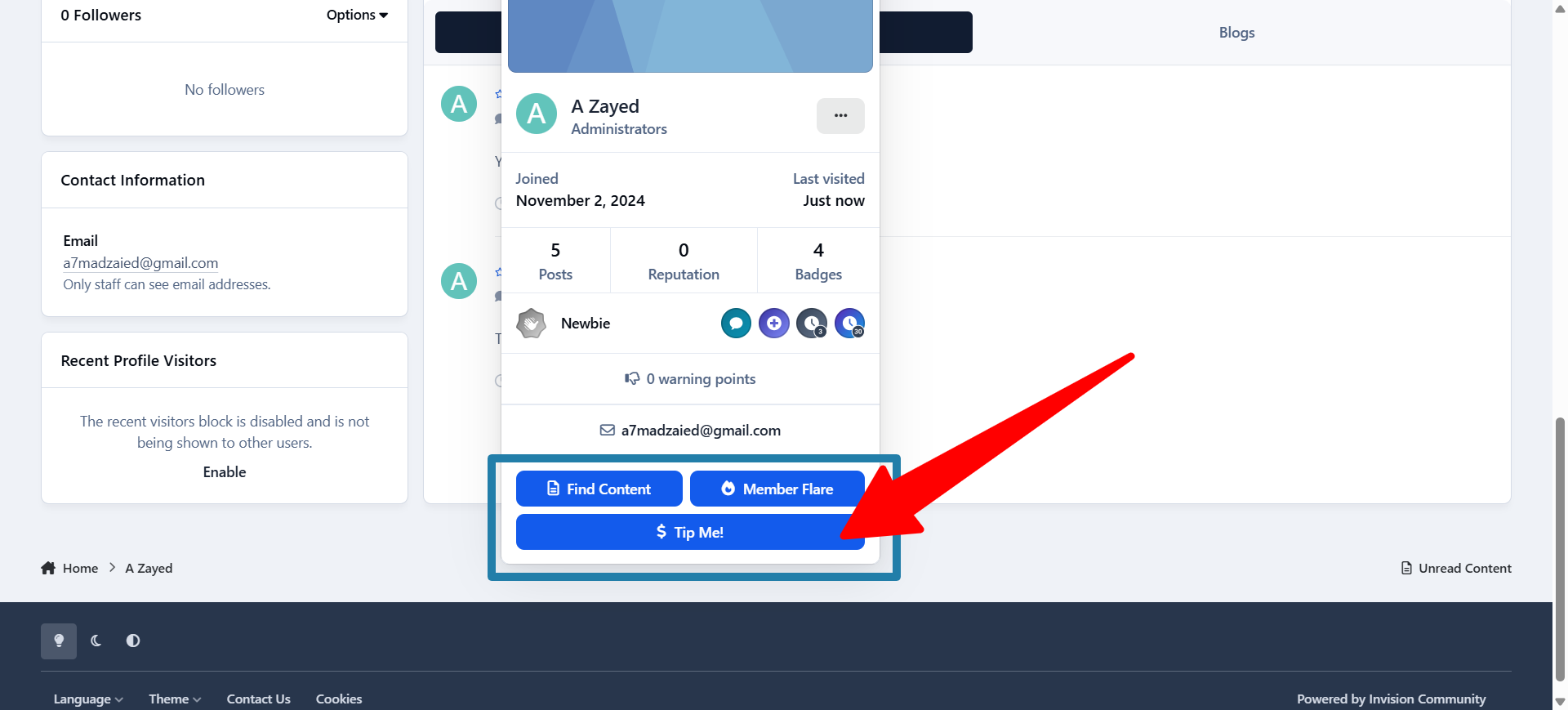
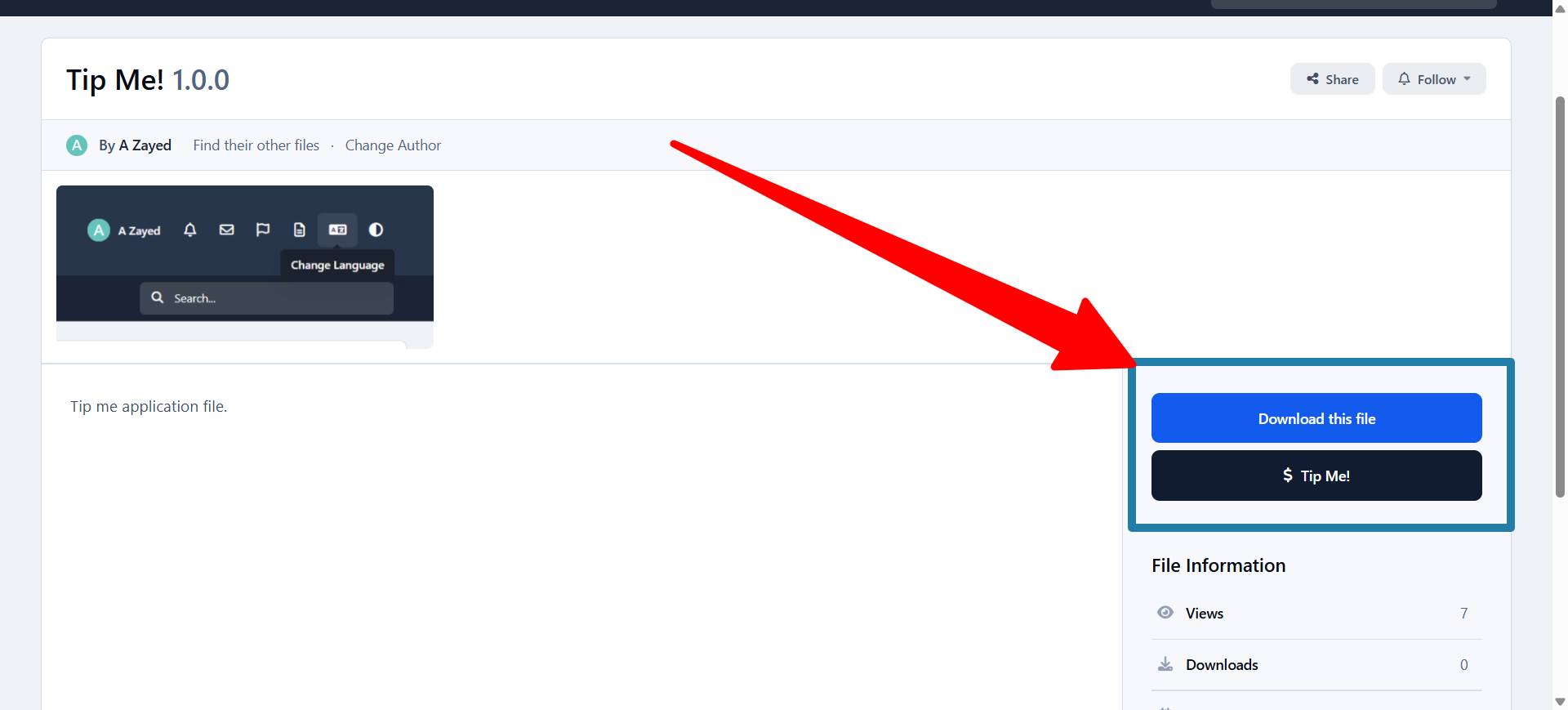
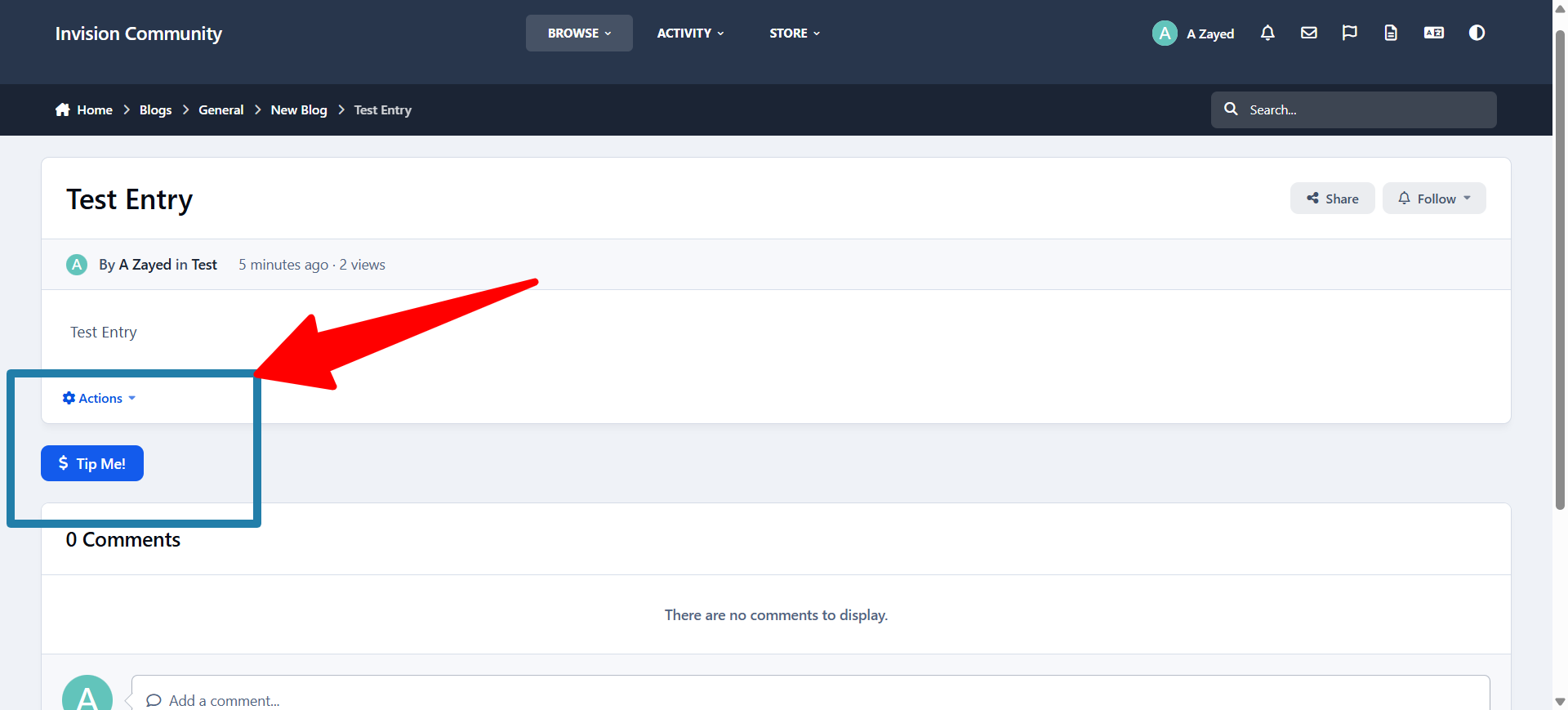
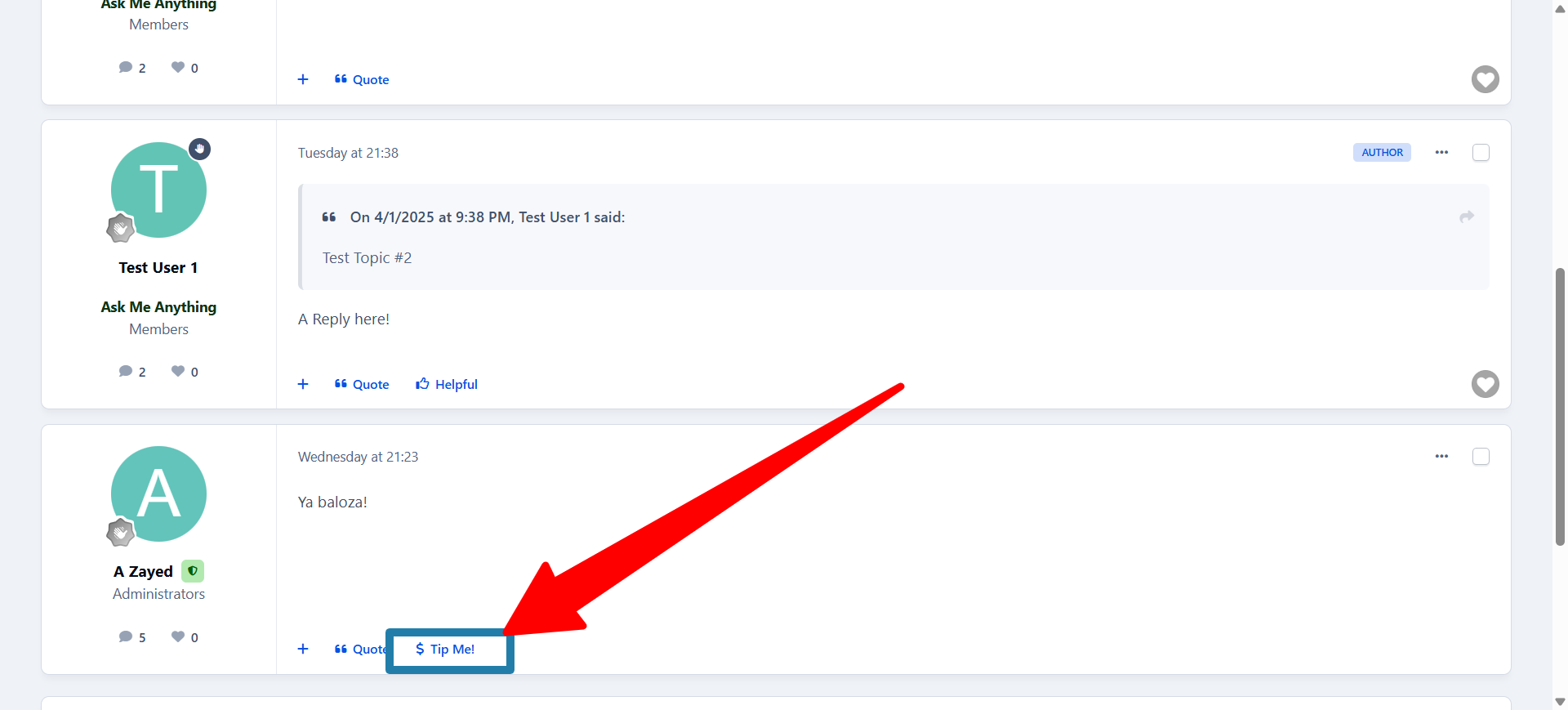
Tipping is supported throughout forum topics, blog entries, profile pages, hovercards, messenger messages, and downloadable files, ensuring seamless monetization wherever users interact.


Features

  • Role-based tipping permissions

  • Custom tip button text

  • Multiple payment service support

  • Centralized URL management

  • Unified click tracking and analytics

  • Platform-wide tipping integration

User Feedback

Create an account or sign in to leave a review

There are no reviews to display.

Configure browser push notifications

Chrome (Android)
  1. Tap the lock icon next to the address bar.
  2. Tap Permissions → Notifications.
  3. Adjust your preference.
Chrome (Desktop)
  1. Click the padlock icon in the address bar.
  2. Select Site settings.
  3. Find Notifications and adjust your preference.