[ChatPro] Voice Rooms
Invision Community 5
- Category Social Networks
- Downloads 50
- Compatibility IC5: 5.0.0+
- App Version 5.1.0
- Updated
Overview
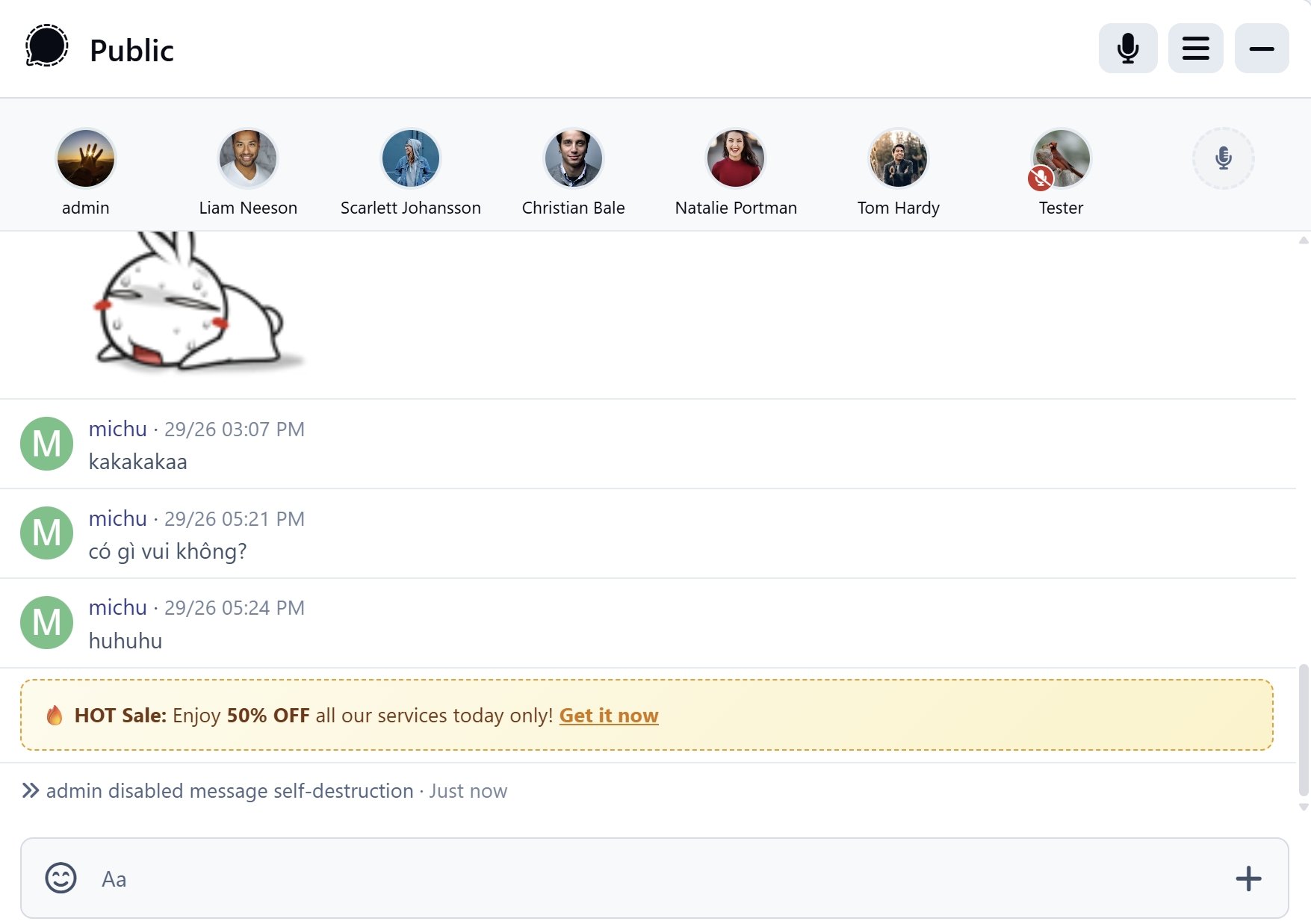
Voice Rooms for ChatPro brings real-time, Clubhouse-style interactive audio spaces directly into your chat rooms. It enables members to connect, request speaker seats on a virtual stage, and engage in crystal-clear live voice discussions seamlessly.Description
Voice Rooms for ChatPro brings real-time, Clubhouse-style interactive audio spaces directly into your chat rooms. It enables members to connect, request speaker seats on a virtual stage, and engage in crystal-clear live voice discussions seamlessly.
Key Features:
Built on top of the modern LiveKit WebRTC framework, ensuring industry-grade, ultra-low latency, and high-performance audio communication.
Supports up to 8 dedicated speaker seats for active presenters, with intuitive empty seat claiming indicators.
Real-time Speaker Highlighting: Dynamic visual glow effects that highlight who is speaking for natural, fluid conversations.
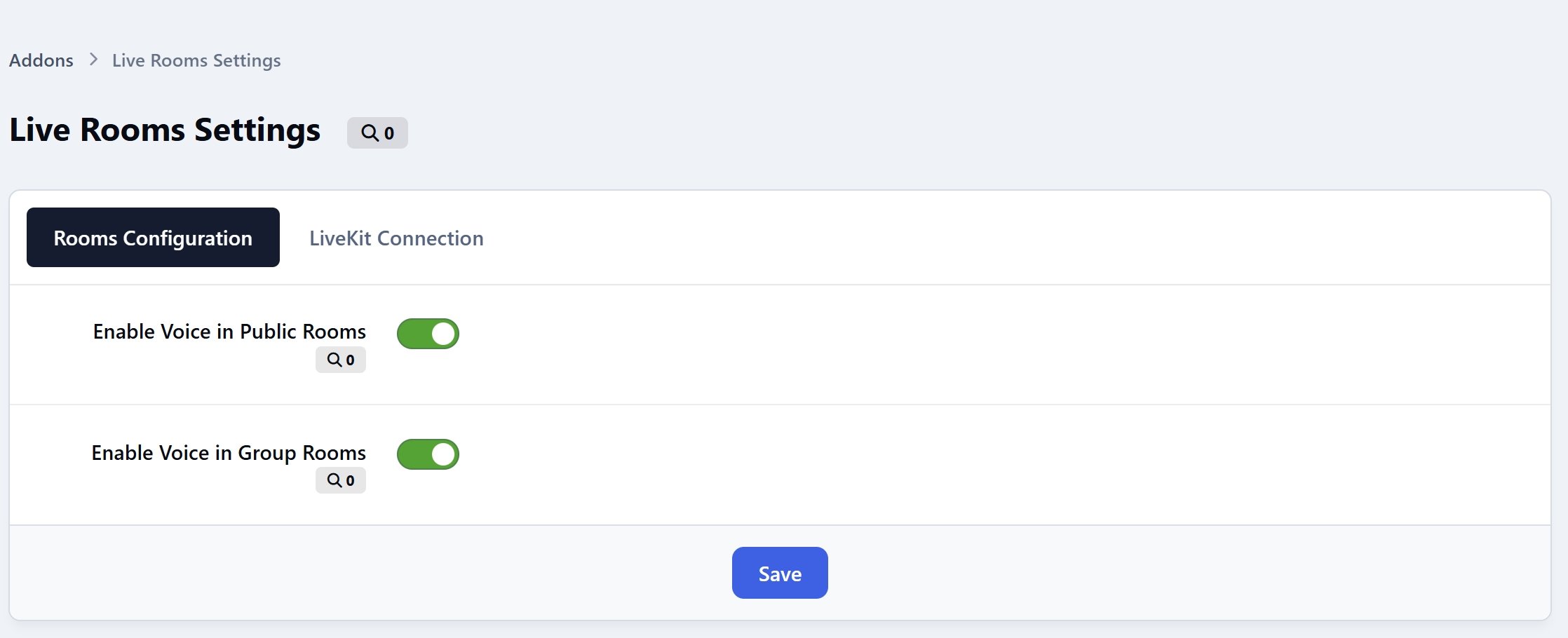
Empower room owners and moderators to manage the stage by muting individuals, kicking users from seats, or toggling the stage on and off.
Perfect for hosting live podcasts, interactive Q&A sessions, community meetups, or gaming voice chats right inside your platform.
There are no reviews to display.