Invision Community 5
- Category Social Networks
- Downloads 40
- Compatibility IC5: 5.0.0
- App Version 5.0.5
- Updated
Overview
Live Activity is a live activity feed that broadcasts events across your entire website as they happen - bringing your community to life and boosting engagement instantly.Description
Live Activity is a live activity feed that broadcasts events across your entire website as they happen - bringing your community to life and boosting engagement instantly.
🚀 Key Features
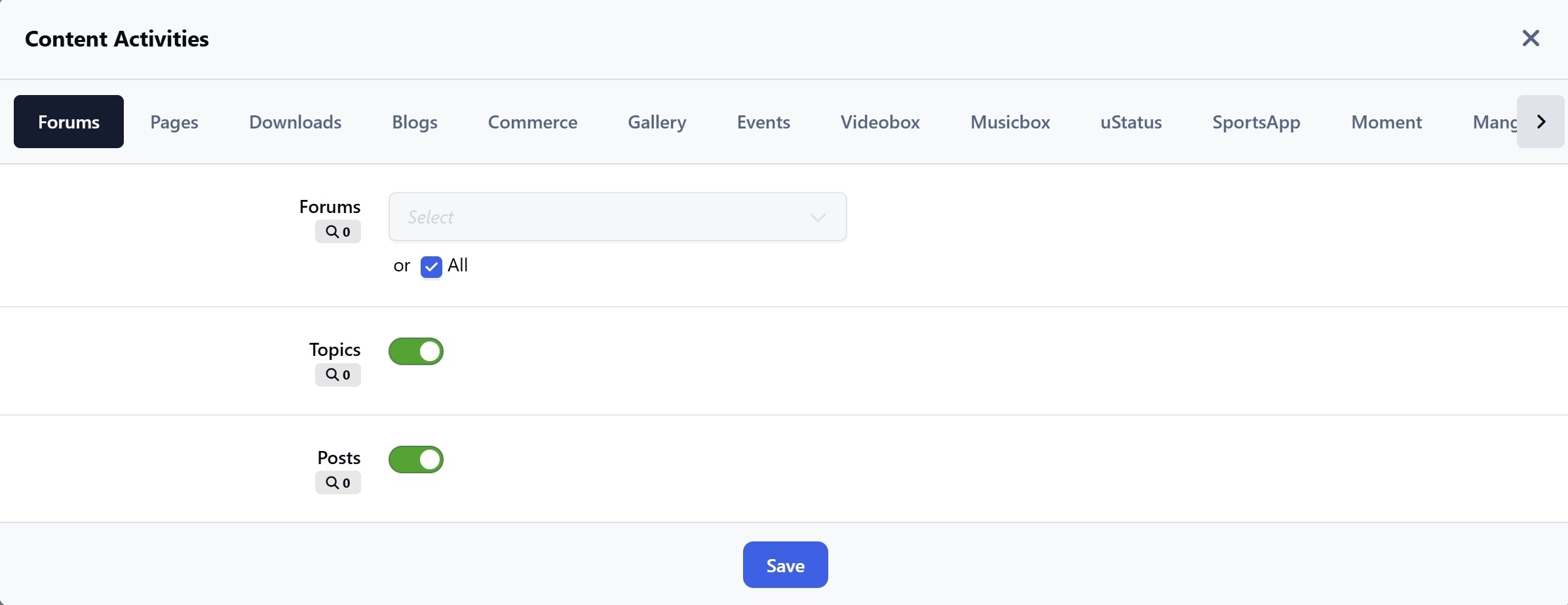
Flexible Event Types (fully customizable per application)
New content: posts, comments, reviews
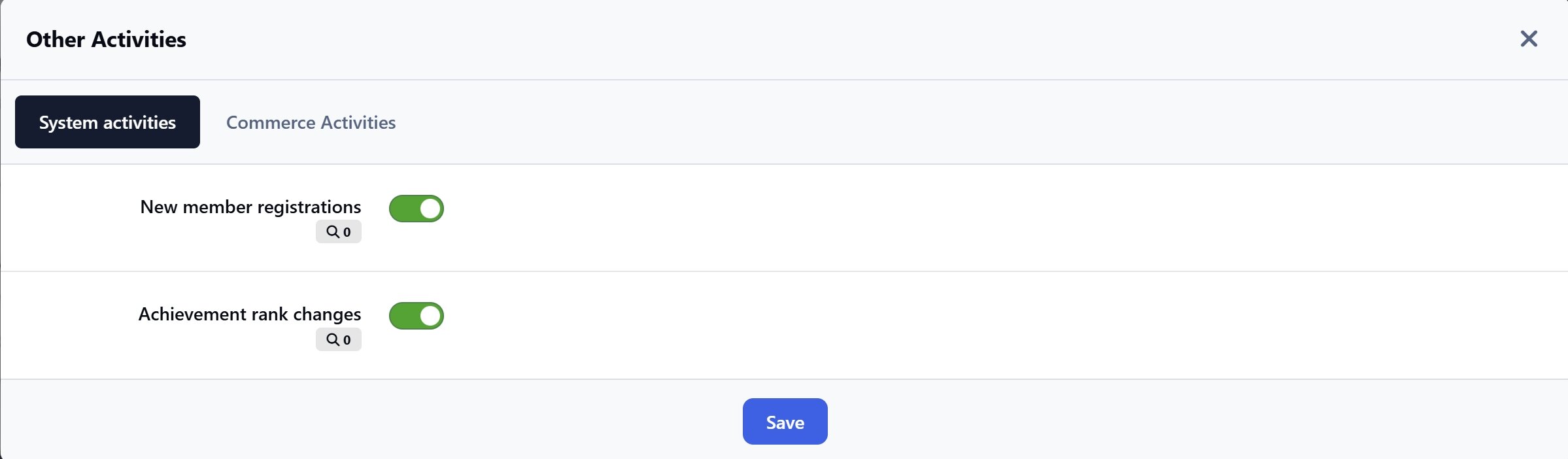
New member registrations
New rank achievements
New club creations
New club memberships
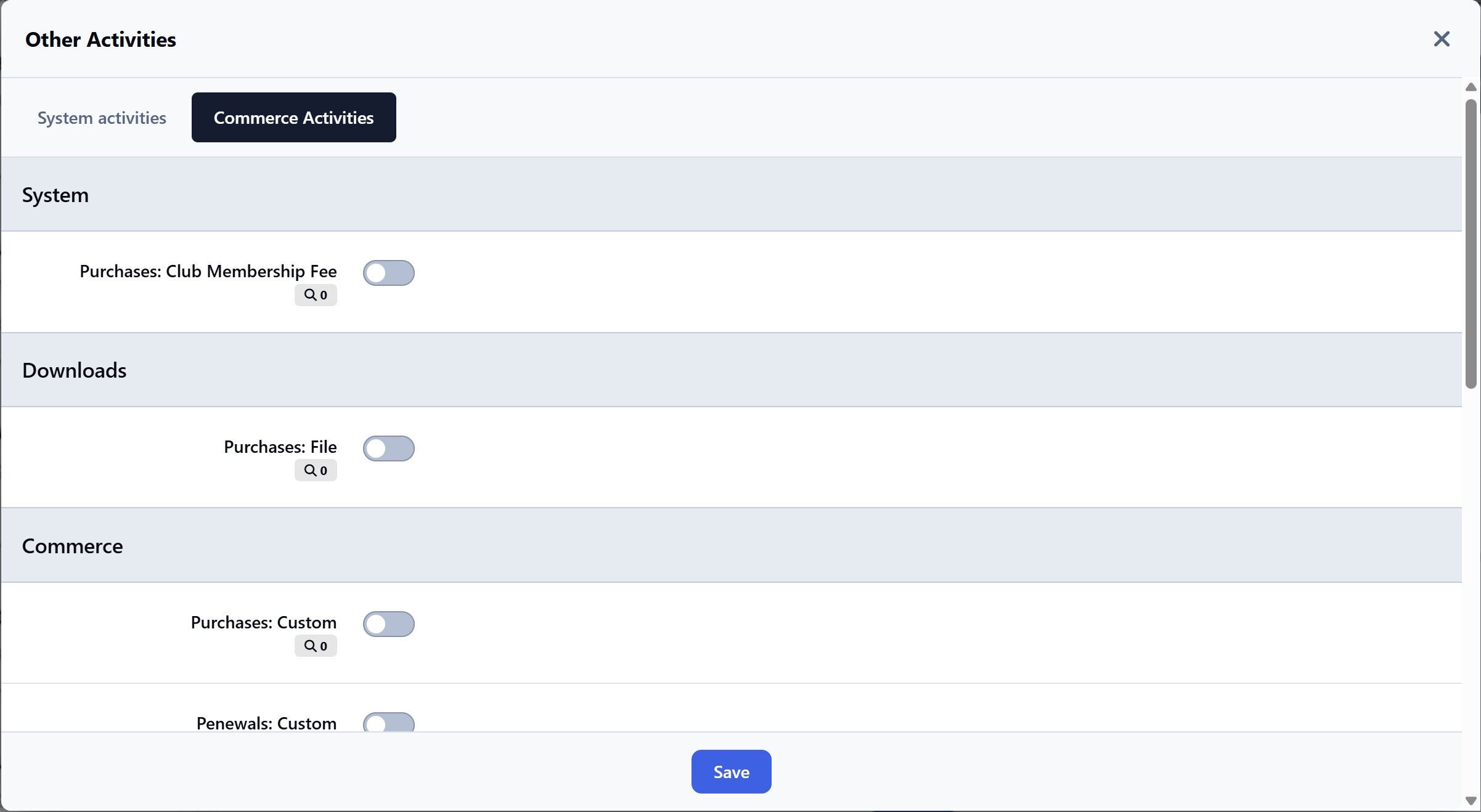
New purchases (supports Nexus-integrated applications)
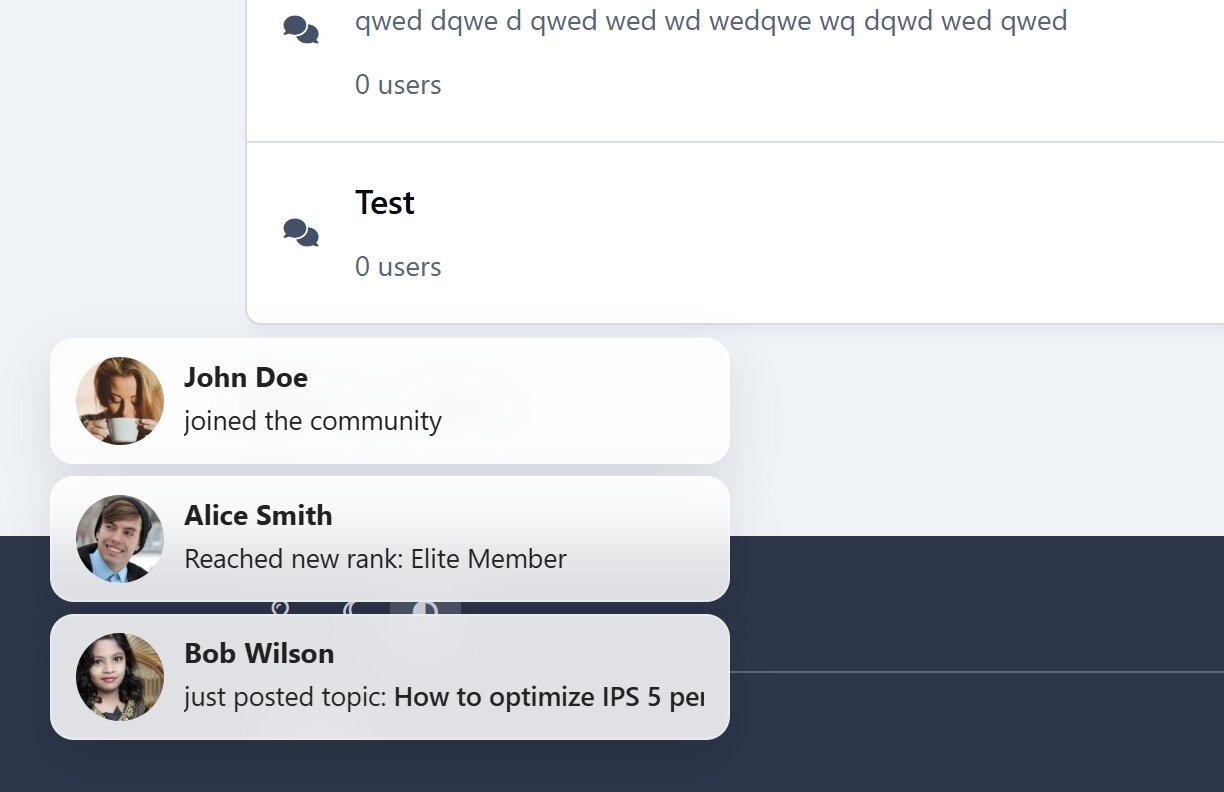
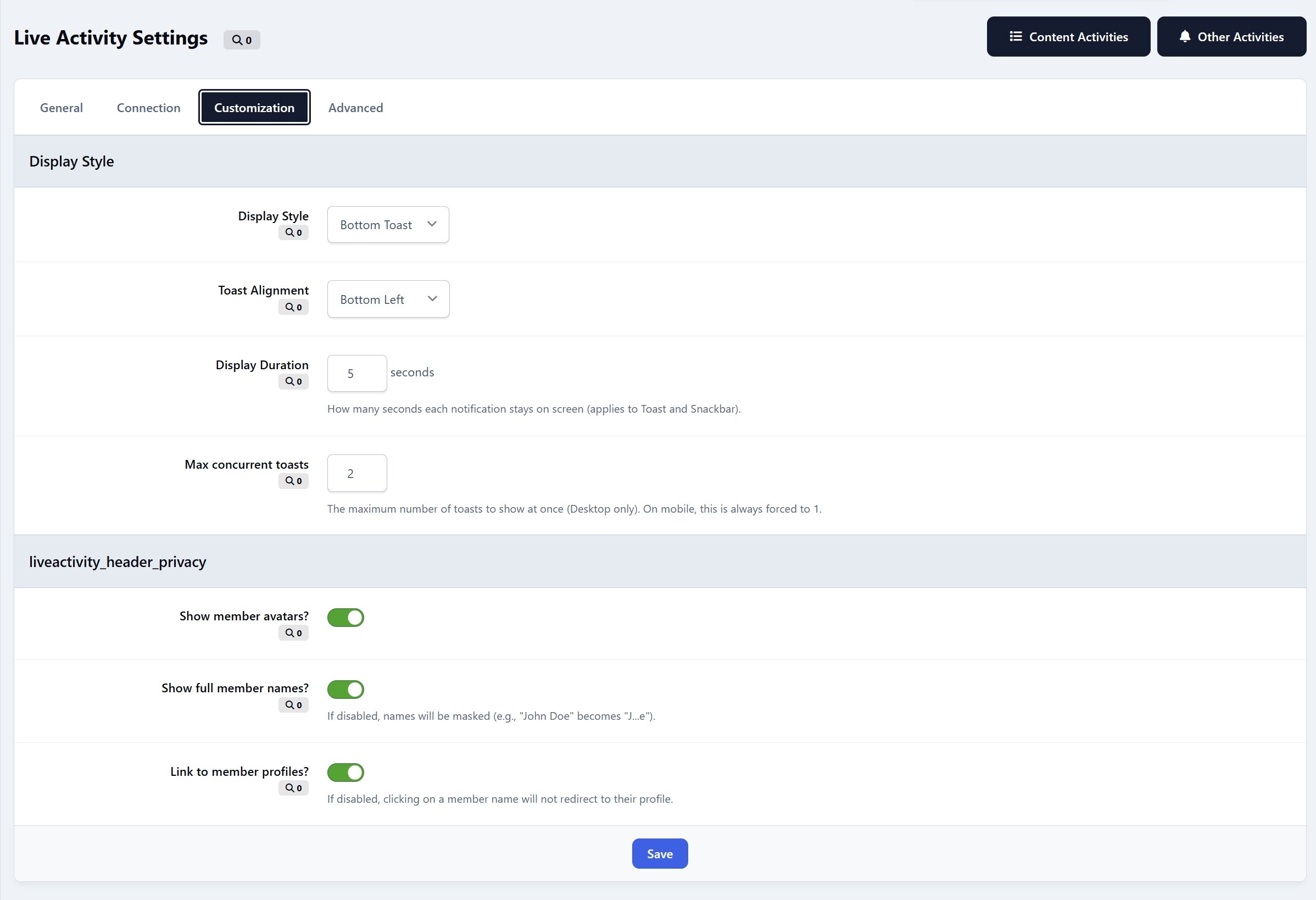
Versatile Notification Styles
Top Ticker with two modes: Marquee or Slide Down
Bottom Toast with adjustable left/right positioning
Customizable elements: show/hide avatar, username, and profile link
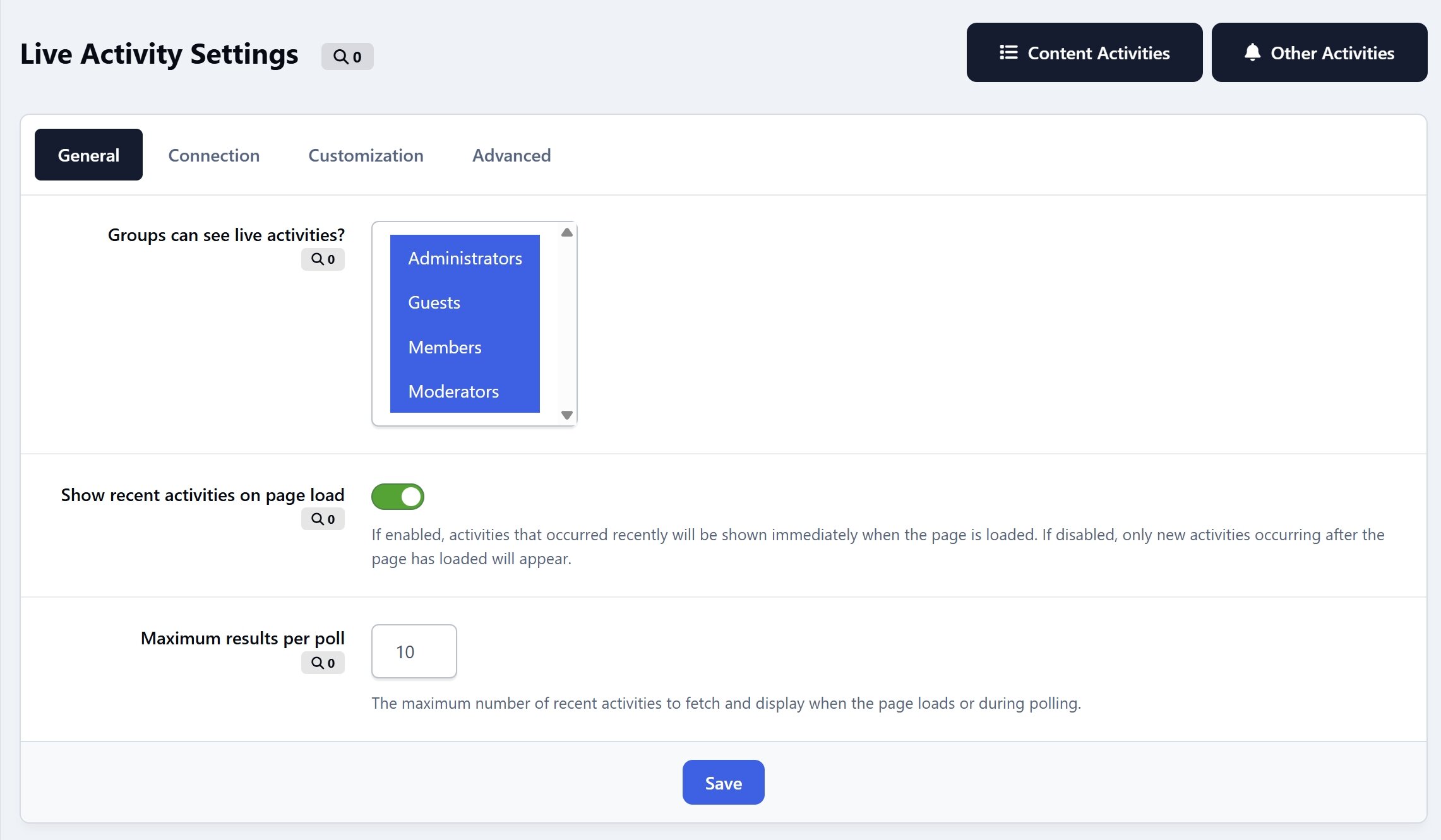
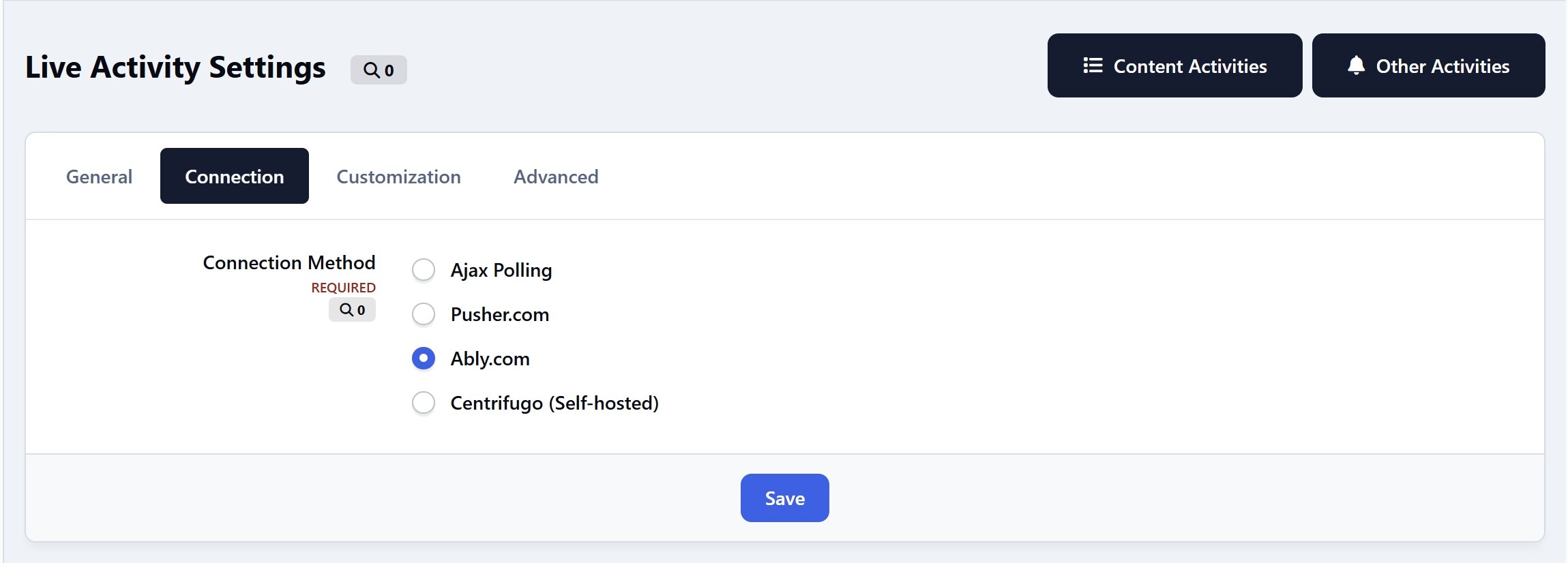
Connection Methods
Ajax polling every X seconds (default, works out of the box)
Optional real-time support via RTHub (Pusher/Ably/Centrifugo integration for instant updates)
Optimized for a smooth and seamless experience across both desktop and mobile devices.
-
 3
3
Create an account or sign in to leave a review
There are no reviews to display.