Extra Recent Acount Activity
Invision Community 5
- Category Admin & Mod Tools
- Downloads 36
- Compatibility IC5: 5.0.0
- Updated
Overview
Adds 6 new actions to members recent activity block.Description
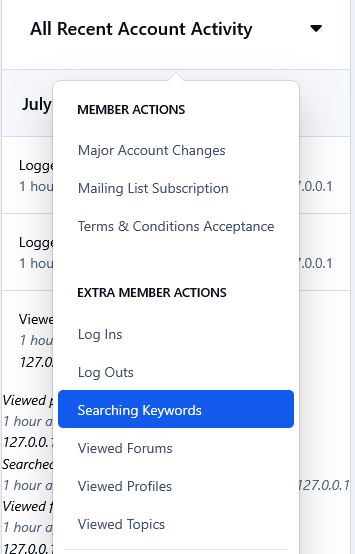
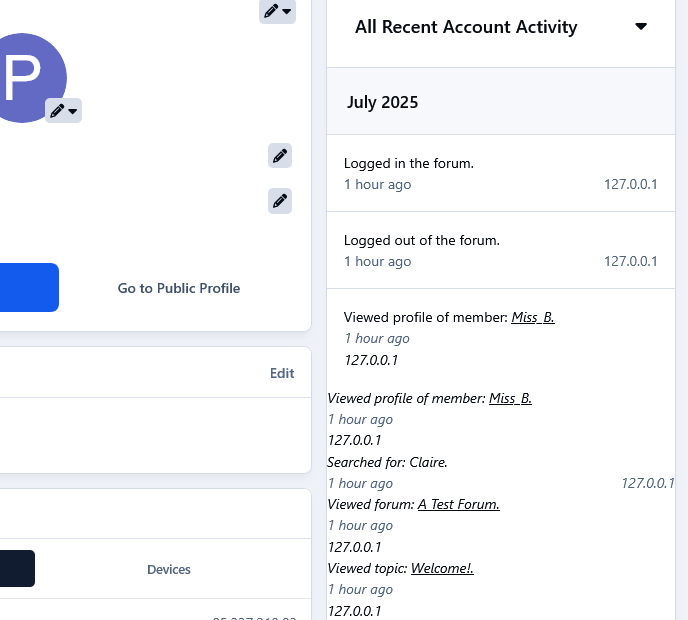
This app will log 6 extra actions of your members and it will display them in their All Recent Account Activity block when viewing a member at the Admin Panel. The extra actions are as follow.
1. Searching Keywords
Whenever a member will search for something in your forum, the keyword/phrase will be logged and displayed on their recent account activity. This can come in handy imo, as it will show you what your members are looking for, so you can make adjustments/changes accordingly to attract more members and get better results.
2) Profile Viewing
Whenever a member will view someone 's profile.
3) Forum Viewing
Whenever a member will visit a forum.
4) Topic Viewing
Whenever a member will visit a topic.
5) Log In
Whenever a member logs in the forum.
6) Log Out
Whenever a member logs out of the forum.
Note:
All these extra actions mentioned above, will be logged and displayed on members history from the time that the app is installed.
Create an account or sign in to leave a review
There are no reviews to display.