Framework Explorer
- Category Admin & Mod Tools
- Downloads 33
- Compatibility IC5: 5.0.0+
- App Version 1.0.0
- Updated
Description
Developing IPS5 applications often requires navigating dozens of files to understand how classes, extensions, listeners, templates, language bits, settings, CSS, and database tables are connected. Framework Explorer is a developer productivity tool that provides a unified view of an IPS5 application directly from the AdminCP, making it easier to explore, navigate, and maintain your codebase.
Instead of manually searching through your application's files, you can quickly inspect its architecture, browse framework components, review inheritance, discover available methods, explore templates and stylesheets, inspect language bits and settings, and examine the application's database structure and data—all from a single interface.
Framework Explorer is designed for developers who are already familiar with the IPS framework and want to work more efficiently. Its goal is to simplify navigation and inspection of existing applications, not to teach IPS development or replace the official developer documentation.
- Ideal for:
IPS application developers
Marketplace authors
Maintaining existing applications
Exploring third-party applications
Understanding unfamiliar codebases
Developers already familiar with the IPS5 framework
- Features:
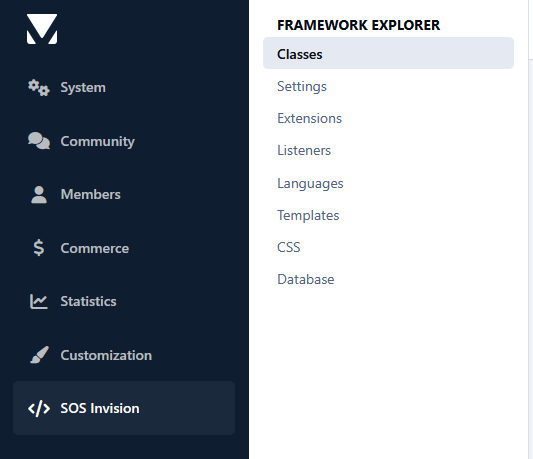
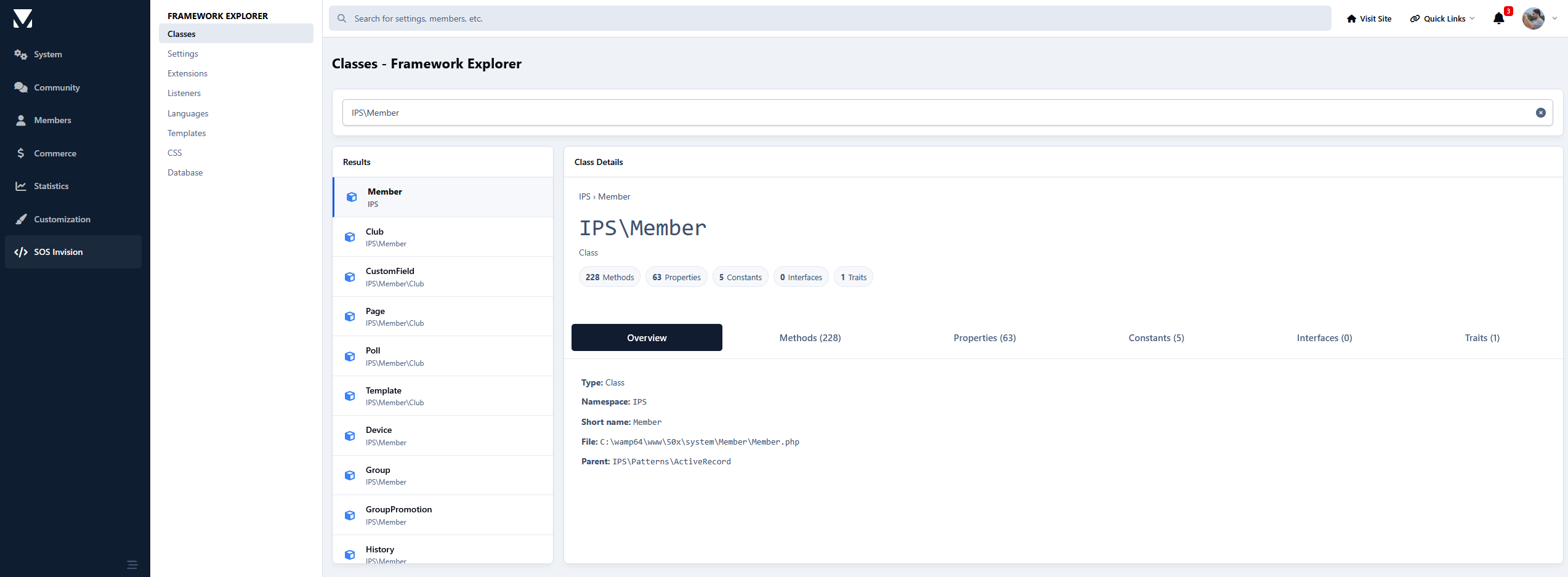
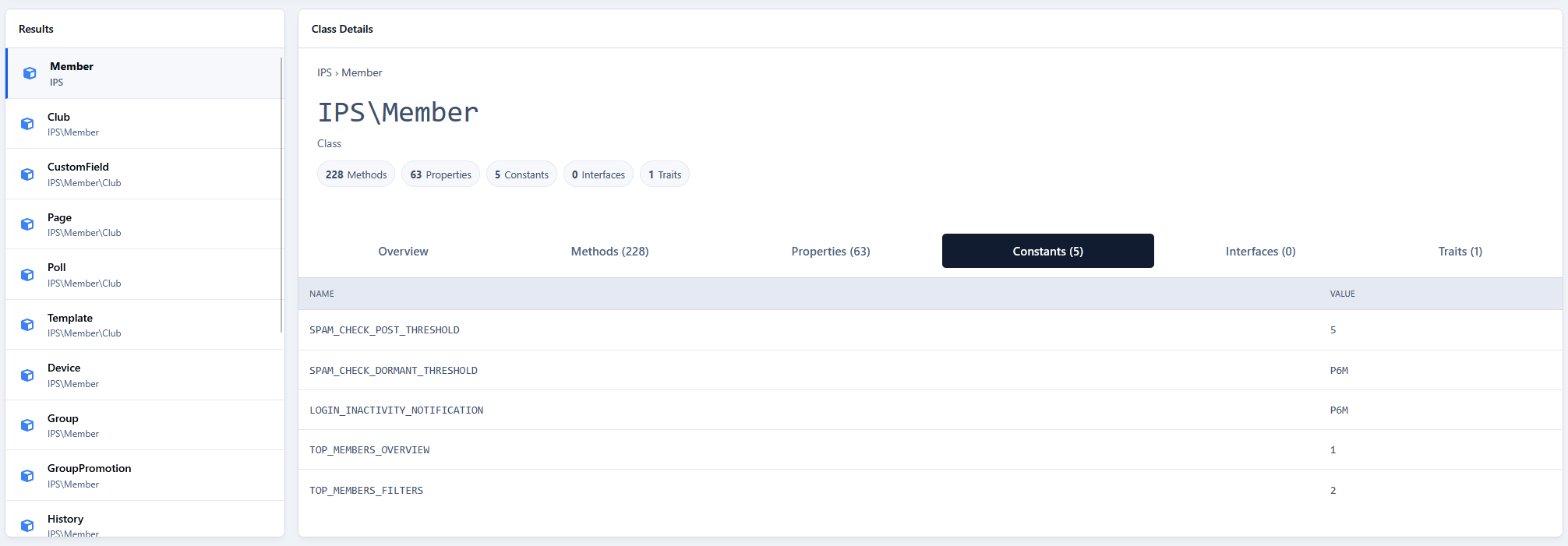
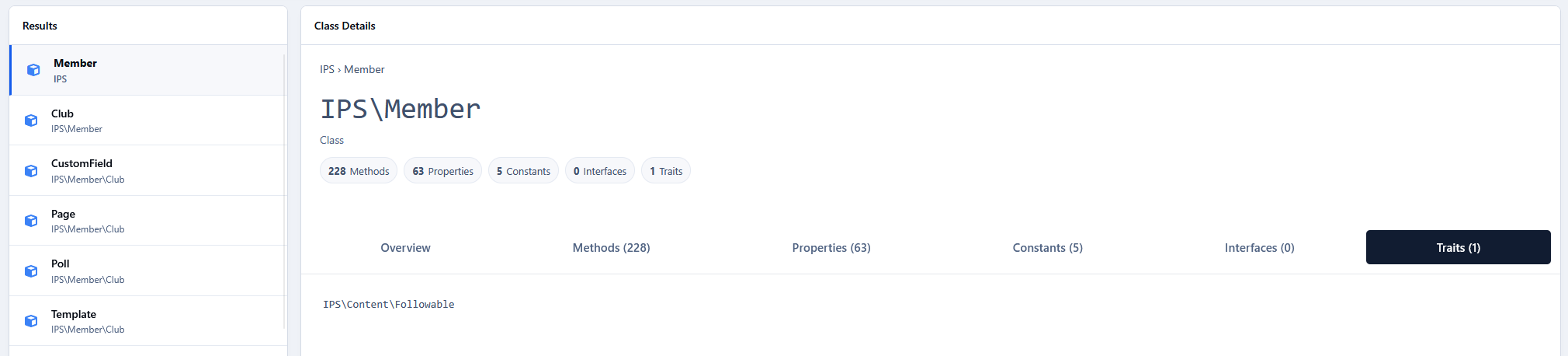
Class Explorer
Browse every PHP class in an application.
View inheritance, implemented interfaces, and used traits.
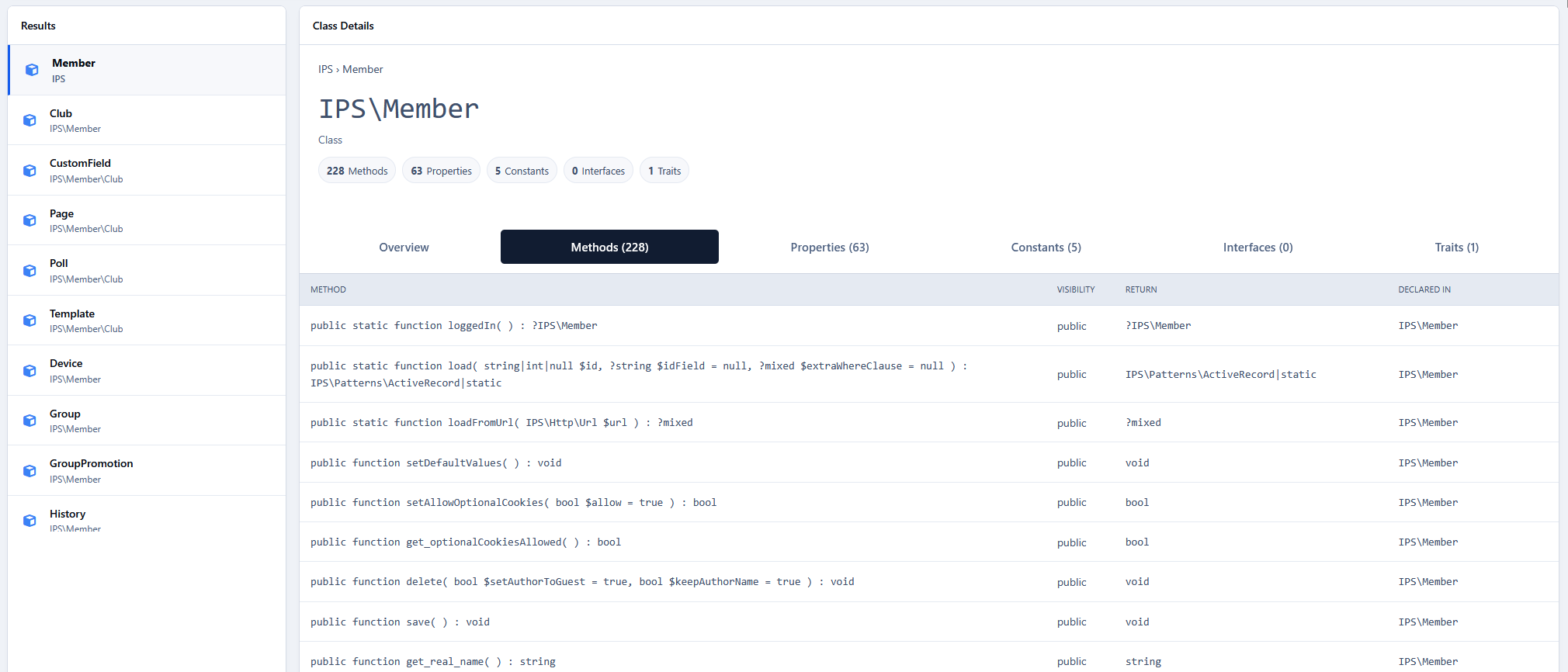
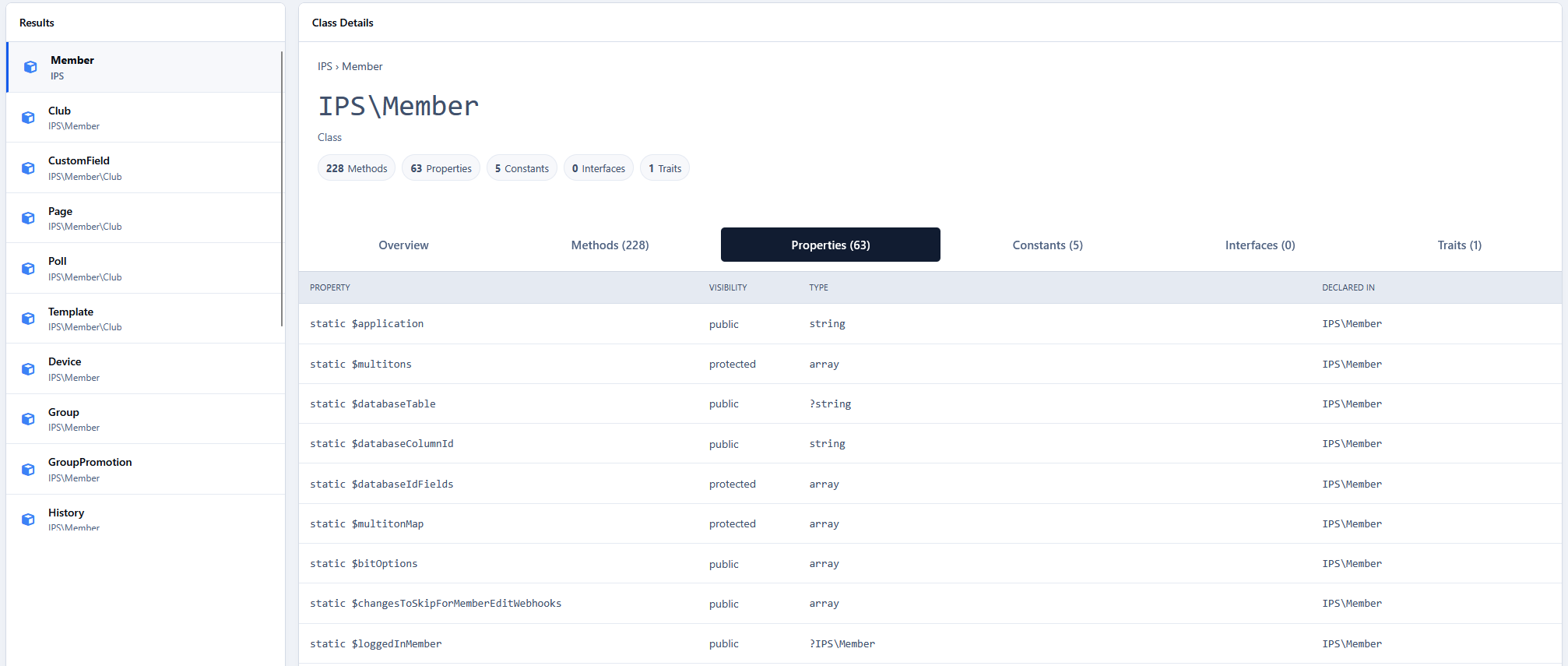
Inspect properties, constants, and methods.
Display namespaces, file locations, and PHPDoc information.
Optionally open files directly in your IDE.
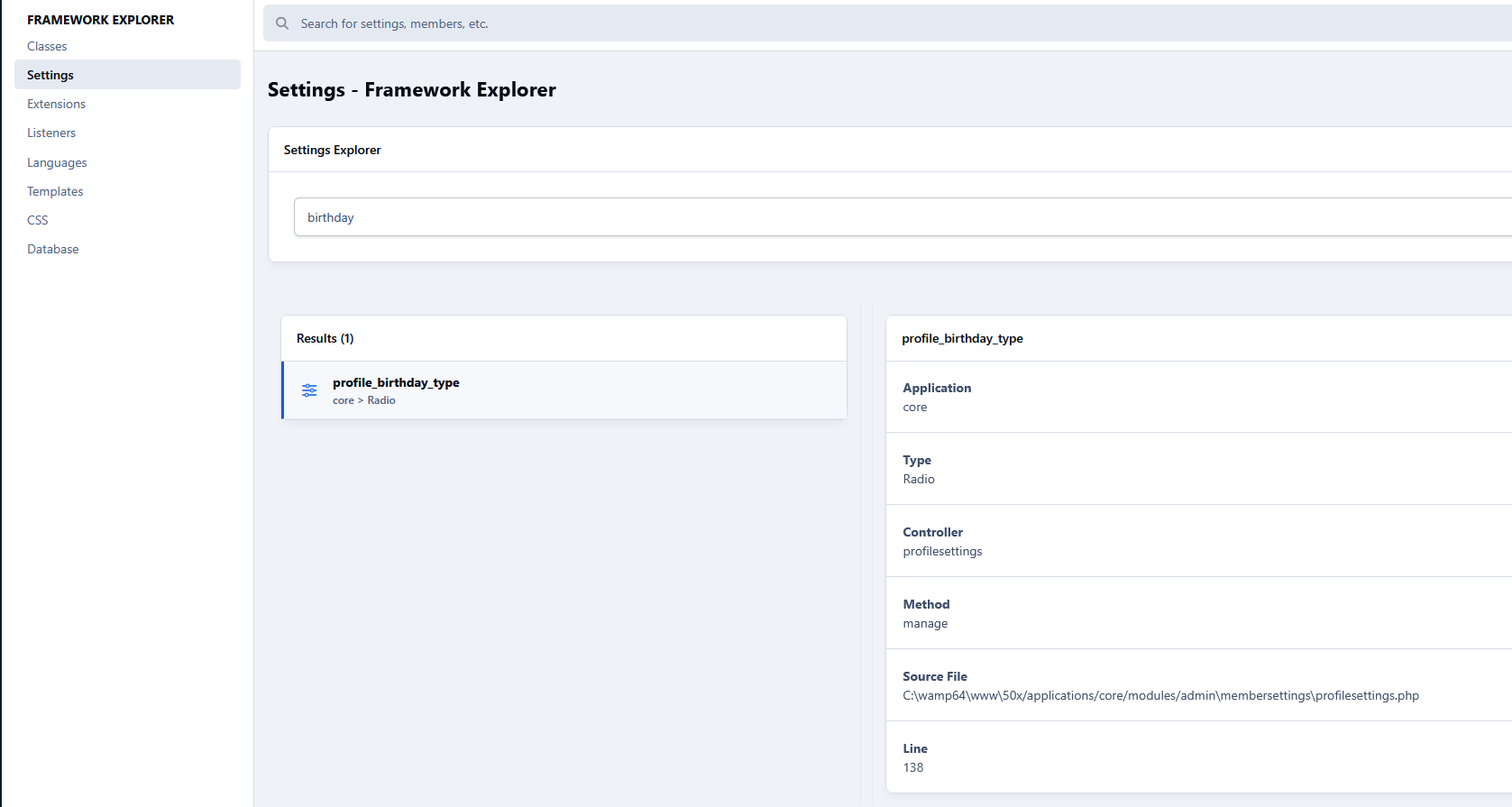
Settings Explorer
Browse application settings.
View configuration keys, default values, and metadata.
Quickly identify available ACP settings.
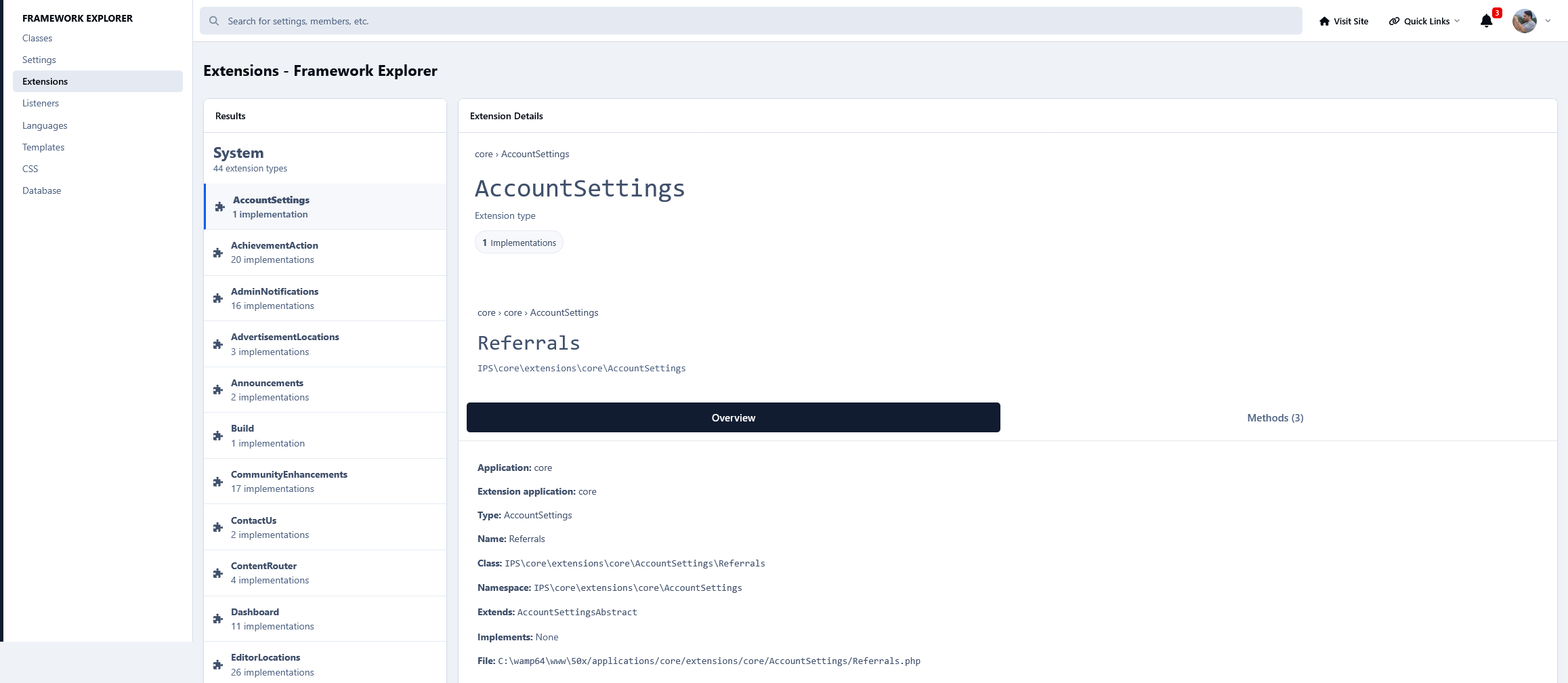
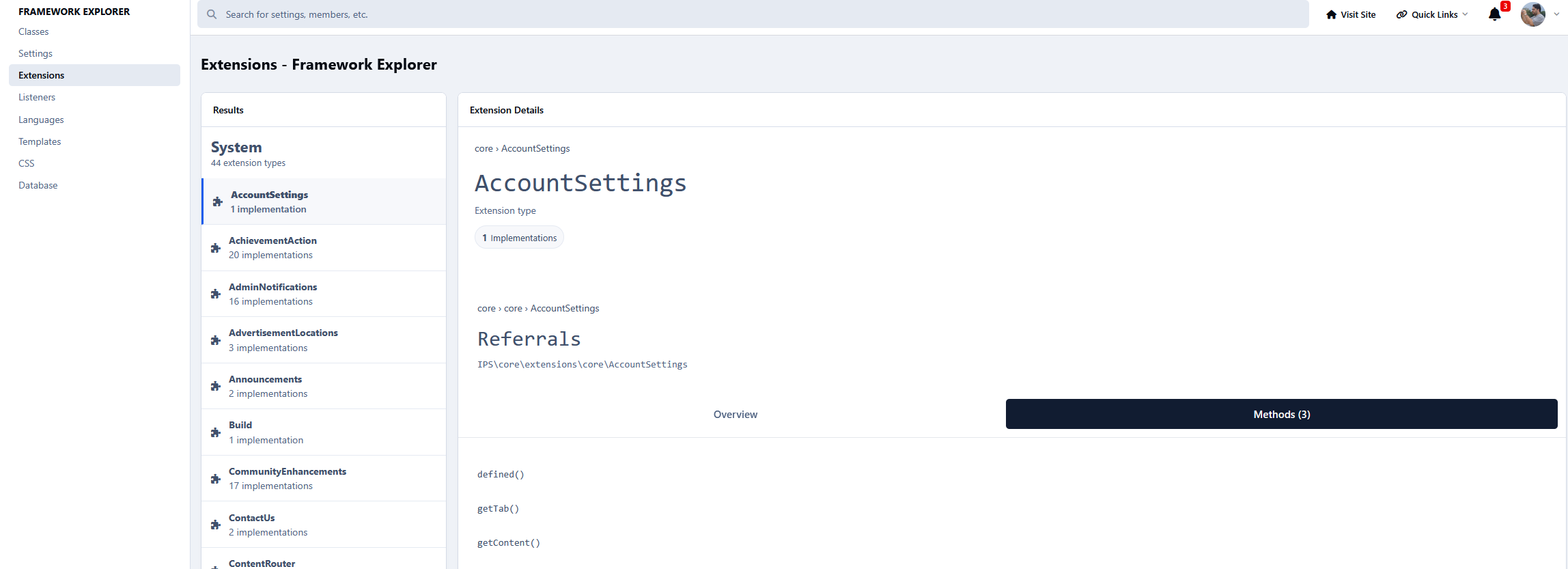
Extension Explorer
Browse every IPS extension.
View extension types and implementations.
Inspect inheritance and available methods.
Quickly navigate extension classes.
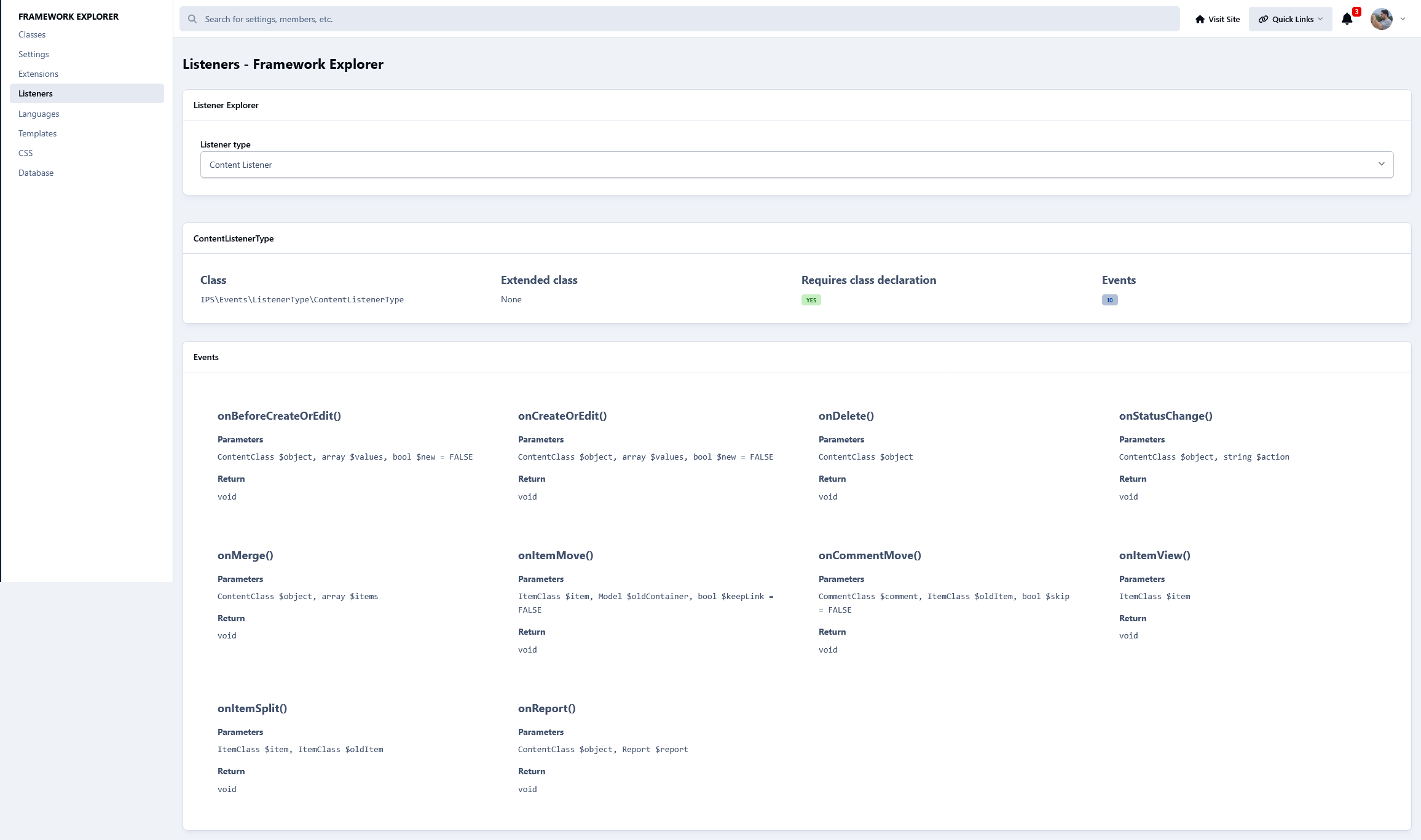
Listener Explorer
Browse every event listener.
View listener types.
Inspect supported methods.
Identify the framework class associated with each listener.
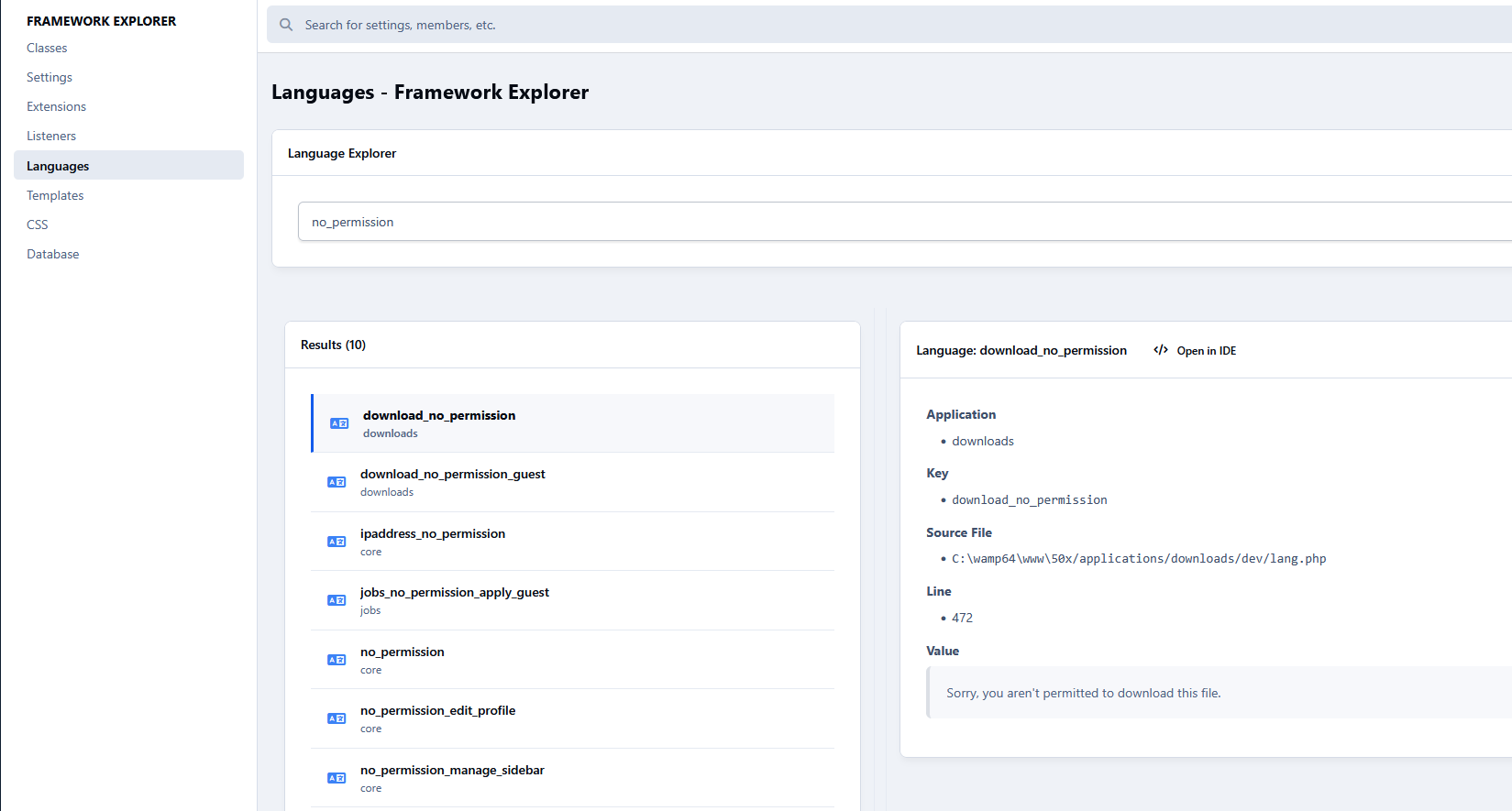
Language Explorer
Browse every language bit.
Search by language key or translated value.
Quickly locate application translations.
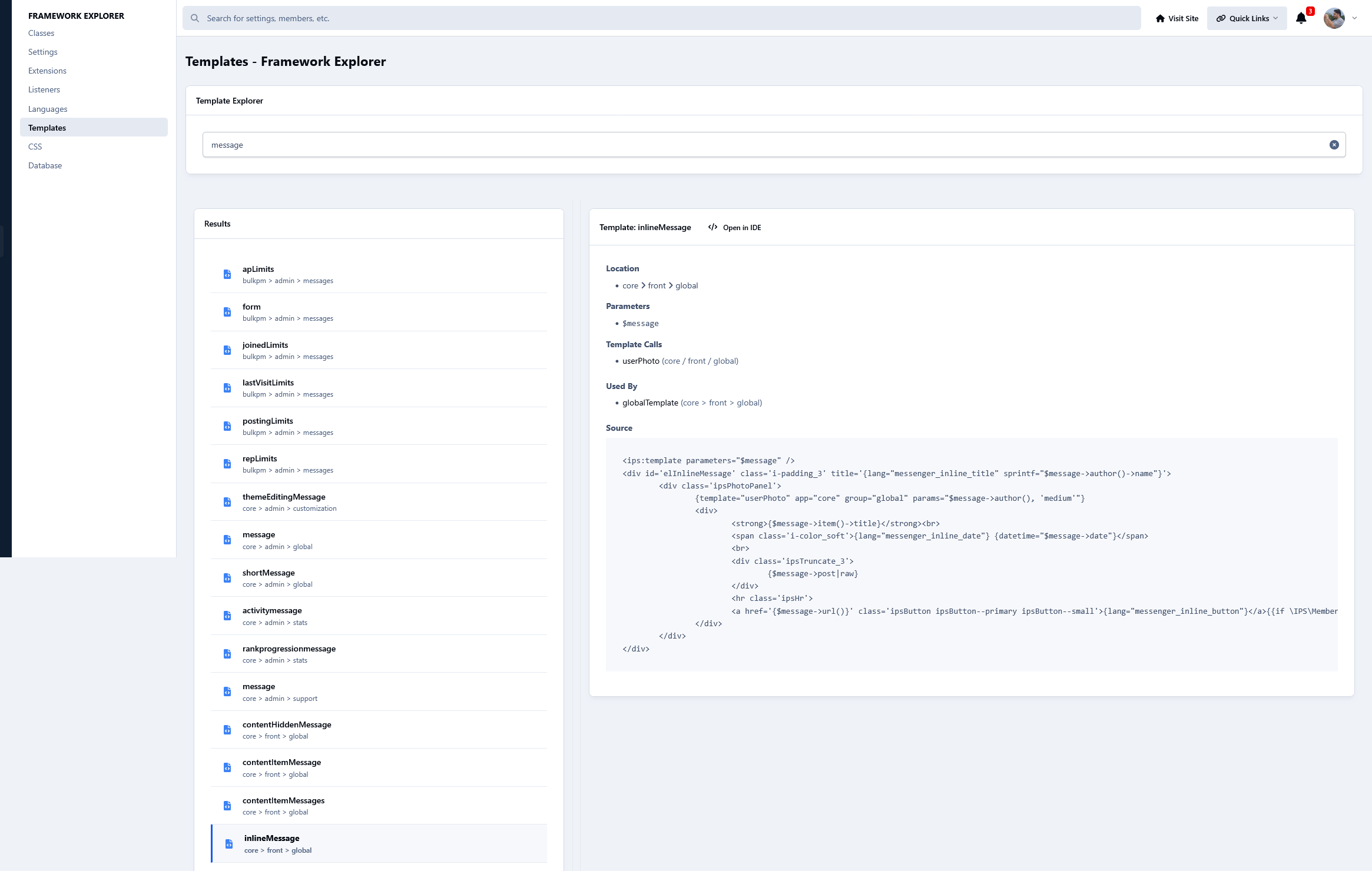
Template Explorer
Browse all application templates.
View template groups and individual templates.
Display template source code.
Explore template relationships.
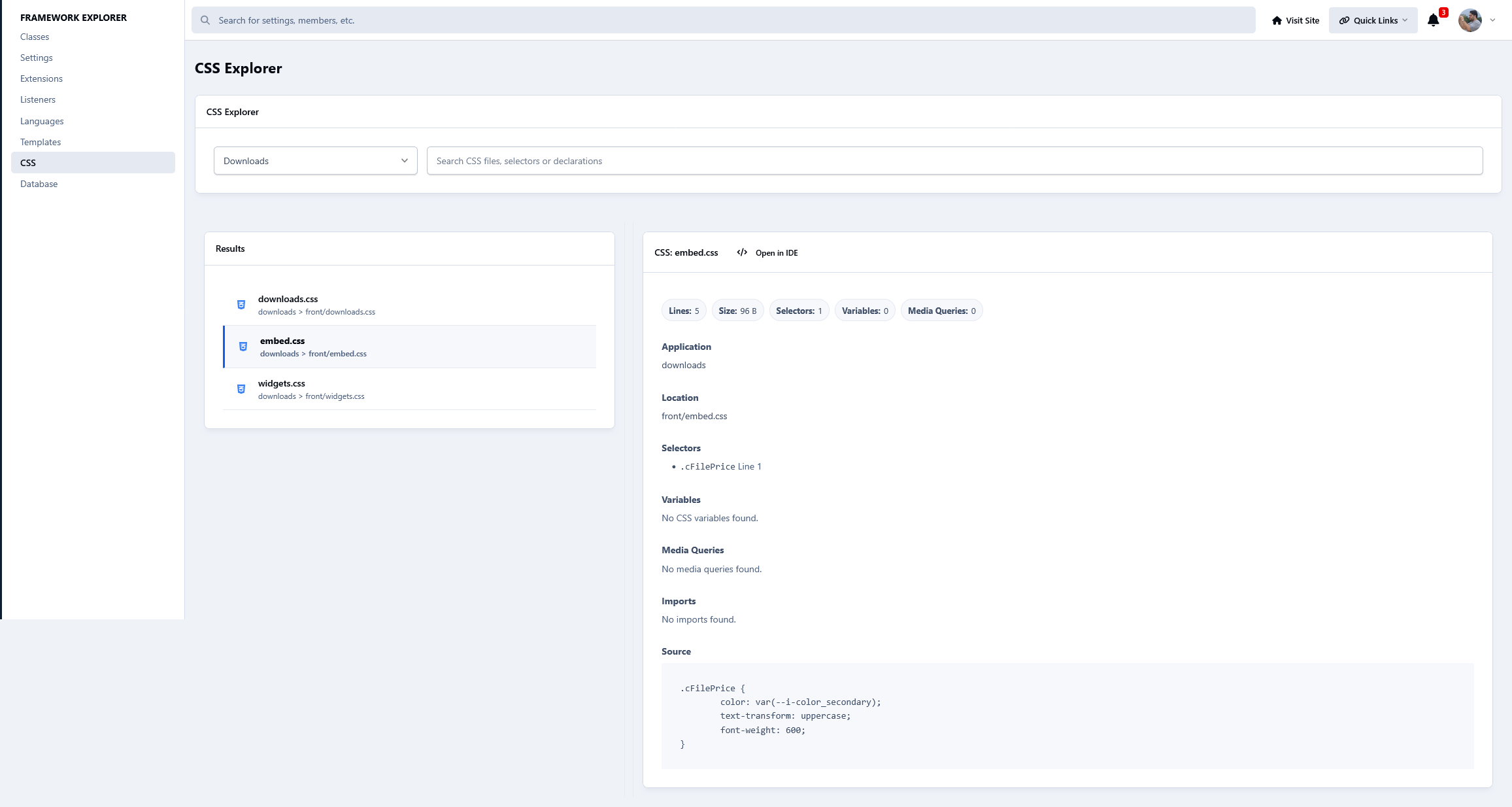
CSS Explorer
Browse all application CSS files.
View selectors, CSS variables, media queries, and imports.
Display the source code.
Search by filename, selector, or CSS content.
Filter results by application.
Optionally open files directly in your IDE.
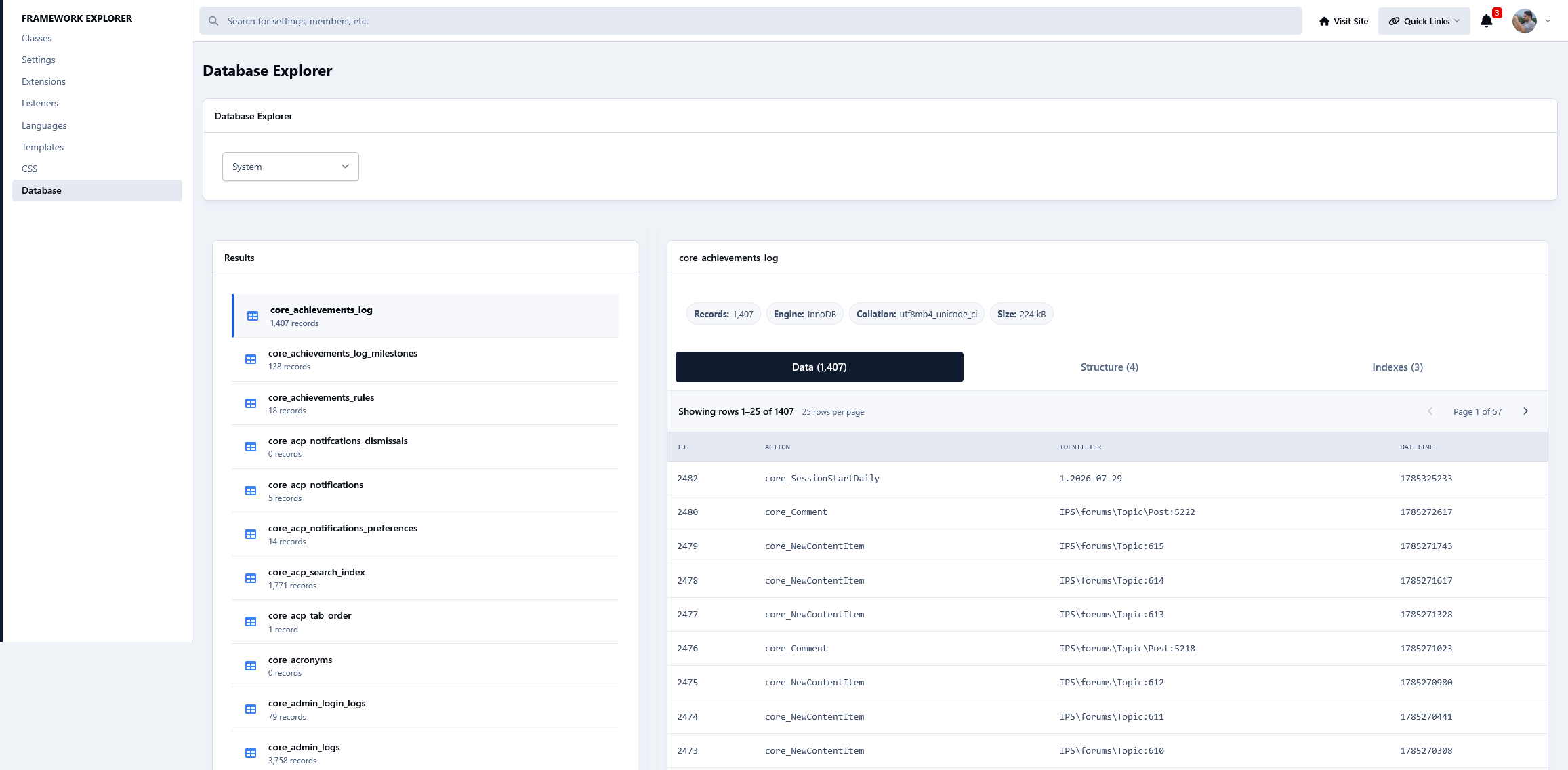
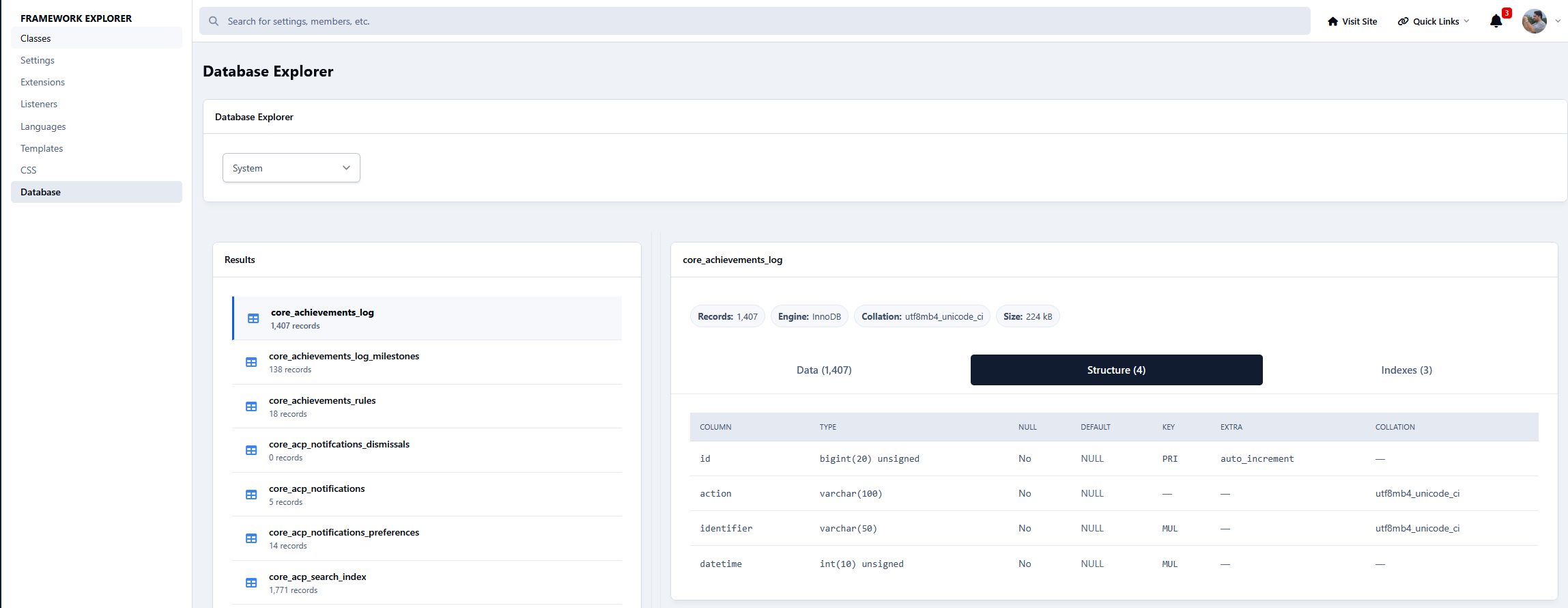
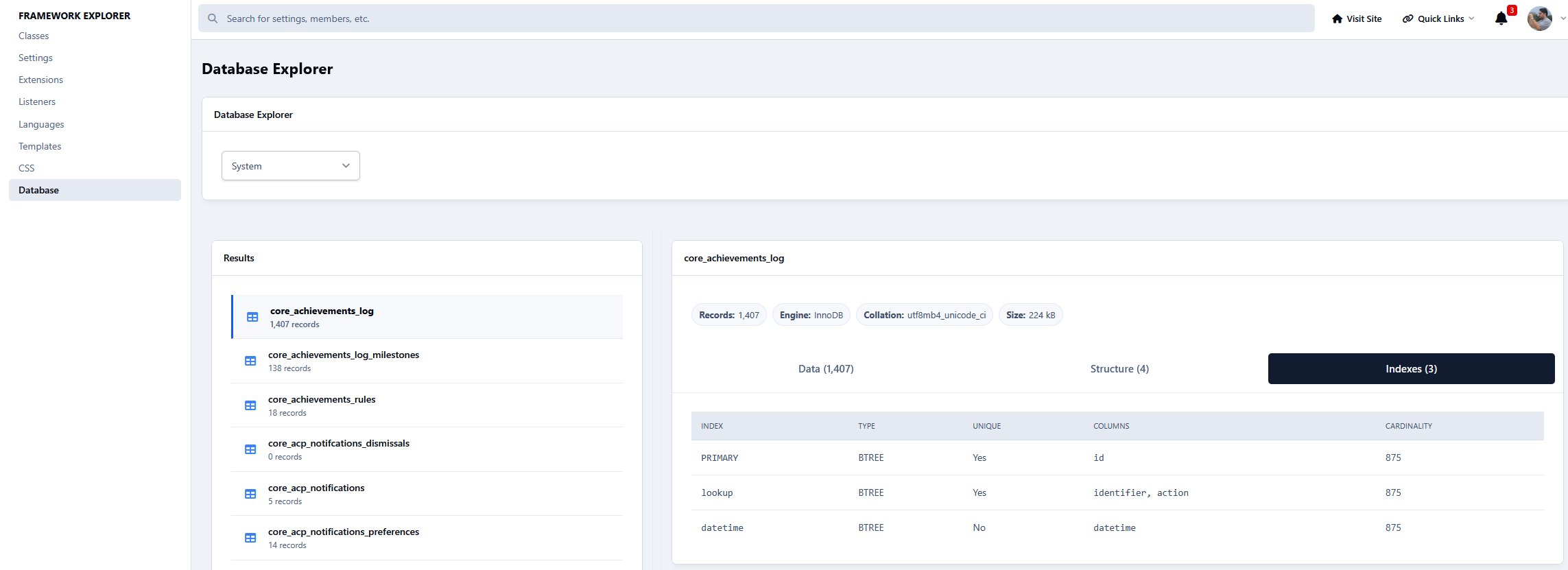
Database Explorer
Browse application database tables.
View table structure, indexes, and records.
Filter tables by application.
Inspect column definitions and index information.
Browse table data with pagination.
Read-only database inspection for safe exploration.
There are no reviews to display.