ModCP Spammers Management
Invision Community 5
- Category Admin & Mod Tools
- Downloads 37
- Compatibility IC5: 5.0.0
- Updated

Overview
Bulk delete spammers from the Moderator CP.Description
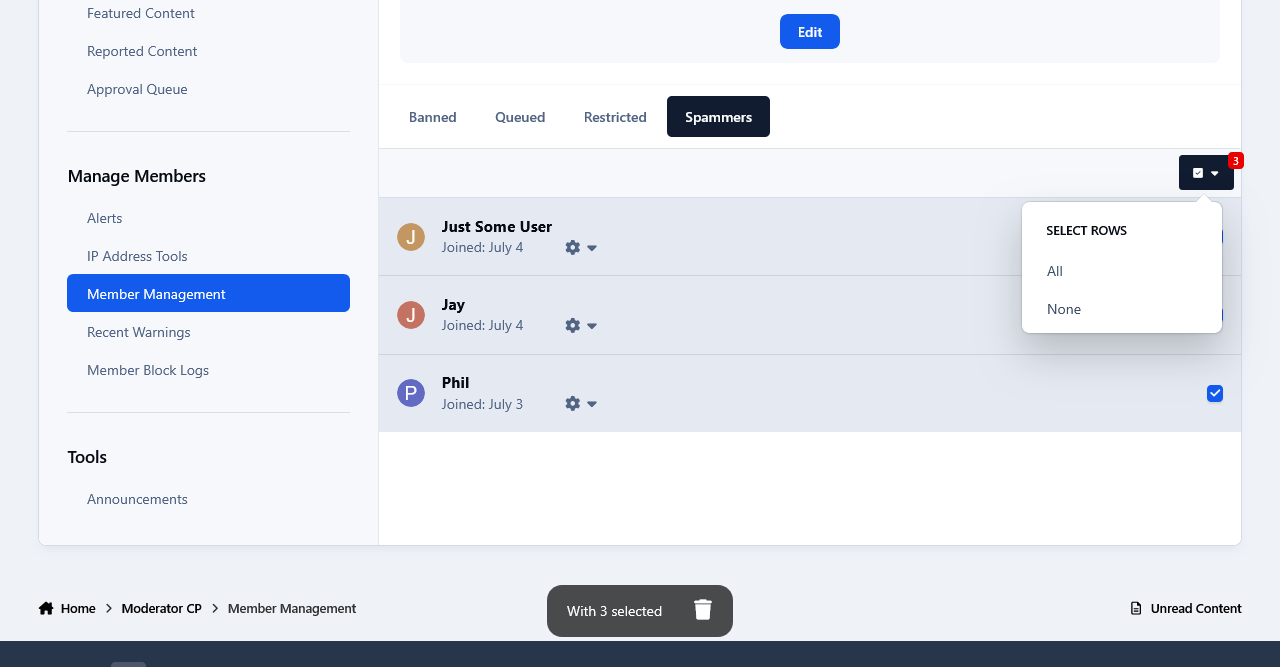
This app adds a new tab containing all the members marked as spammers at your forum, to the Member Management section in the Moderator CP. It might come in handy especially if you have a large number of spammers, as it allows the admins to get some help in managing them from their staff members without giving them access to the Admin Panel.
Permissions:
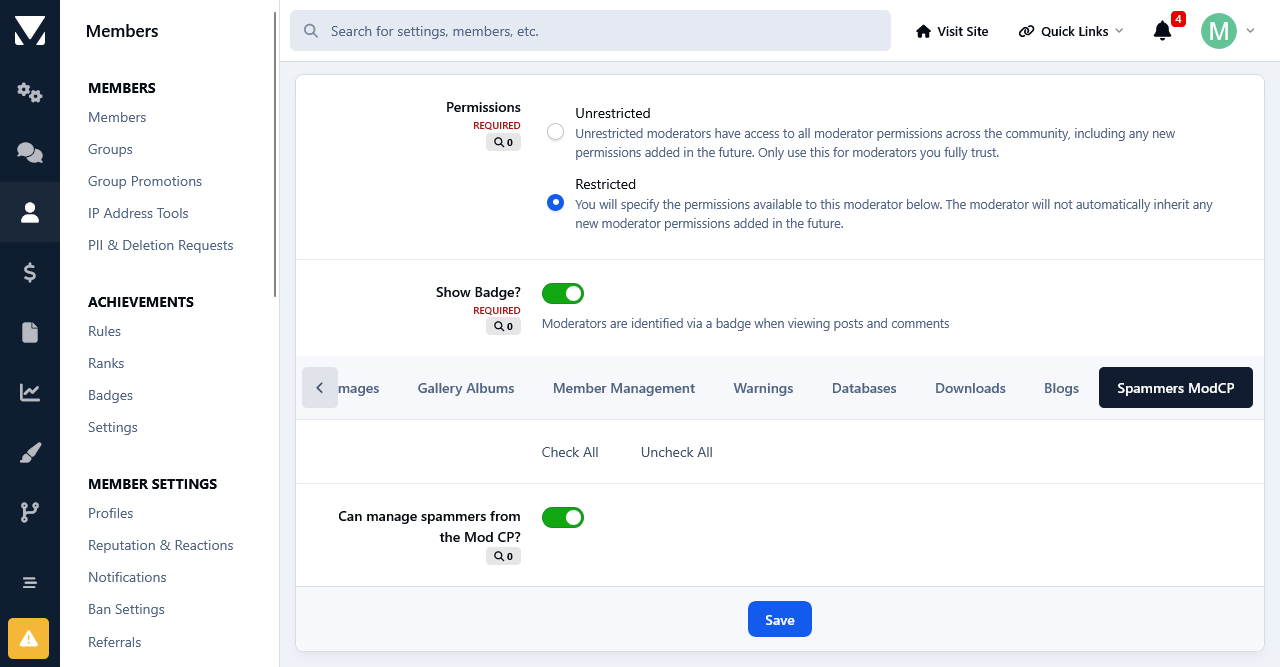
This app adds a new permission tab to the Moderator Permissions. To select the staff members that you want to manage spammers at the Moderator CP, set the permission: Can manage spammers from the Mod CP? to Yes and save the changes.
Settings:
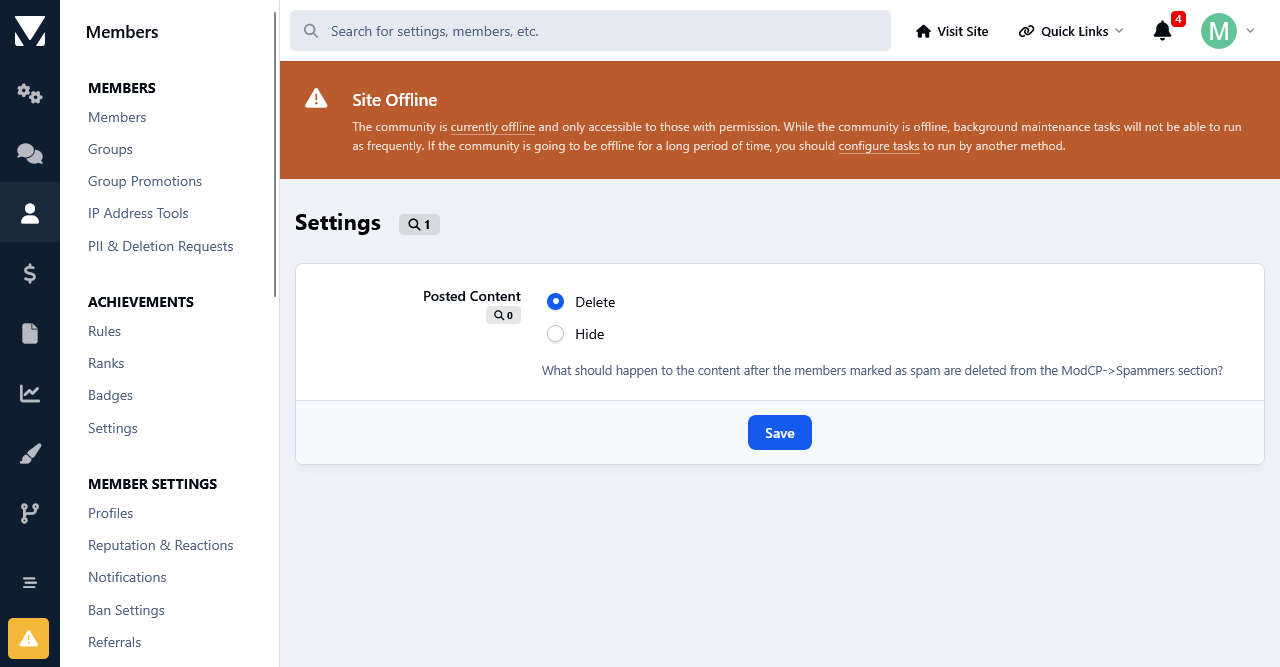
From the app 's settings page you can decide if you want to either delete or hide spammers content.
IP Address Check:
Moderators with permissions to view the ip addresses can check the ip addresses of the spammers.
Bulk Deletion:
All spammers shown at the ModCP can be deleted in bulk through the selection check boxes.
Settings:
You can either delete or hide the content of members marked as spammer when they are deleted from the ModCP.
Moderator Log:
Whenever a member is approved the action will be logged in the Moderator Log page.
-
 1
1
Create an account or sign in to leave a review
There are no reviews to display.