ModCP Validating Members Management
Invision Community 5
- Category Admin & Mod Tools
- Downloads 42
- Compatibility IC5: 5.0.0
- Updated
Overview
Manage validating members from the ModCP.Description
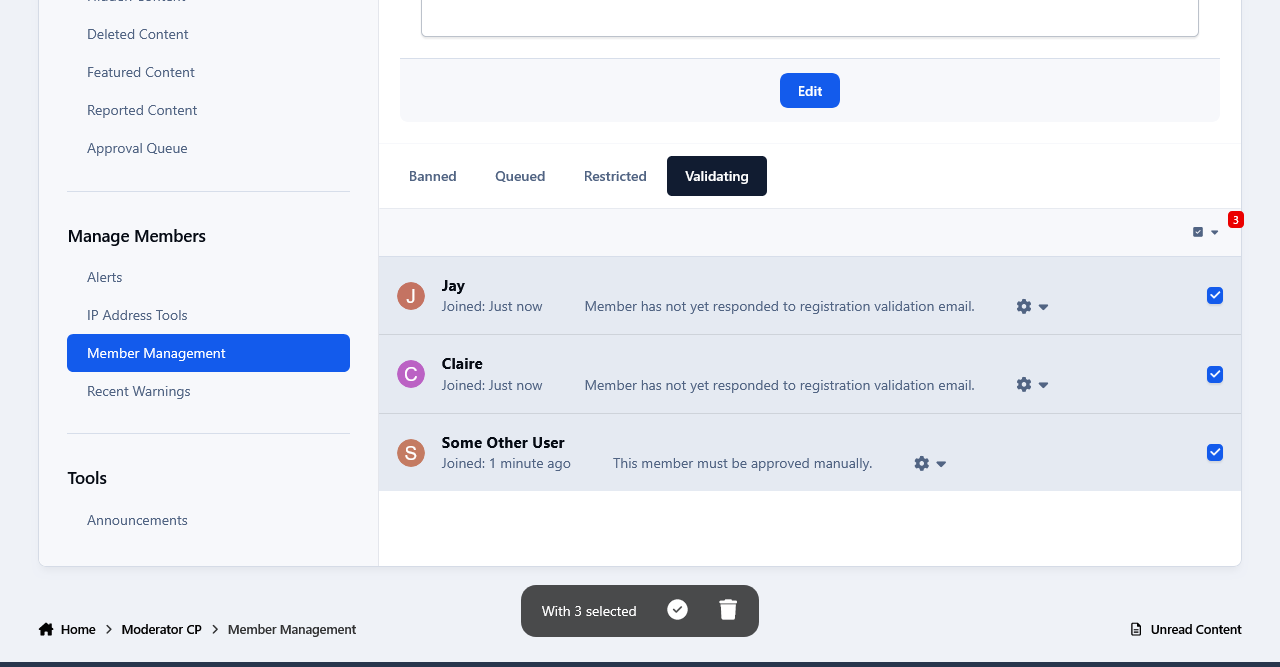
This app adds a new tab at the Member Management section in the Moderator CP of all the validating members at your forum. It might come in handy especially if you have a large number of validating members, as it allows the admins to get some help in managing them from their staff members without giving them access to the Admin Panel.
Permissions:
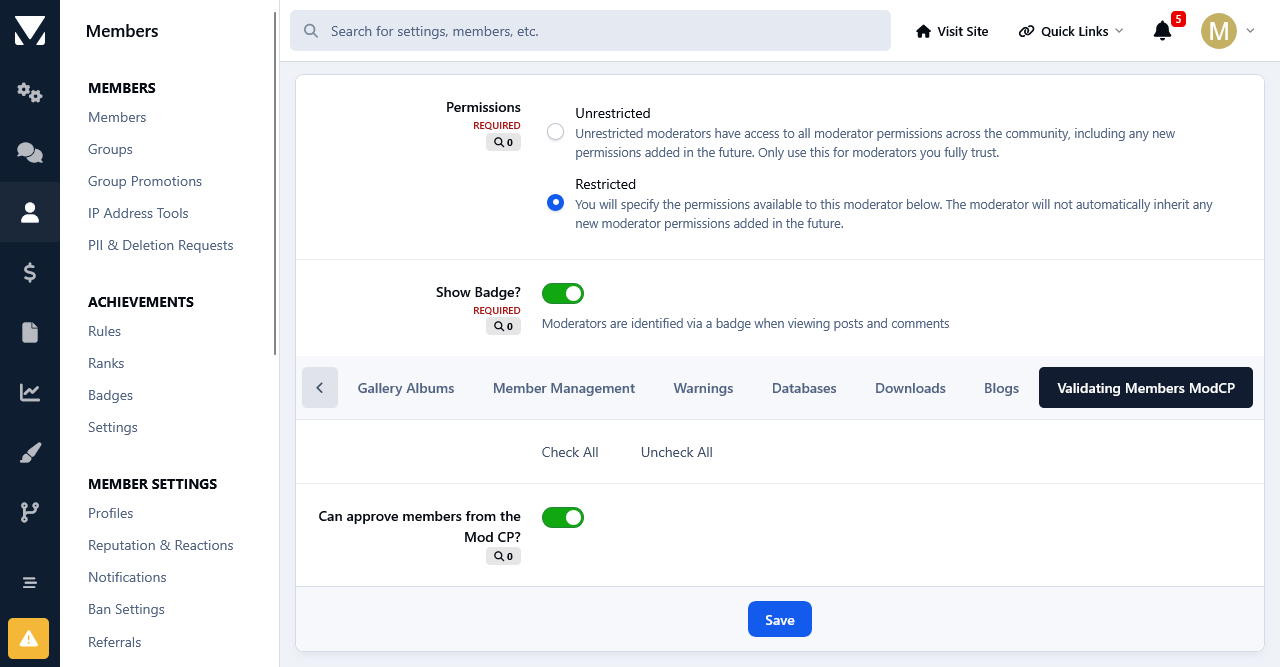
This app adds a new permission tab to the Moderator Permissions. To select the staff members that you want to manage the validating members at the Moderator CP, set the permission: Can the approve members from the Mod CP? to Yes and save the changes.
Options:
Moderators have 2 options when managing the validating members. Those who are allowed to edit members will be able to edit them, those with permissions to view the ip addresses can check the ips of the validating members.
Multiple Approval& Deletion Selection:
There is also a quick multiple approval selection checkbox that will allow for a quick approval and/or deletion of all selected validating members.
Moderator Log:
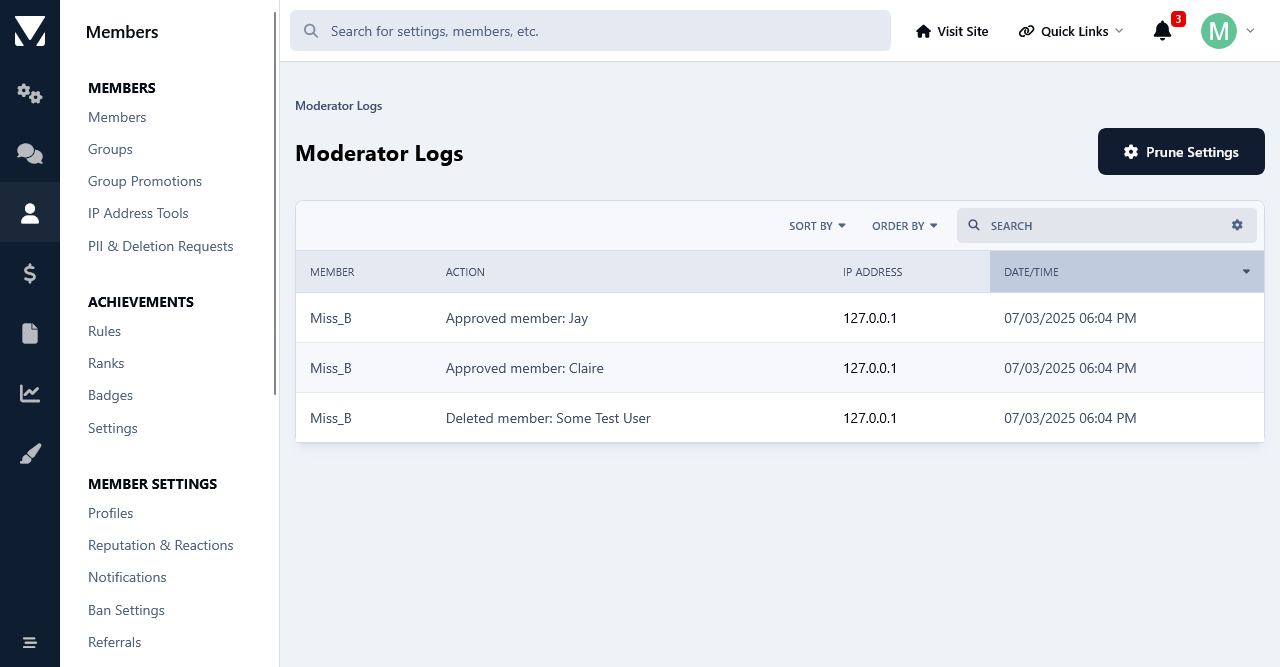
Whenever a member is approved and/or deleted from the ModCP the action will be logged in the Moderator Log page.
Create an account or sign in to leave a review
There are no reviews to display.