Show All IP Addresses
Invision Community 5
Invision Community 4
- Category Admin & Mod Tools
- Downloads 64
- Compatibility IC5: 5.0.x IC4: 4.7.X
- App Version 3.0.2
- Updated
Description
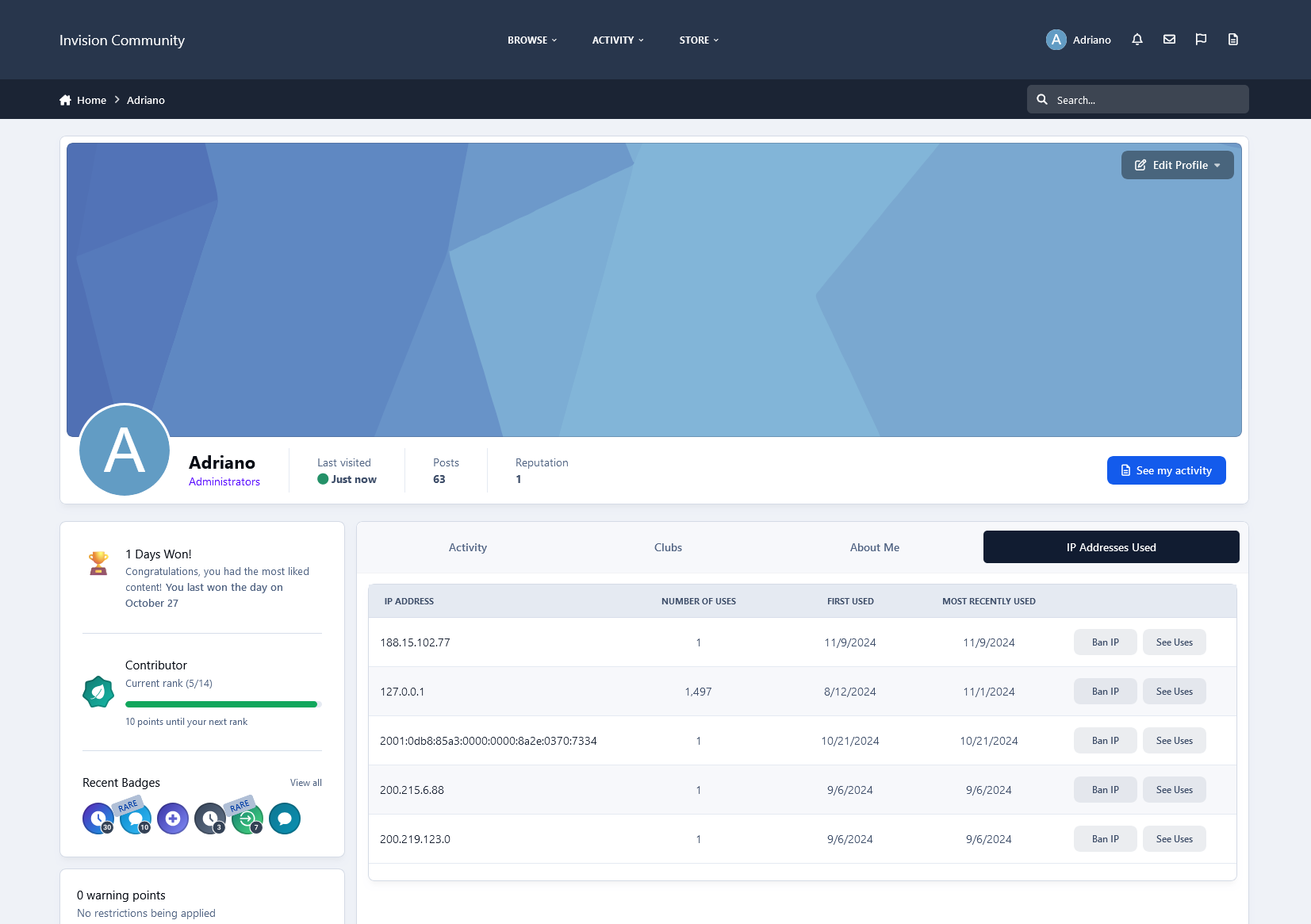
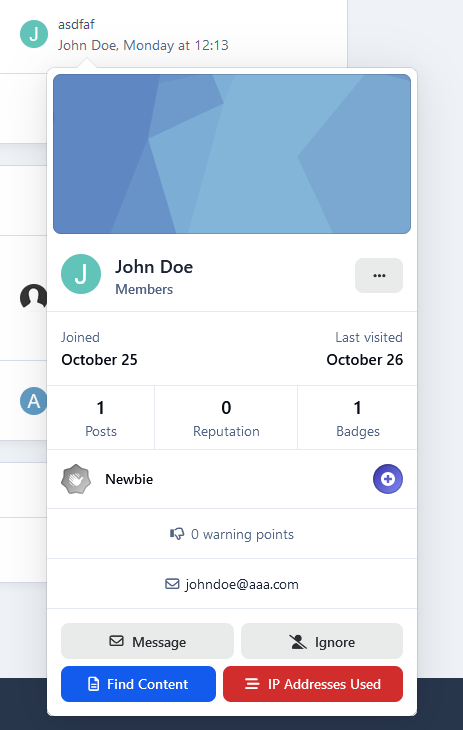
With the appropriate 'Can Use IP Tools?' permission, moderators can now view all IP addresses associated with a member directly from their profile in a dedicated tab. This feature also enables moderators to ban these IPs directly from the same screen, accessible on the forum side. Only moderators with the 'Can Use IP Tools?' permission will see this IP address list, which will appear as a link on the member's profile card.
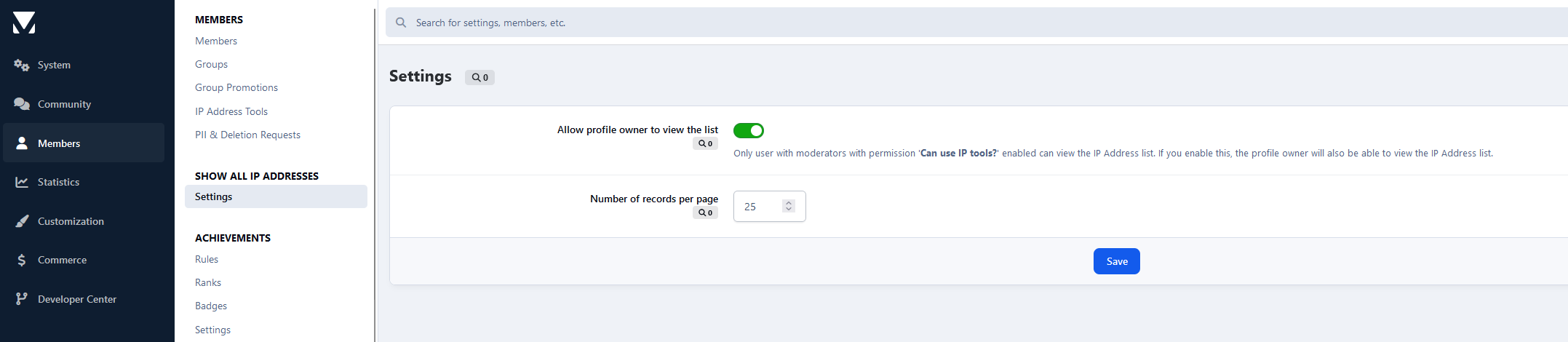
Setting:
Allow profile owner to view the list: only moderators with permission Can use IP tools? enabled can view the IP Addresses list. If you enable this, the profile owner will also be able to view the IP Addresses list, but he won't see the links to BAN the IP and to USAGES of the IP.
Create an account or sign in to leave a review
There are no reviews to display.