- Category Admin & Mod Tools
- Downloads 75
- Compatibility IC5: 5.0.0+
- App Version 1.0.0
- Updated
Description
Using the Template Editor App, Using Themes, Using the Code Editor, Using History, Using Backups, Using Diagnostics
Template Editor
Bring back a serious template editing workflow for Invision Community 5 with a dedicated AdminCP editor for source templates, theme-specific template overrides, source CSS, and theme-specific CSS overrides, plus recovery tooling, revision history, and app-level baseline protection. Template Editor is built for administrators and developers who need a practical way to inspect, edit, compare, recover, and audit IPS theme source changes without falling back to raw database work.
What It Does
Template Editor restores a focused editing experience around IPS 5 theme source assets while adapting to the modern IPS 5 runtime model:
Source Templates are edited through a full editor workspace for both global source maintenance and theme-specific override work, then published back into the IPS 5 source pipeline
Source CSS can be browsed and edited from the same workspace in both global and theme-specific scopes with change tracking and recovery support
Backups, Baselines, History, and Diagnostics give you the safeguards needed before and after making live source changes
Instead of treating template edits as unmanaged one-off modifications, Template Editor layers structured recovery and auditing on top of the IPS 5 template and CSS system.
Key Features
Full Template Editing Workspace
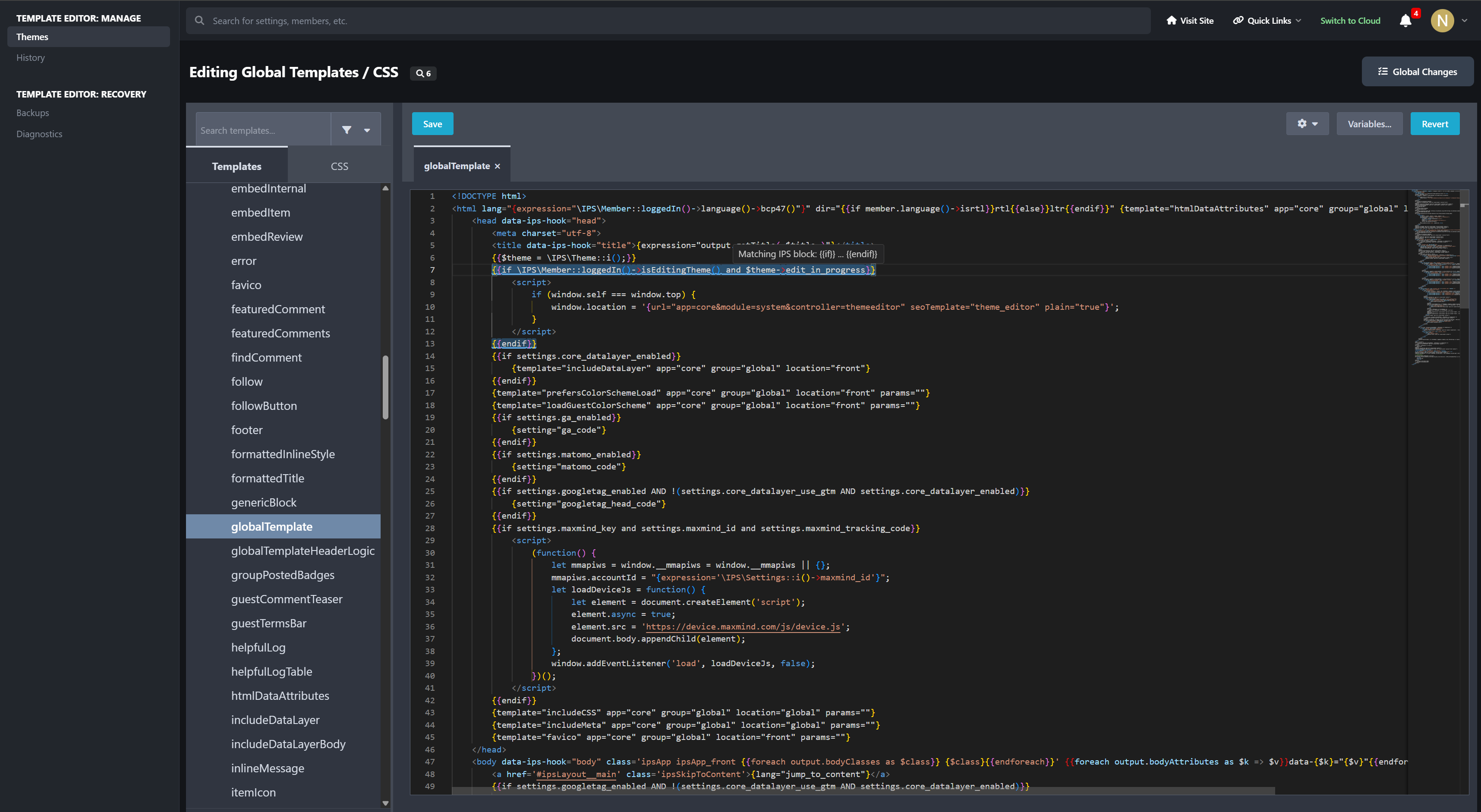
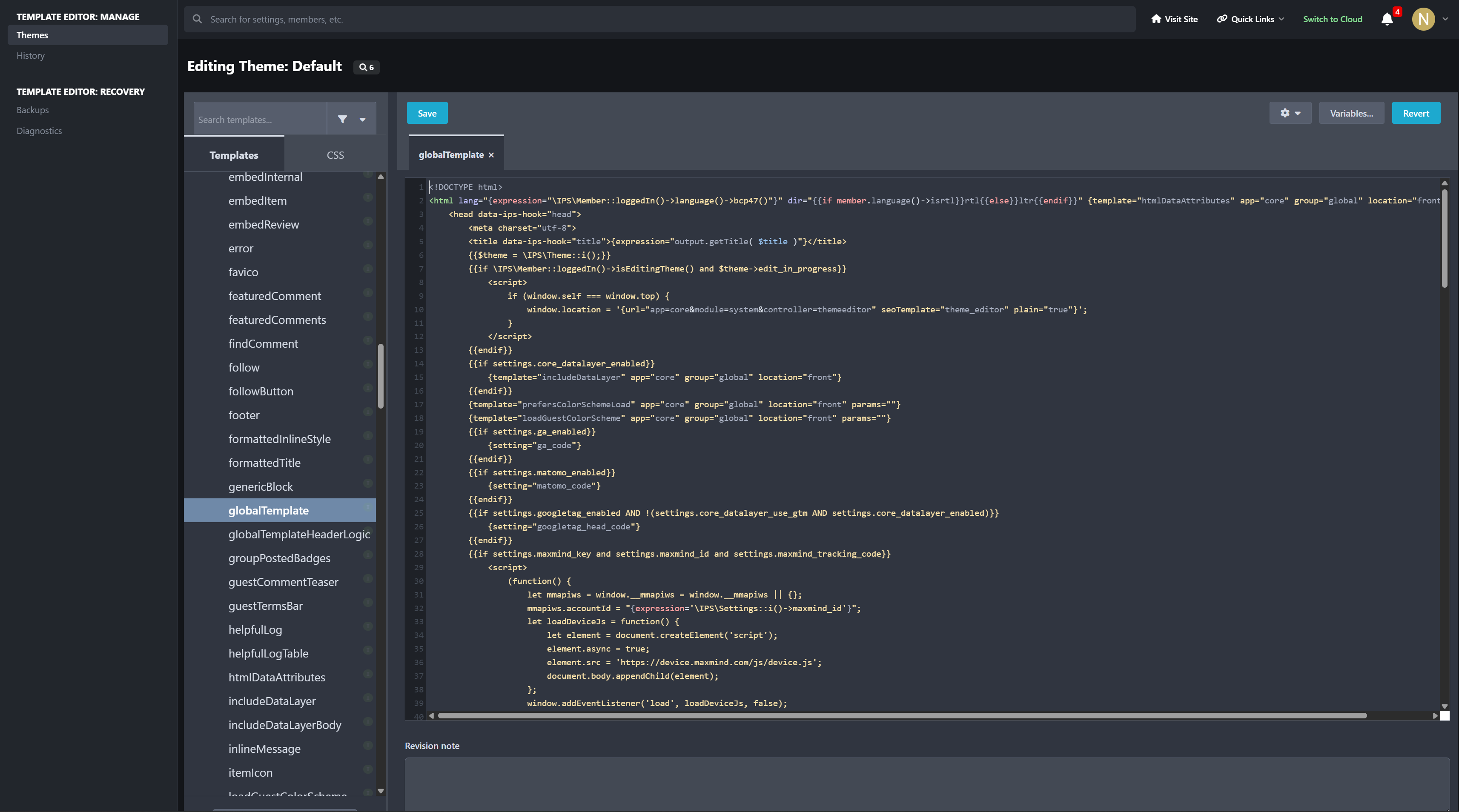
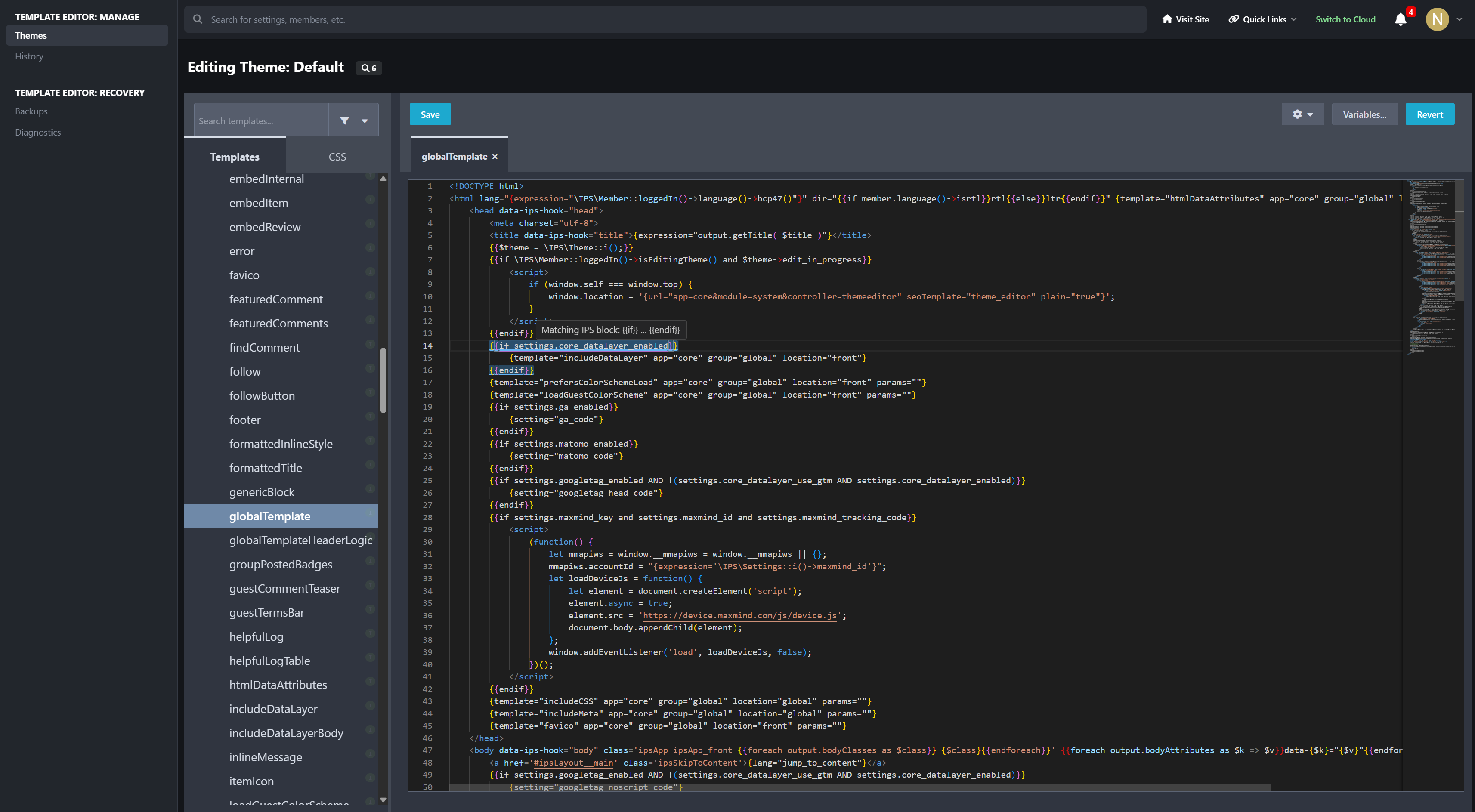
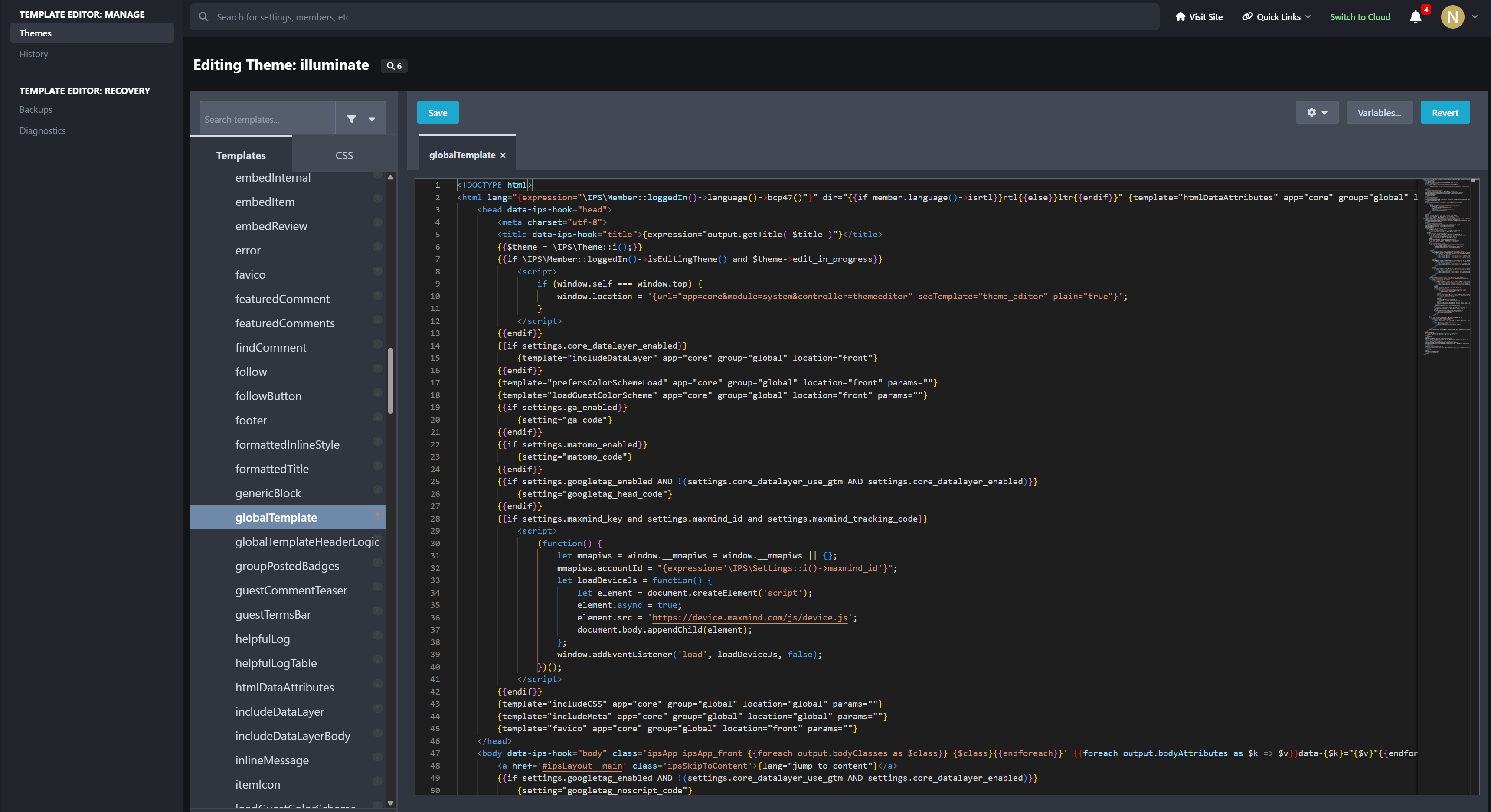
V4-Style Editing Experience: Includes a dedicated left-hand file tree, multi-tab editing area, revision note field, variables dialog, and recovery actions in a purpose-built editor workspace
Multi-Tab Workflow: Open and work on more than one source template or CSS file at a time instead of being limited to a single record view
Global Edit Mode and Theme-Specific Editing: Work in the default global source scope or open the workspace for a specific theme when you need template overrides or theme-specific CSS changes
Live File Navigation: Browse application, location, group, and file structures from the editor pane with active file highlighting and search support
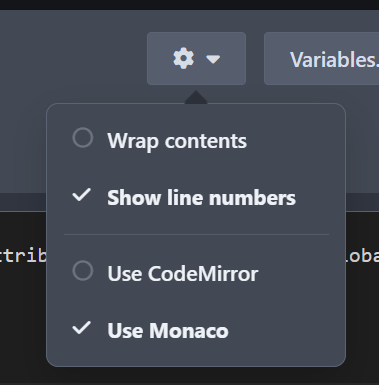
Editor Engine Choice: Switch between Monaco and CodeMirror from the workspace preferences depending on your editing preference
IPS Template Syntax Awareness: The editor is built for IPS template control tags such as
{{if}},{{elseif}},{{else}},{{endif}},{{foreach}}, and{{endforeach}}Block-Aware Matching: IPS control structures are easier to follow while editing thanks to block-aware matching behavior for nested template logic
Unsaved Change Protection: Warns before closing editor tabs or leaving the page when unsaved work is present
Light and Dark Scheme Support: The editing workspace is styled for both ACP color schemes instead of being hard-coded to one visual mode
Source Template Publishing for IPS 5
Global Source Template Publishing: Edit and publish IPS 5 source templates through the actual live source pipeline used by the suite
Static Recompile Integration: Publishes trigger the appropriate IPS compile steps so front-end output reflects the new source state
Optimistic Lock Protection: Prevents silent overwrites when the live source changed after the editor loaded the file
Drift Detection: Detects when the current runtime row and shipped template source no longer match, helping prevent accidental writes into an inconsistent state
Source CSS Editing and Tracking
Integrated CSS Browser: Browse shipped source CSS from the same editor shell used for templates
Editable Source CSS: Make source CSS updates with revision notes and recovery tracking instead of editing rows manually
Change Visibility: Changed CSS is surfaced in the app’s change tracking and recovery tools so it can be audited like template edits
Shared Recovery Model: CSS participates in the same baseline, revision, backup, and restore architecture used for source templates
Baselines, Revisions, and Recovery Safety
Immutable Initial Baselines: Before the first live source change, the app captures an original baseline so there is always a restore point anchored to the shipped app state
App-Level Recovery Snapshots: Each app can maintain a locked recovery baseline for full app-level restore workflows, not just single-file rollbacks
Revision History: Every authored save can be tracked so you can review, compare, and restore earlier work later
Pre-Recovery Backups: Automatic protective snapshots are created before restore operations so recoveries can be reversed if needed
Stored Revision Notes: Saves and restores can carry explicit notes to make the audit trail readable instead of leaving behind anonymous source mutations
Template-Aware Recovery Architecture
Shipped Source Recovery: The app can restore source templates from the app’s shipped
Templatescontent instead of depending only on live runtime rowsVersion-Aware Template Snapshots: Baseline
Templatesnapshots are captured per app version to preserve the original shipped source before edits or later upgrades alter the working filesApp-Level Baseline Provenance: Diagnostics can report whether the app baseline was built from a stored XML snapshot, current shipped XML, or a runtime fallback source
Safer Full-App Restore Direction: The architecture is designed around restoring the original shipped source state for an app, not just overwriting isolated rows without context
Operational Visibility and Admin Tooling
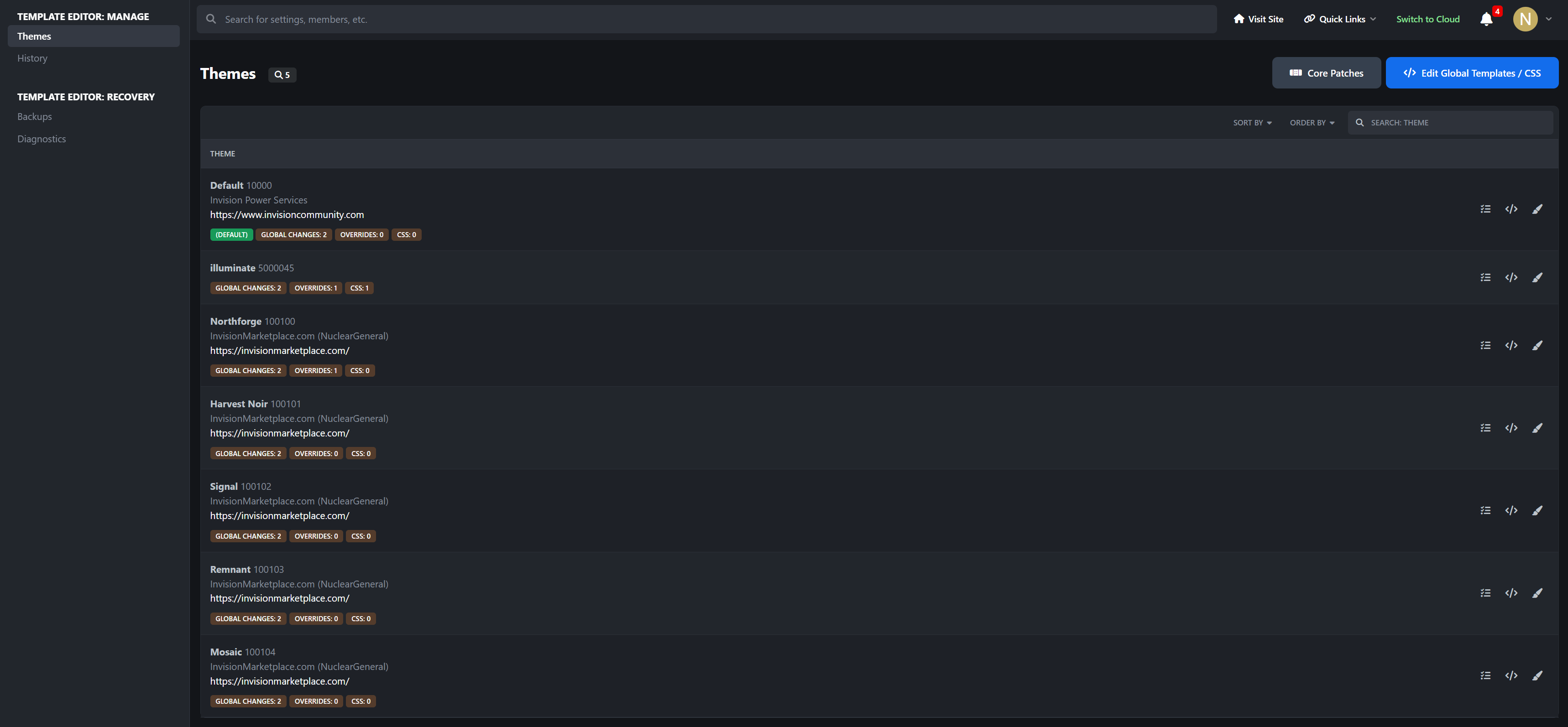
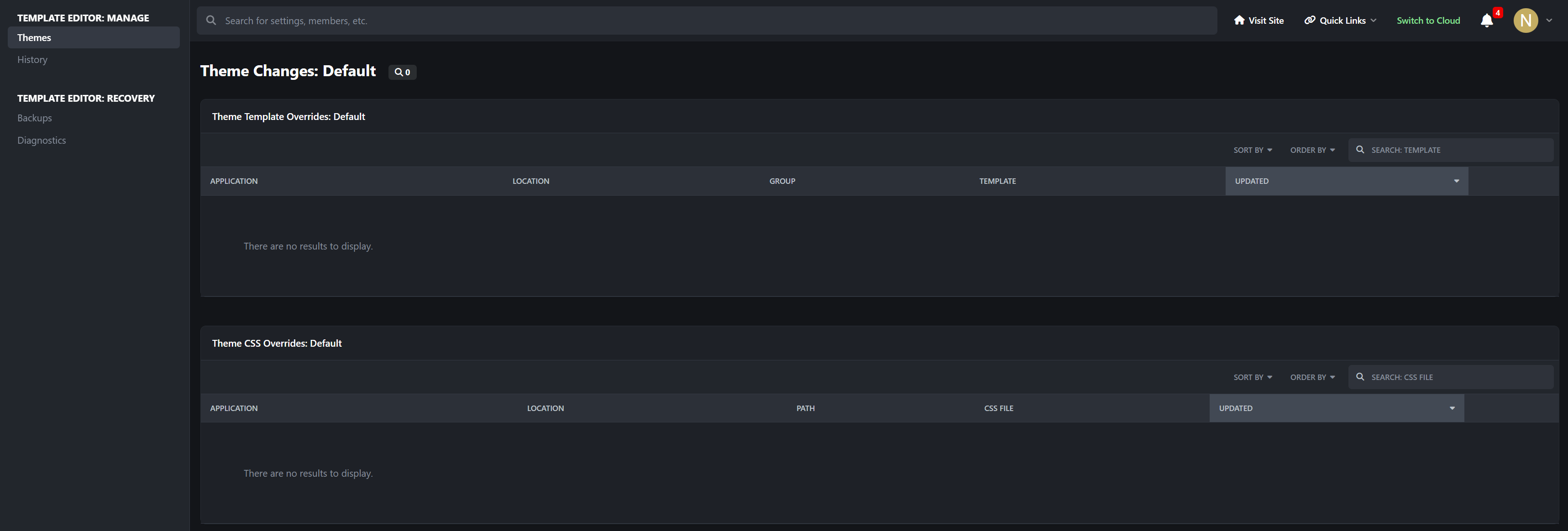
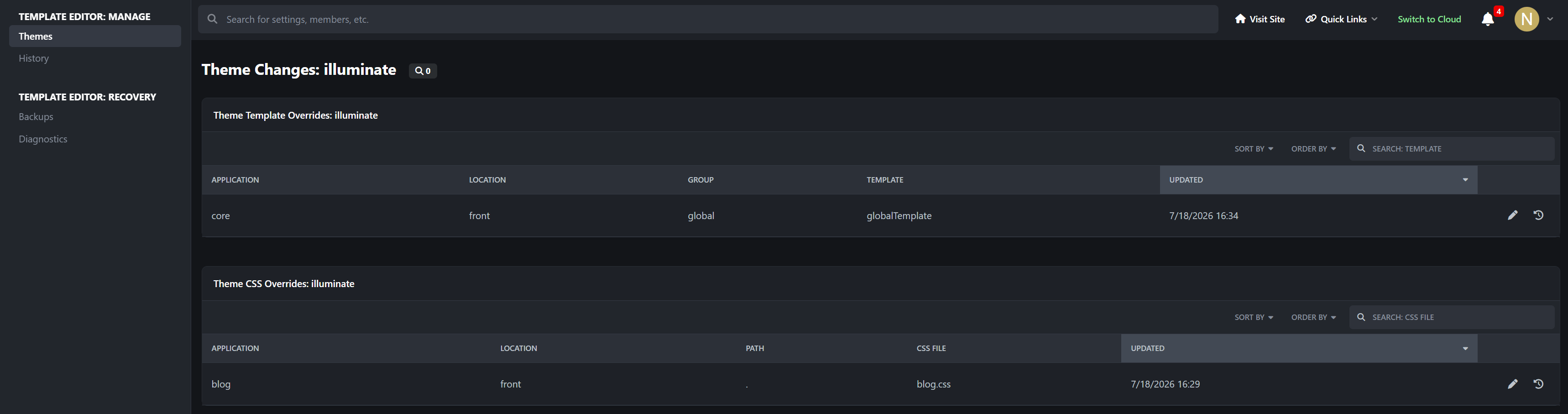
Themes Area: Review global source changes plus theme-specific template and CSS override activity from the app's theme-aware management layer
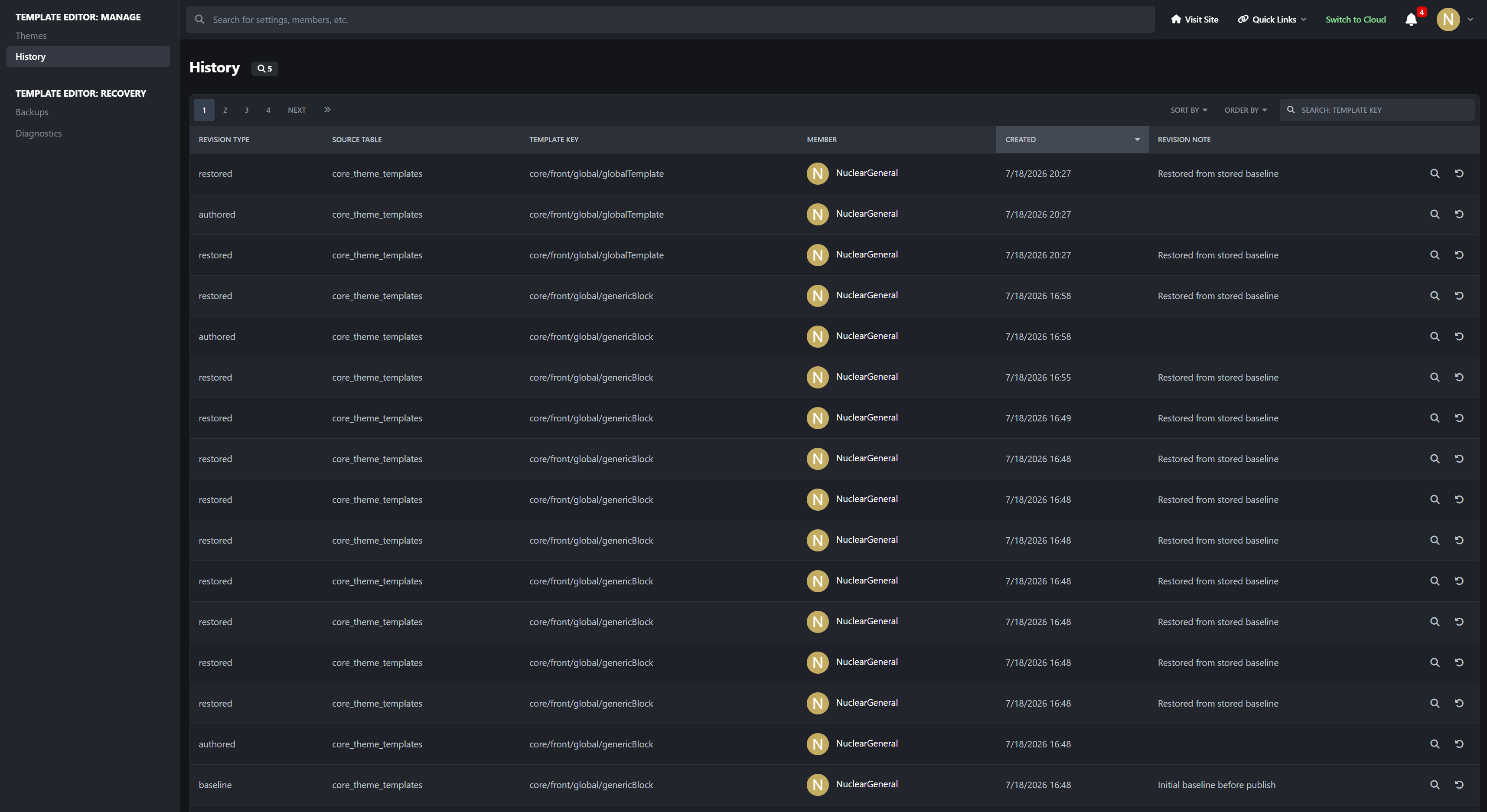
History Area: Review authored and restored revisions with member attribution and saved notes
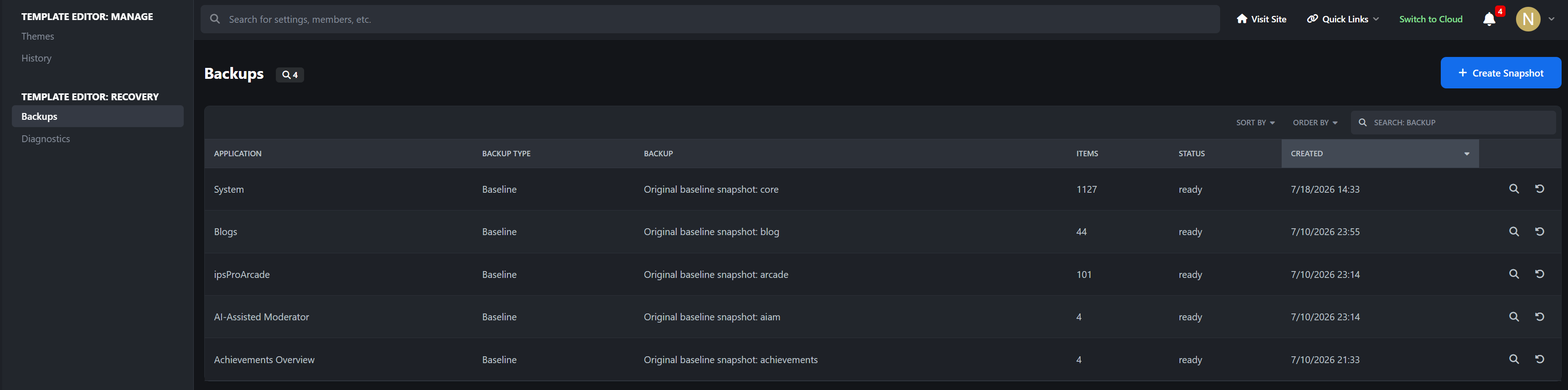
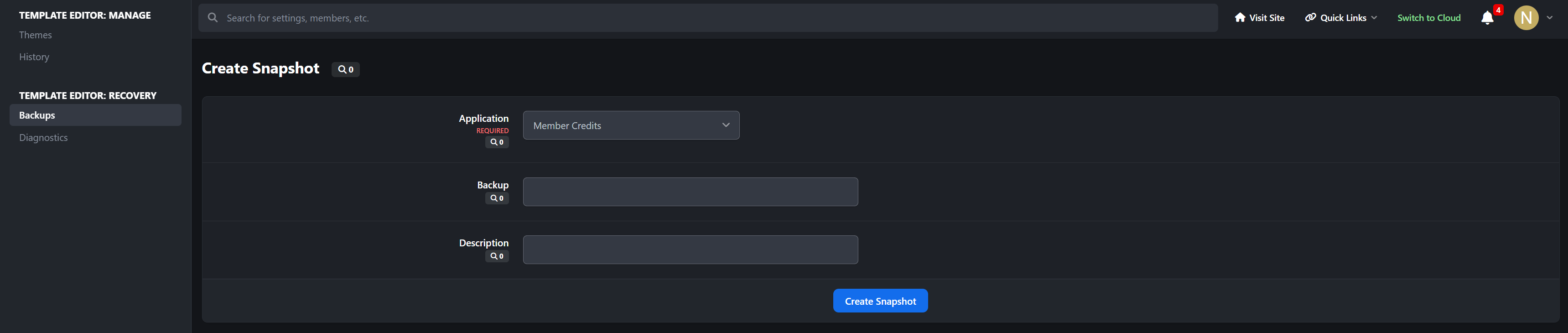
Backups Area: Manage full recovery snapshots, including locked baselines and restore points created before recovery actions
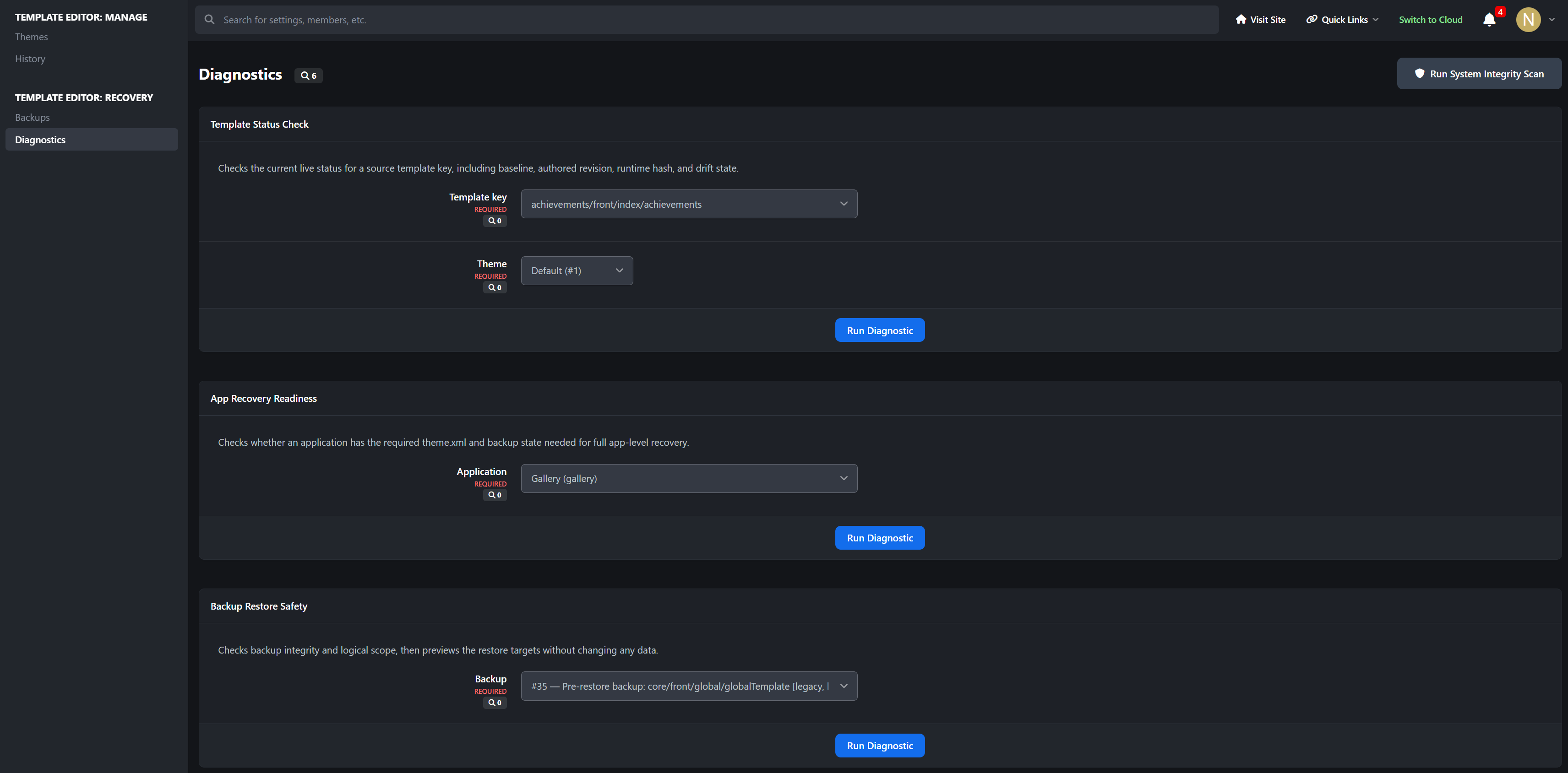
Diagnostics Area: Inspect template state, shipped-source lookup results, and app recovery readiness from dedicated ACP diagnostics tools
Status Indicators: The editor UI surfaces modified, baseline, inherited, and drift-aware state markers directly in the workspace
Use Cases
Template Editor is especially useful for:
administrators migrating old IPS 4 template editing habits into IPS 5
developers who need a controlled source-template editing workflow inside the ACP
communities that want app-level recovery protection before touching shipped template or CSS sources
staff teams that need revision history and member attribution for live template changes
sites that regularly customize suite output and want stronger rollback and diagnostics tooling
AdminCP Areas
The app includes dedicated AdminCP management areas for:
Templates
Themes
History
Backups
Diagnostics
Why It Stands Out
IPS 5 no longer exposes the same source-template editing workflow many administrators relied on in IPS 4. Template Editor does not just add an edit box back. It rebuilds the workflow around the IPS 5 source model with baseline capture, revision history, template-aware recovery, multi-tab editing, and diagnostics so template work can be done with far more operational safety than direct edits.
Developed by InvisionMarketplace.com - Professional Invision Community Applications
There are no reviews to display.