Jump to content
View in the app

A better way to browse. Learn more.

Invision Marketplace

A full-screen app on your home screen with push notifications, badges and more.

To install this app on iOS and iPadOS
  1. Tap the Share icon in Safari
  2. Scroll the menu and tap Add to Home Screen.
  3. Tap Add in the top-right corner.
To install this app on Android
  1. Tap the 3-dot menu (⋮) in the top-right corner of the browser.
  2. Tap Add to Home screen or Install app.
  3. Confirm by tapping Install.

Everything you need for your community

Everything you need for your community

Invision Community 5
Invision Community 4
  • Category Commerce
  • Downloads 4
  • Compatibility IC5: 5.0.0+ IC4: 4.7.x
  • App Version 2.0.0
  • Updated
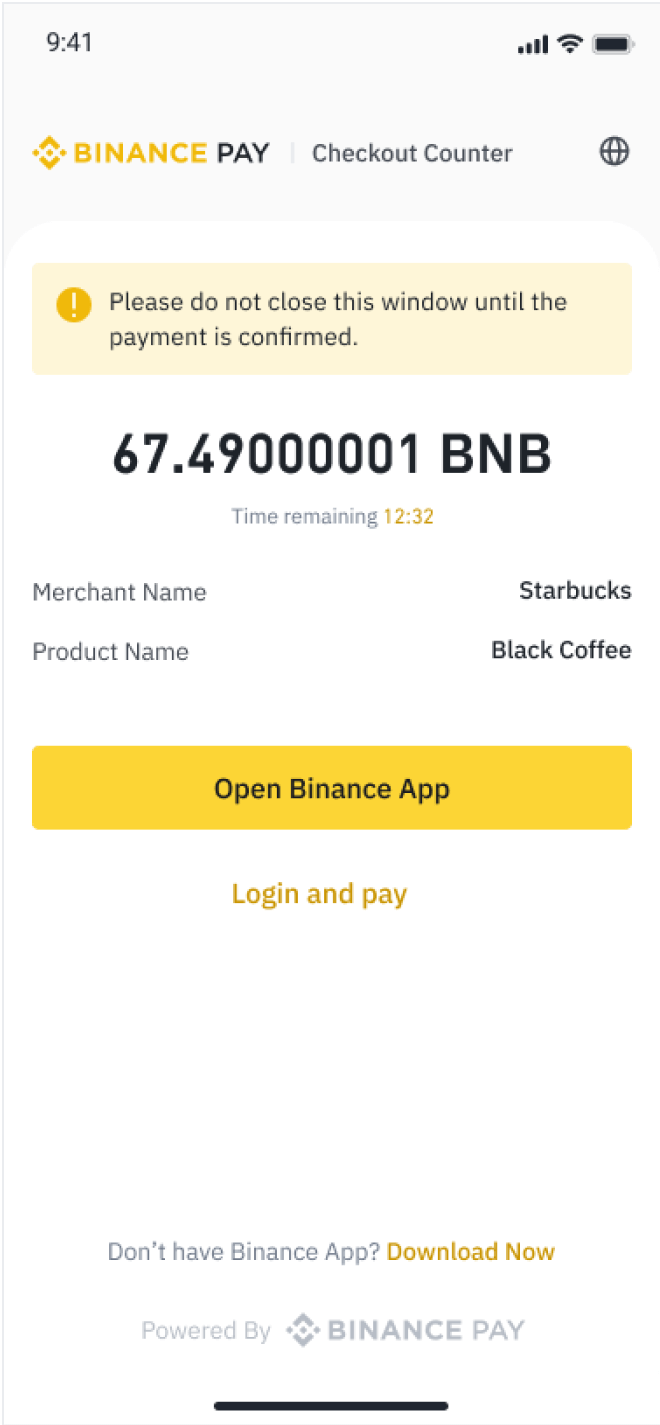
Accept Binance Pay payments in Invision Community 5 Commerce. Customers complete payment on Binance Pay’s hosted checkout page, while the gateway tracks the order and updates their Commerce transaction when payment is confirmed.

Overview

Accept Binance Pay payments in Invision Community 5 Commerce. Customers complete payment on Binance Pay’s hosted checkout page, while the gateway tracks the order and updates their Commerce transaction when payment is confirmed.

Description

Features
  • Crypto-denominated or fiat-denominated orders

  • Signed API requests and verified webhook notifications

  • Automatic handling of successful, pending, canceled, and expired payments

  • Full refunds through Commerce, with confirmation from Binance Pay

  • Protection against duplicate payment notifications

Requirements: Invision Community 5 with Commerce, a Binance Pay merchant account, API credentials, and a public HTTPS webhook URL.

Please note: Recurring payments and partial refunds are not supported.

User Feedback

Create an account or sign in to leave a review

There are no reviews to display.

Configure browser push notifications

Chrome (Android)
  1. Tap the lock icon next to the address bar.
  2. Tap Permissions → Notifications.
  3. Adjust your preference.
Chrome (Desktop)
  1. Click the padlock icon in the address bar.
  2. Select Site settings.
  3. Find Notifications and adjust your preference.