Commerce
-
IPS5.0.0+
Customers complete their purchase on Mercado Pago’s hosted payment page, then return to your community while the gateway updates their transaction status.
The integration verifies signed webhooks and confirms payment details with Mercado Pago before approving a Commerce transaction. It supports pending and rejected payments, retries after a failed payment attempt, full and partial refunds, and chargeback alerts. Administrators can configure installments, payment-type exclusions, binary mode, and a statement descriptor.
Requirements: Invision Community 5 with Commerce, a Mercado Pago account with an Access Token and webhook secret, and a publicly accessible HTTPS site. Recurring payments are not supported.
-
IPS5.0.0+
Features
Crypto-denominated or fiat-denominated orders
Signed API requests and verified webhook notifications
Automatic handling of successful, pending, canceled, and expired payments
Full refunds through Commerce, with confirmation from Binance Pay
Protection against duplicate payment notifications
Requirements: Invision Community 5 with Commerce, a Binance Pay merchant account, API credentials, and a public HTTPS webhook URL.
Please note: Recurring payments and partial refunds are not supported.
-
IPS5.0.0+
Customers select Razorpay at checkout and complete their payment in a popup on your site. Available payment methods, such as cards, UPI, netbanking and wallets, depend on your Razorpay account.
The integration creates a Razorpay order for each transaction, verifies payment signatures and server notifications, and confirms the payment before Commerce fulfills the purchase. It supports full and partial refunds from the Commerce AdminCP, payment retries, and background reconciliation when a notification is delayed.
Requirements: Invision Community 5 with Commerce, a Razorpay account, API keys, and a public HTTPS webhook URL.
Automatic recurring charges and stored cards are not supported. Refunds made directly in the Razorpay Dashboard require manual reconciliation in Commerce.
-
IPS5.0.0+
Accept one-time payments through Cybersource Secure Acceptance Hosted Checkout. Customers enter their payment details on a Cybersource-hosted page, while your Invision Community 5 Commerce store receives signed payment responses and updates the order.
Features
One-time sales and authorization-then-capture payments
Signed customer returns and Merchant POST notifications
Handling for accepted, declined, cancelled, review, and error responses
Authorization reversals and voids for eligible sales or captures
Full refunds and partial refunds that leave a remaining balance
Sandbox and production settings, with protection against duplicate processing
Requirements and limitations
Requires Invision Community 5 Commerce, a Cybersource Secure Acceptance profile, REST API credentials, and publicly reachable HTTPS callback URLs. Recurring billing and stored cards are not supported.
Test the complete payment flow in your Cybersource sandbox before enabling production payments.
-
IPS5.0.0+
Give customers a secure, familiar checkout experience while keeping payment processing with Adyen. The gateway creates a Hosted Checkout session, redirects the customer to Adyen, and updates the Commerce transaction using HMAC-verified webhooks.
Features
Supports payment methods enabled for your Adyen merchant account, including cards, 3D Secure, wallets, and redirect methods.
Handles successful, pending, refused, canceled, and expired payments.
Supports full and partial refunds, including asynchronous refund outcomes.
Detects duplicate notifications and supports payment retries.
Routes capture failures and chargebacks to an administrator attention workflow.
Includes separate test and live settings, plus HMAC key rotation.
Requirements: Invision Community 5 with Commerce, an Adyen merchant account, and a publicly accessible HTTPS webhook URL. Available payment methods depend on your Adyen account and configuration.
Scope: One-time payments only. Recurring billing, manual capture, marketplace splits, and Adyen partial-payment Orders are not included.
-
IPS5.0.0+
The integration redirects customers to the hosted MultiSafepay payment page, where they can select any compatible payment method enabled for your MultiSafepay account. Payment details are processed by MultiSafepay and are never stored by your community.
Key Features
Separate TEST and LIVE environments
Hosted MultiSafepay checkout
Optional fixed payment method, such as iDEAL or credit card
Secure HMAC-SHA512 webhook verification
Protection against forged and replayed notifications
Server-to-server payment status verification
Automatic handling of completed, pending, declined, cancelled and expired payments
Chargeback and dispute handling
Full and partial refunds from Commerce
Idempotent processing of duplicate notifications
Automatic background reconciliation of pending transactions
Secure customer return URLs
Multi-currency amount handling
Configurable checkout language
Reliable Payment Processing
A transaction is marked as paid only after MultiSafepay confirms that both the order and financial statuses are completed. Pending or unsettled payments remain pending until final confirmation is received.
The integration uses three status-confirmation layers:
Real-time MultiSafepay webhooks
Server-side verification when the customer returns
Scheduled background reconciliation for unresolved transactions
This prevents duplicate fulfilment and reduces the risk of missing delayed payment updates.
Requirements
Invision Community 5
Commerce application
MultiSafepay merchant account
MultiSafepay Website API key
Publicly accessible HTTPS website
Compatibility
This version supports one-time payments through the hosted MultiSafepay payment page. Recurring billing agreements and specialized BNPL shopping-cart or manual-capture workflows are not included.
Both TEST and LIVE modes are supported, allowing the complete checkout workflow to be verified before accepting real payments.
-
IPS5.0.0+
The gateway integrates Braintree Drop-in UI with the Commerce checkout process, allowing customers to enter payment details without sensitive card data passing through your community. Payments are processed through the Braintree GraphQL API and connected to the standard IC5 transaction workflow.
Key Features
Native integration with Invision Community 5 Commerce
Secure Braintree Drop-in payment form
Credit and debit card payments
Optional PayPal, PayPal Credit, and Venmo support
Optional 3D Secure verification
Separate authorization and capture workflow
Full and partial refunds
Transaction voiding and reversal
Fraud device data collection
Sandbox and production environments
Merchant account routing
Transaction amount, currency, and order verification
Direct links to transactions in the Braintree Control Panel
No sensitive card details stored or processed by Invision Community
Requirements
Invision Community 5 with Commerce
An active Braintree merchant account
Braintree public and private API keys
Appropriate Braintree permissions for creating, capturing, viewing, voiding, and refunding transactions
This application supports one-time payments. Recurring billing agreements are not currently supported.
-
IPS5.0.0+
This application integrates Klarna Hosted Payment Page with IC5 Commerce, providing customers with a secure Klarna checkout experience while keeping payment statuses, captures, refunds, and transaction data synchronized with your community.
Key Features
Native integration with Invision Community 5 Commerce
Klarna Hosted Payment Page checkout
Playground and Production environments
European, North American, and Oceania API regions
Support for classic Klarna credentials and modern API keys
Automatic payment status synchronization
Secure return and server-to-server callback handling
Automatic order capture through IC5
Optional immediate capture through Klarna
Full and partial refunds from the IC5 AdminCP
Idempotency protection against duplicate captures and refunds
Callback signature validation and event deduplication
Amount and currency verification
Klarna Order ID, Capture ID, and session data stored with IC5 transactions
Detailed API error reporting and Klarna correlation IDs
Configurable payment categories, HPP title, and merchant logo
Public HTTPS callback URL support for production and local testing
Payment Flow
When a customer selects Klarna during checkout, the application creates a Klarna Payments session and securely redirects the customer to the Klarna Hosted Payment Page.
After the customer completes or cancels the payment, the application verifies the session directly with Klarna and updates the corresponding IC5 transaction. Payment callbacks are processed independently, allowing transactions to complete even if the customer closes the browser before returning to your community.
Security
Each payment session receives a unique callback secret. Incoming events are validated, deduplicated, and verified against Klarna before an IC5 transaction is approved.
The application also validates the order amount, currency, transaction reference, and Klarna order details before completing a payment.
Requirements
Invision Community 5
IC5 Commerce
An active Klarna merchant account
Klarna API credentials
A publicly accessible HTTPS website
A supported Klarna country, currency, and locale combination
Important Information
Recurring billing agreements and automatic subscription renewals are not currently supported.
Available Klarna payment options depend on your merchant agreement, customer location, purchase currency, and Klarna account configuration. Klarna approval is subject to Klarna’s own eligibility and risk assessment.
Support
The application includes both Playground and Production modes, making it possible to test the complete payment, capture, cancellation, and refund flow before enabling live transactions.
-
IPS5.0.0+
Checkout.com Payment Gateway adds Checkout.com as a complete payment method for Commerce in Invision Community 5.
During checkout, customers are redirected to a secure Checkout.com Hosted Payments Page, where they can select an available payment method and enter their payment details. Sensitive card information is never processed or stored by your Invision Community installation.
After payment, the application verifies the transaction through the Checkout.com API before updating the invoice. Signed webhook notifications provide reliable processing of successful payments, declined attempts, customer retries, and asynchronous refunds.
Key Features
Native integration with Invision Community 5 Commerce
Checkout.com Hosted Payments Page
Sandbox and production environments
Automatic redirect to the secure payment page
3D Secure support
Automatic transaction and invoice completion
Payment amount and currency verification
Transaction, gateway, and payment ID validation
HMAC verification of Cko-Signature webhooks
Duplicate and out-of-order webhook handling
Customer payment retries within the same Hosted Payments Page
Full refunds
Partial refunds
Multiple sequential partial refunds
Idempotent refund requests
Asynchronous refund status reconciliation
Configurable allowed and disabled payment methods
Configurable checkout locale
Processing Channel ID support
Checkout.com payment and action IDs stored with IC5 transactions
Support for multiple Checkout.com gateway configurations
Available payment methods depend on the customer’s location, transaction currency, processing channel, and the capabilities enabled on your Checkout.com account.
Security
Payment details are entered directly on Checkout.com’s hosted page. The application does not receive or store card numbers, CVV codes, or other sensitive card details.
Every webhook is authenticated using its Cko-Signature. Payment amount, currency, reference, transaction ID, gateway ID, and payment ID are verified before an Invision Community transaction is completed.
Requirements
Invision Community 5
Commerce application
Active Checkout.com account
Checkout.com Account Client ID
Checkout.com Secret API key
Hosted Payments Page enabled for the account
Public HTTPS webhook endpoint
Important Information
Recurring payment agreements and automatic subscription renewals are not currently supported.
Apple Pay, Google Pay, PayPal, and alternative payment methods must be enabled separately on your Checkout.com account.
Payment method availability varies by account and region.
This is an independent integration and is not an official Checkout.com product.
-
IPS5.0.0+
The gateway redirects customers to the hosted Cryptomus checkout page and automatically updates transactions through signed webhook notifications.
The integration verifies webhook signatures, transaction IDs, payment amounts, currencies, and Cryptomus payment identifiers before approving an order. It supports payment status synchronization, underpayments, overpayments, failed payments, completed refunds reported by Cryptomus, IC5 fraud checks, and configurable invoice lifetime, cryptocurrency, and blockchain network.
Recurring payments and automatic refunds from IC5 are not supported. Refunds must be processed through the Cryptomus merchant dashboard because a destination cryptocurrency address is required.
-
IPS5.0.0+
Intuit QuickBooks Payments gateway for Invision Community 5. Supports secure card payments, authorization and capture, full and partial refunds, OAuth 2.0 token refresh, sandbox testing, and webhook verification.
-
IPS5.0.0+
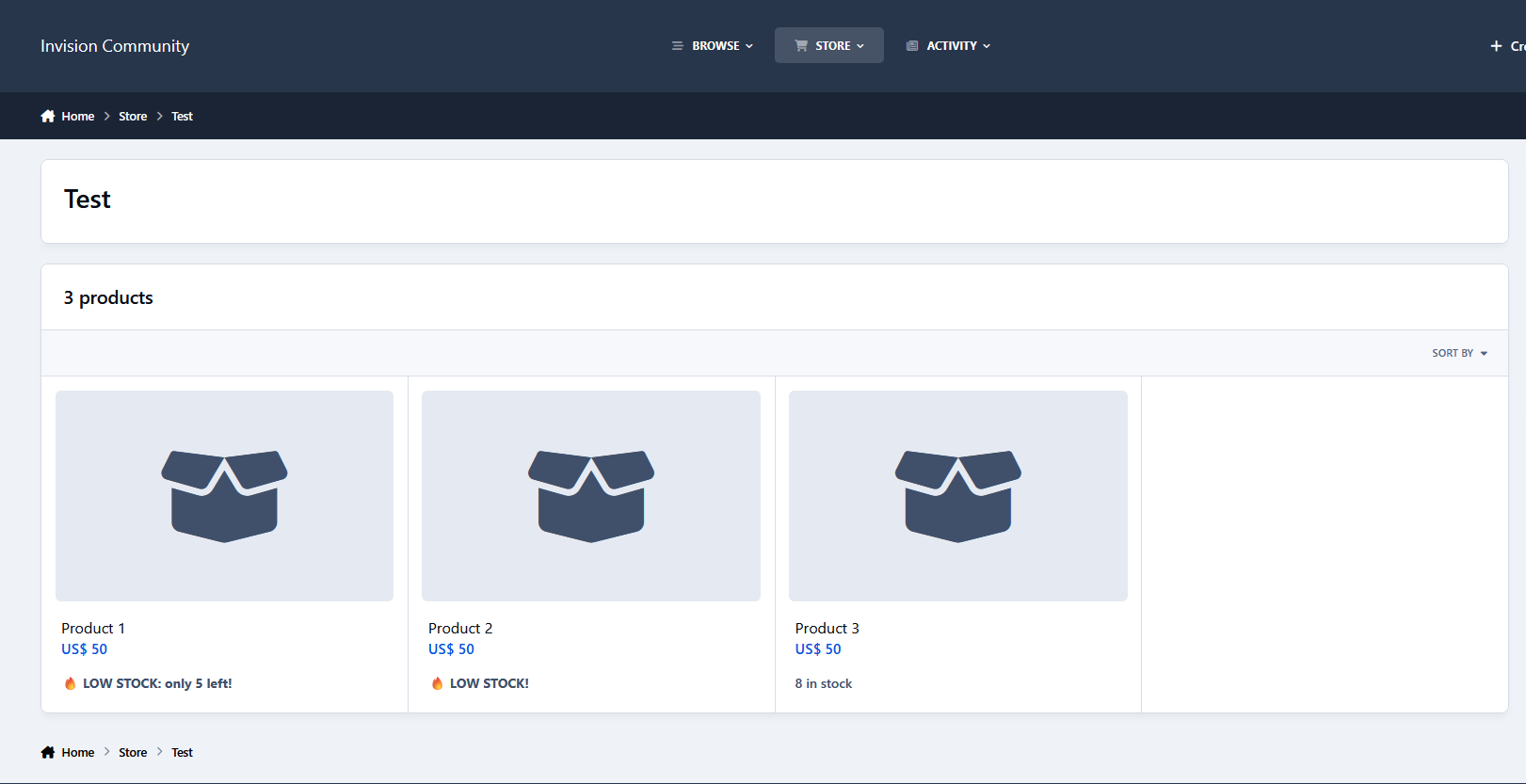
Low Stock Notice allows administrators to display a custom warning when a Commerce product's stock reaches a configured minimum level.
Per product settings:
Enable/disable the low stock notice.
Choose whether to display the remaining stock:
Enabled: 🔥 LOW STOCK - X left!
Disabled: 🔥 LOW STOCK!
Set the minimum stock amount required to trigger the notice.
Requirements:
The product must have stock management enabled and a defined stock amount (unlimited stock products are ignored).
The Commerce stock level display must be enabled.
Example:
You can configure a product to show the notice when only 10 units remain. From 10 down to 1 available item, customers will see the low stock warning, for example:
🔥 LOW STOCK - only 3 left!
-
IPS5.0.0+
You can connect your Square Up account to the Commerce app in Invision Community 5!
Additional features
Allow tipping
Ask for shipping address
Enable Square coupons
Enable Square loyalty
-
IPS5.0.0+
This resource will provide administrators with detailed information about the revenue generated by files in their community, broken down by currency and including both purchases and renewals. Administrators can search revenue data by file and date range and export the results to a CSV file containing useful invoice and payment gateway information.
Front-end integration is also included. File authors can view the revenue generated by their own files directly from the file view page (optional setting), while moderators with permission can view revenue information for any file.
Requirements:
Downloads app
-
IPS5.0.11+
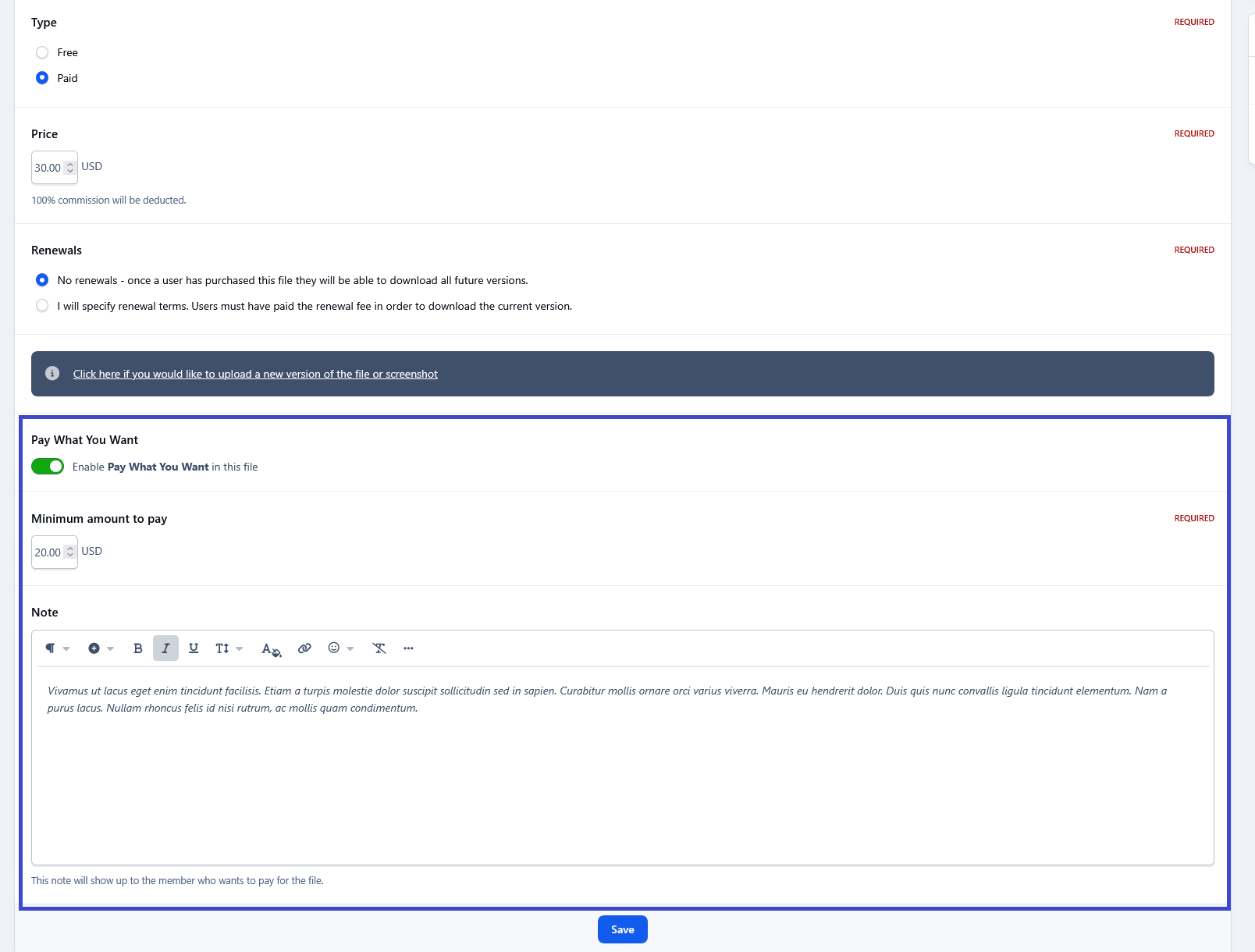
This application allows users to purchase files by paying an amount they feel is fair. Files will still have their normal price, but authors can optionally enable a minimum payment amount, preventing users from paying below that value.
Requirements:
Downloads app
Commerce app
Permissions:
Administrators can choose which member groups are allowed to use this feature per category.
Settings:
Payment Methods
Tax Class
Site Commission
Site Transaction Fee