Cascading Select Custom Field
Invision Community 5
- Category Integrations
- Downloads 11
- Compatibility IC5: 5.0.0+
- App Version 1.0.0
- Updated
Description
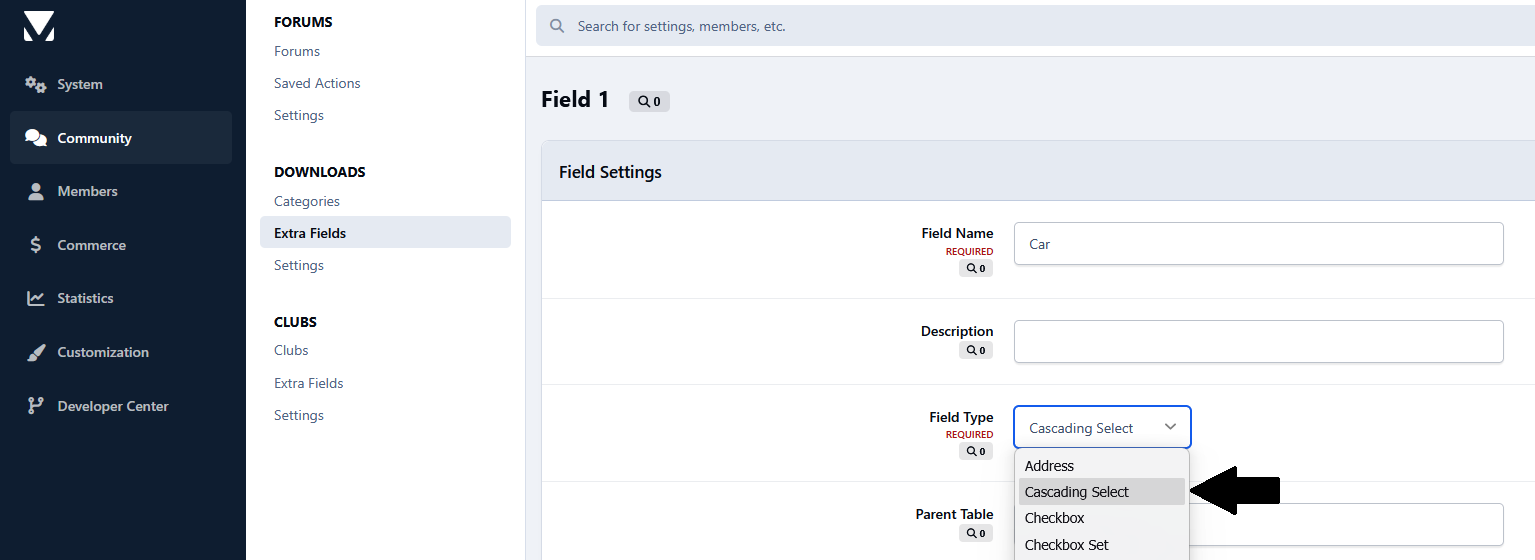
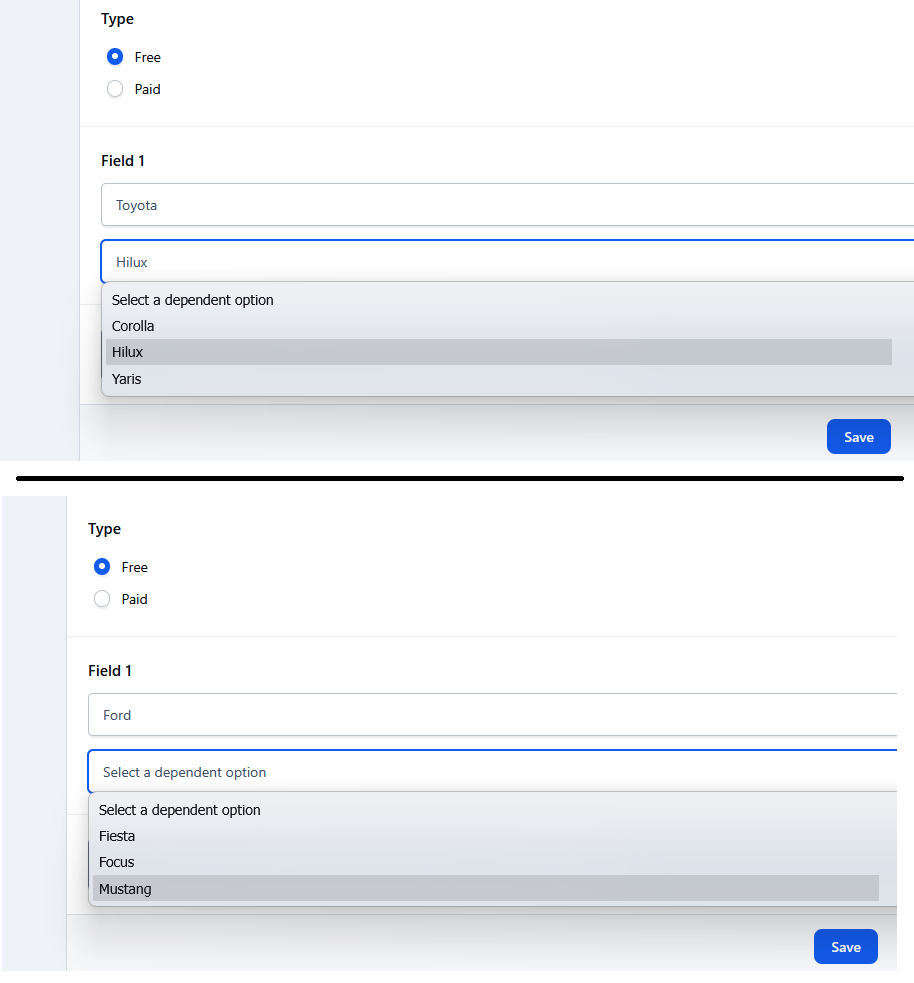
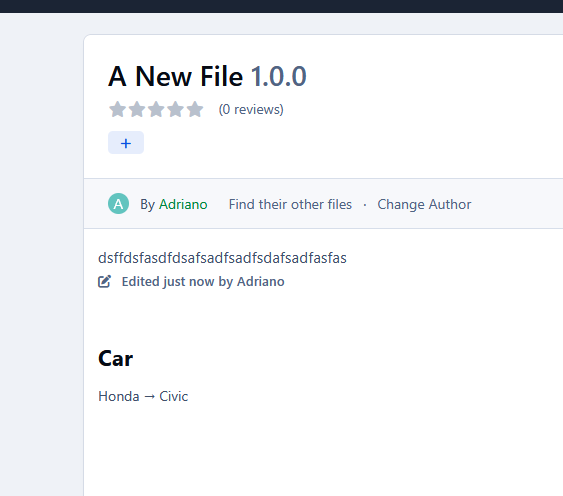
Cascading Select Custom Field adds a new custom field type that allows administrators to create dependent select fields using data from database tables. The second select is loaded dynamically via AJAX and automatically filtered based on the option selected in the first one, without reloading the page. This is useful for relationships such as Brand → Model, Country → State, Category → Subcategory, and similar data structures.
Because it integrates with the IPS Custom Fields model, it can be used anywhere in the suite where the underlying model extends Custom Fields support, including Profile Custom Fields and applications that implement their own Extra Fields systems.
The example above used:
CREATE TABLE cascadingselect_brands (
	brand_id INT UNSIGNED NOT NULL AUTO_INCREMENT,
	brand_name VARCHAR(100) NOT NULL,
	PRIMARY KEY (brand_id)
);

INSERT INTO cascadingselect_brands (brand_name) VALUES
('Ford'),
('Toyota'),
('Honda');


CREATE TABLE cascadingselect_models (
	model_id INT UNSIGNED NOT NULL AUTO_INCREMENT,
	model_brand INT UNSIGNED NOT NULL,
	model_name VARCHAR(100) NOT NULL,
	PRIMARY KEY (model_id),
	KEY model_brand (model_brand)
);

INSERT INTO cascadingselect_models (model_brand, model_name) VALUES
(1, 'Fiesta'),
(1, 'Focus'),
(1, 'Mustang'),
(2, 'Corolla'),
(2, 'Hilux'),
(2, 'Yaris'),
(3, 'Civic'),
(3, 'Fit'),
(3, 'HR-V');
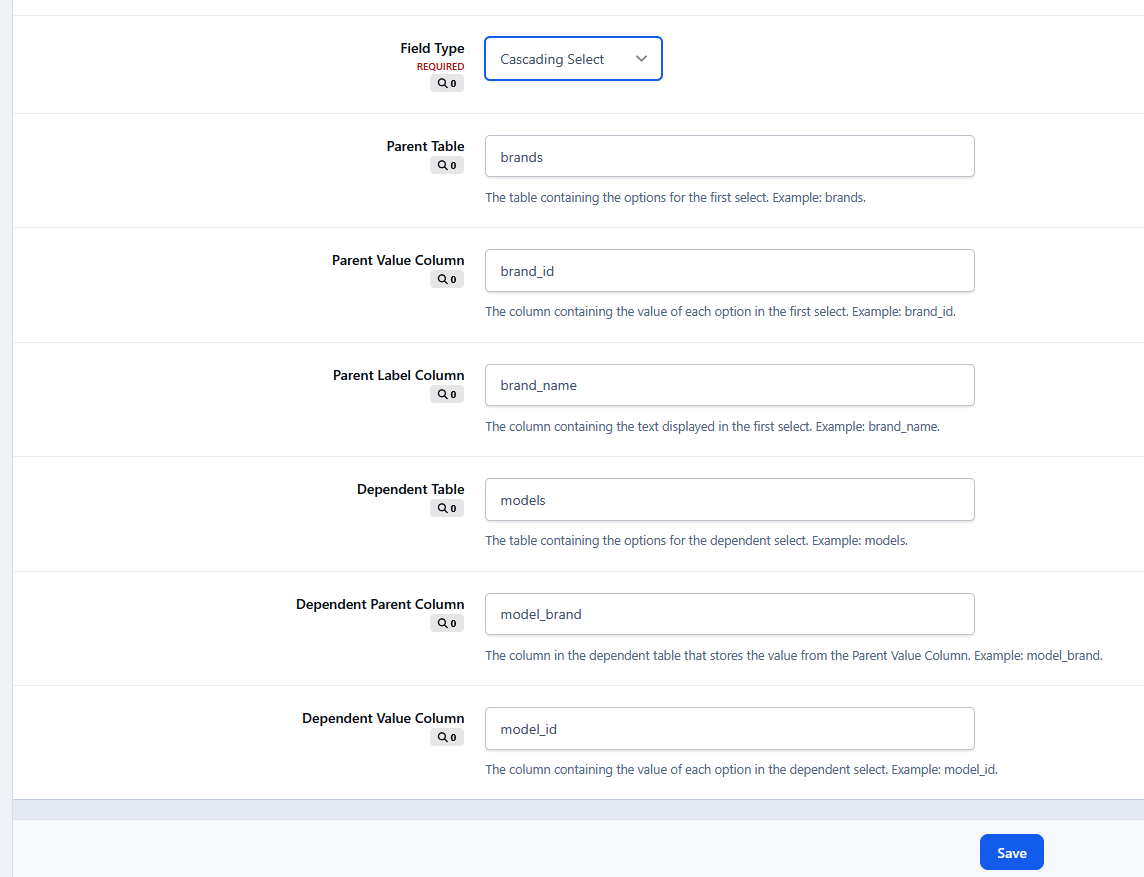
Extra field settings:
Parent Table: cascadingselect_brands
Parent Value Column: brand_id
Parent Label Column: brand_name

Dependent Table: cascadingselect_models
Dependent Parent Column: model_brand
Dependent Value Column: model_id
Dependent Label Column: model_name-
 1
1
There are no reviews to display.