- Category Integrations
- Downloads 31
- Compatibility IC5: 5.0.4+
- App Version 1.0.0
- Updated

Description
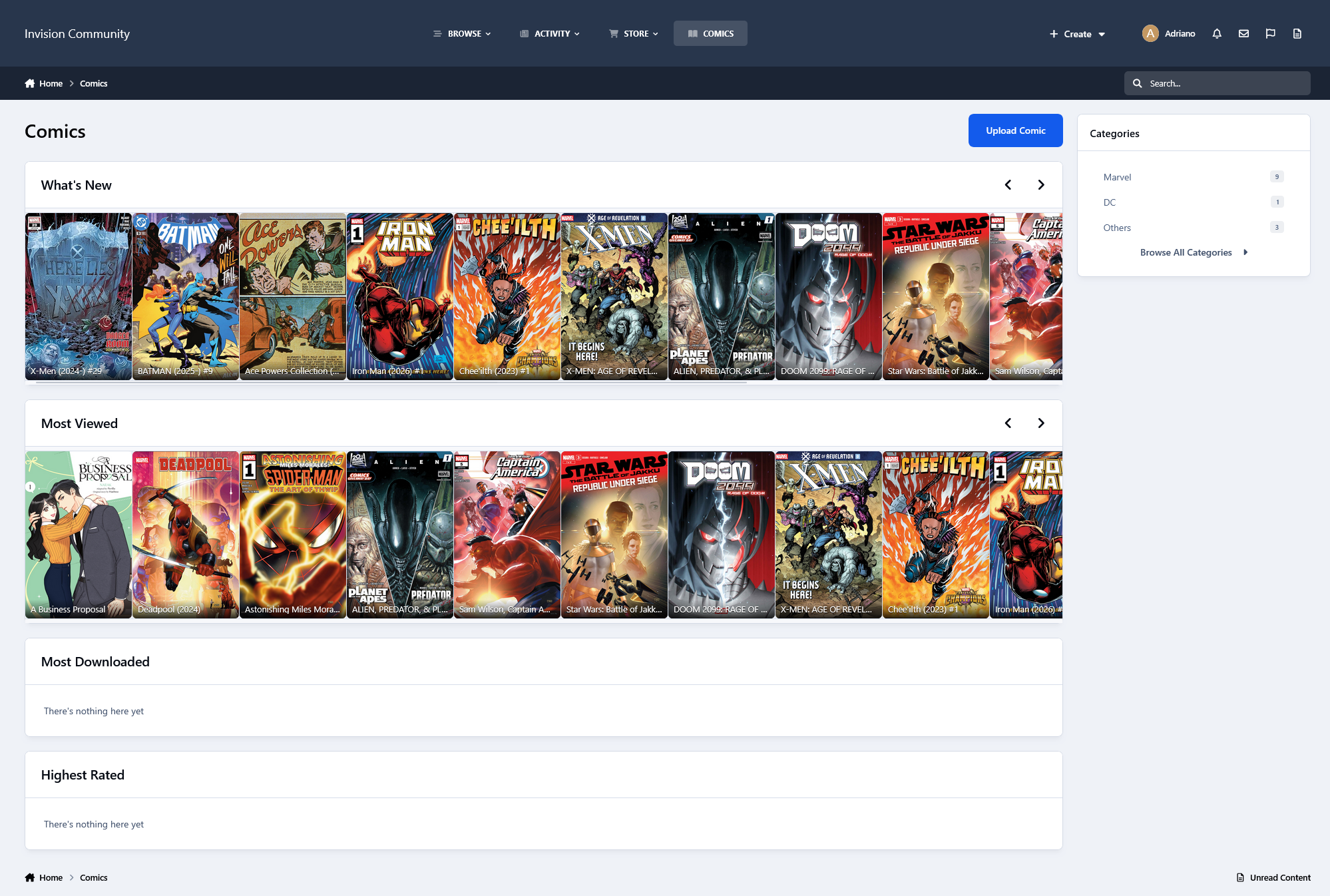
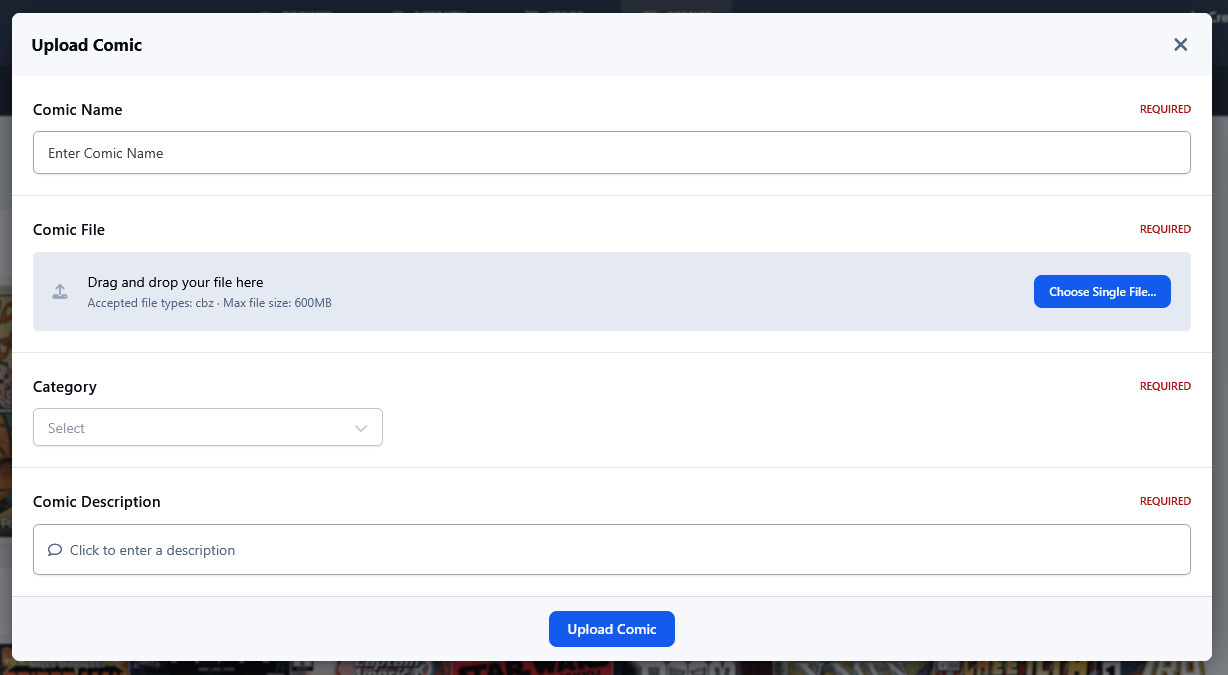
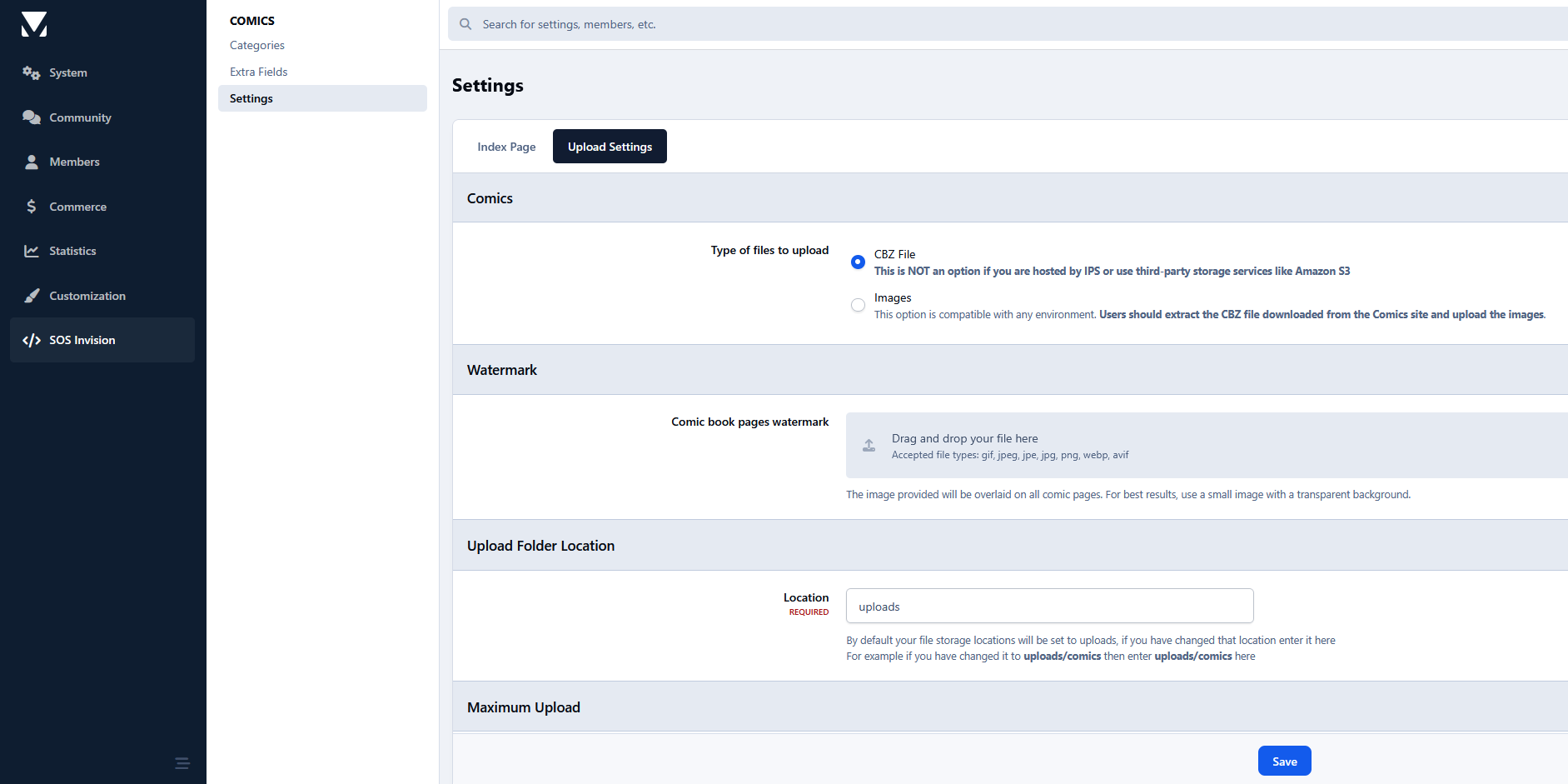
Comics allows members to upload .cbz comic book archives or individual images and share them with the community in a clean, immersive reading experience.
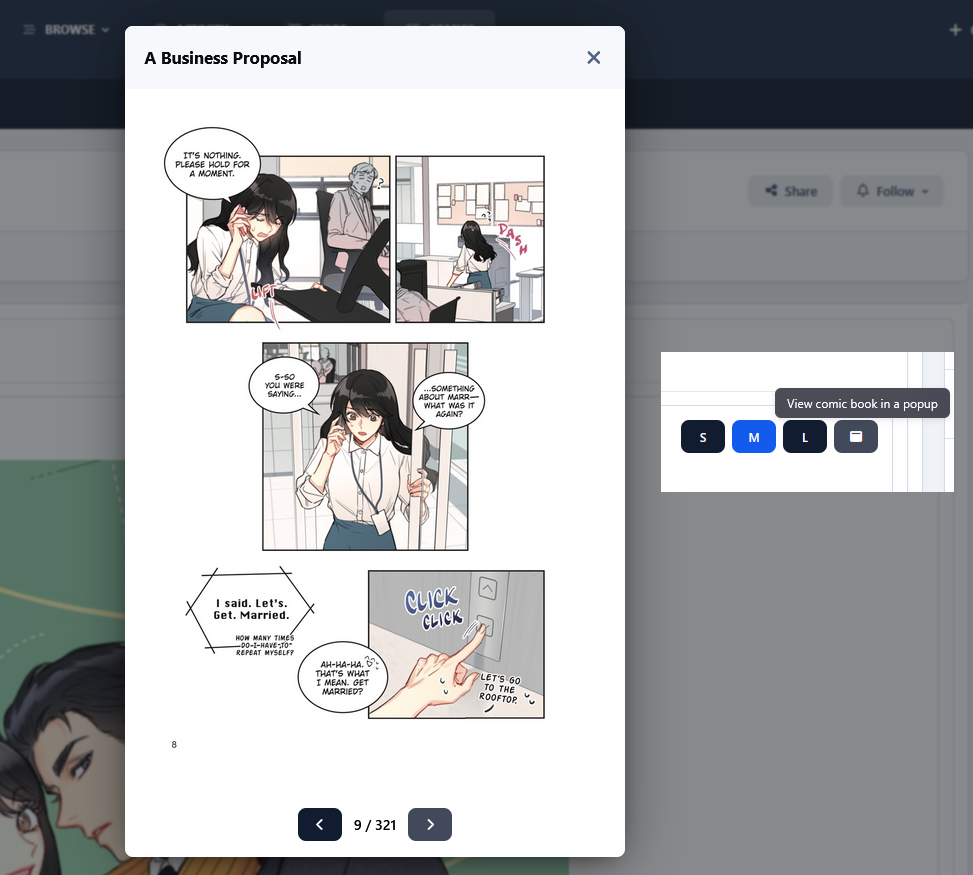
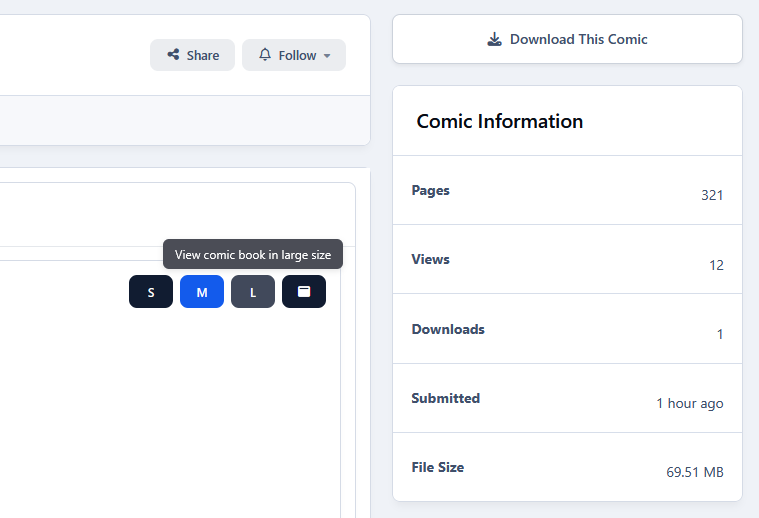
Readers can easily navigate between pages using previous/next controls, keyboard navigation, or intuitive swipe gestures on touch-enabled devices. The app also includes multiple viewing modes, allowing users to choose between small, medium, or large page sizes for a more comfortable reading experience across desktop and mobile devices.
Designed specifically for IPS5 communities, Comics integrates naturally into the suite while providing a lightweight and responsive comic reader experience.
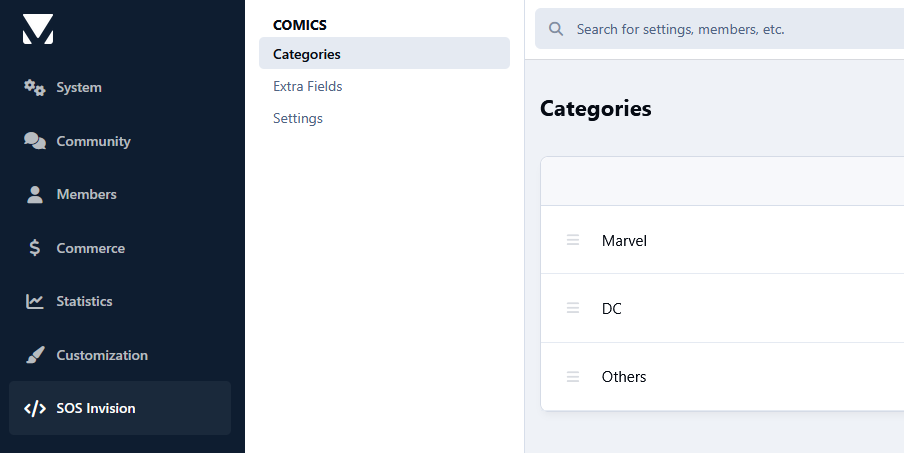
Settings
Flexible settings to control behavior across the app.
Group configuration to control download restrictions and limits.
Other features
Fully integrated into the IPS framework: categories, custom fields, notifications, search, tags, follow system, reactions, promotion tools, and more.
Notice
Although there is an IPS4 application with the same name and purpose, this version was completely rebuilt from scratch. Due to major model and script changes, there is no upgrade path available.
Create an account or sign in to leave a review
There are no reviews to display.