- Category Integrations
- Downloads 13
- Compatibility IC5: 5.0.0+
- App Version 1.0.0
- Updated
Description
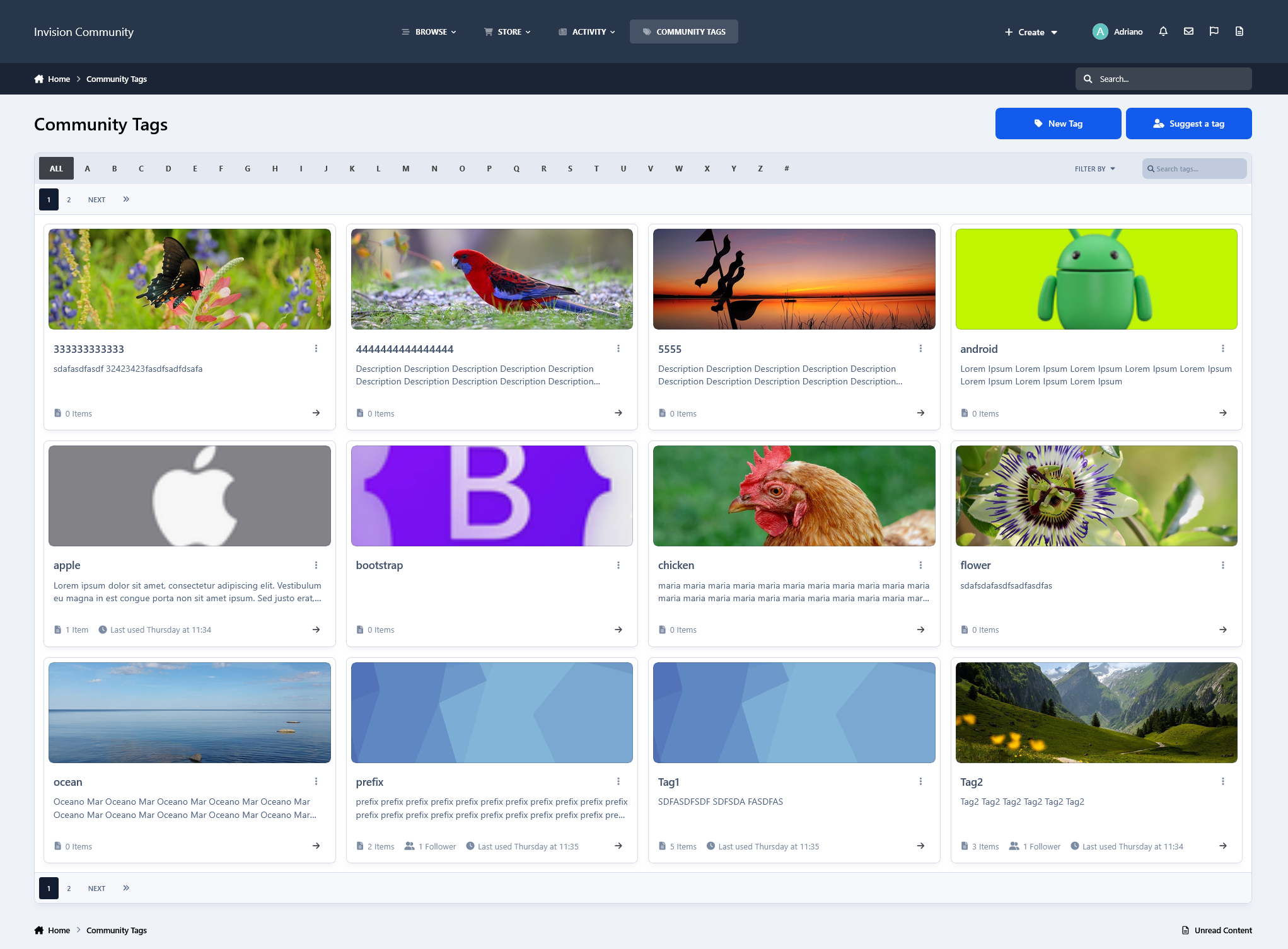
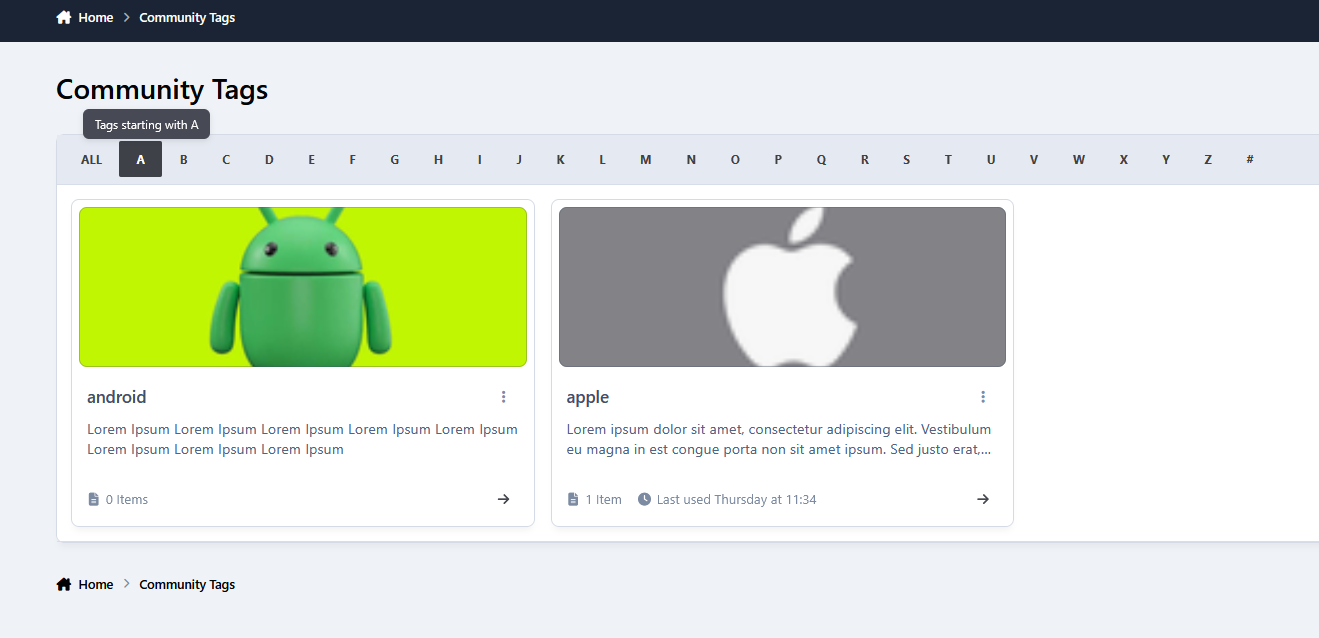
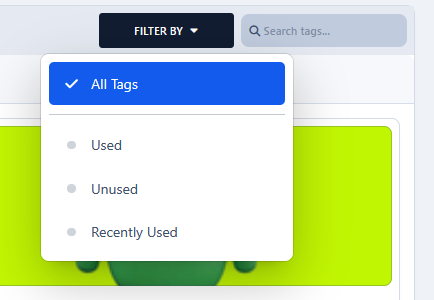
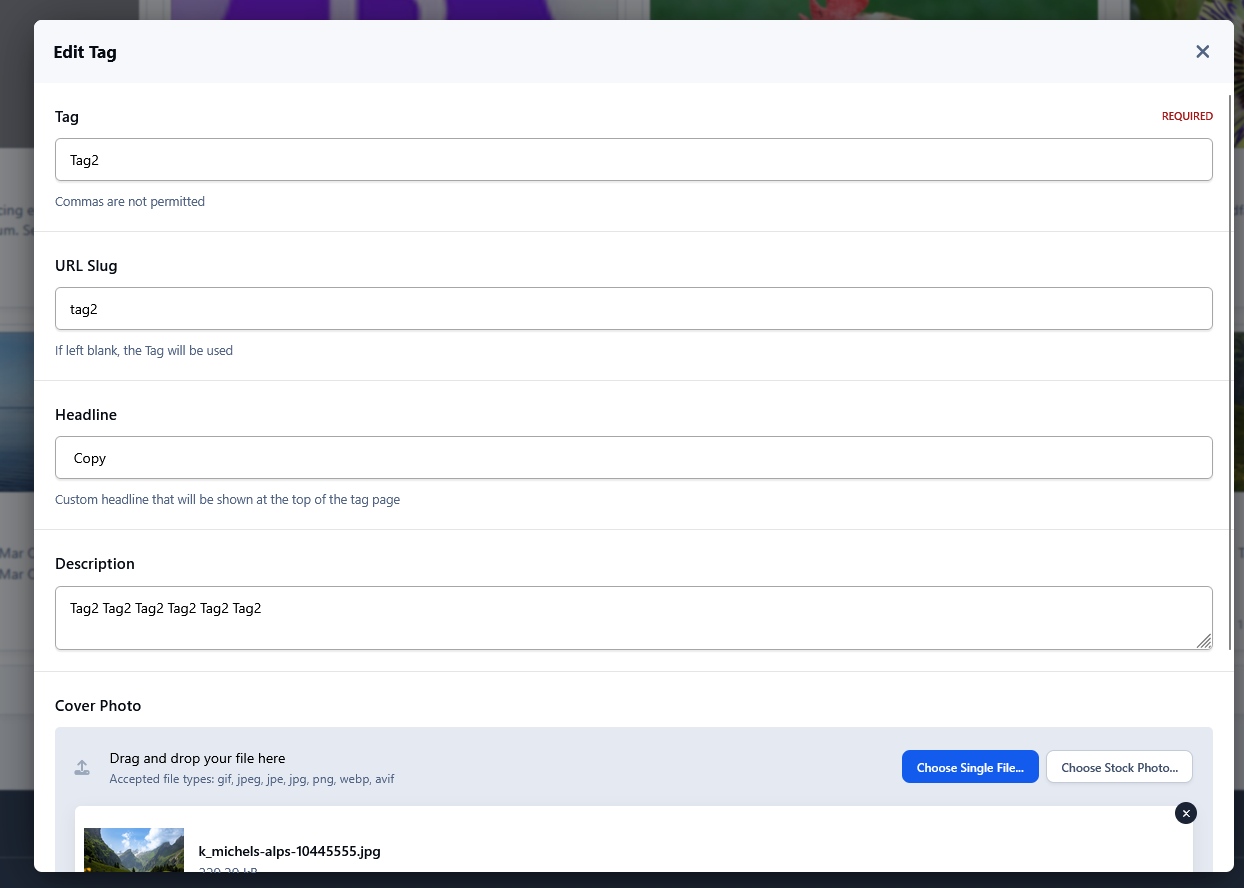
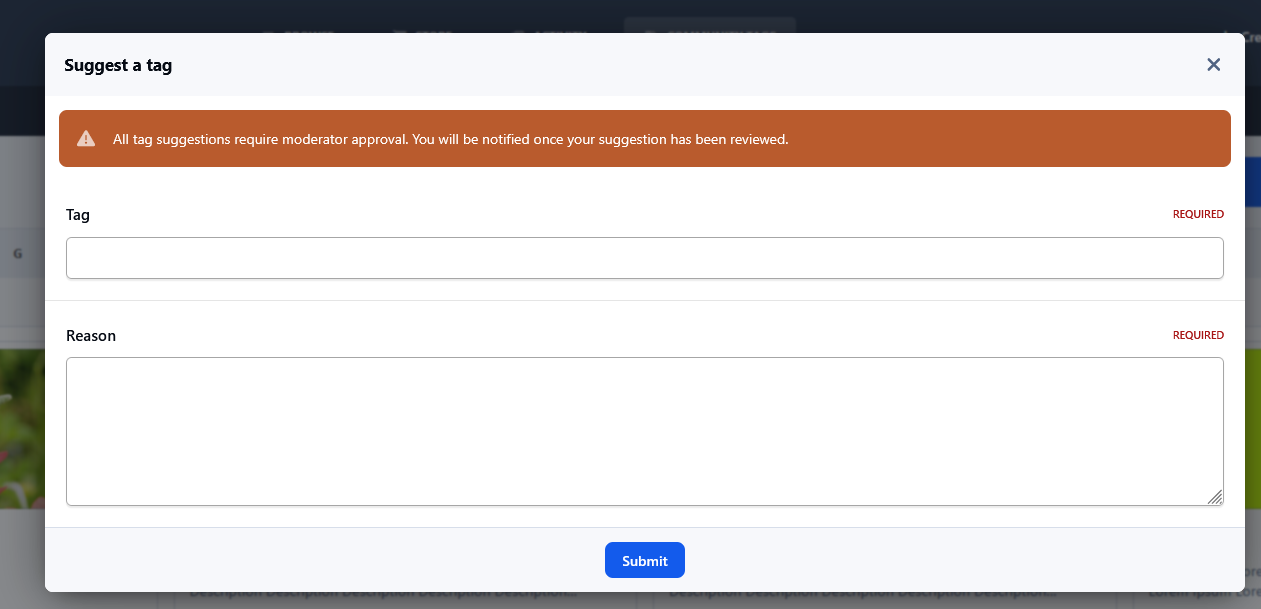
Community Tags adds a centralized area where users can browse, search, and filter all tags available across your community. It makes tags easier to discover and gives your community a clearer overview of the tags already in use. The application also adds a simple workflow for creating and managing tags directly from the front end.
Member roles
Members: can suggest new tags, depending on the configured group permissions.
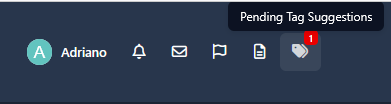
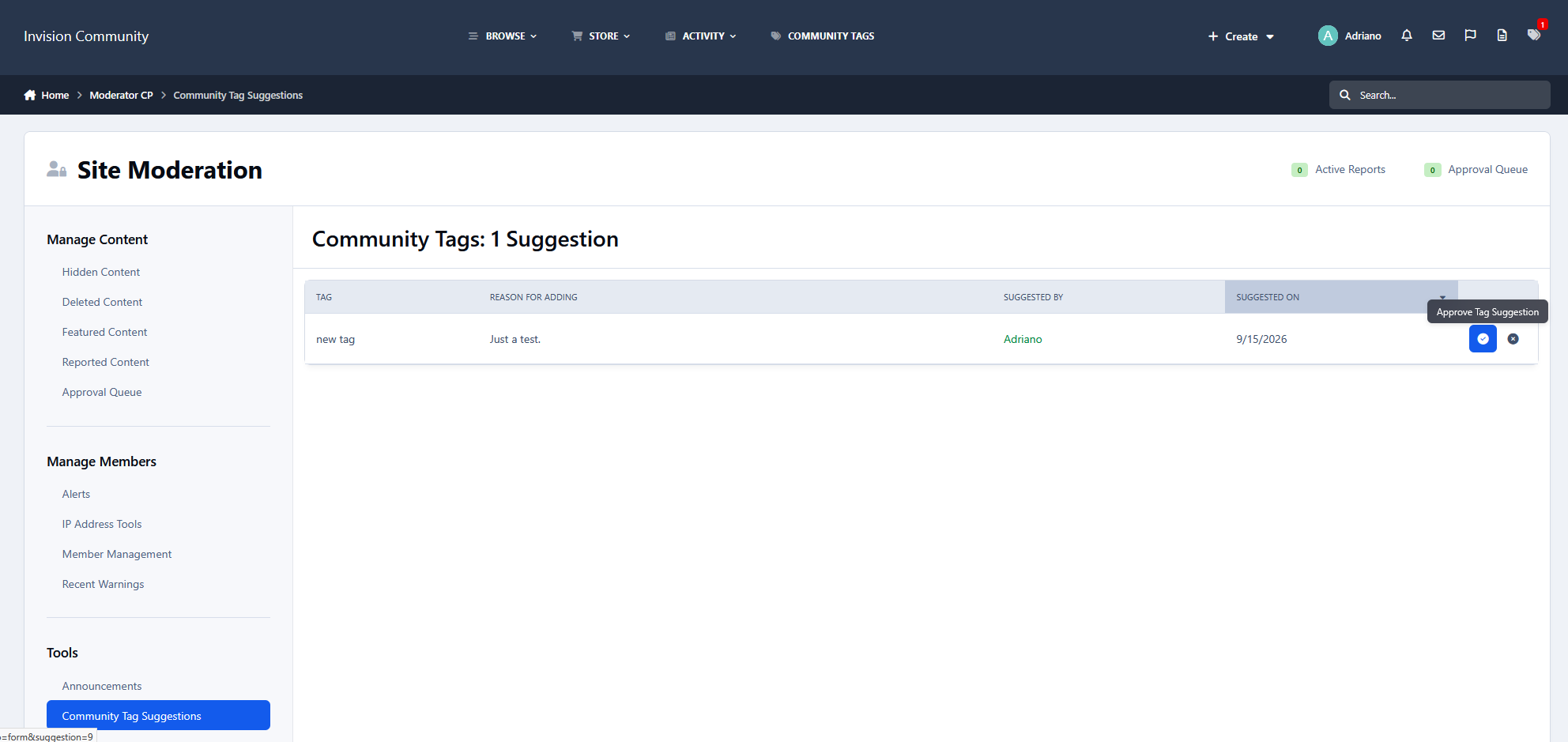
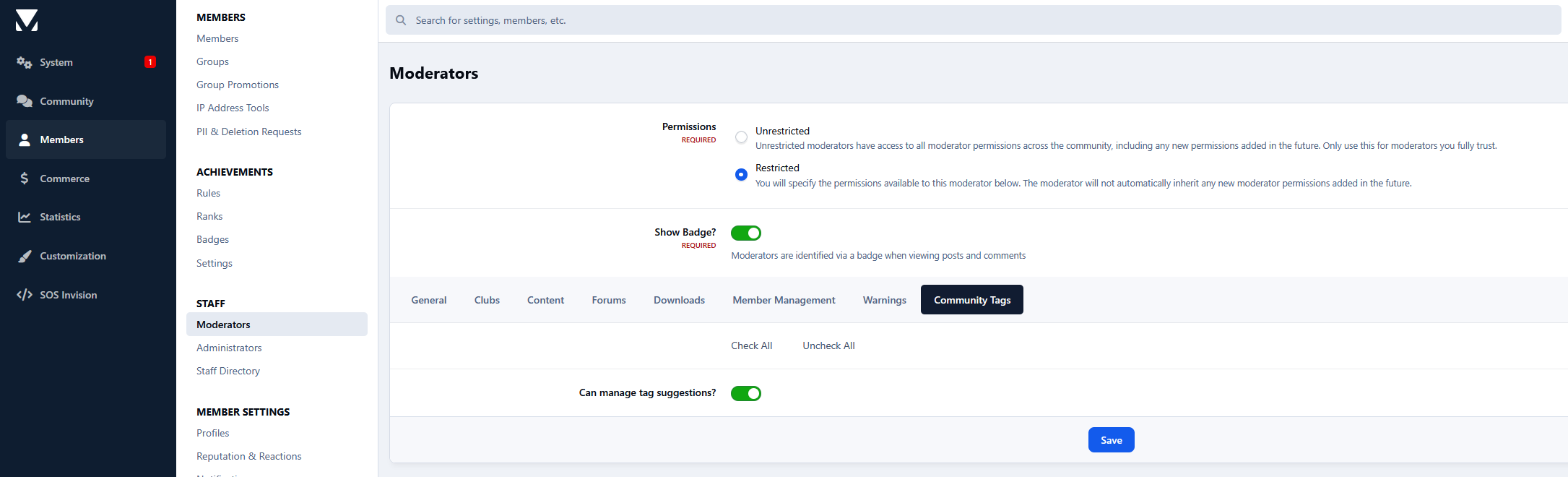
Moderators: can review submitted suggestions and approve or reject them.
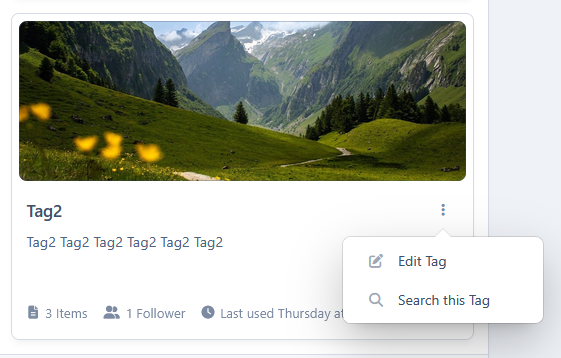
Administrators: can create and edit tags directly from the front end, making tag management faster and more convenient.
Widgets
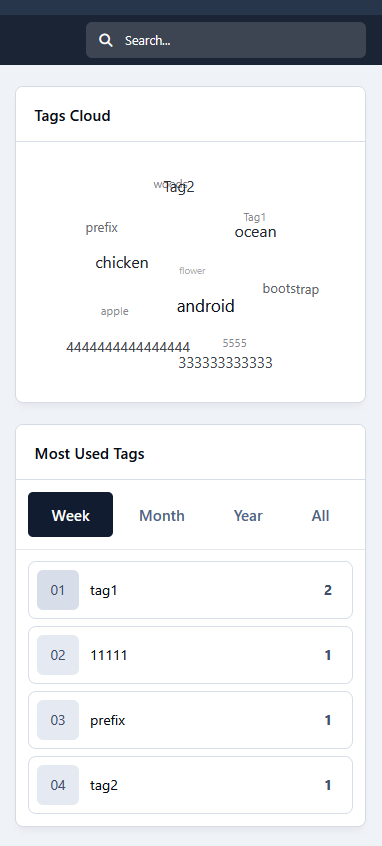
Animated Tag Cloud: displays tags in an animated visual cloud. Its own widget configuration lets you choose the animation style and speed.
Most Used Tags: displays the most used tags with filters for different time periods.
Settings
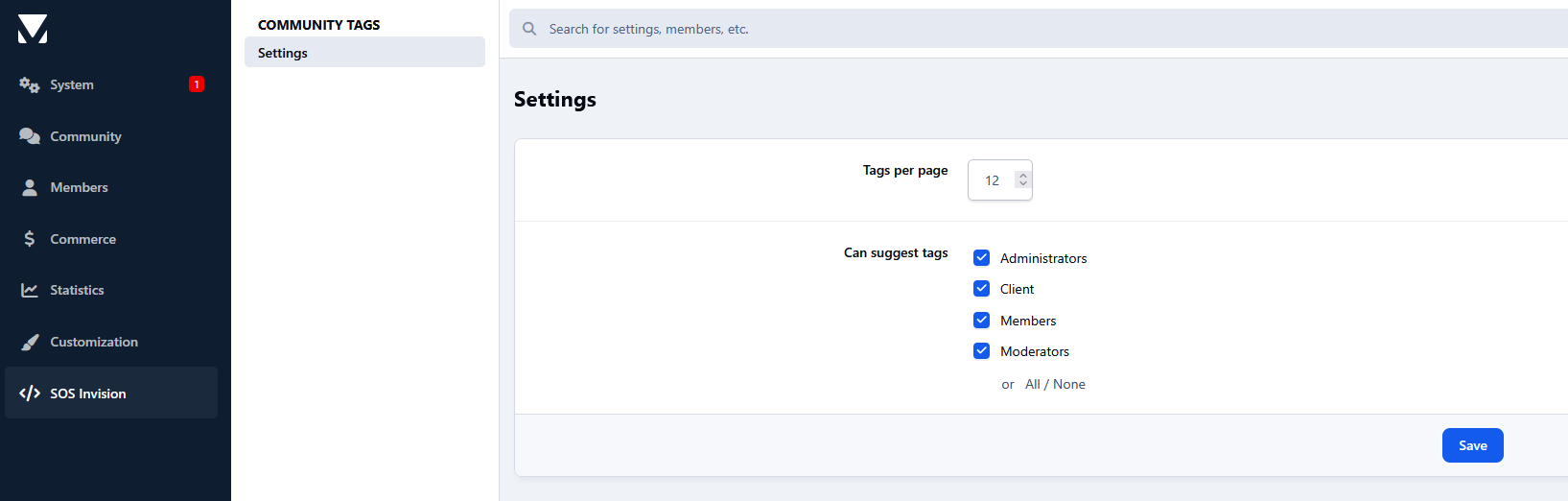
Control which member groups can suggest new tags.
Set how many tags are displayed per page in the Community Tags directory.
There are no reviews to display.