Downloads SHA-256 Checksum
- Category Integrations
- Downloads 14
- Compatibility IC5: 5.0.0+
- App Version 1.0.0
- Updated

Description
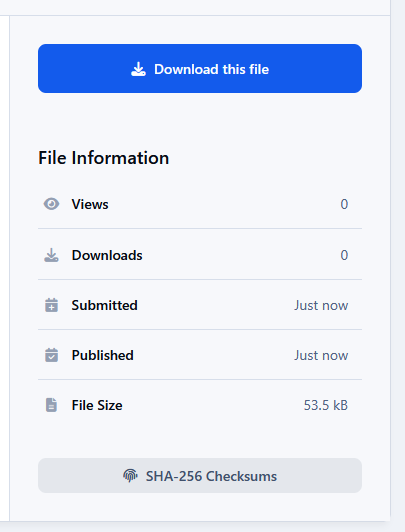
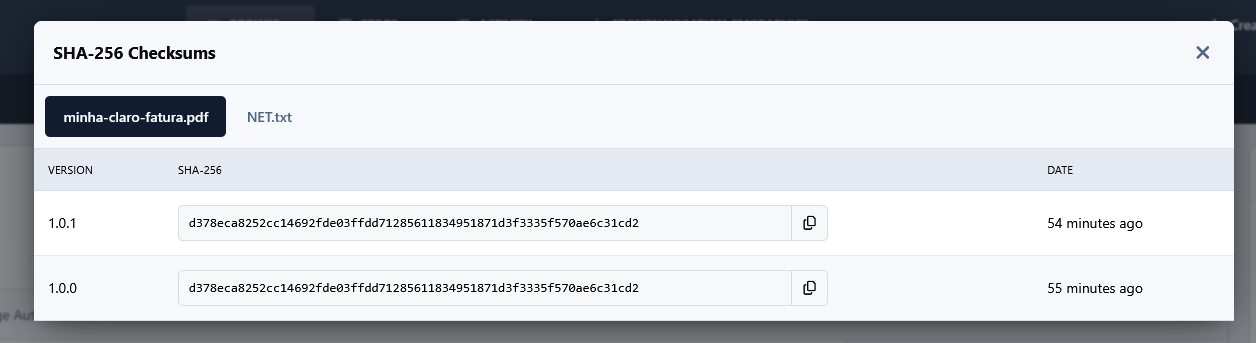
Downloads SHA-256 Checksum automatically generates a SHA-256 checksum whenever a new Downloads file or version is uploaded. Members can view the checksums for each file and version and compare them with the checksum calculated from the file they downloaded. This helps verify that the downloaded file is identical to the file provided by the community and has not been altered or corrupted.
To calculate a SHA-256 checksum locally:
Windows (PowerShell):
Get-FileHash "filename.zip" -Algorithm SHA256Microsoft documentation: Get-FileHash — Microsoft Learn (Microsoft Learn)
Linux:
sha256sum filename.zipGNU documentation: SHA-2 utilities — GNU Coreutils (GNU)
Users can compare the generated SHA-256 value with the checksum displayed on the Downloads file page. If preferred, the checksum can also be calculated online using one of these tools:
Public Tools: https://public.tools/file-checksum
Finite Field: https://finitefield.org/en/tools/security/sha256-generator/
HiPlot: https://hiplot.cn/app/online-encode-decode/sha256_checksum.html
REQUIREMENT
Downloads application
There are no reviews to display.