Google Gemini: Topic Replies
Invision Community 5
- Category Integrations
- Downloads 42
- Compatibility IC5: 5.0.0+
- Updated
Overview
Google Gemini AI automatically replies to members topicsDescription
Google Gemini: Topic Replies
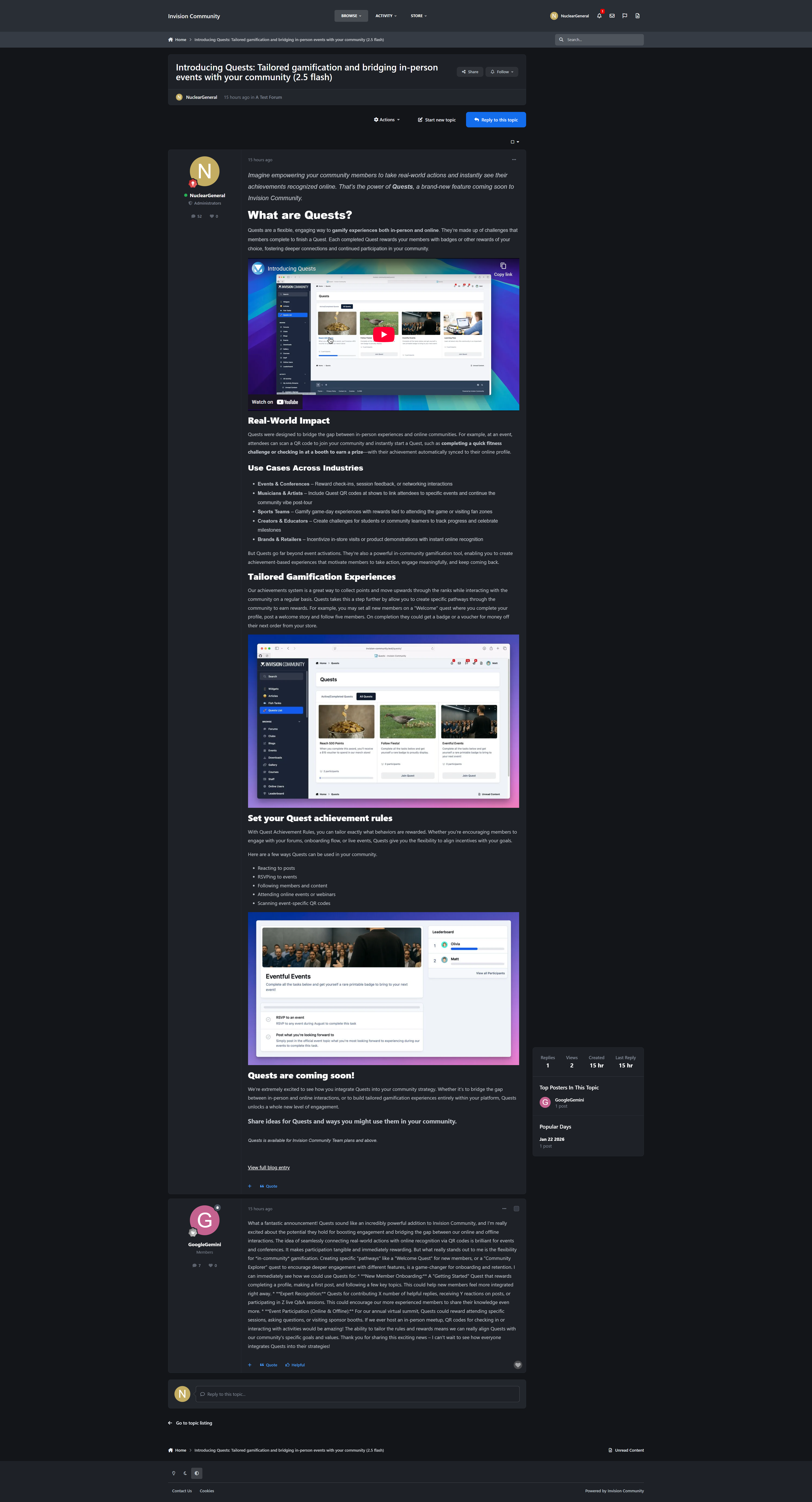
Transform your Invision Community forum with intelligent AI-powered auto-replies! This advanced application uses Google's cutting-edge Gemini AI models to automatically generate thoughtful, contextual responses to forum topics, keeping conversations flowing and providing instant engagement.
🤖 What It Does
Google Gemini: Topic Replies automatically analyzes new forum topics and generates relevant, helpful AI responses using Google's advanced Gemini AI models. It's perfect for maintaining active discussions, providing quick answers to common questions, and enhancing community engagement without manual intervention.
✨ Key Features
Advanced AI Integration
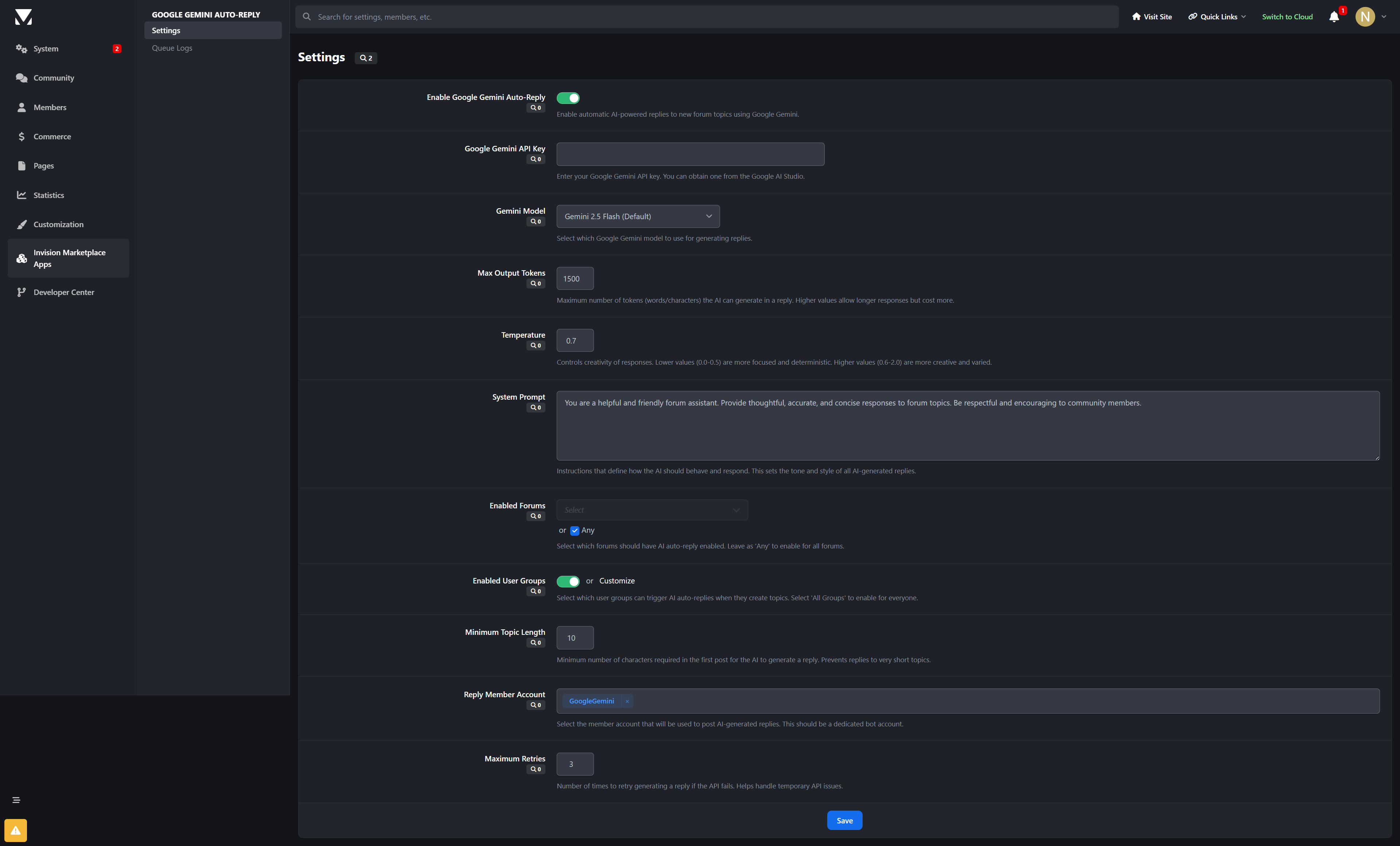
Multiple Gemini Models: Choose from Gemini 2.5 Flash, 2.0 Flash, and preview models optimized for different use cases
Intelligent Content Analysis: AI understands topic context, user intent, and discussion flow
Customizable AI Personality: Define system prompts to match your community's tone and style
Smart Response Generation: Creates natural, conversational replies that fit seamlessly into discussions
Precise Control & Targeting
Forum Selection: Choose specific forums or enable across all boards
User Group Filtering: Control which member groups can trigger AI responses
Content Length Requirements: Set minimum topic lengths to ensure quality responses
Reply Member Assignment: Designate specific bot accounts for AI-generated posts
Enterprise-Grade Architecture
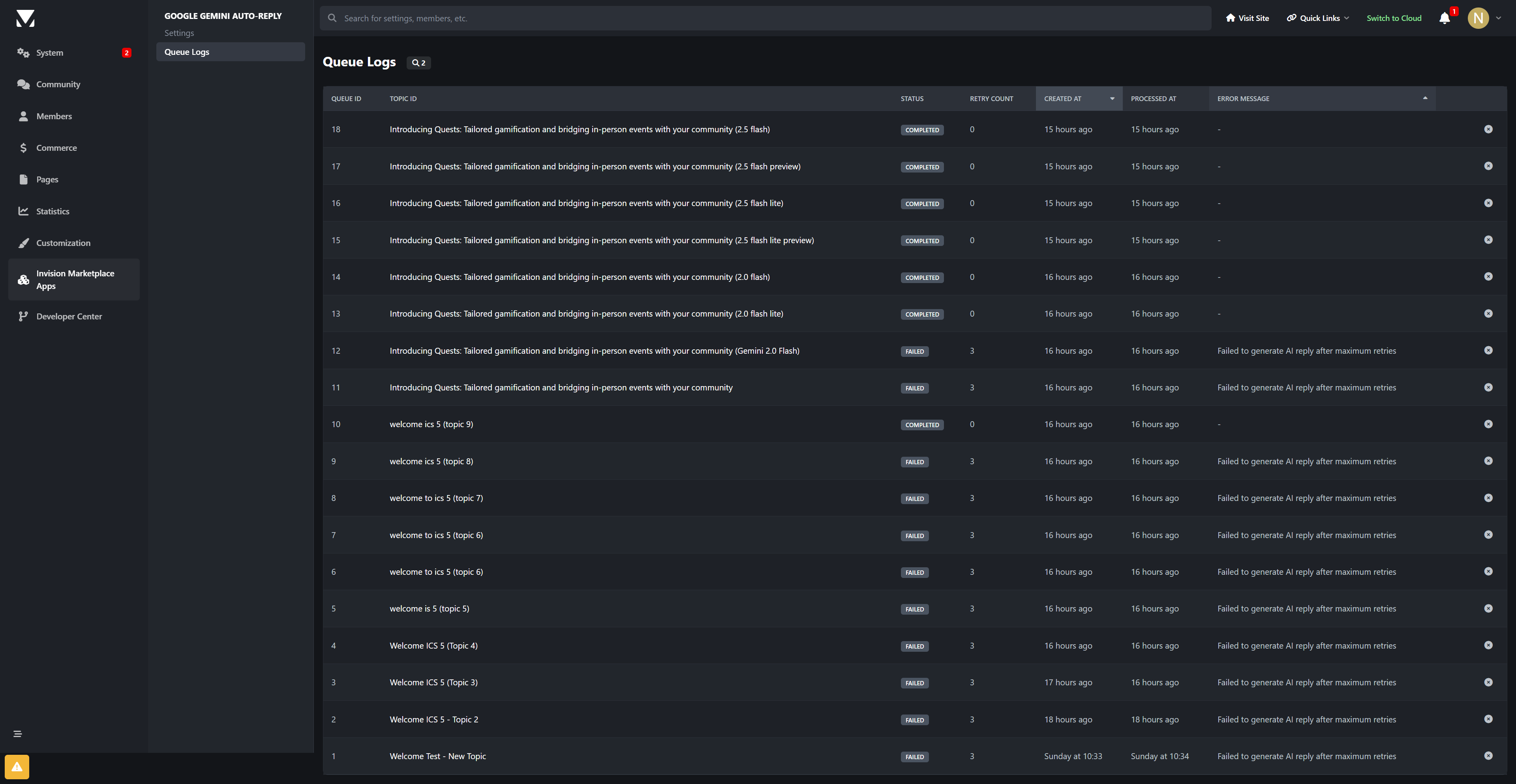
Asynchronous Processing: Queue-based system prevents forum performance impact
Reliable Delivery: Background task processing ensures responses are posted even during high traffic
Comprehensive Error Handling: Automatic retry logic with configurable failure limits
Detailed Logging: Full audit trail for monitoring AI activity and troubleshooting
Admin Management
Intuitive Control Panel: Easy-to-use settings interface for all configurations
Real-Time Monitoring: Live queue status and processing statistics
Performance Analytics: Response time tracking and usage metrics
Queue Management: View pending, processing, completed, and failed responses
🚀 Perfect For
Support Forums: Instant responses to common questions and issues
Community Discussions: Keep conversations active with thoughtful follow-ups
Educational Platforms: Provide additional insights and explanations
Professional Networks: Maintain engagement in industry discussions
Large Communities: Scale support without increasing moderator workload
🎯 Technical Specifications
AI Provider: Google Gemini (Generative AI API)
Supported Models: Gemini 2.5 Flash series, Gemini 2.0 Flash series
Token Limits: Configurable up to 8192 tokens with smart defaults
Temperature Control: Adjustable creativity (0.0-2.0 range)
Queue System: Asynchronous processing with retry logic
Error Handling: Comprehensive logging and automatic recovery
Security: Proper API key management and permission controls
💡 Why Choose Google Gemini Auto-Replies?
Latest AI Technology: Powered by Google's most advanced Gemini models
Production Ready: Enterprise-grade reliability for high-traffic forums
Flexible Configuration: Adapt to your community's unique needs and style
Cost Effective: Optimize API usage with intelligent token management
Future Proof: Regular updates to support new Gemini capabilities
🔧 Easy Setup
Install the Application: Upload to your Invision Community applications folder
Configure API Key: Add your Google AI API key in the settings
Choose Model: Select your preferred Gemini model (2.5 Flash recommended)
Set Preferences: Configure forums, user groups, and response parameters
Go Live: Start enjoying intelligent auto-replies on your forum!
Elevate your forum's responsiveness and engagement with AI-powered automation that enhances community interaction. Google Gemini: Topic Replies brings the future of conversational AI to your Invision Community forum.
Developed by InvisionMarketplace.com - Professional Invision Community applications with enterprise-grade AI integration.
What's New in Version 1.0.1:
Added:
Added AdminCP “Usage & Cost” page with charts to track Gemini usage locally.
Added AI Pricing tab so communities can enter Gemini model rates (per 1M/1K tokens) and default fallback pricing.
Added AI Reply requests on posts with the choice of public reply or private message.
Added configuration for who can use AI replies (forums, groups, min post length, daily and per‑topic limits).
Added cooldown controls plus a bypass group option for trusted staff.
Added PM reply support with custom subject/signature and optional quoting of the original post.
Added detailed queue history and new actions (rerun failed, view history) in the logs.
Added PM history logging alongside topic reply logs.
Added new AdminCP permissions and improved log filtering/sorting.
Added support for PM Viewer link in Queue Logs.
Create an account or sign in to leave a review
There are no reviews to display.