Profile Tabs Organizer
- Category Integrations
- Downloads 71
- Compatibility IC5: 5.0.0+ IC4: 4.7.X
- App Version 2.0.0
- Updated
Description
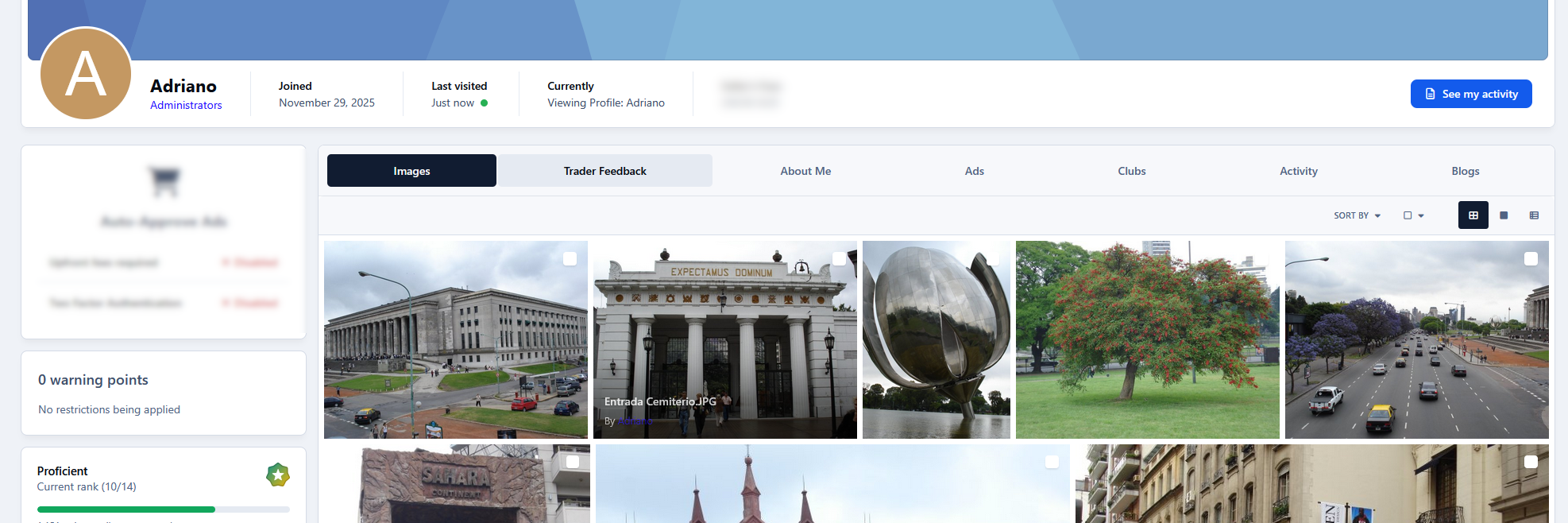
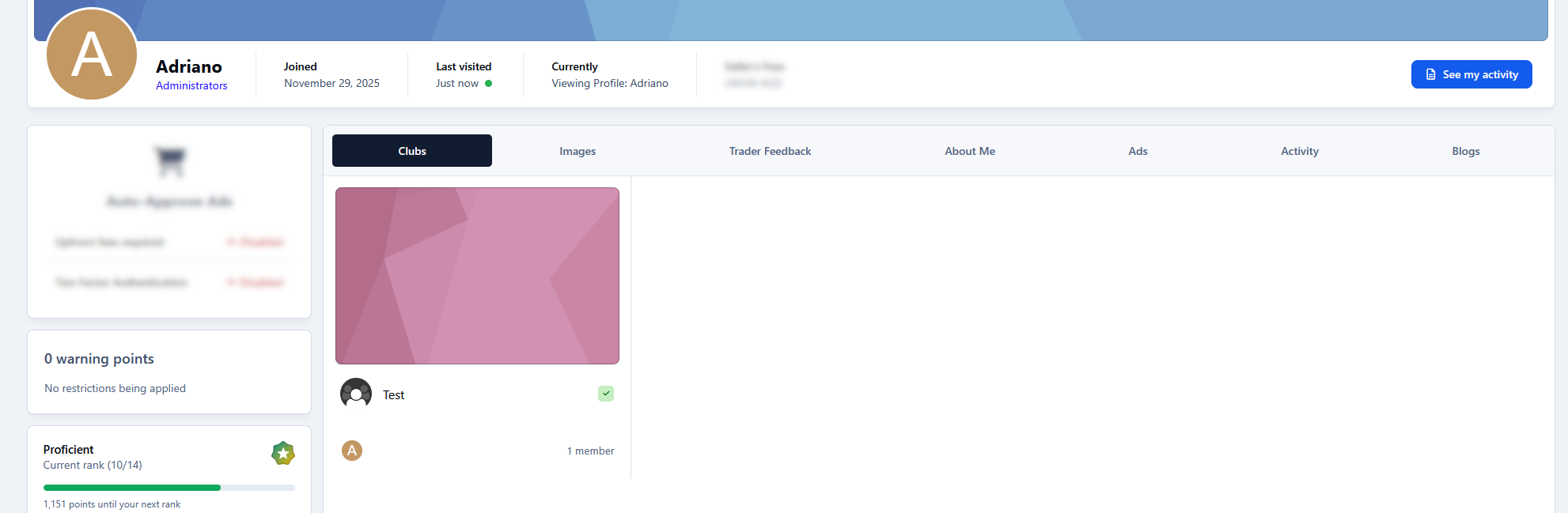
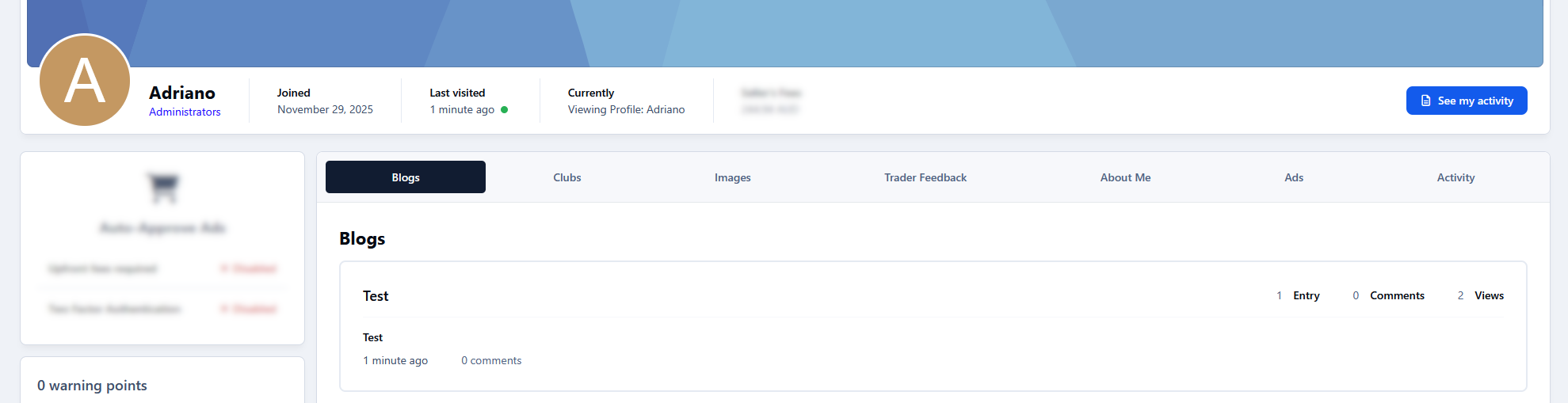
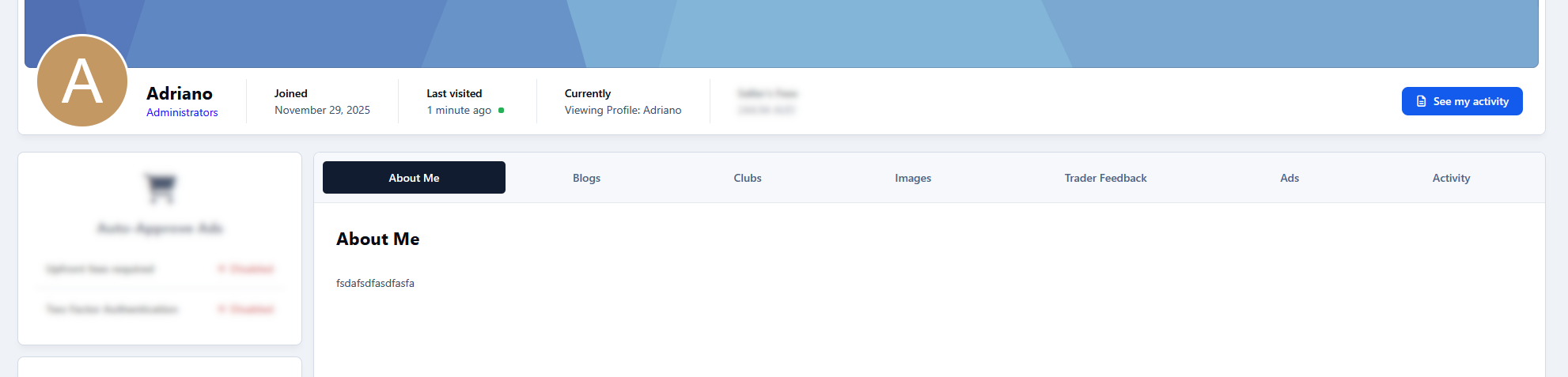
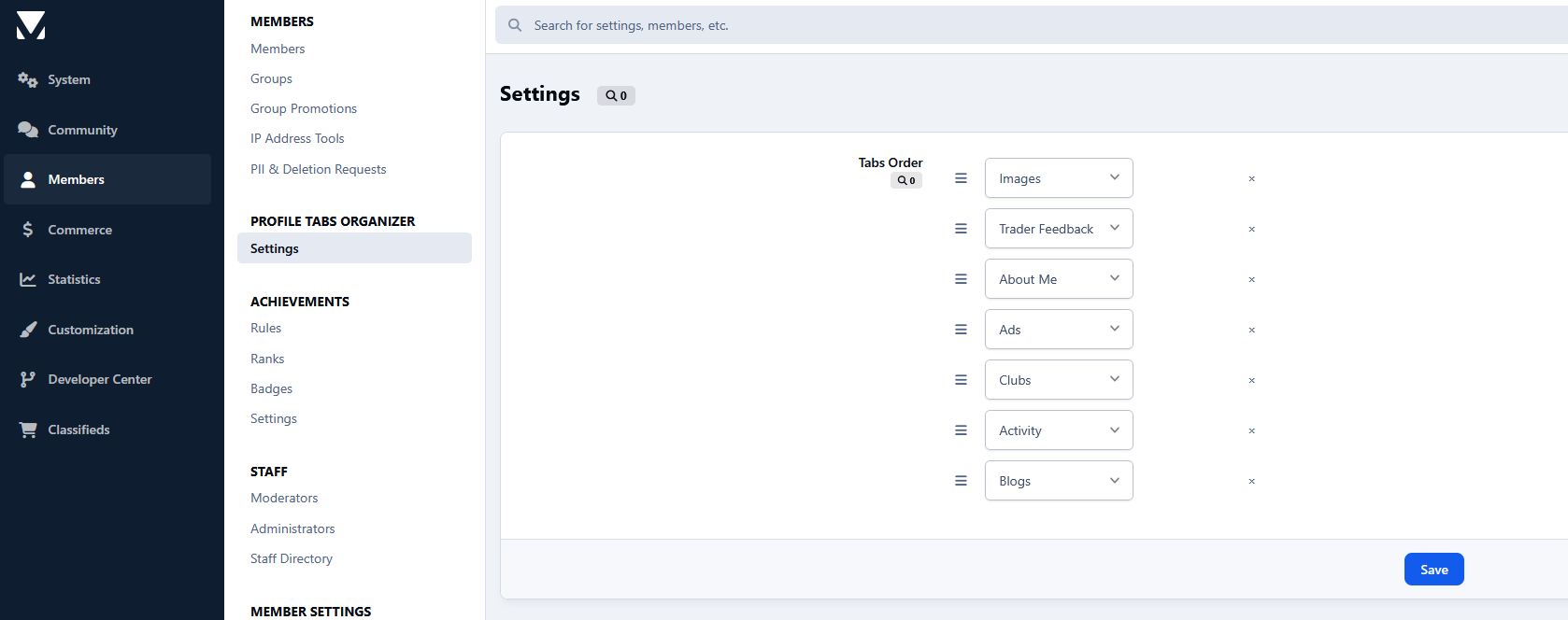
This application allows administrators to choose which tabs are displayed in member profiles and define their order.
Notes:
Tabs may vary depending on the applications installed in your community.
Profile field tabs (e.g., "About Me") are automatically included when applicable.
If a member has no available content, the Activity tab may still be shown by the system.
Important (IPS 5 limitation):
Due to the removal of hooks in IPS 5, tab handling must be adjusted on the client side. If the first tab defined in the settings is not Activity, users will be automatically redirected to the corresponding tab (e.g.
/tab-clubs/). This ensures the correct tab is active on page load, but causes a URL change.Example: first tab: Clubs. The profile will go from ...index.php?/profile/1-adriano to ...index.php?/profile/1-adriano/tab-clubs/ automatically.
-
 1
1
Create an account or sign in to leave a review
There are no reviews to display.