Invision Community 5
Invision Community 4
- Category Integrations
- Downloads 77
- Compatibility IC5: 5.0.6+ IC4: 4.7.15+
- App Version 2.0.11
- Updated

Overview
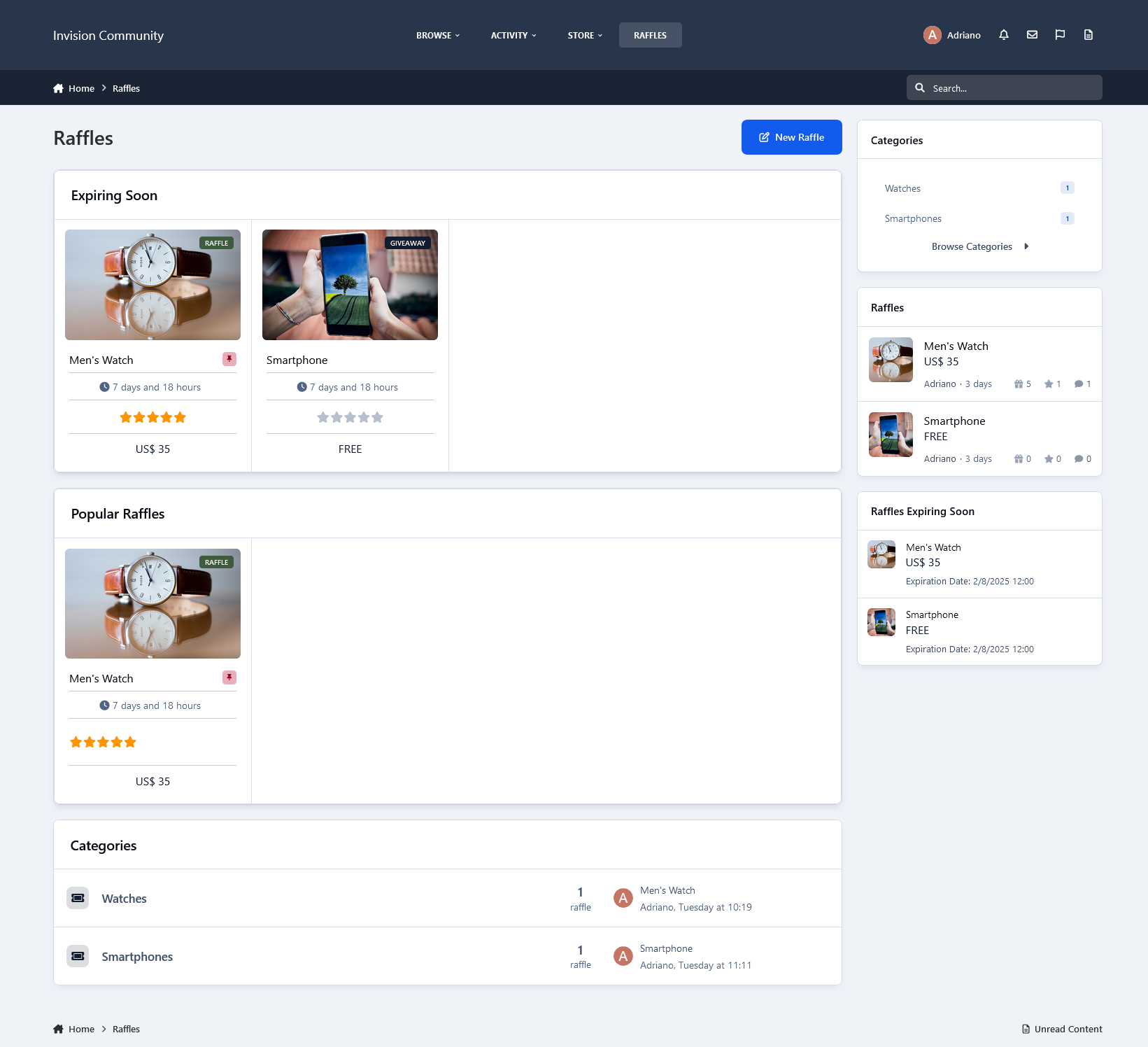
This application will allow members to create and manage raffles and giveaways on your board.Description
This application will allow members to create and manage raffles and giveaways on your board.
Features:
Ability to choose which type of content per category: only Raffles, only Giveaways, or both
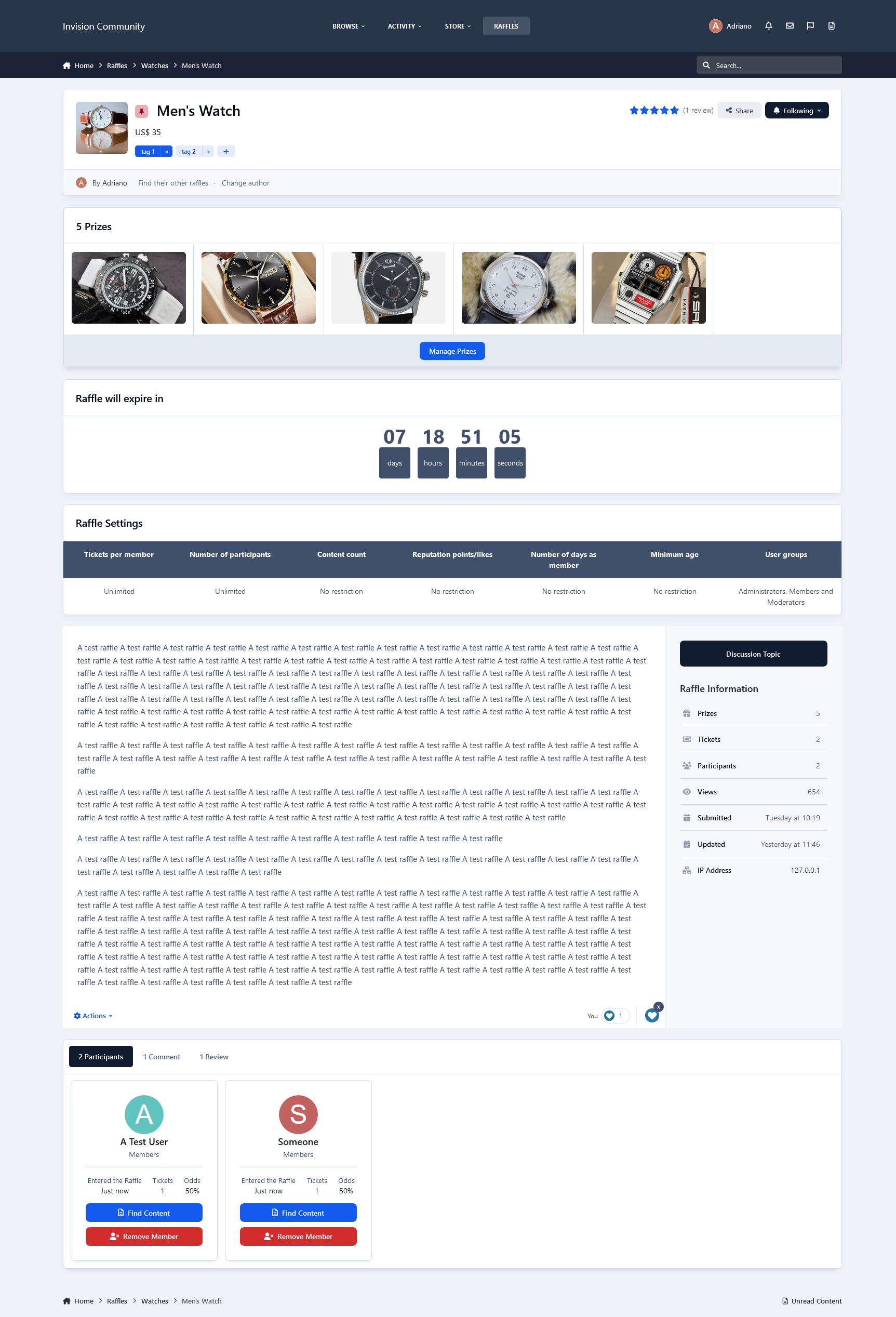
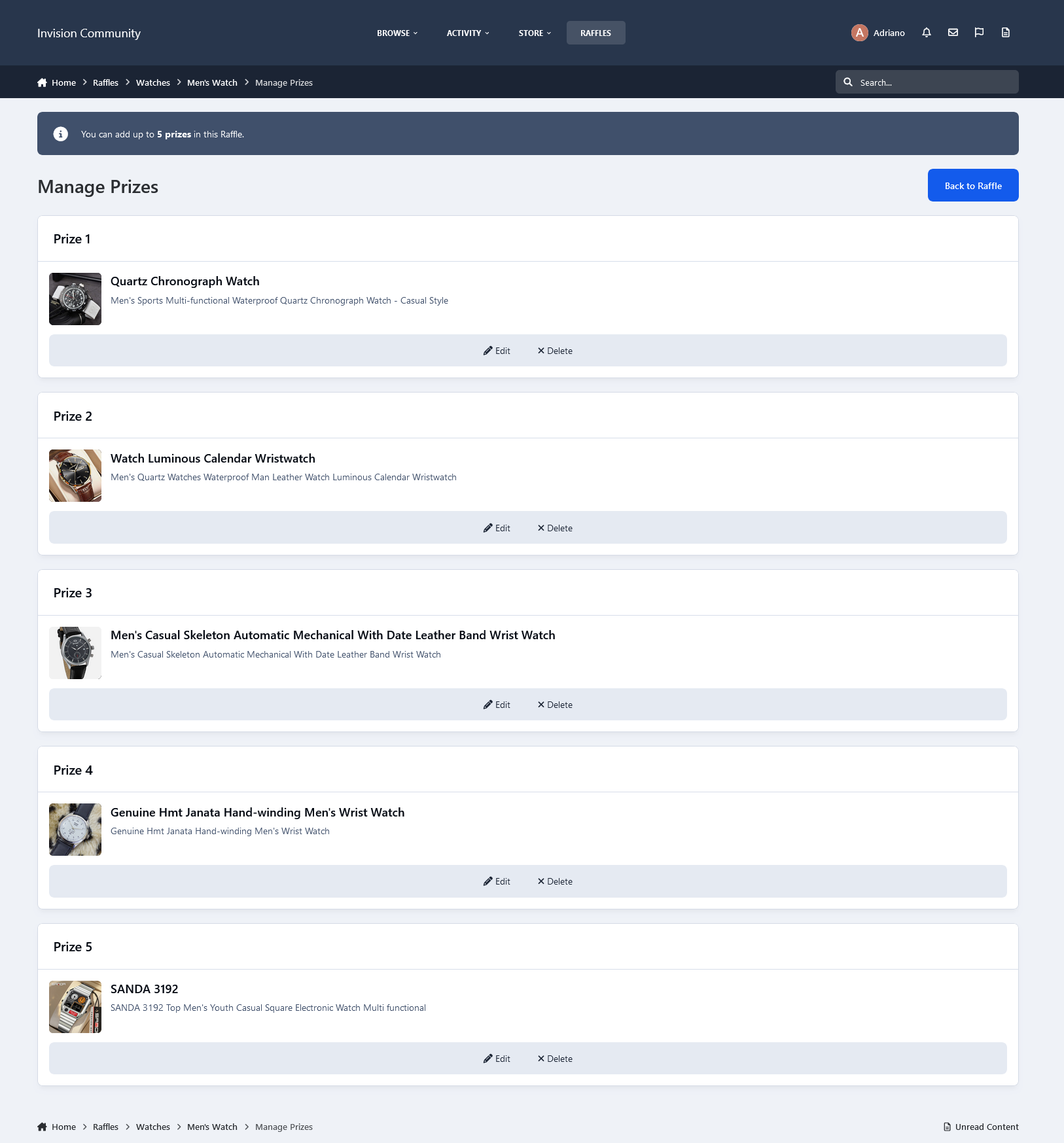
Up to 100 prizes per raffle/giveaway (category setting)
Restrict members' participation per raffle/giveaway by:
Tickets per member (raffles only)
Number of participants
Content count
Reputation points/likes
Number of days as a member
Groups
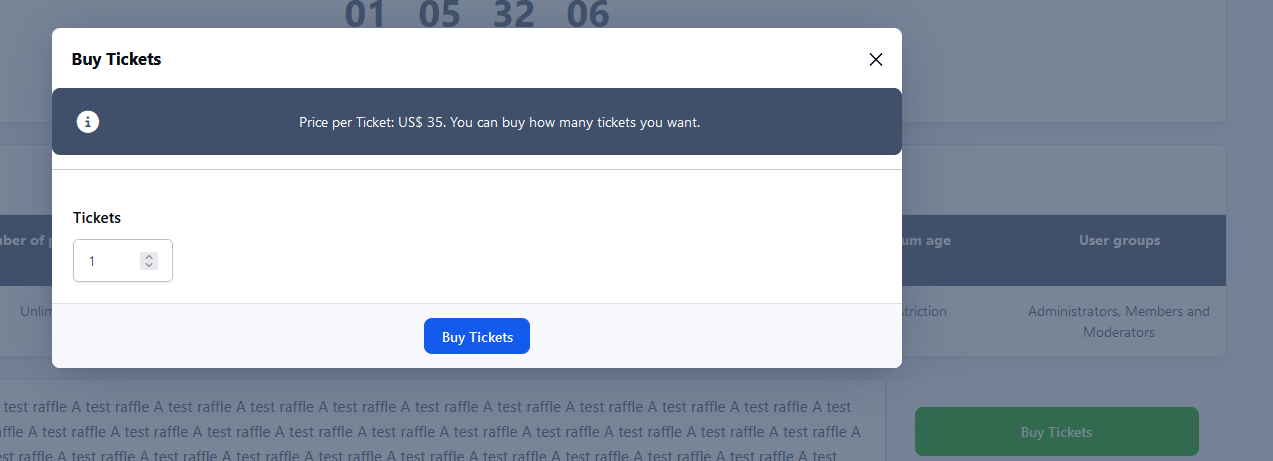
Multiple participants per raffle/giveaway (participants can buy more than one ticket (raffle only) to increase their odds)
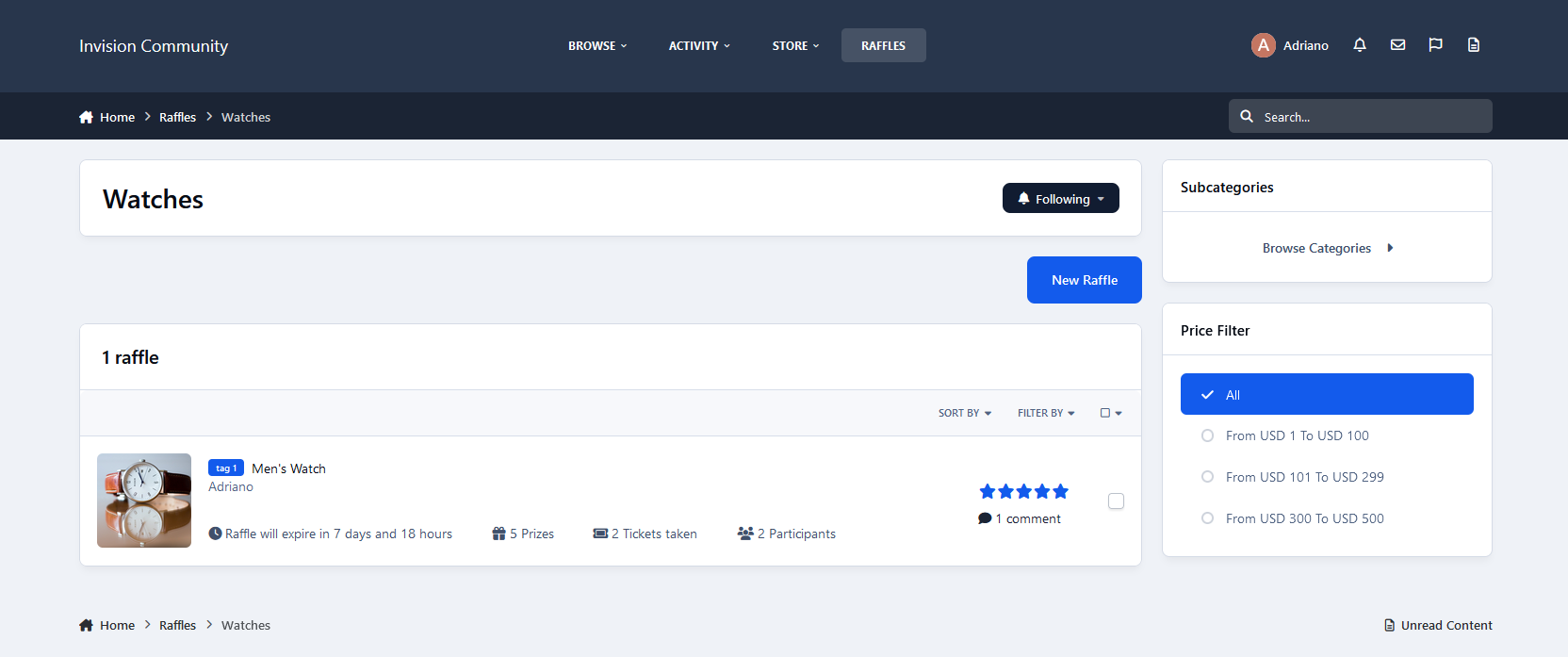
Unlimited categories of raffles/giveaways with permissions, and extra fields, plus the unlimited depth of parent-child relationships with a lot of settings, permissions, and extra fields
Category Icons
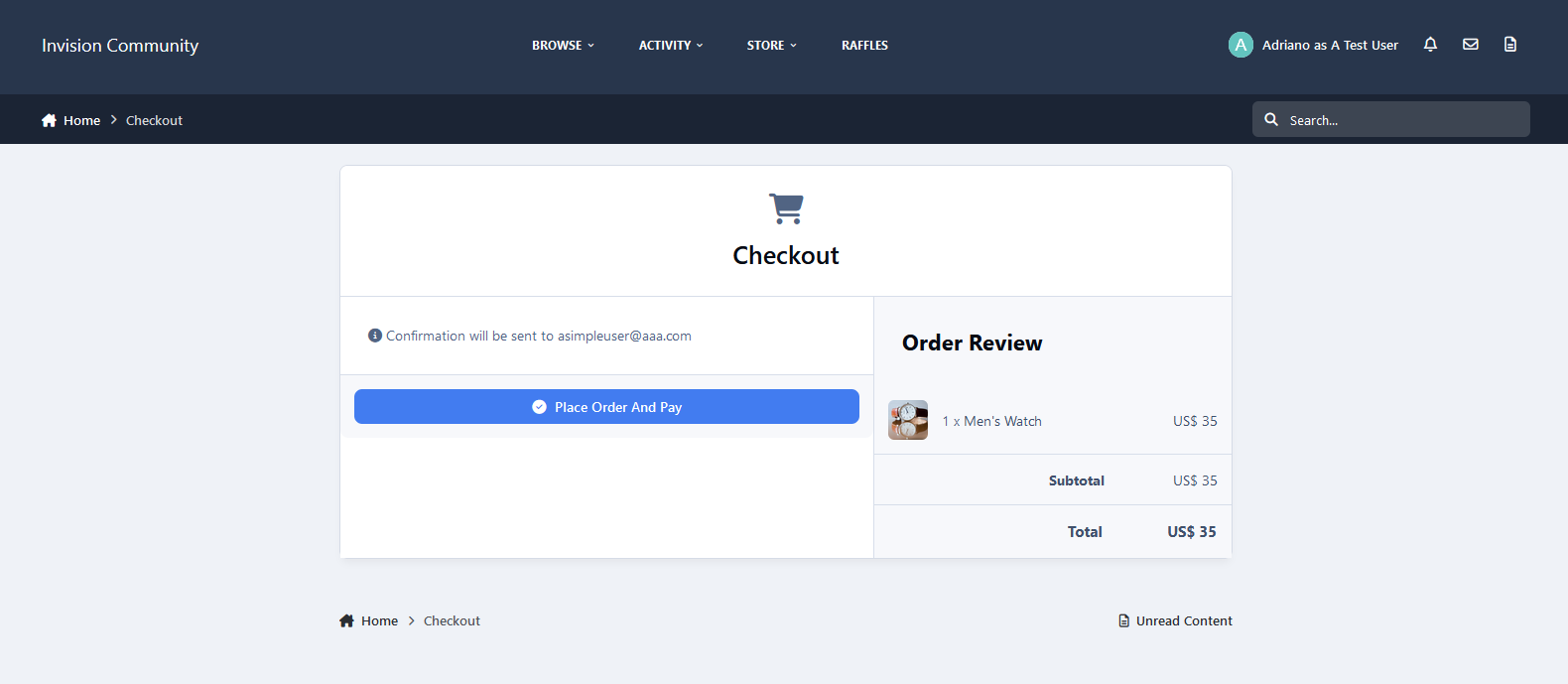
Integrates with Commerce, so you can choose a specific payment gateway, tax, fee, and commission, and use multiple currencies
Ability to force users to fill in the price in currencies
Ability to switch between currencies with a click to display raffle prices
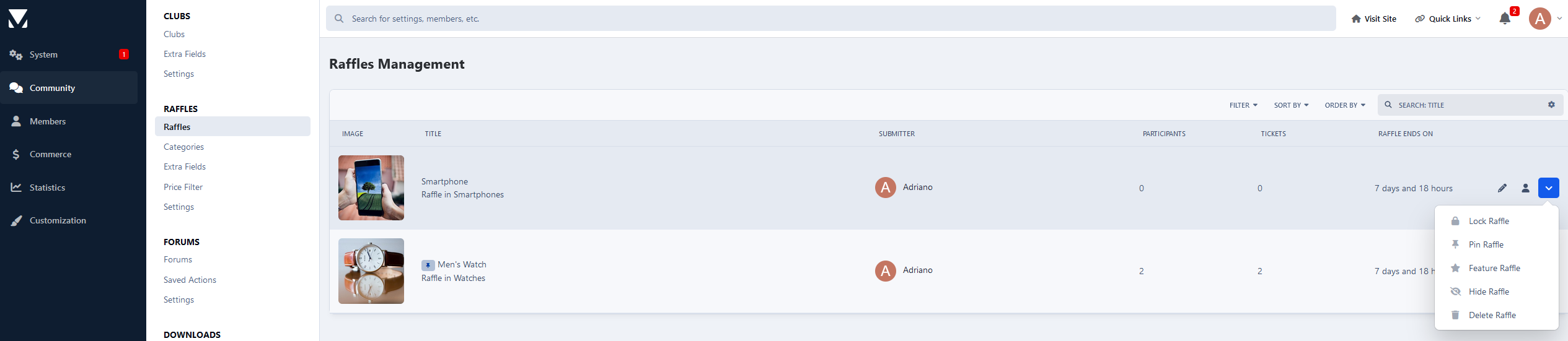
Raffles Management on ACP: a place where admins can control the status of raffles: activate raffle, change expiration date, and perform mod actions like pin/unpin, lock/unlock, etc
Per member settings: allows access to the app and allows submission of raffles
Per group settings: allows access to the app, how many approved content items must be accessed to access the app, and restricts X raffles/giveaways by a period (day, week, month, and year)
Robust Admin CP Restrictions
Ability to take specific actions when a member is deleted or flagged as a spammer
The ability for users to report potentially offensive content using the built-in Report Center
Supports item marking, allowing your users to see what adverts have been added, commented/reviewed on
Integrates to:
Activity Streams
Share Links
Tag/Prefixes system
Notifications such as new raffles/giveaways, etc
Ability to follow raffles/giveaways and categories
Announcements
Advertisements
Search system
ACP Live Search (categories)
Moderating system, which includes all common permissions, such as pin, unpin, delete, feature, move, etc., for Raffles, Comments, and Reviews
Ability to create RSS feeds of all adverts
More...
Notice:
Each purchase entitles you to use the Raffles System on one Community installation.
Be aware that there may be local laws regarding paying for the tickets unless you are registered as a non-profit organization or have special authorization to do so. Some sites, like PayPal, usually shut accounts down or even take action against the accounts of people using their site in that manner.
Create an account or sign in to leave a review
There are no reviews to display.