- Category Integrations
- Downloads 29
- Compatibility IC5: 5.0.4+
- App Version 1.0.0
- Updated
Description
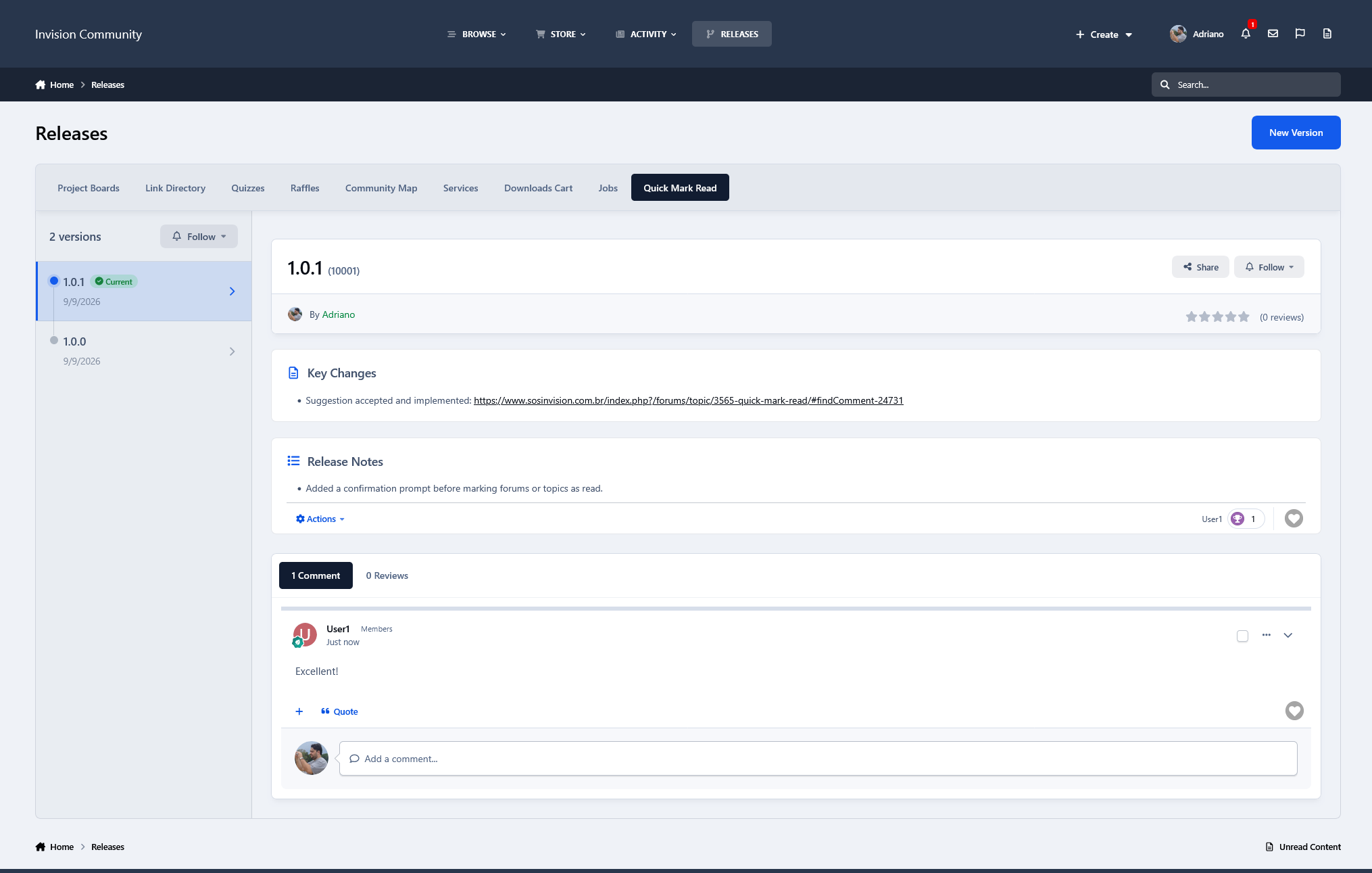
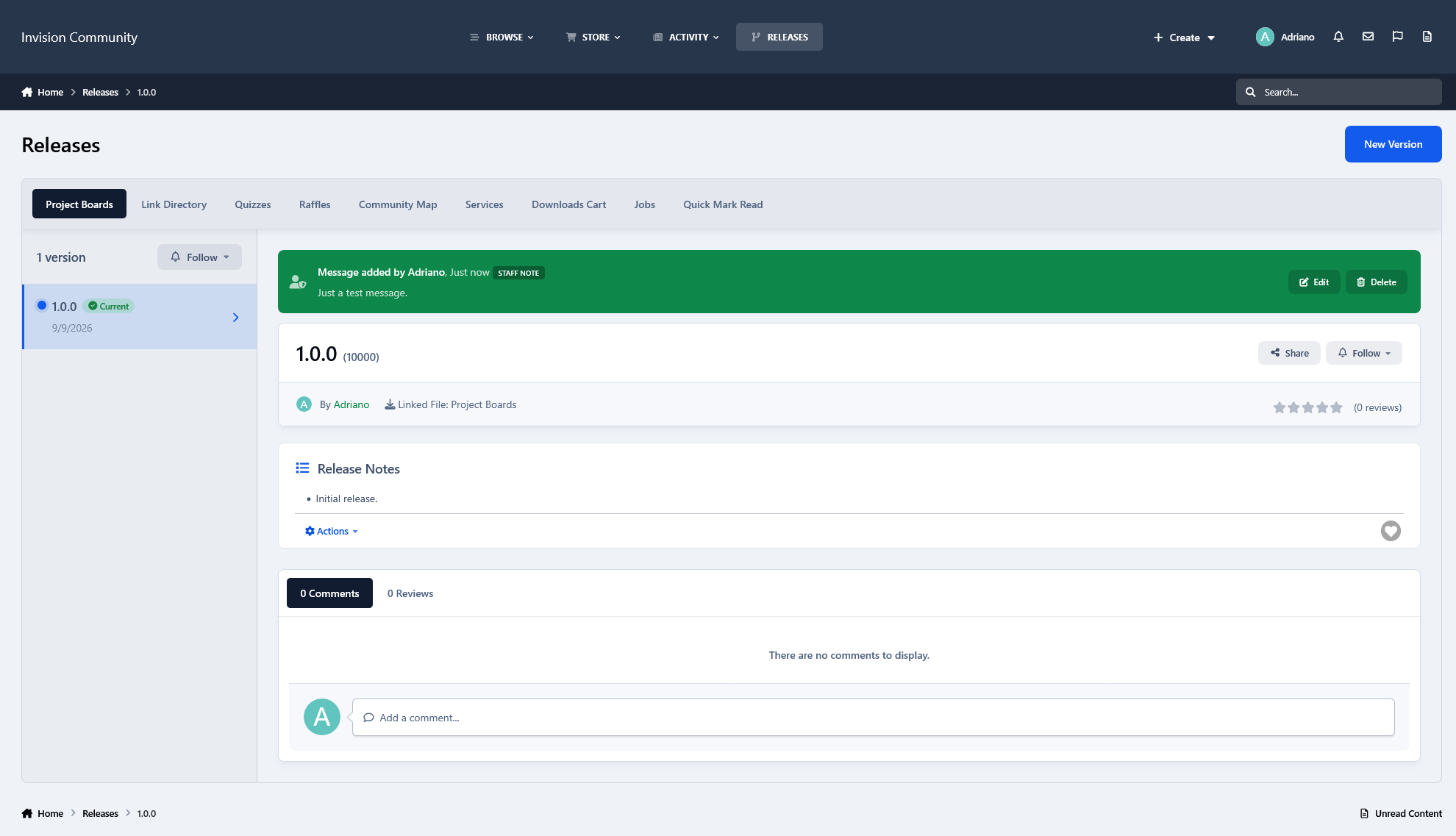
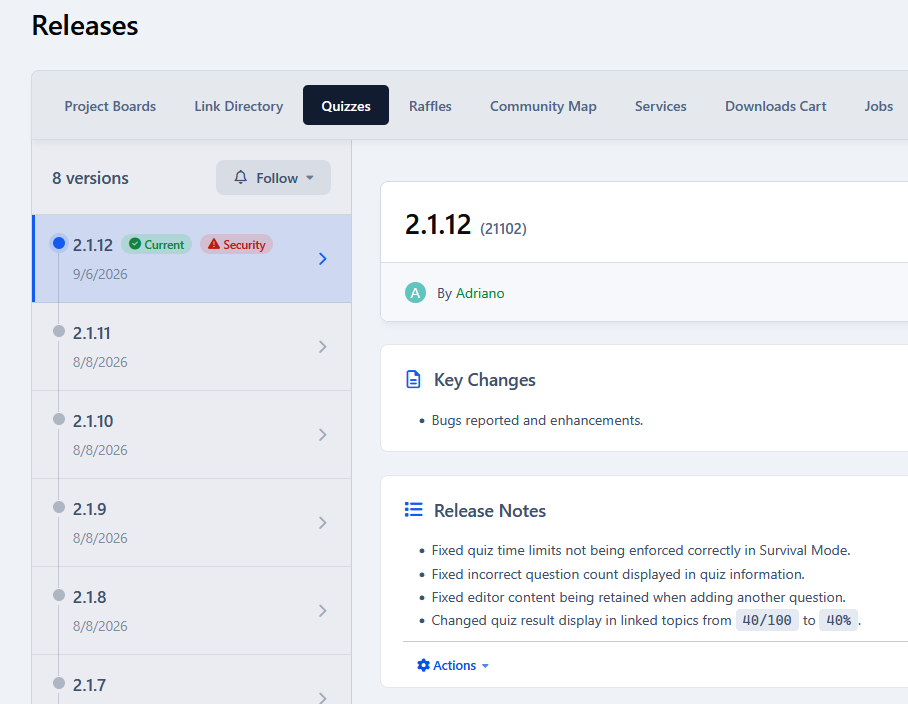
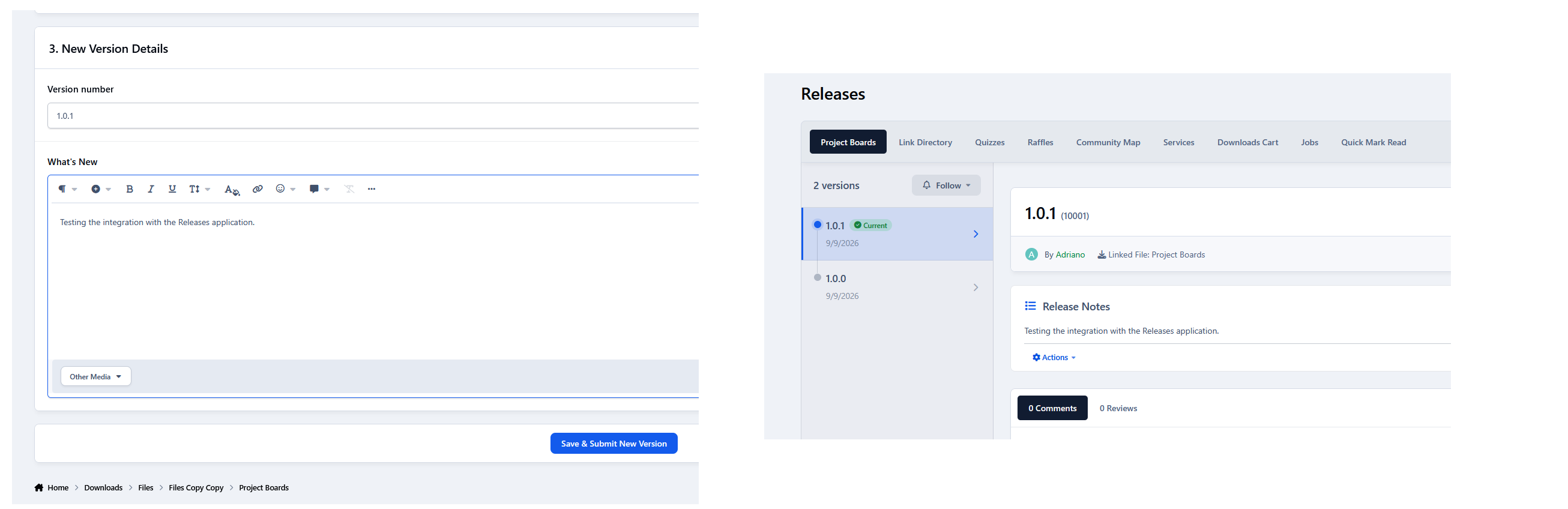
Releases provide a clean and organized way to publish and manage software releases in your community. Projects are displayed in a simple tabbed interface, with their versions listed chronologically and the selected release showing its key changes, release notes, comments, reviews, and other relevant information. Members can also follow projects to receive notifications when new versions are published.
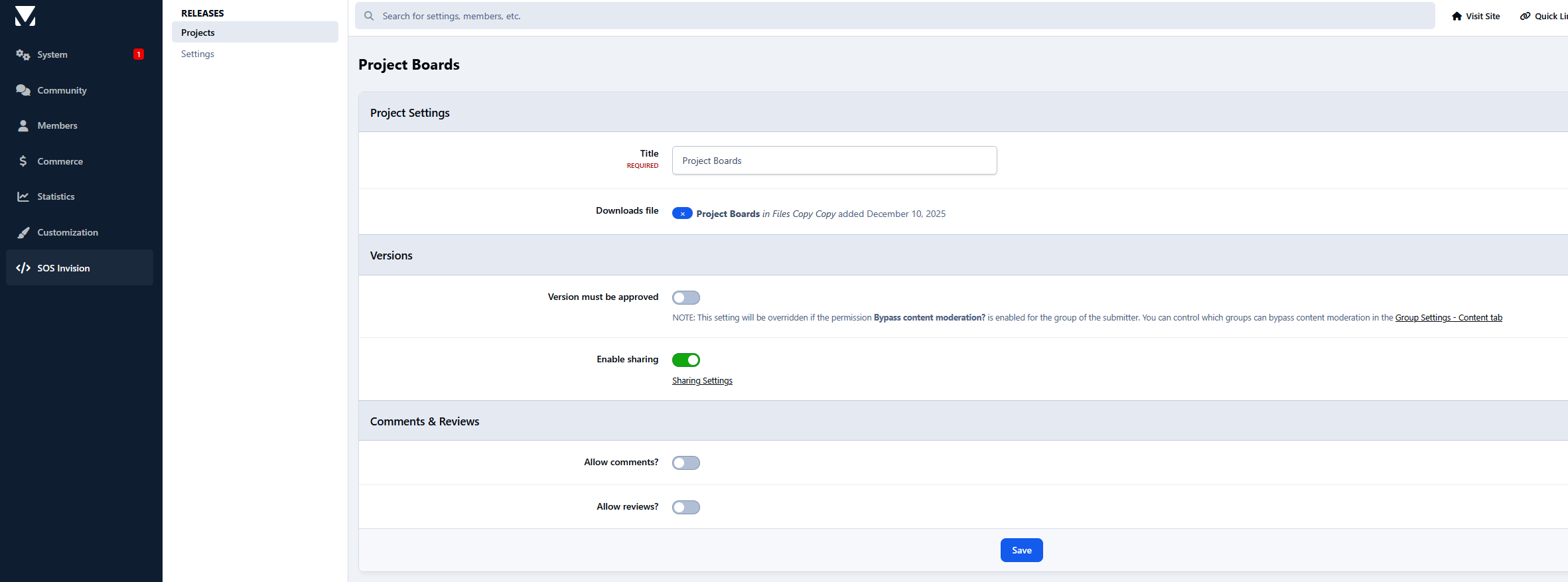
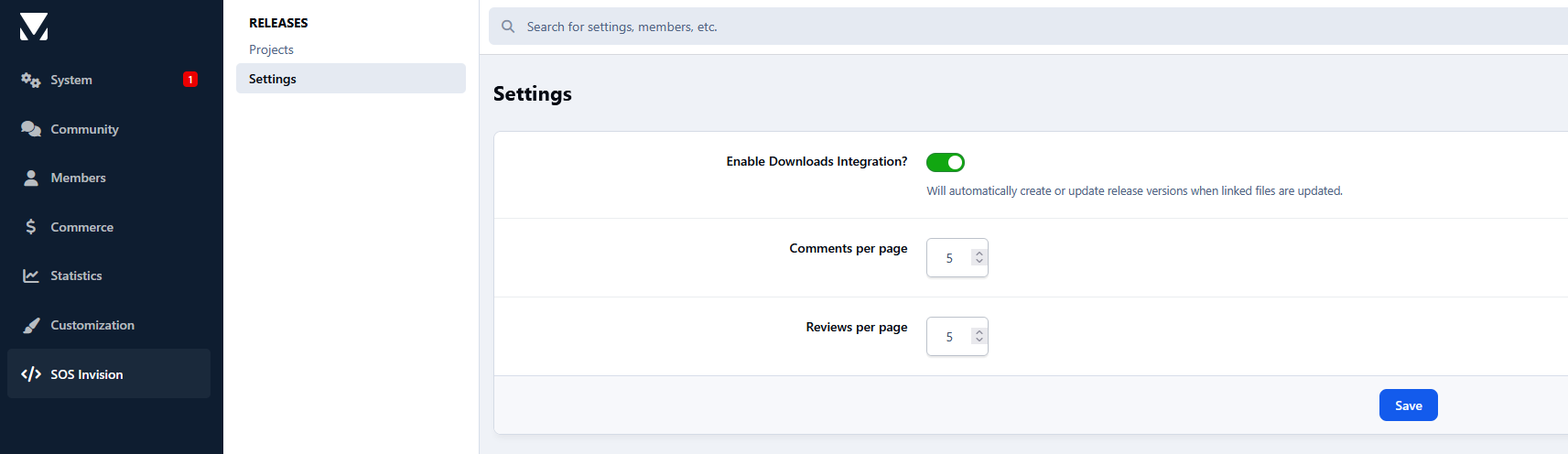
The application includes optional integration with Downloads. A Project can be linked to a Downloads file, allowing new file versions and changelogs to automatically create or update the corresponding Release version.
The interface is visually based on the Releases page used by Invision Community for IPS4.
Features include:
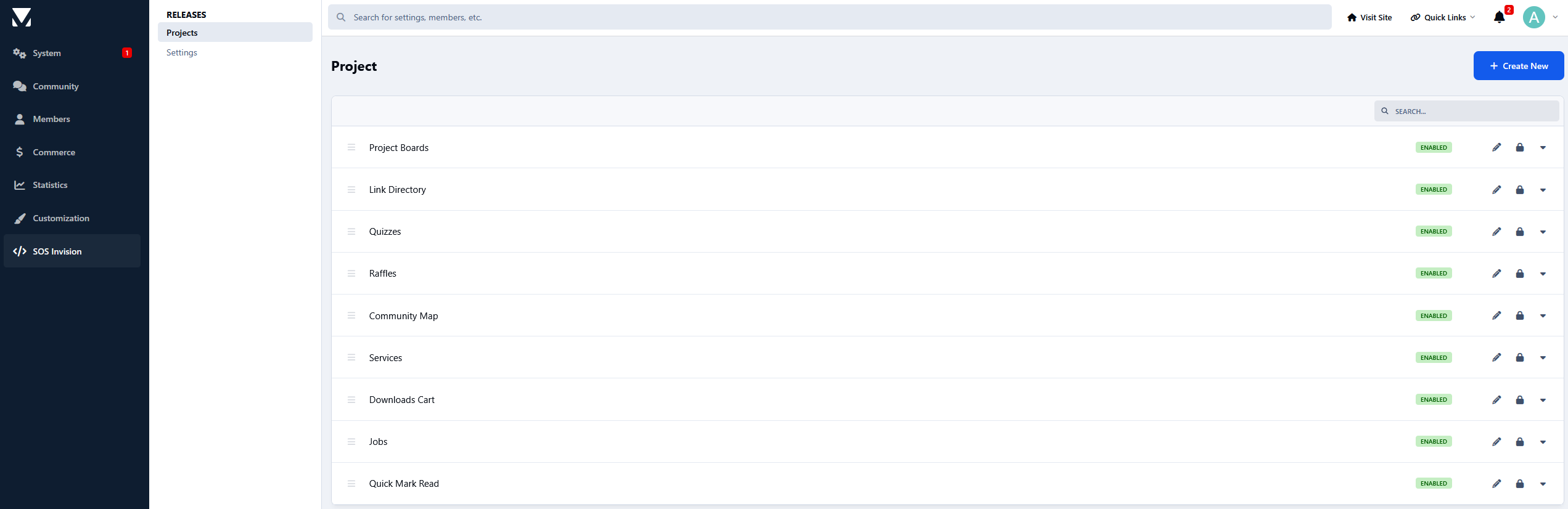
Projects with multiple release versions
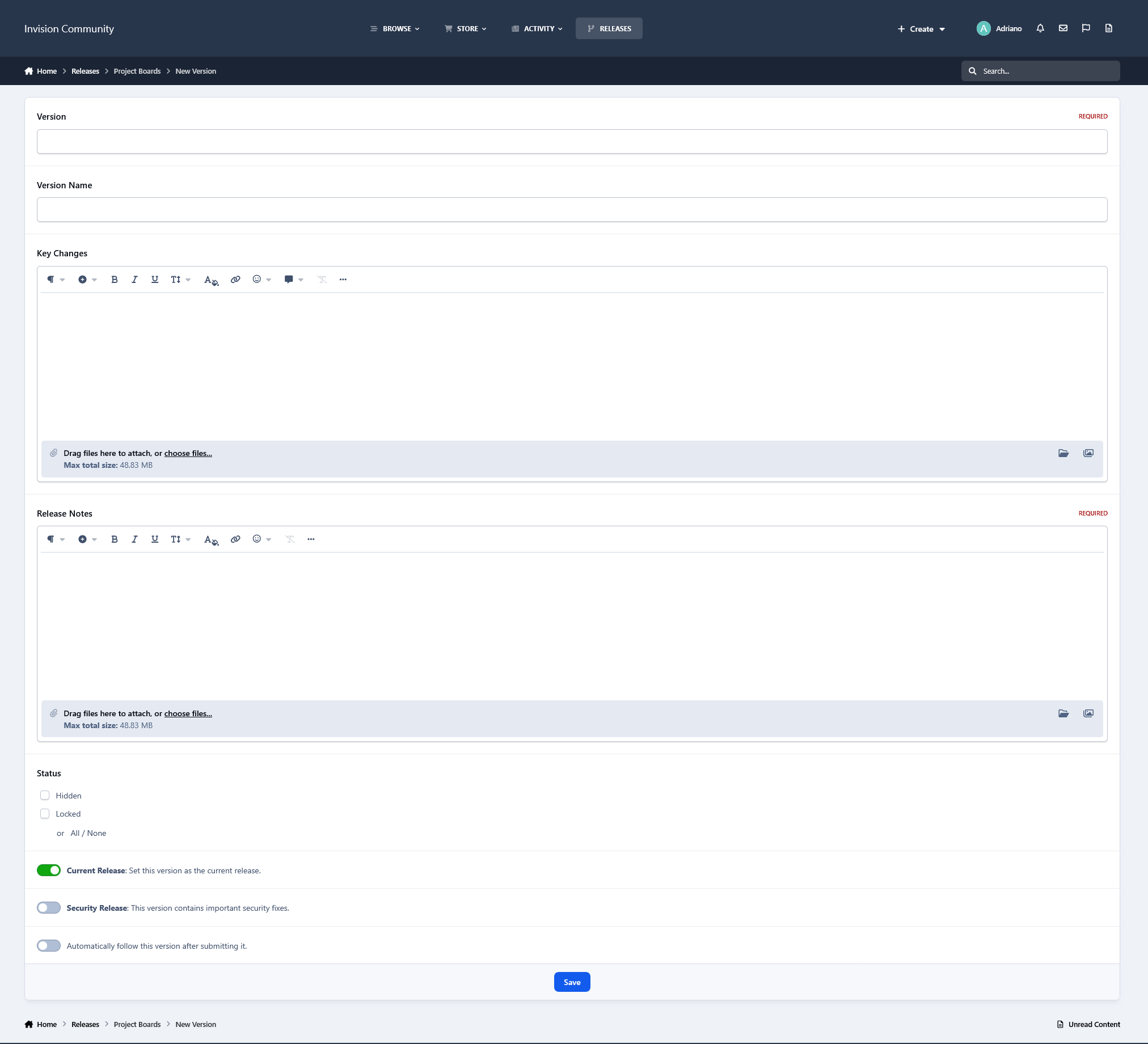
Current Release and Security Release indicators
Key Changes and Release Notes
Comments and reviews
Project following and notifications
Optional Downloads integration
Automatic release creation/update from linked Downloads files
Responsive IPS5 interface
Fully integrated with the IPS framework, including search, follows, notifications, reactions, comments, reviews, and other native content features.
There are no reviews to display.