- Category Integrations
- Downloads 49
- Compatibility IC5: 5.0.0+ IC4: 4.7.X
- App Version 2.0.0
- Updated

Description
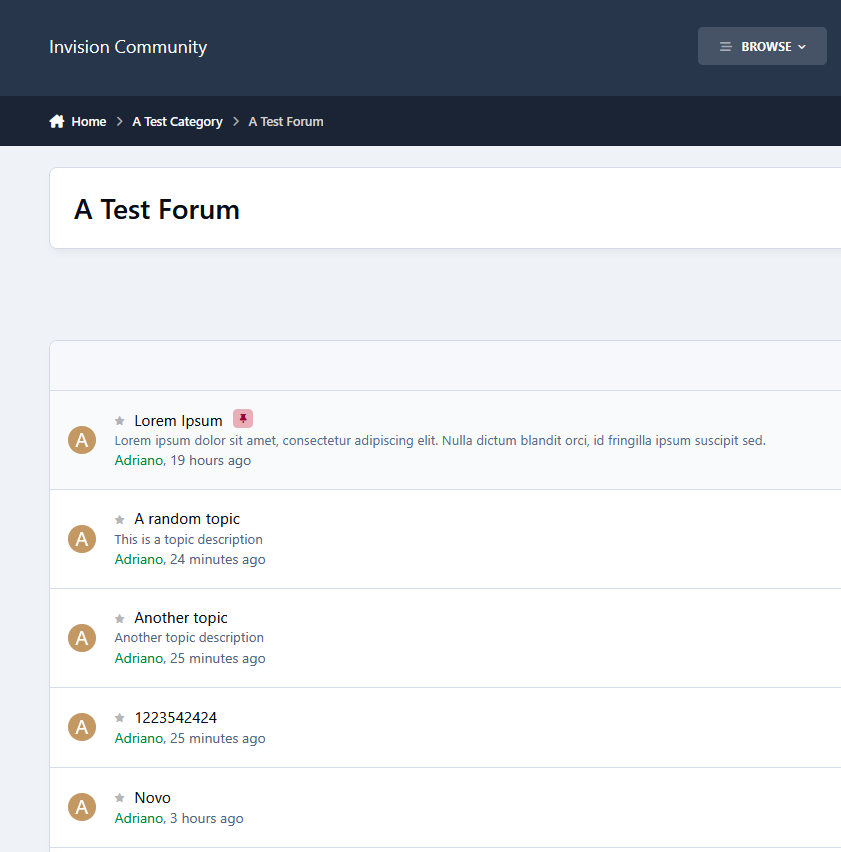
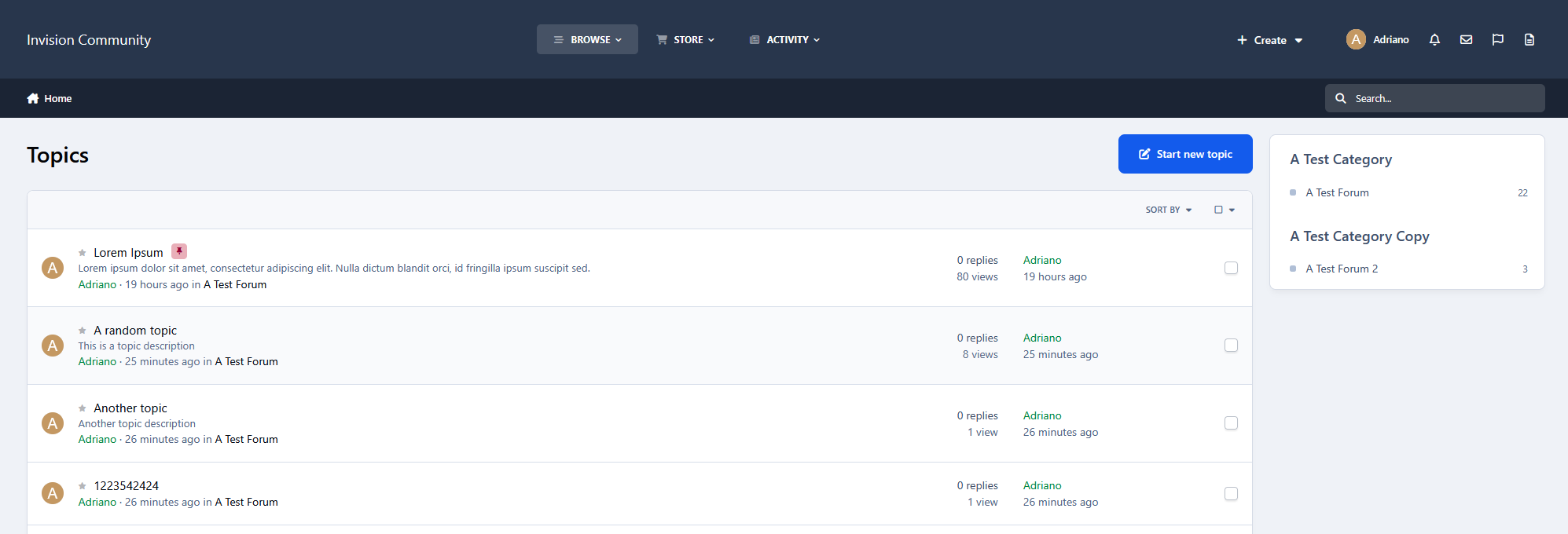
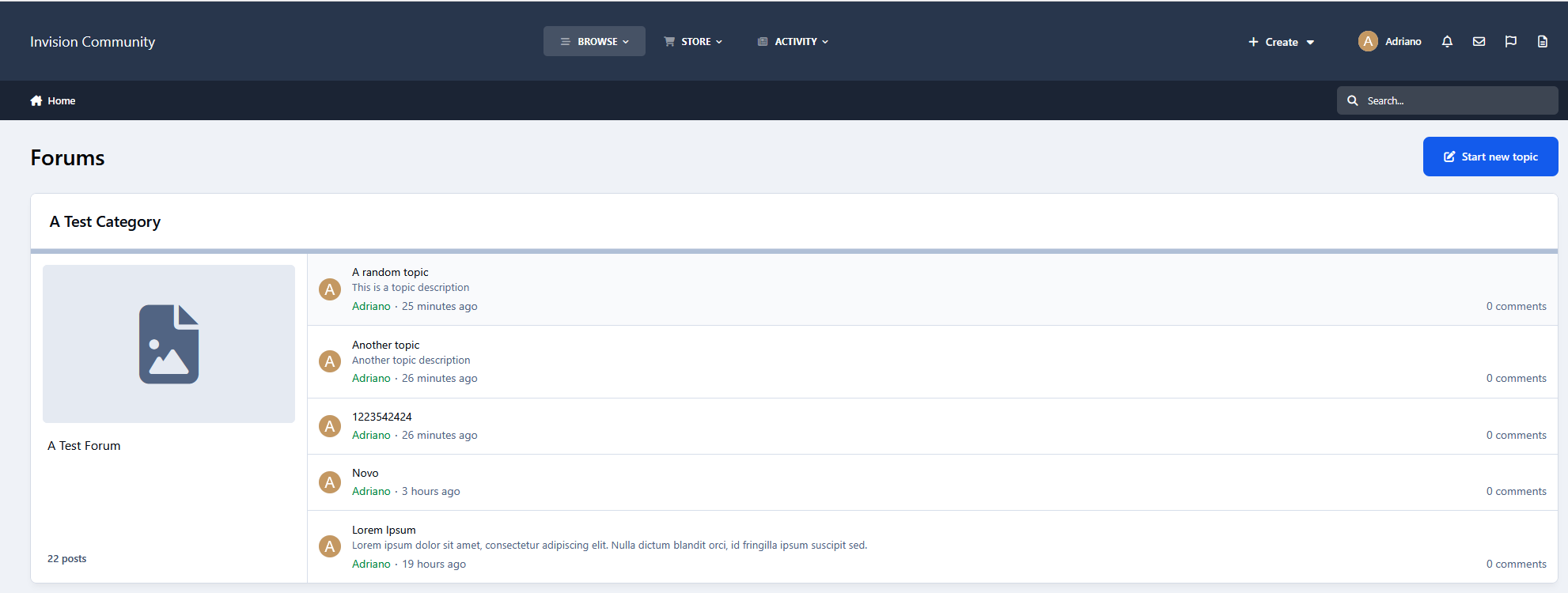
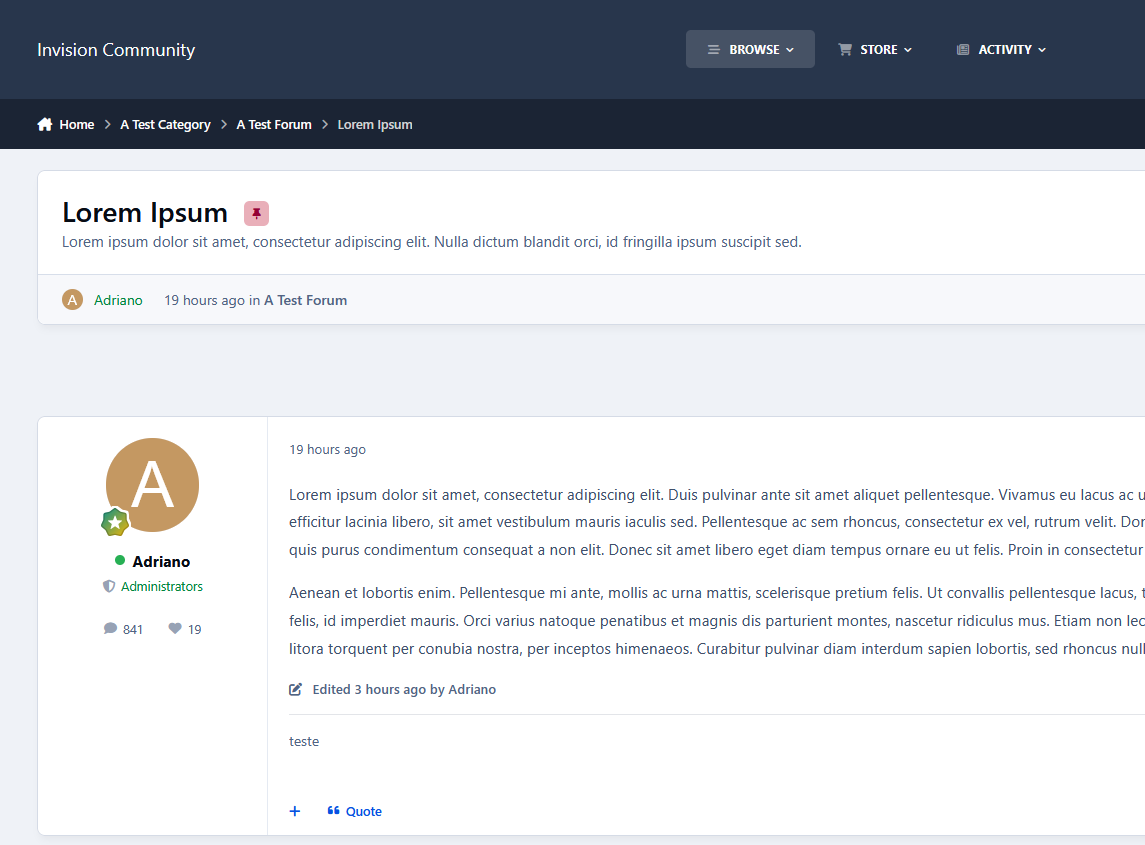
Topic Description allows your members to add a short and informative description when creating or editing topics, giving readers more context before opening a discussion.
Display Areas
Topic descriptions can be displayed in:
Topic View
Forum View
Fluid View
Content-focused view
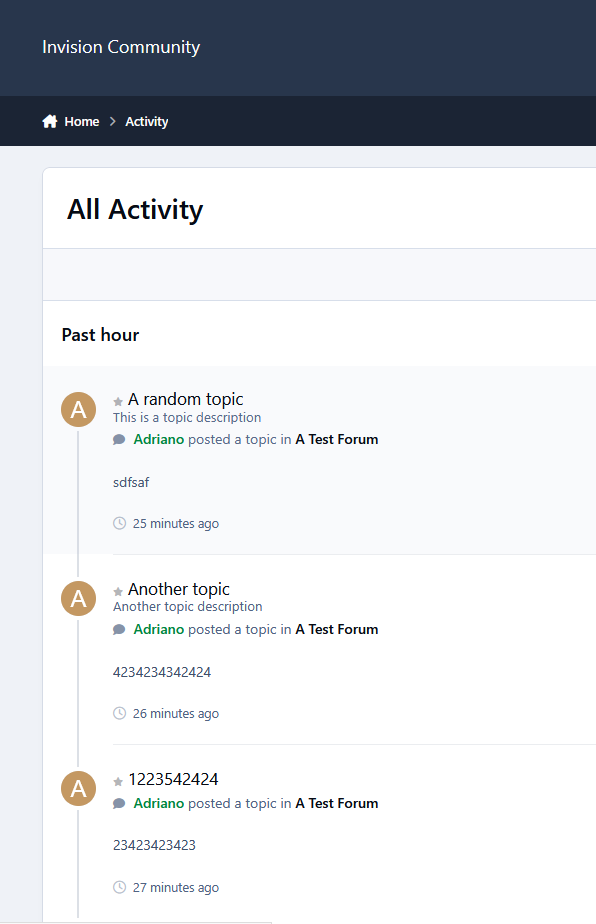
Activity Streams
Search Results
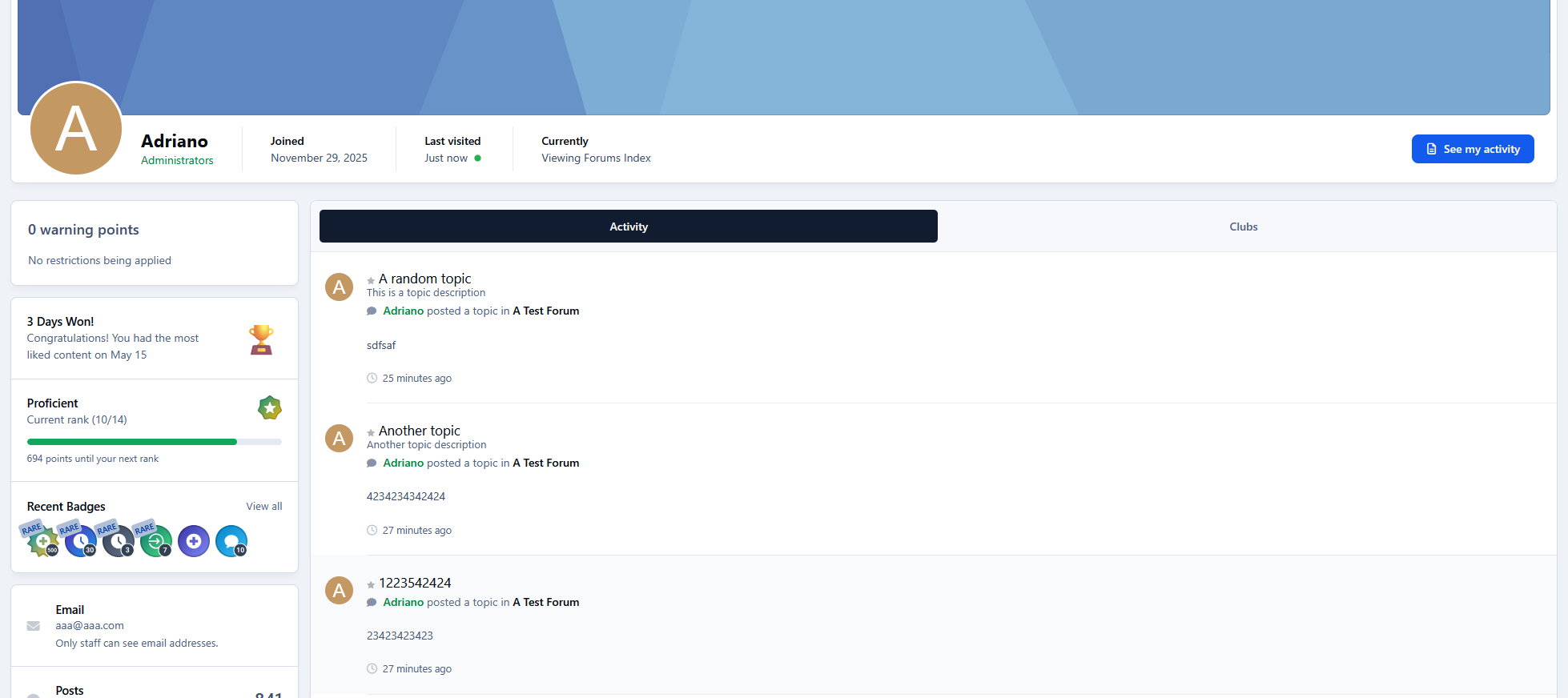
Member Profile -> Activity Stream
Per Forum Configuration
Each forum can have its own configuration:
Enable/disable topic descriptions
Require a description when creating topics
Set the maximum description length
Choose which member groups can add topic descriptions
Global Settings
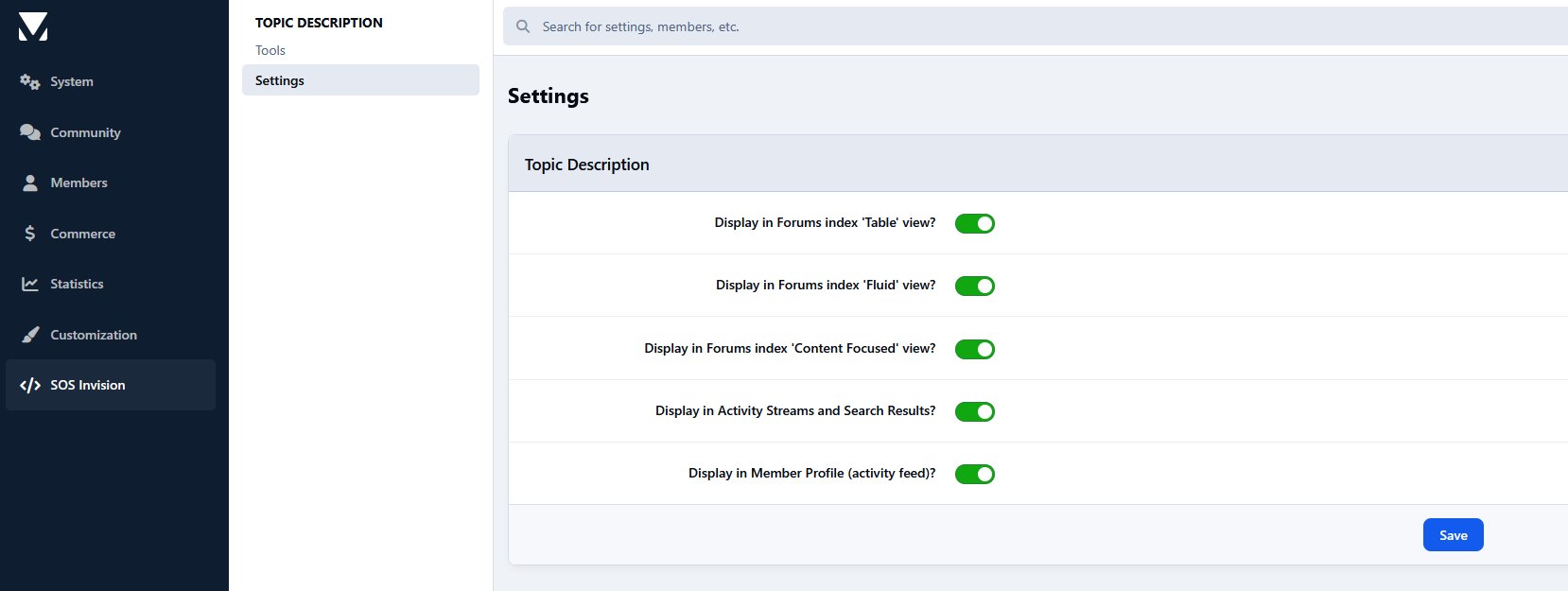
Control where topic descriptions are displayed:
Show in Forum View
Table, Fluid, and Content-Focused views
Show in Activity Streams and Search Results
Tools
Administrative tools included:
Mass enable/disable Topic Description across forums
Remove all existing topic descriptions
Moderator Permissions
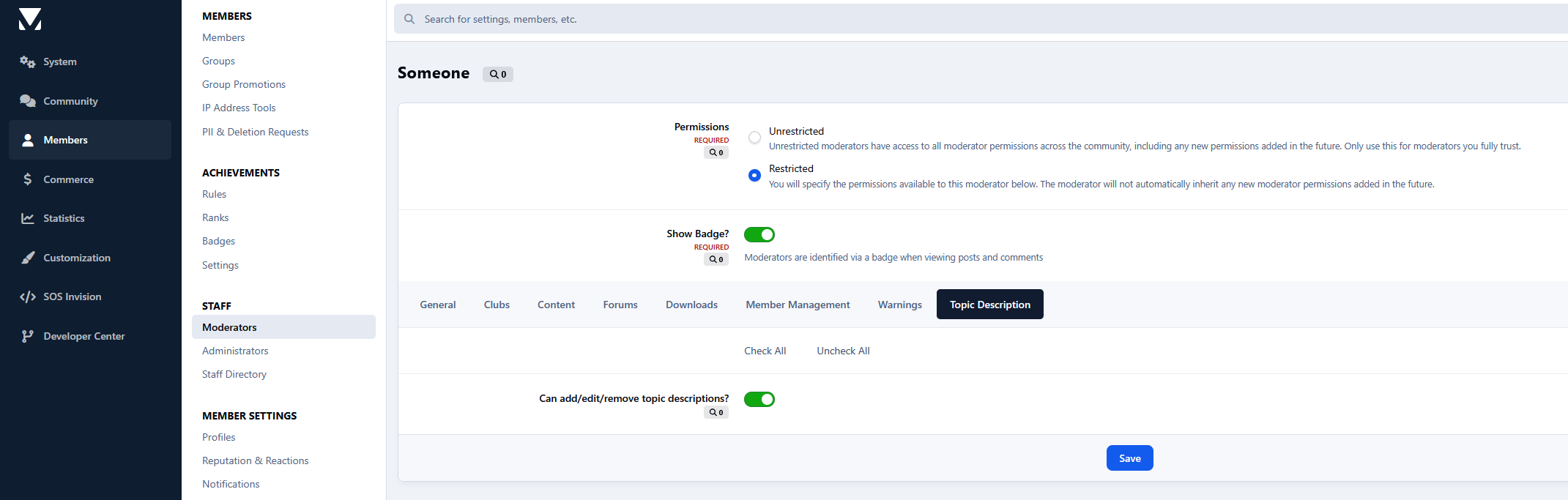
Control which moderators can:
Add topic descriptions
Edit existing topic descriptions
Remove topic descriptions
Create an account or sign in to leave a review
There are no reviews to display.