Jump to content
View in the app

A better way to browse. Learn more.

Invision Marketplace

A full-screen app on your home screen with push notifications, badges and more.

To install this app on iOS and iPadOS
  1. Tap the Share icon in Safari
  2. Scroll the menu and tap Add to Home Screen.
  3. Tap Add in the top-right corner.
To install this app on Android
  1. Tap the 3-dot menu (⋮) in the top-right corner of the browser.
  2. Tap Add to Home screen or Install app.
  3. Confirm by tapping Install.

Everything you need for your community

We will be moving to a new server soon, some downtime is expected.

Everything you need for your community

Invision Community 5
  • Category Integrations
  • Downloads 43
  • Compatibility IC5: 5.0.0+
  • App Version 1.0.0
  • Updated
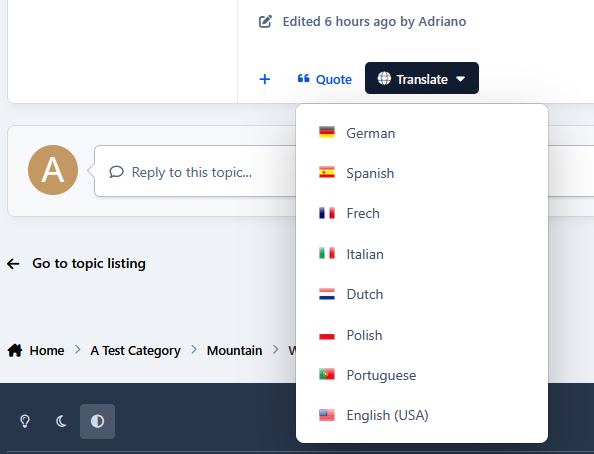
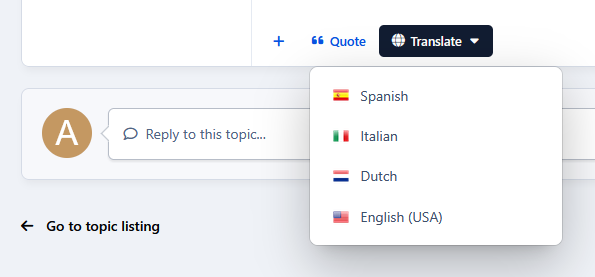
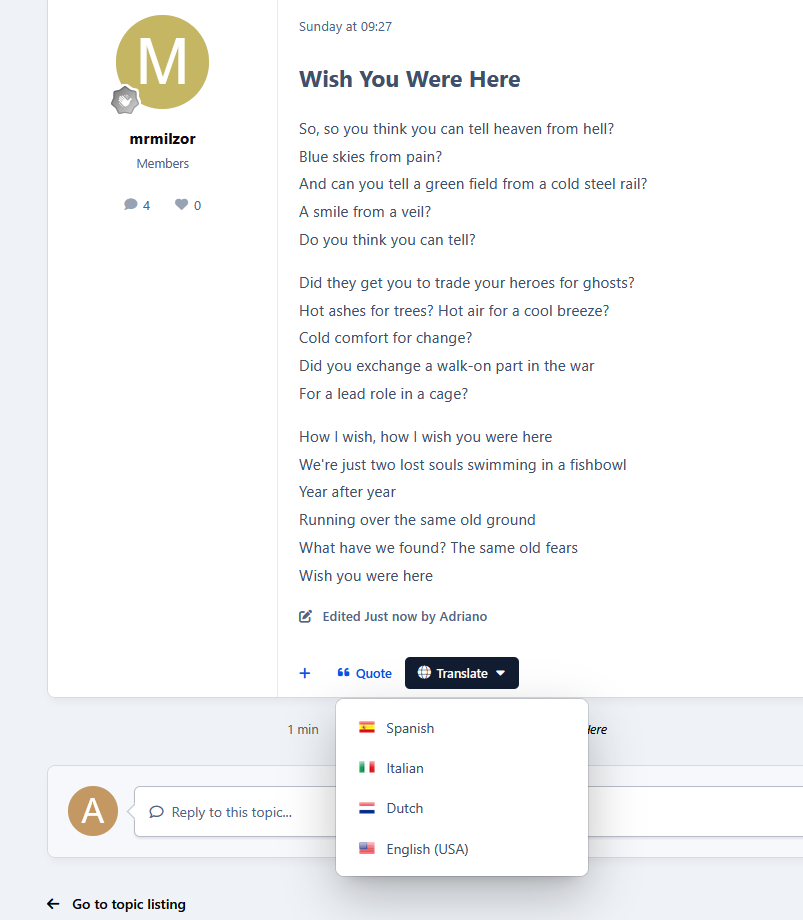
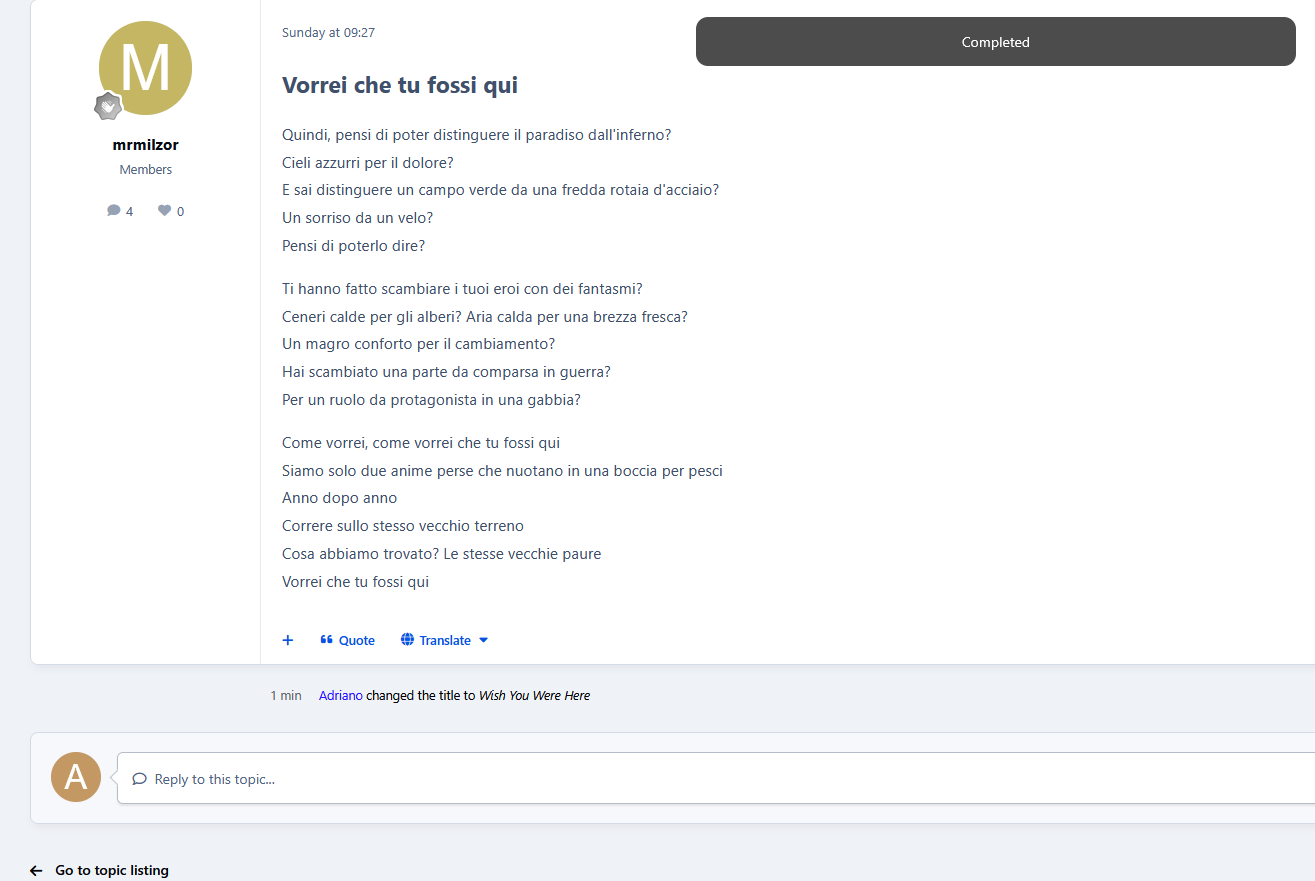
Translate Posts lets your community translate forum posts instantly with a single click.

Overview

Translate Posts lets your community translate forum posts instantly with a single click.

Description

Translate Posts lets your community translate forum posts instantly with a single click. A simple language menu is added directly to posts, making multilingual discussions easy and seamless. The app supports multiple languages, including English, Spanish, Portuguese, French, German, Italian, Dutch, Swedish, Norwegian, Danish, Finnish, Polish, Czech, Hungarian, Romanian, and Greek. Actually, it can use any language available on Google Translate. For better performance, translations are cached, so once a post is translated, it loads instantly on future views. The cache is automatically refreshed when the original content is edited.

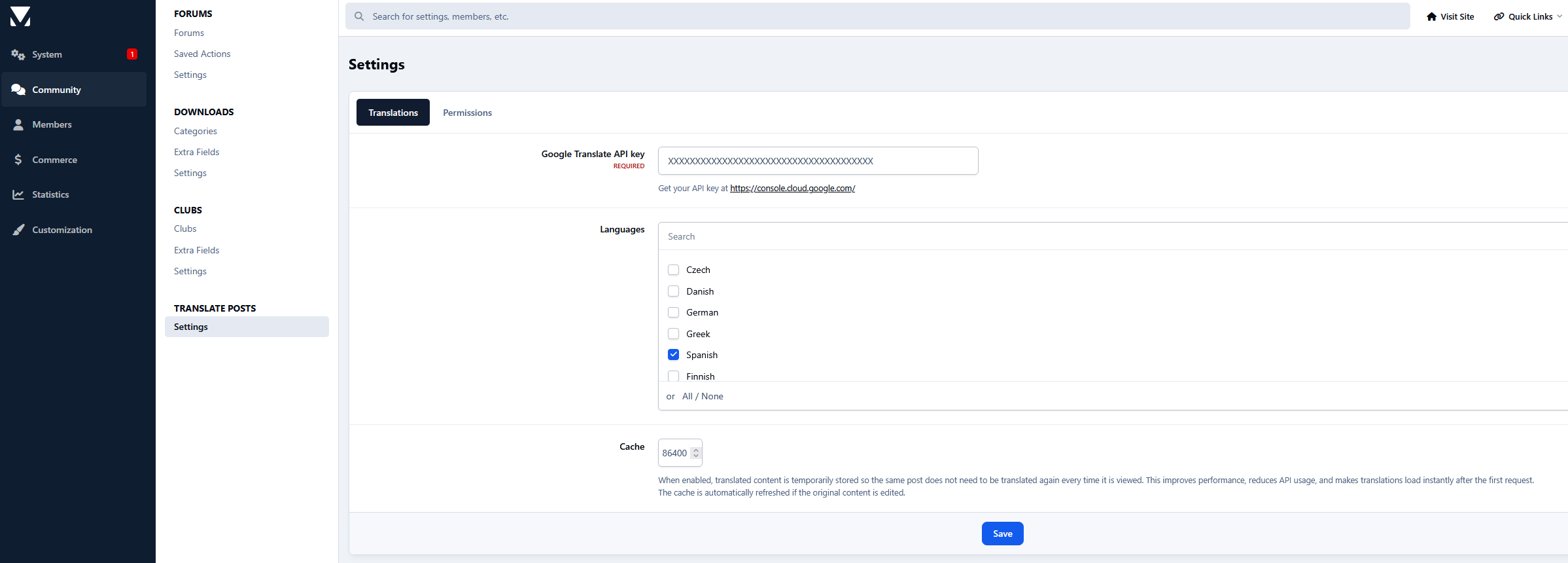
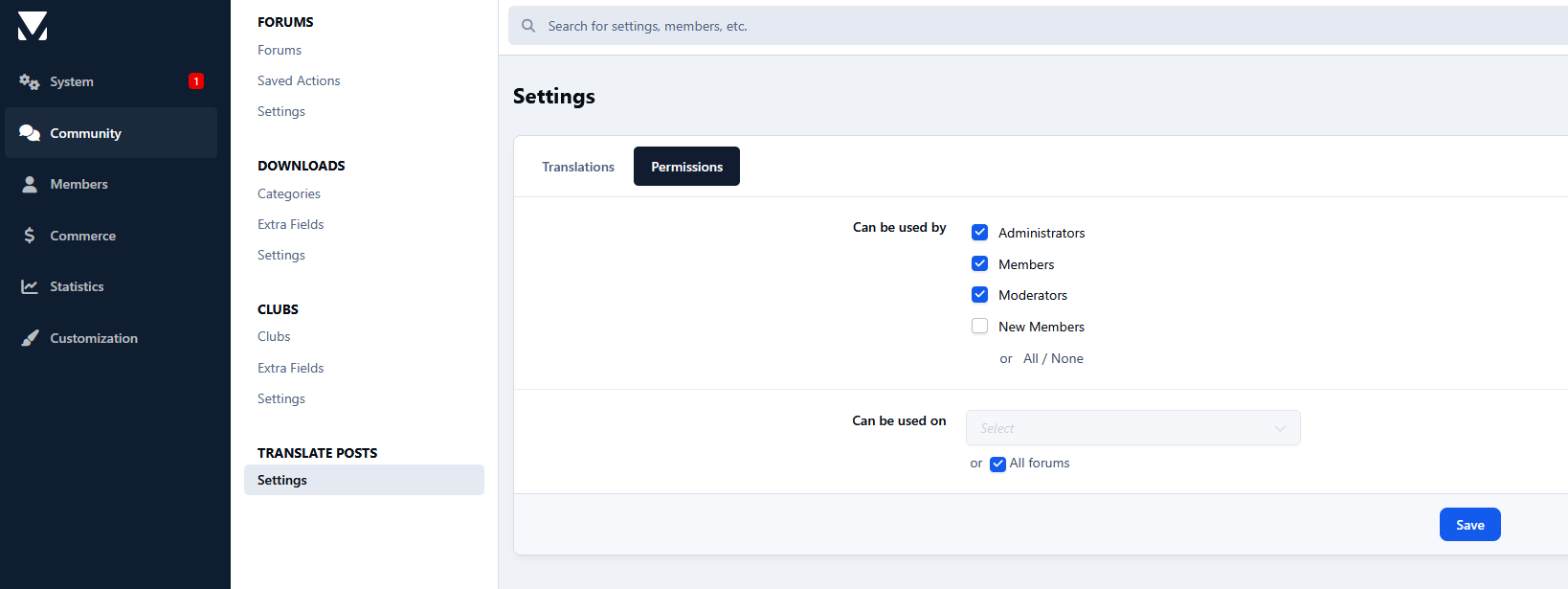
Settings:

  • Google Translate API key

  • Languages availables

  • Cache

  • Groups

  • Forums

User Feedback

Create an account or sign in to leave a review

There are no reviews to display.

Configure browser push notifications

Chrome (Android)
  1. Tap the lock icon next to the address bar.
  2. Tap Permissions → Notifications.
  3. Adjust your preference.
Chrome (Desktop)
  1. Click the padlock icon in the address bar.
  2. Select Site settings.
  3. Find Notifications and adjust your preference.