Invision Community 5
- Category Member Tools
- Downloads 127
- Compatibility IC5: 5.0.0+
- Updated
Overview
Help members reply faster and pick up conversations where they left offDescription
Every community has the same quiet problem.
Good topics don’t get replies.
Members come back after a break… and don’t know where to start.
Conversations stall, not because people don’t care - but because nothing guides them.
Catch Up fixes that.
Catch Up helps your community focus on the conversations that actually need attention - and helps returning members quickly see what they missed, without dumping them into a wall of activity.
It’s subtle.
It’s helpful.
And it makes your forum feel more alive.
Introducing: Catch Up
Catch Up is an engagement-focused app for Invision Community that highlights unanswered topics and gently guides members back into active discussions.
Instead of relying on members to hunt for things to reply to, Catch Up brings those conversations to them - at the right time, in the right place.
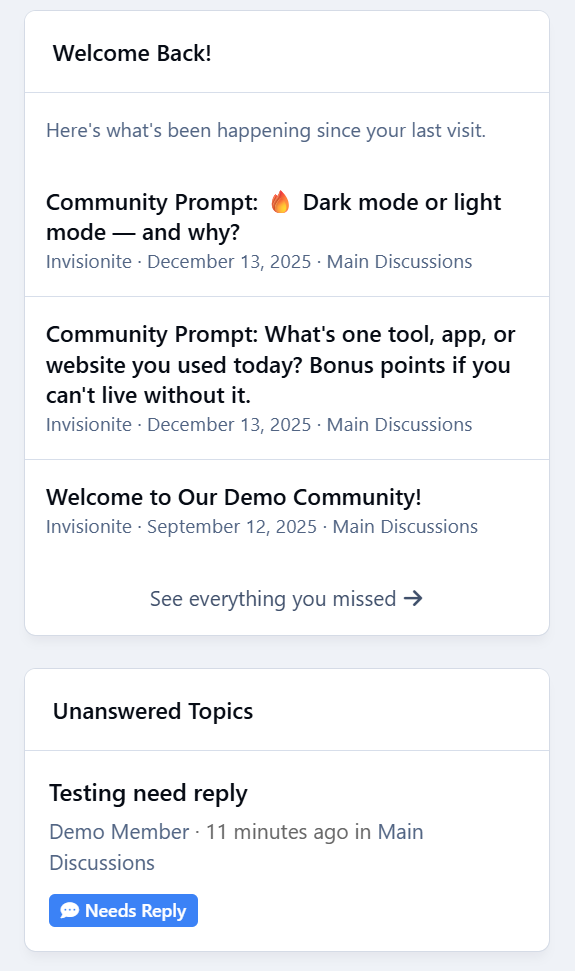
Unanswered Topics, Finally Visible
Ever notice how topics with no replies quietly disappear?
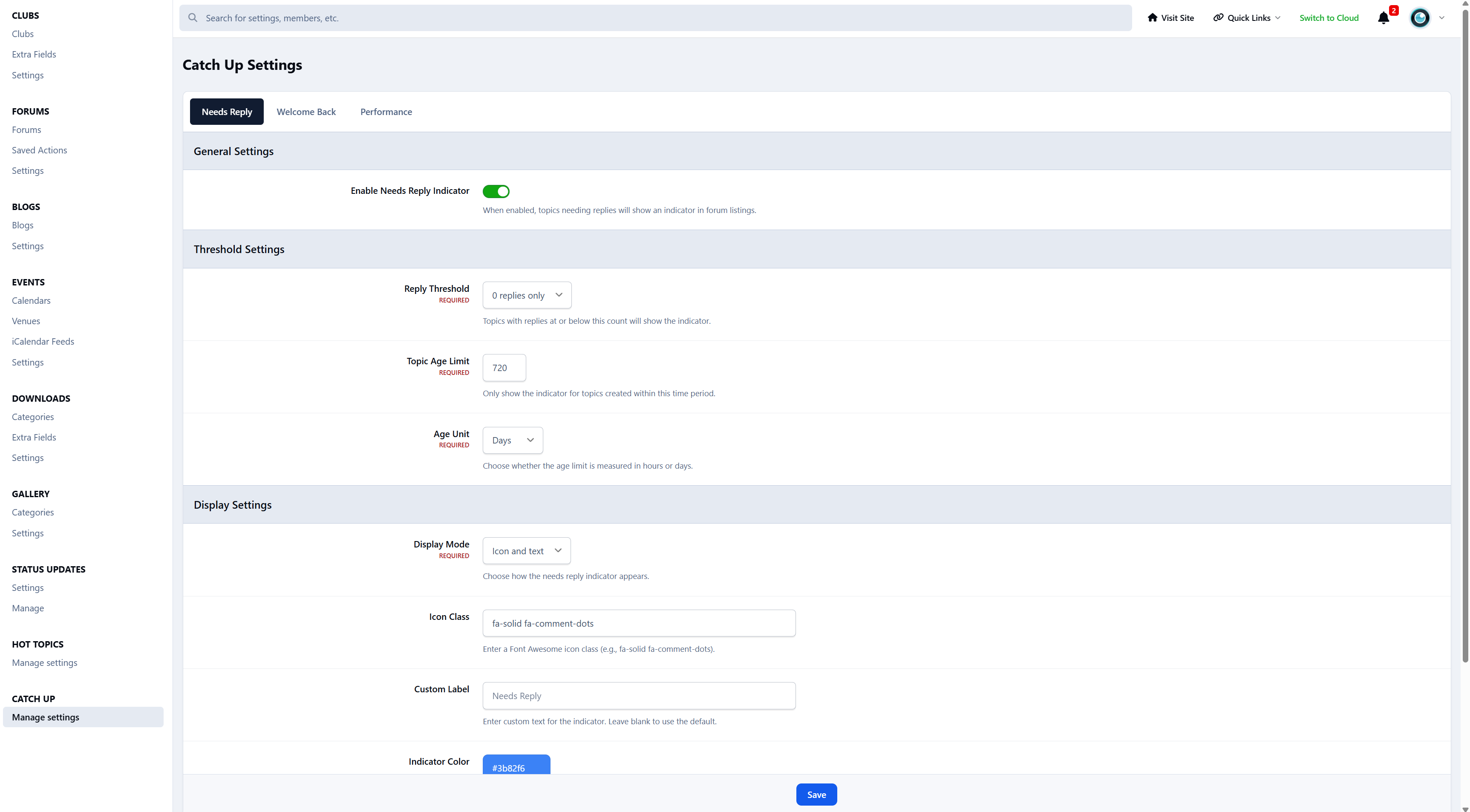
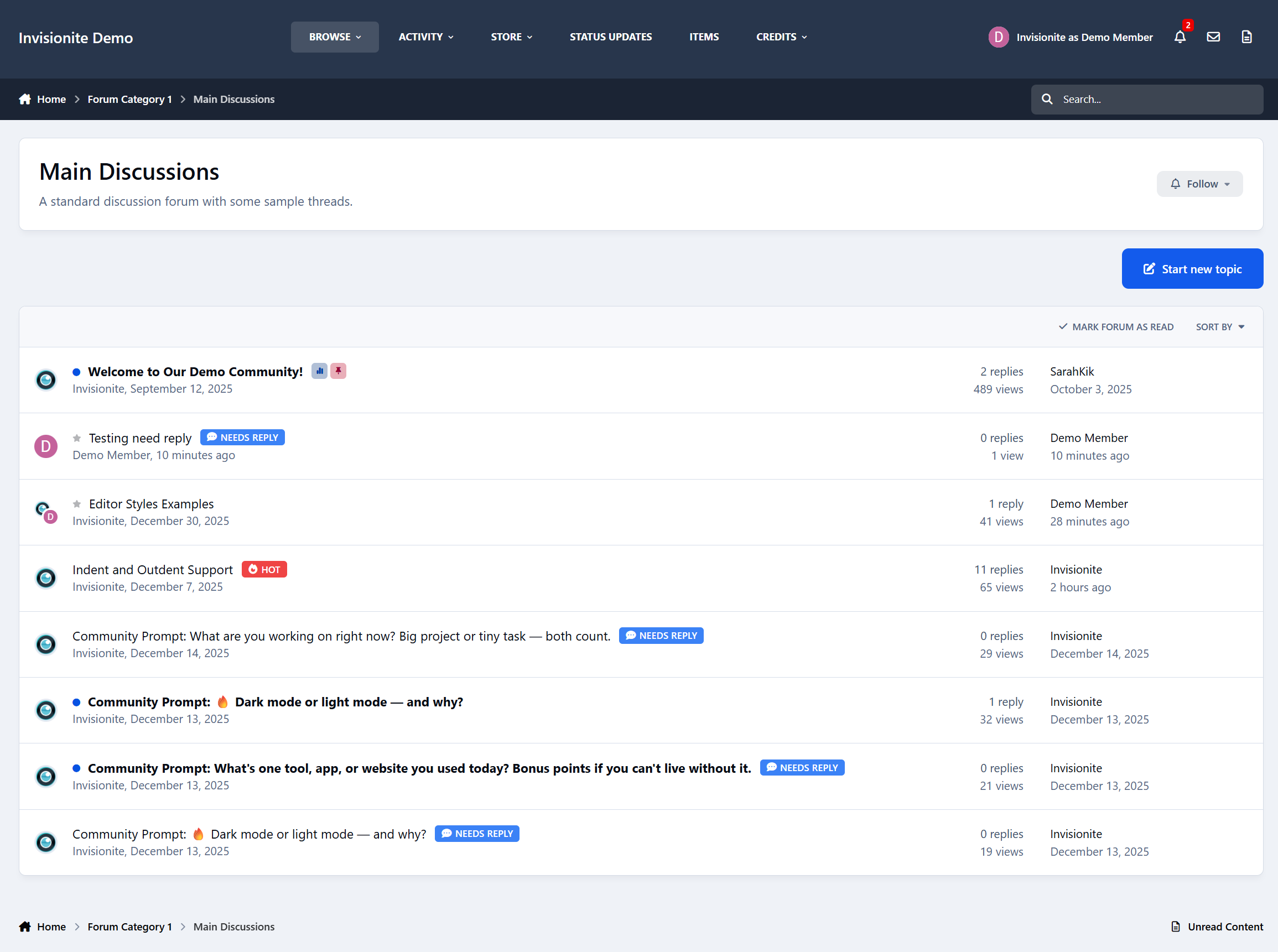
Catch Up fixes that by highlighting topics that need replies directly in topic listings.
Topics that:
Have no replies (or only one, if you choose)
Are still recent
Haven’t been forgotten yet
They get a clear “Needs Reply” indicator - and once someone replies, the indicator disappears automatically.
This works especially well for:
Support communities
Small or growing forums
Any community where unanswered topics hurt engagement
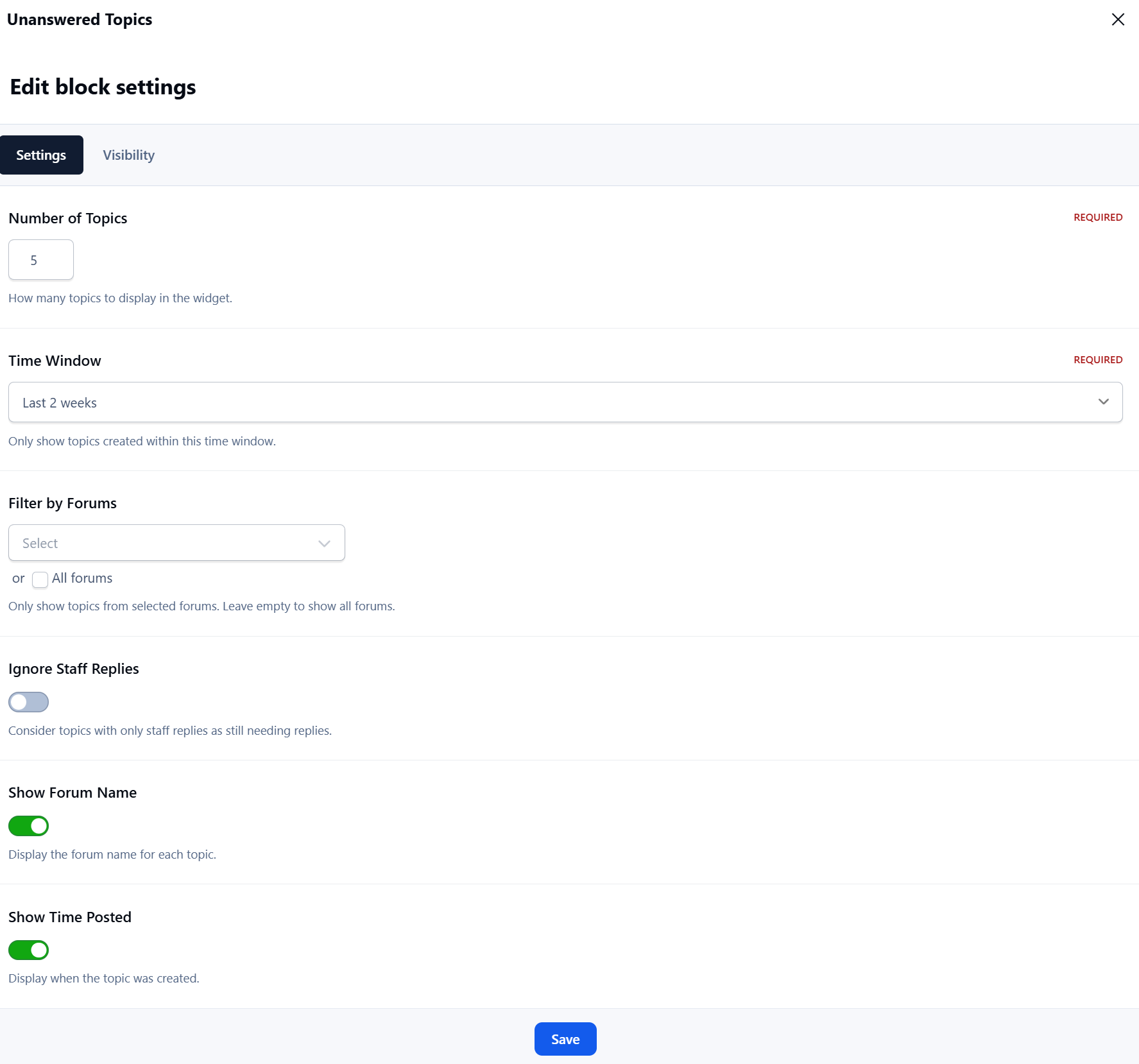
Unanswered Topics Widget
Catch Up also includes an optional widget that lists topics still waiting for replies.
It shows:
Topics that genuinely need attention
Only forums members can access
Only topics that still qualify
When there’s nothing to show, it stays out of the way.
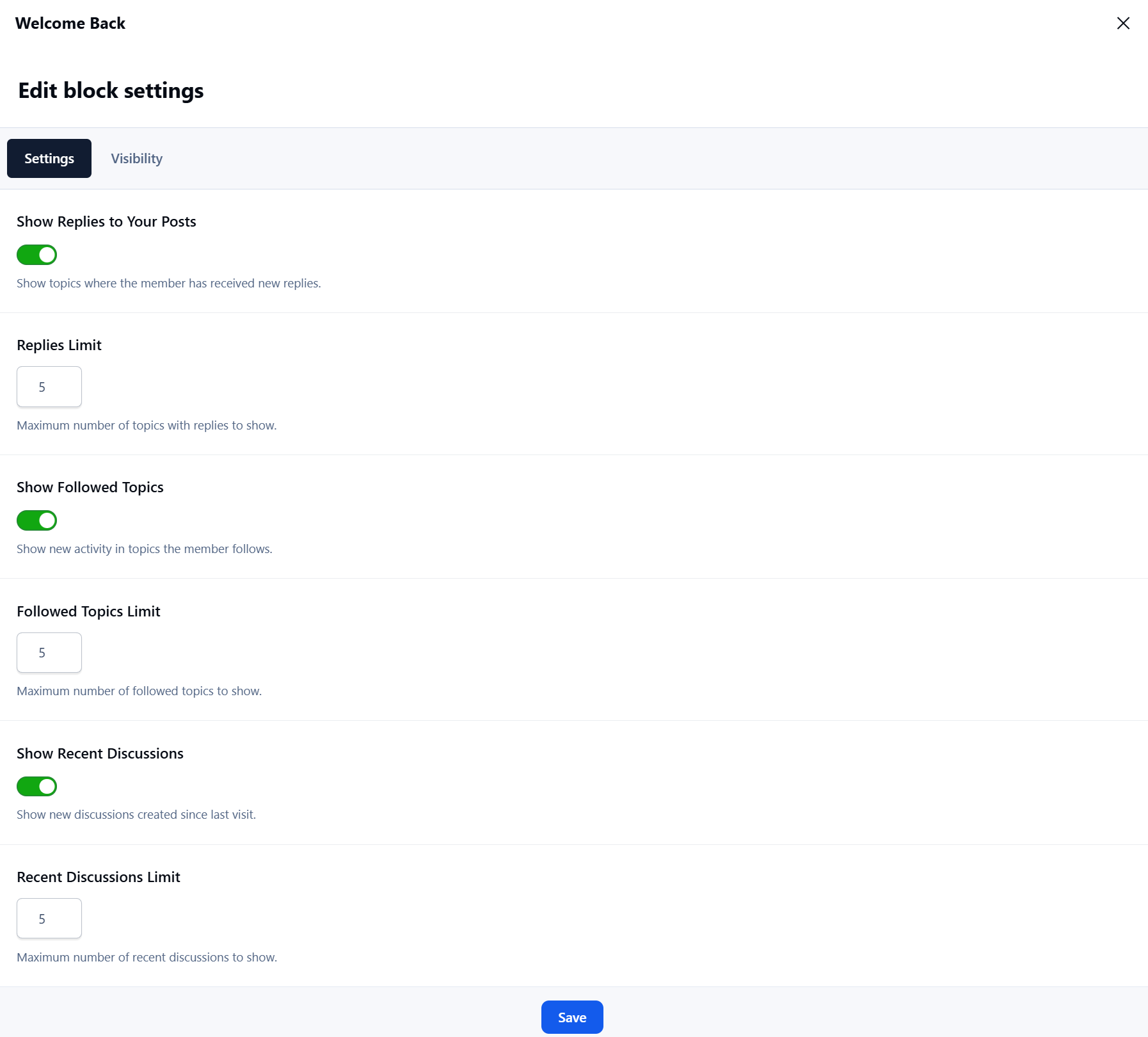
Welcome Back (That Actually Feels Personal)
This is where Catch Up really shines.
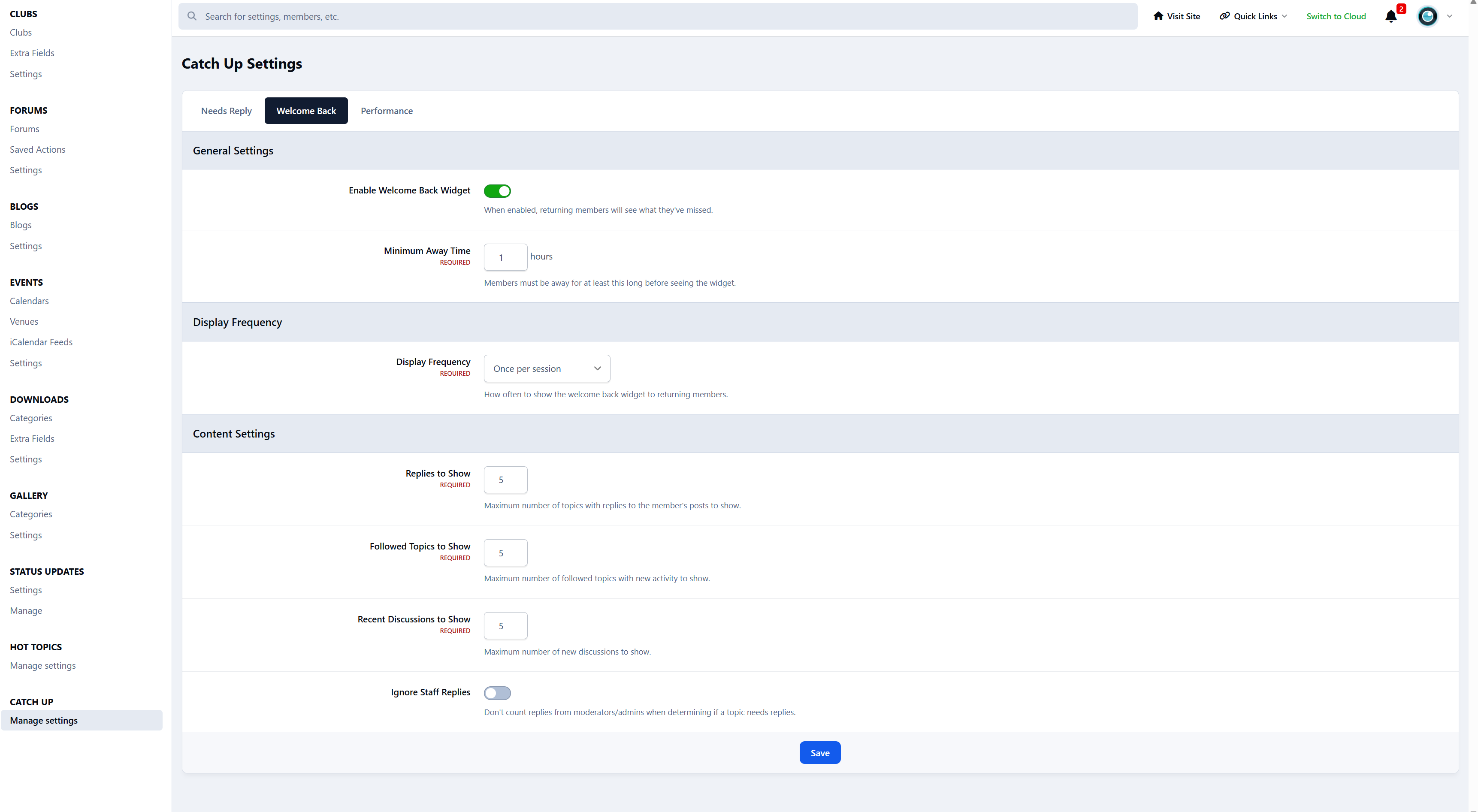
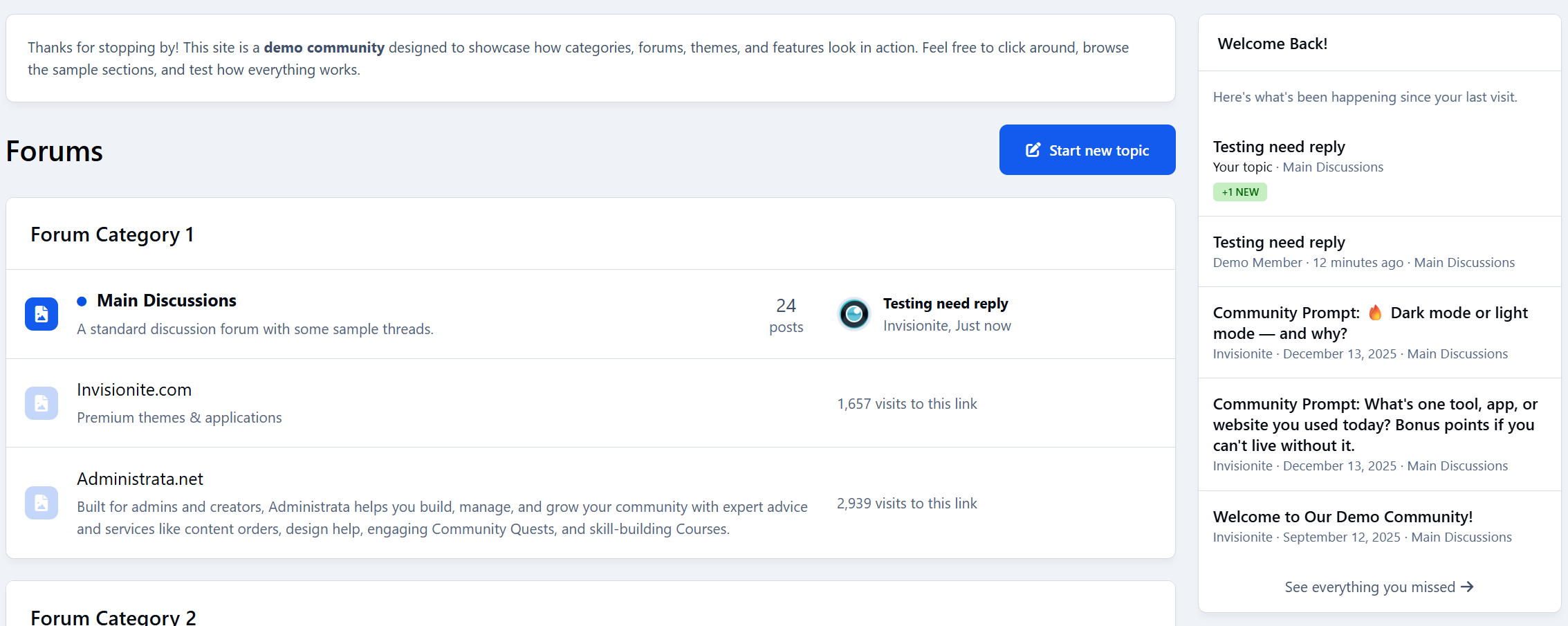
When members return after being away, Catch Up can show them a Welcome Back widget that answers one simple question:
“What did I miss?”
Instead of a generic activity feed, members see:
Replies to their topics
New activity in topics they follow
Recent discussions they haven’t read yet
Each item includes clear context like:
Your topic
Following
+X new replies
Why Your Community Should Use Catch Up
Fewer unanswered topics
Faster replies
More return engagement
Less “dead” content
Members feel guided, not lost
Catch Up doesn’t try to change how your community works.
It just helps conversations keep moving.
Designed to Feel Native
Catch Up is built to blend in, not stand out.
It:
Fits naturally into forum listings
Uses clean, familiar layouts
Works with widgets and page builders
Respects permissions and visibility
Members don’t need to learn anything new.
They just start replying more.
Who Is Catch Up For?
Catch Up works best for:
Support communities
Niche forums
Growing communities
Any forum where replies matter
If unanswered topics bother you - even a little - Catch Up is for you.
Would you like to see it in action? Visit Administrata.
Create an account or sign in to leave a review
There are no reviews to display.