Invision Community 5
- Category Member Tools
- Downloads 194
- Compatibility IC5: 5.0.0+
- Updated

Overview
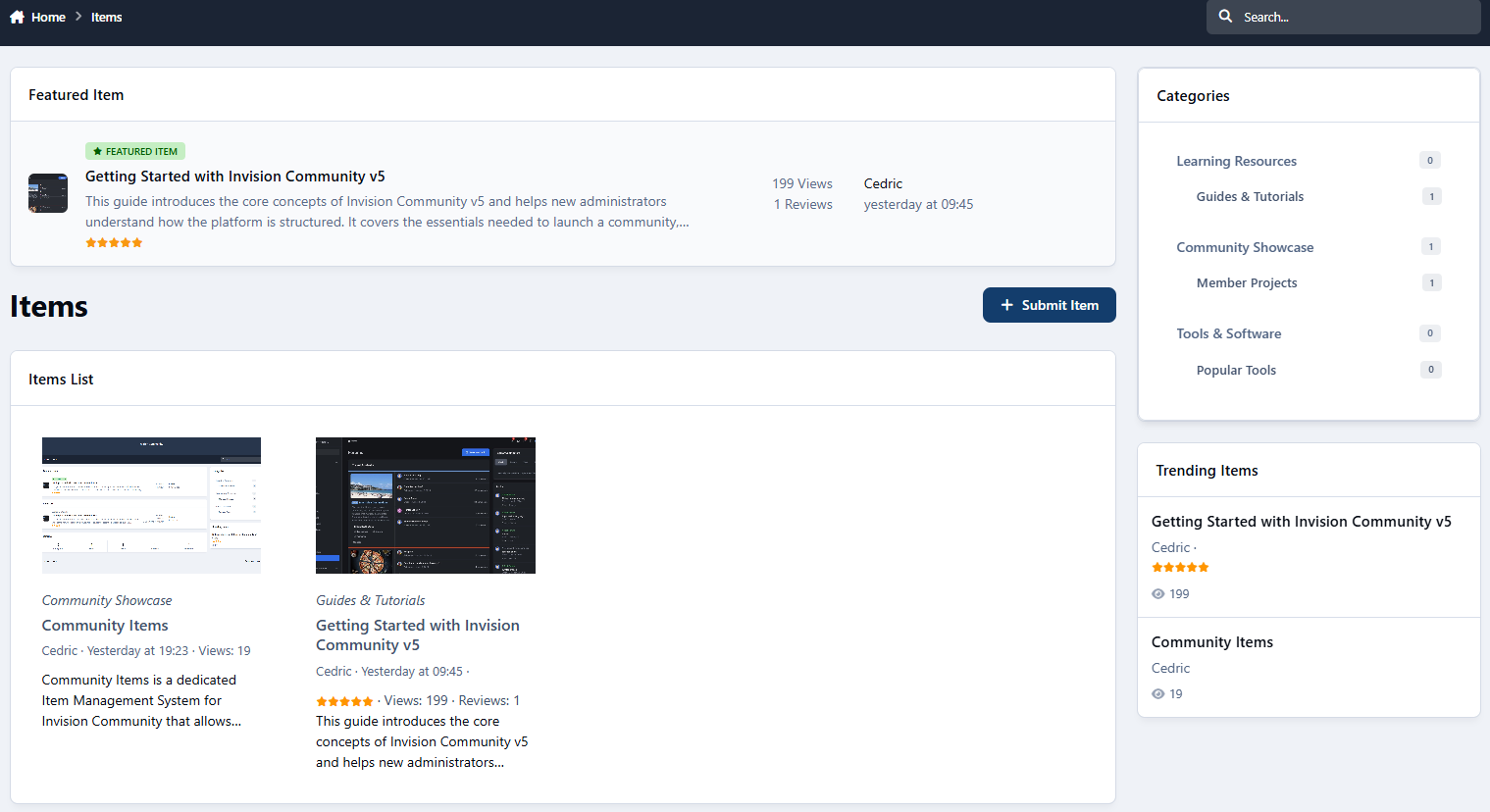
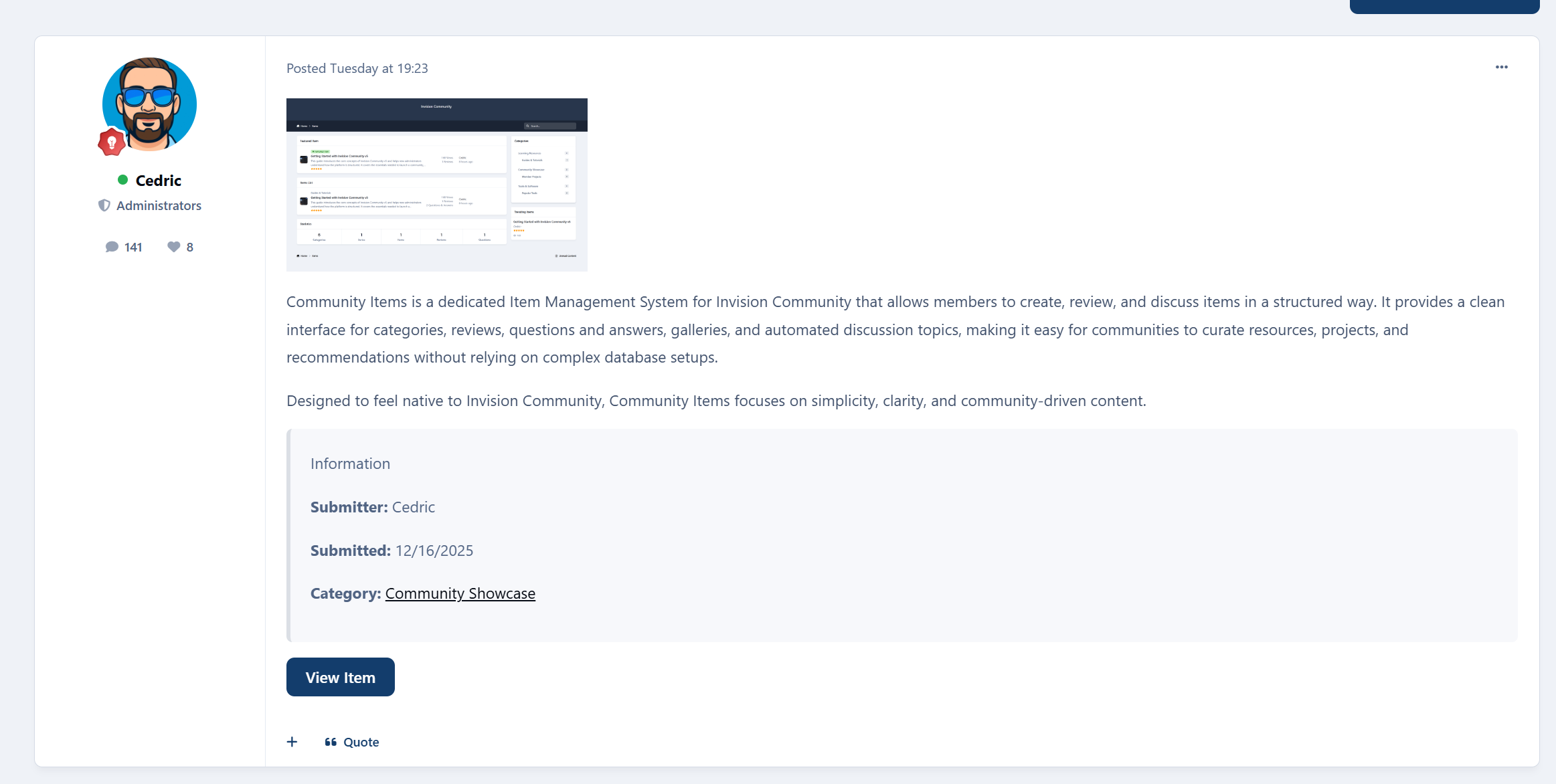
Community Items is a dedicated Item Management System for Invision Community that allows members to create, review, and discuss items in a structured way.Description
Most communities are full of valuable information.
The problem isn’t content - it’s organization.
Great resources get buried in old threads.
Recommendations repeat.
Questions get asked again and again.
Community Items fixes that.
Community Items is a structured, community-driven Item Management System for Invision Community that lets members create, review, and discuss items in one clean, searchable place - without turning your forum into a database admin panel.
It feels native.
It feels familiar.
And it finally gives your best content a proper home.
Introducing: Community Items
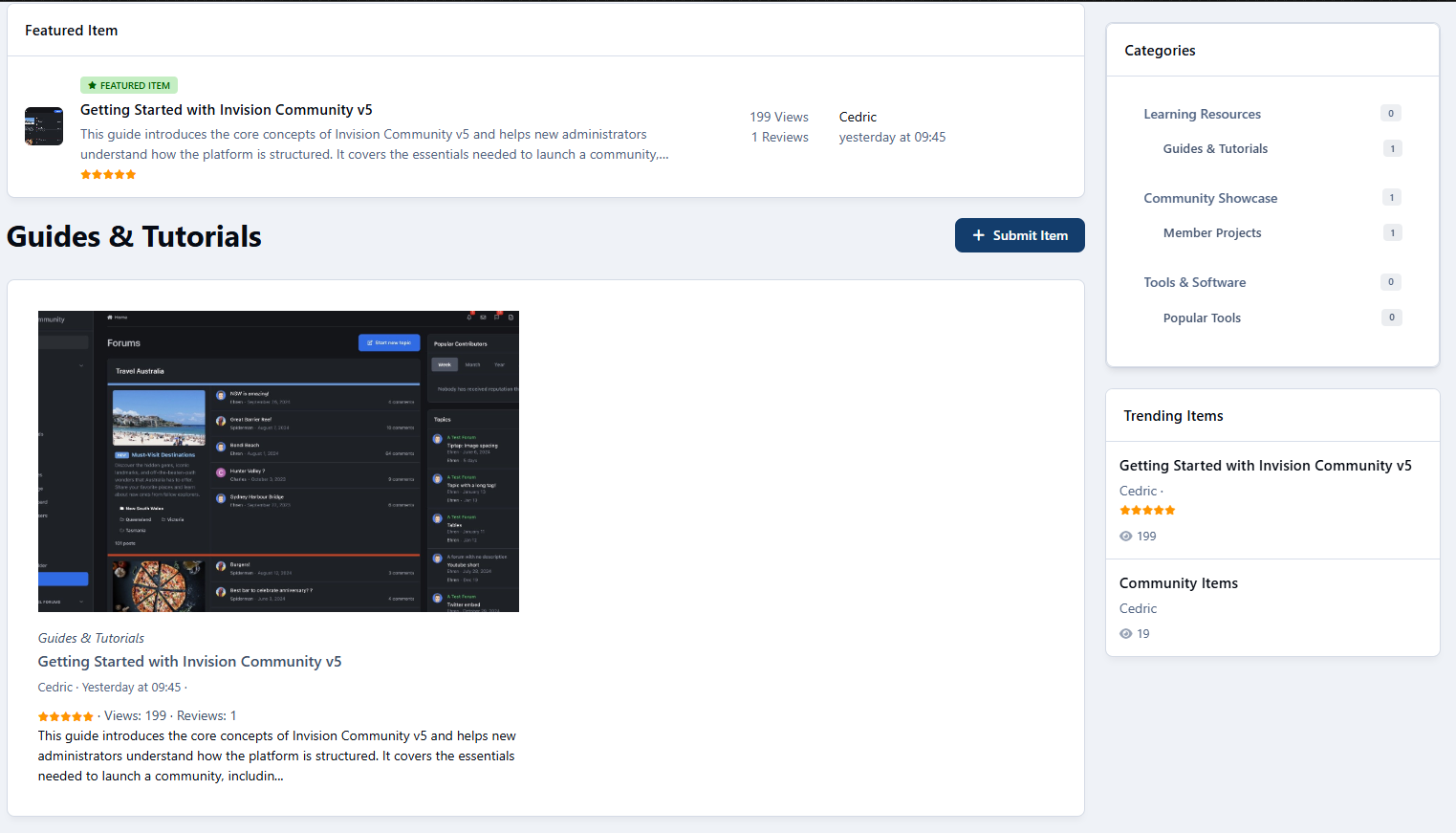
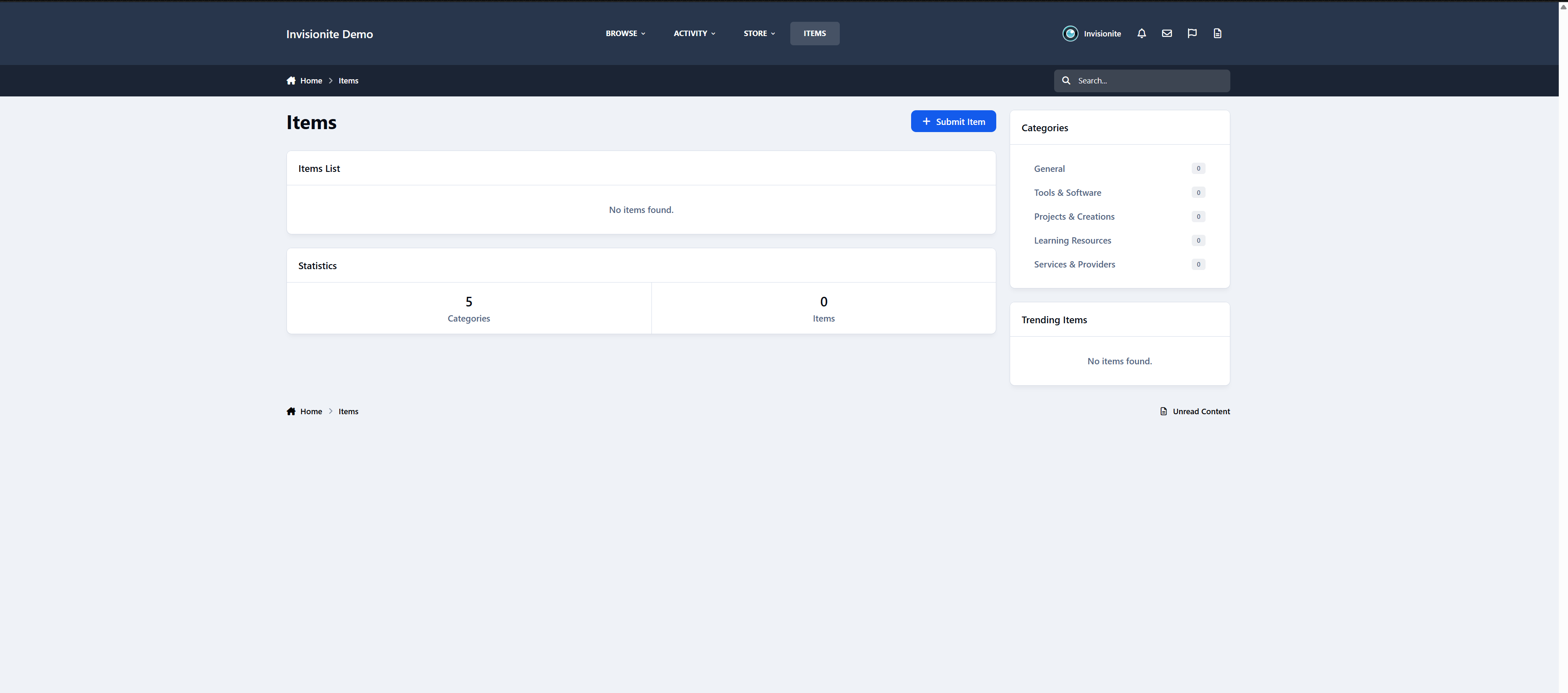
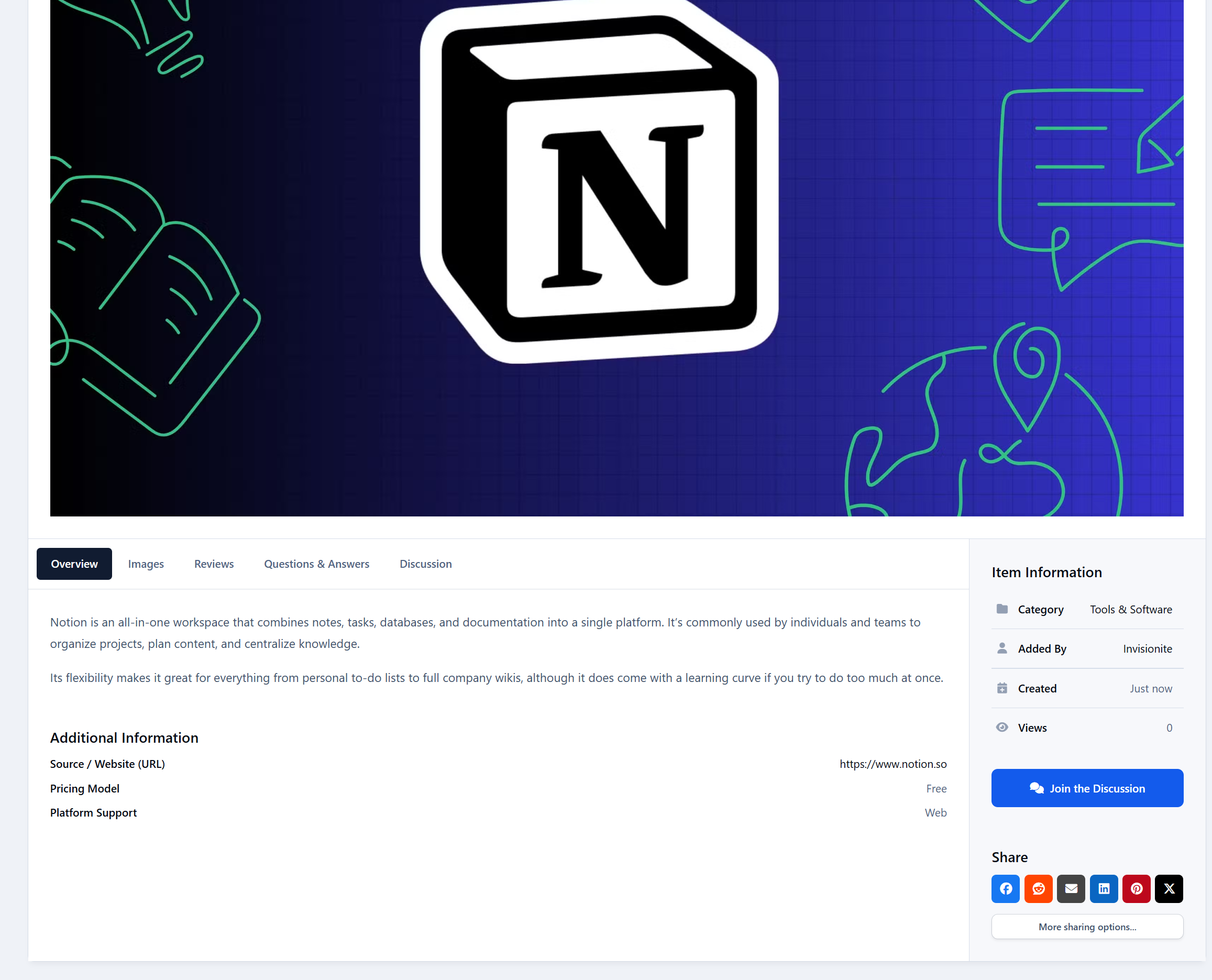
Community Items allows your members to submit and manage items - tools, resources, projects, services, guides, or anything your community cares about - inside a dedicated item directory.
Each item becomes its own hub:
Description
Images
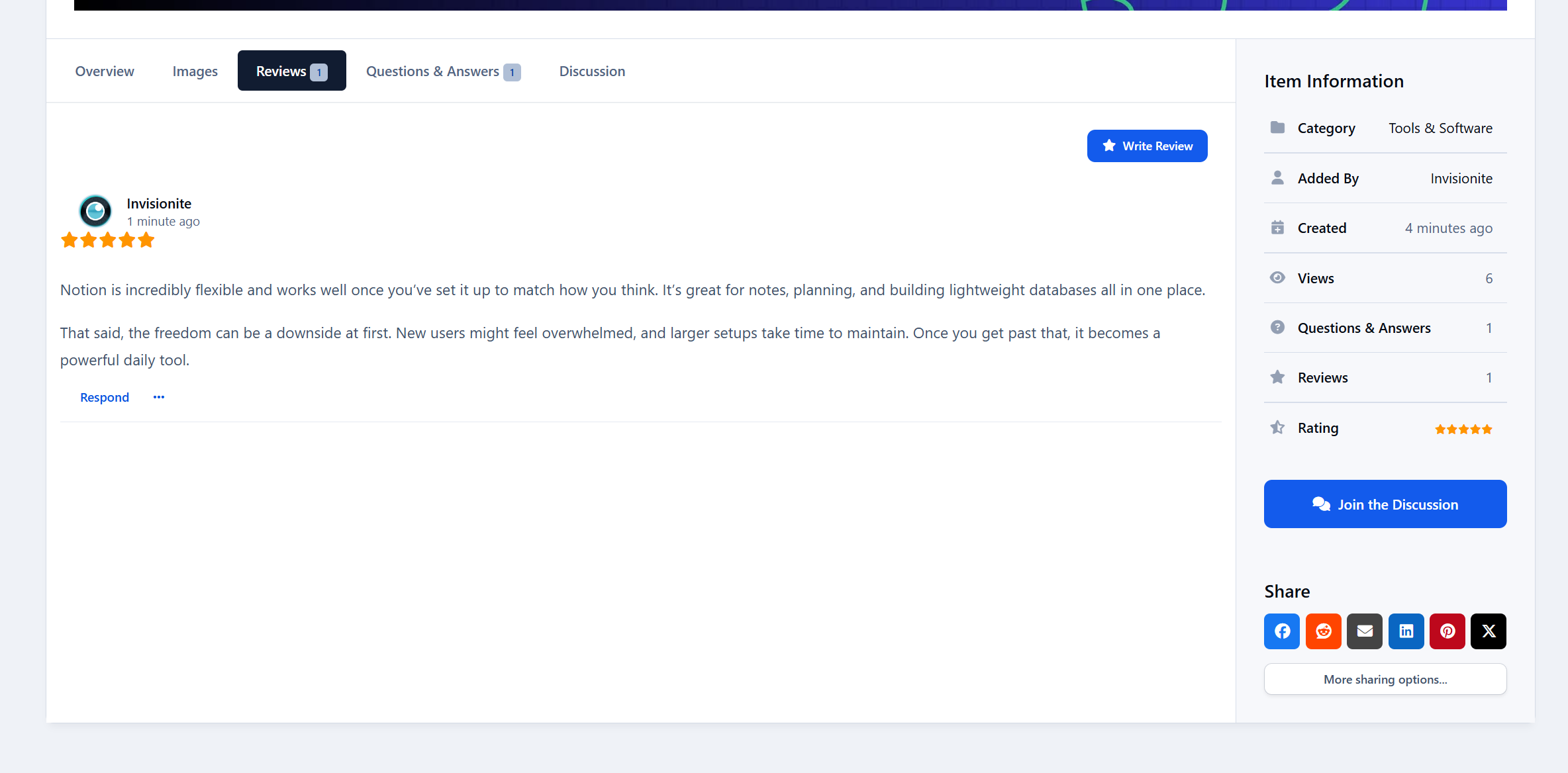
Reviews
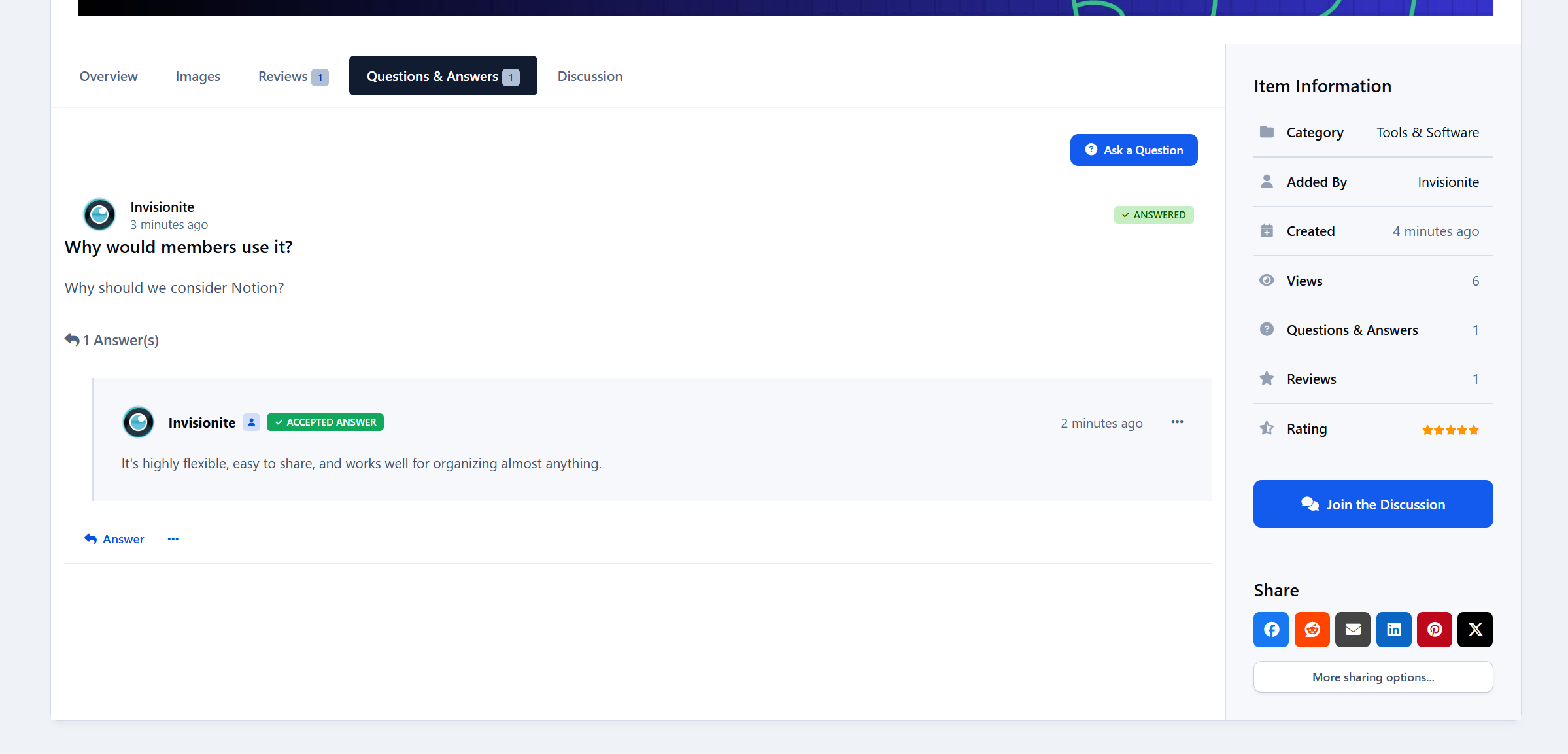
Questions & answers
Discussion topics
Everything connected.
Everything easy to find.
No more “Which tool should I use?” threads every week.
No more lost recommendations.
Just structured knowledge that grows with your community.
What Can You Use Community Items For?
Honestly? A lot more than you might expect.
Here are some of the most effective (and popular) use cases.
Resource Libraries (Without the Mess)
Perfect for communities that share tools, websites, or downloads.
Examples:
“Recommended hosting providers”
“Best productivity apps”
“Community-approved plugins”
Each item has:
A clear description
Screenshots or galleries
Reviews from real members
Questions answered once - and reused forever
Instead of long recommendation threads, you get a curated library the community can actually maintain.
Project & Portfolio Showcases
Community Items isn’t just for tools - it’s great for projects.
Use it to showcase:
Member projects
Open-source tools
Community creations
Case studies
Each project becomes an item with:
A featured image
Full description
Update history
Q&A from interested members
A discussion topic that grows naturally
It’s a portfolio system without needing a custom app.
Reviews That Actually Matter
Most forums have reviews… scattered across threads.
Community Items brings them together.
Members can:
Leave 1–5 star ratings
Write full reviews
Vote reviews as helpful
Highlight or pin the best feedback
Admins can:
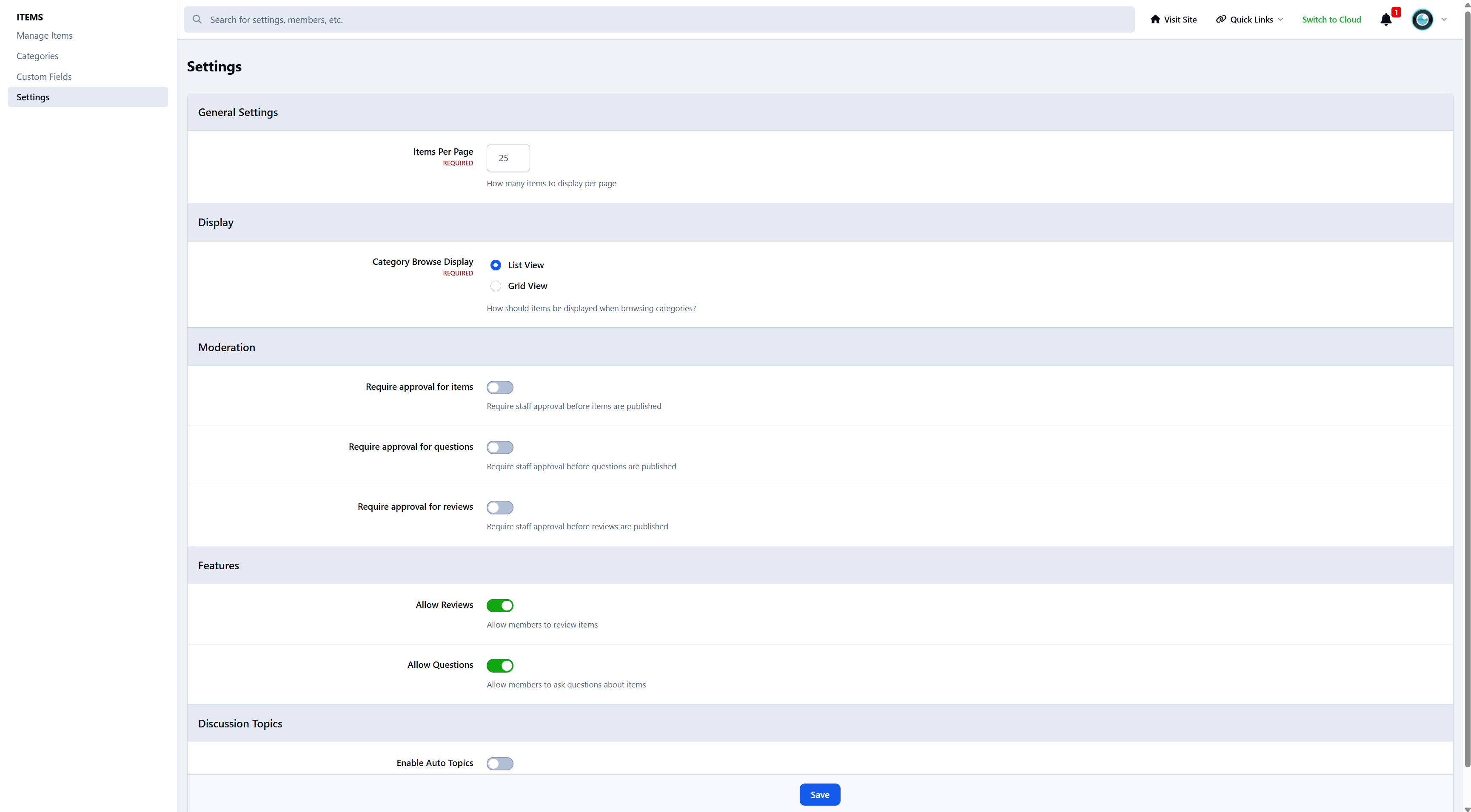
Moderate reviews
Highlight standout reviews
Keep low-quality noise out
The result?
Reviews that feel credible, useful, and worth reading.
Questions & Answers (Done Right)
Instead of repeating the same questions in multiple threads, each item gets its own Q&A section.
Members can:
Ask questions directly on an item
Reply with threaded answers
Mark the best answer
Item owners stay informed.
New visitors see answers instantly.
And knowledge stops being fragmented.
Automated Discussions (Without Forum Clutter)
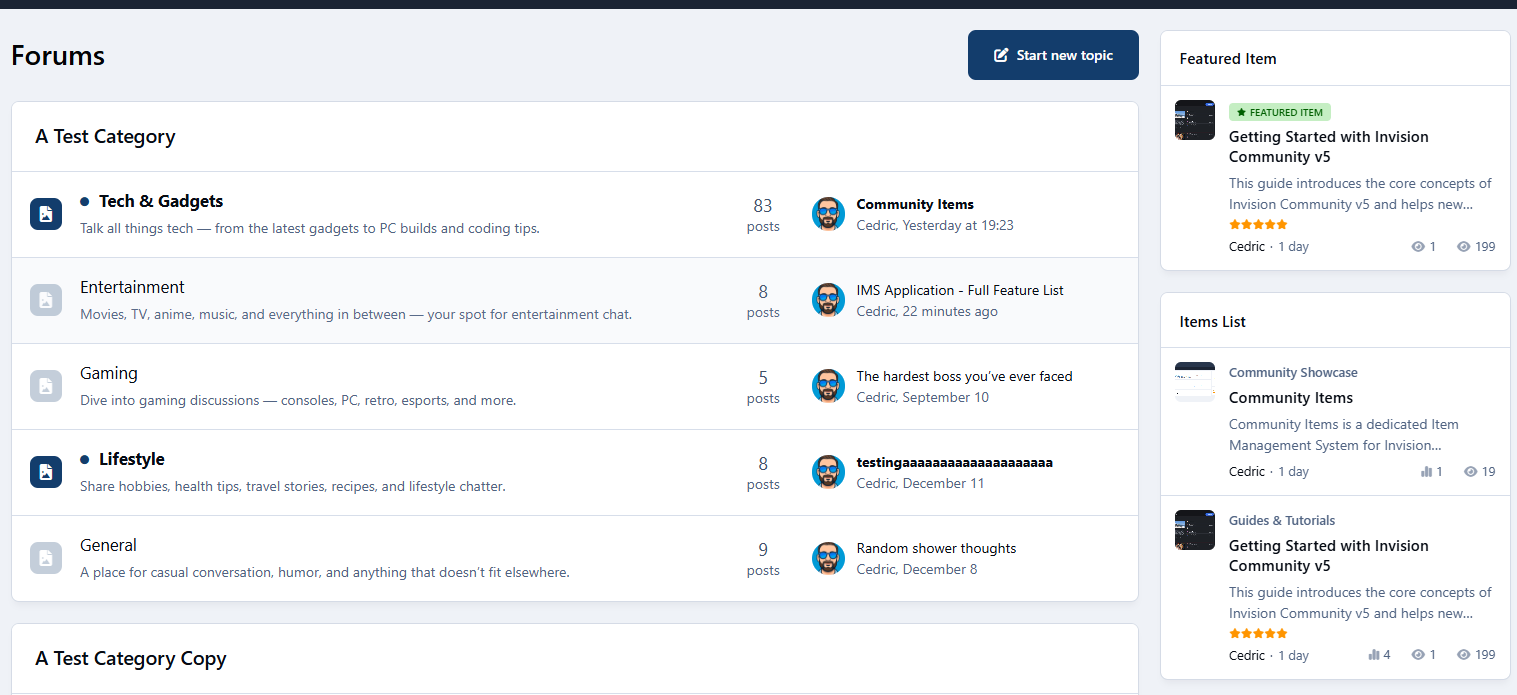
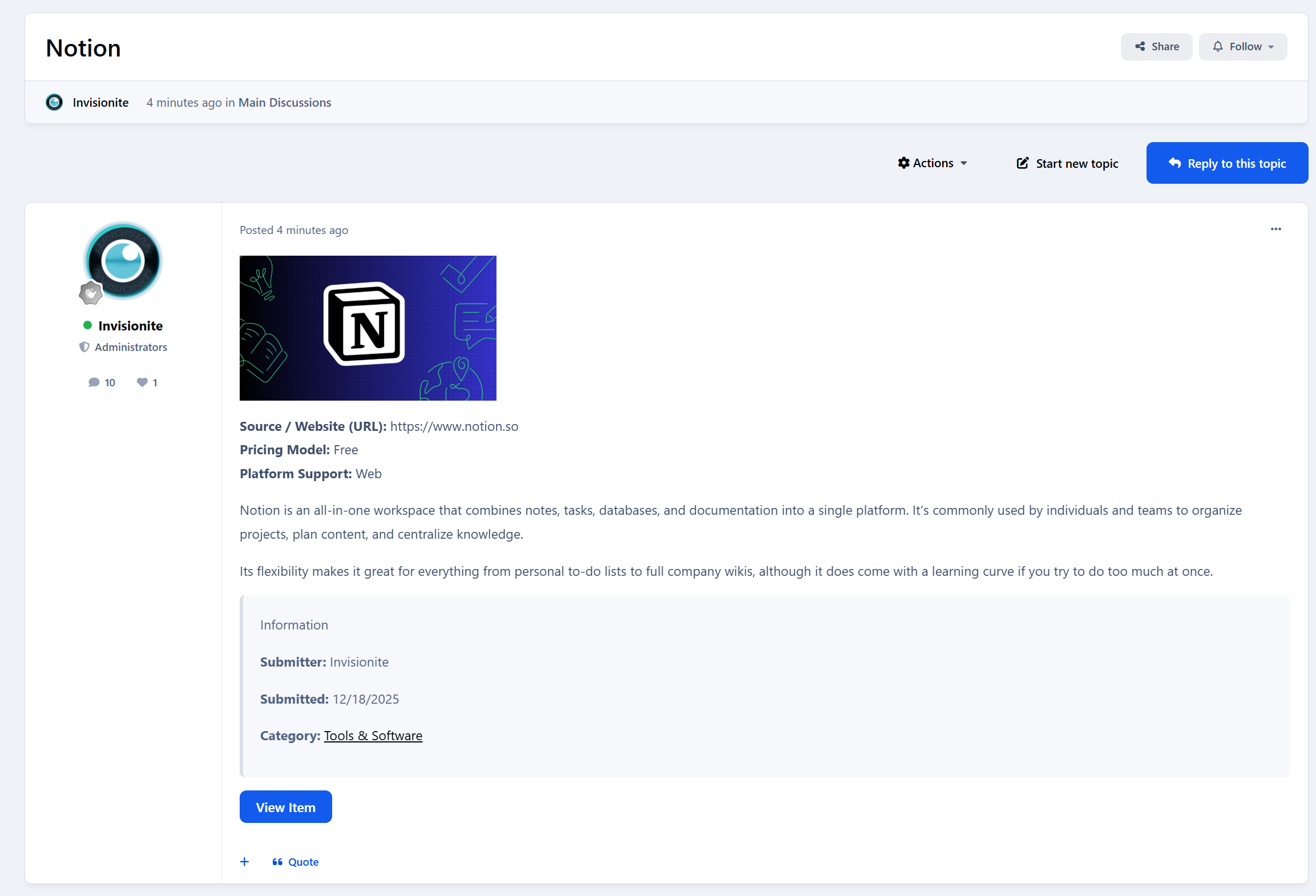
Community Items integrates directly with your forums.
When an item is published:
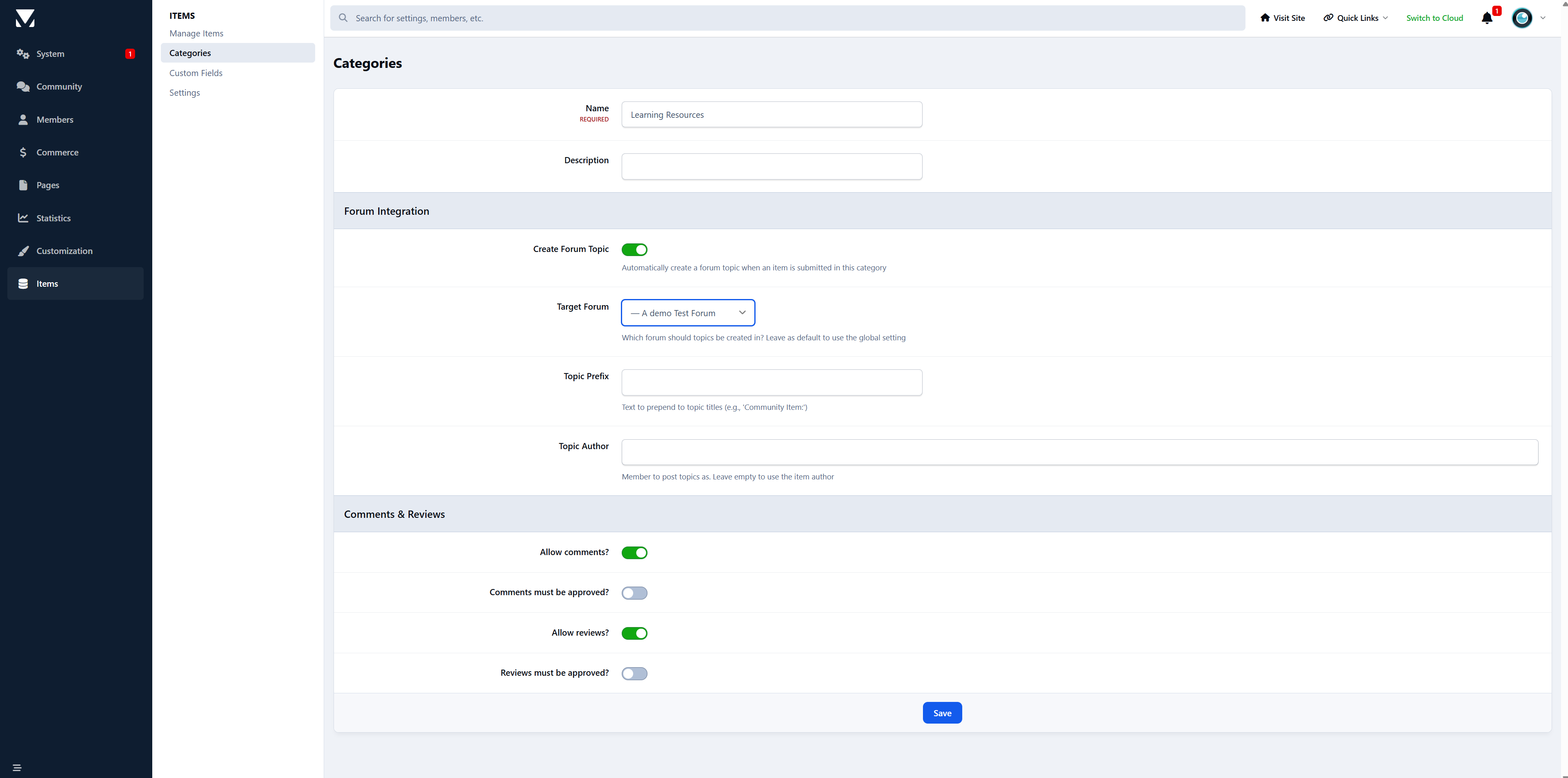
A discussion topic can be created automatically
The topic is linked back to the item
Prefixes and target forums are configurable per category
This keeps conversation flowing without flooding your forums with duplicate or messy threads.
Items stay structured.
Discussions stay social.
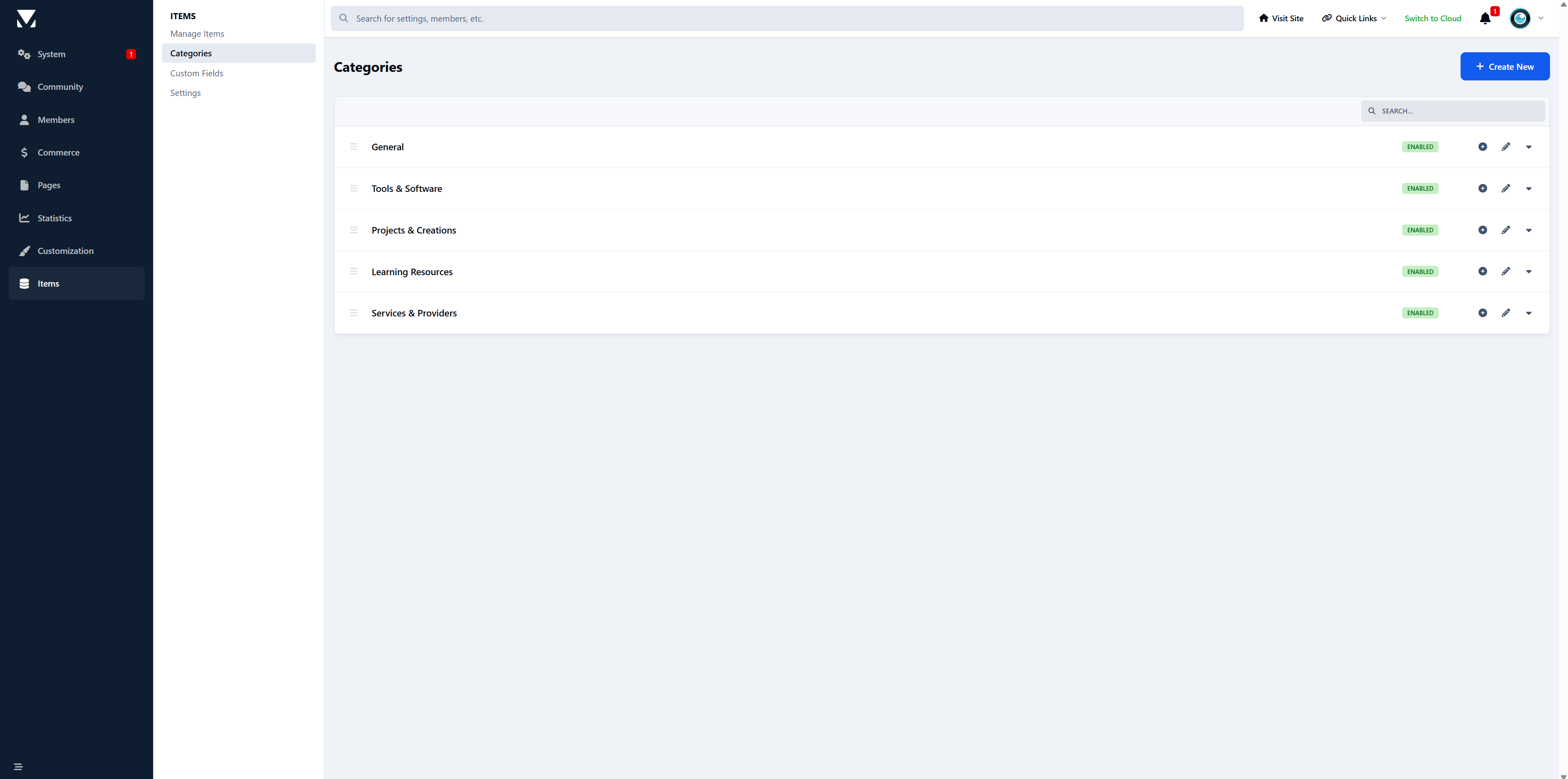
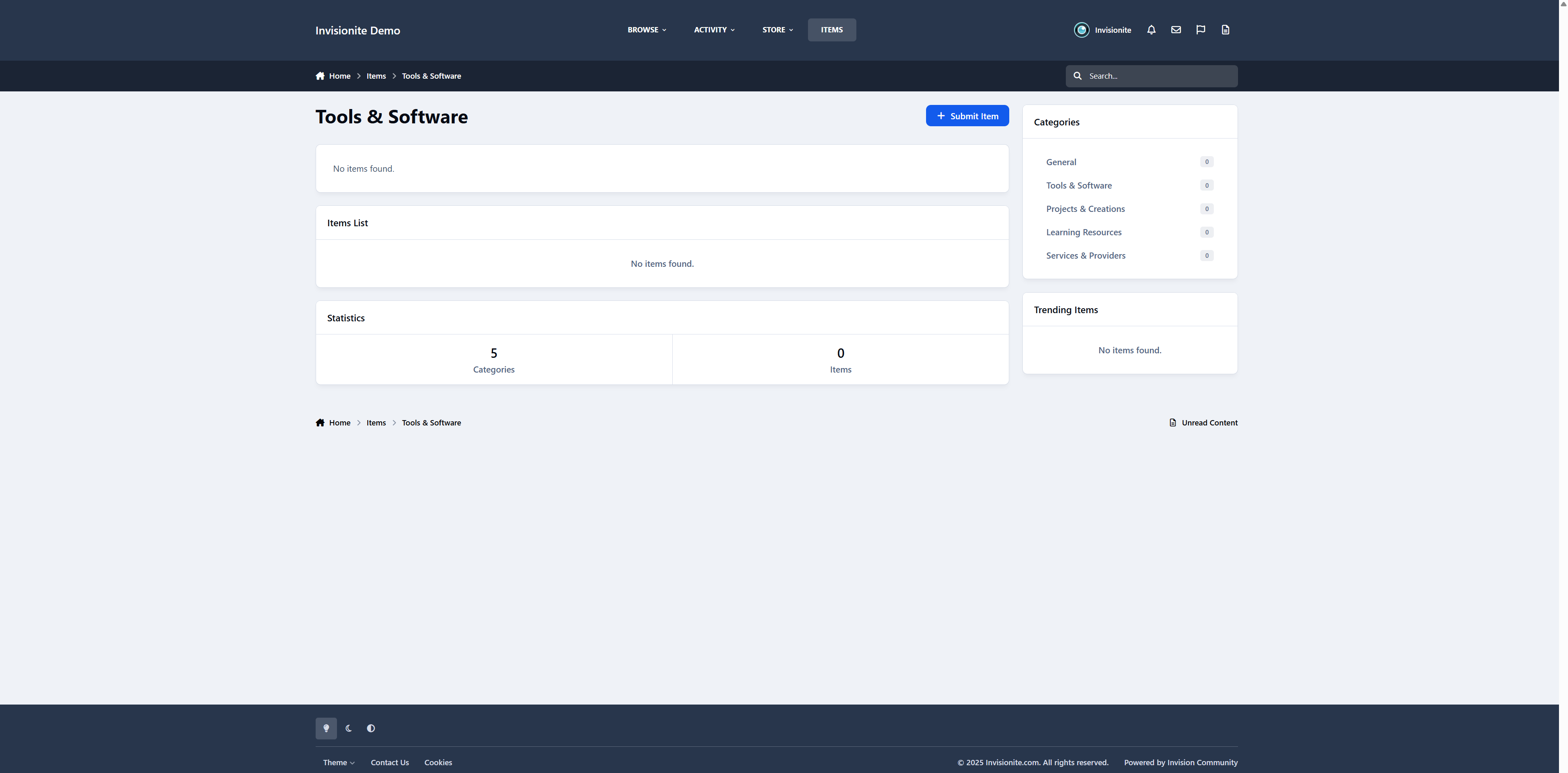
Category-Based Organization That Makes Sense
Not everything belongs in one big list.
Community Items supports:
Hierarchical categories
Category-specific custom fields
Per-category forums for discussion
Category-based widgets and listings
Each category can be tailored to the type of items it contains - whether that’s software, services, tutorials, or projects.
Designed to Feel Native (Because It Is)
Community Items isn’t bolted on.
It:
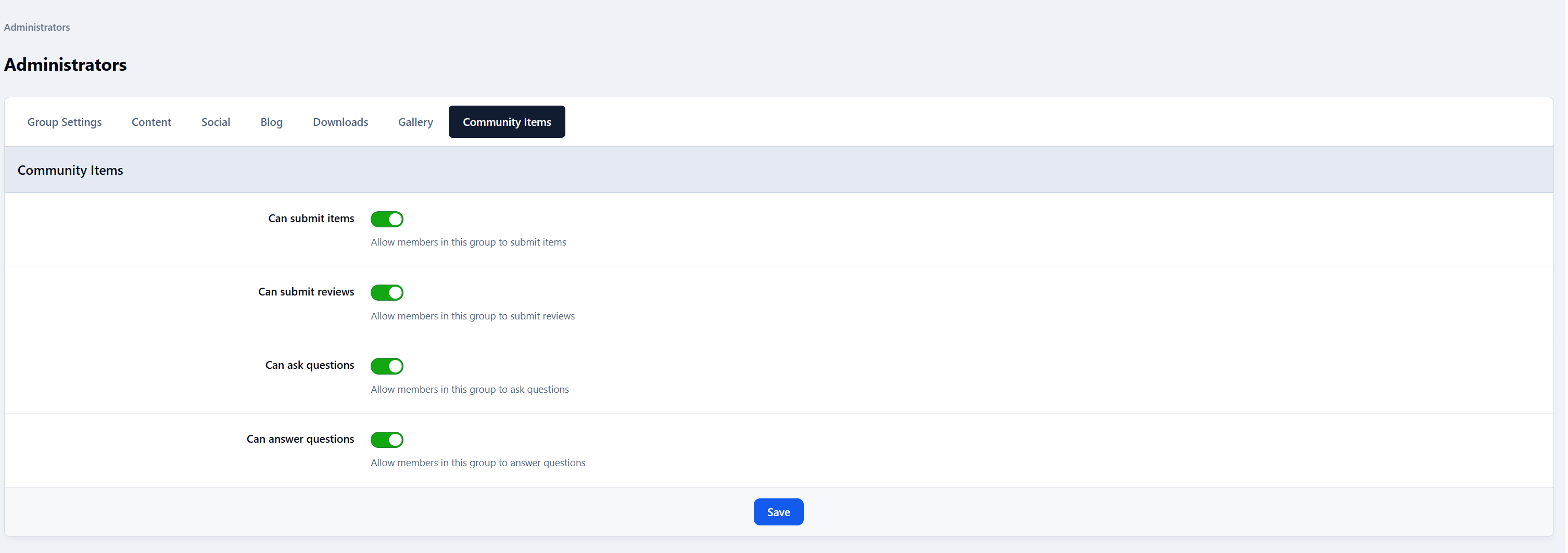
Uses IPS permissions
Integrates with reactions and notifications
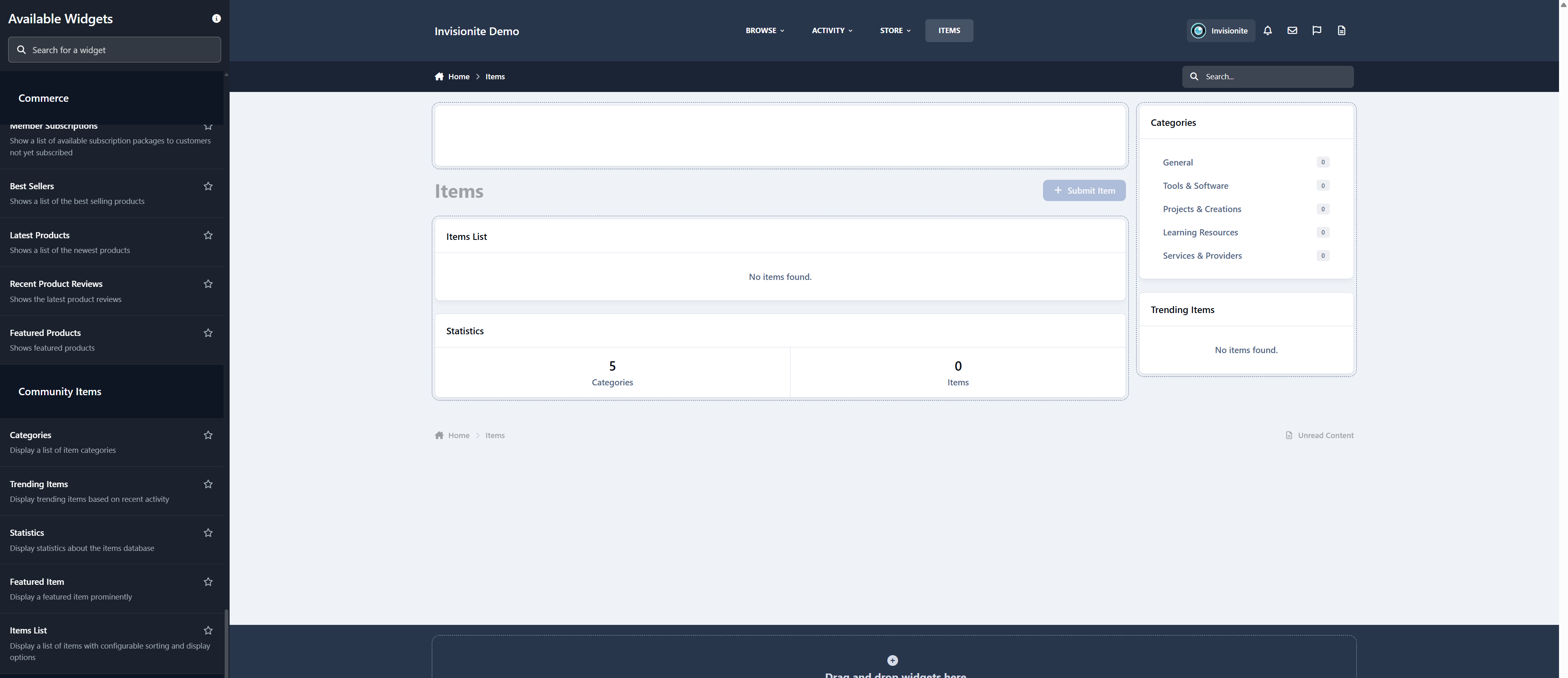
Supports widgets across your community
Feels at home in list or grid layouts
Members don’t have to learn a new system.
They just start using it.
Widgets That Surface the Good Stuff
Community Items includes widgets to keep items visible and relevant:
Category navigation
Trending items
Featured items
Statistics
Configurable item lists (grid or list)
Your best content stays in front of your members - not buried three pages deep.
Built for Growth (And What’s Coming Next)
Community Items already handles:
Items
Reviews
Ratings
Q&A
Galleries
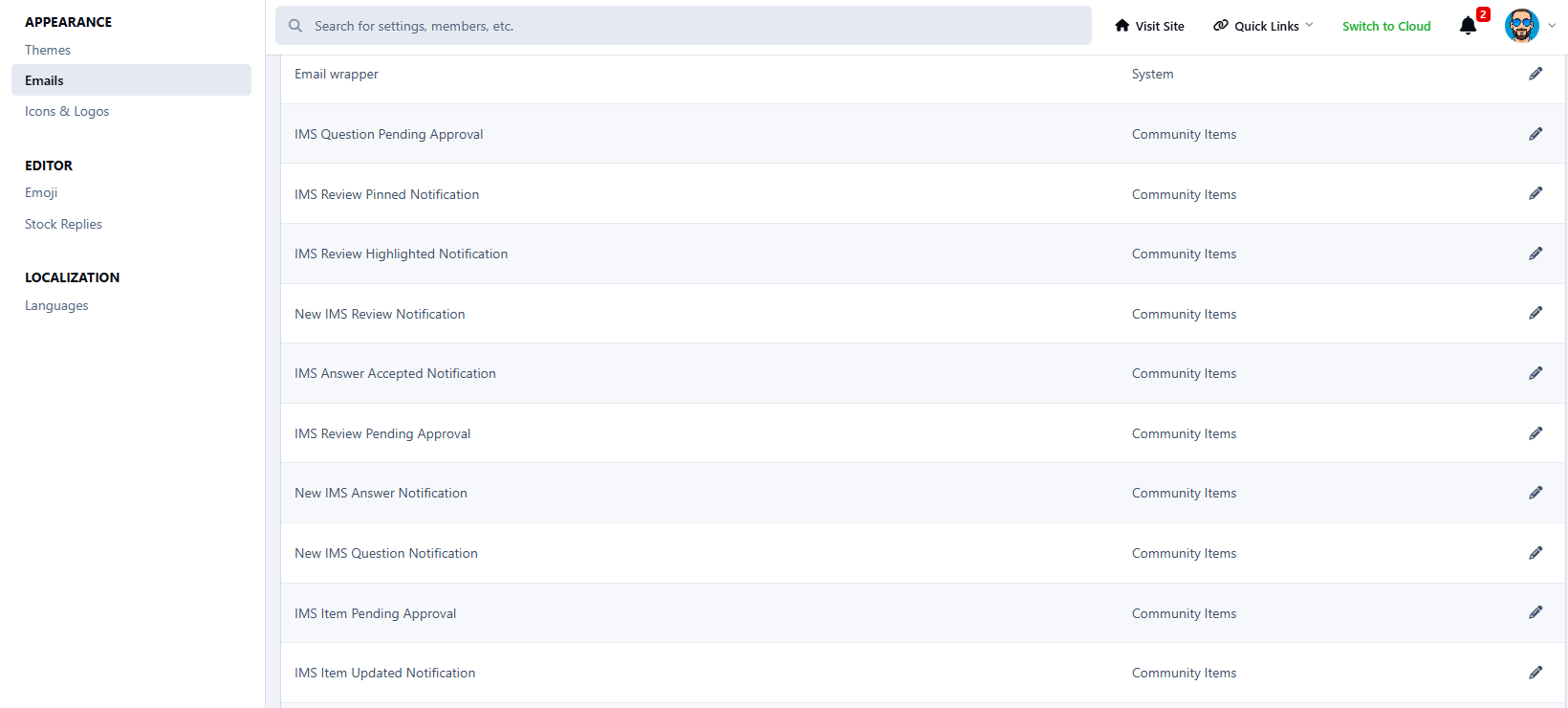
Notifications
Auto-topics
And the roadmap goes even further:
Per-category permissions
File downloads
Achievements & badges
Item recommendations
Multi-author items
With more features coming soon, it’s designed to scale as your community does.
There are no reviews to display.