On This Day - Community Memories
Invision Community 5
- Category Member Tools
- Downloads 141
- Compatibility IC5: 5.0.0+
- Updated
Overview
Every day, members see a personalized timeline of what they posted on this date in previous years - forum topics, blog entries, gallery images, calendar events, and more.Description
Your members have been posting for years.
Most of that content is invisible to them now.
On This Day brings it back.
Every day, members see a personalized timeline of what they posted on this date in previous years - forum topics, blog entries, gallery images, calendar events, and more.
Old content becomes visible again.
Members reconnect with things they forgot they wrote.
And your community gets a reason to look back, react, and share.
How it works
The app scans each member’s content history and matches it against today’s date across previous years. No tagging, no curation, no setup. If a member posted something on April 19th three years ago, they’ll see it today.
Results are grouped by year, sorted most recent first, and capped per year to keep things clean and relevant.
Queries the full search index - forums, blogs, gallery, downloads, calendar, pages, and more
Built-in leap year handling
Configurable minimum content age (default: 1 year)
Configurable items per year
Optional content type filtering
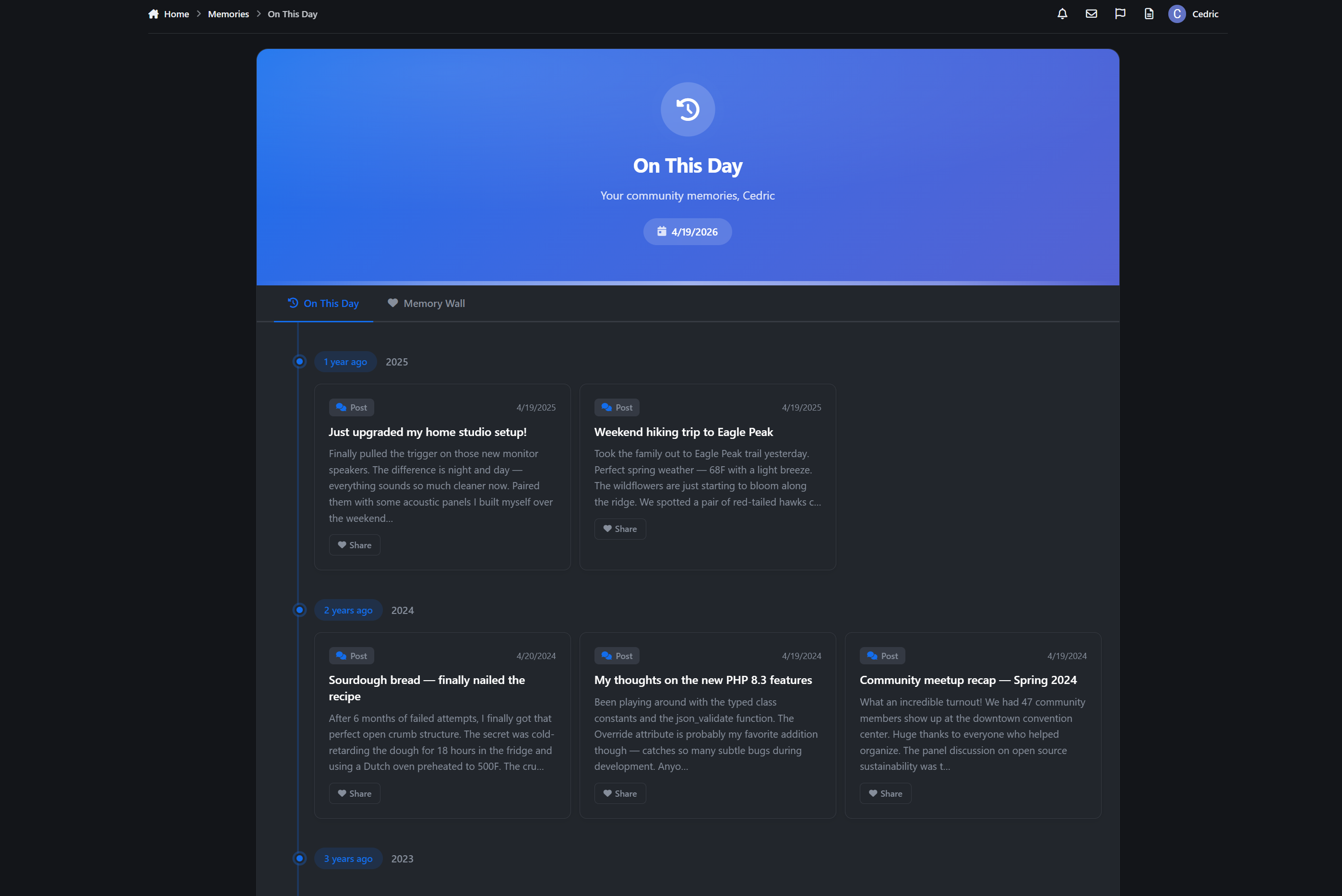
The On This Day page
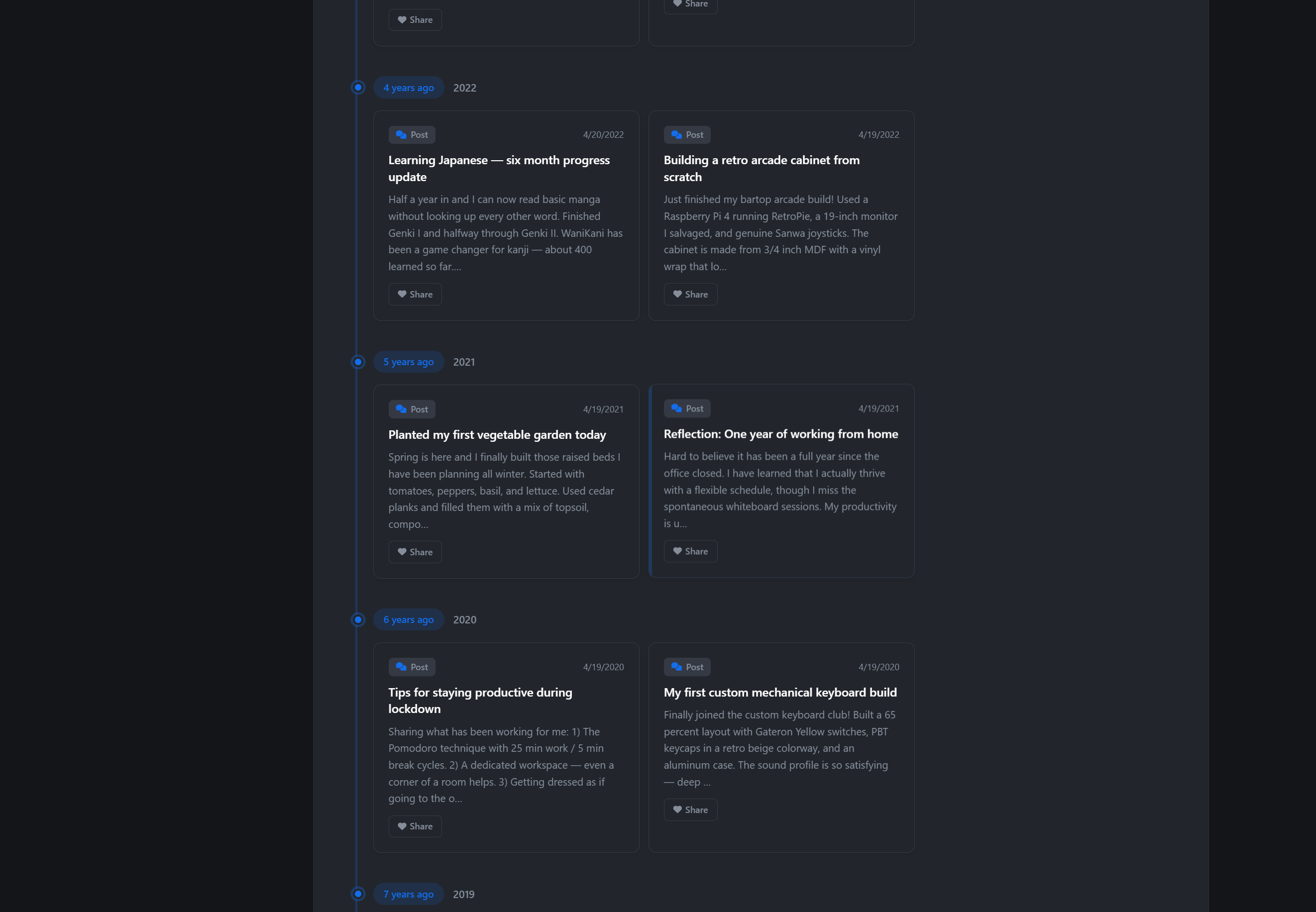
A personal timeline at /memories/, designed to feel worth visiting.
Full-width hero banner with a personalized greeting and today’s date
Vertical timeline layout with clear year markers
Animated card entrances as you scroll
Each memory card shows content type, title, a 200-character excerpt, and the original date
“Revisit” links take members straight back to the original content
Content type icons for forums, blogs, gallery, downloads, calendar, and CMS
Friendly empty state for members with no memories yet
Memory Wall
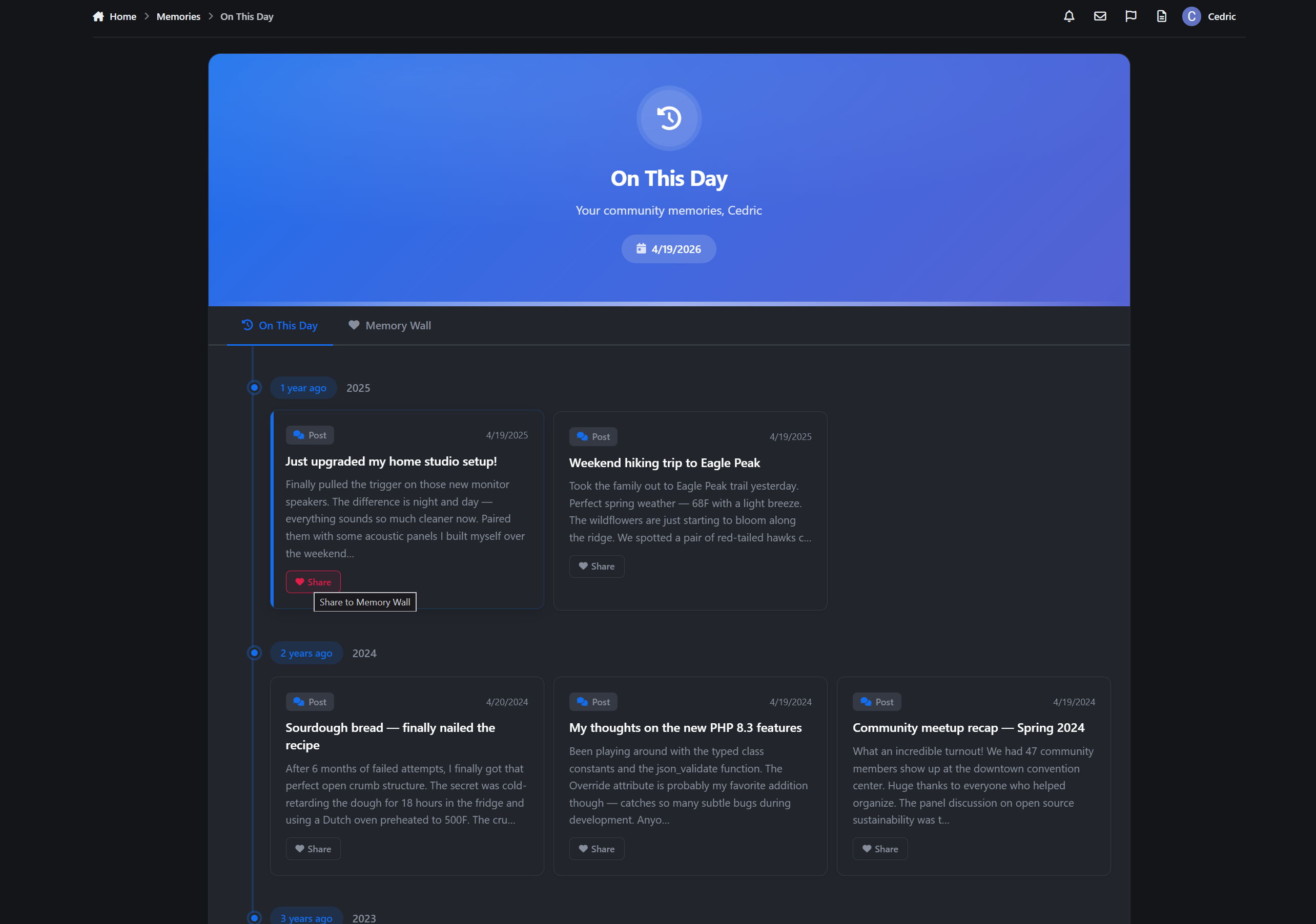
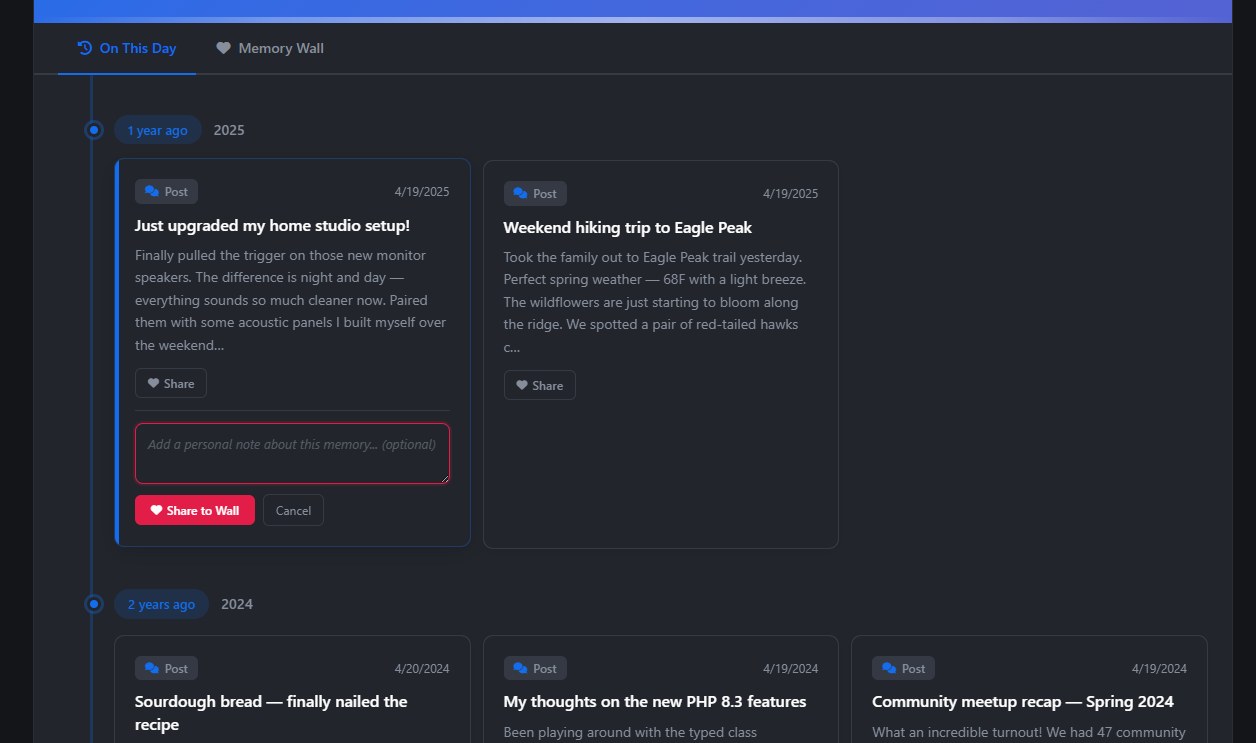
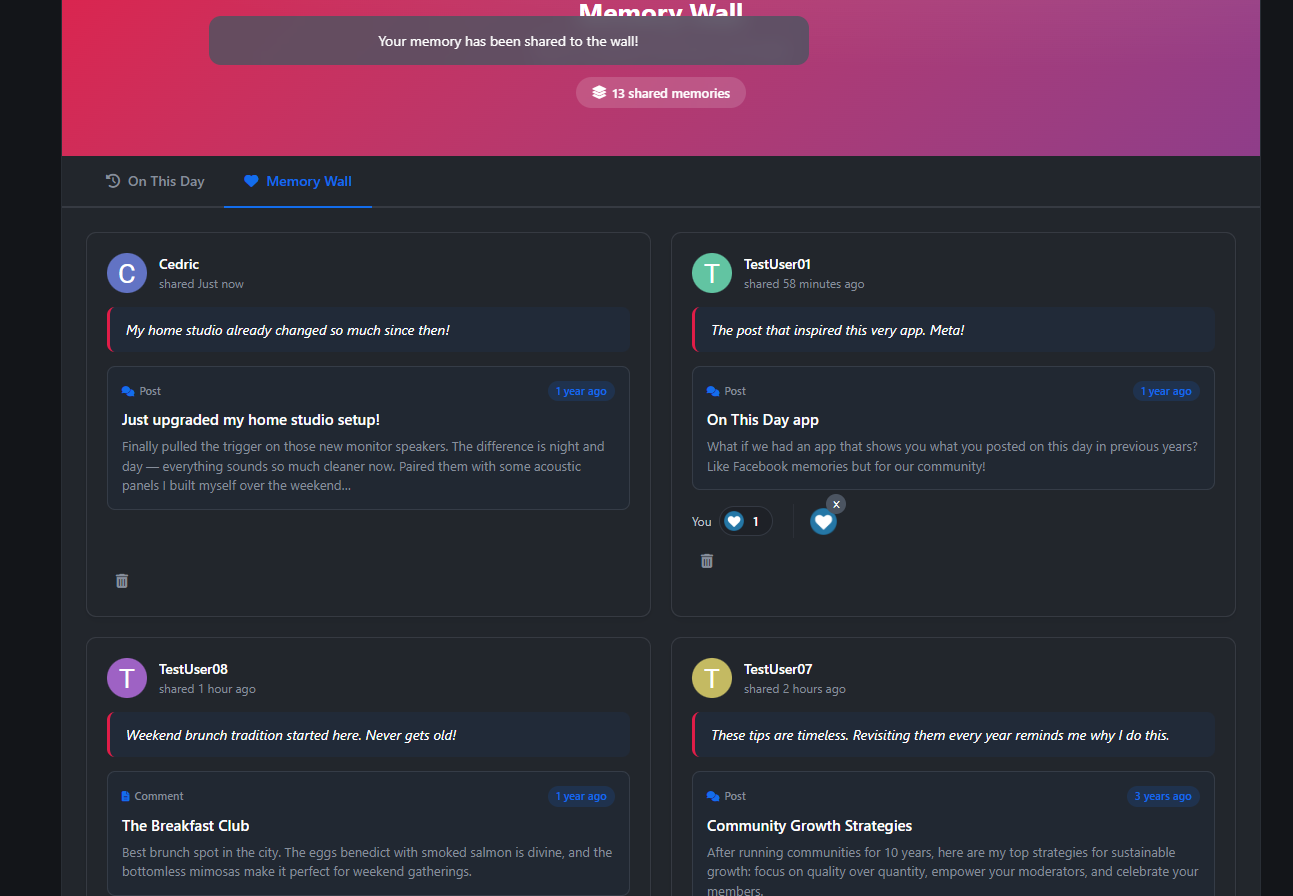
Members can share their memories to a public Memory Wall.
Clicking Share opens an inline panel where they can add a personal note - a short message explaining why the memory matters. The original content is preserved alongside their note, so others see both the memory and the reflection.
Optional personal message (up to 500 characters)
Public wall feed with a paginated grid layout
Author avatars, timestamps, content type badges, and “years ago” indicators
Full IPS reaction support on every shared memory
Duplicate sharing prevention
Delete options for authors and admins
Responsive grid that adapts from multi-column to single-column
Including reactions
It turns private nostalgia into shared community moments.
Widget
A Today’s Memories sidebar widget gives members a quick daily snapshot.
Shows how many memories they have today
Preview list grouped by year
Direct link to the full timeline
Sidebar and CMS compatible
Clean empty state with a subtle icon when no memories exist
Place it on your homepage or activity page to create a daily habit.
-
 1
1
Create an account or sign in to leave a review
There are no reviews to display.