Invision Community 5
- Category Member Tools
- Downloads 23
- Compatibility IC5: 5.0.0+
- Updated
Overview
Keep important website resources, tools, and external pages easy to find.Description
Quick Links
Keep important website resources, tools, and external pages easy to find.
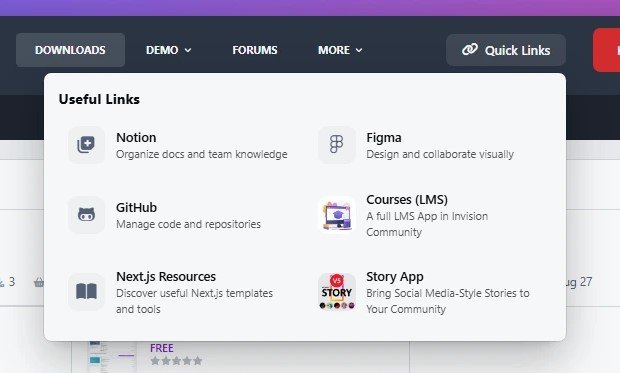
Quick Links allows administrators to create and manage a simple collection of useful links and display them in a clean, accessible way for members.
Whether you want to highlight community resources, helpful pages, documentation, social links, or external tools, Quick Links gives your users a better navigation experience.
Key Features
Easy Link Management
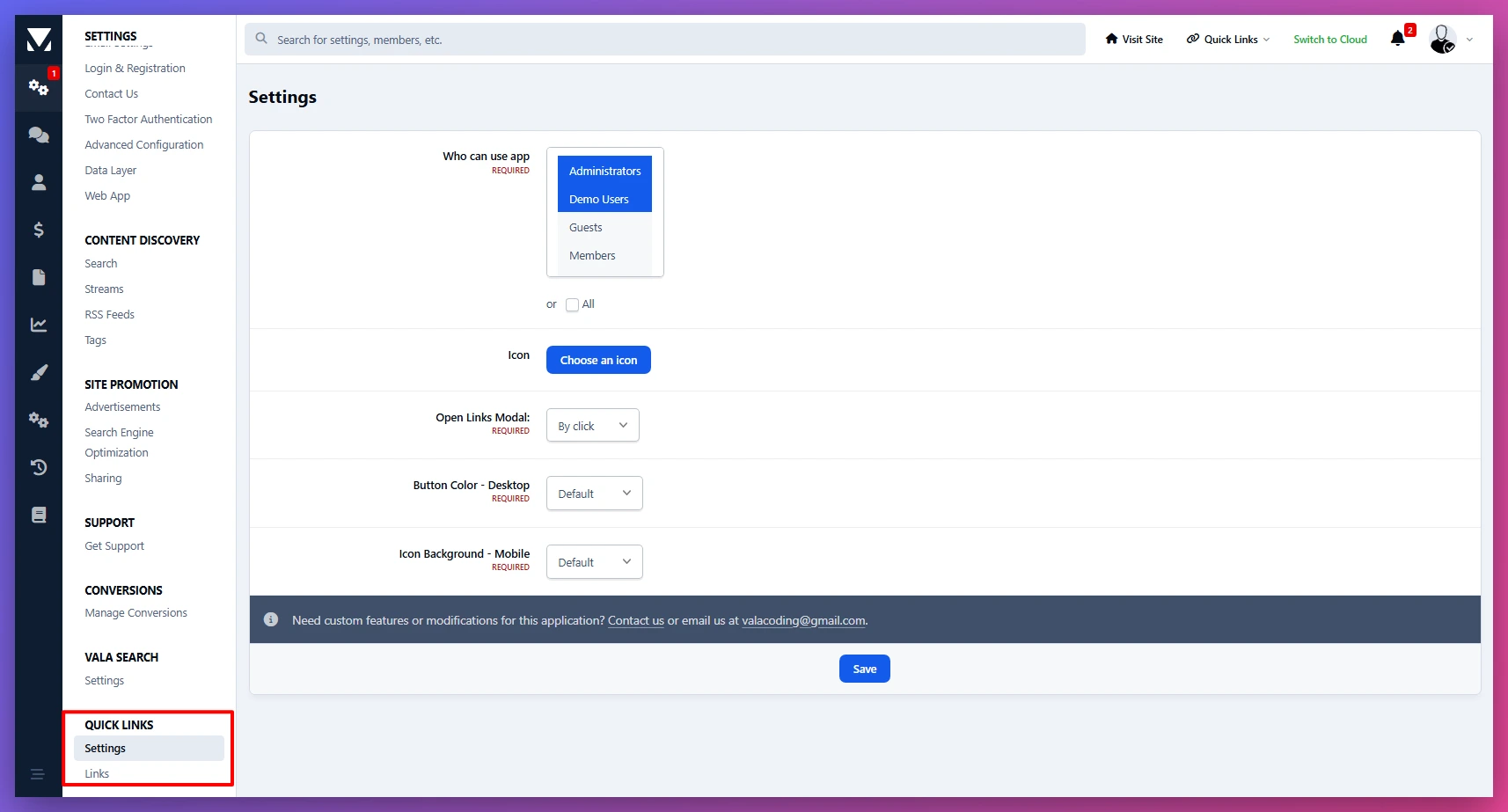
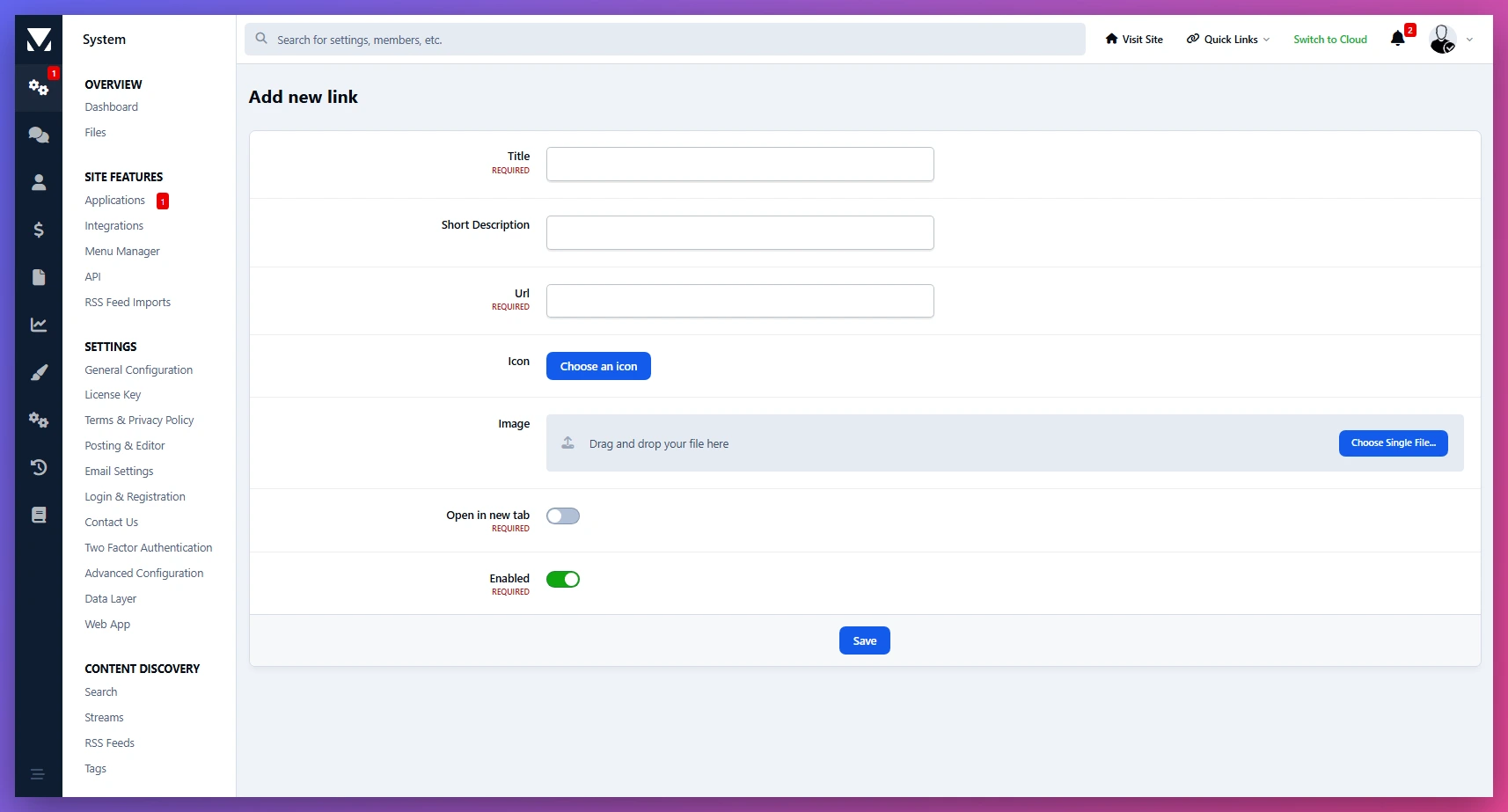
Create, edit, enable or disable links from the admin panel.
Custom Icons
Add icons to make links easier to recognize and improve visual navigation.
Link Images
Use images for links to create more engaging and visual shortcuts.
Group Visibility Control
Choose which member groups can see specific links.
Drag & Drop Ordering
Control the order of links and highlight the most important resources.
Responsive Design
Works smoothly across desktop and mobile devices.
Perfect for
Community resources
Documentation pages
Social media links
Partner websites
Useful tools
Important internal pages
There are no reviews to display.