Jump to content
View in the app

A better way to browse. Learn more.

Invision Marketplace

A full-screen app on your home screen with push notifications, badges and more.

To install this app on iOS and iPadOS
  1. Tap the Share icon in Safari
  2. Scroll the menu and tap Add to Home Screen.
  3. Tap Add in the top-right corner.
To install this app on Android
  1. Tap the 3-dot menu (⋮) in the top-right corner of the browser.
  2. Tap Add to Home screen or Install app.
  3. Confirm by tapping Install.

Everything you need for your community

We will be moving to a new server soon, some downtime is expected.

Everything you need for your community

Invision Community 5
  • Category Member Tools
  • Downloads 39
  • Compatibility IC5: 5.0.0+
  • Updated
A tiny app that drops members into a random discussion to help them discover great topics they’d otherwise miss.

Overview

A tiny app that drops members into a random discussion to help them discover great topics they’d otherwise miss.

Description

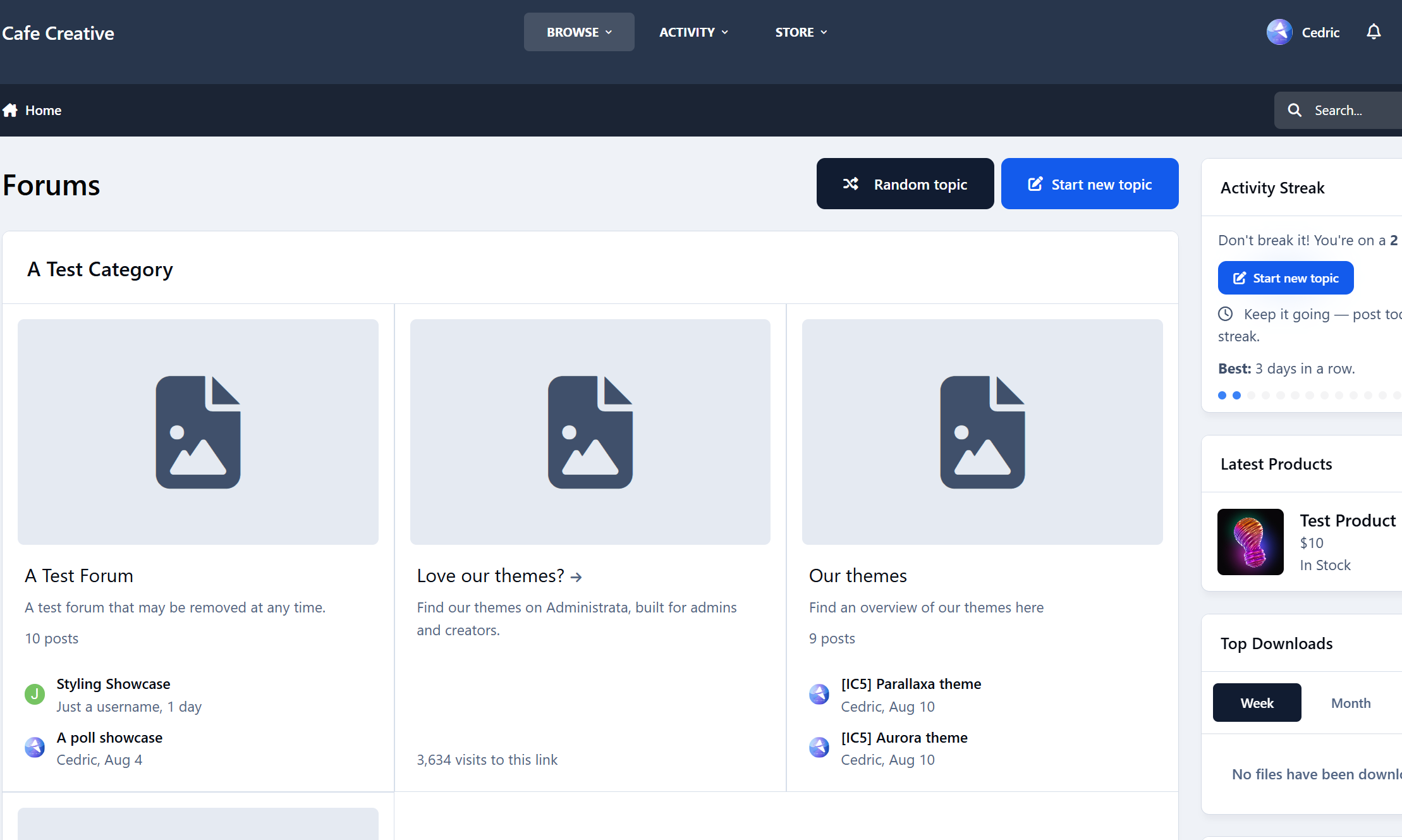
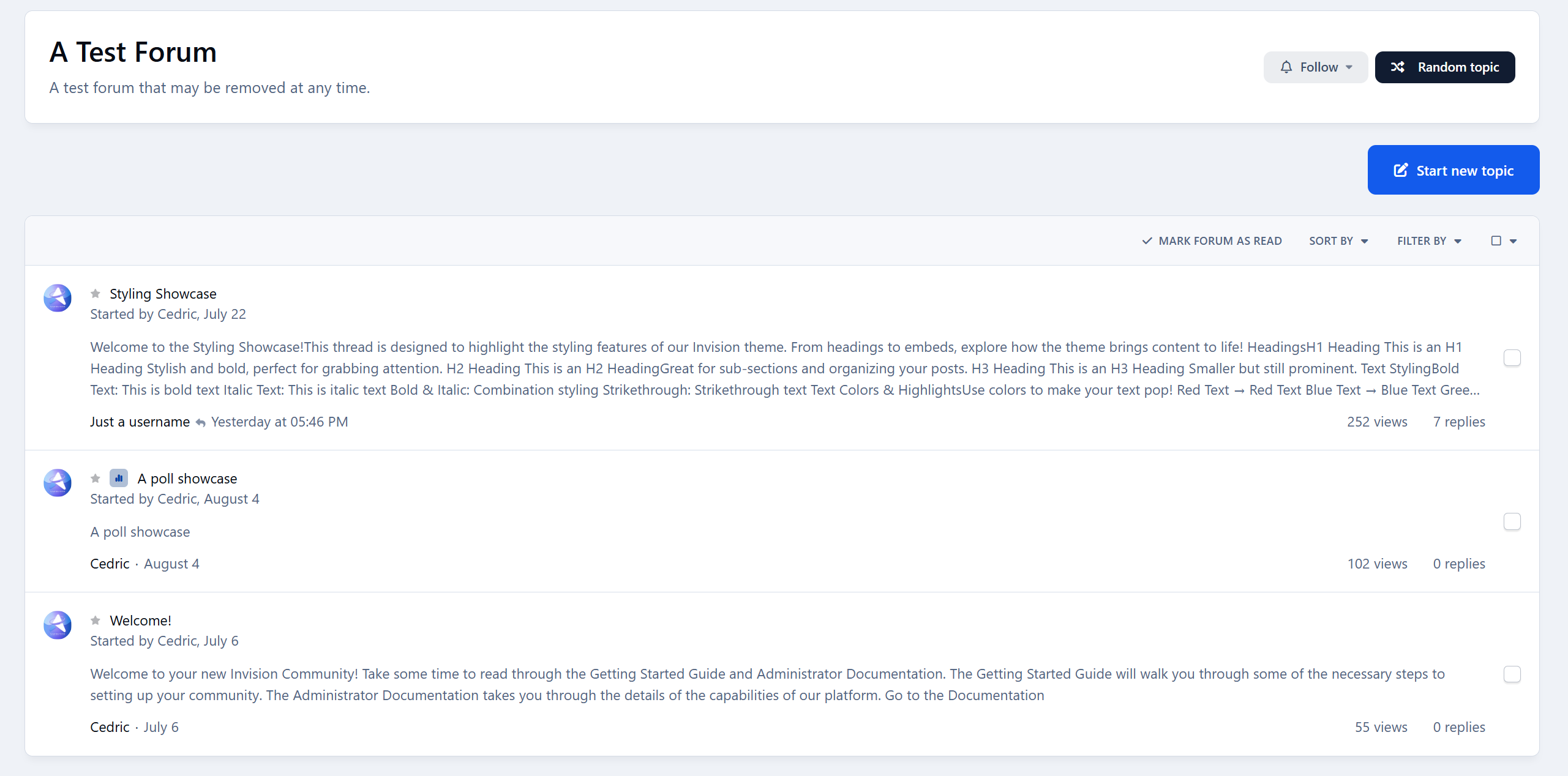
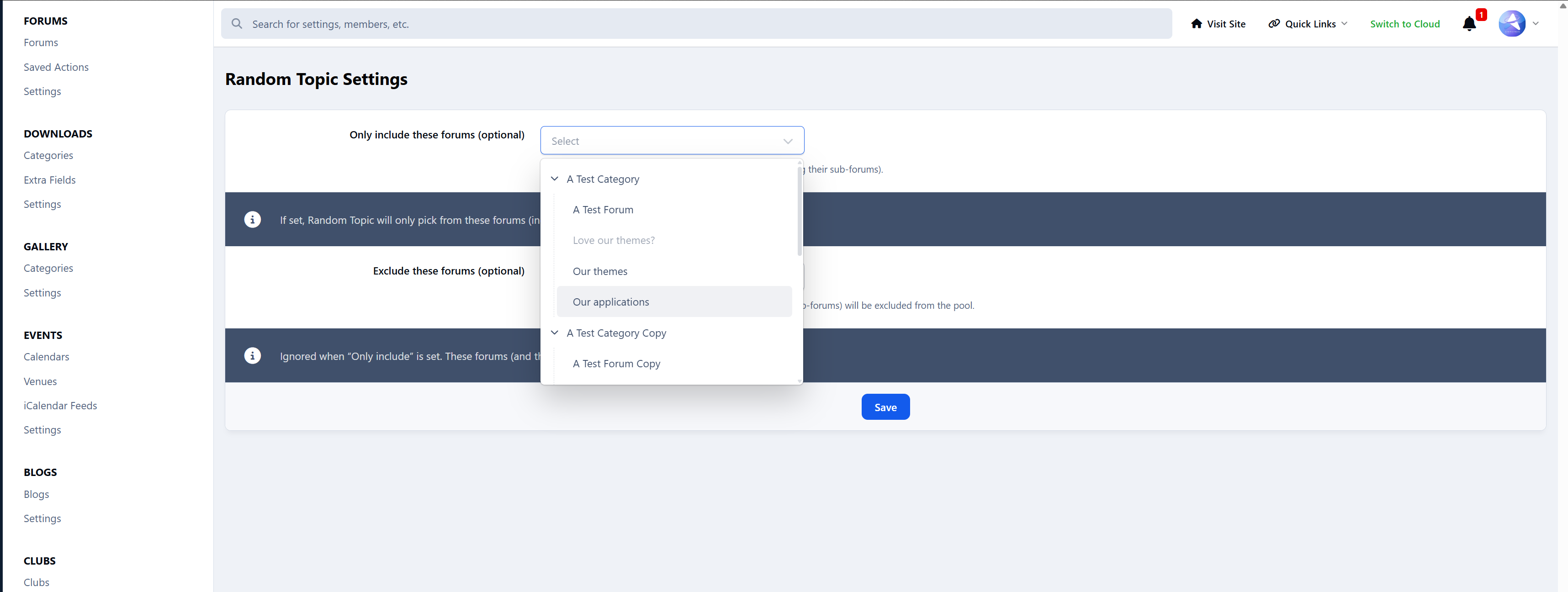
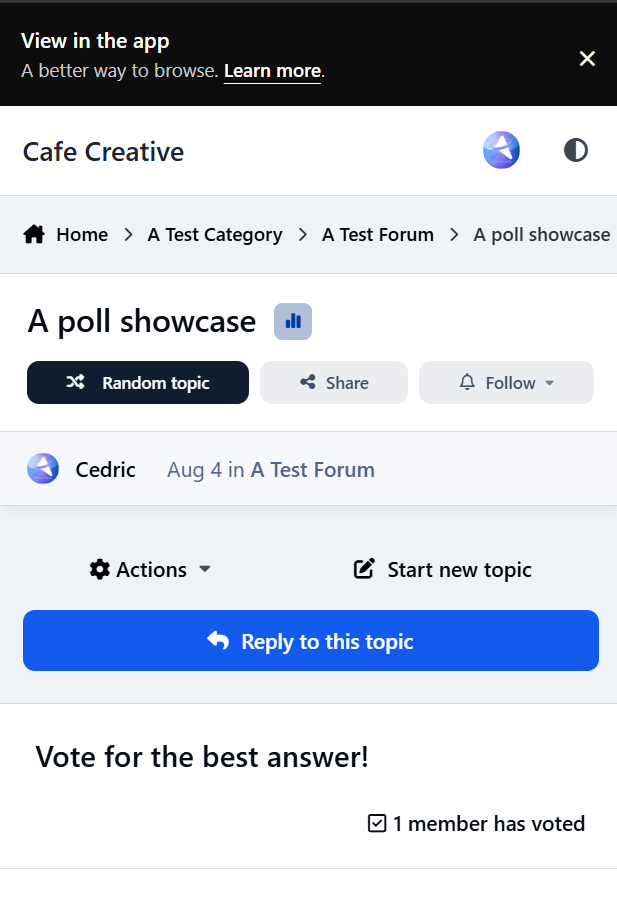
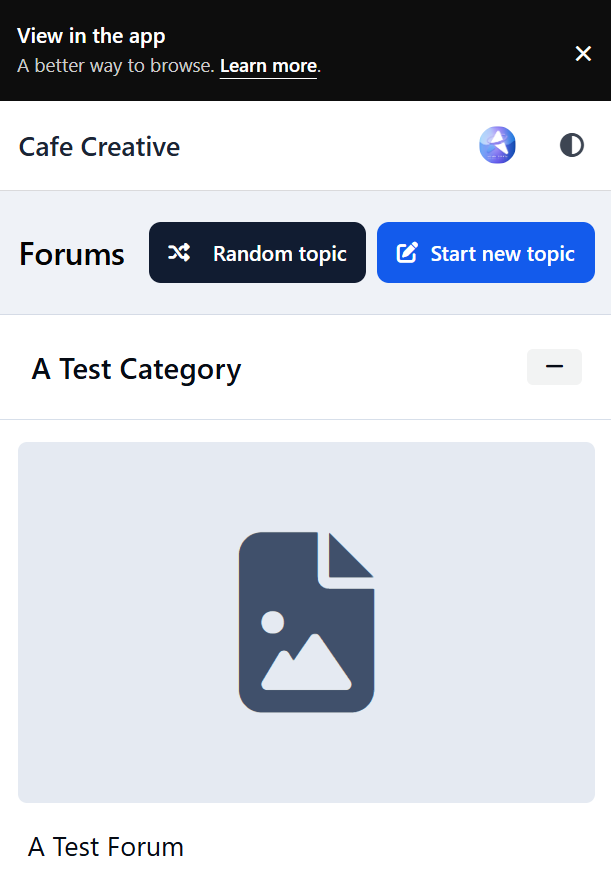
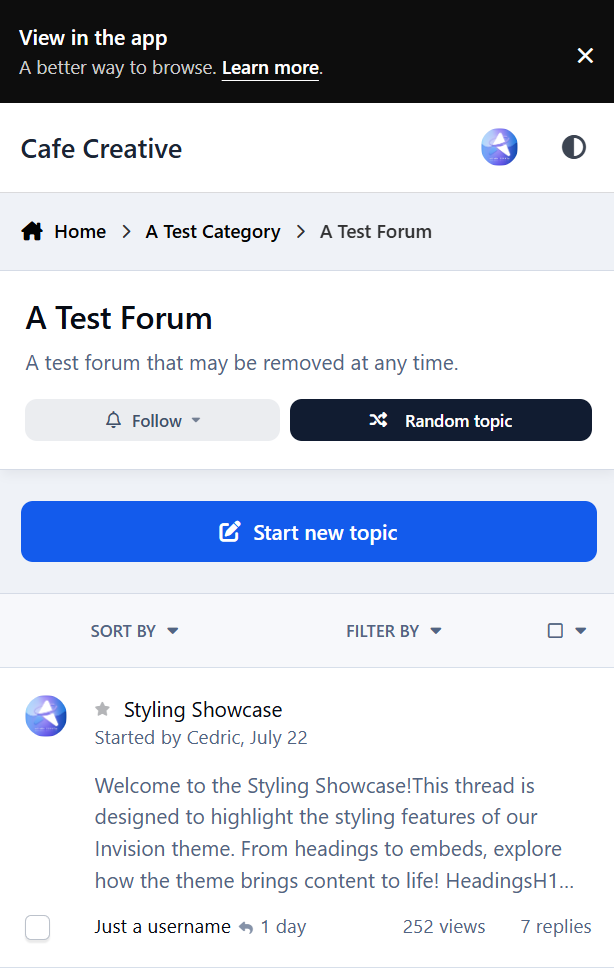
A tiny app that drops members into a random discussion to help them discover great topics they’d otherwise miss. It adds a “Random Topic” button right next to “Start new topic.” The buttons are placed intentionally so members can keep hitting that button again and again.

Drive engagement

  • Surface long-tail content: Old-but-gold threads get fresh eyes, comments, and reactions.

  • Reduce choice paralysis: One click, one destination - perfect for new or casual visitors.

  • Boost session depth: Random jumps keep people moving, increasing time on site and pageviews.

    Pro tip: Pair with onboarding or your “Welcome” widget - new members love a guided first click.

Changelog

v1.0.0 – Initial release.

Feedback, bugs, or feature requests? Don’t hesitate to reach out.

User Feedback

Create an account or sign in to leave a review

There are no reviews to display.

Configure browser push notifications

Chrome (Android)
  1. Tap the lock icon next to the address bar.
  2. Tap Permissions → Notifications.
  3. Adjust your preference.
Chrome (Desktop)
  1. Click the padlock icon in the address bar.
  2. Select Site settings.
  3. Find Notifications and adjust your preference.