Topic Post ID Restore
Invision Community 5
- Category Member Tools
- Downloads 182
- Compatibility IC5: 5.0.0+
- Updated


Overview
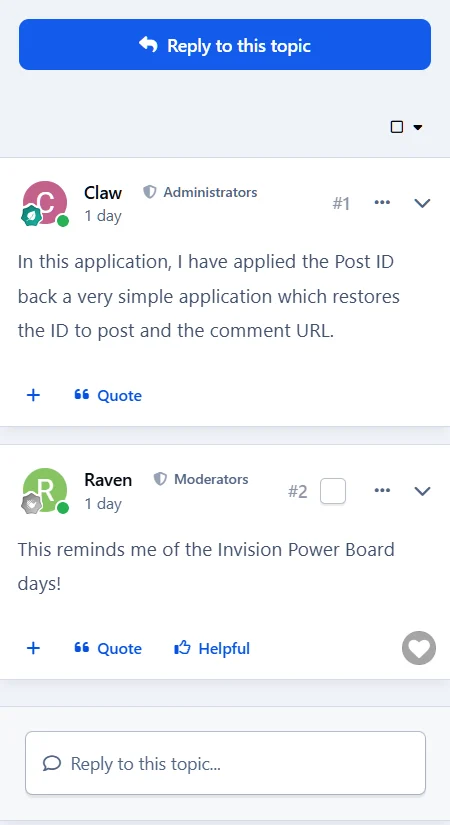
Reinstate the Topic Post ID in the forums.Description
The application integrates cleanly with Invision Community Suite 5 using the standard hook and extension system, so it installs without any core edits and runs alongside the normal forum templates.
Features
Displays the post number for each reply in a topic.
The number links to the direct URL of that post.
Positioned next to the post options menu for easy visibility.
Uses the built-in IPS comment position system to keep numbering accurate.
Lightweight and efficient, with no unnecessary database queries.
Responsive mode supported.
Fully compatible with Invision Community Suite 5.
Overall, it restores a small but useful feature that many communities used in earlier versions of the software, making it simpler to point to specific posts in longer discussions.
Check out the applications over on Adminstrata.net -for more great paid and free IPS resources!
-
 3
3
Create an account or sign in to leave a review
There are no reviews to display.