Jump to content
View in the app

A better way to browse. Learn more.

Invision Marketplace

A full-screen app on your home screen with push notifications, badges and more.

To install this app on iOS and iPadOS
  1. Tap the Share icon in Safari
  2. Scroll the menu and tap Add to Home Screen.
  3. Tap Add in the top-right corner.
To install this app on Android
  1. Tap the 3-dot menu (⋮) in the top-right corner of the browser.
  2. Tap Add to Home screen or Install app.
  3. Confirm by tapping Install.

Everything you need for your community

We will be moving to a new server soon, some downtime is expected.

Everything you need for your community

Invision Community 5
  • Category Social Networks
  • Downloads 28
  • Compatibility IC5: 5.0.0+
  • Updated
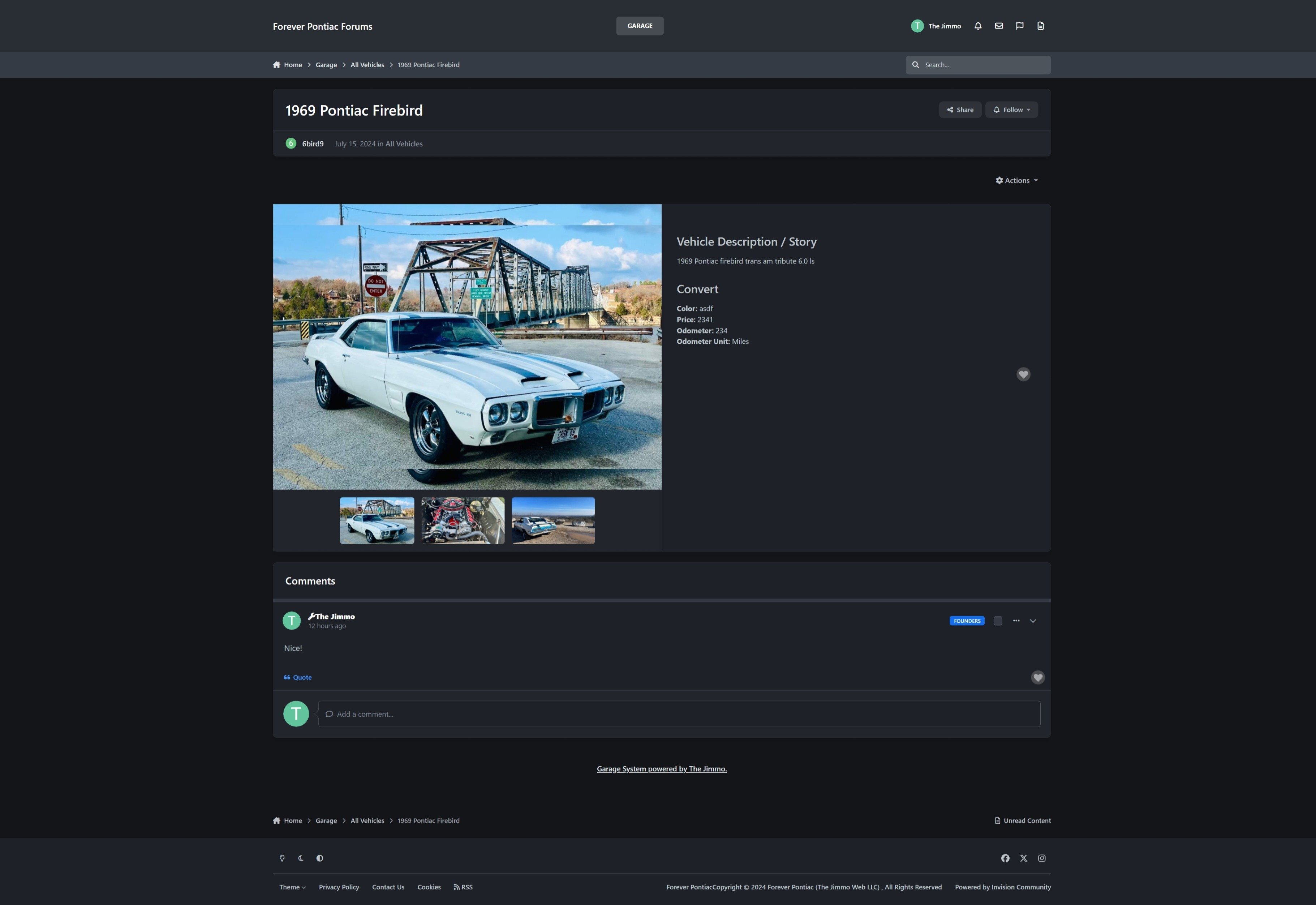
Garage allows users to create online "garages" on your community. Users can share information about their cars, upload photos, and other users can make comments.

Overview

Garage allows users to create online "garages" on your community. Users can share information about their cars, upload photos, and other users can make comments.

Description

Garage allows users to create online "garages" on your community. Users can share information about their cars, upload photos, and other users can make comments.

Features:

  • Organize vehicles into like categories.

  • Create your own Make/Model lists or allow for open insert by the user.

  • Create custom fields for vehicles (e.g. vehicle trim, color, engine, etc... the sky is the limit!)

  • Users can upload multiple photos to their vehicle.

  • Comment with other users.

  • Share their vehicle in a topic via an embed.

  • Statistics related to all vehicles, most popular make/model, and more.

  • Vehicle content is searchable.

If you utilize DevFuse's Collection application in version 4, you can purchase the following migration application to transfer the data:

https://software.thejimmo.com/files/file/2-garage-migration/

User Feedback

Create an account or sign in to leave a review

There are no reviews to display.

Configure browser push notifications

Chrome (Android)
  1. Tap the lock icon next to the address bar.
  2. Tap Permissions → Notifications.
  3. Adjust your preference.
Chrome (Desktop)
  1. Click the padlock icon in the address bar.
  2. Select Site settings.
  3. Find Notifications and adjust your preference.