Gears of War - COGS
- Category Themes
- Downloads 44
- Compatibility IC5: 5.0.0+
- Updated
Description
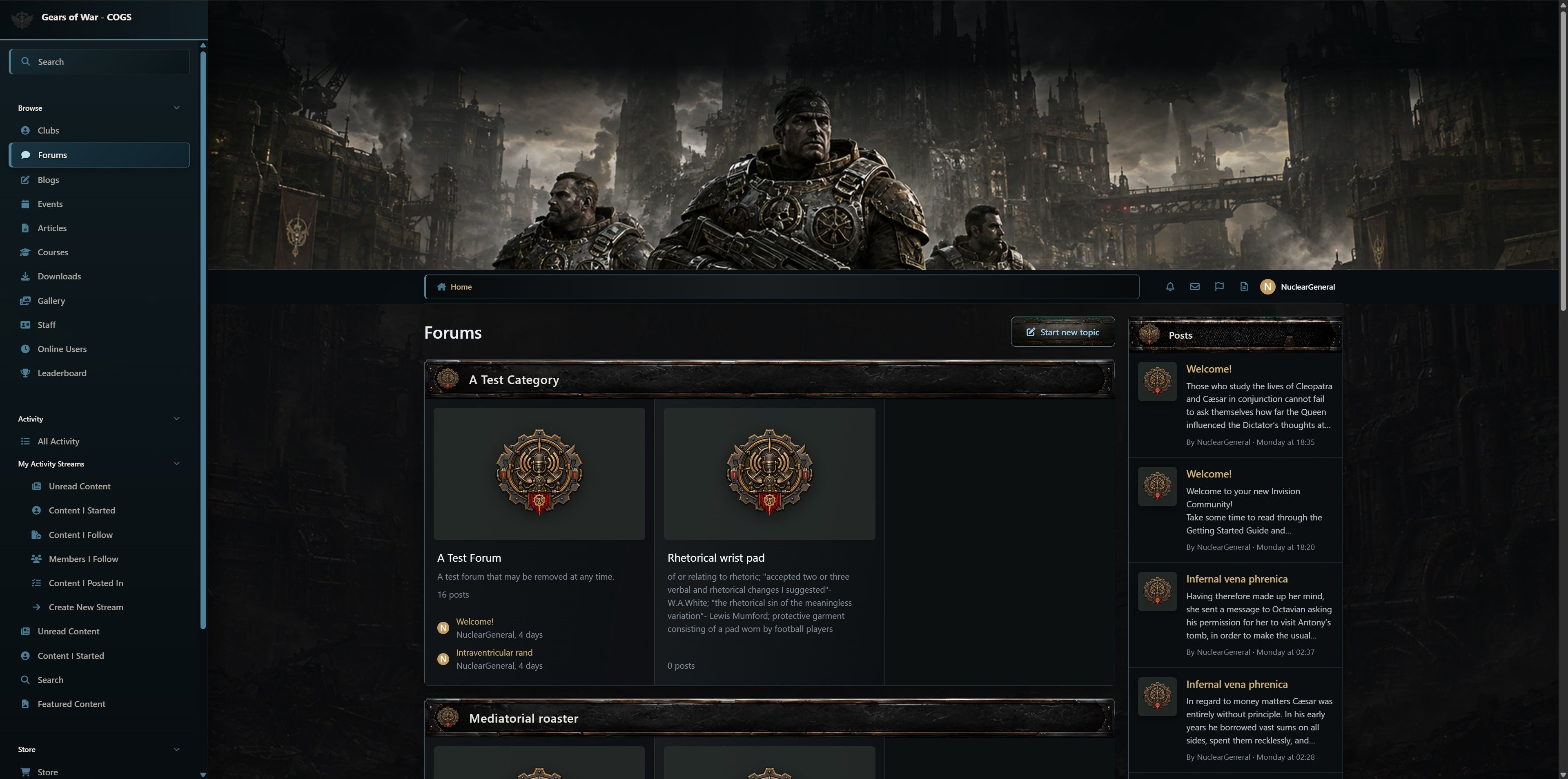
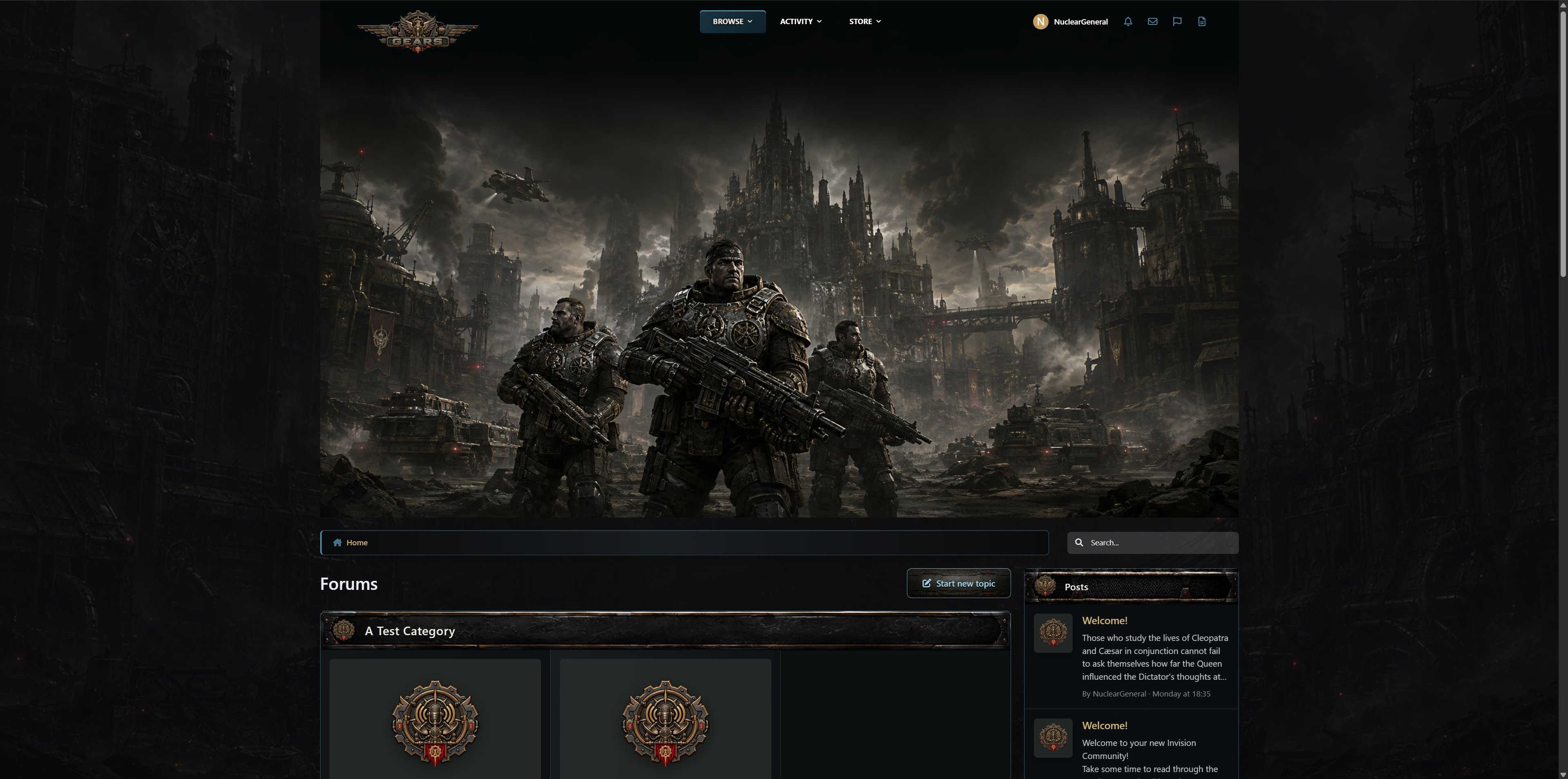
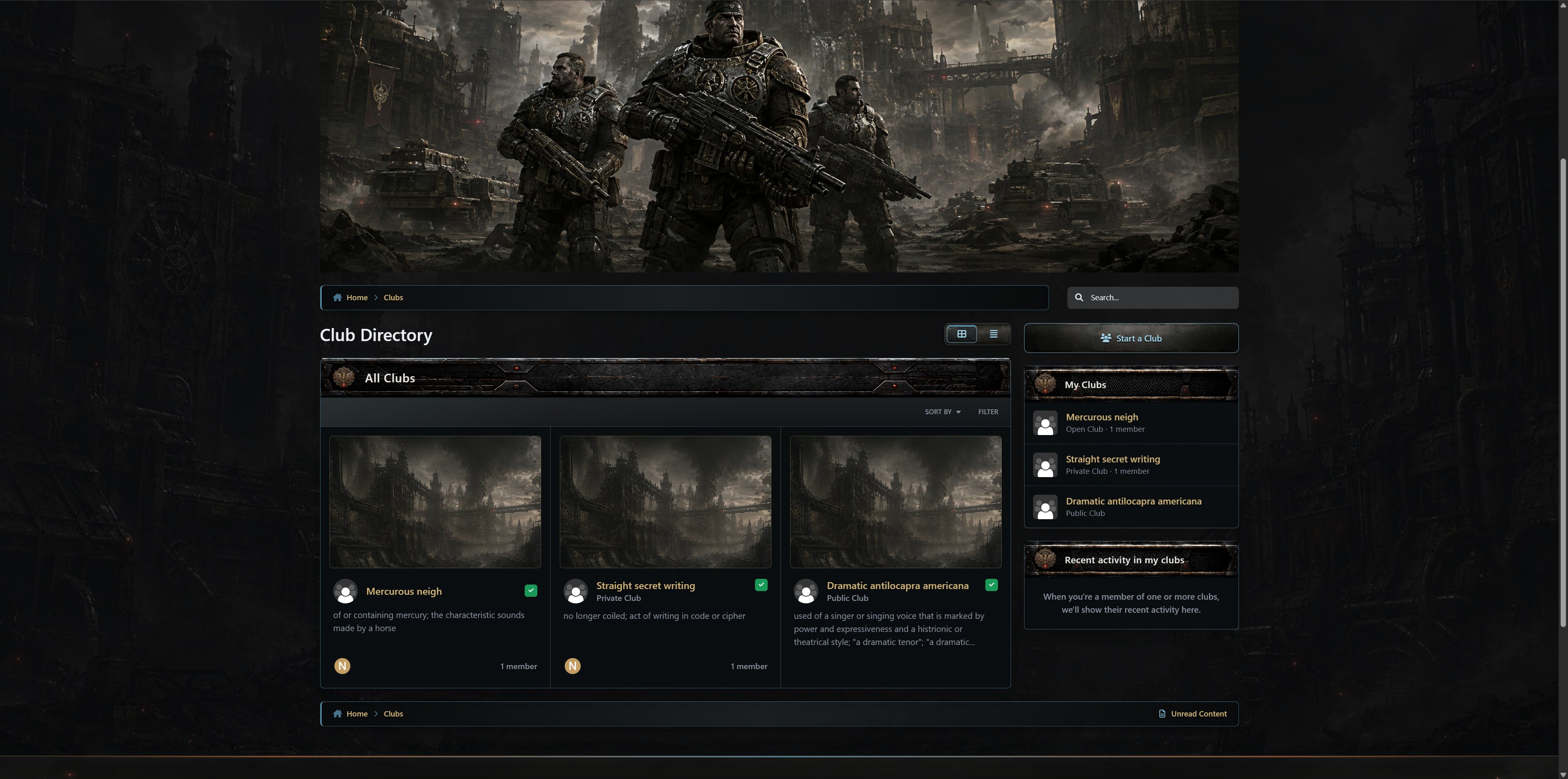
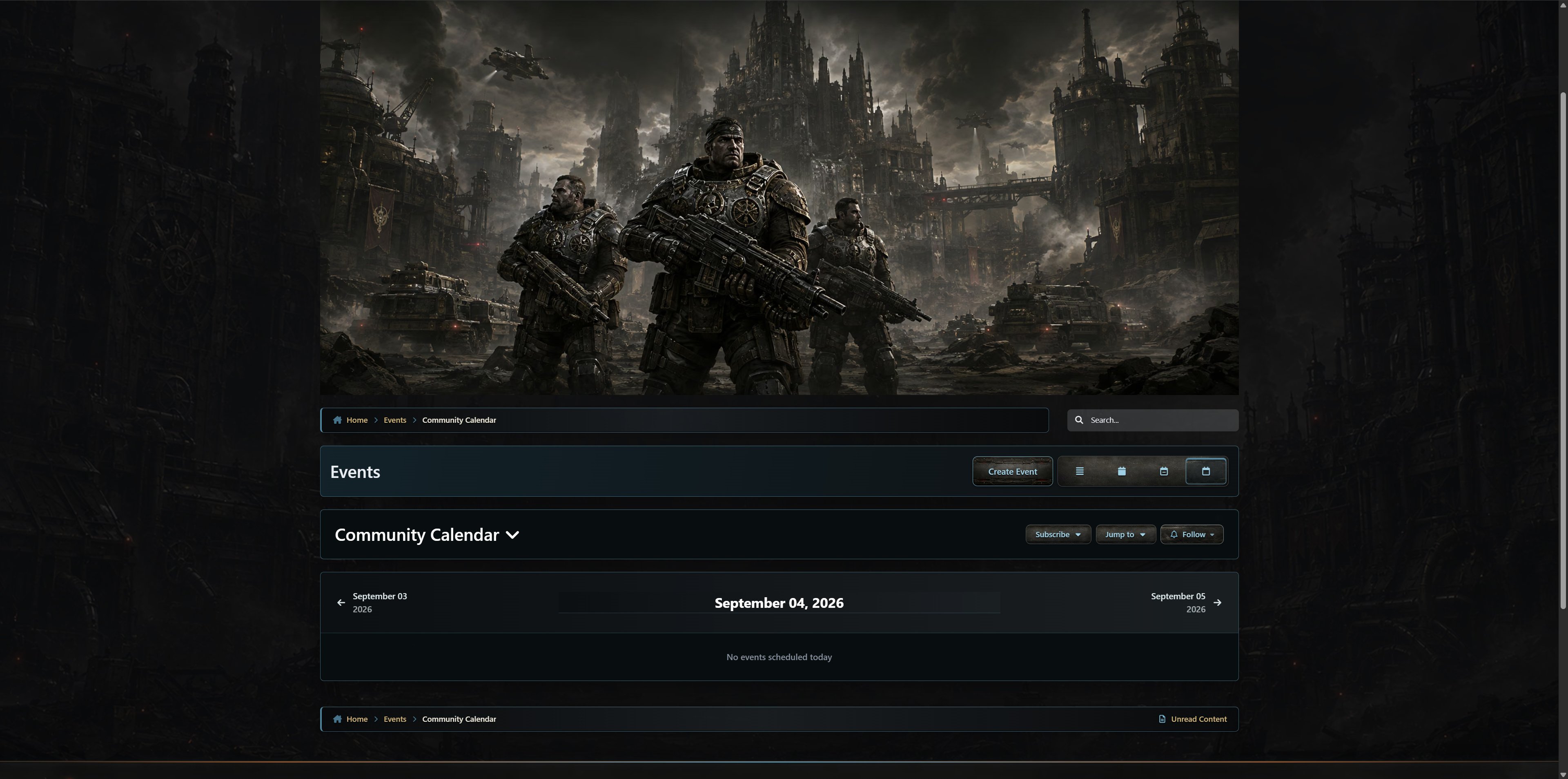
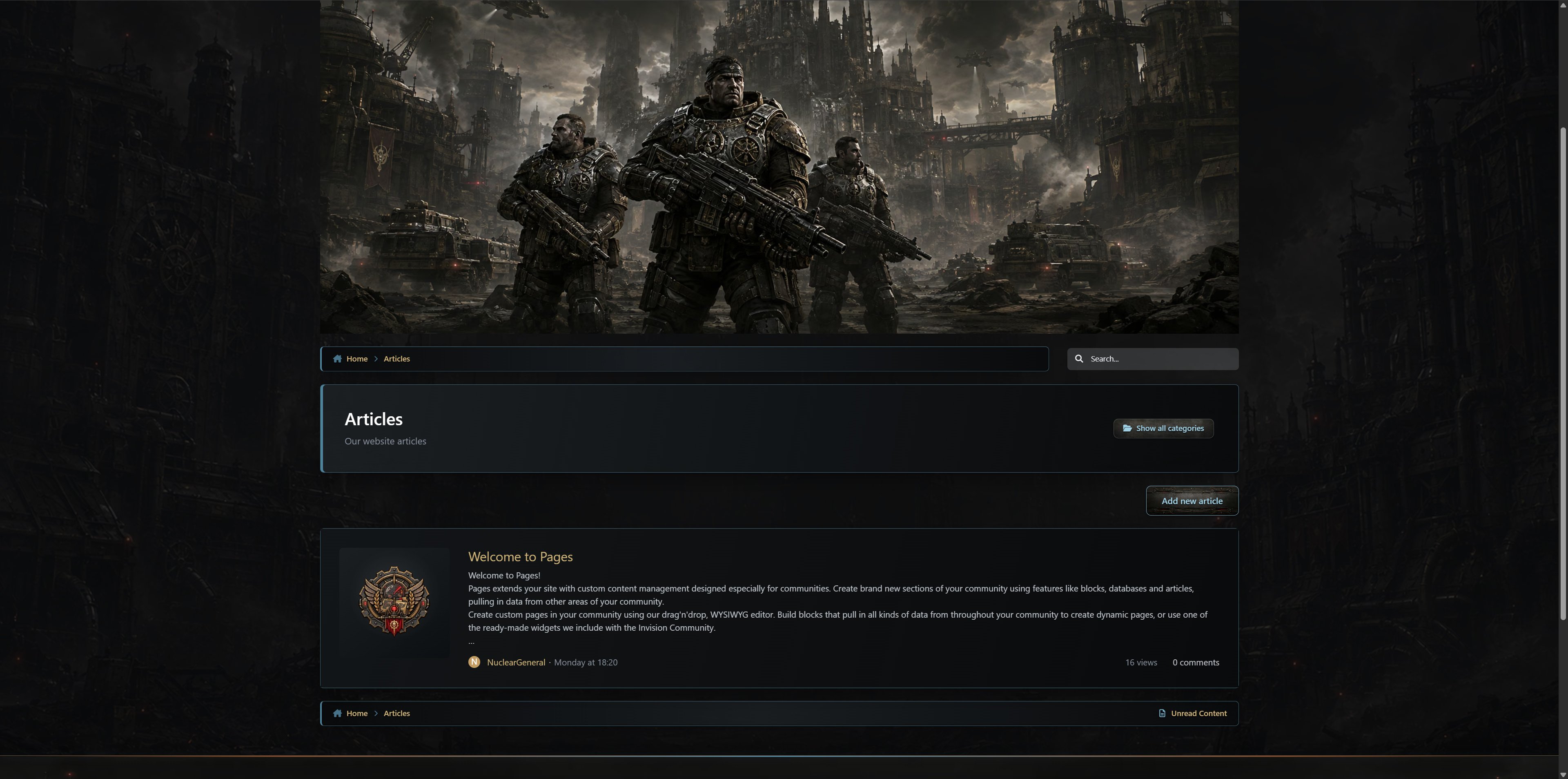
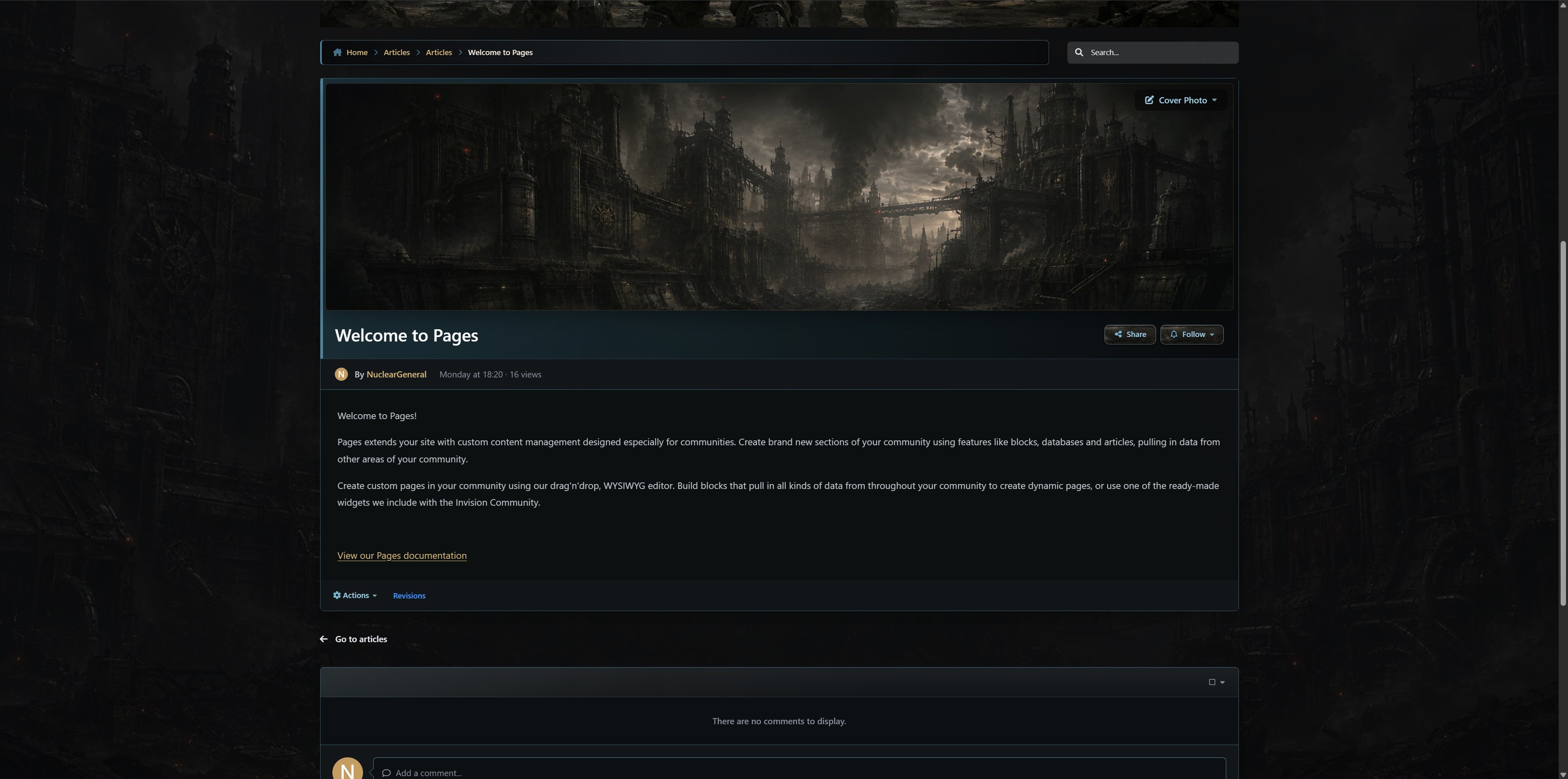
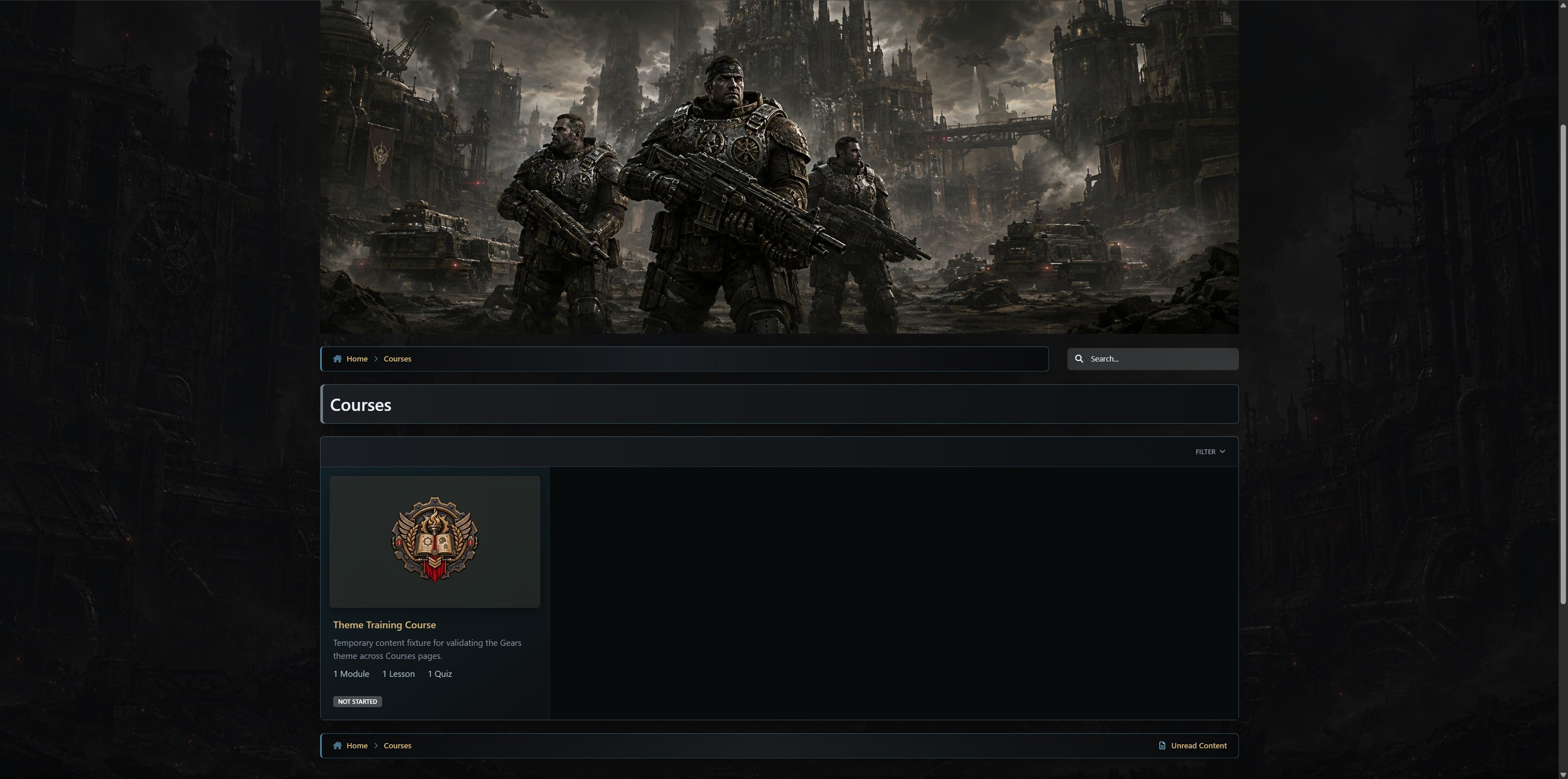
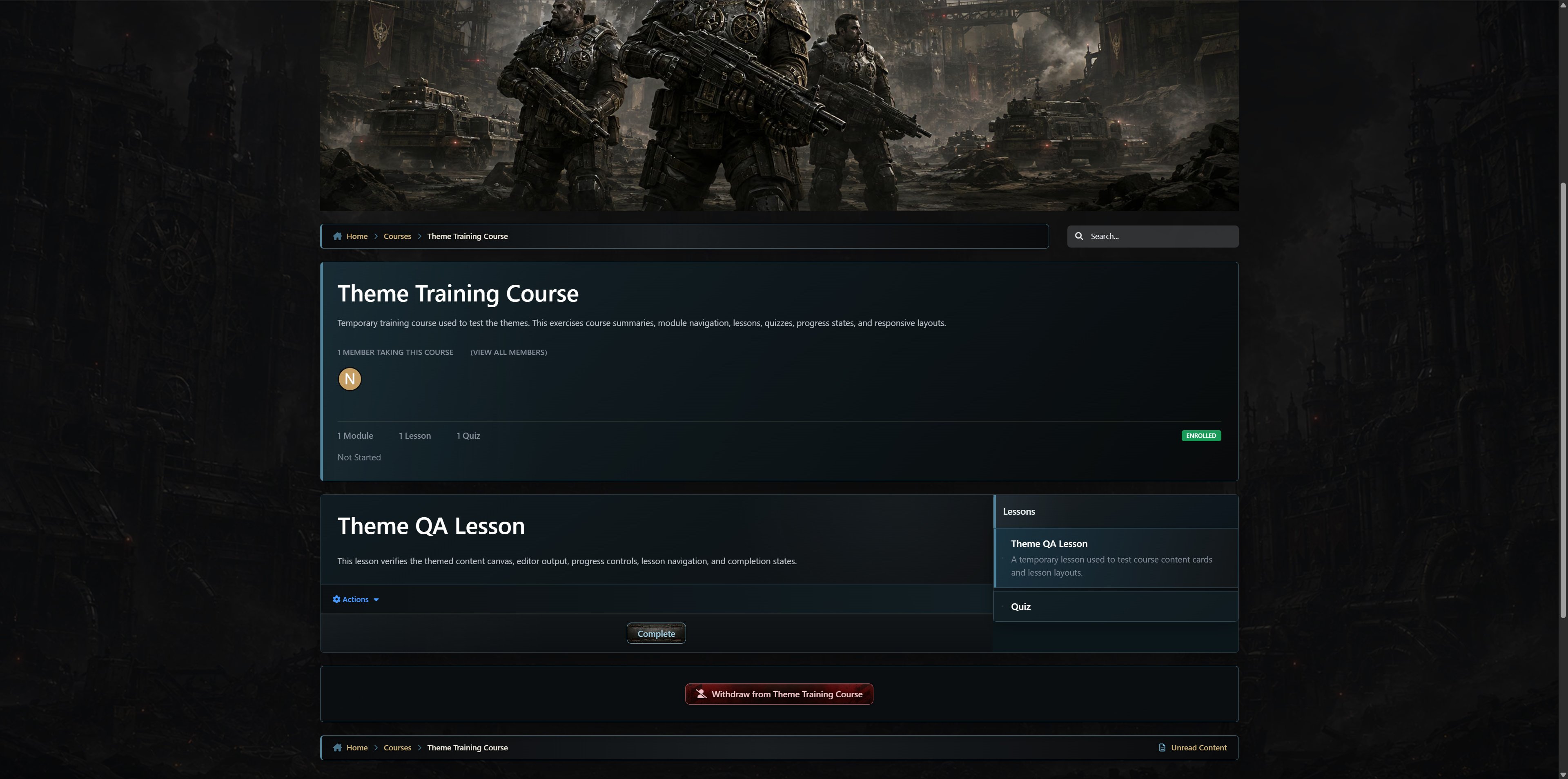
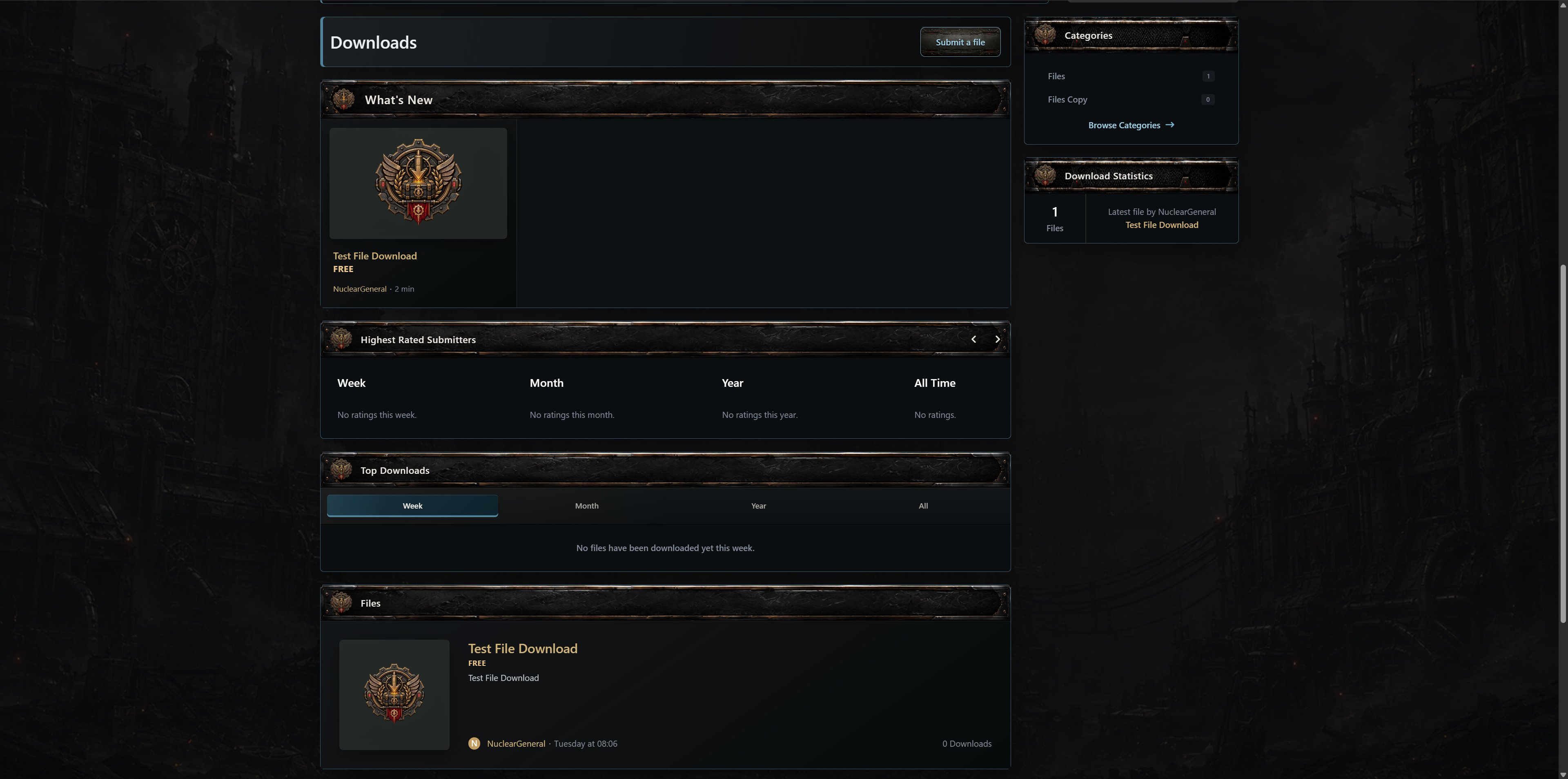
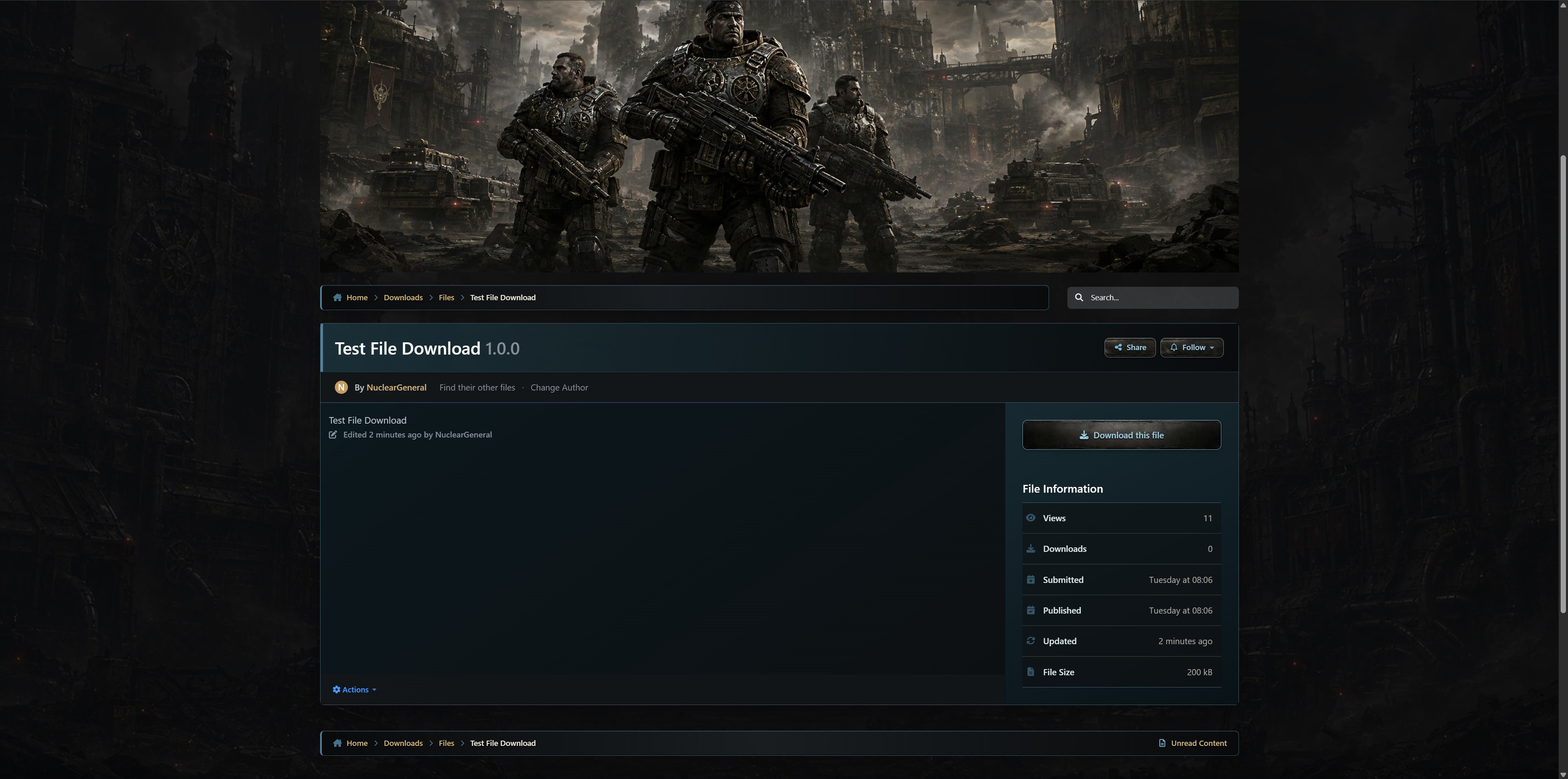
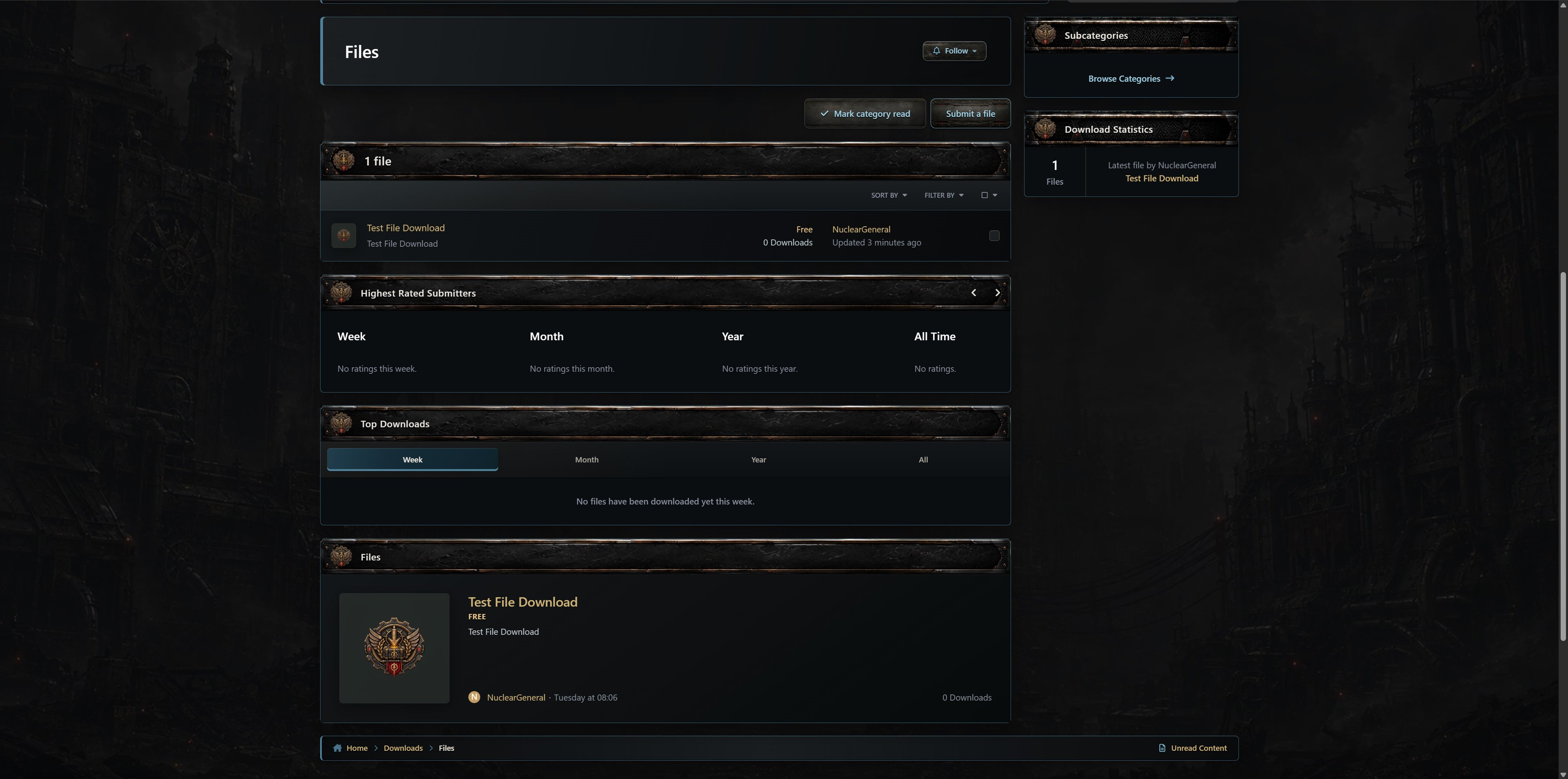
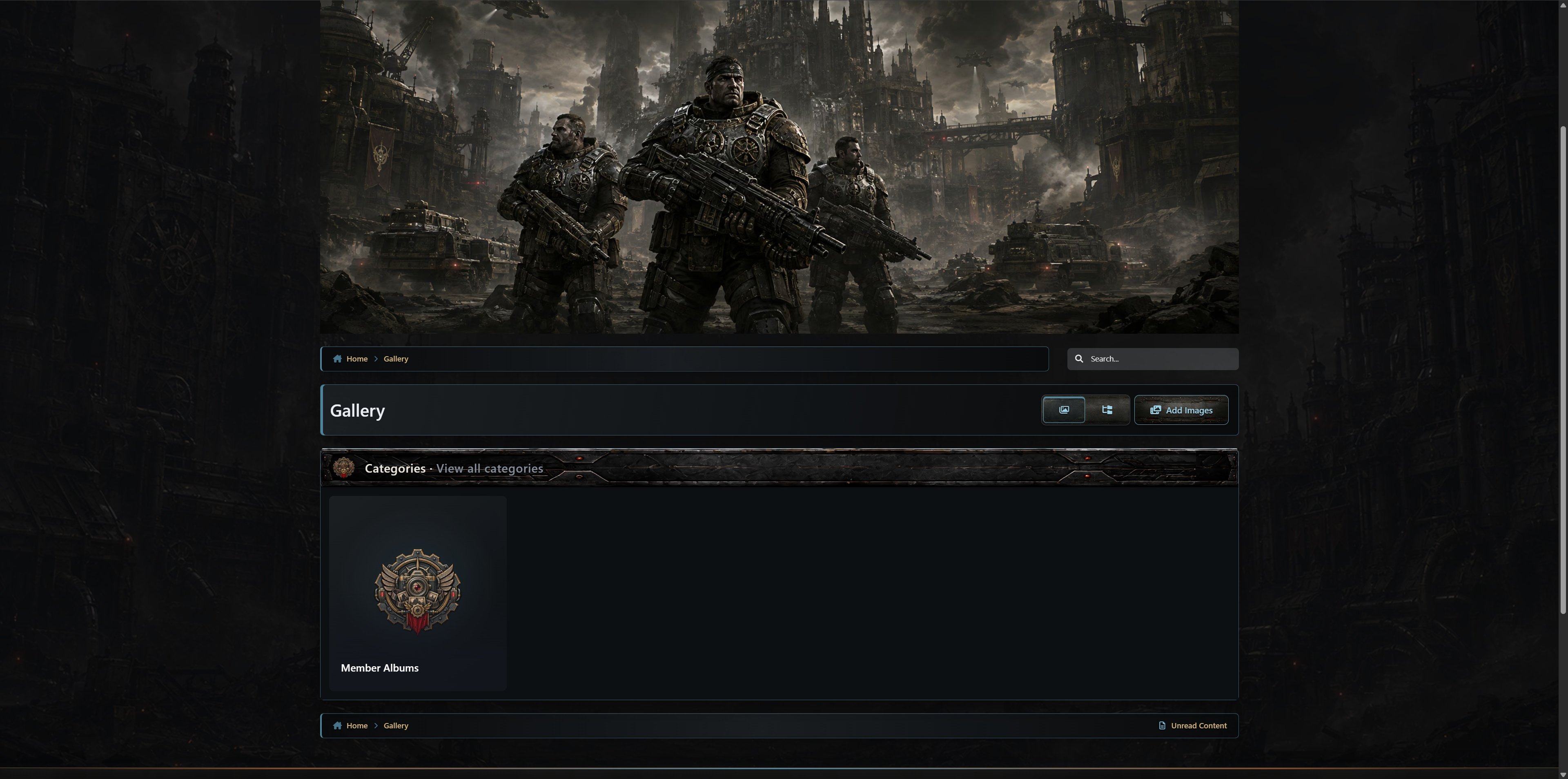
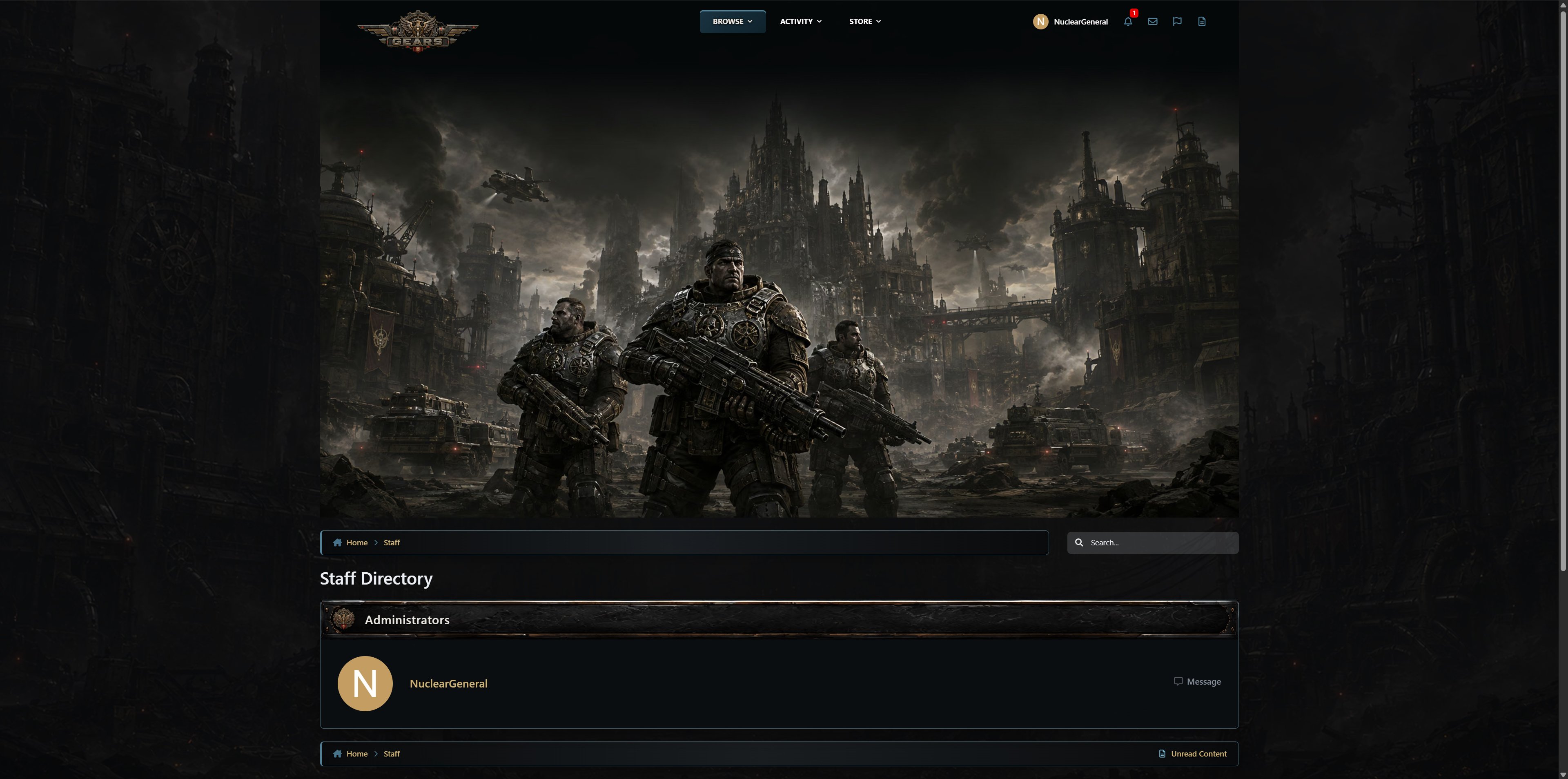
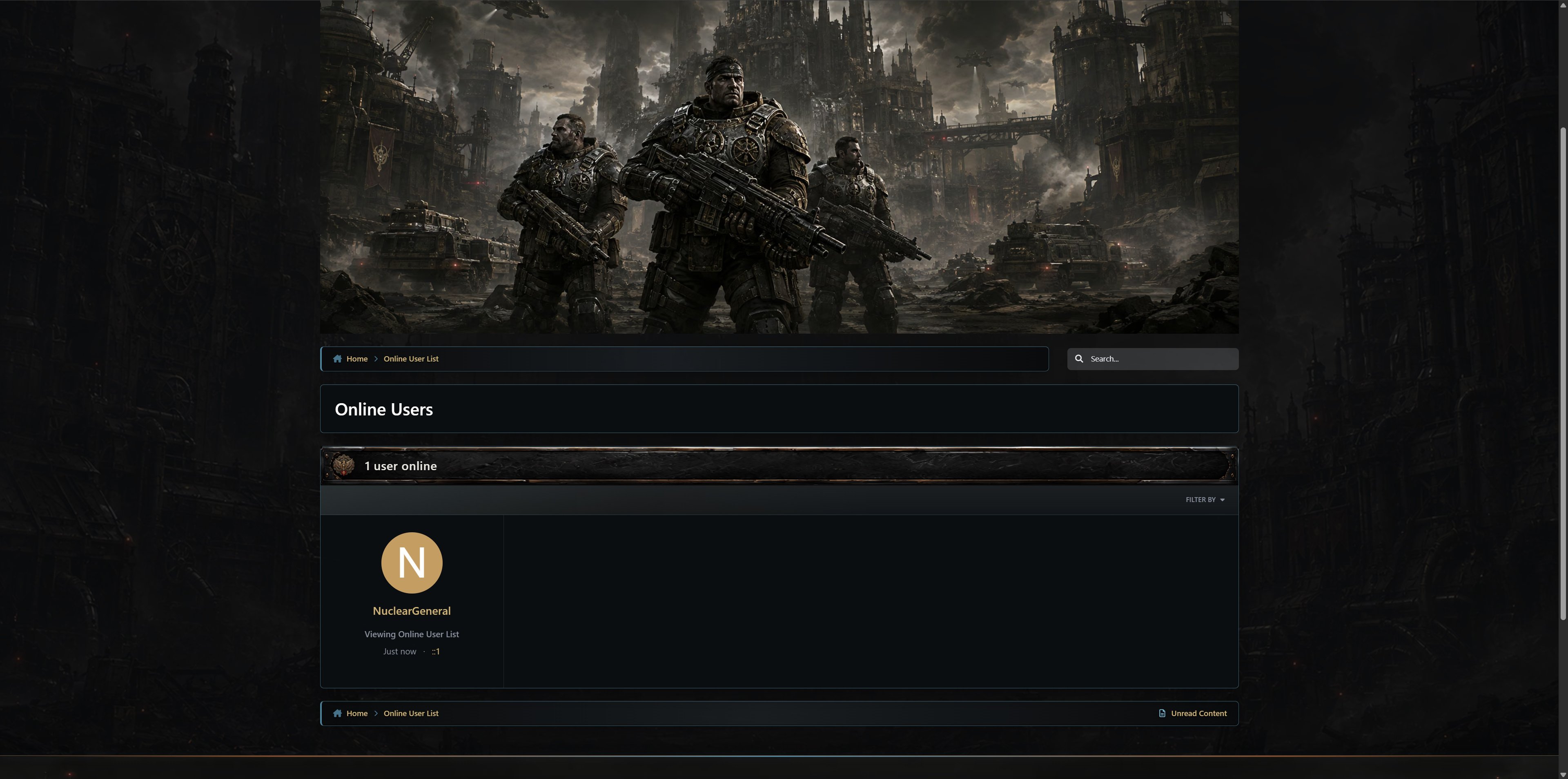
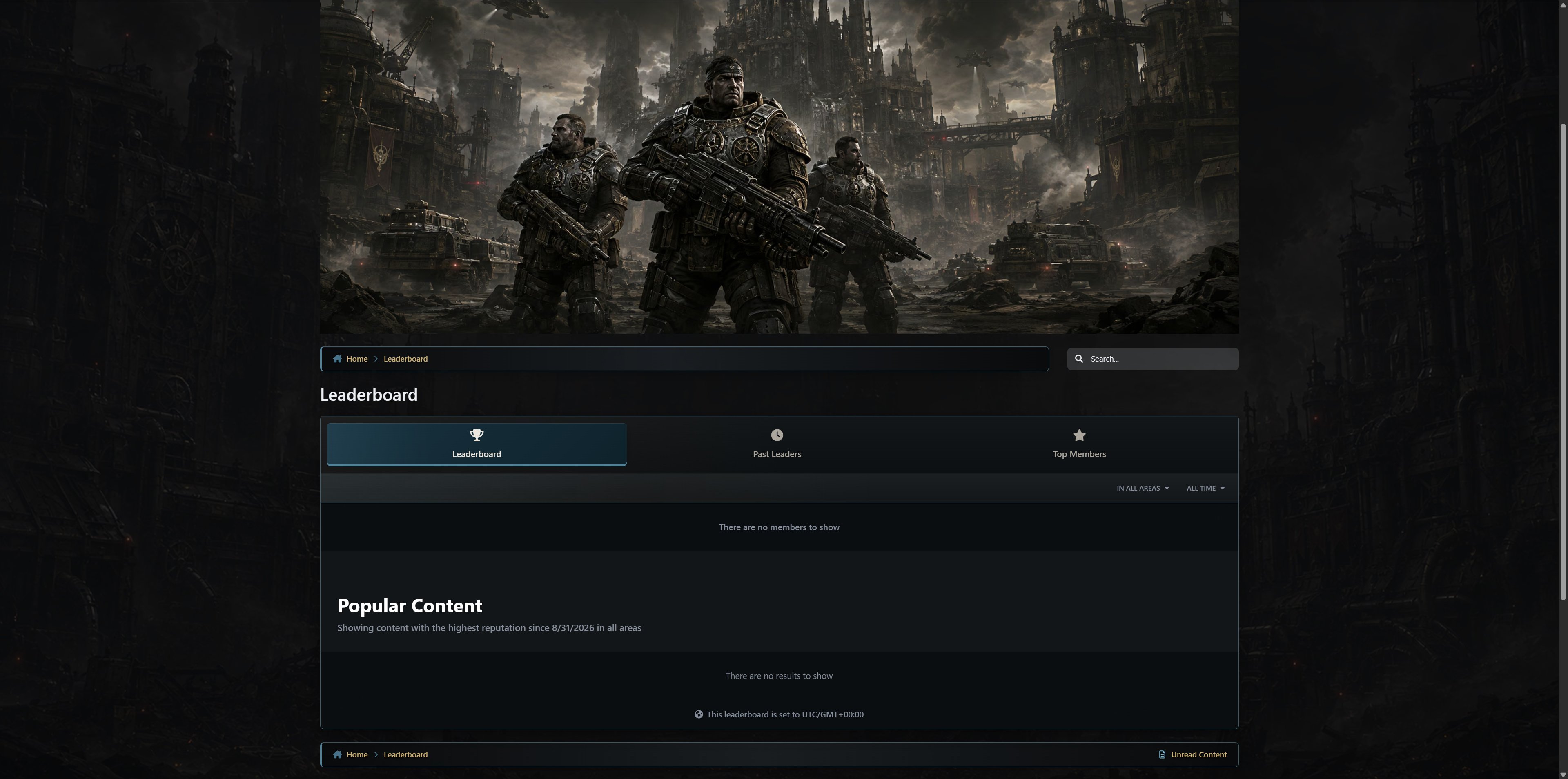
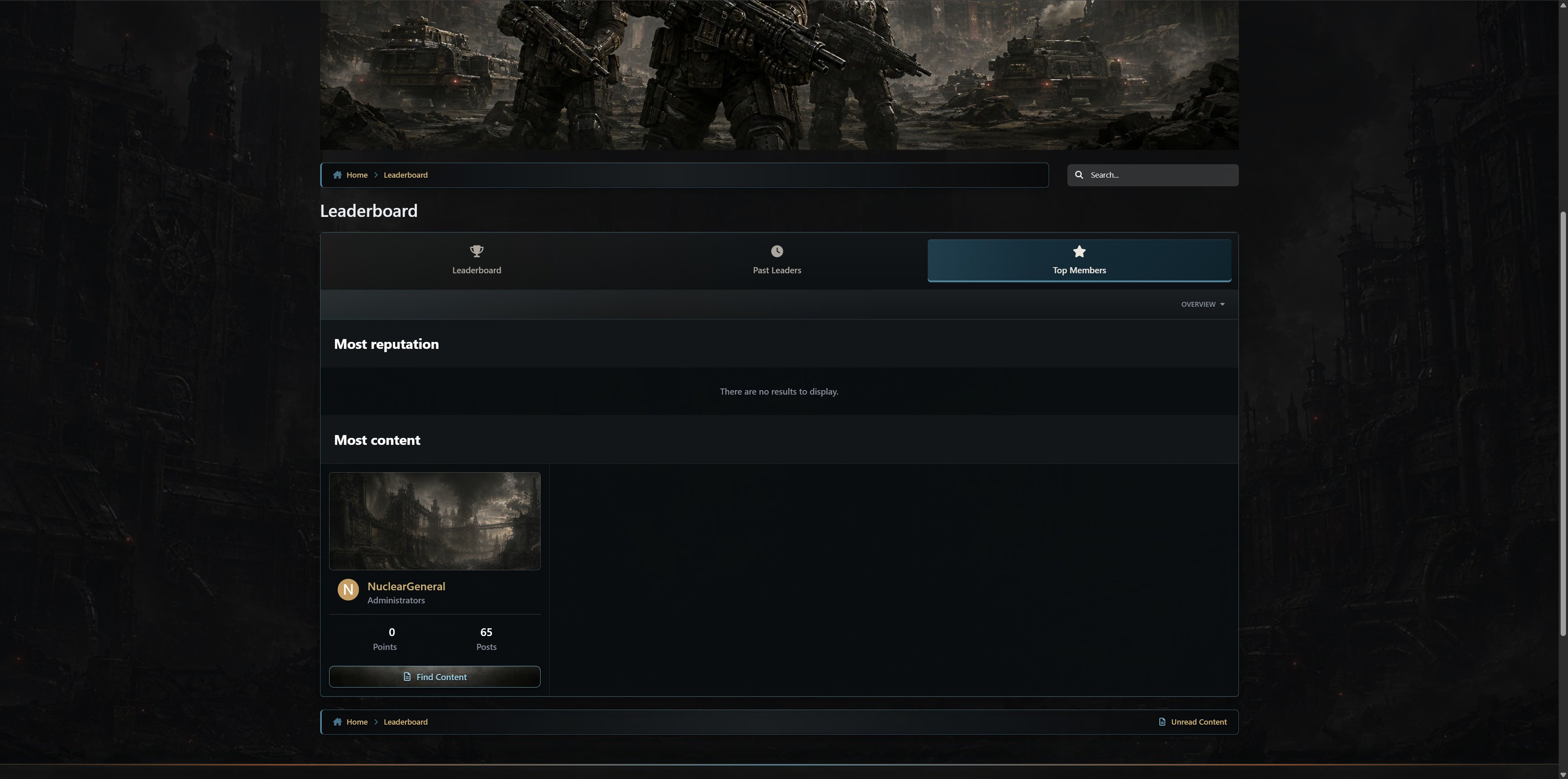
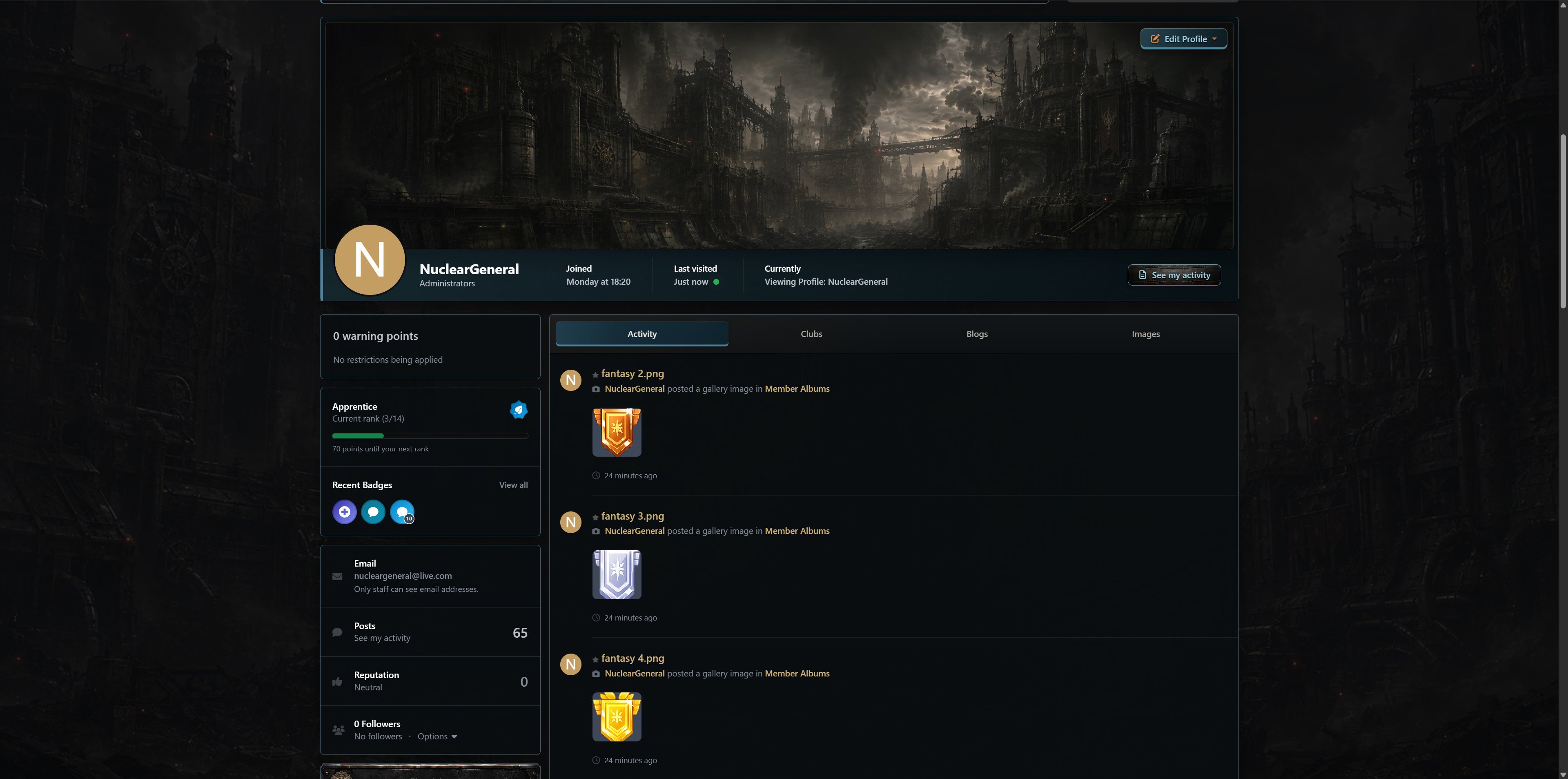
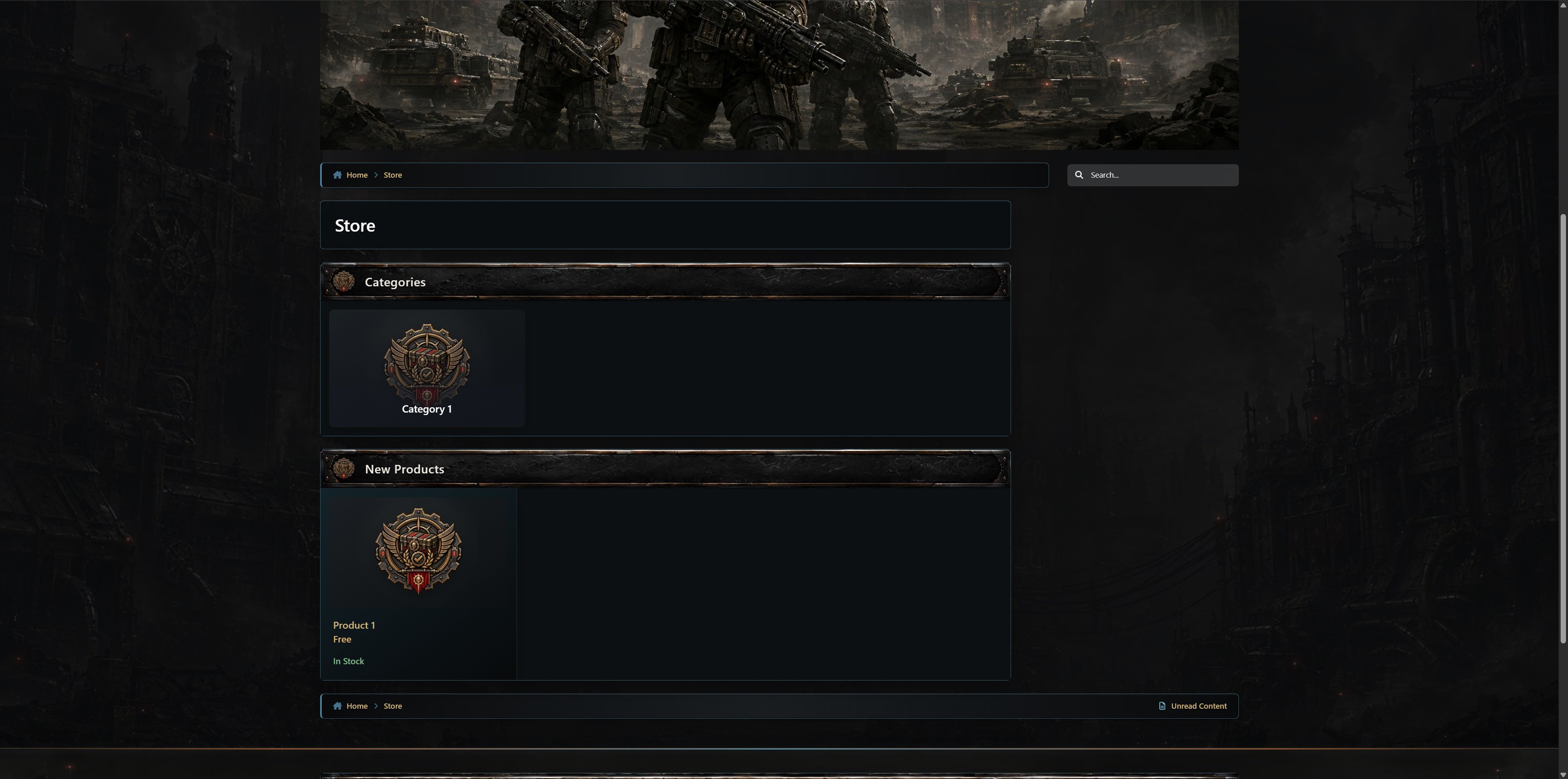
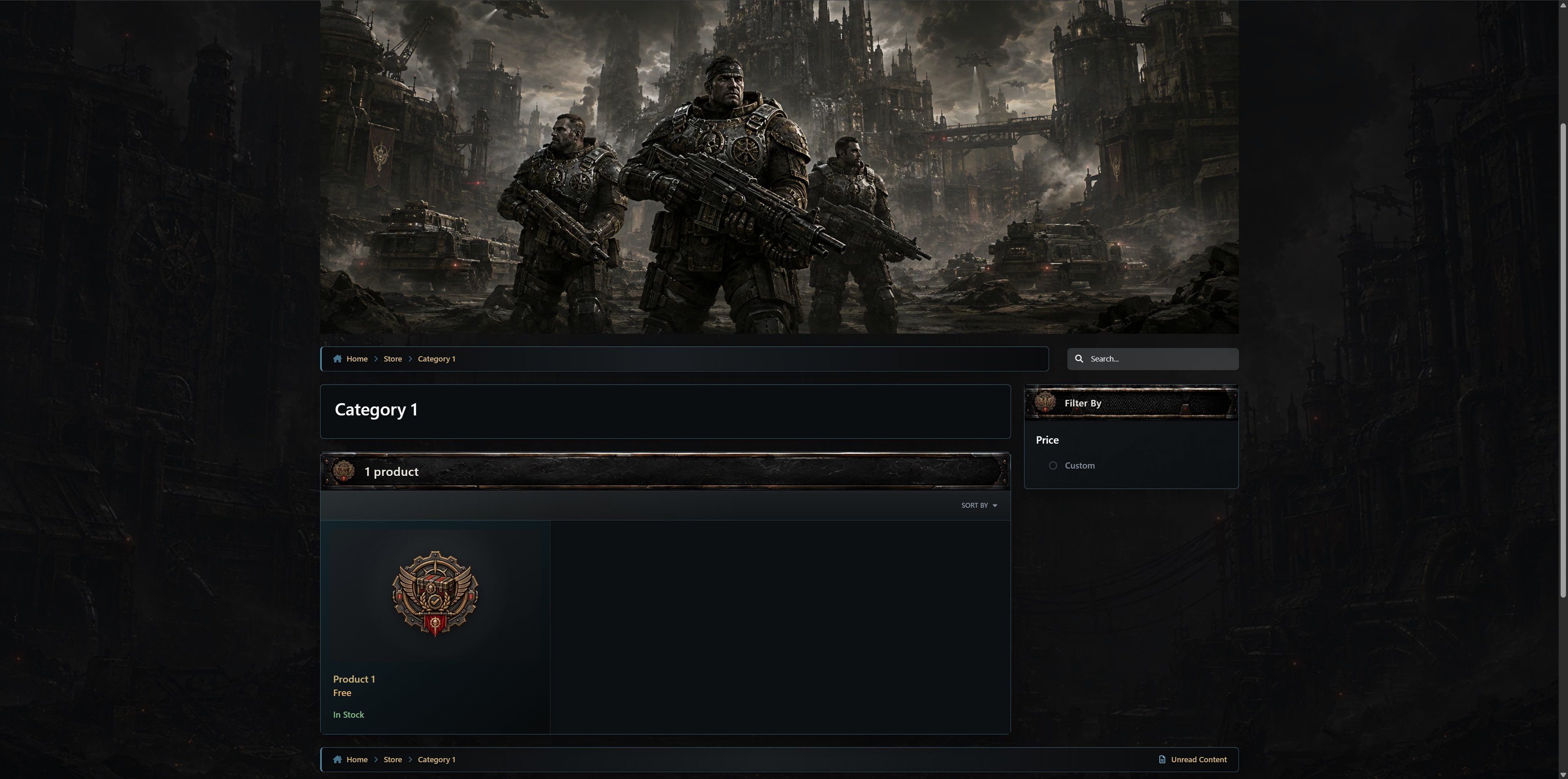
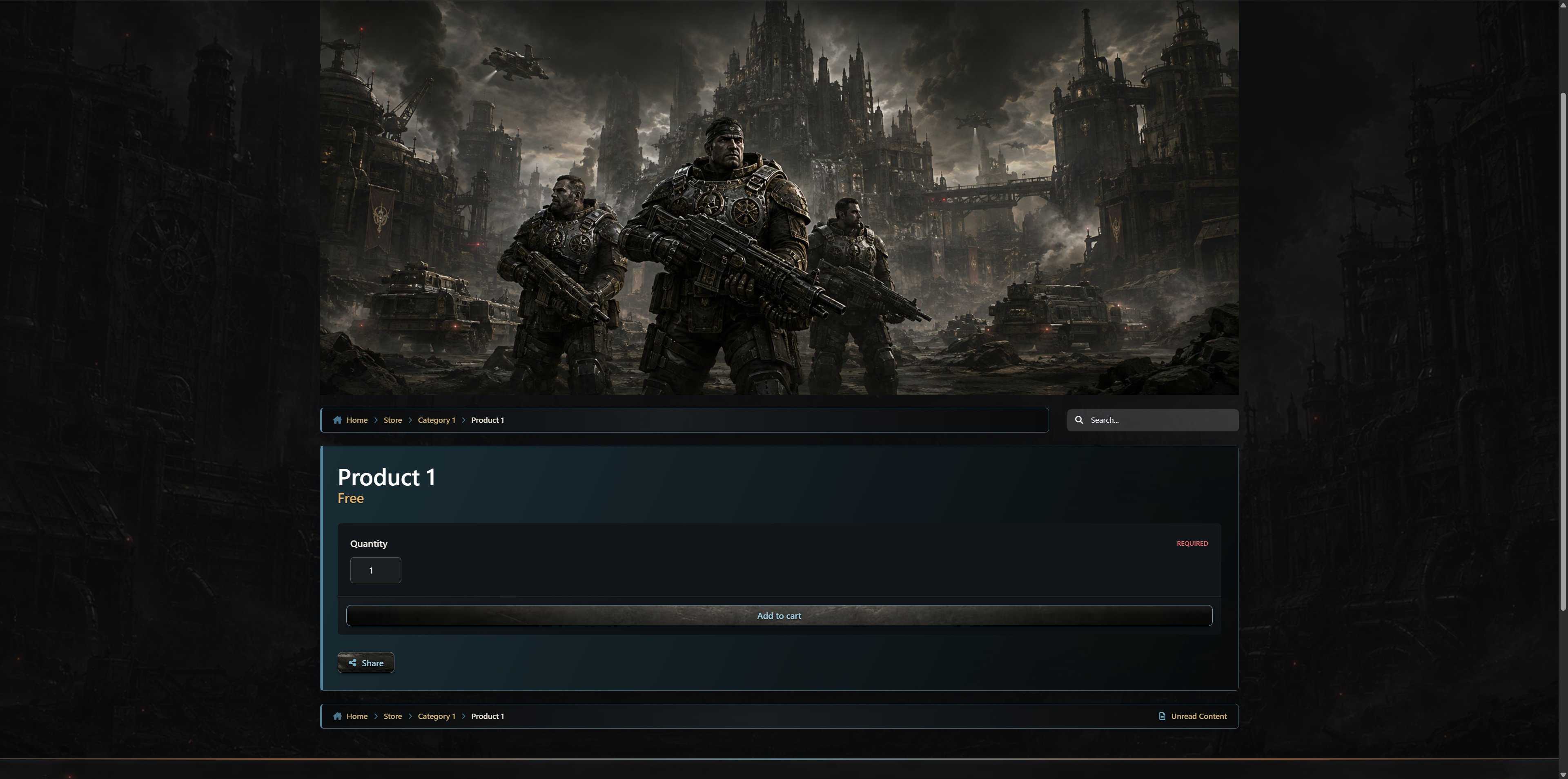
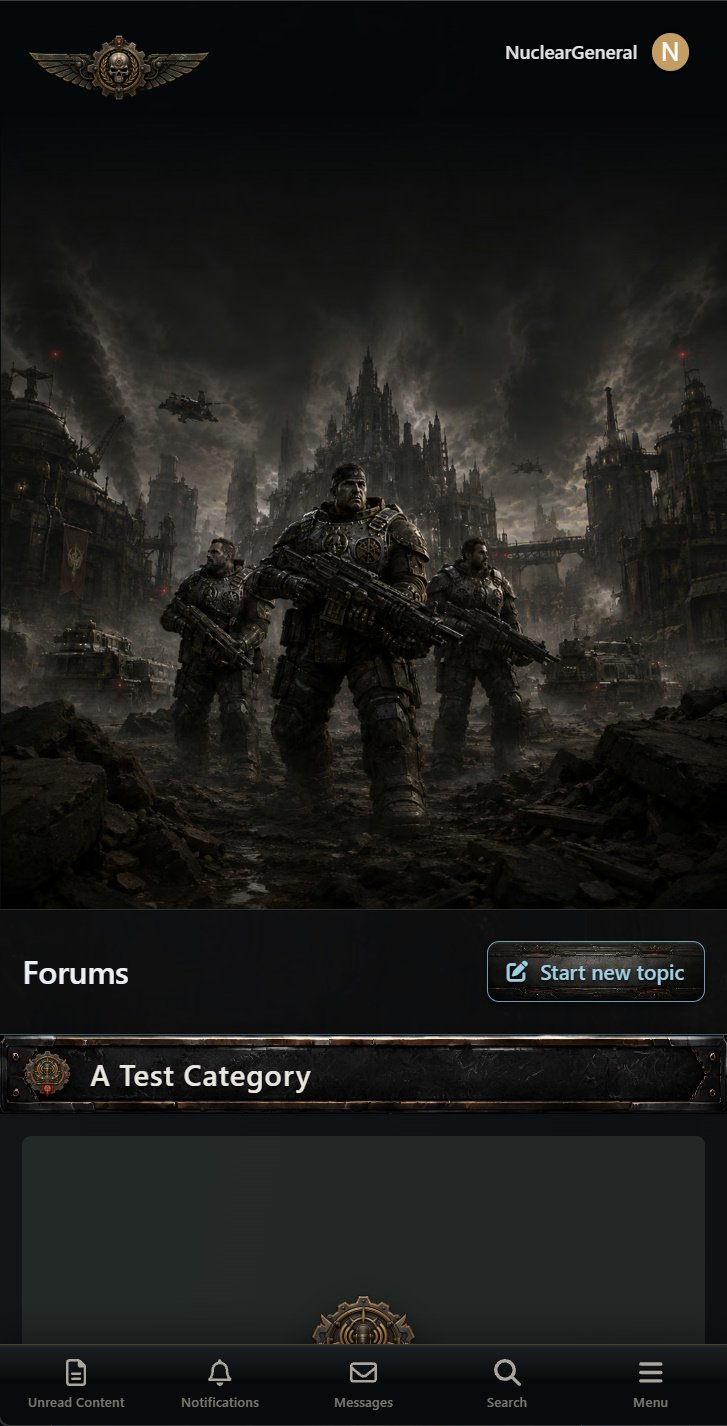
Bring the disciplined strength of the COG to your Invision Community with a dark, industrial design inspired by massive military engineering, battle-worn armor, and fortified command centers. Layered gunmetal surfaces, scratched steel, recessed panel seams, rivets, and subtle mechanical detailing give the interface a powerful presence without making it feel cluttered.
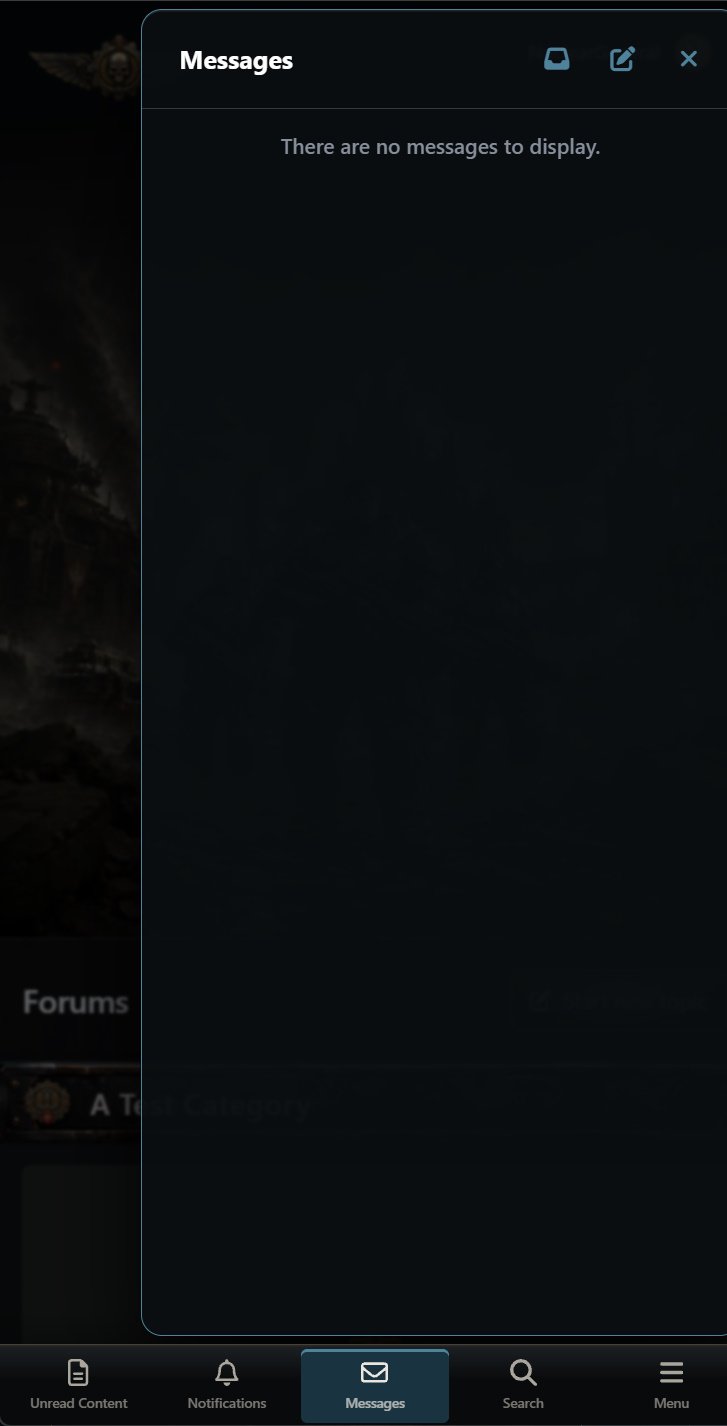
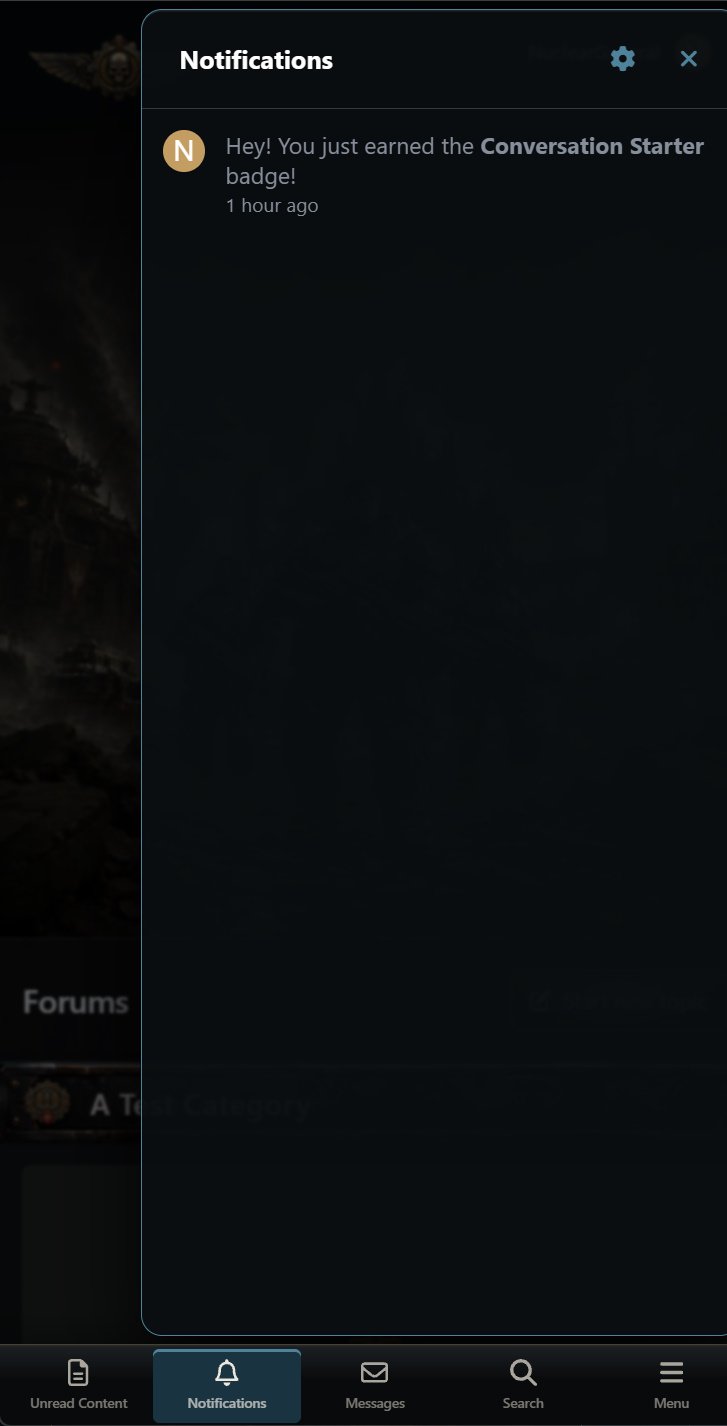
Cool blue-steel accents define navigation, borders, icons, selected items, and primary actions, while aged brass provides restrained secondary emphasis. Bone-white text and warm gray supporting copy remain highly readable against the near-black content surfaces. Crimson is reserved for errors and destructive actions, giving every color a clear purpose within the design.
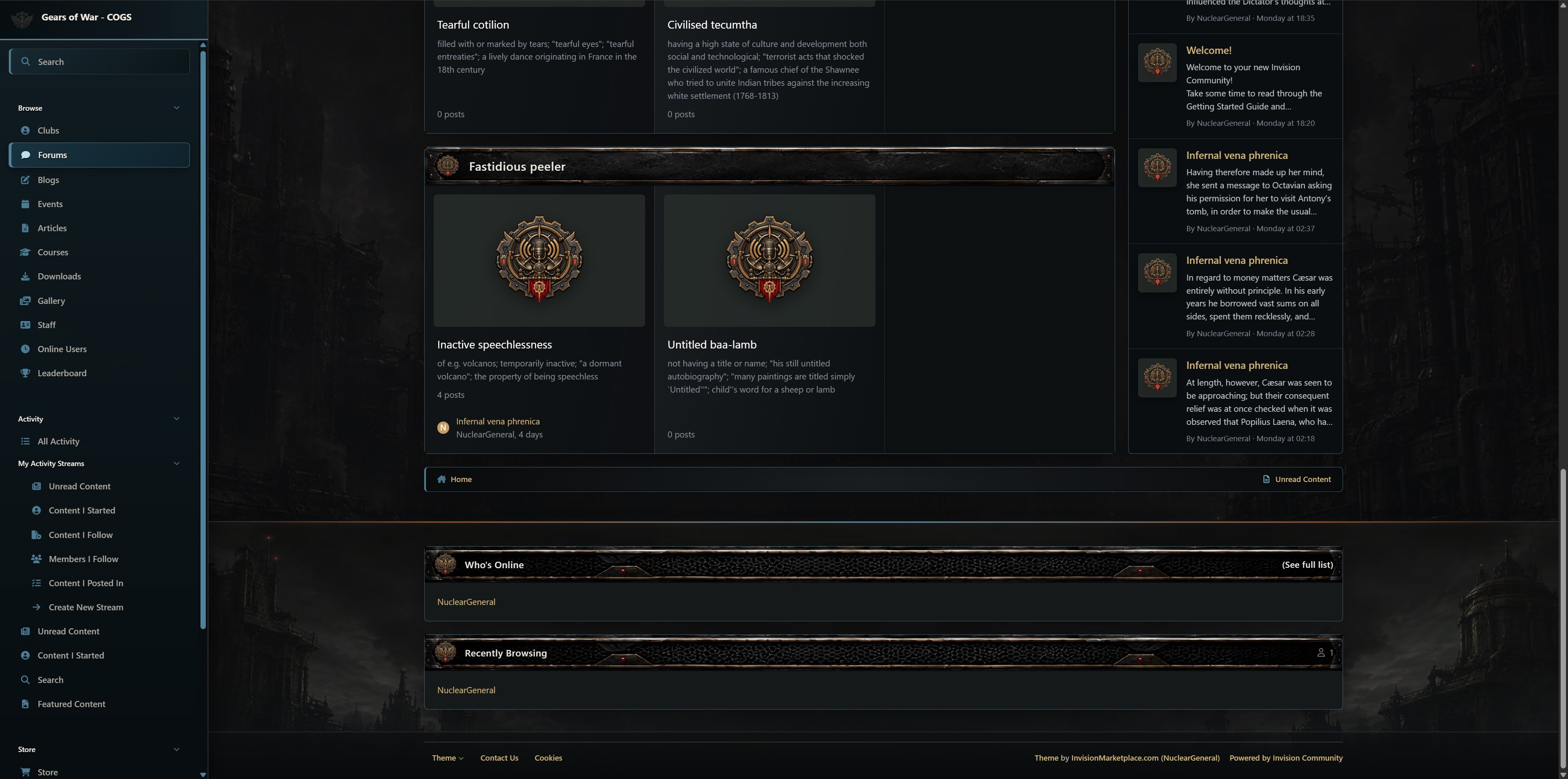
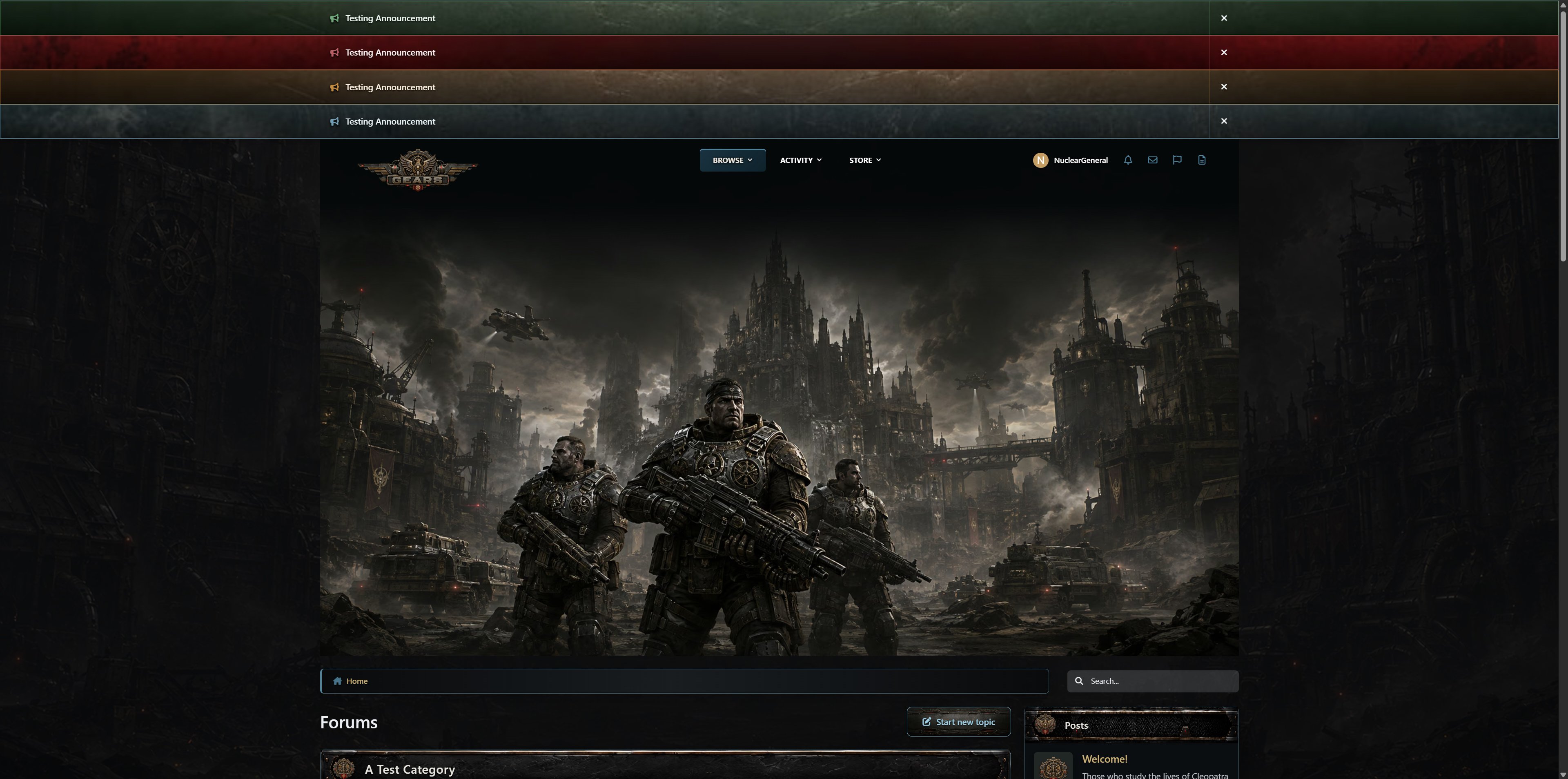
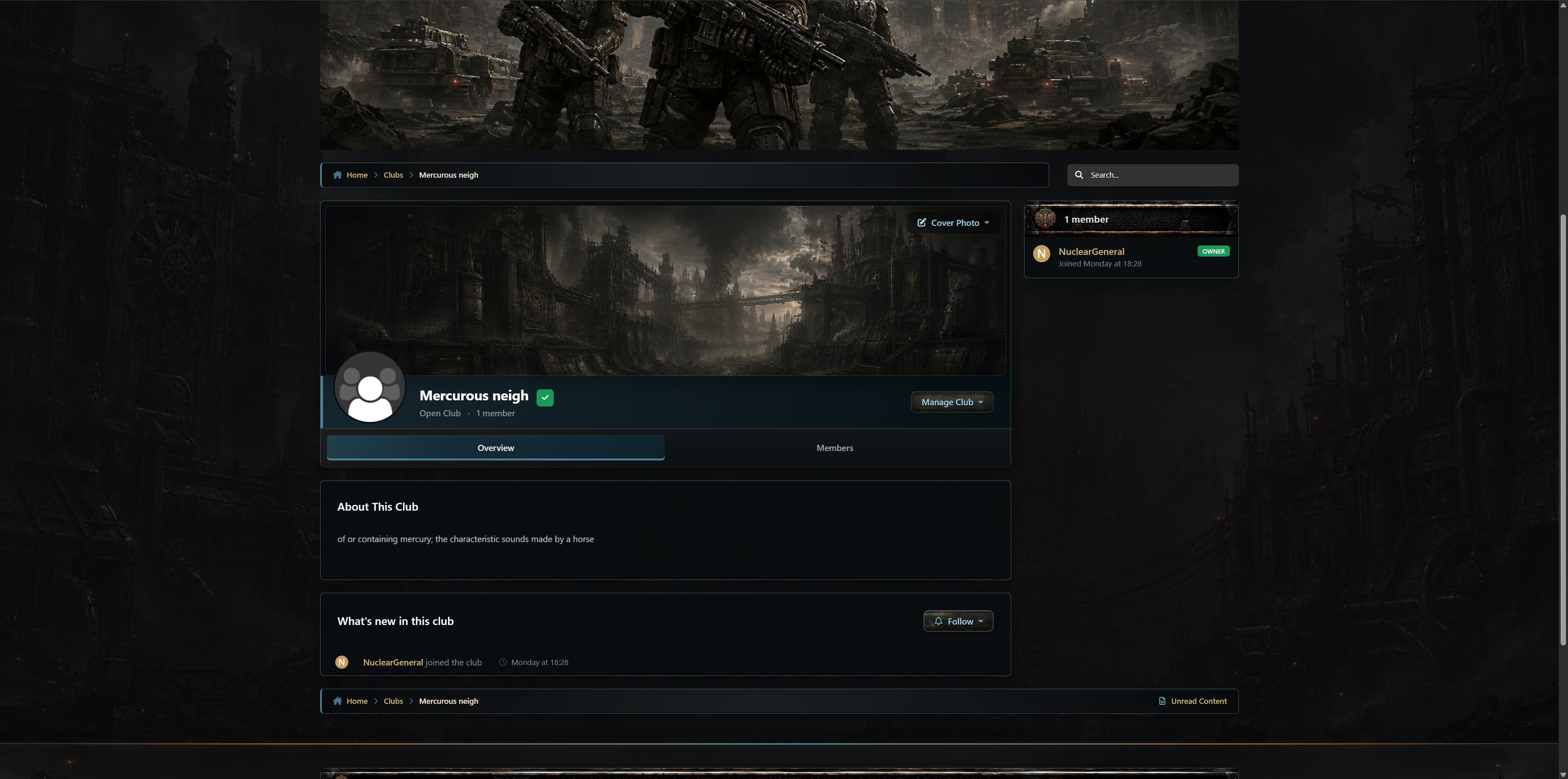
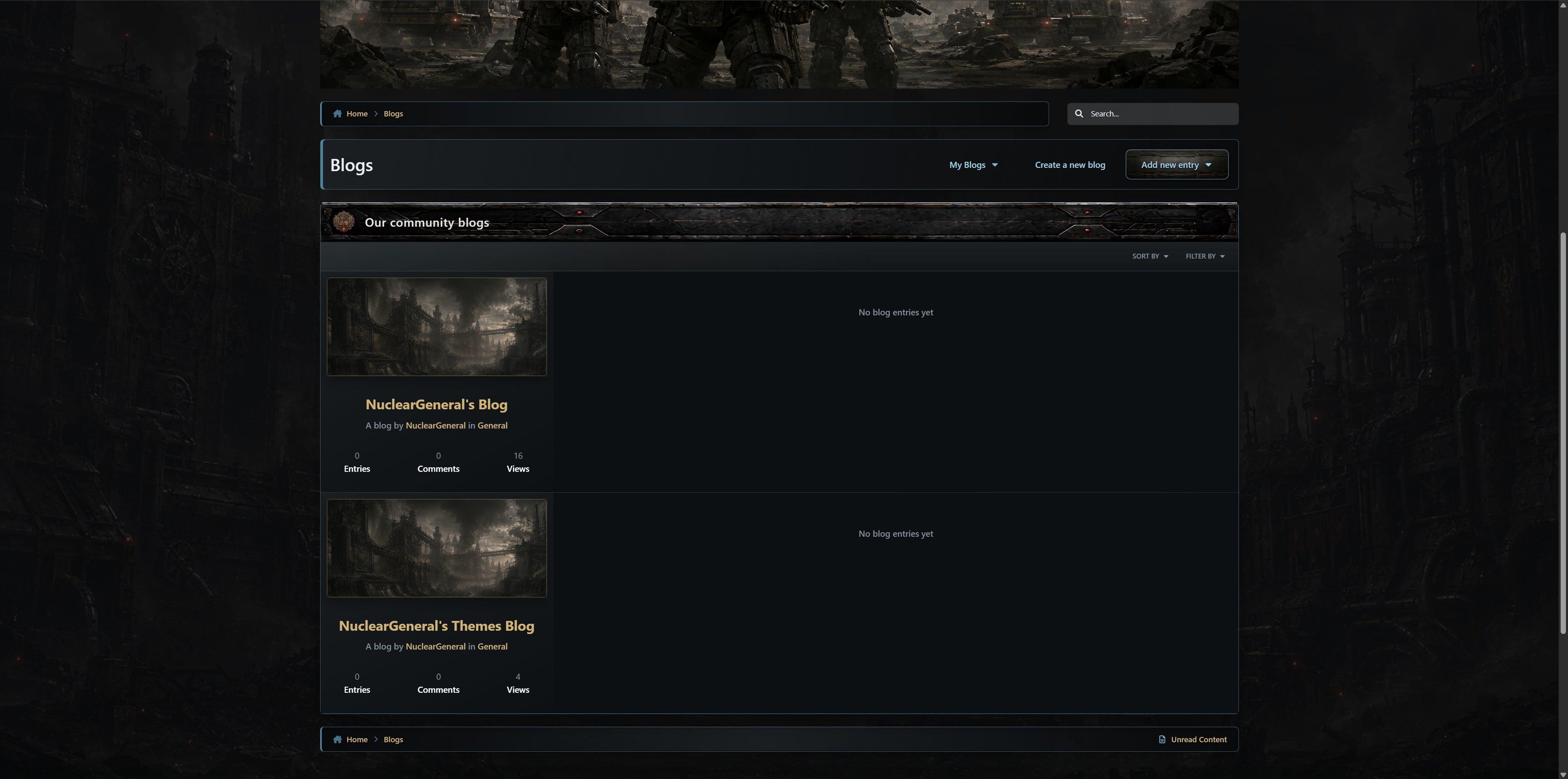
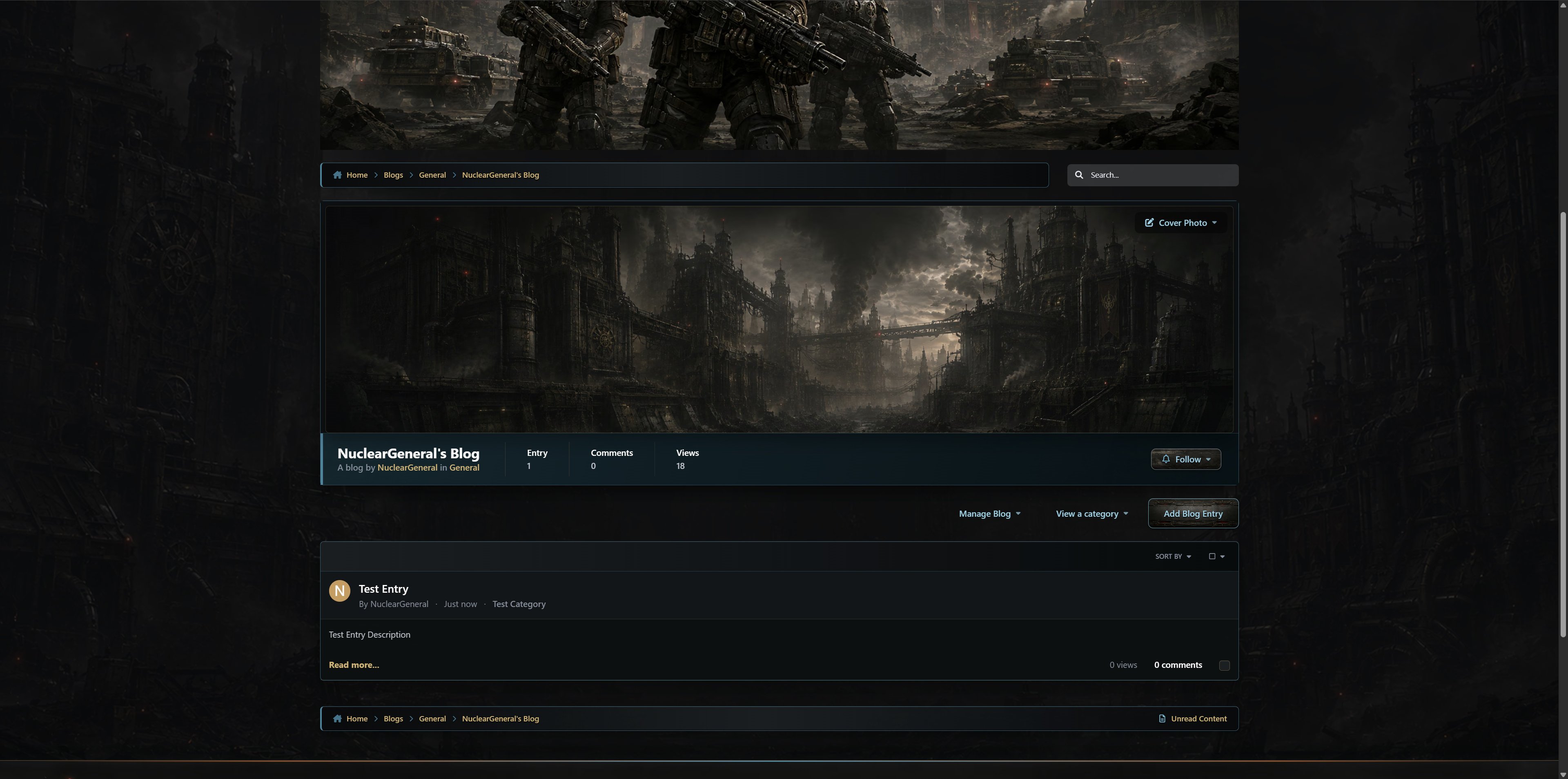
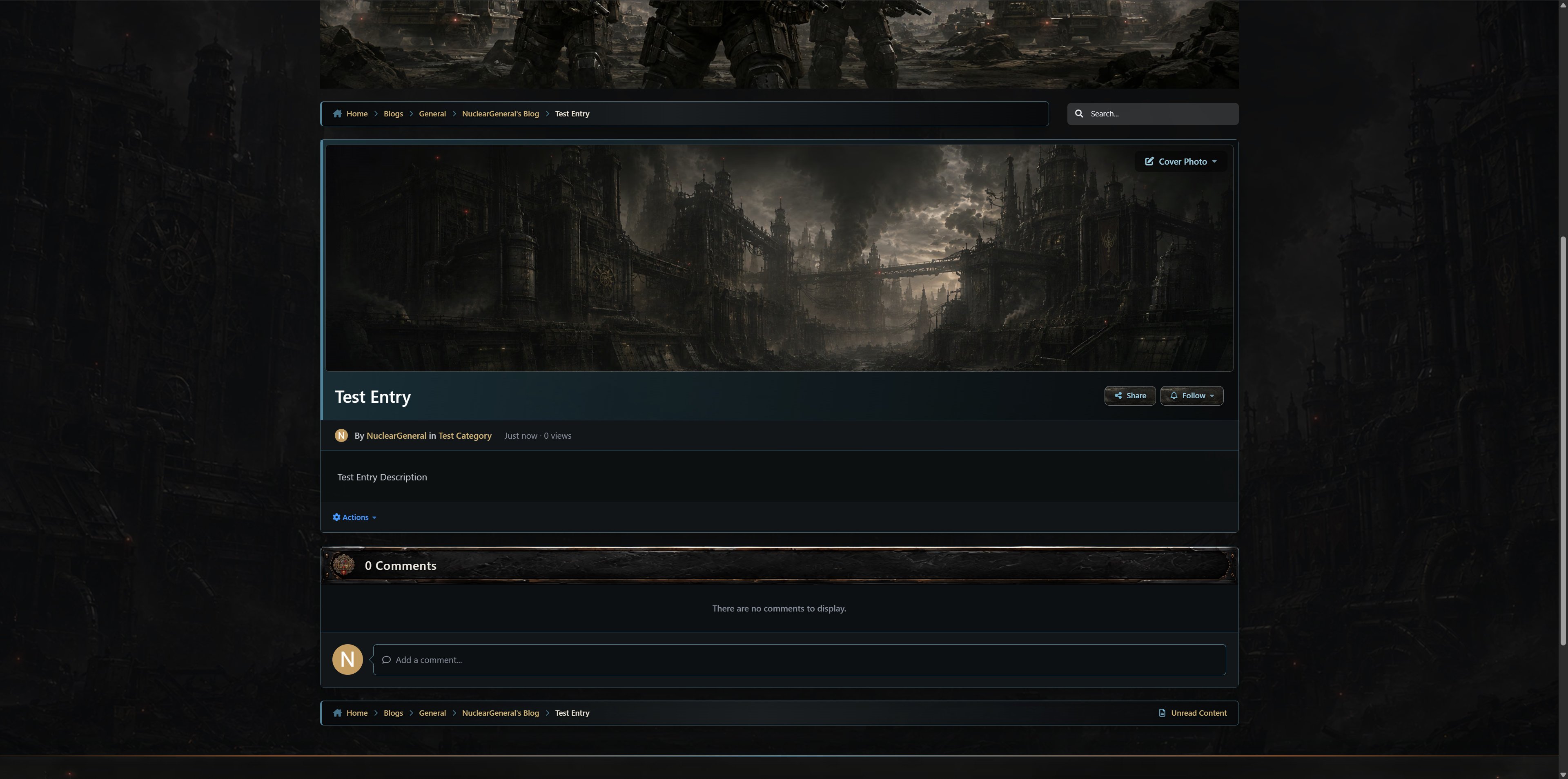
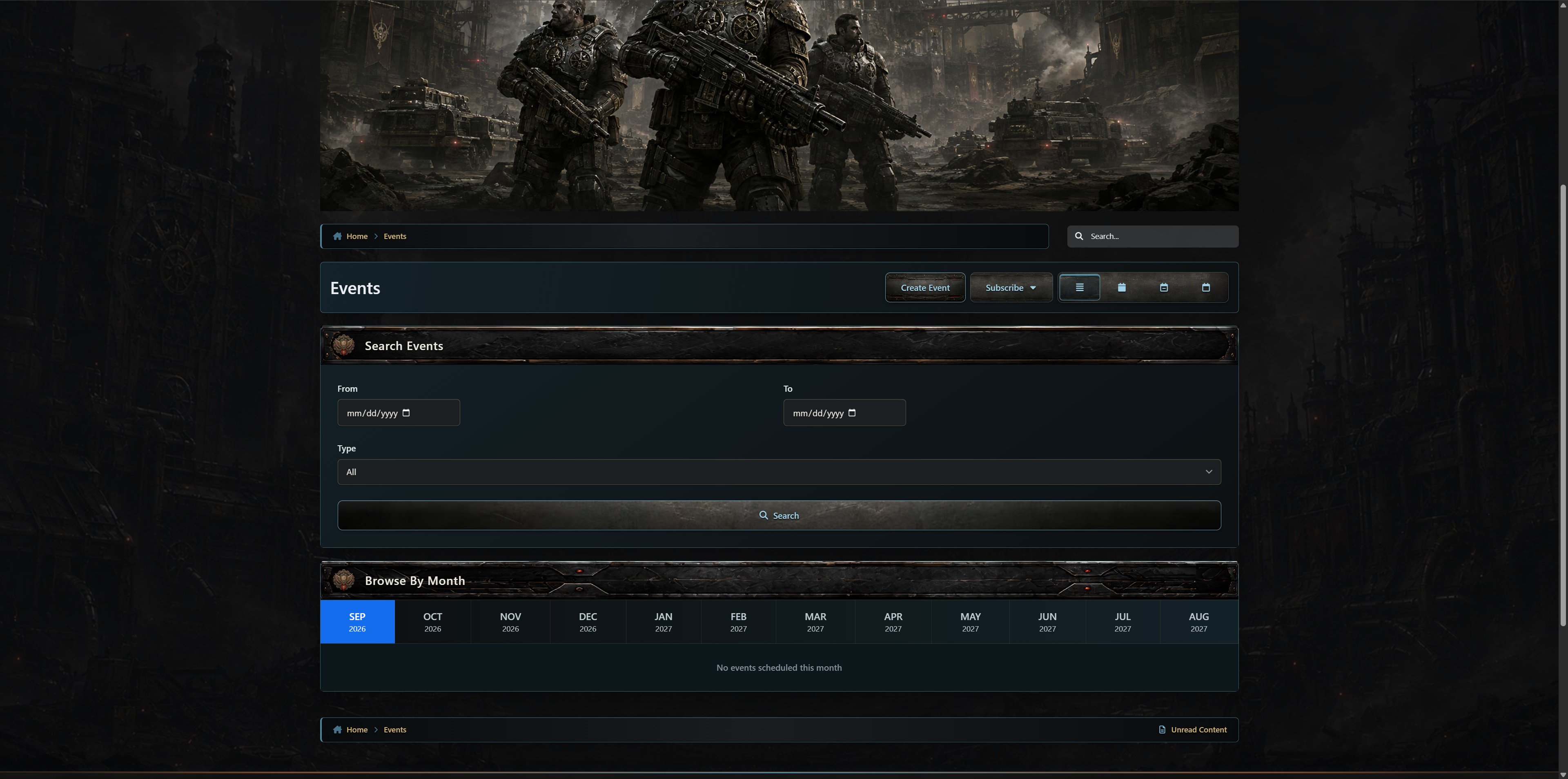
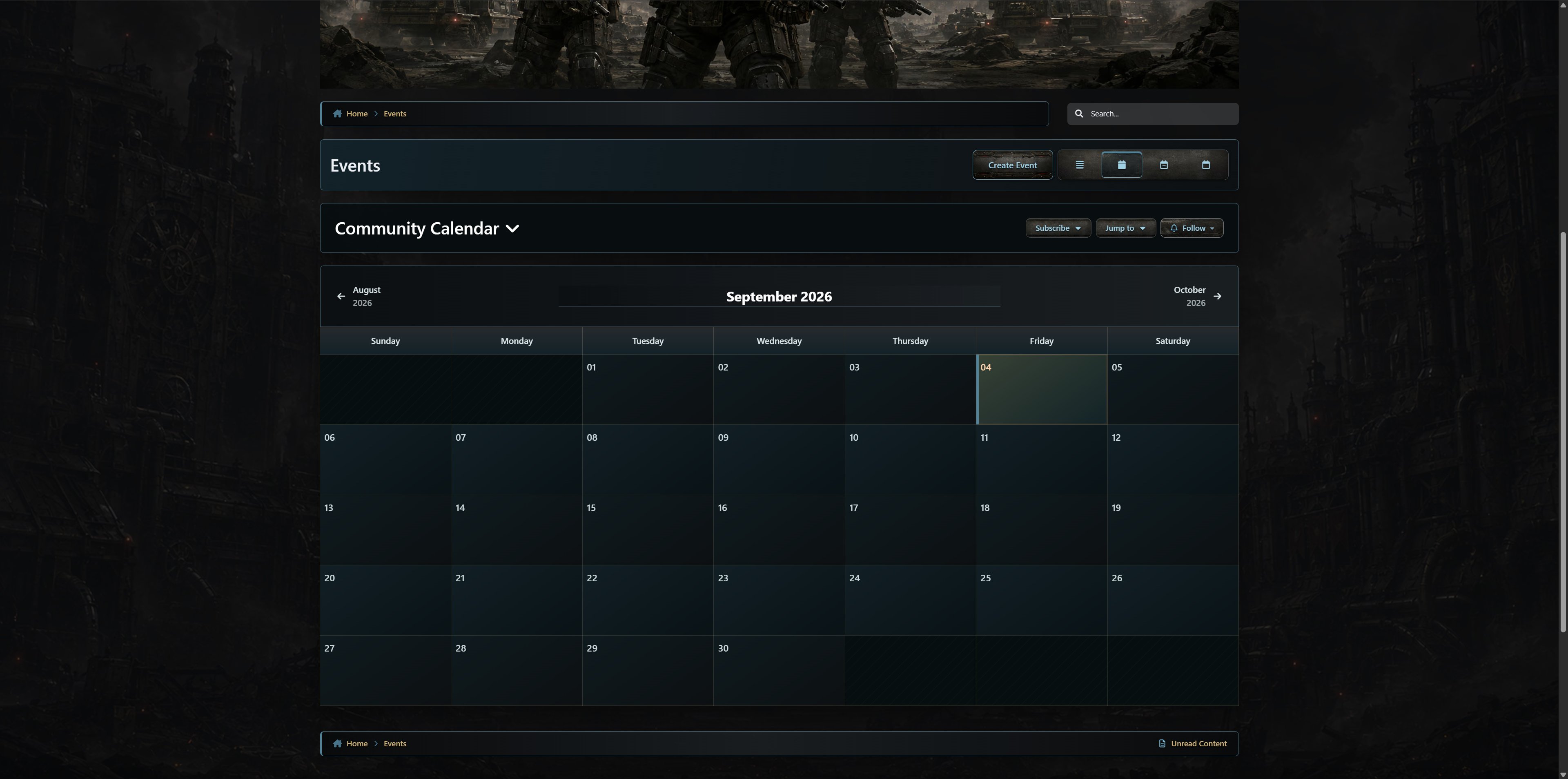
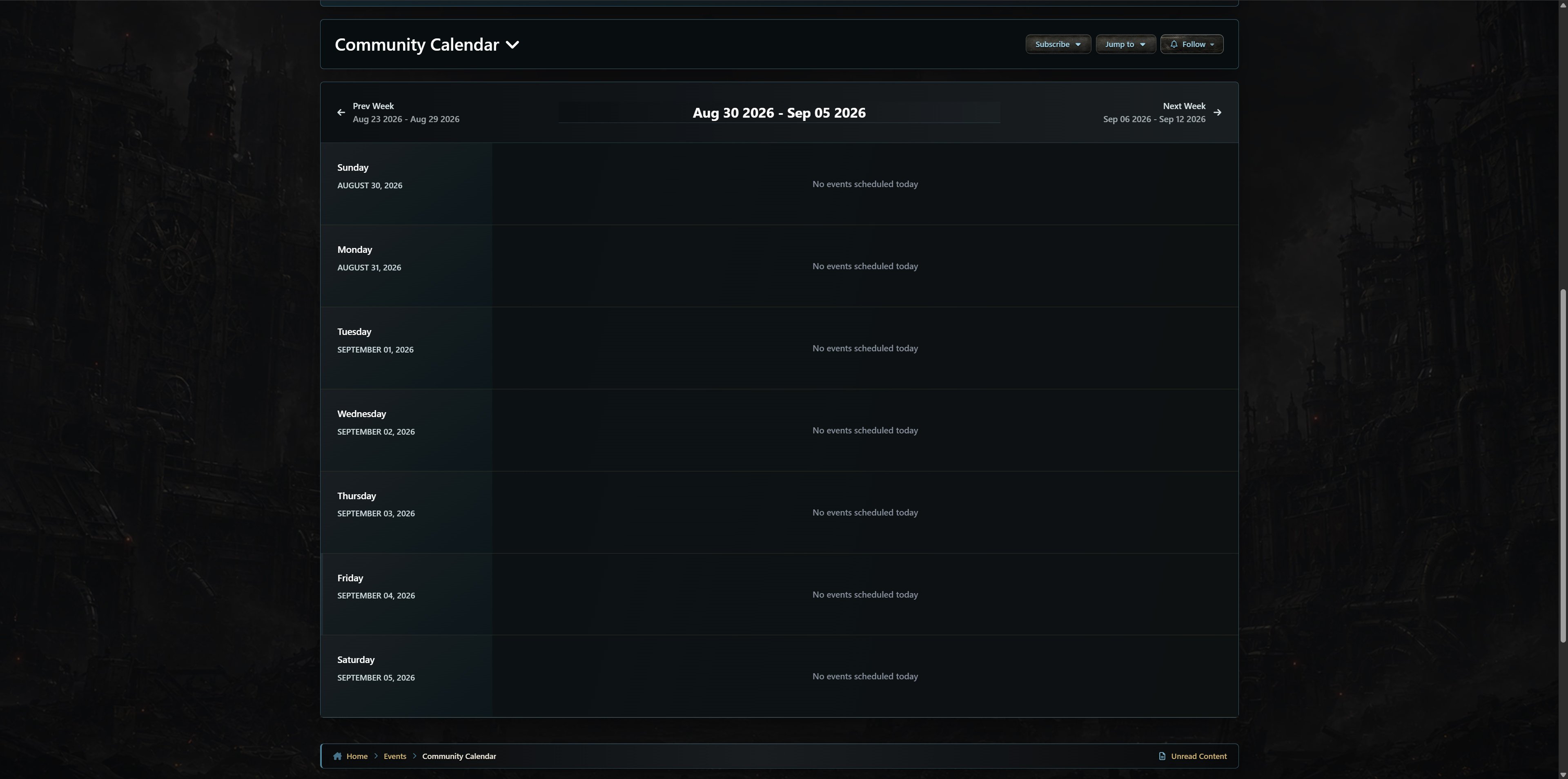
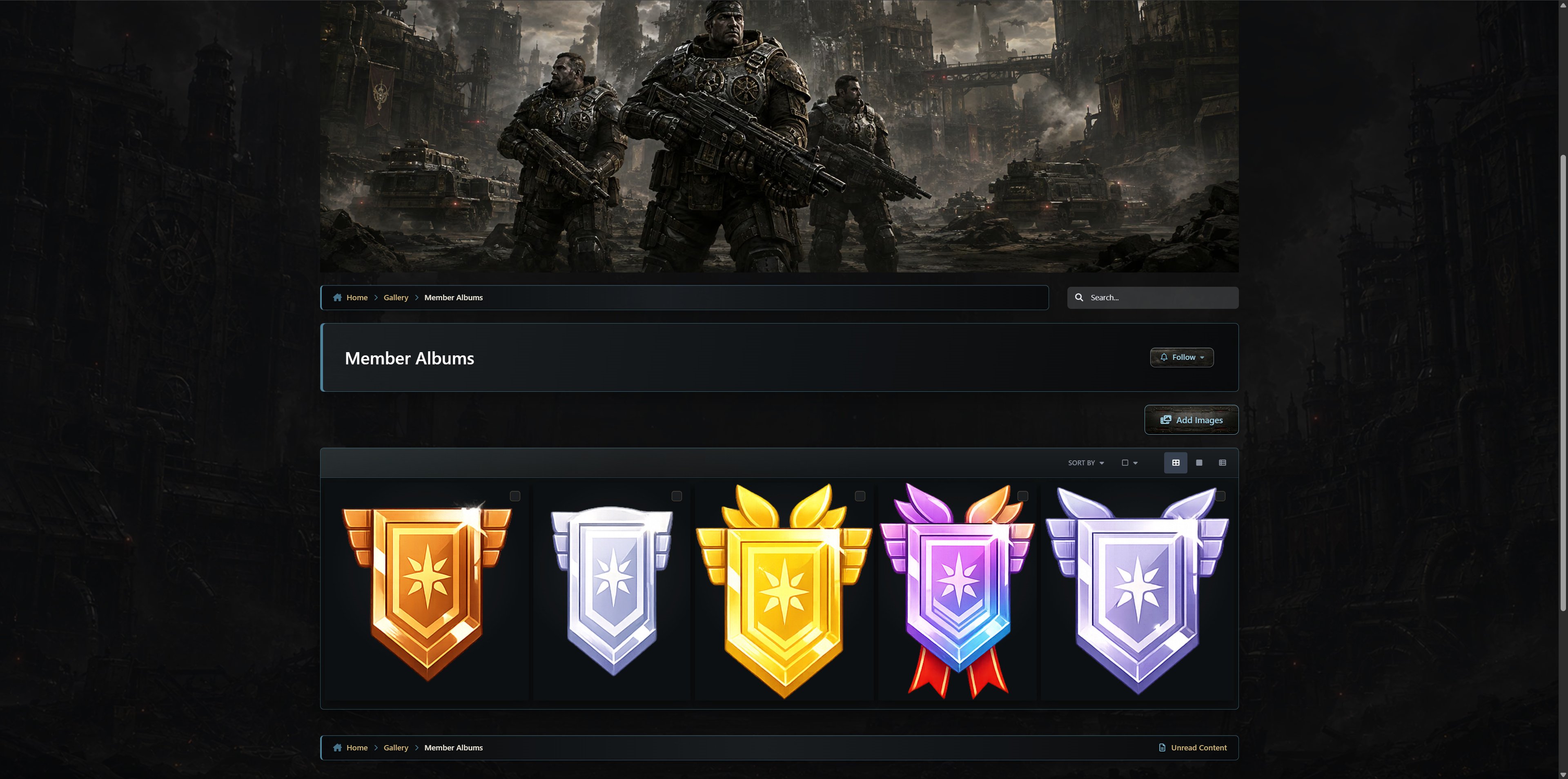
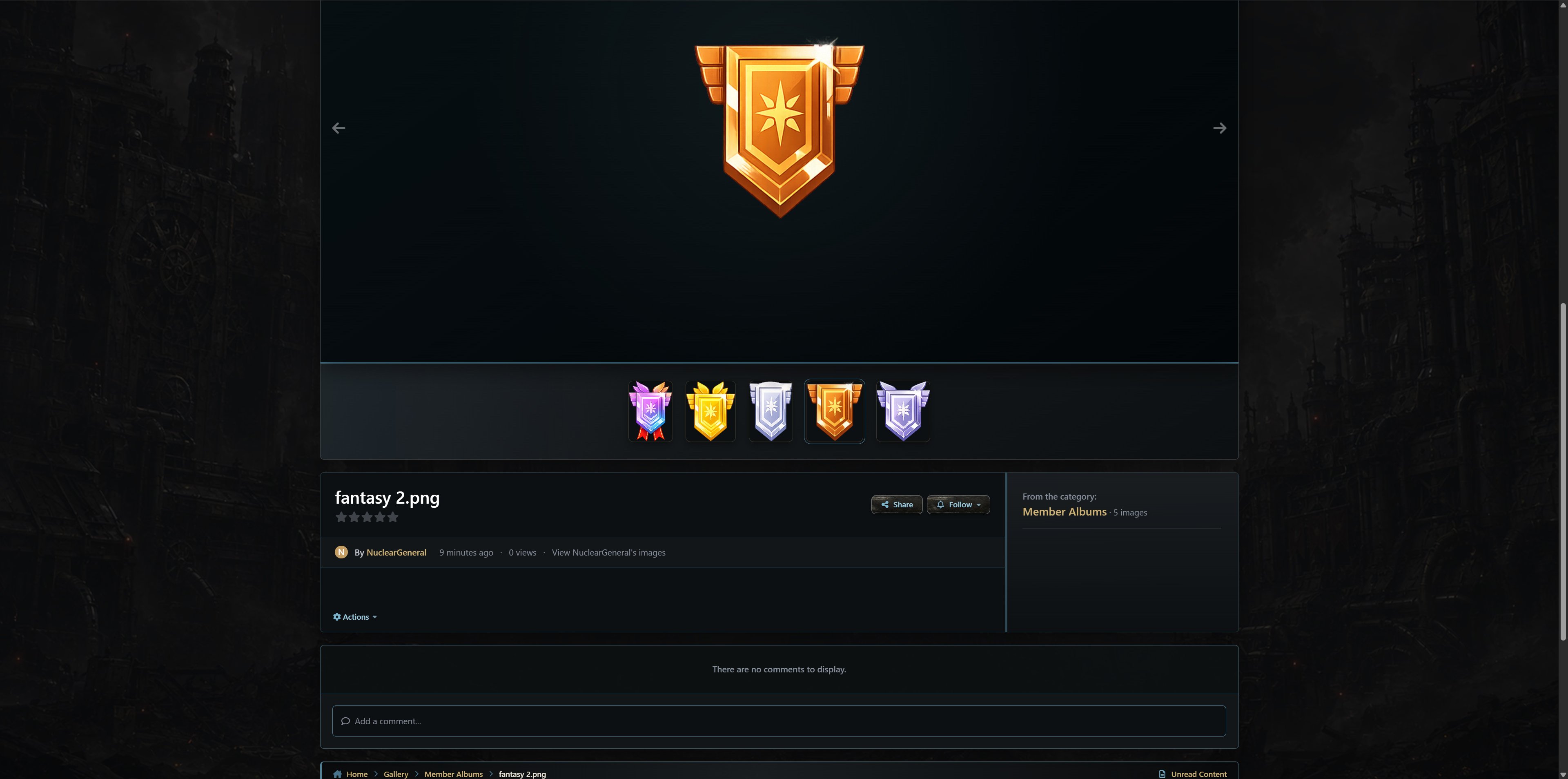
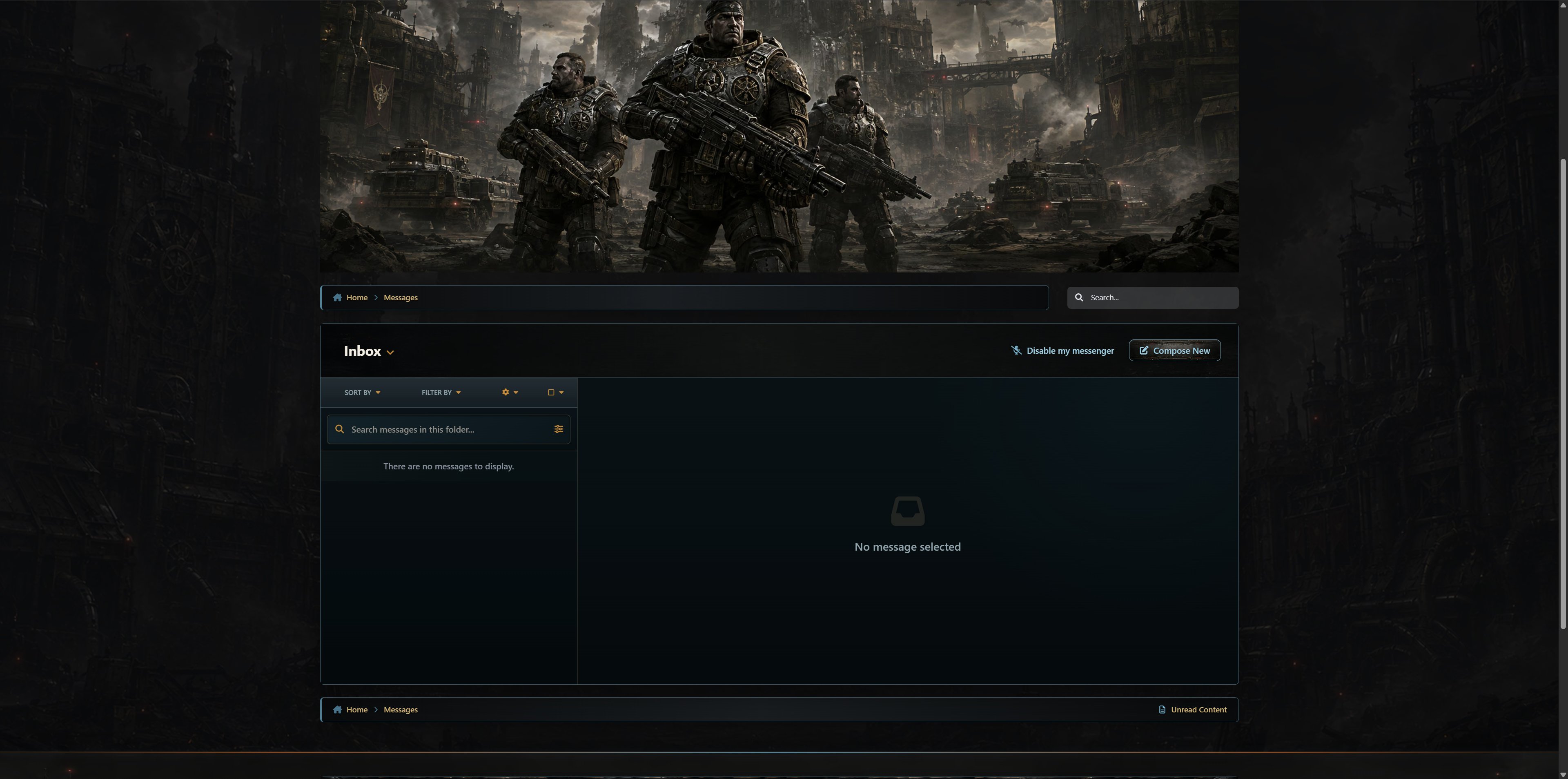
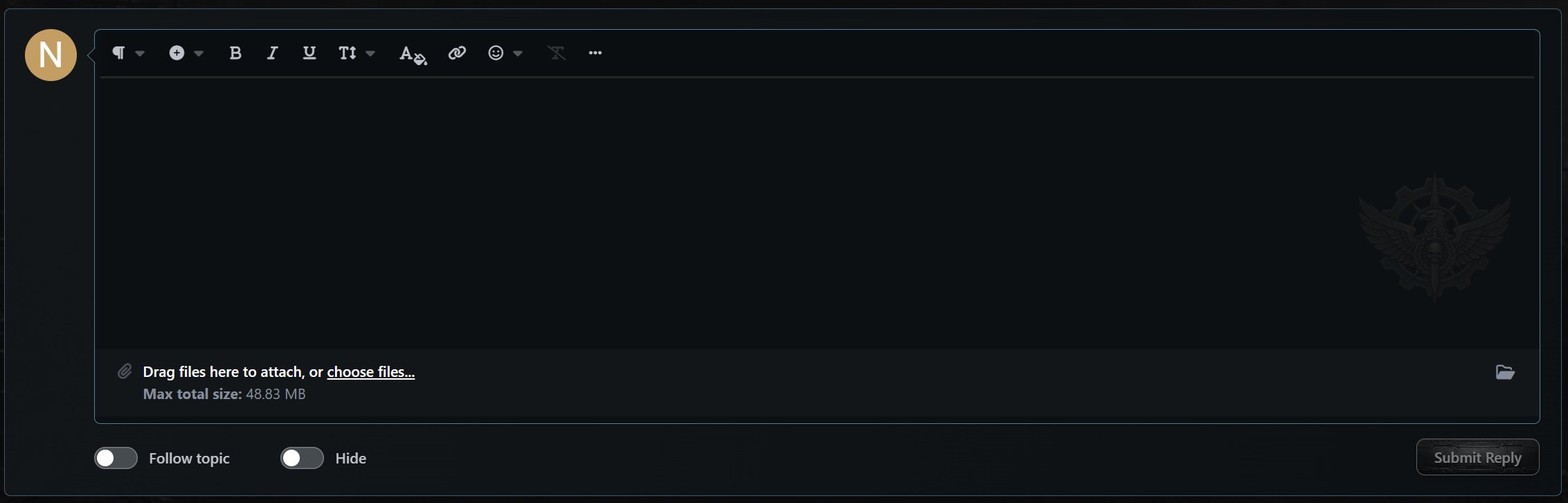
The theme extends consistently across Forums, Downloads, Gallery, Blogs, Events, Courses, Commerce, Pages, Messenger, profiles, and clubs. Custom application insignias, fallback images, textured buttons, reinforced widget headers, editor and post watermarks, menus, popovers, alerts, and navigation elements make the entire platform feel like one unified experience.
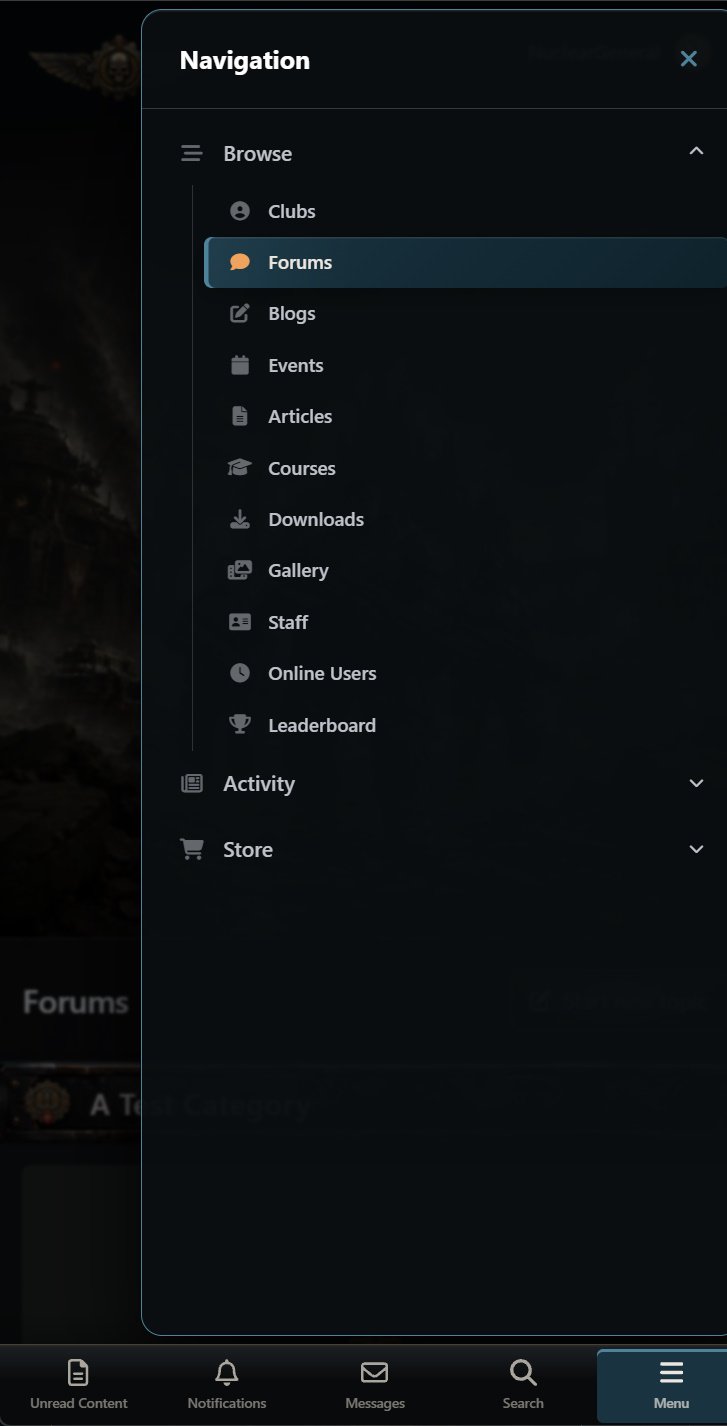
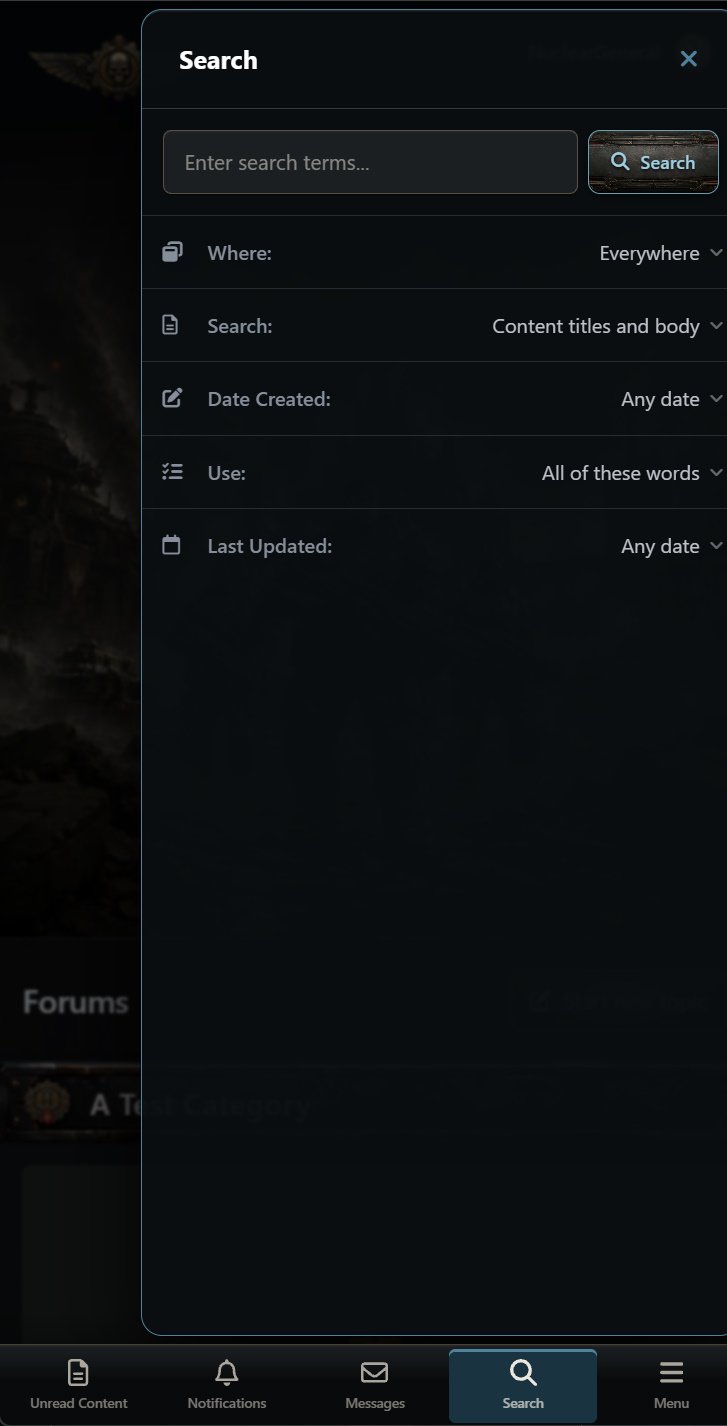
Dedicated desktop, tablet, and mobile mastheads help the artwork remain properly composed at every screen size. Both Classic and Sidepanel layouts are supported while retaining the familiar functionality of Invision Community, including responsive navigation, sticky Messenger elements, editors, dropdown menus, moderation tools, and application-specific controls.
There are no reviews to display.