Gears of War - Lambent
- Category Themes
- Downloads 50
- Compatibility IC5: 5.0.00+
- Updated
Description
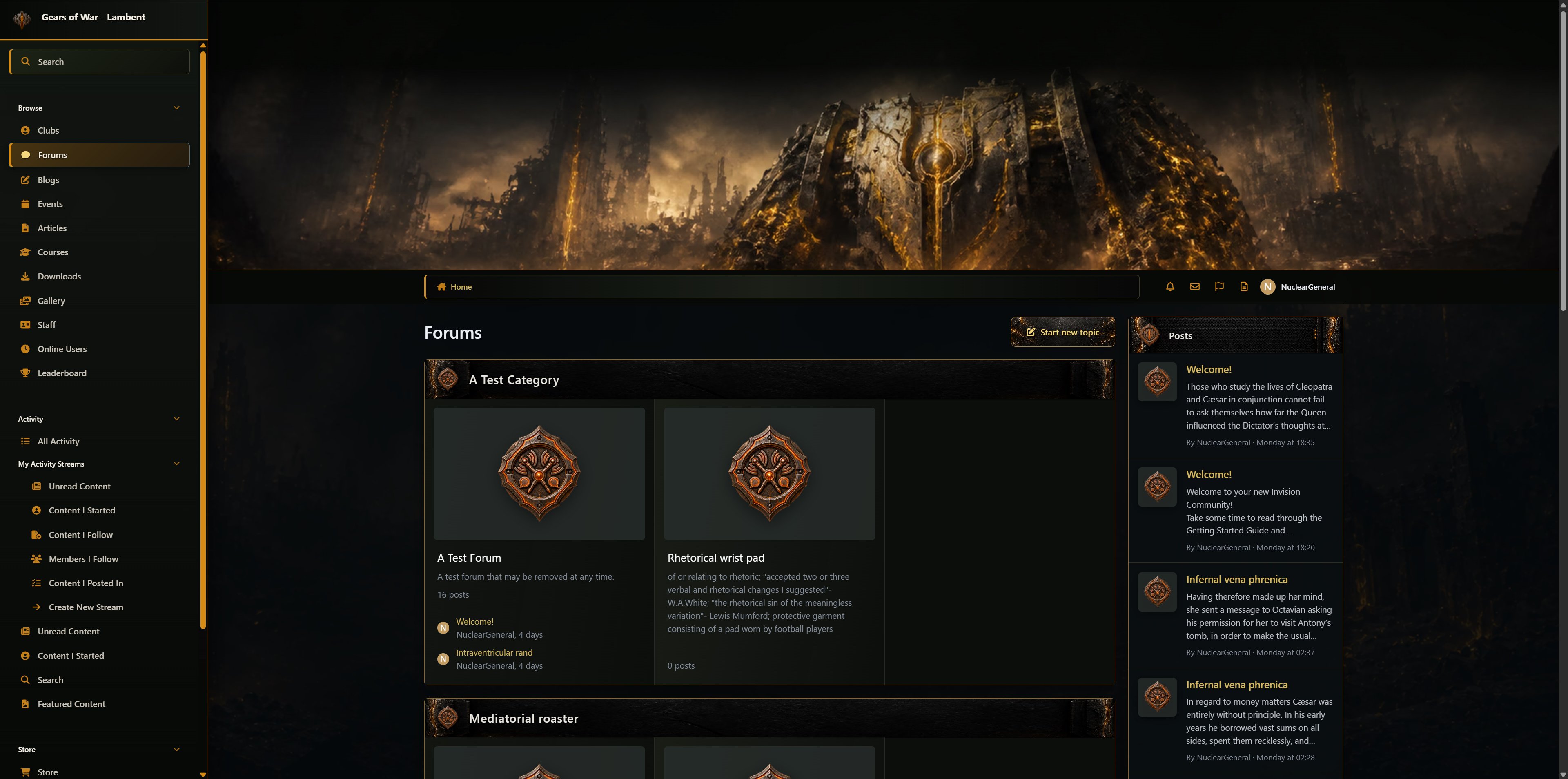
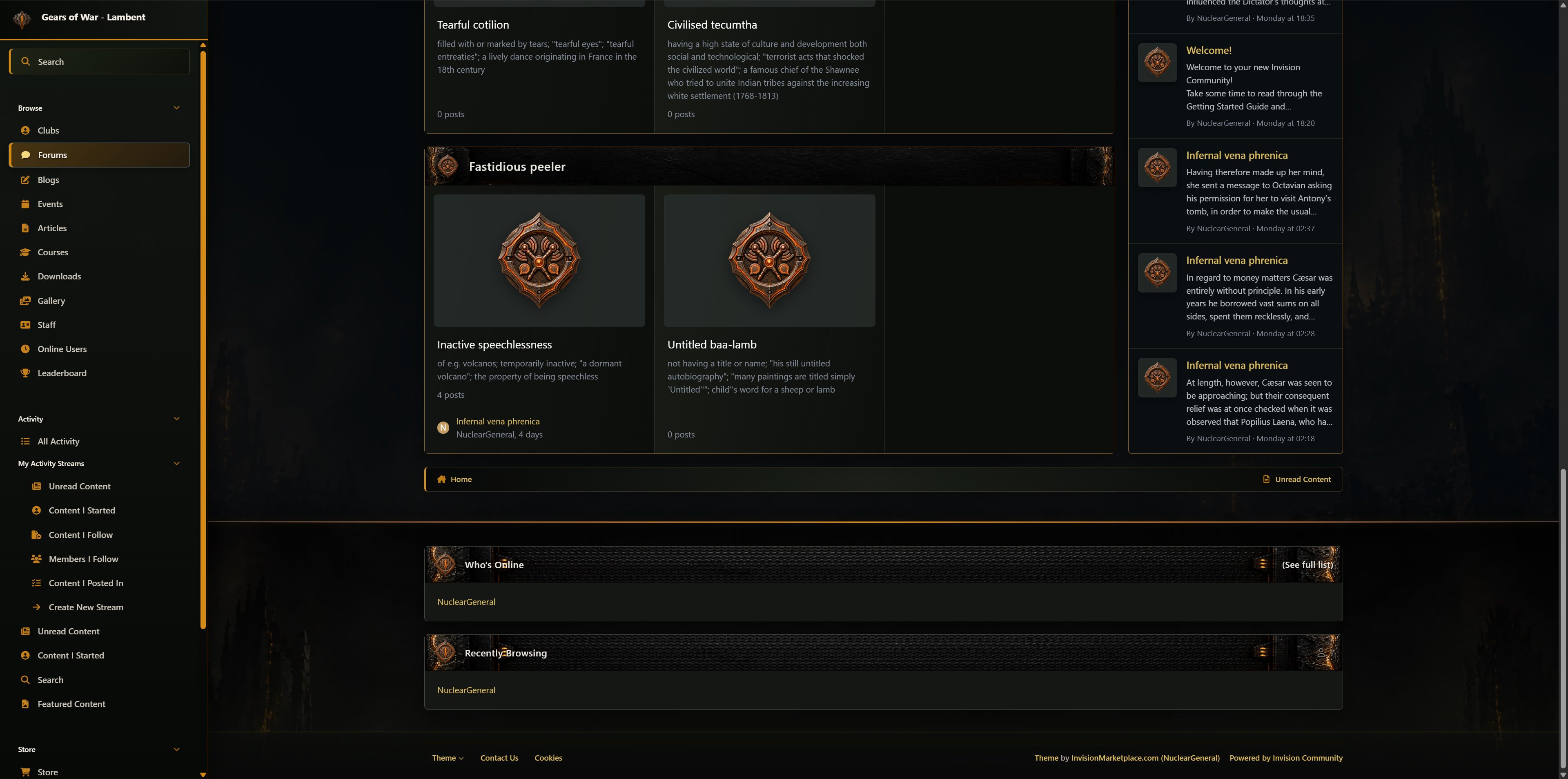
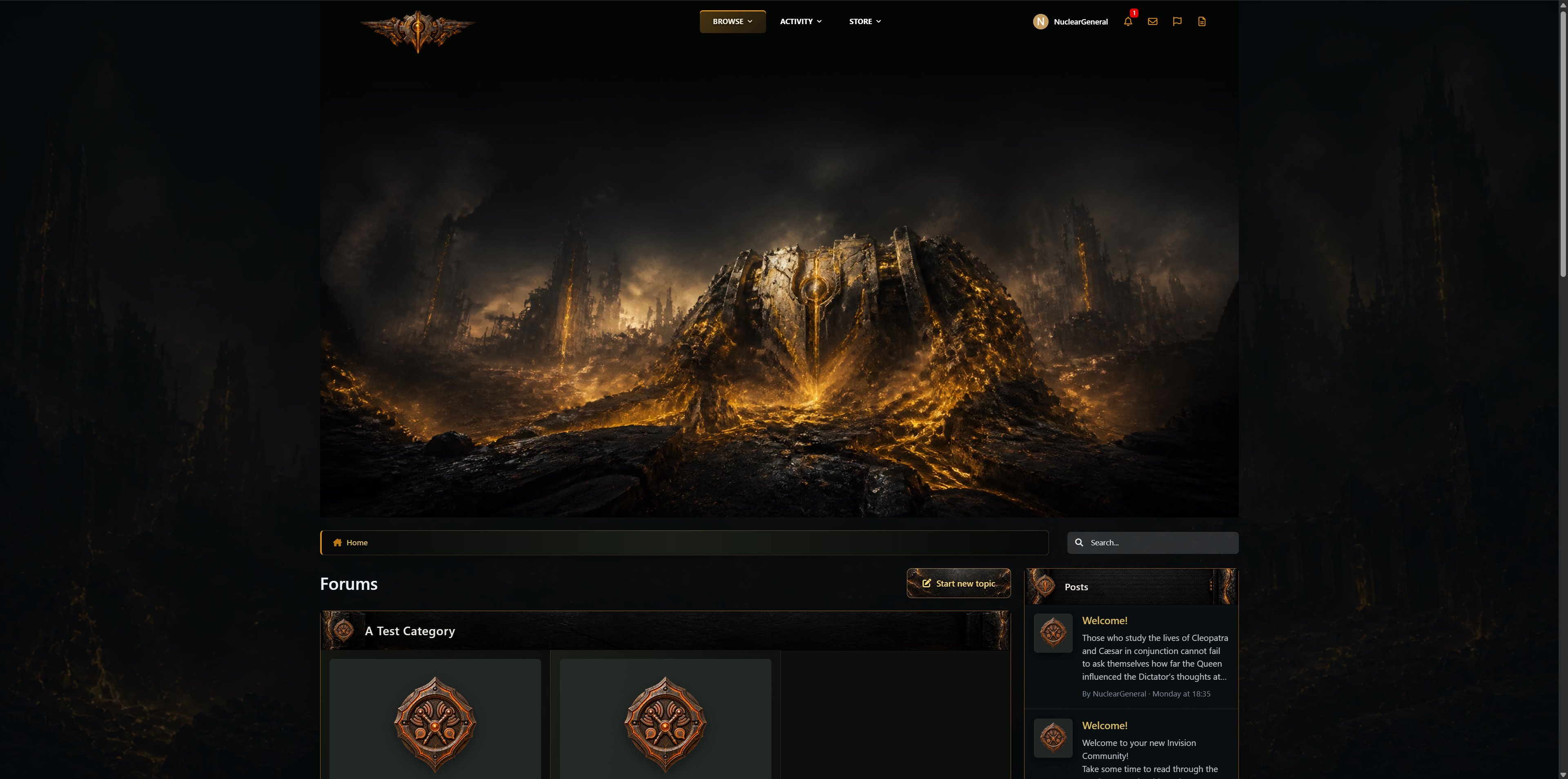
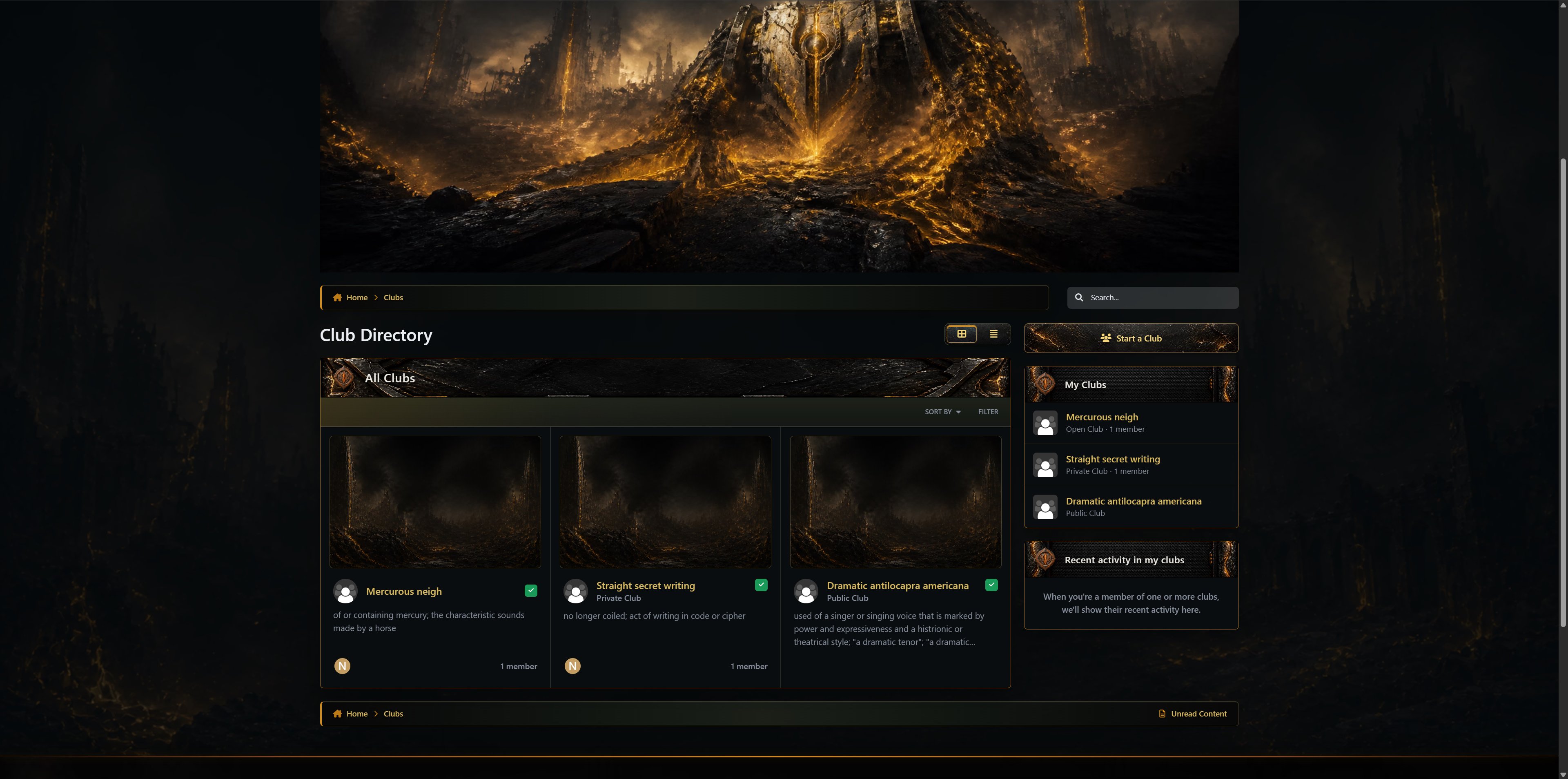
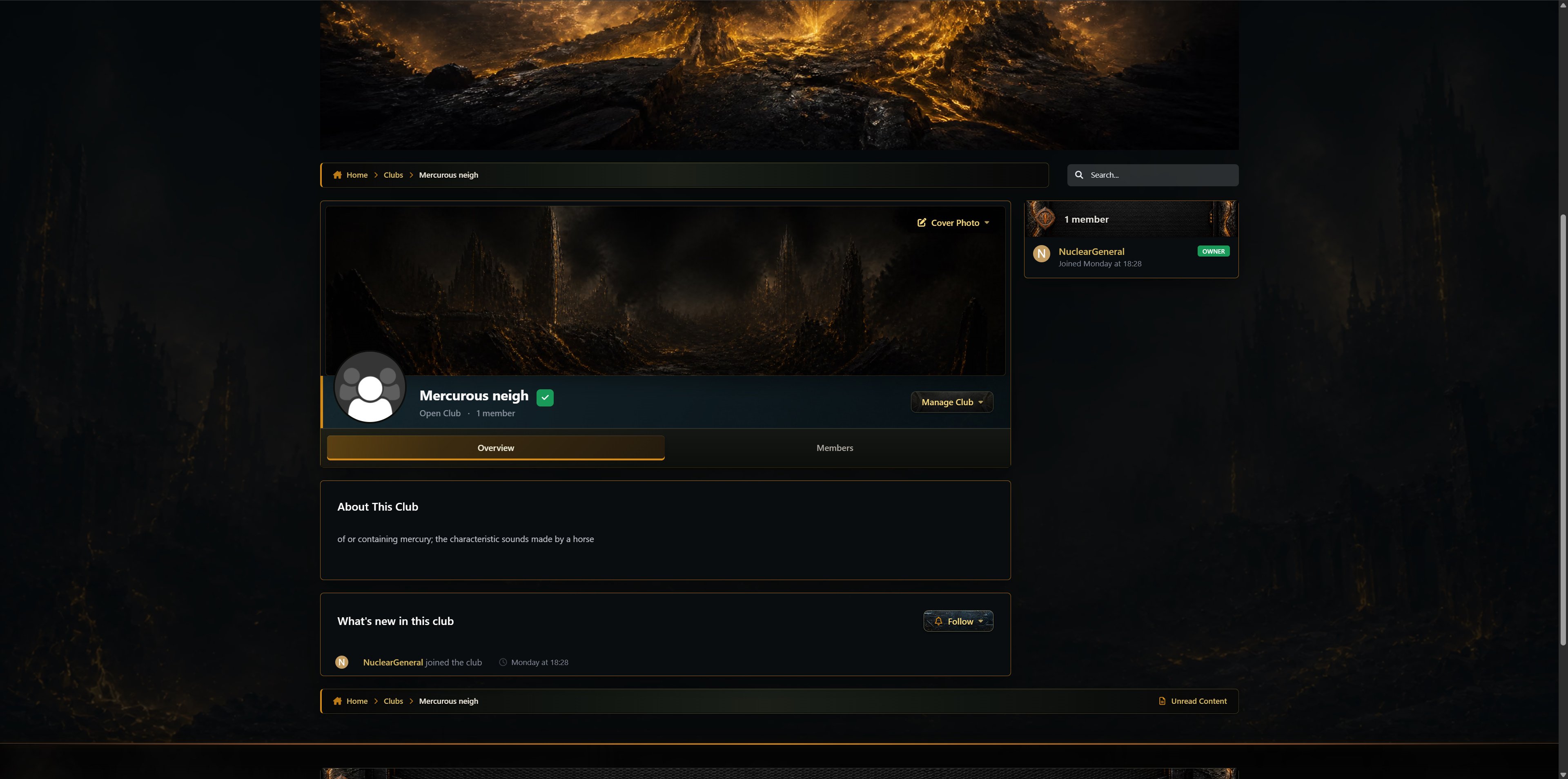
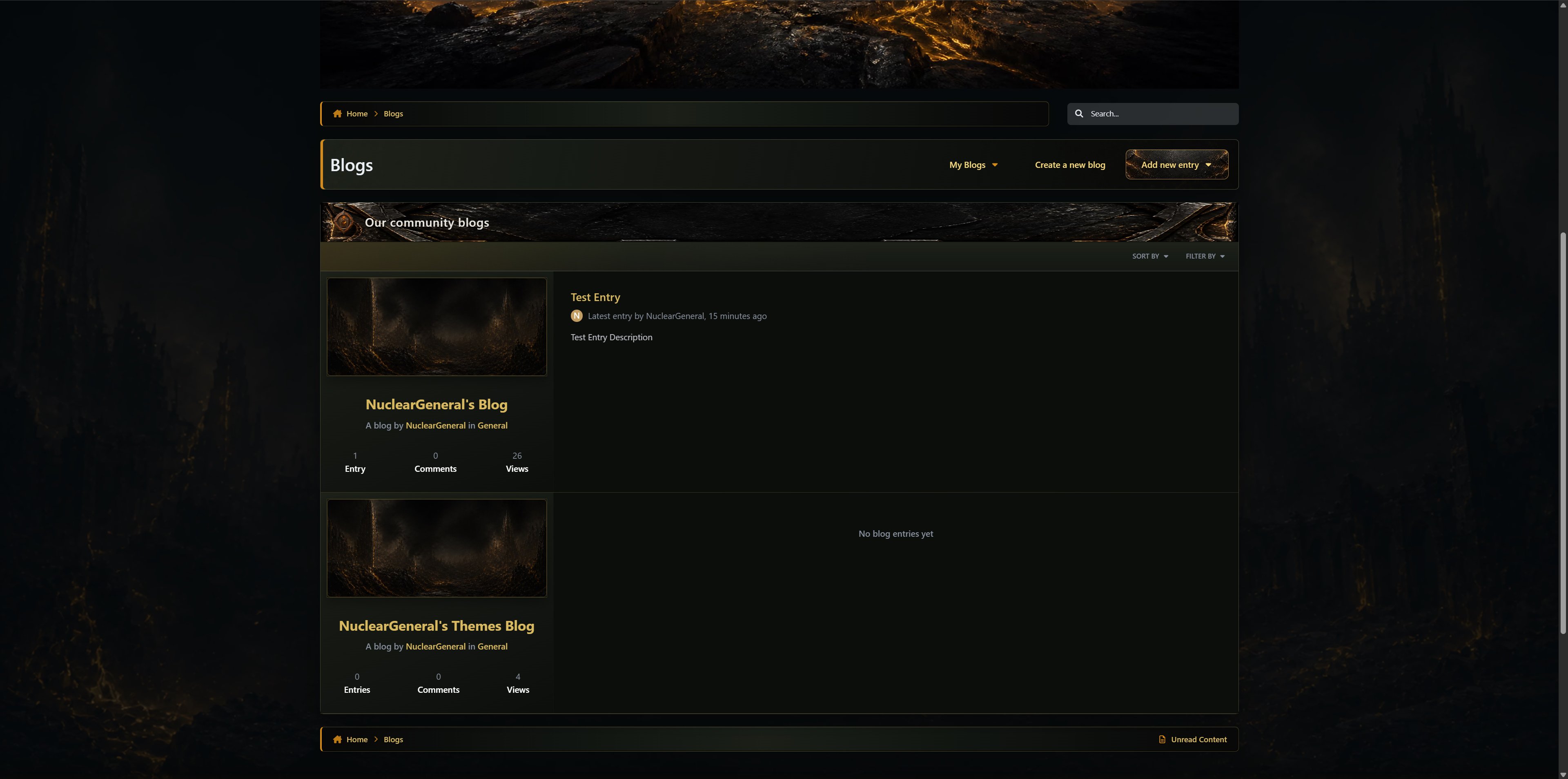
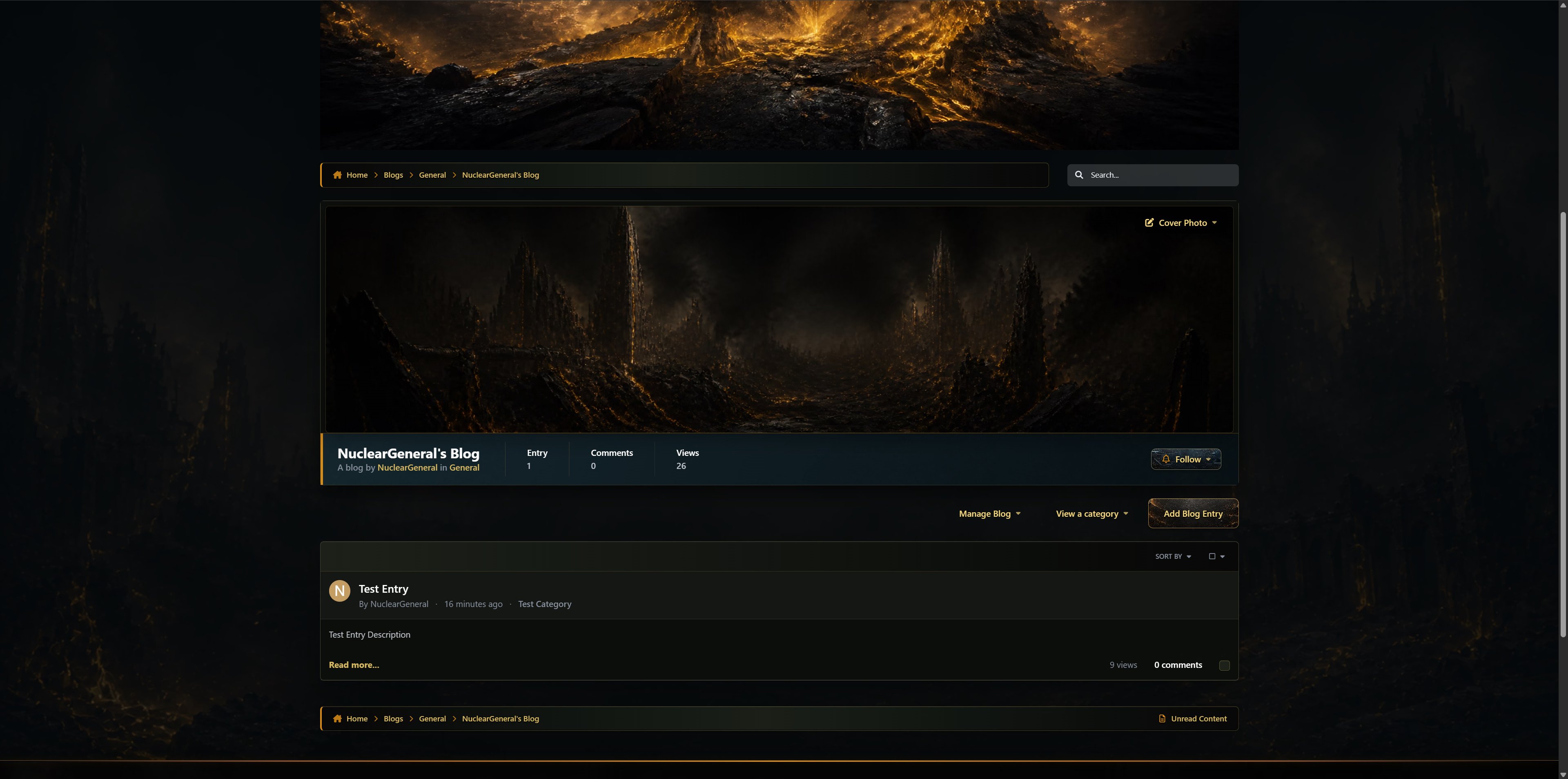
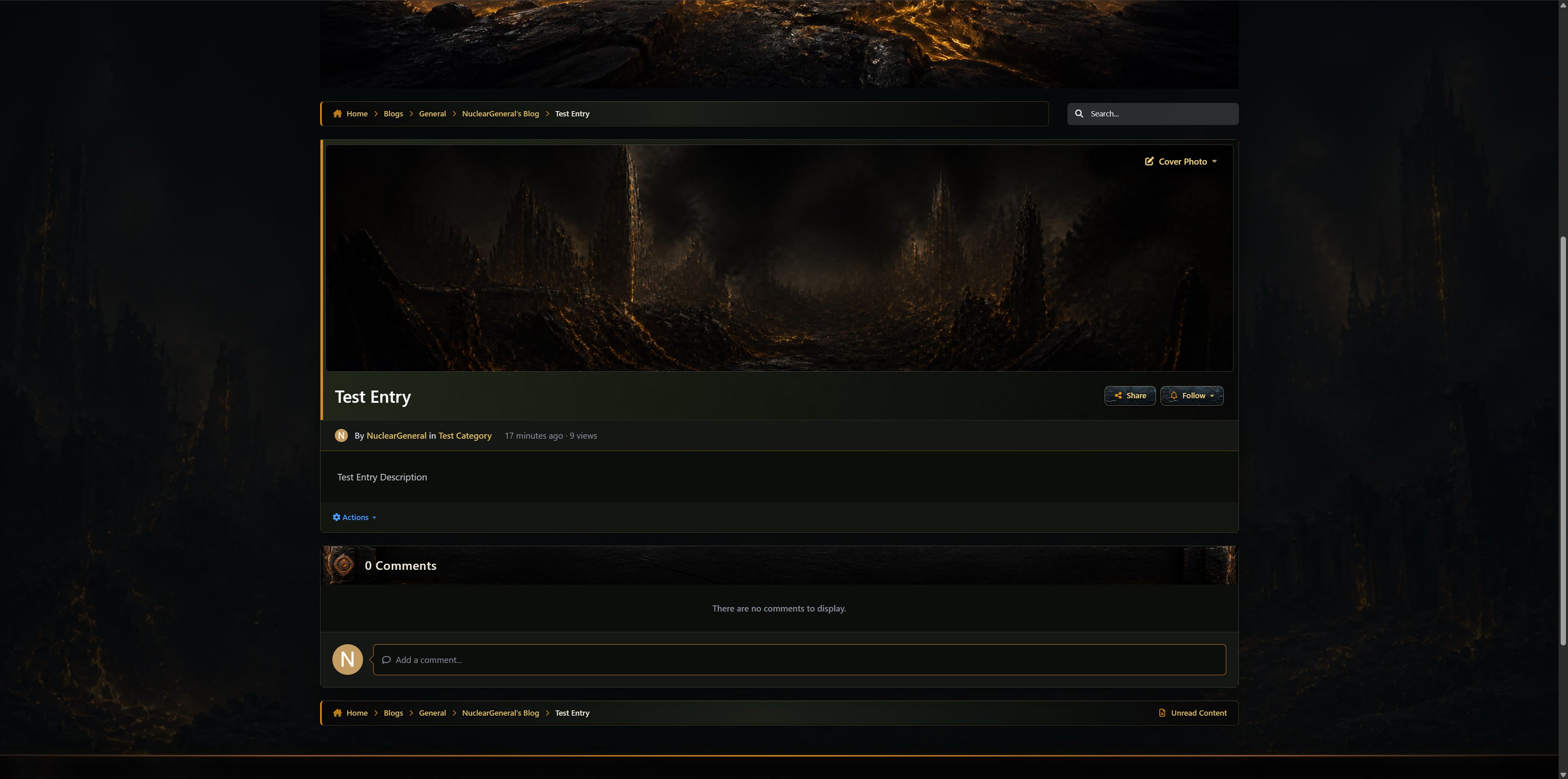
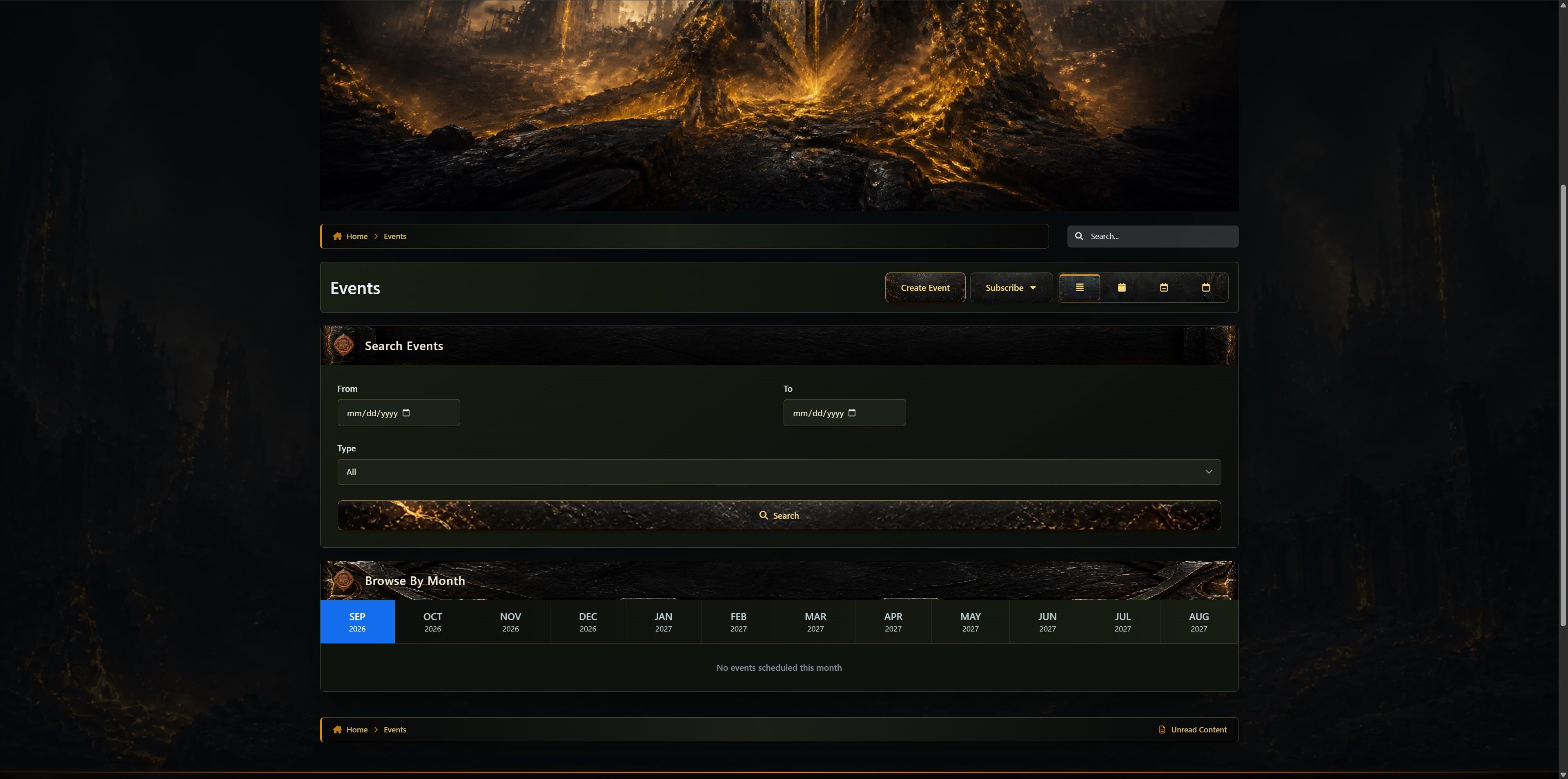
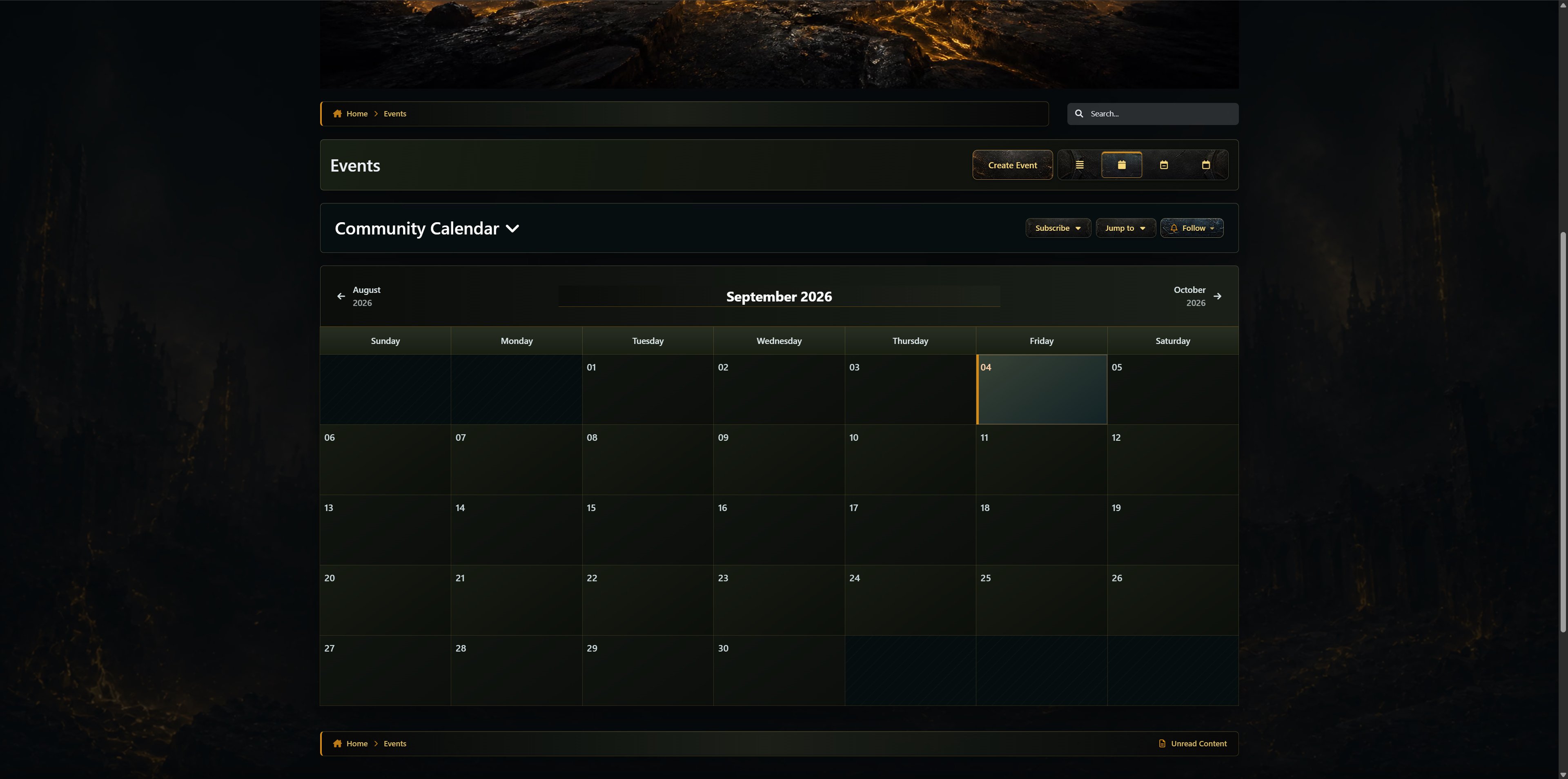
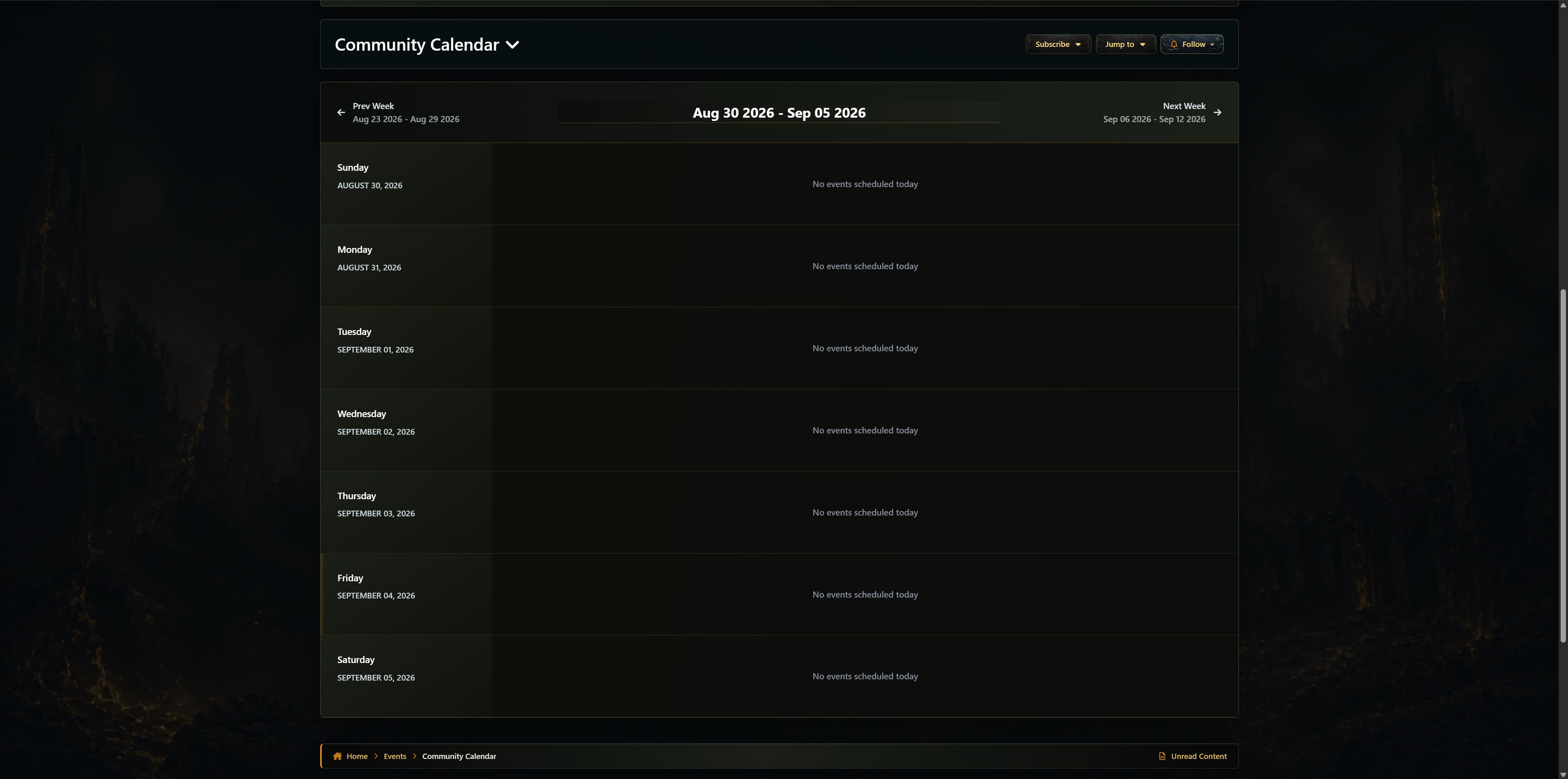
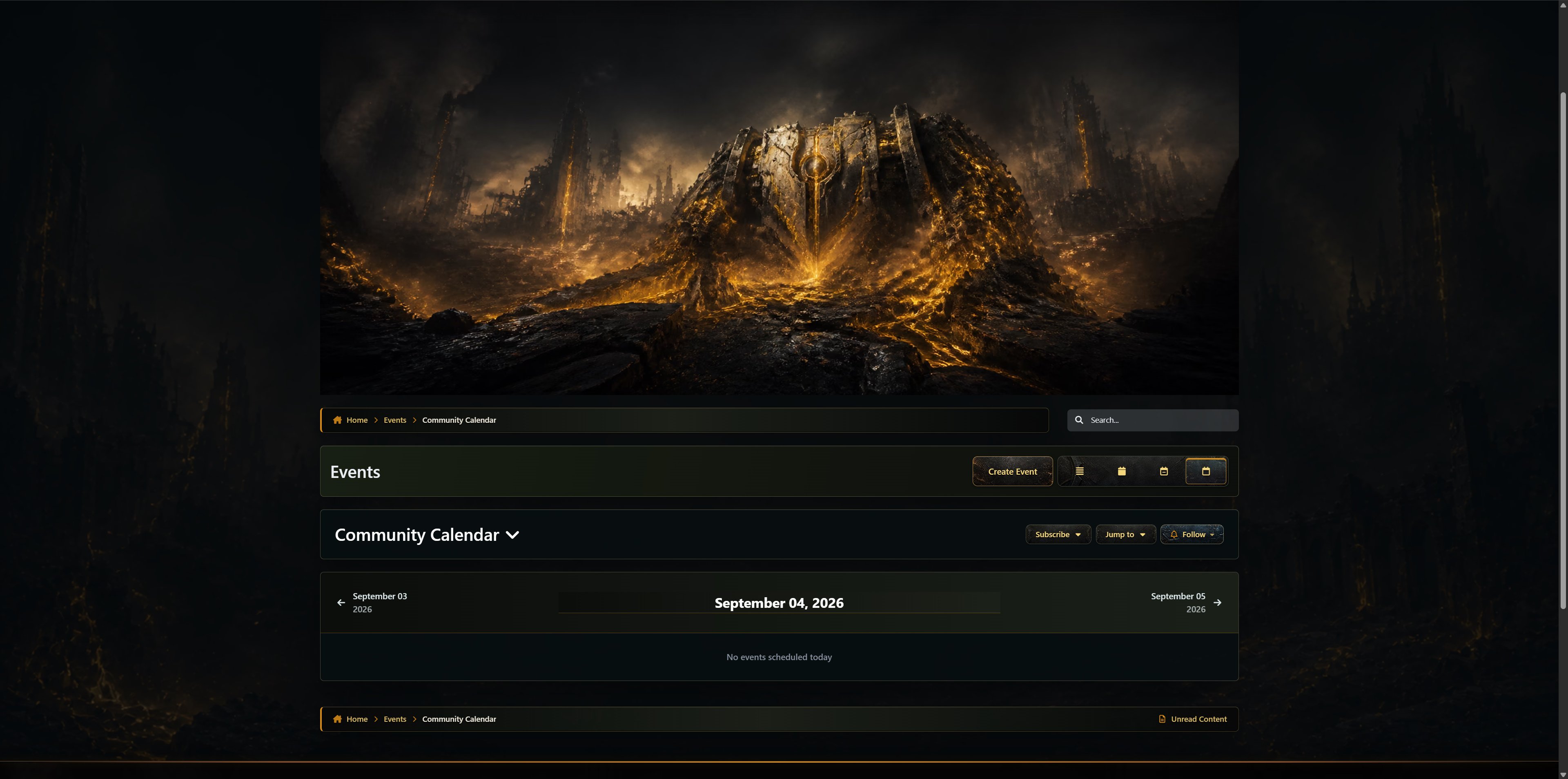
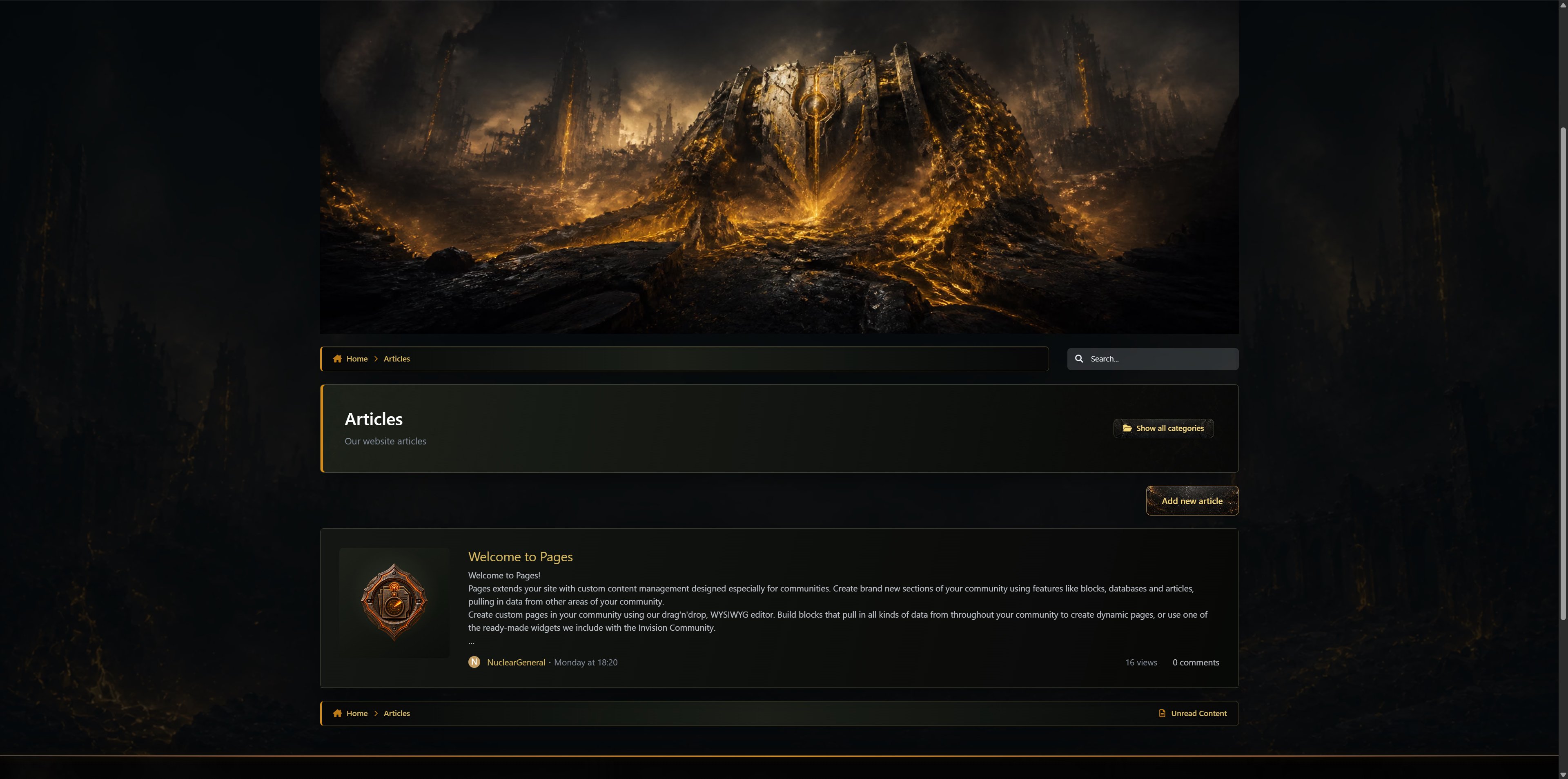
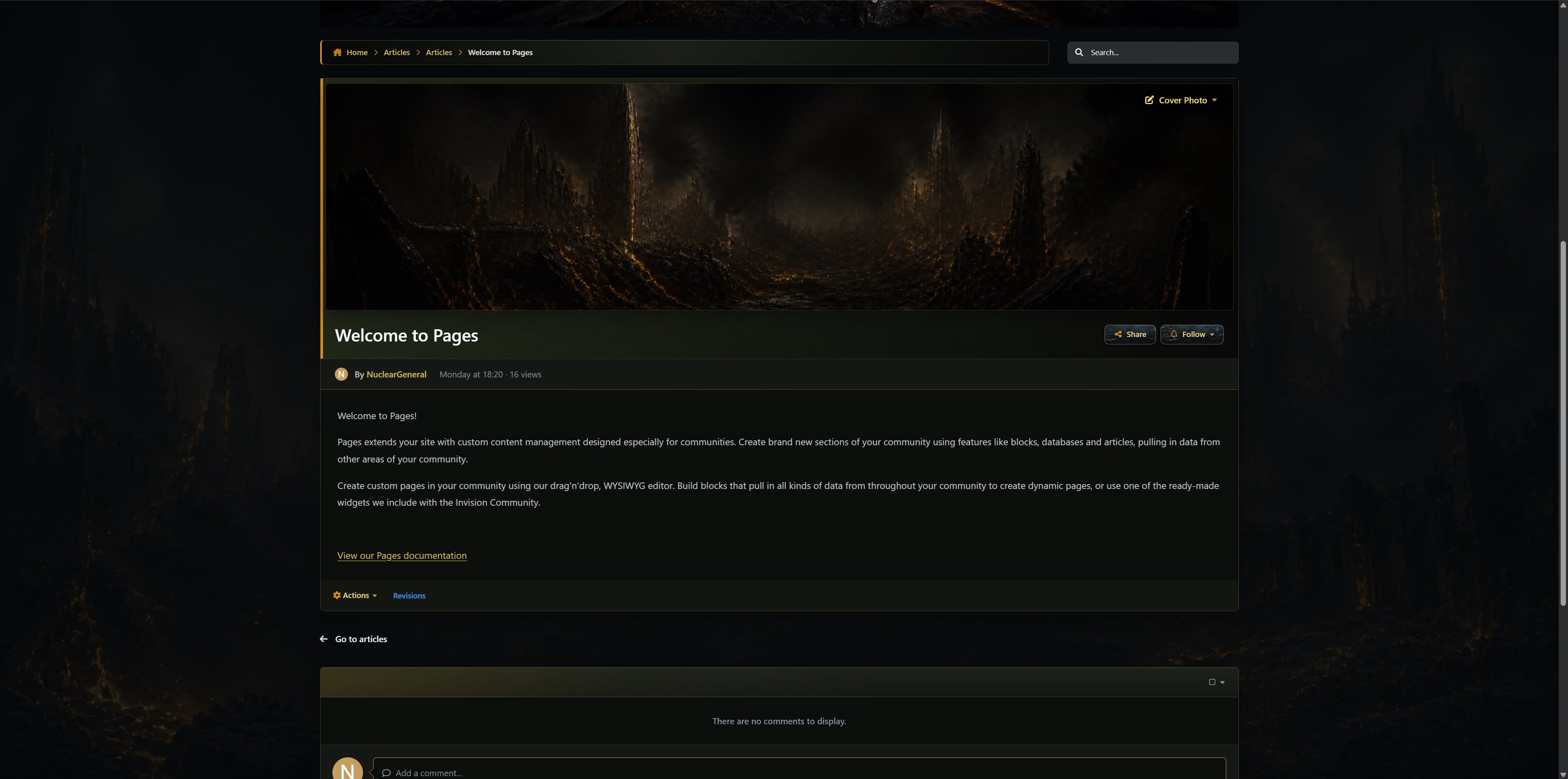
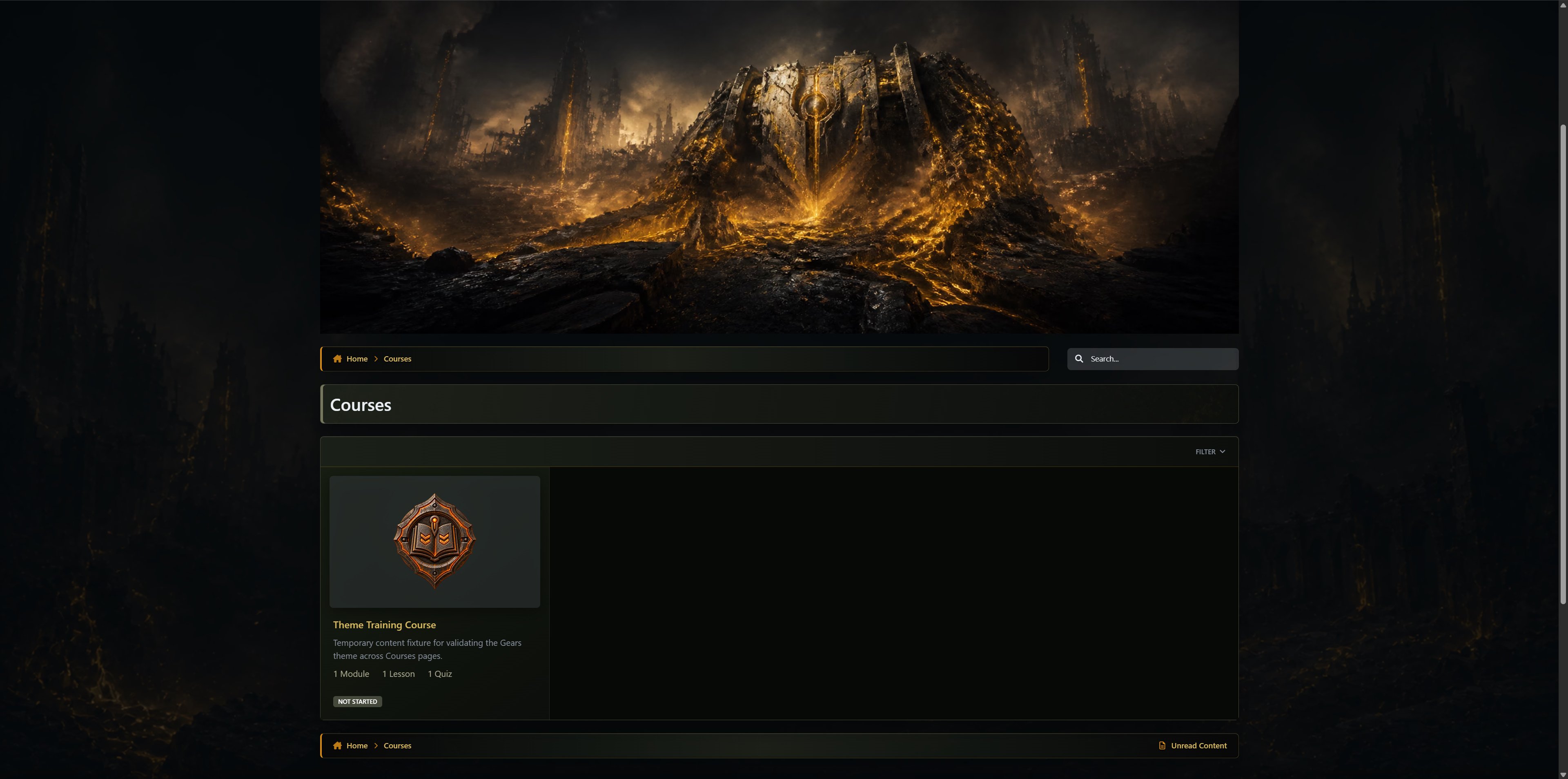
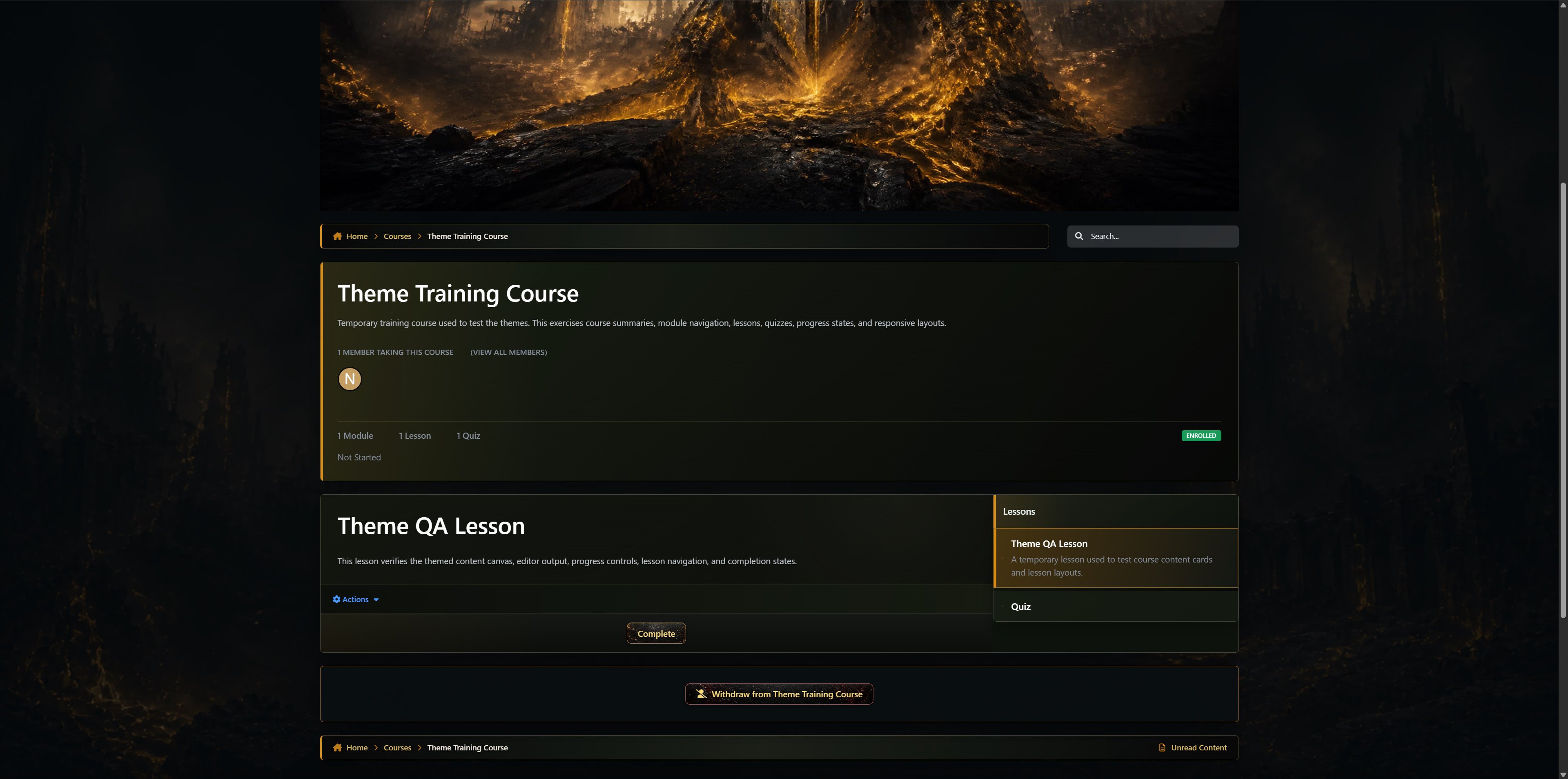
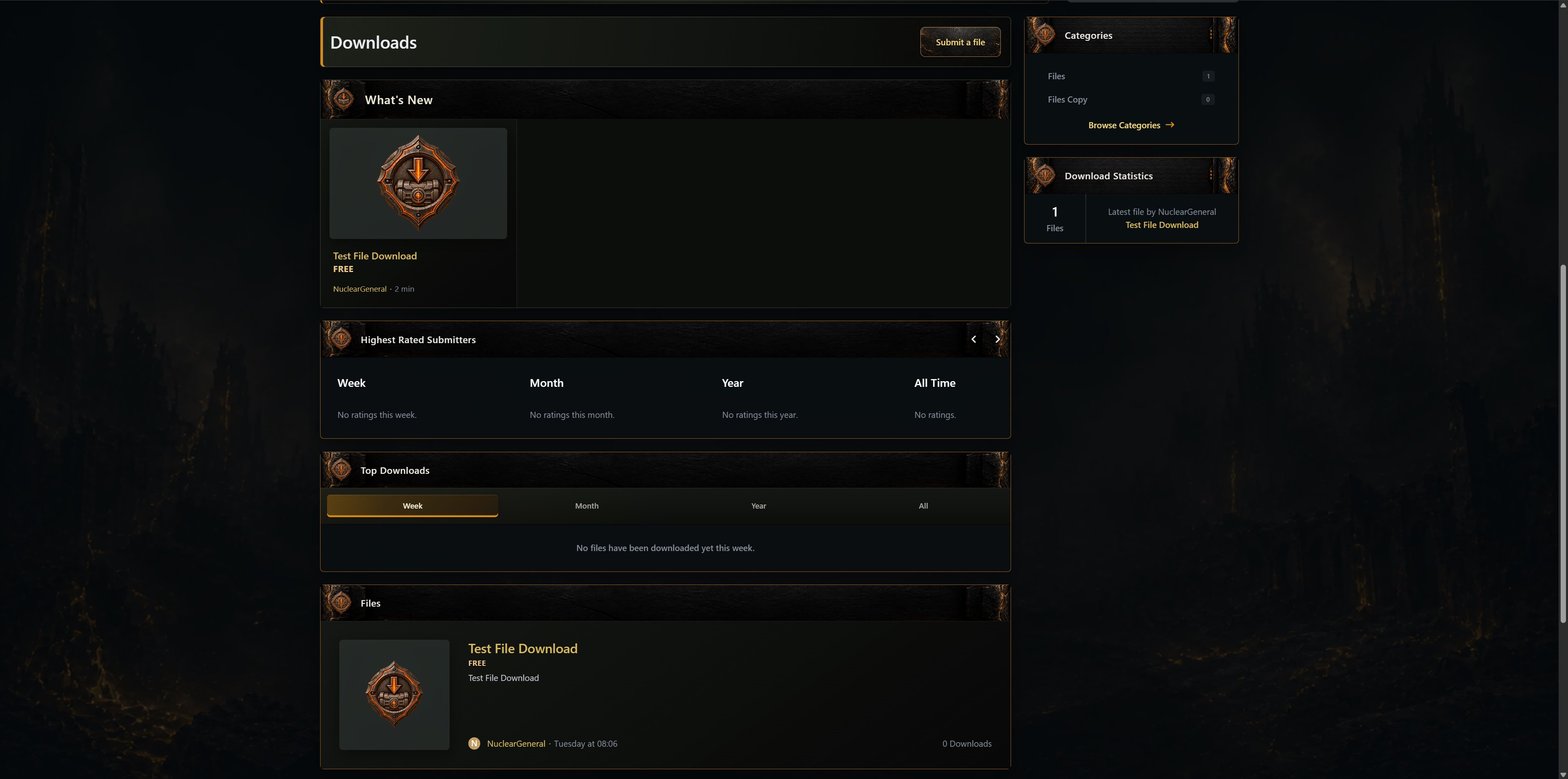
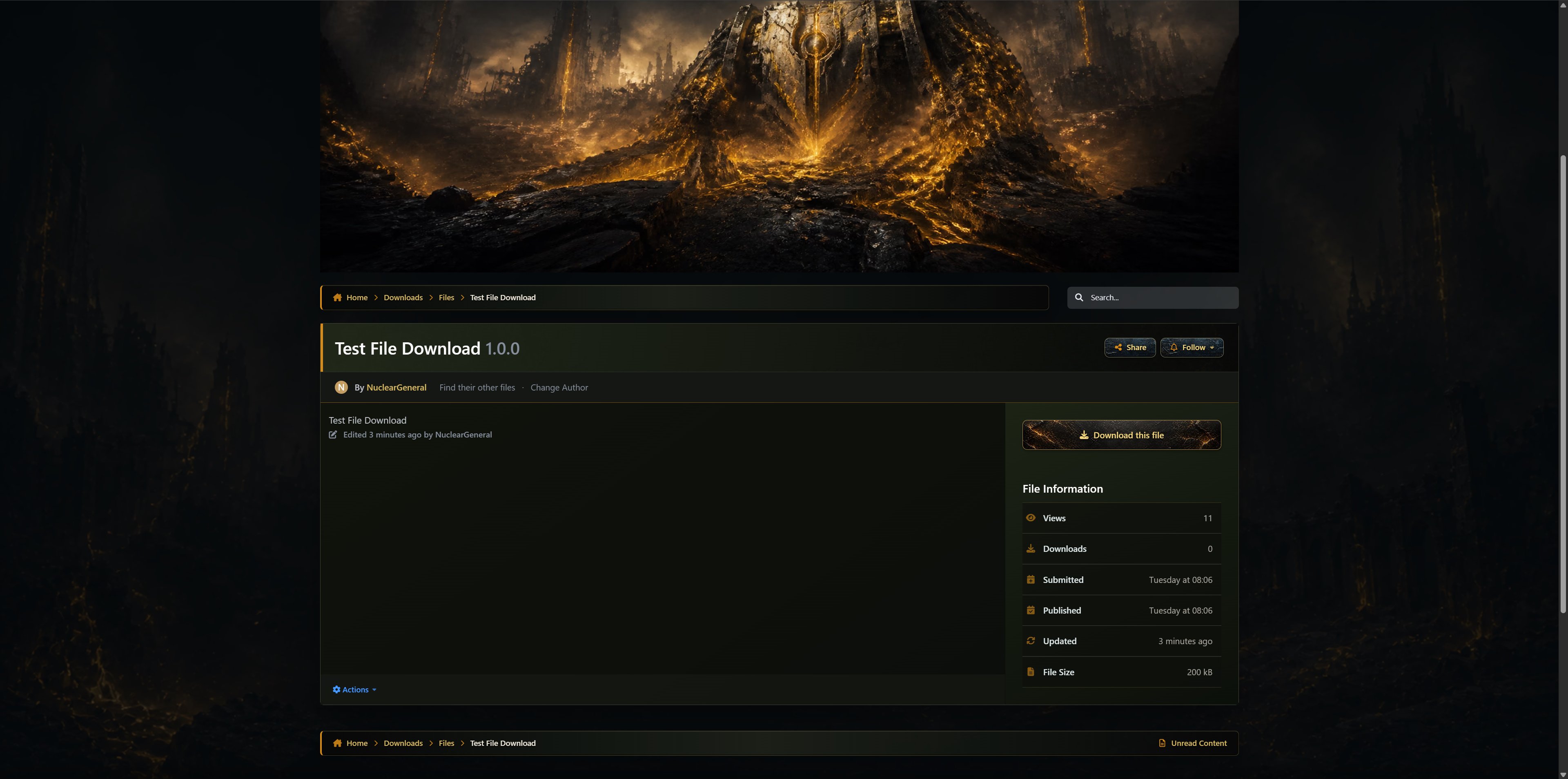
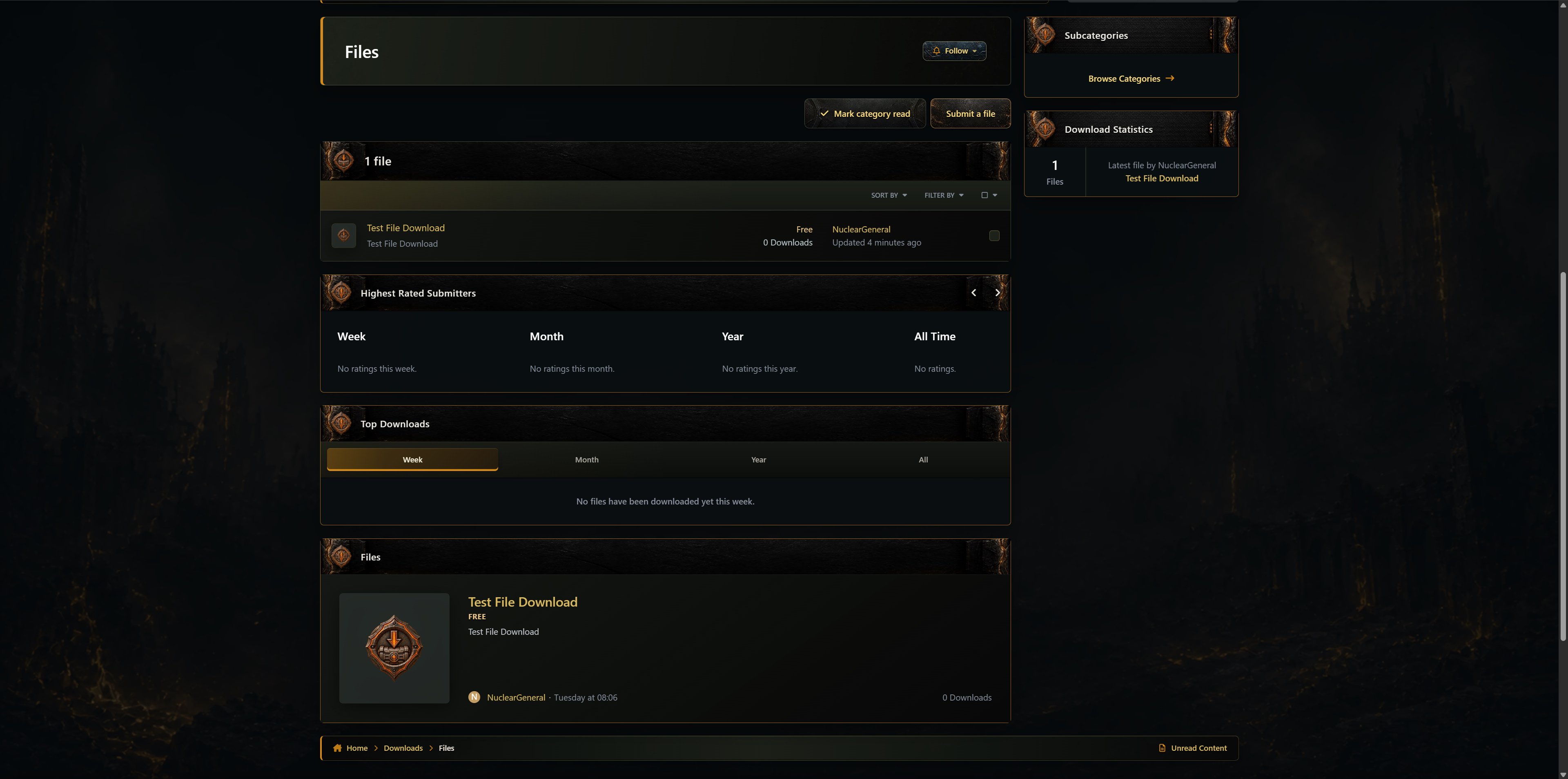
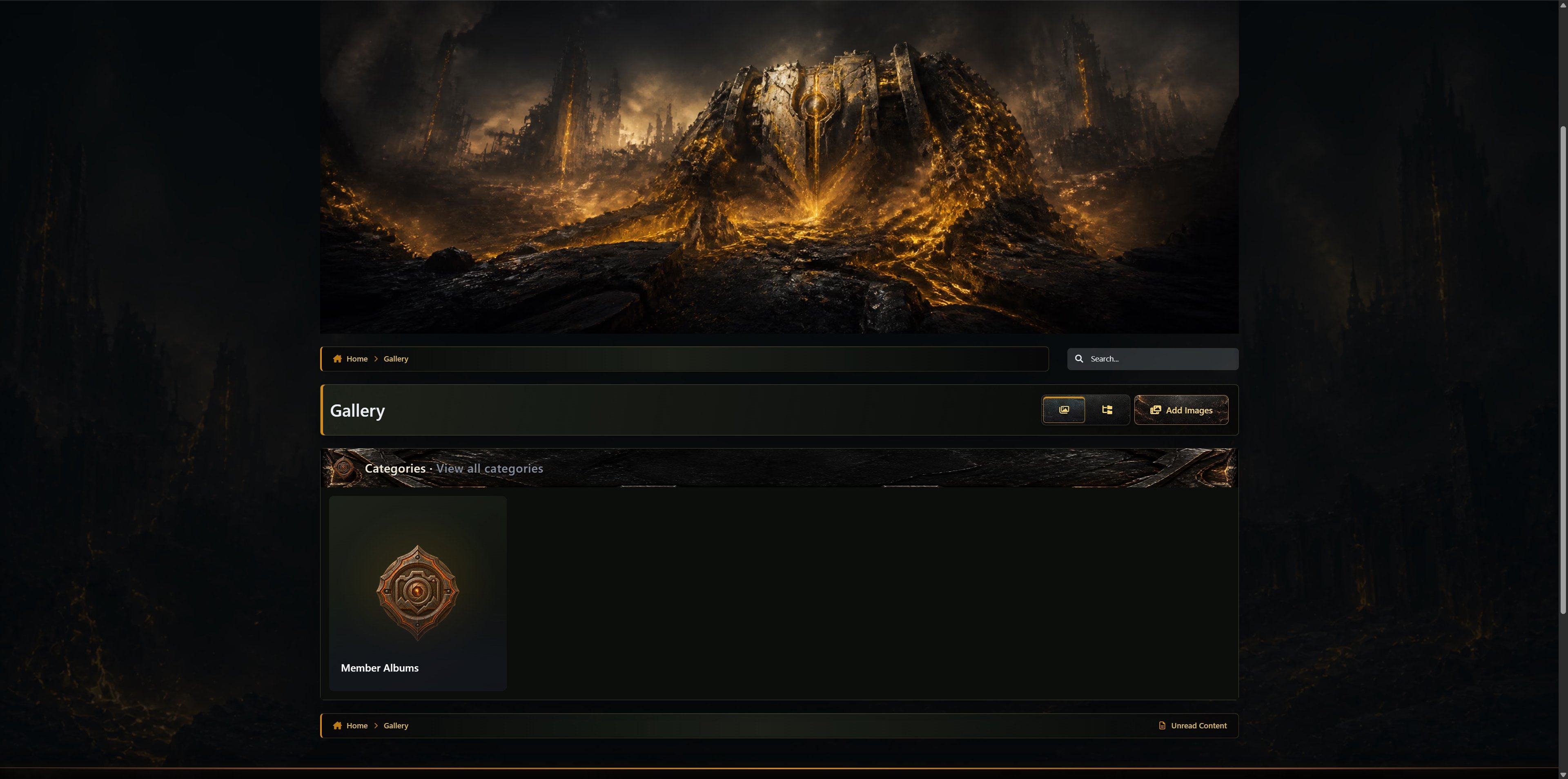
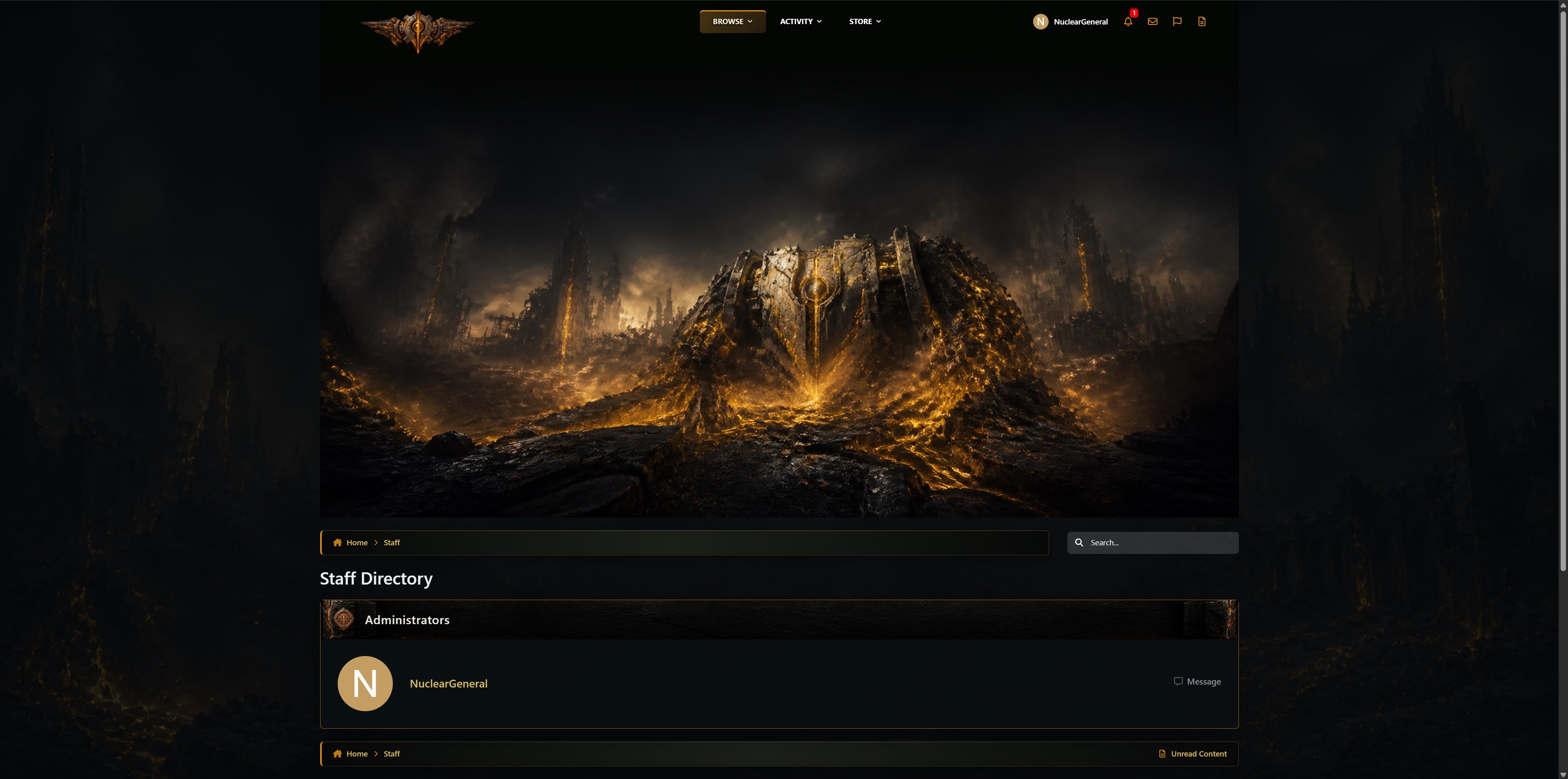
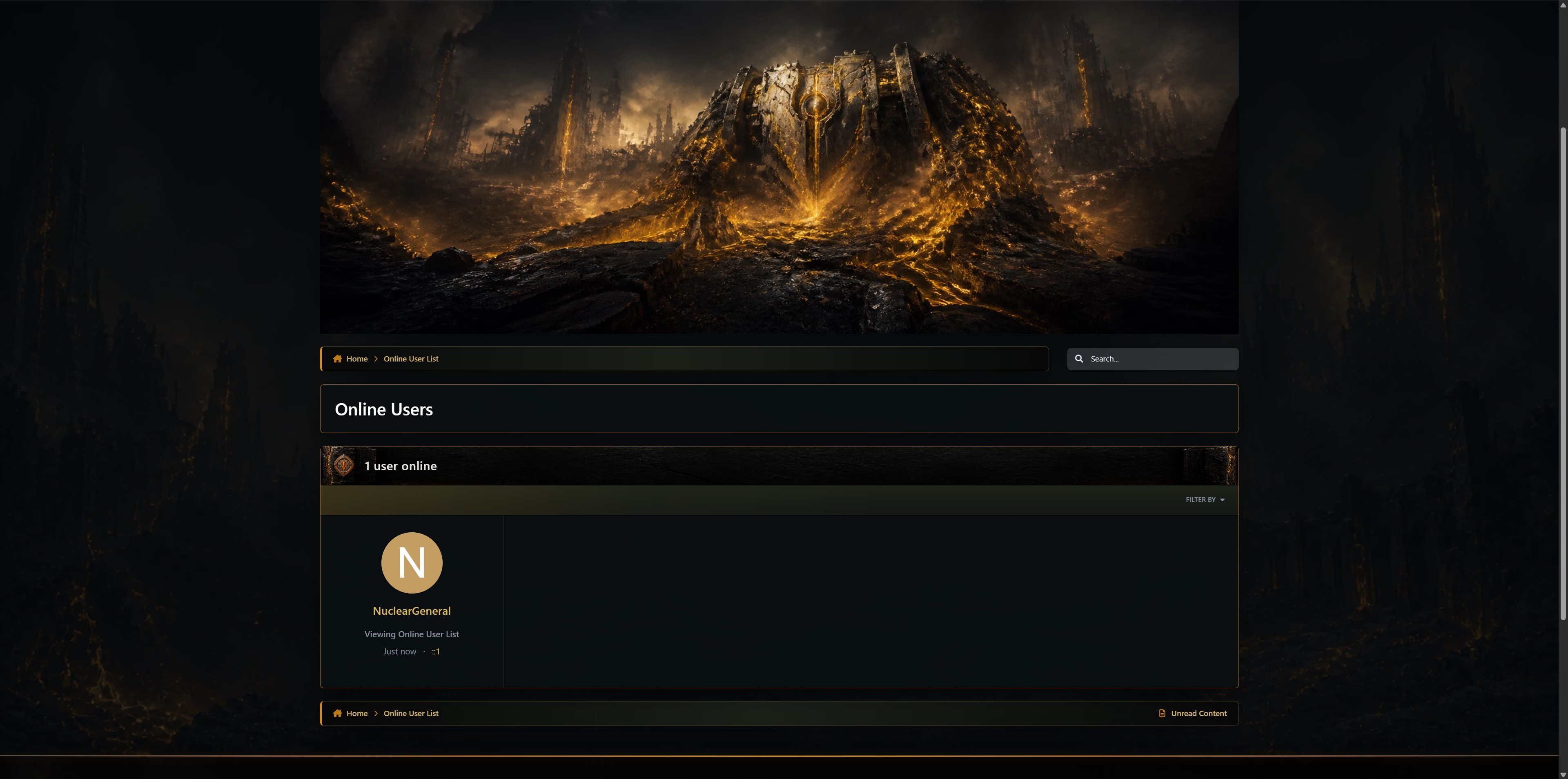
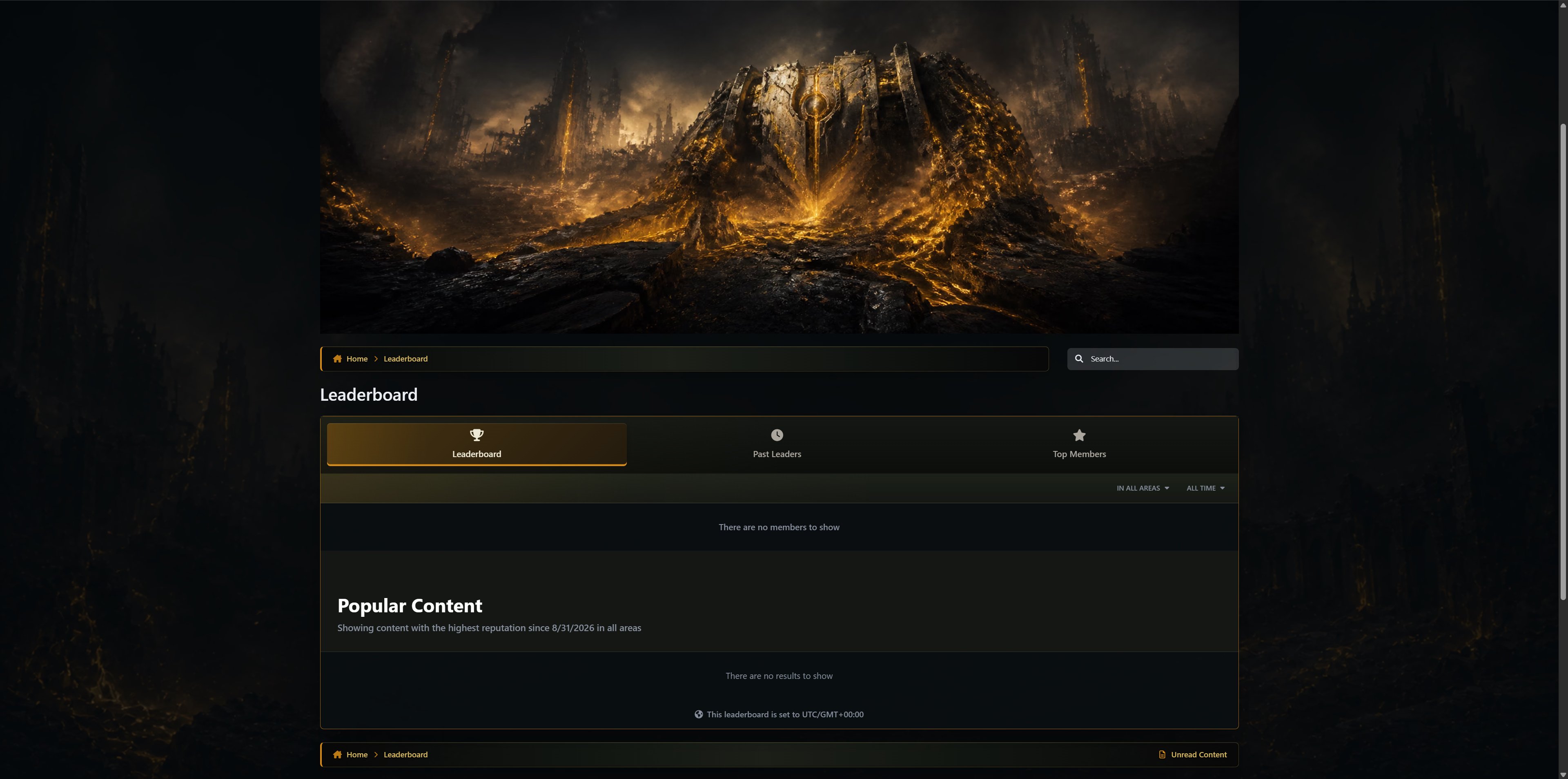
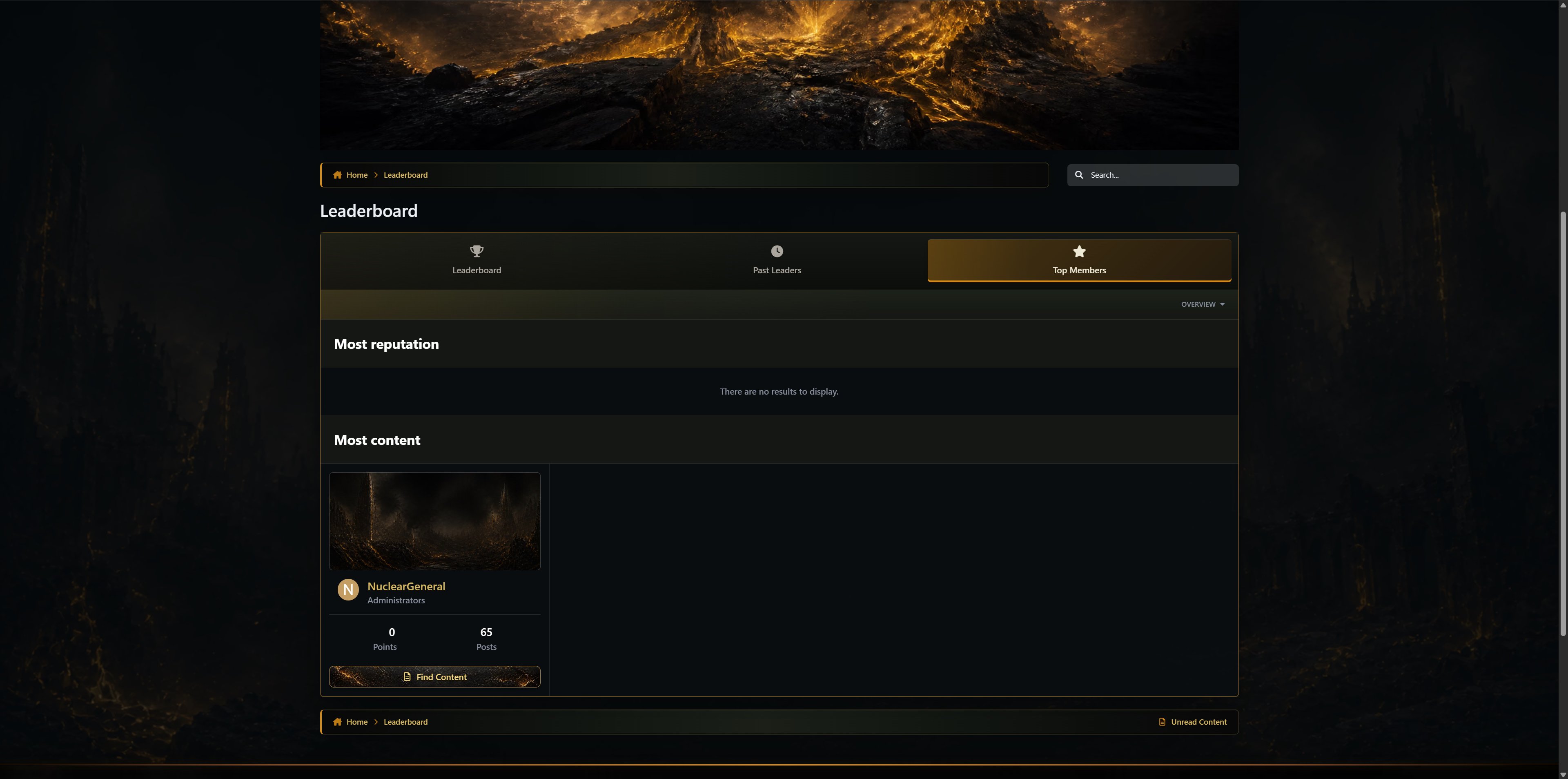
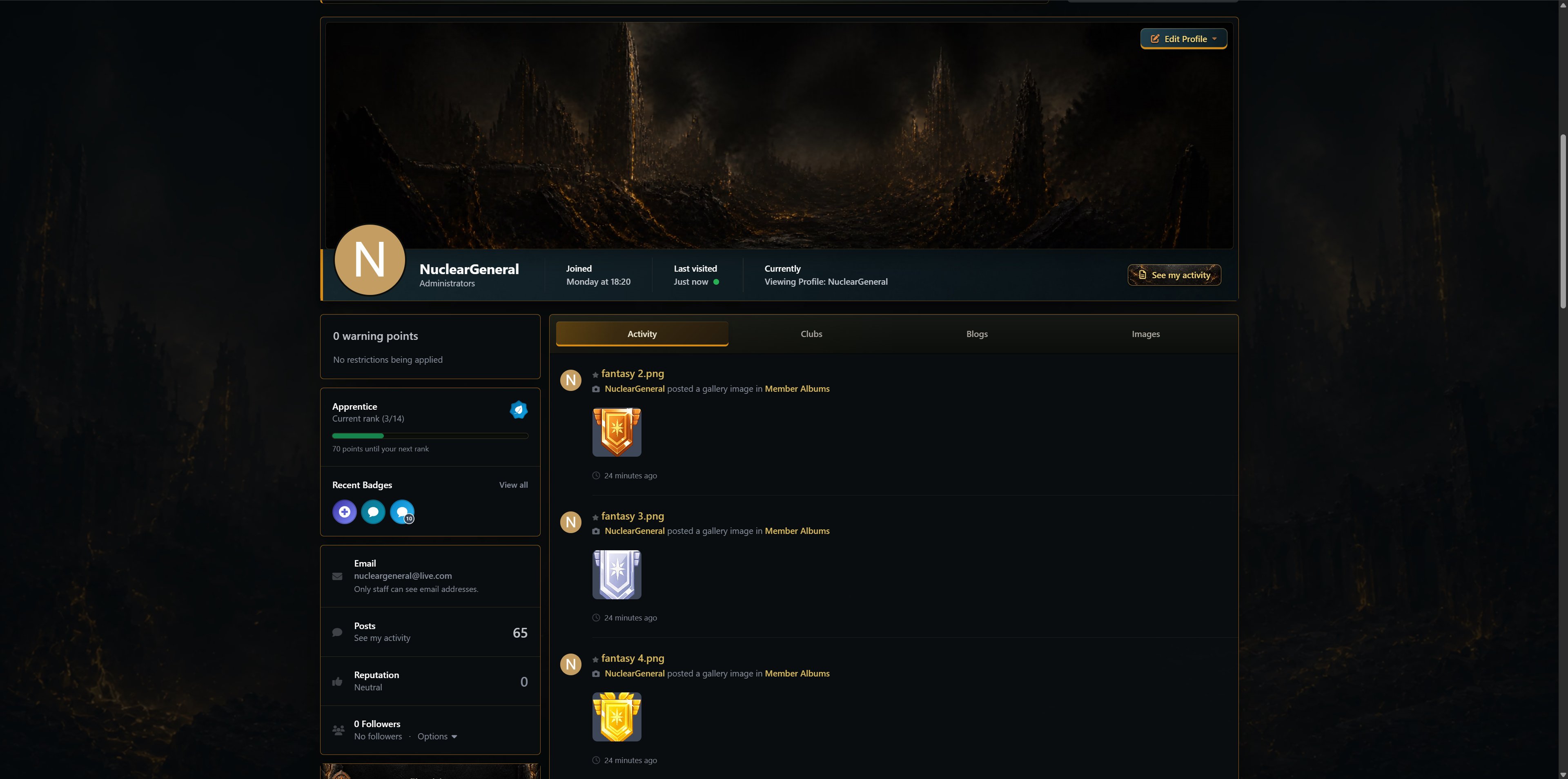
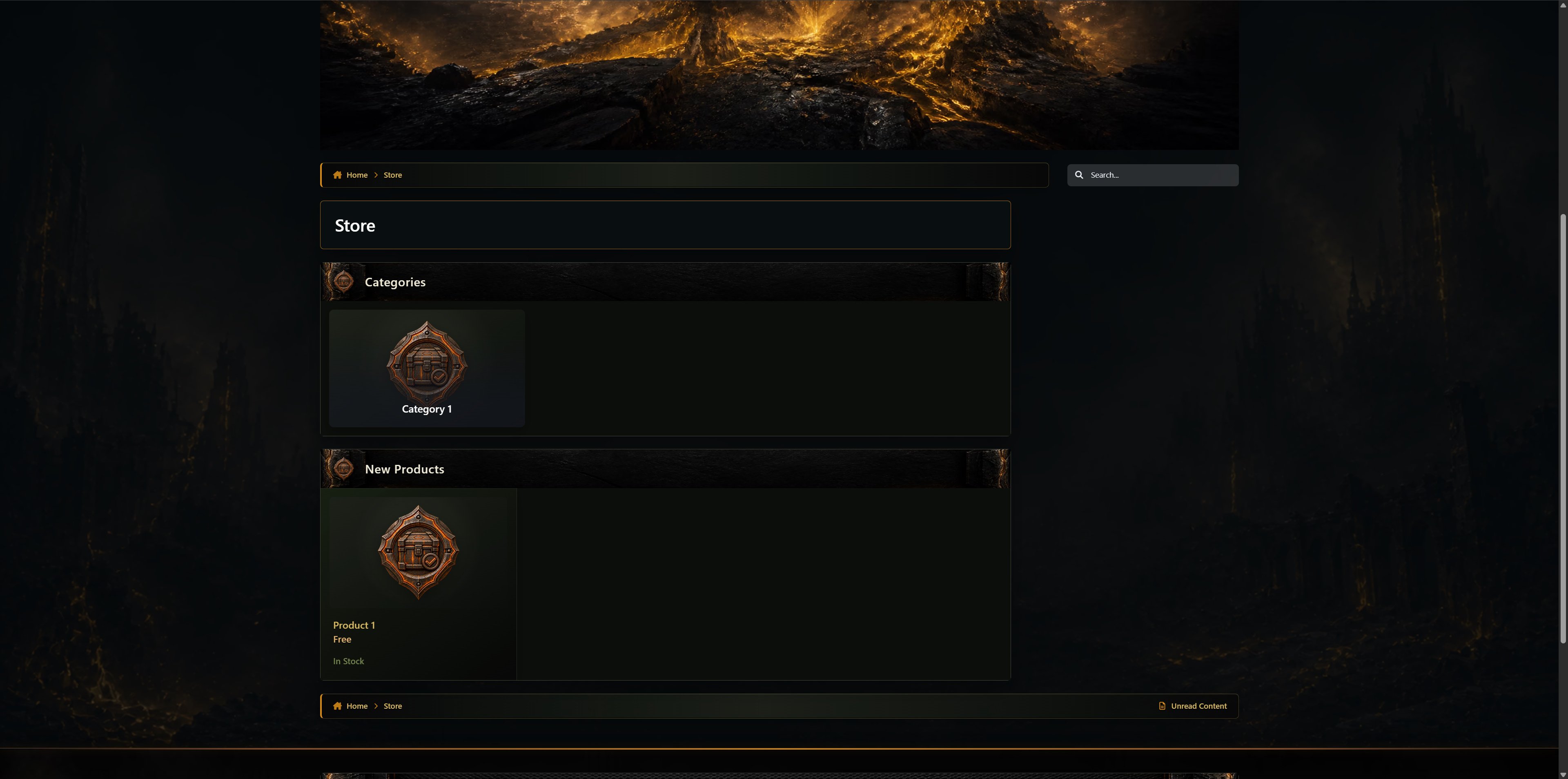
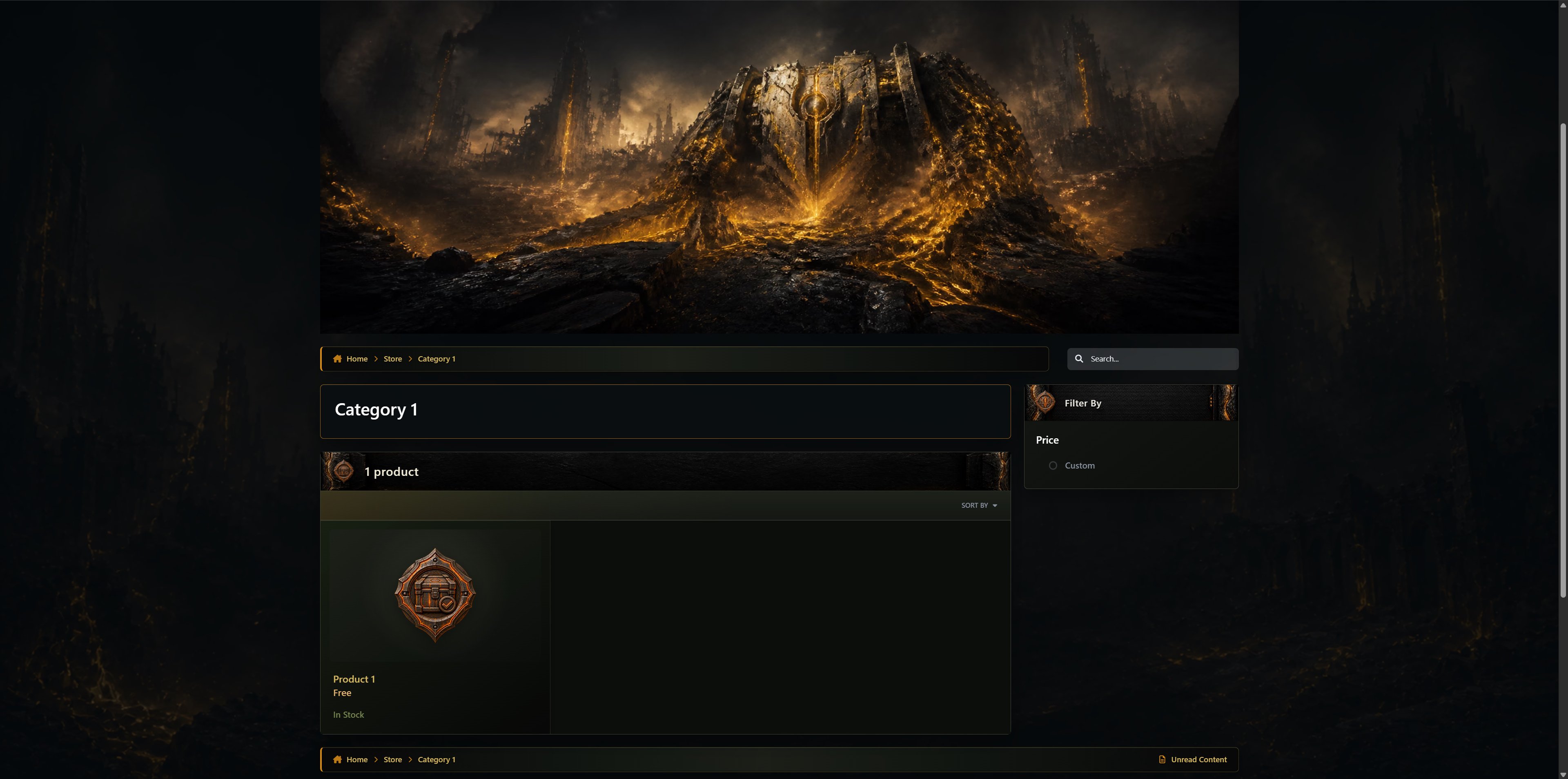
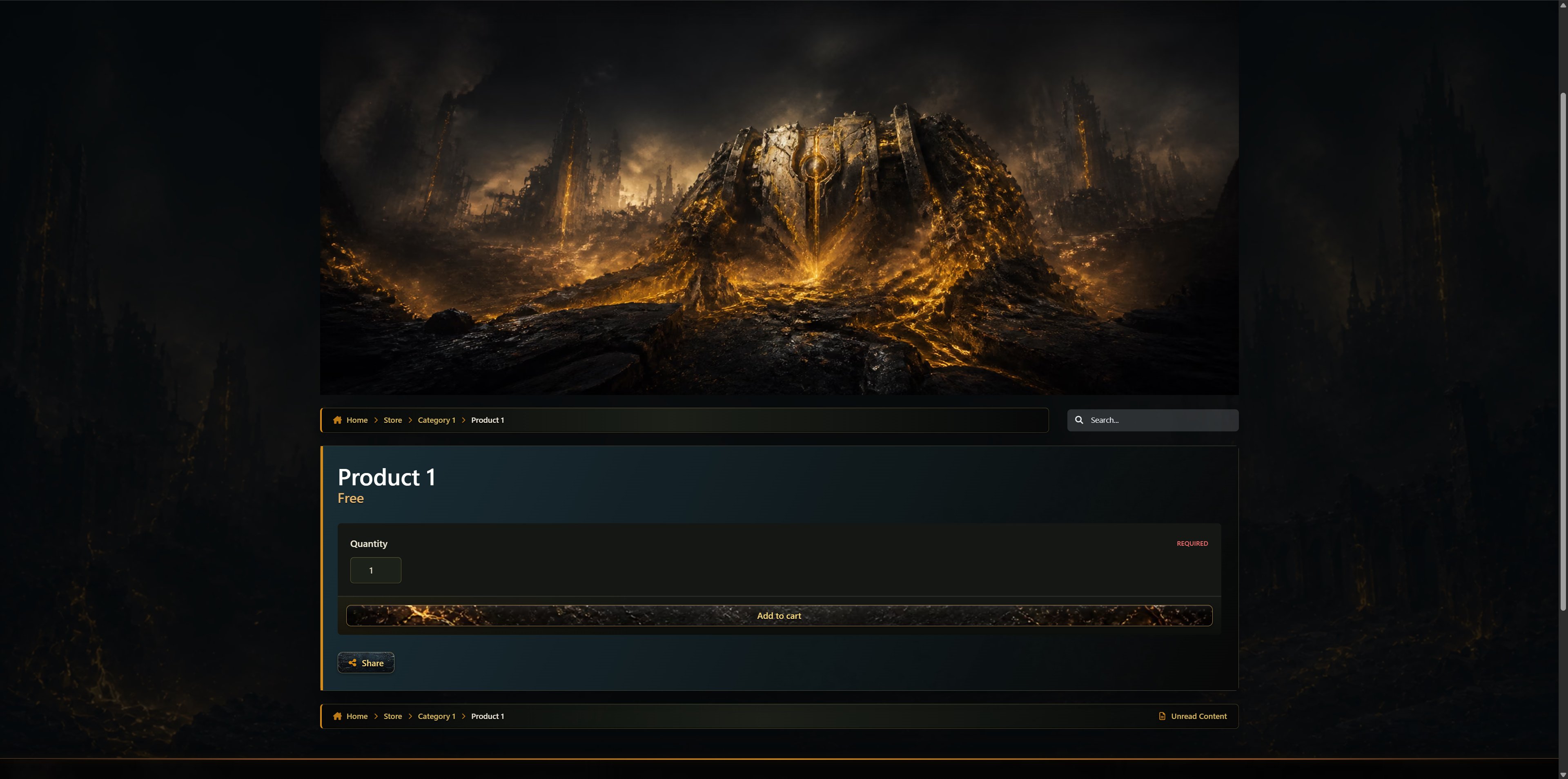
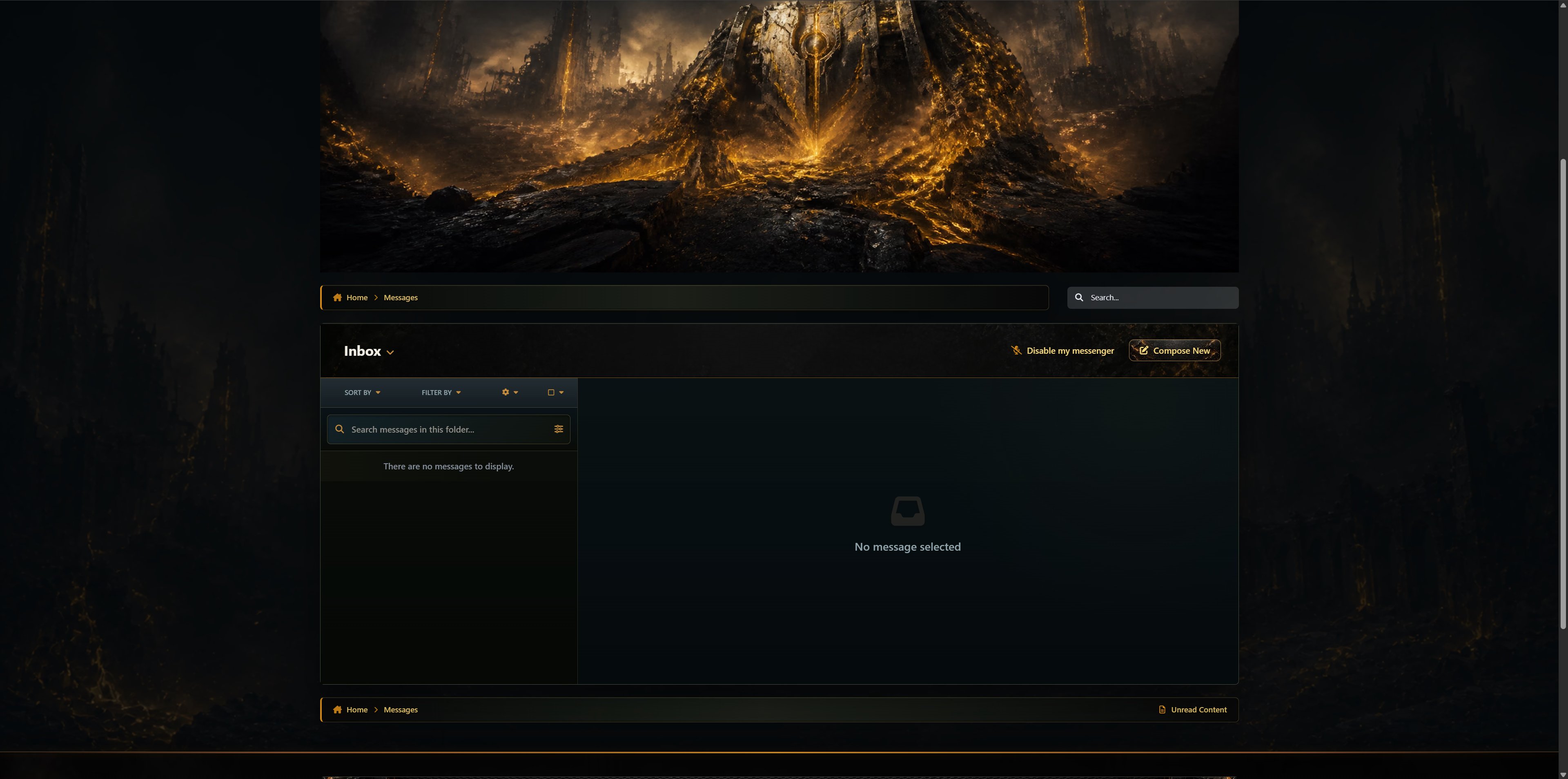
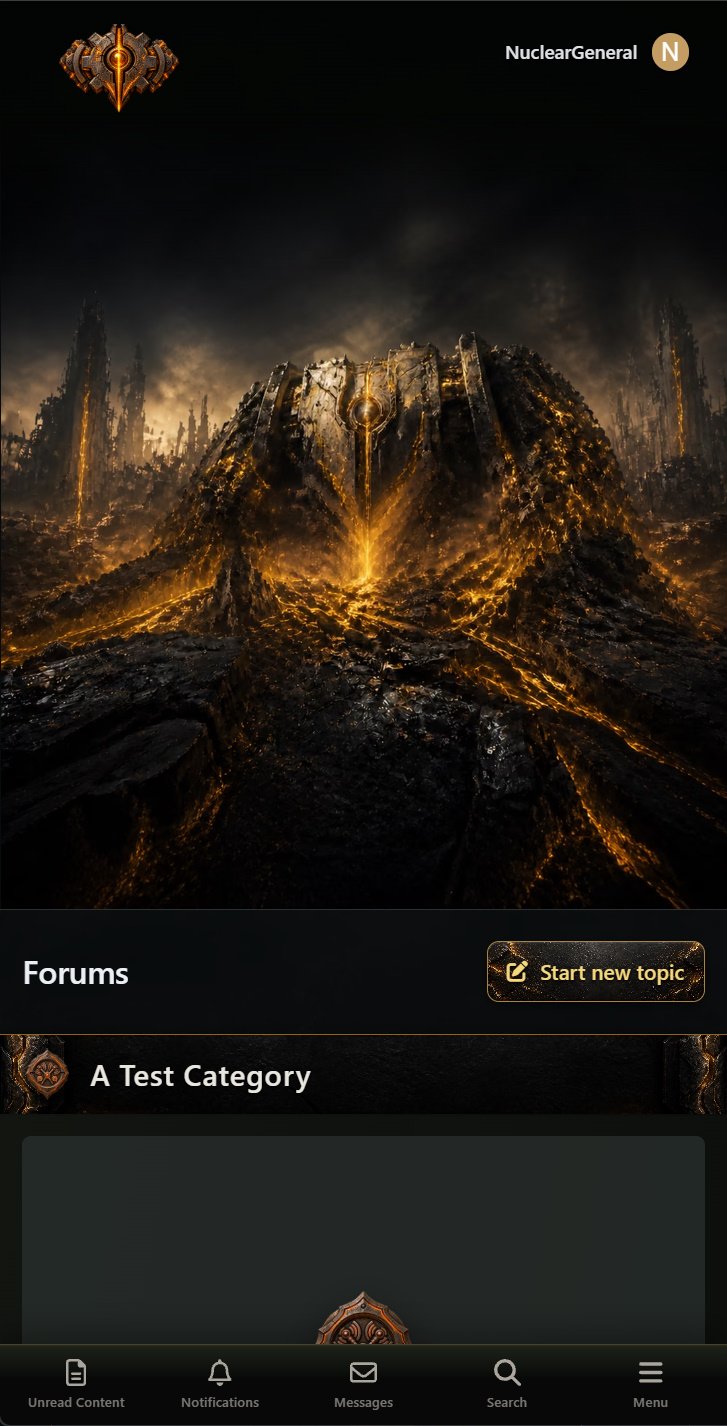
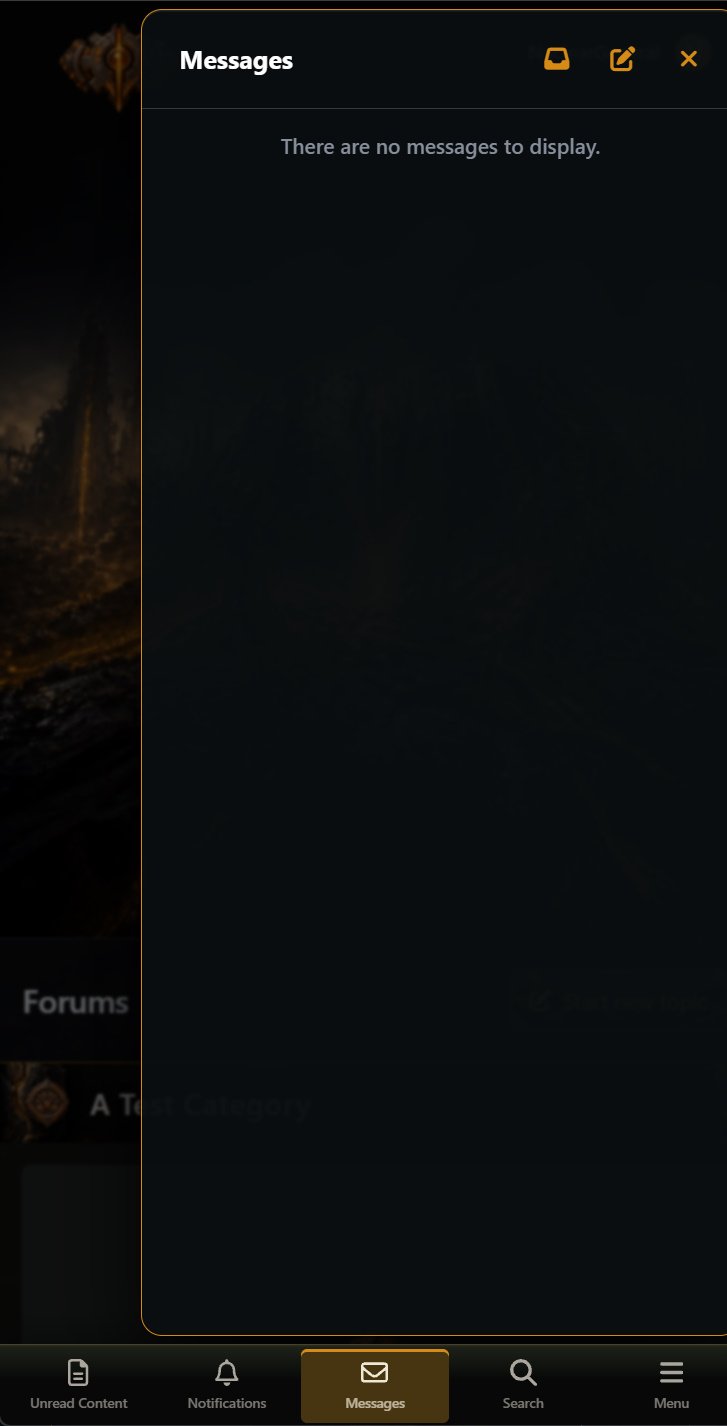
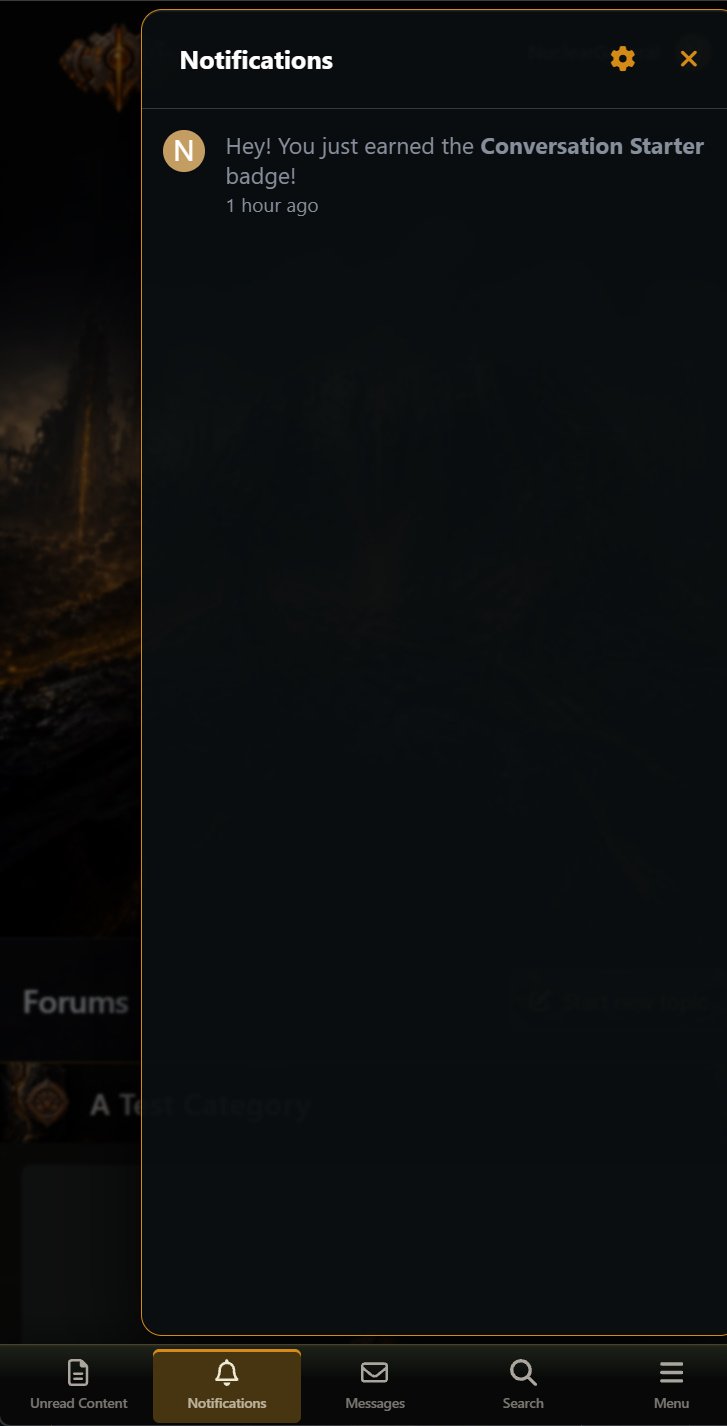
Transform your community with the dangerous energy of the Lambent. This theme combines scorched gunmetal, fractured industrial armor, smoky surfaces, drifting ash, and luminous Imulsion-inspired fissures to create the appearance of a battlefield being consumed from within.
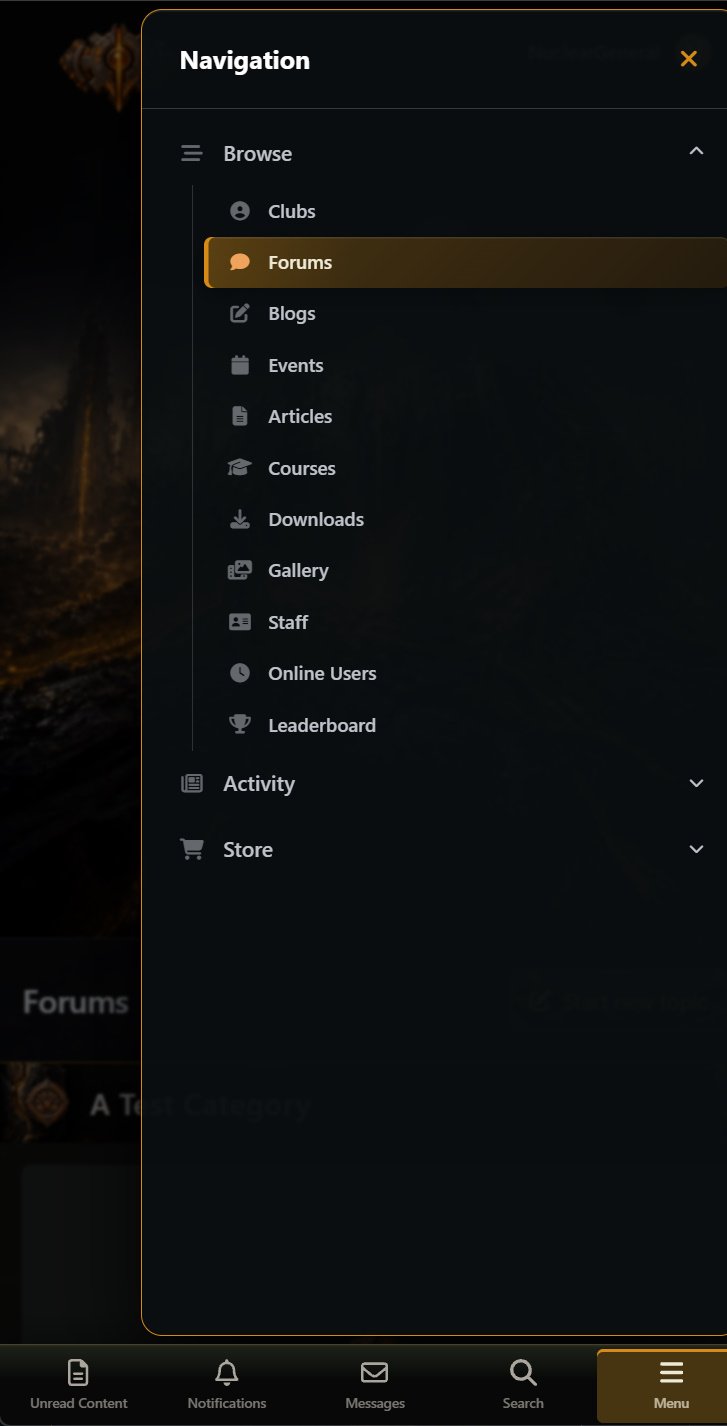
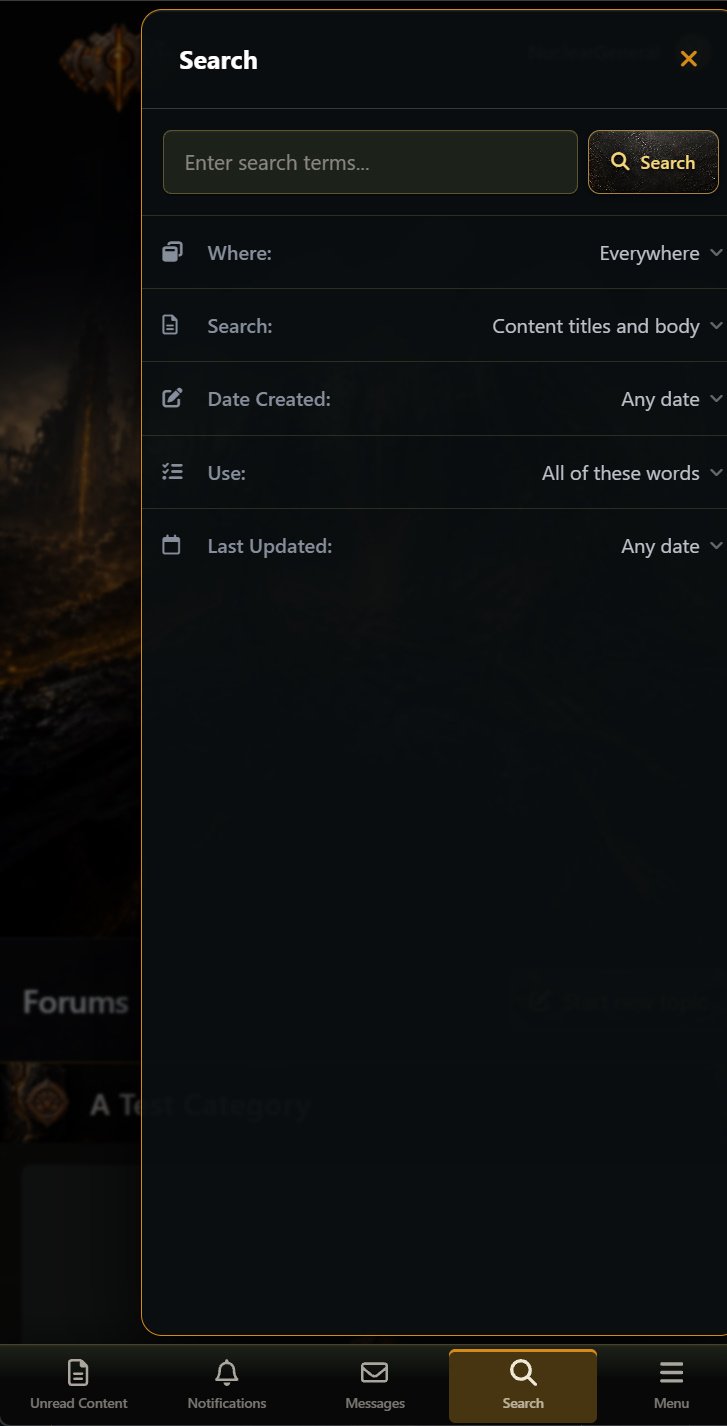
Glowing amber and molten-gold accents flow through the interface as active borders, icons, links, controls, and structural highlights. These brighter elements are carefully restrained so they stand out against the charred olive-black surfaces without overwhelming page content or reducing readability during longer visits.
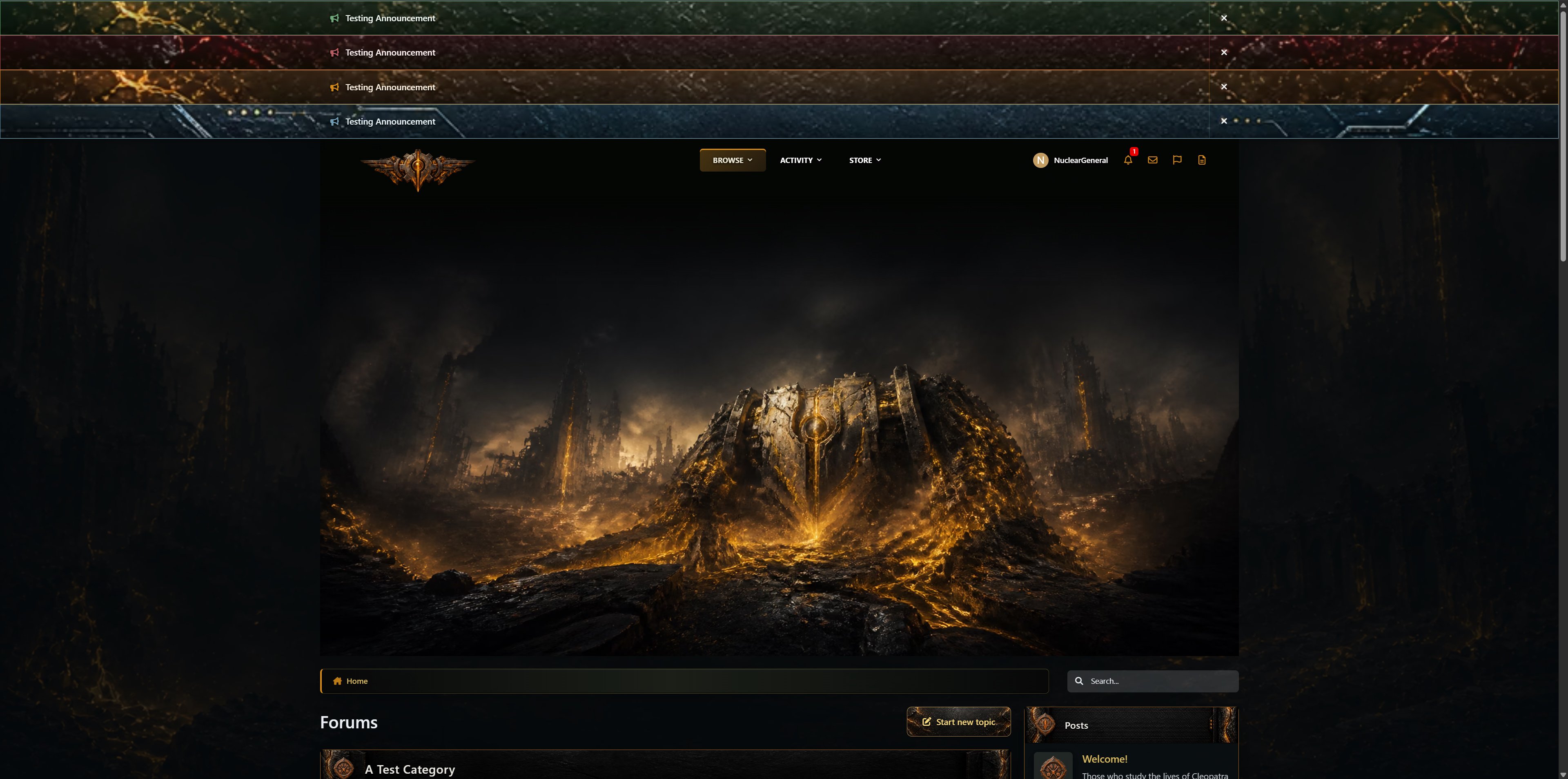
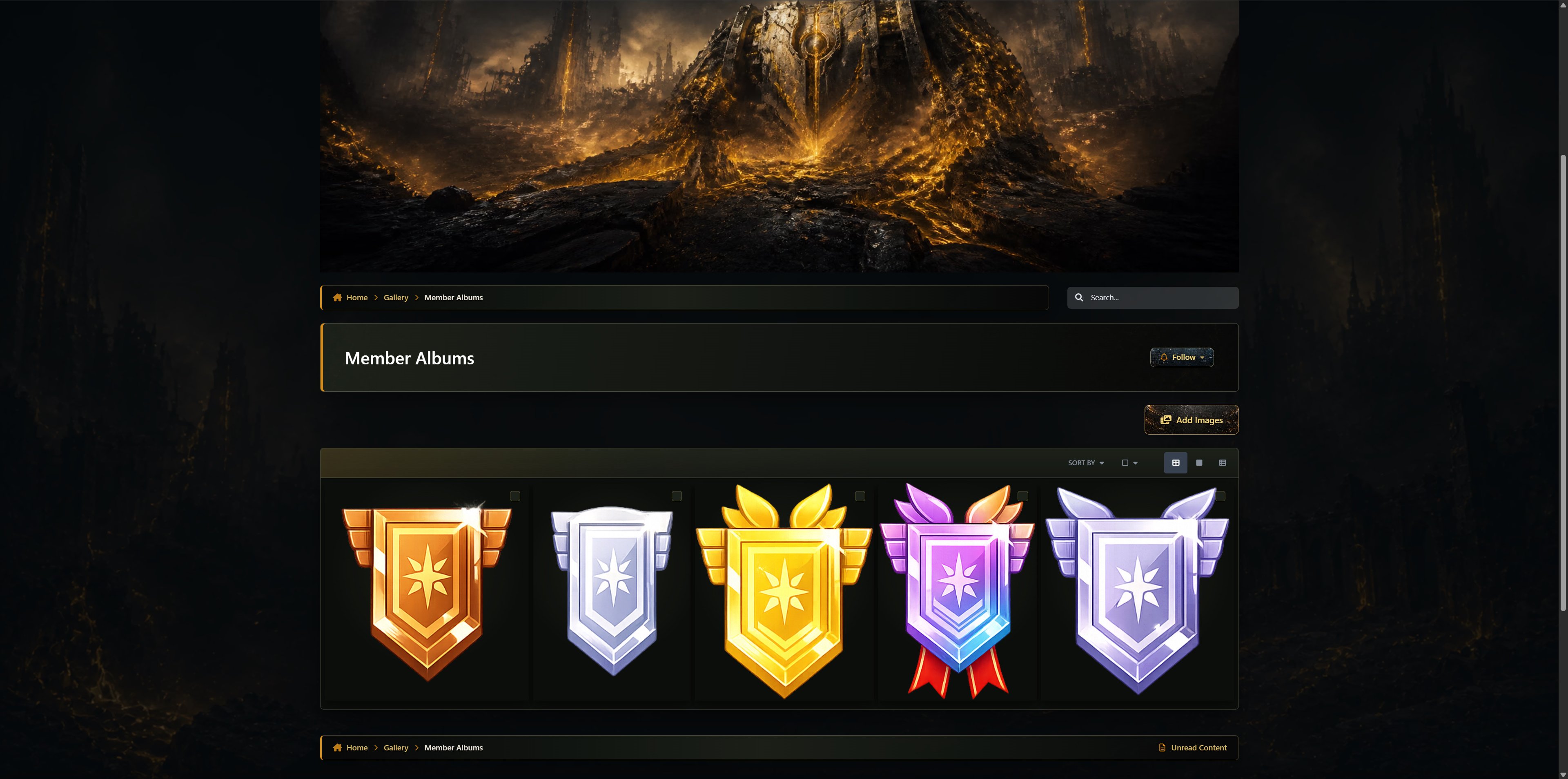
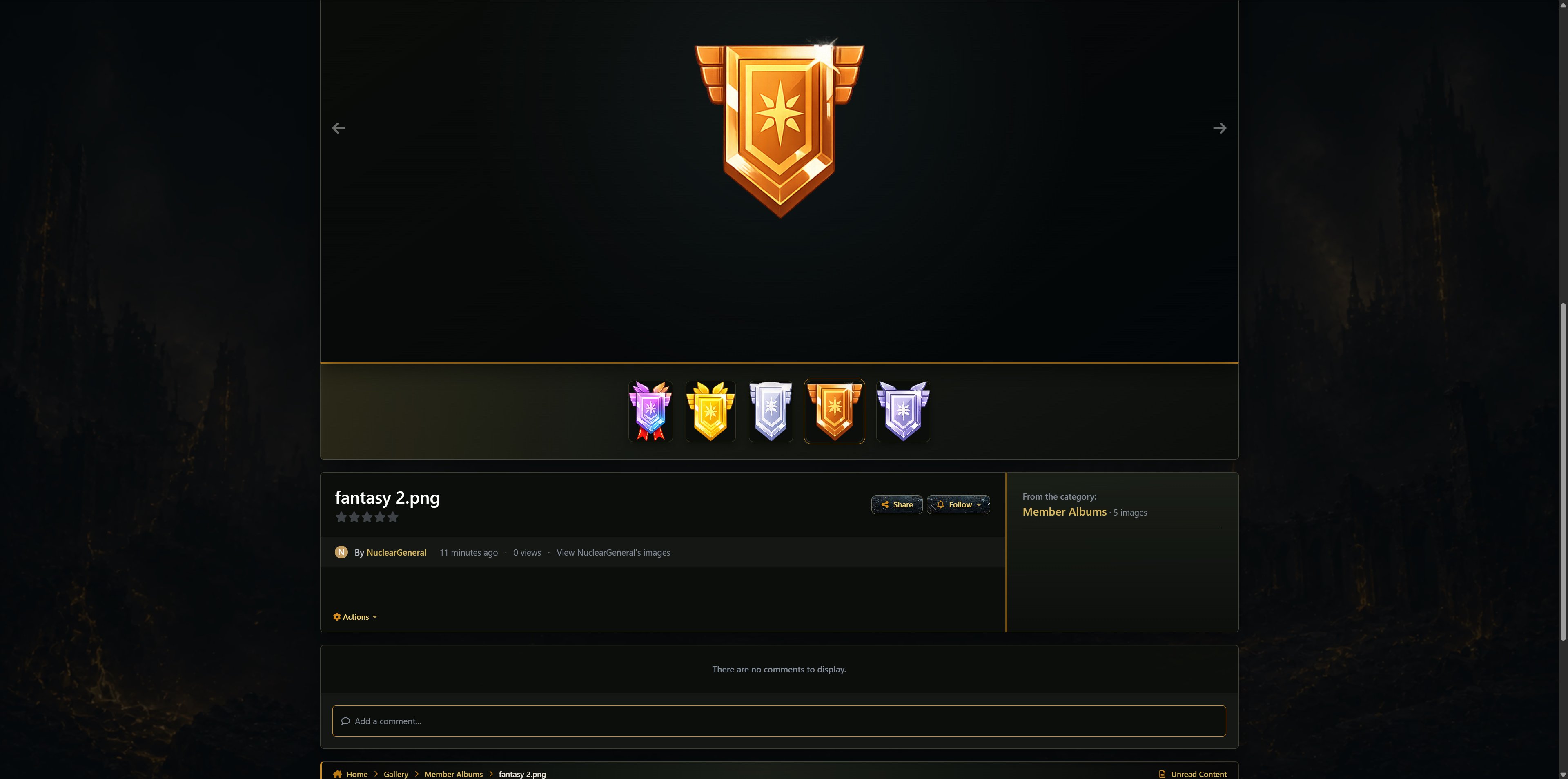
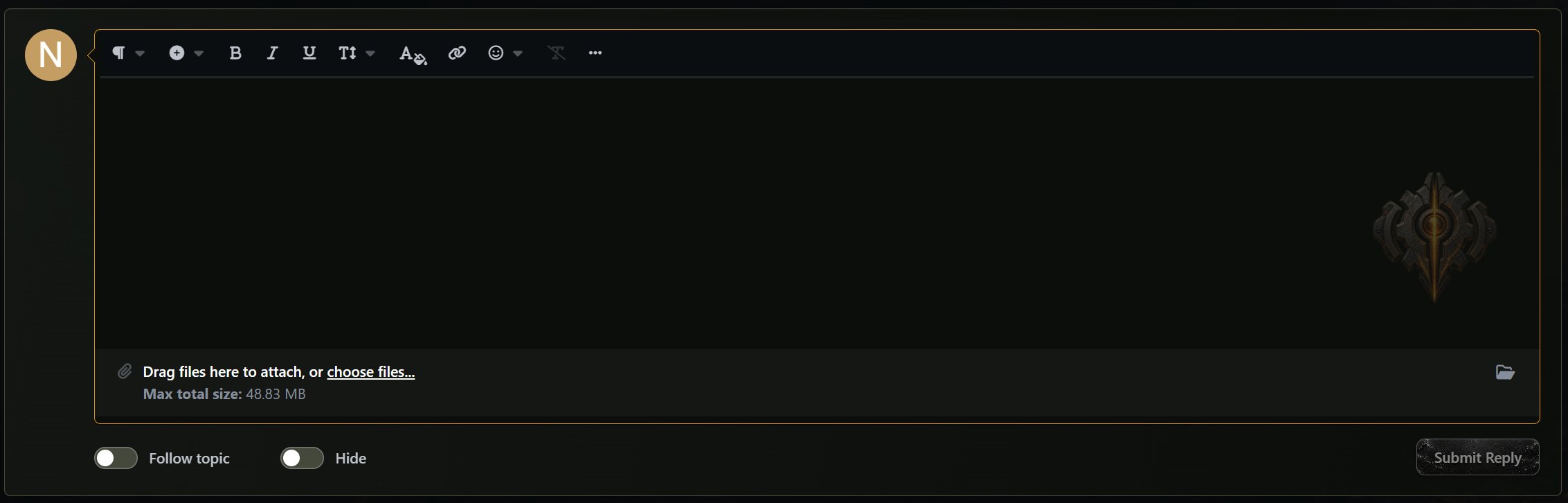
The Lambent identity carries throughout Forums, Downloads, Gallery, Blogs, Events, Courses, Commerce, Pages, Messenger, profiles, and clubs. The package includes application-specific insignias, fallback artwork, themed cover images, textured button families, distinctive header frames, editor and post watermarks, menus, alerts, popovers, and consistent interactive states.
Separate desktop, tablet, and mobile artwork ensures the corruption-inspired scenery remains dramatic and properly framed across responsive layouts. Classic and Sidepanel configurations are both supported, with the original Invision Community behavior preserved for navigation, editors, messaging, sticky elements, moderation controls, forms, and official applications.
There are no reviews to display.