Gears of War - Locust
- Category Themes
- Downloads 60
- Compatibility IC5: 5.0.0+
- Updated
Description
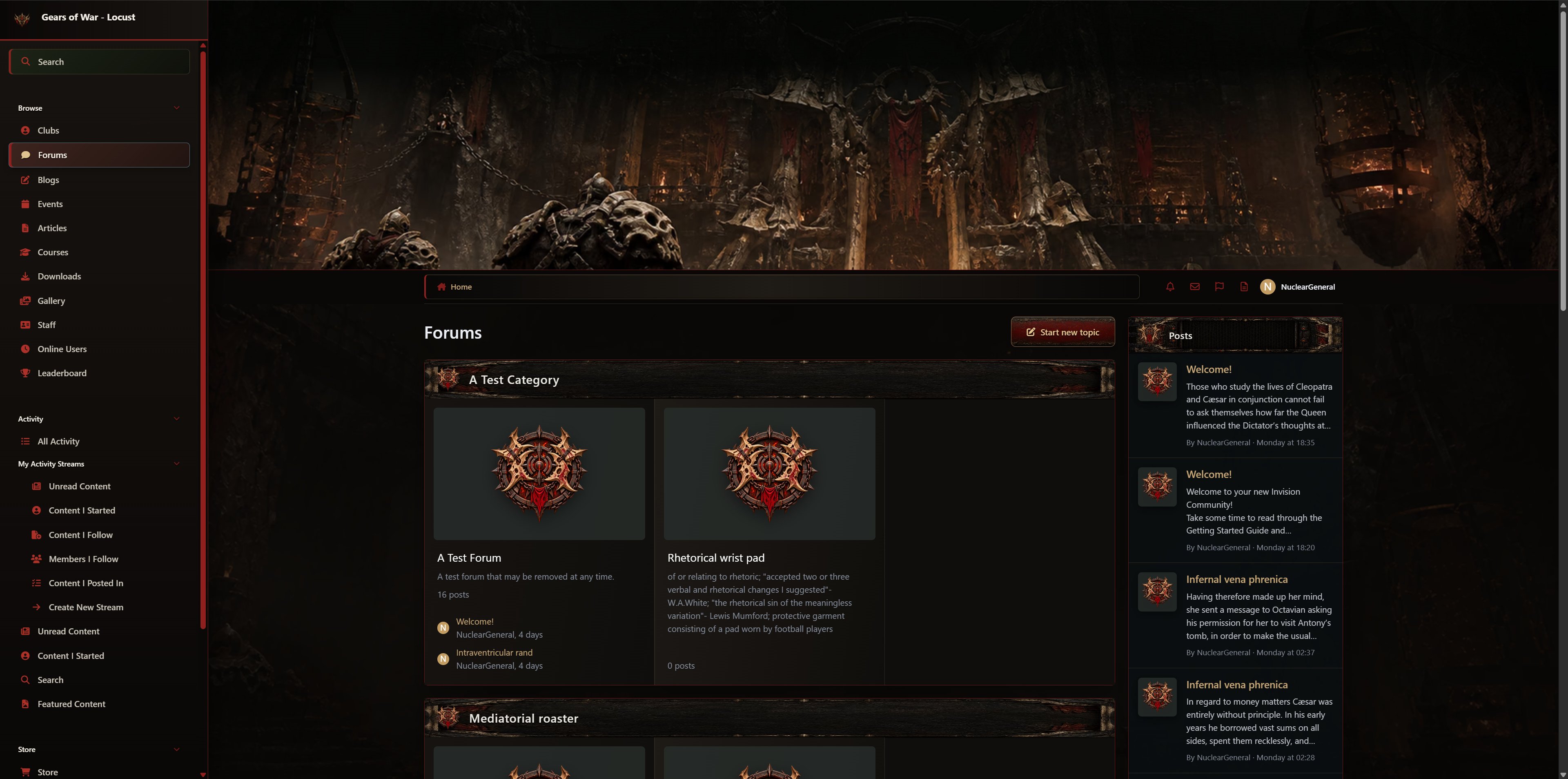
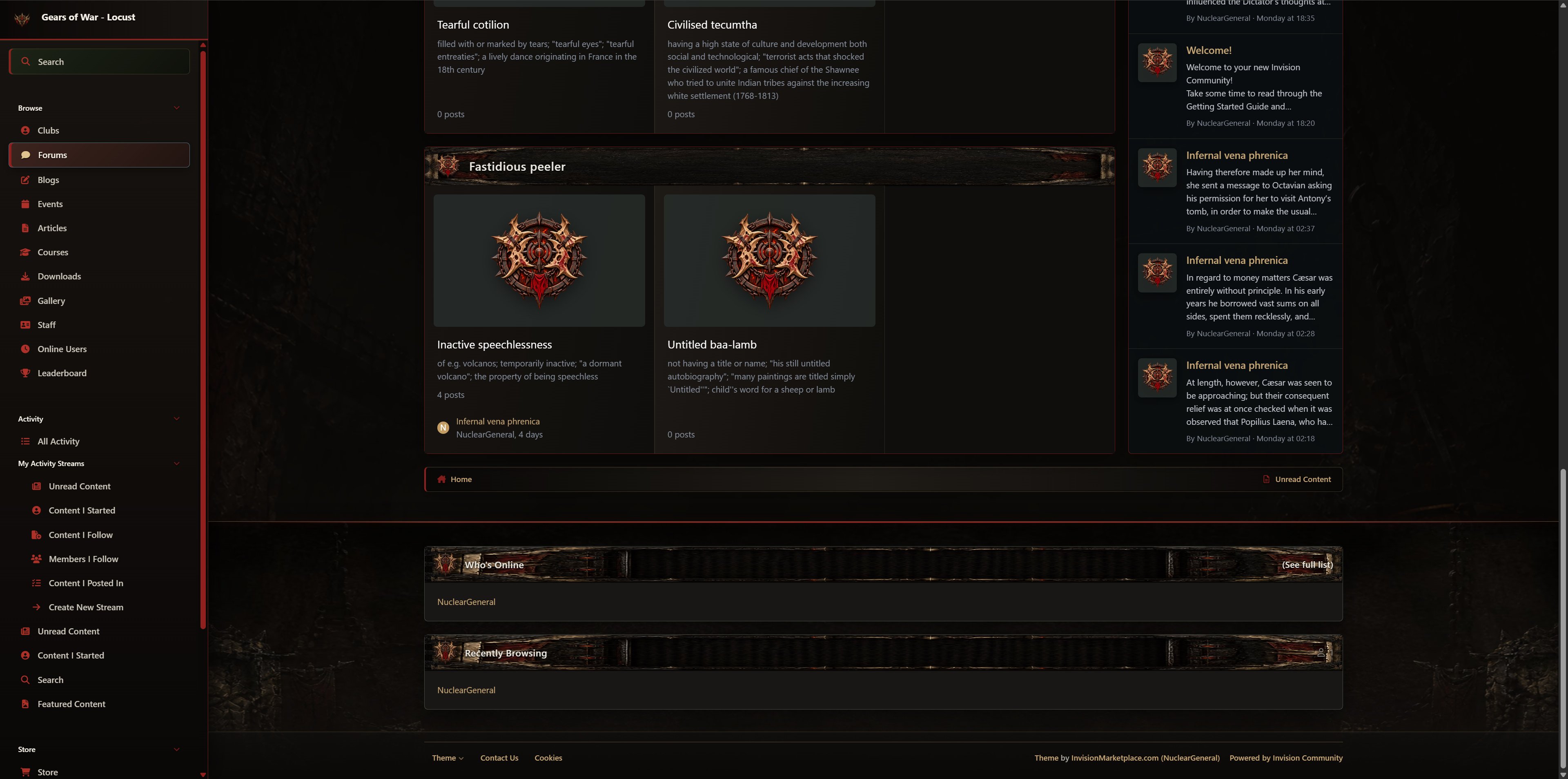
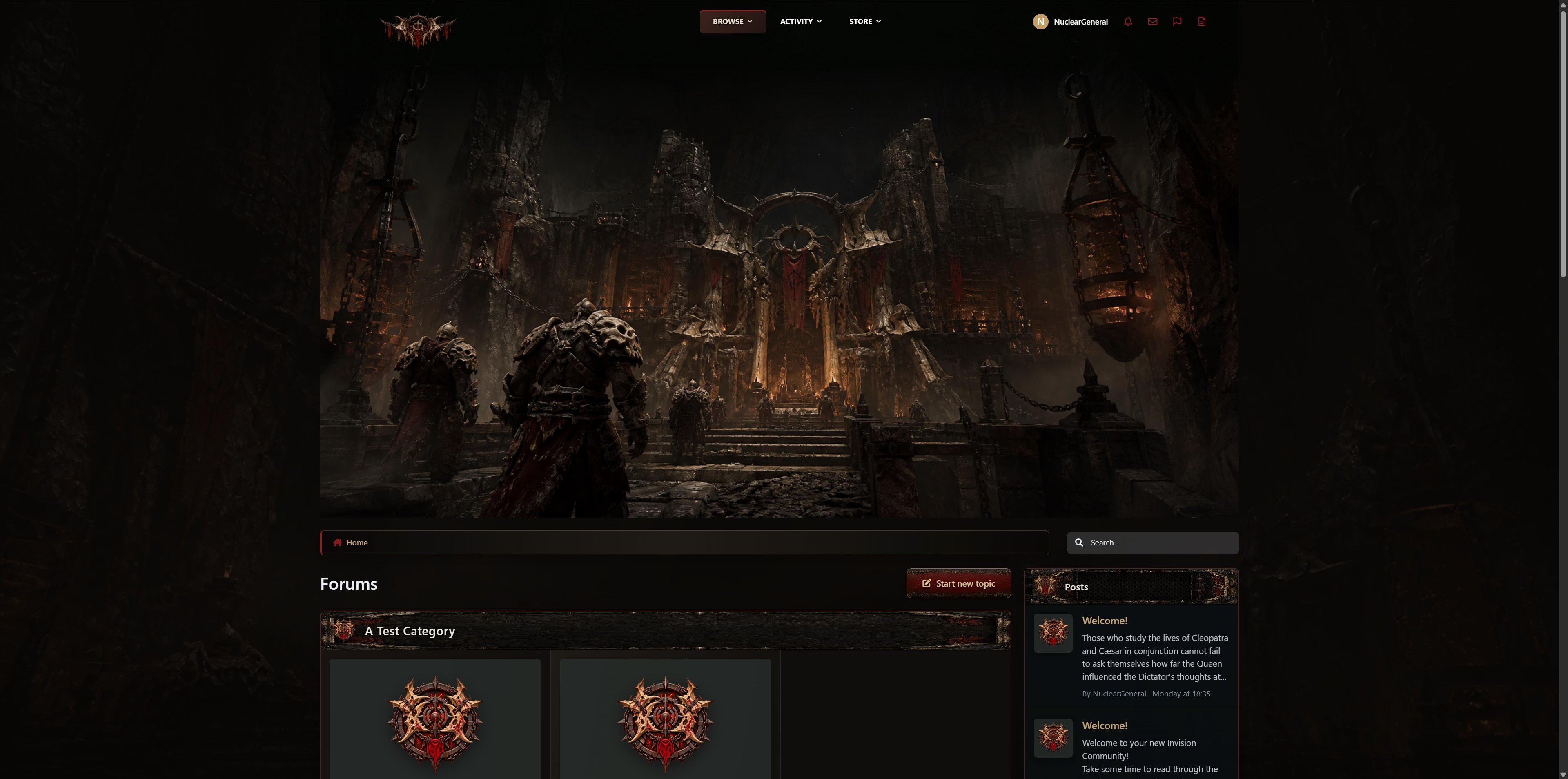
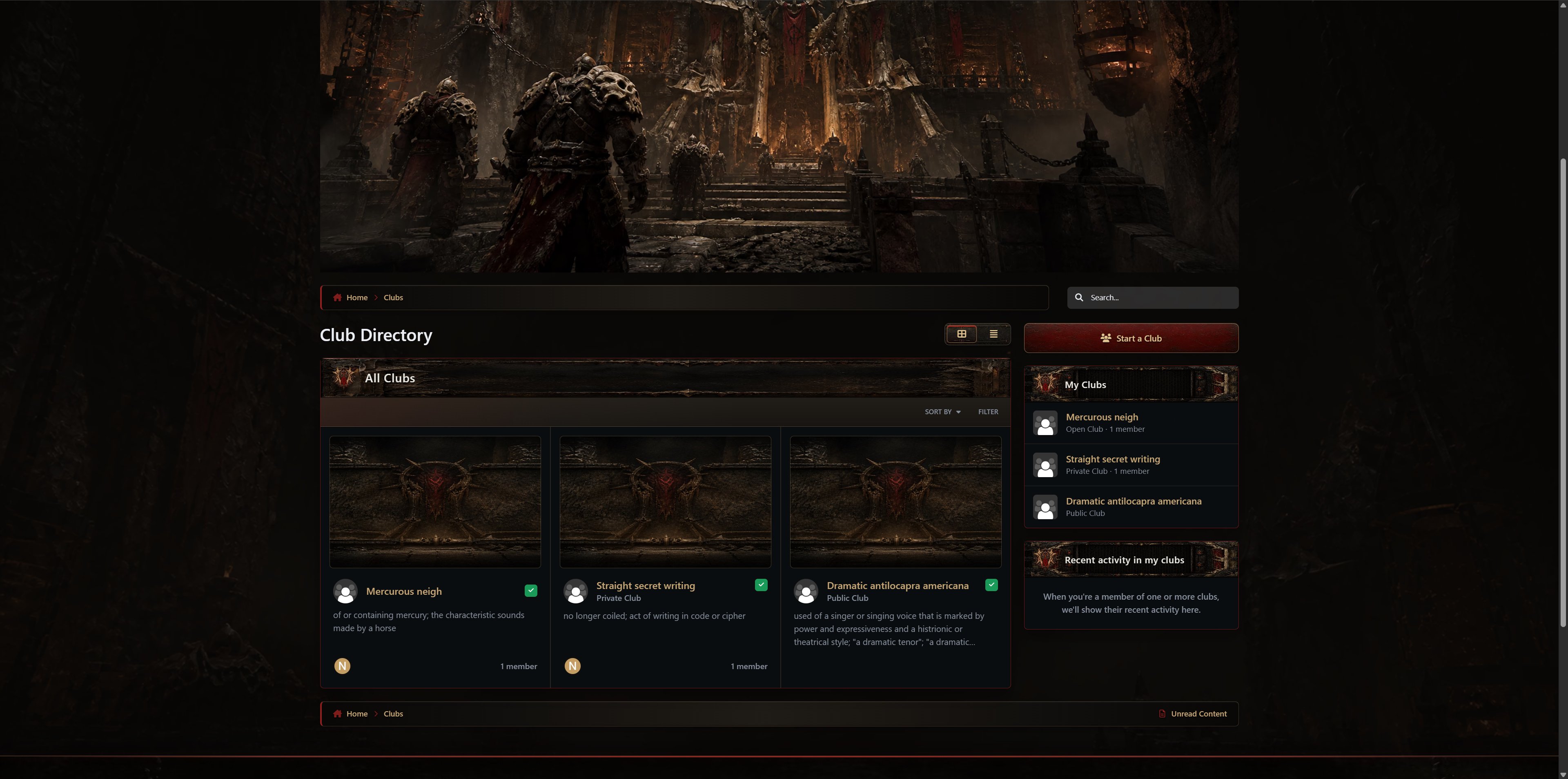
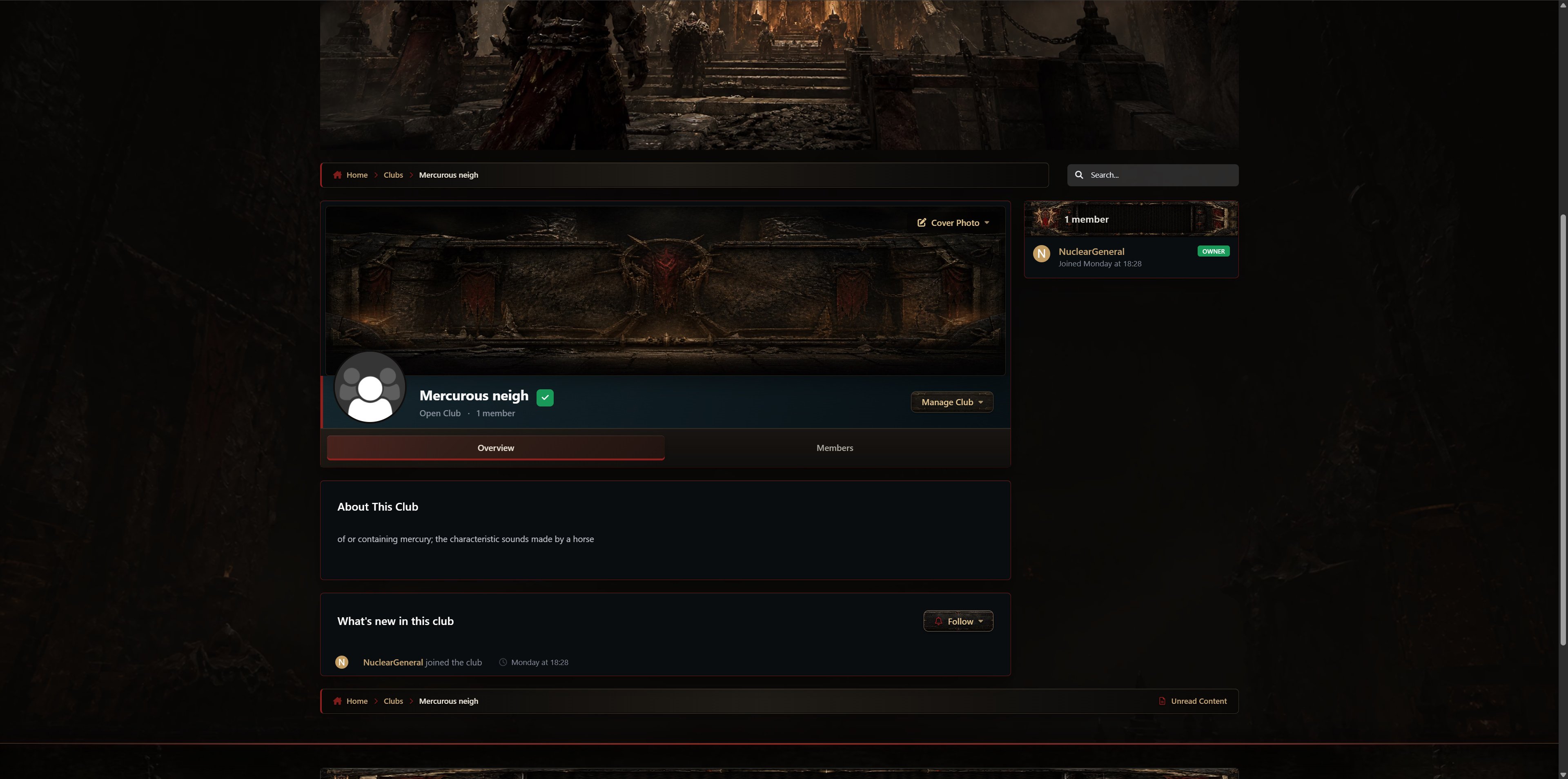
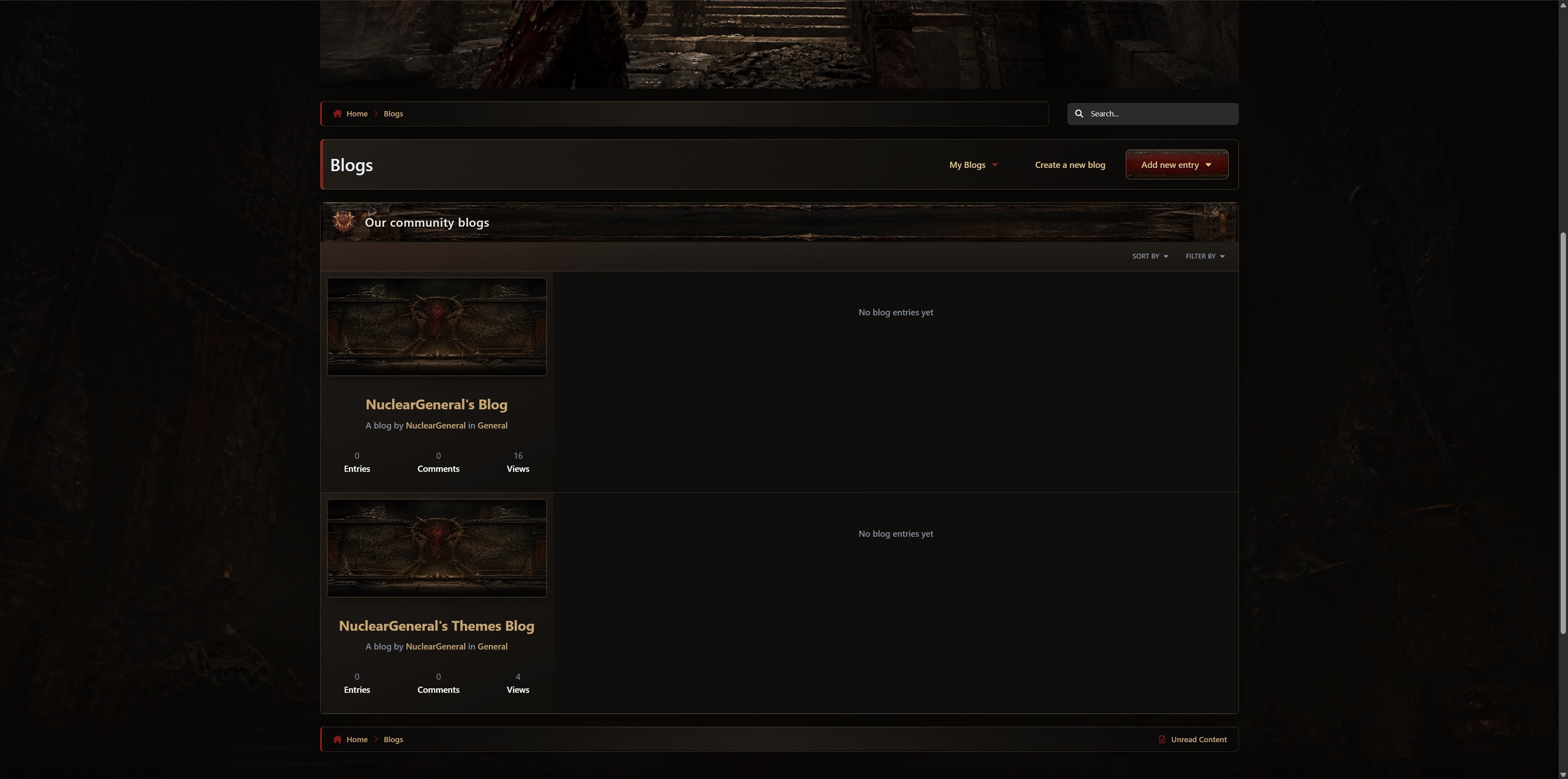
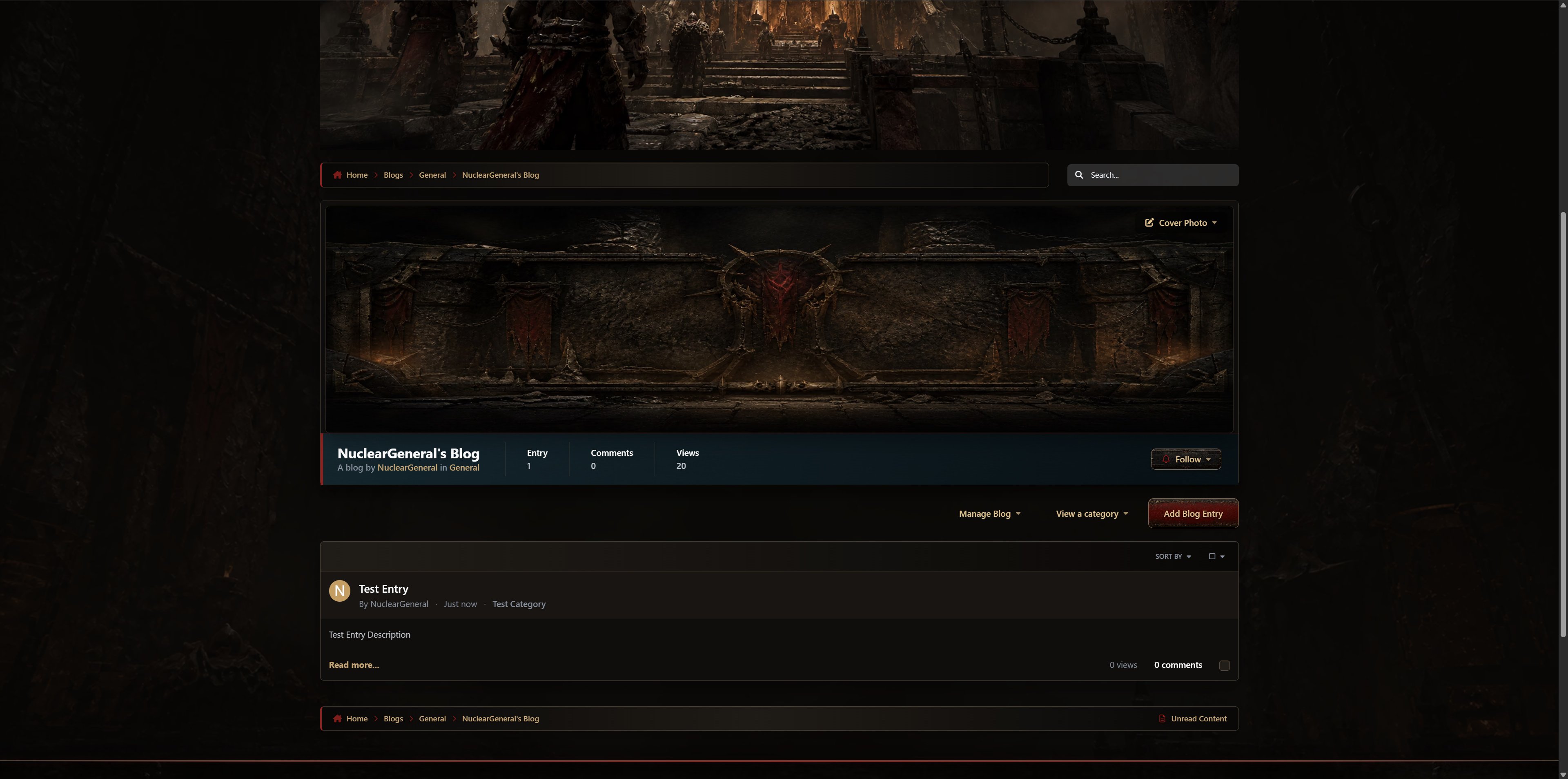
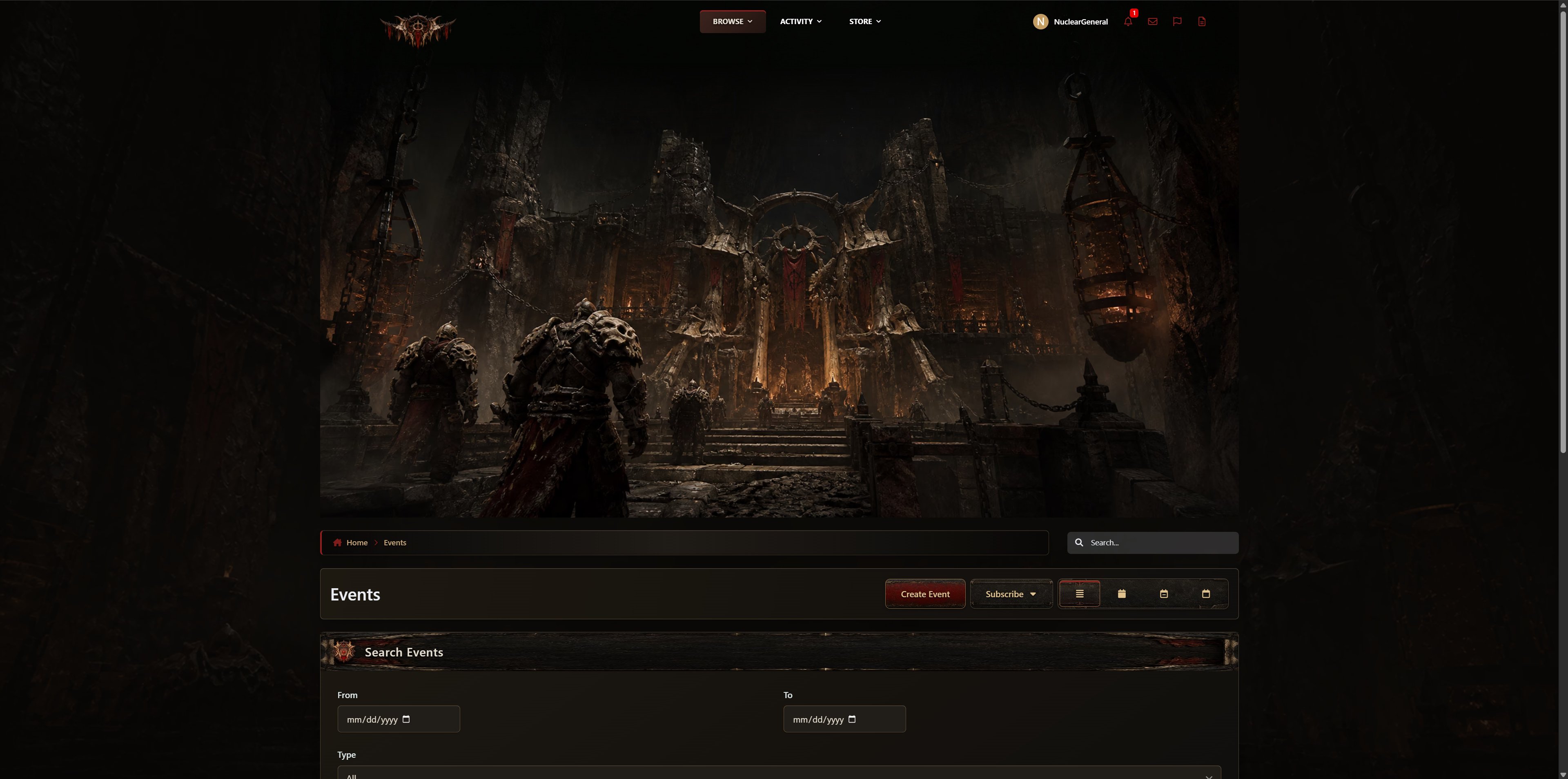
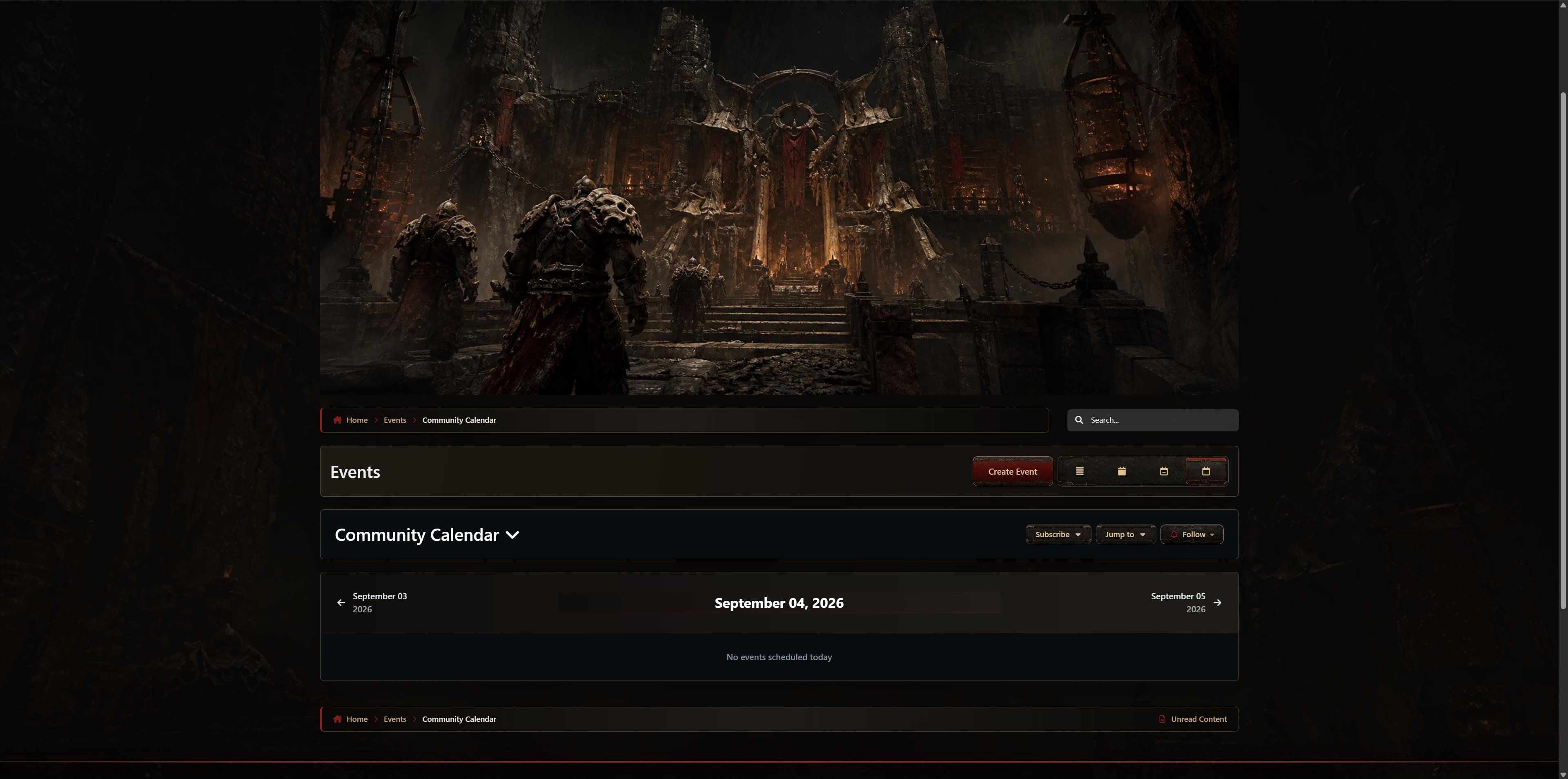
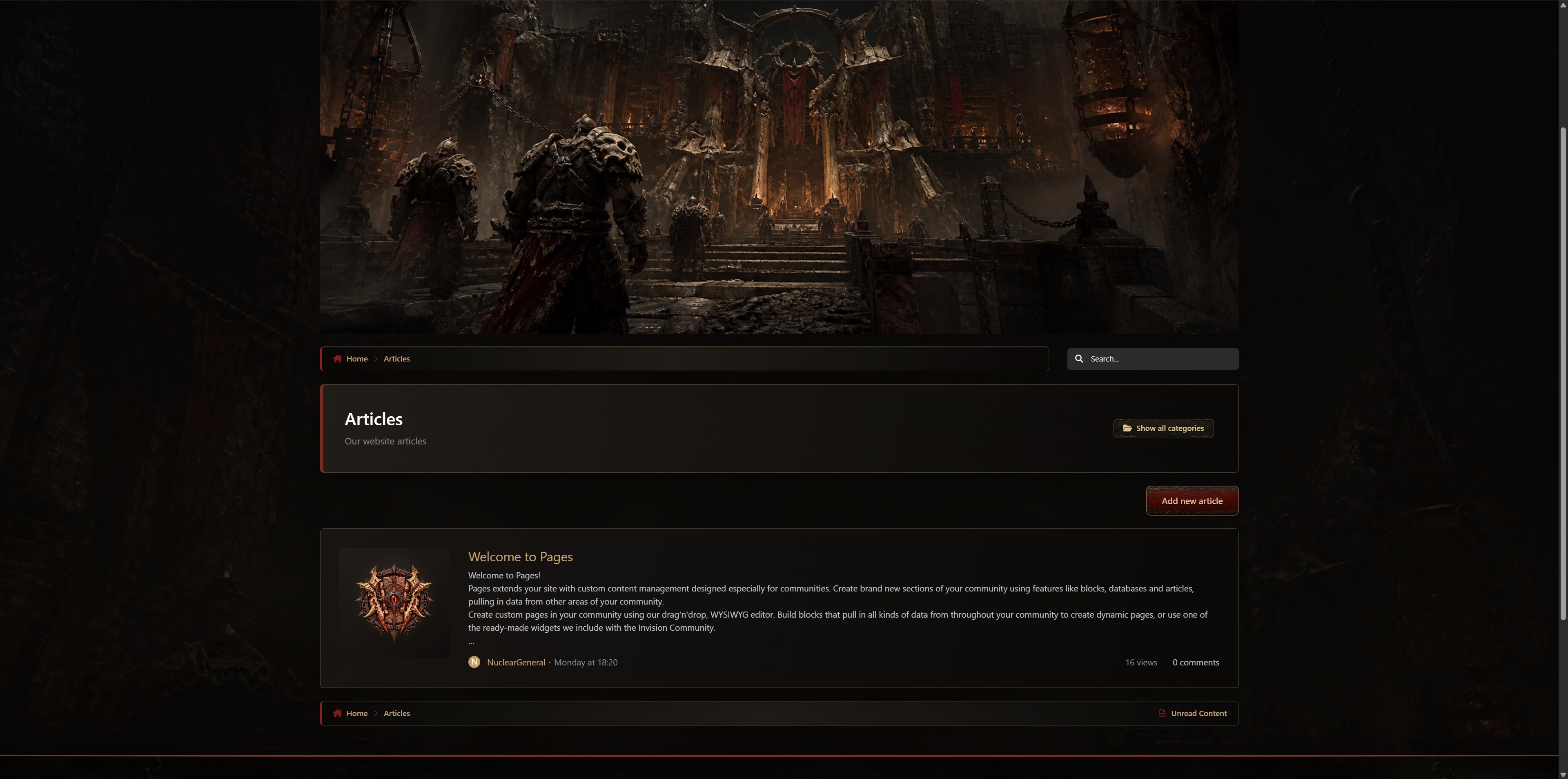
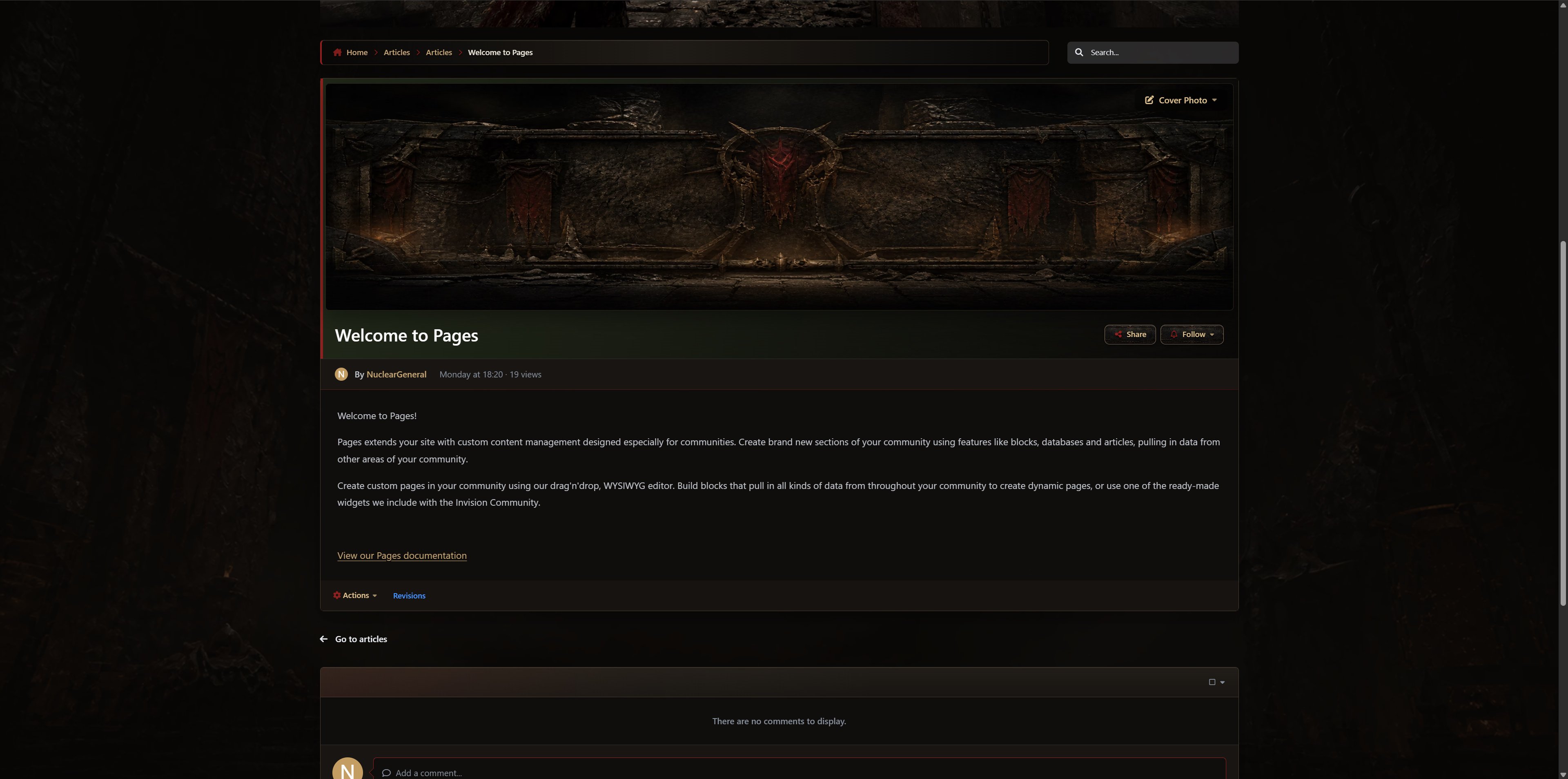
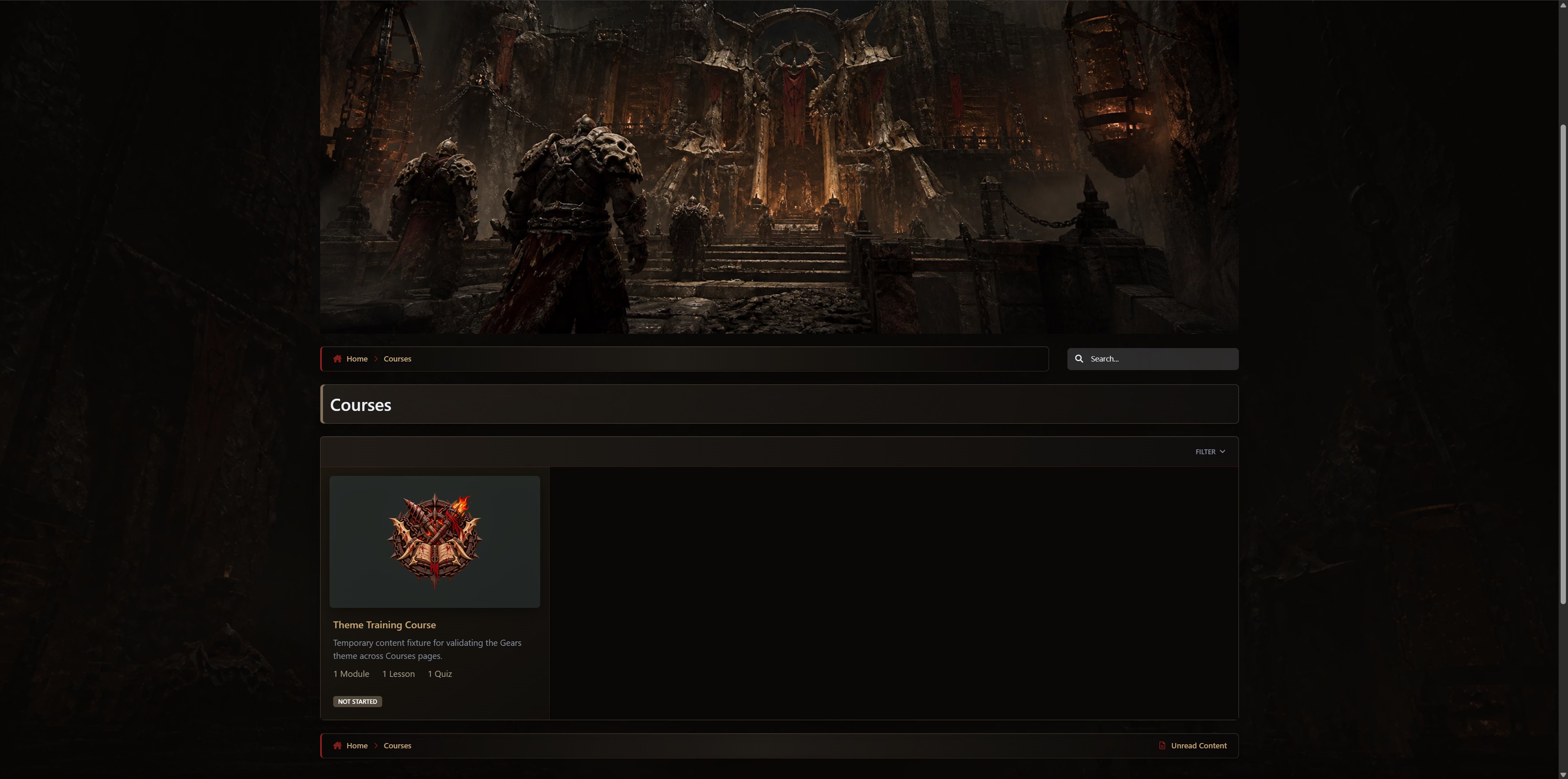
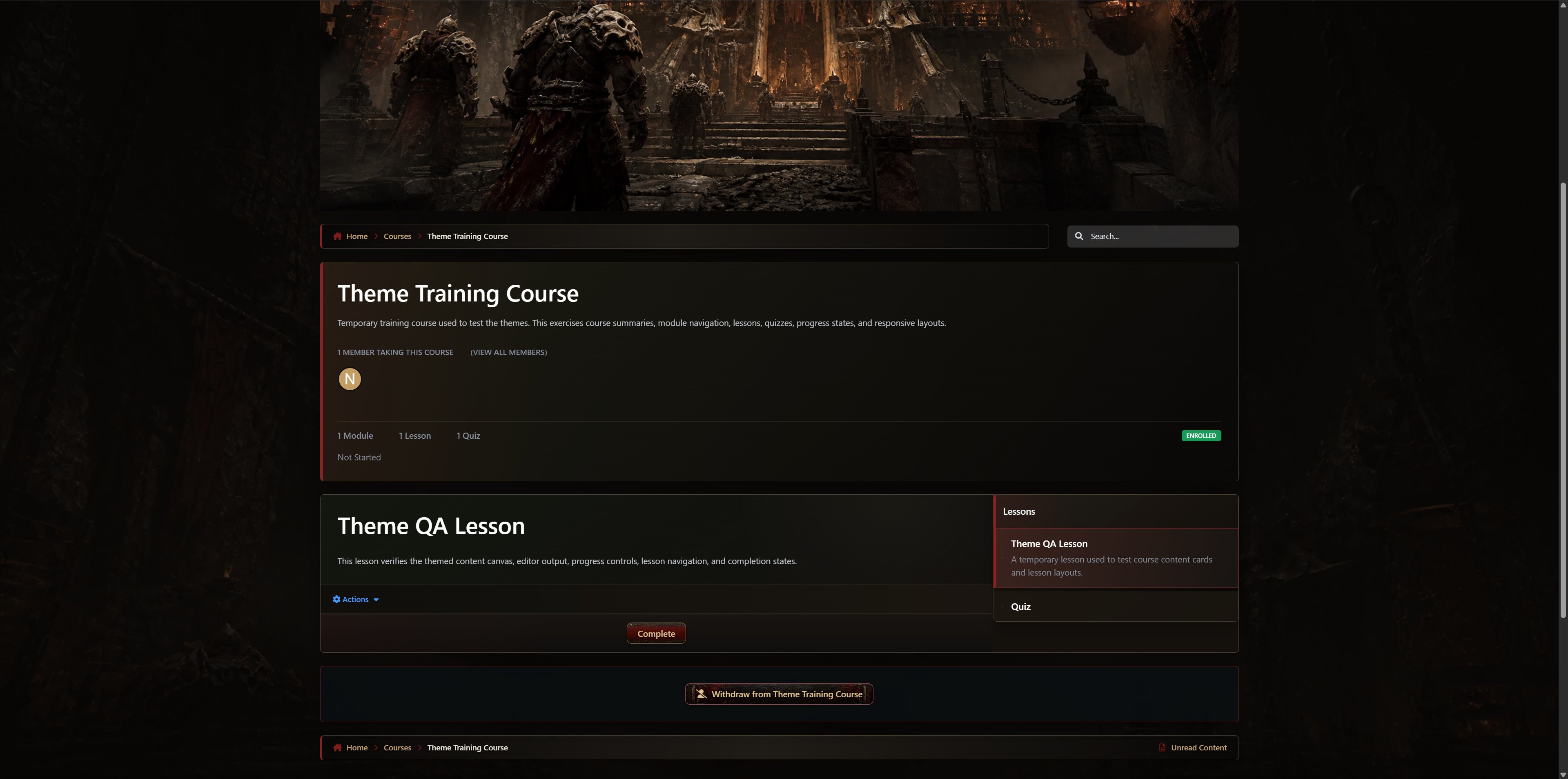
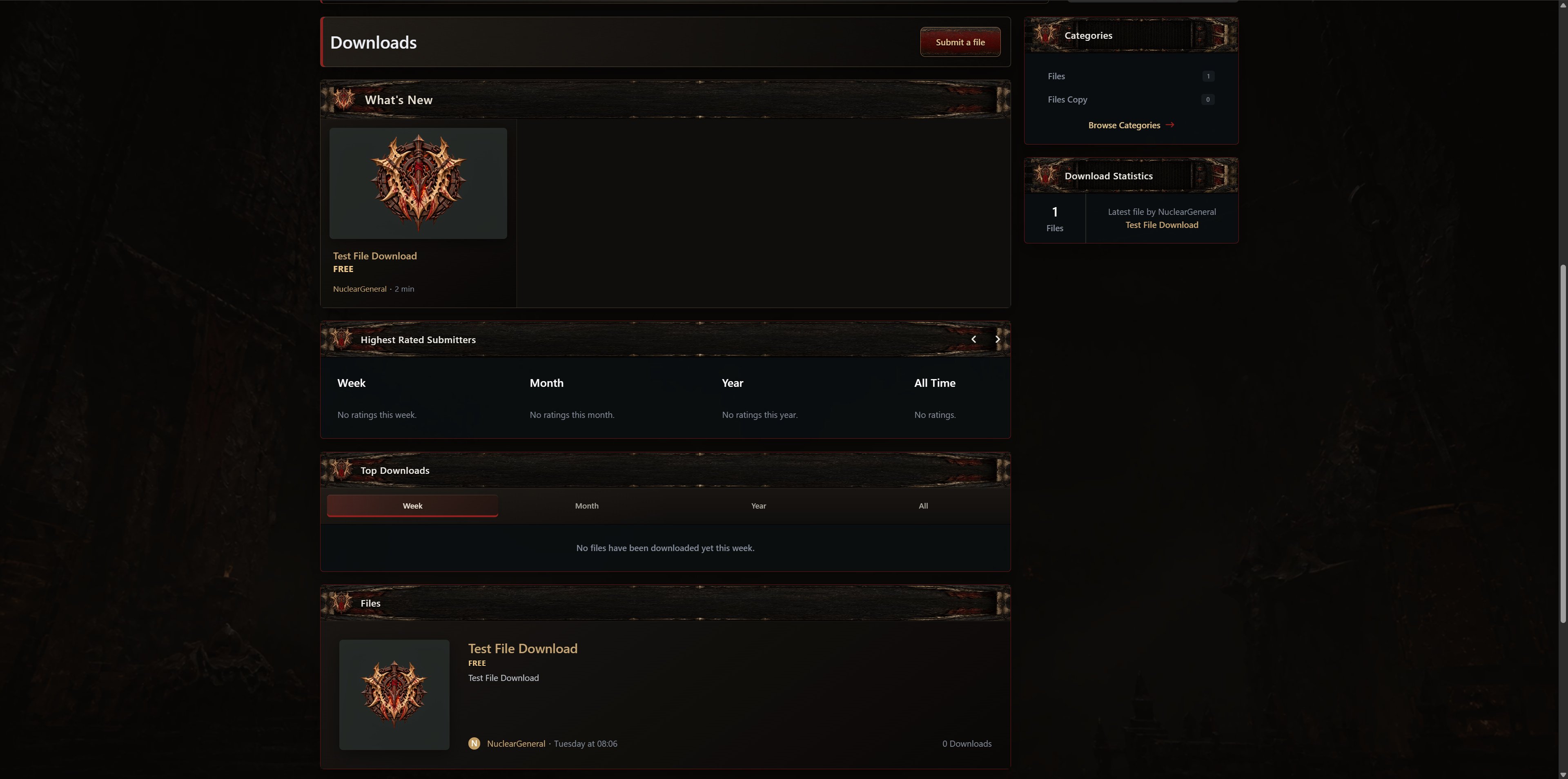
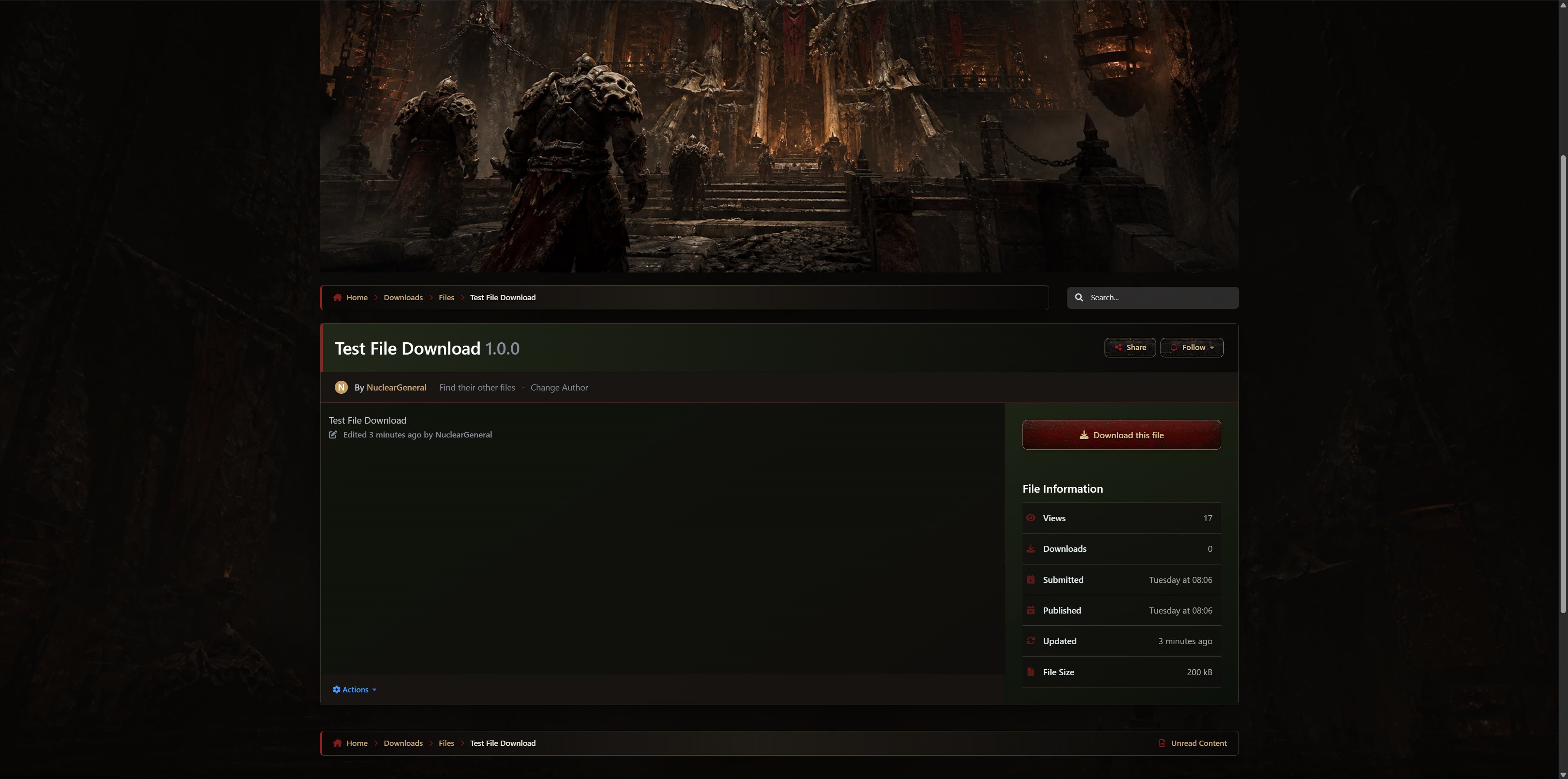
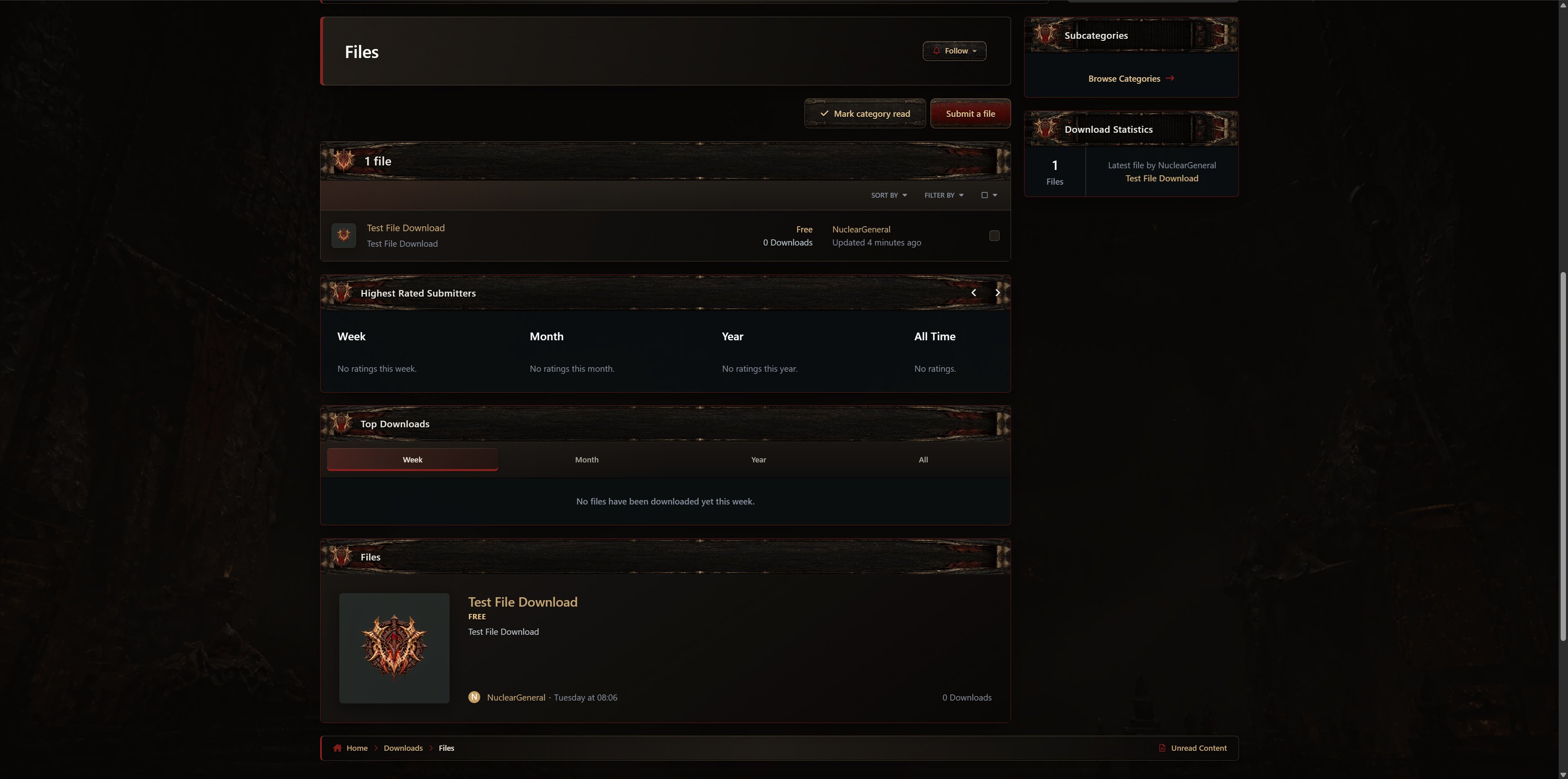
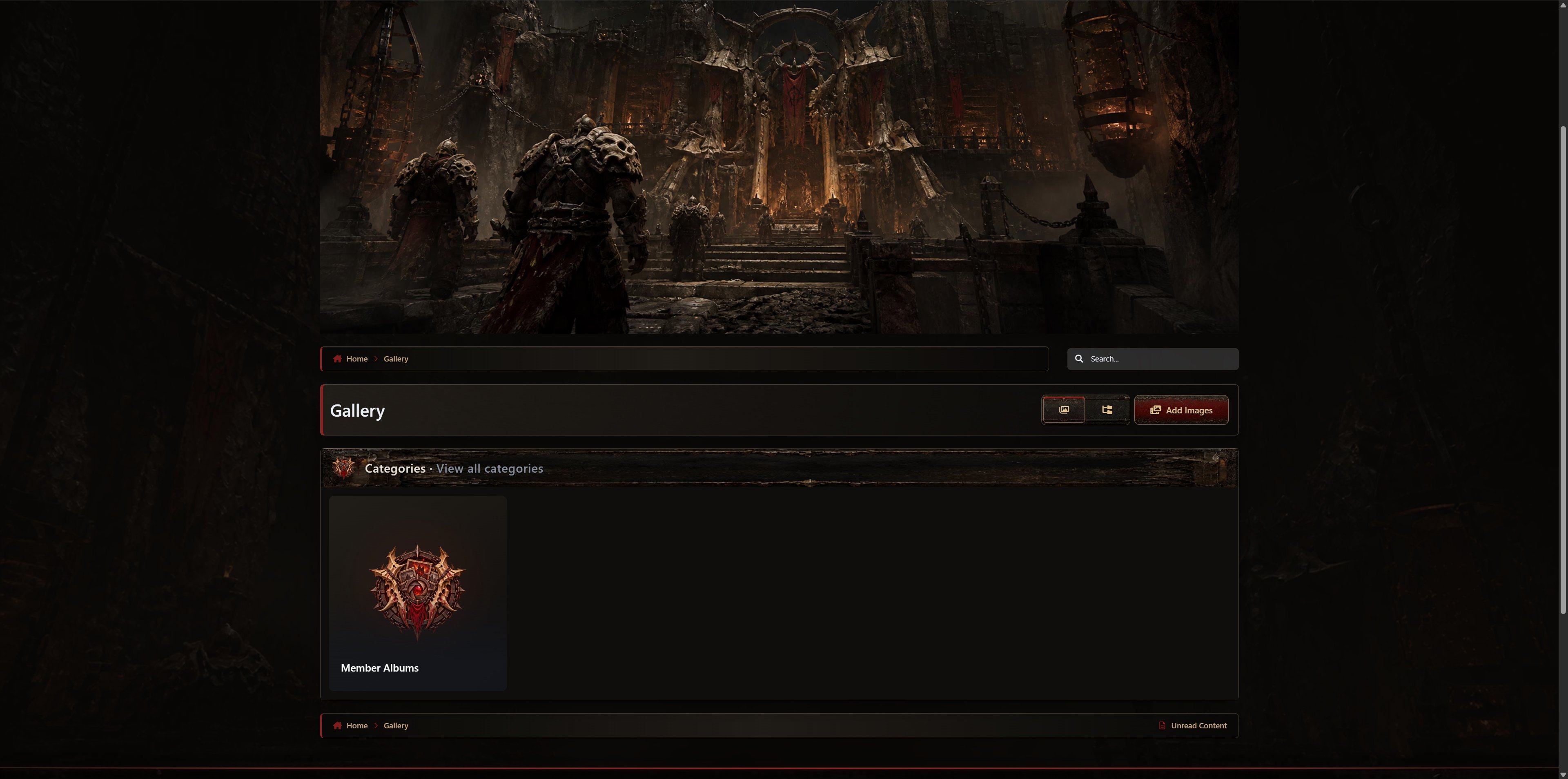
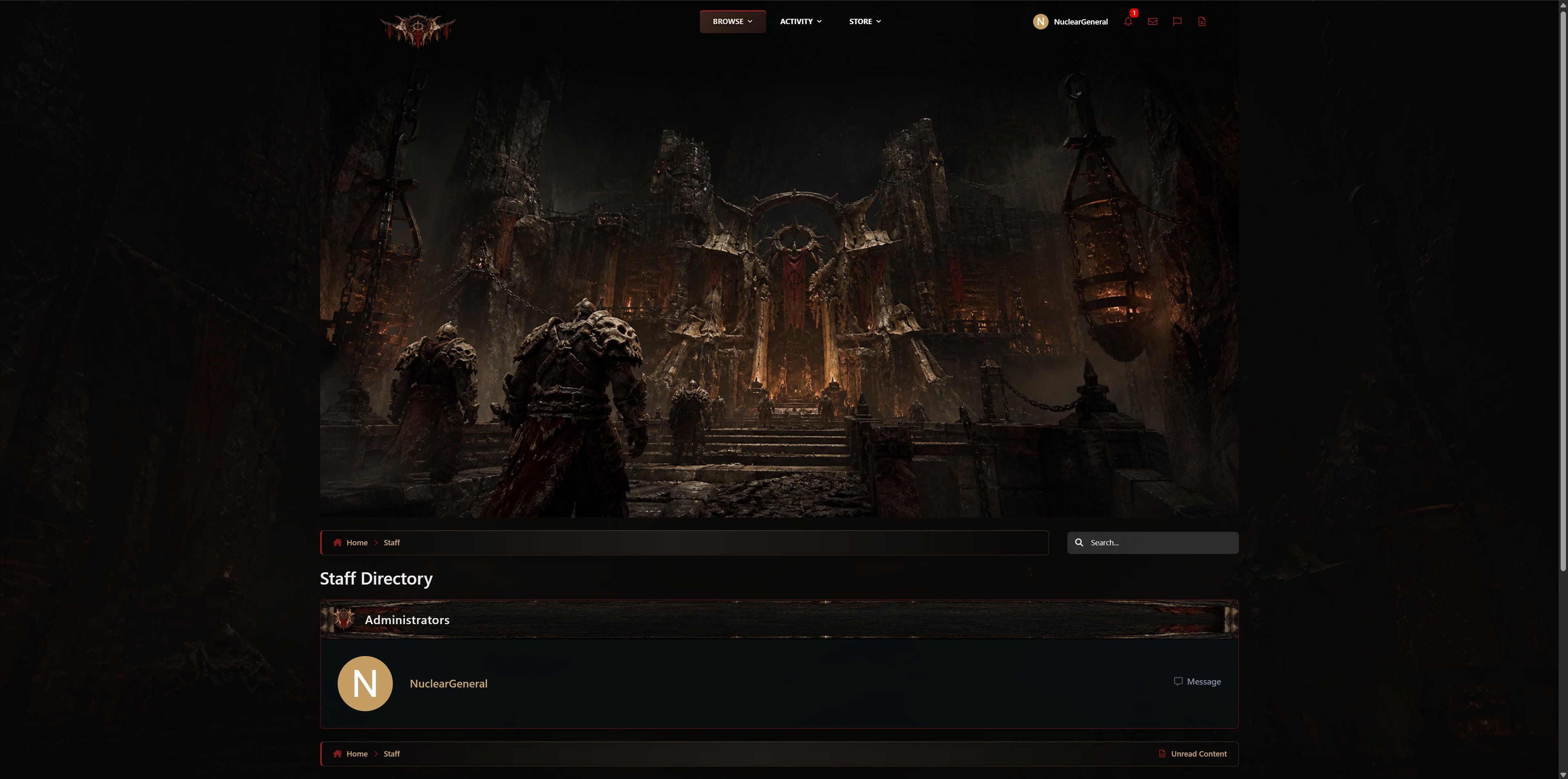
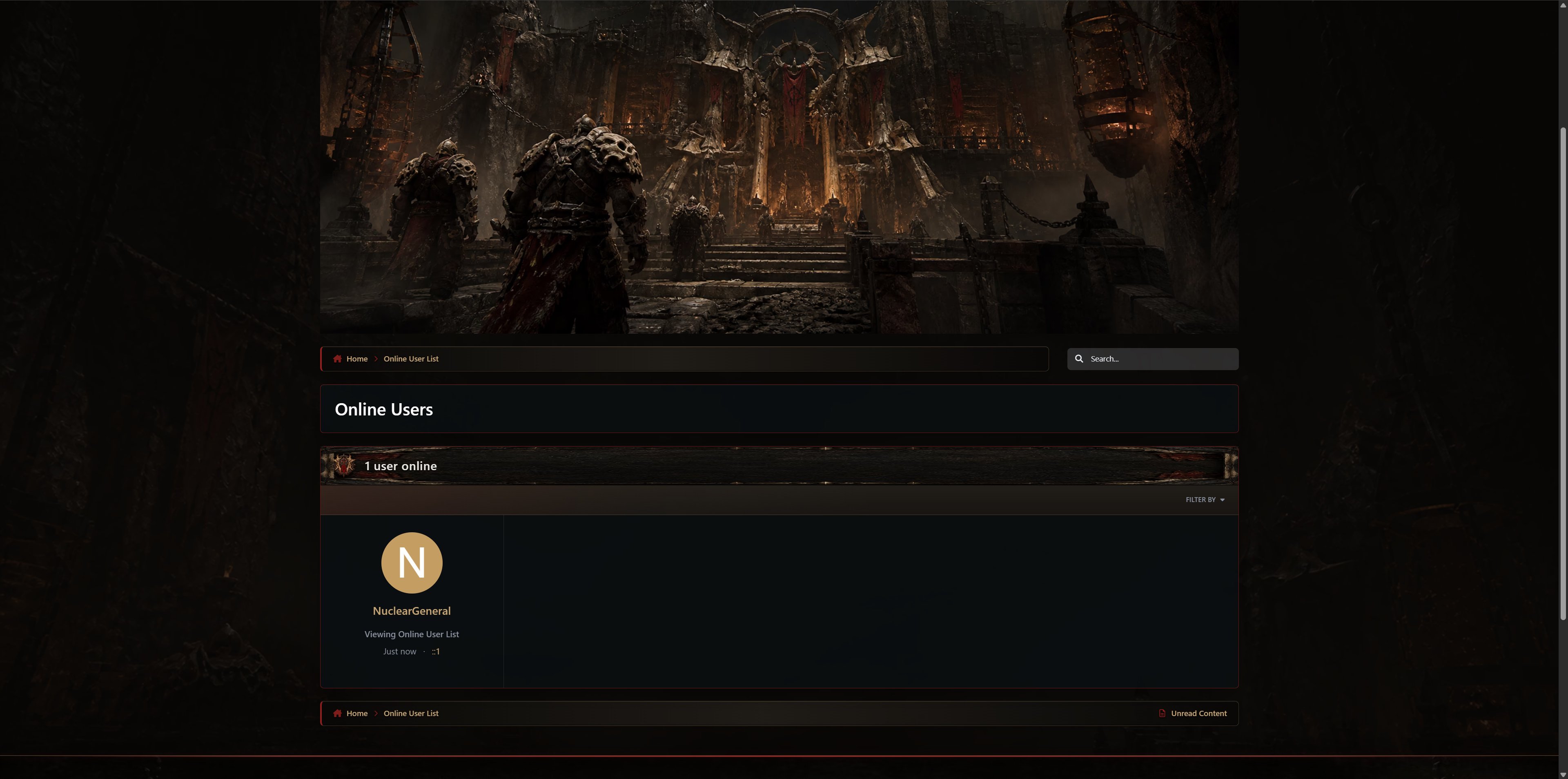
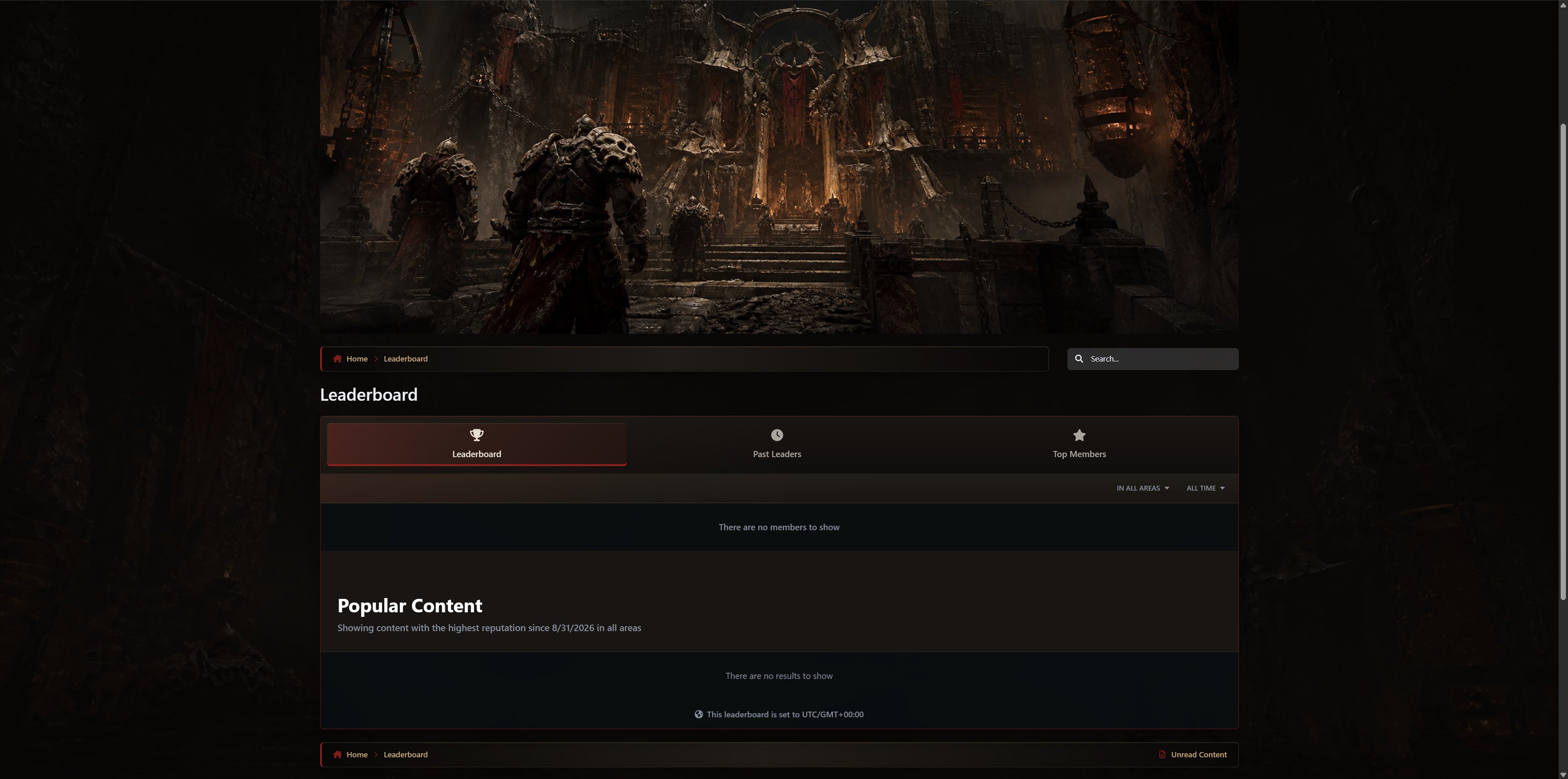
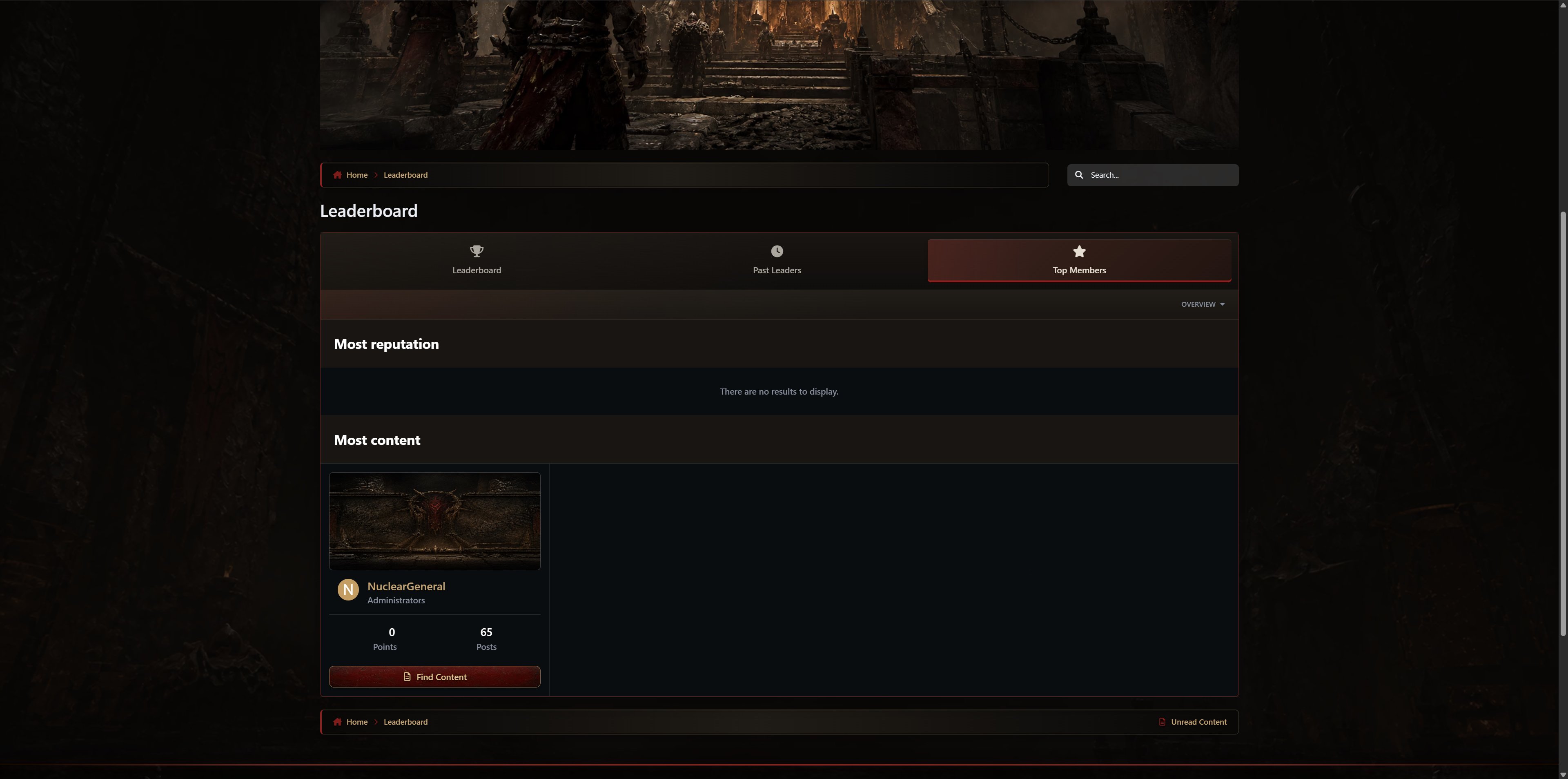
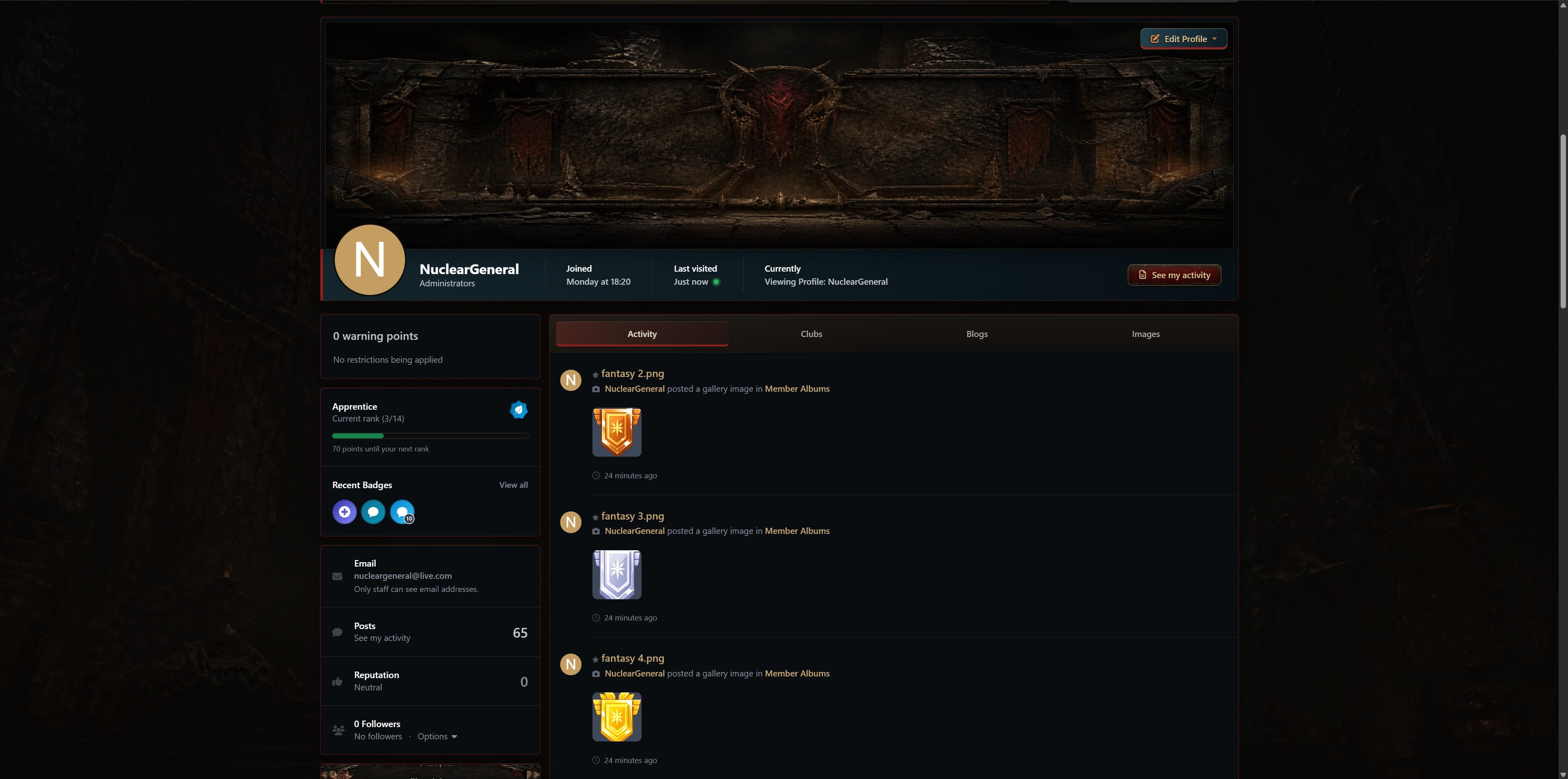
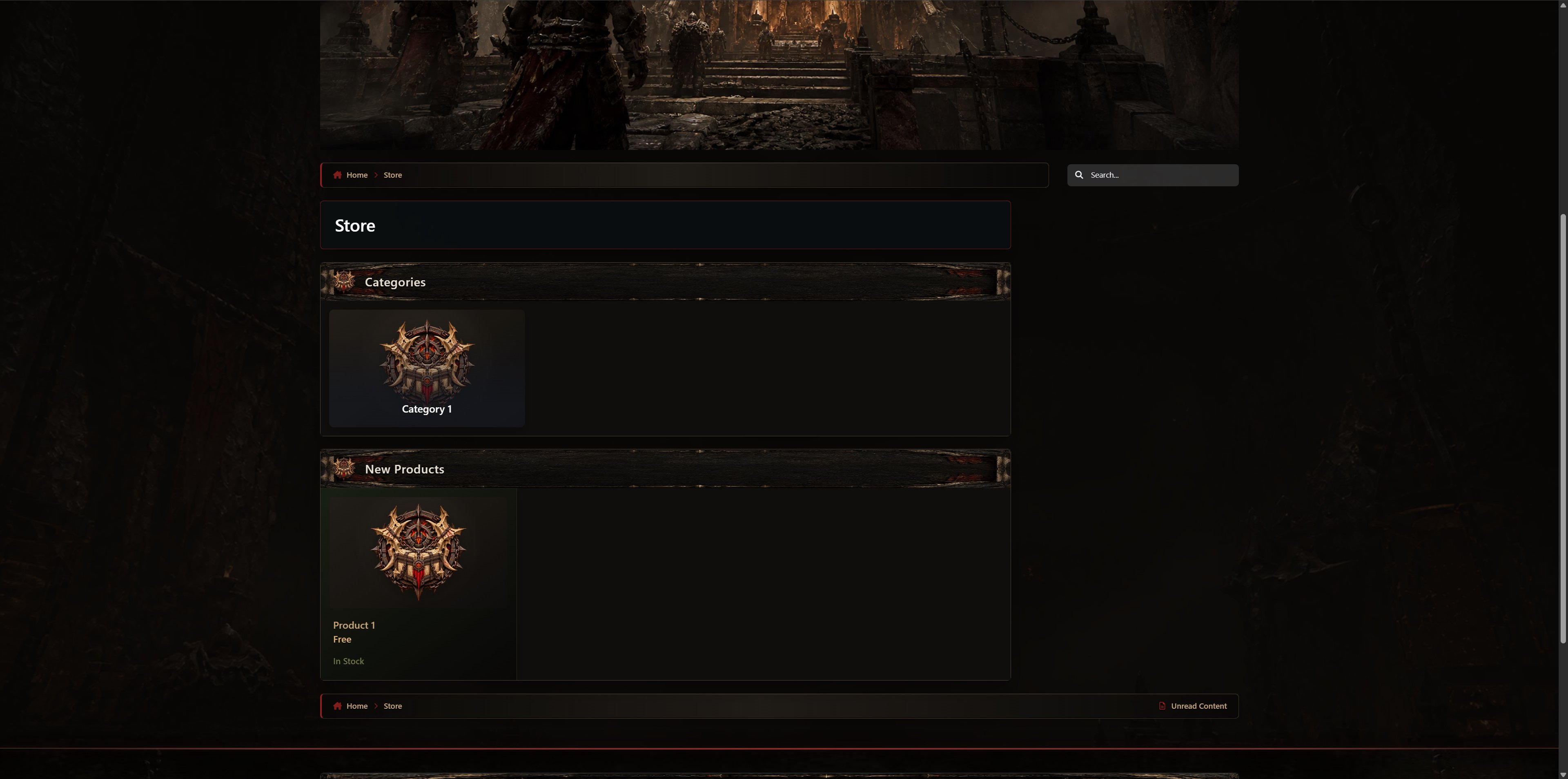
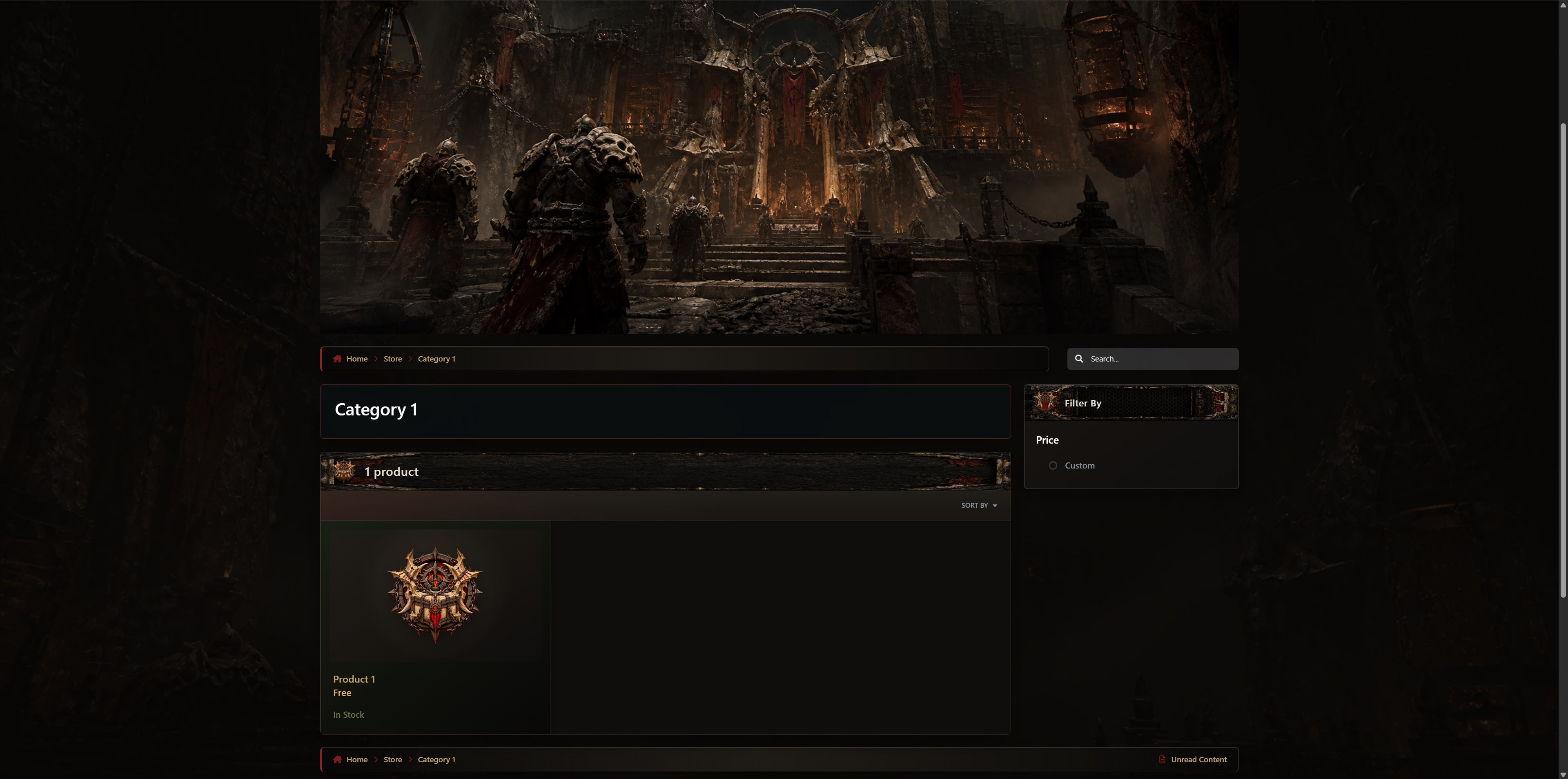
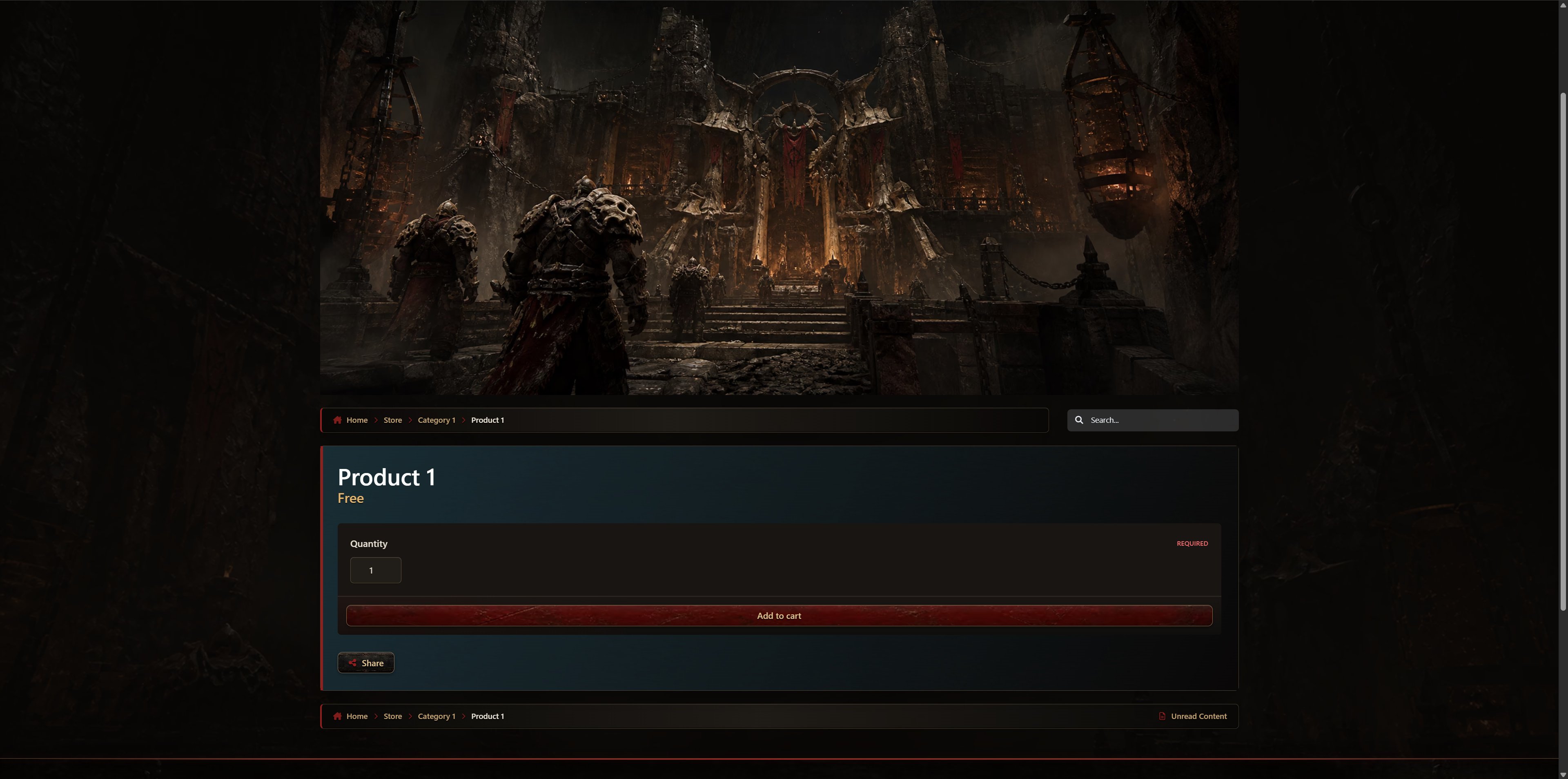
Descend beneath the surface with an imposing Locust-inspired theme built from carved stone, bone armor, oxidized iron, chains, furnace embers, dusty ochre, and deep blood-red war markings. Its subterranean fortress atmosphere gives your community a brutal and ancient character distinct from the mechanical COG and luminous Lambent designs.
Rugged borders, reinforced panels, brutalist insignias, and worn metal textures create a sense of weight throughout the interface. Content surfaces remain calm and near-black so posts, articles, messages, and application data stay easy to read, while bone, bronze, ochre, and blood-red accents establish a clear hierarchy around them.
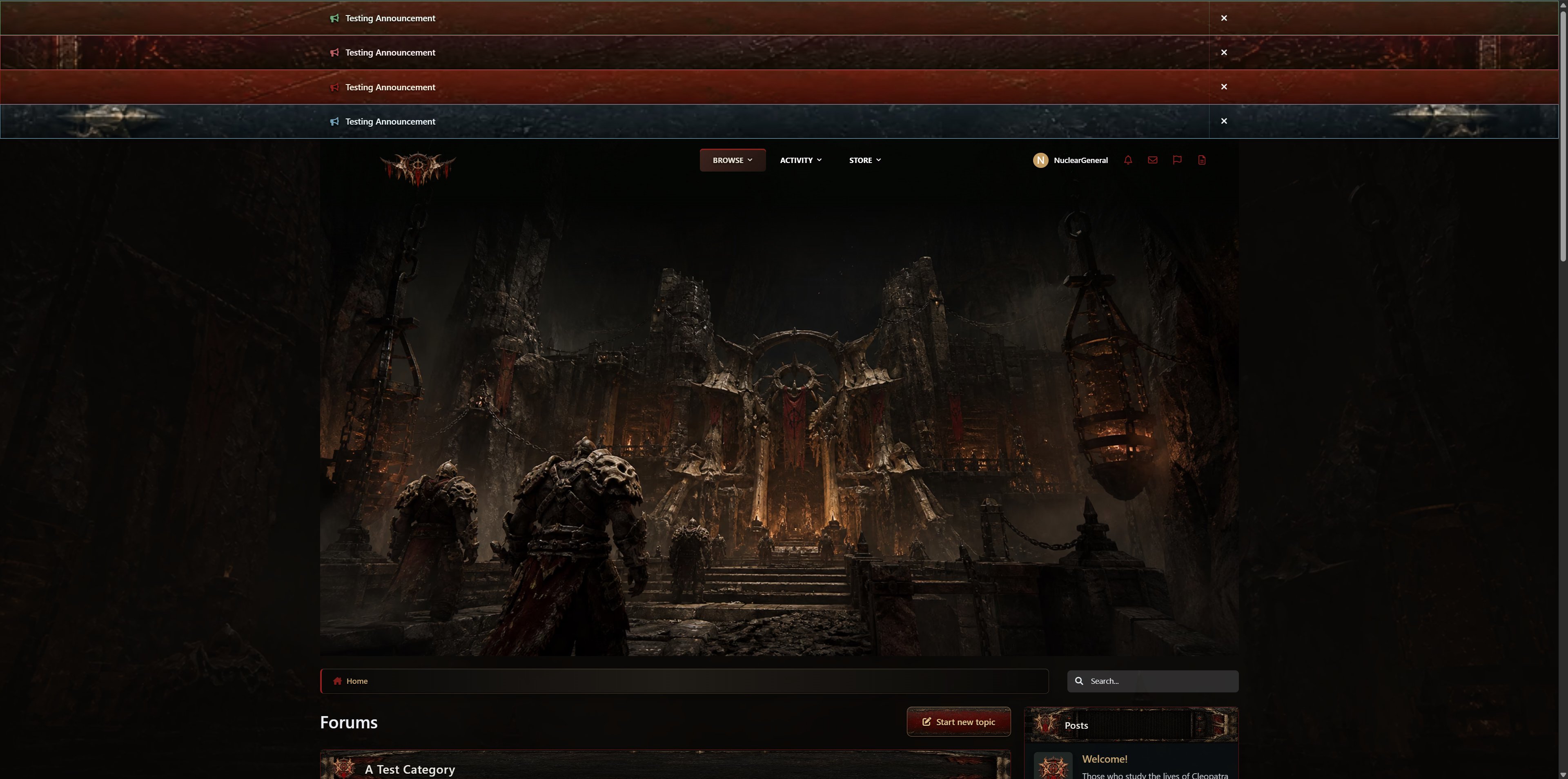
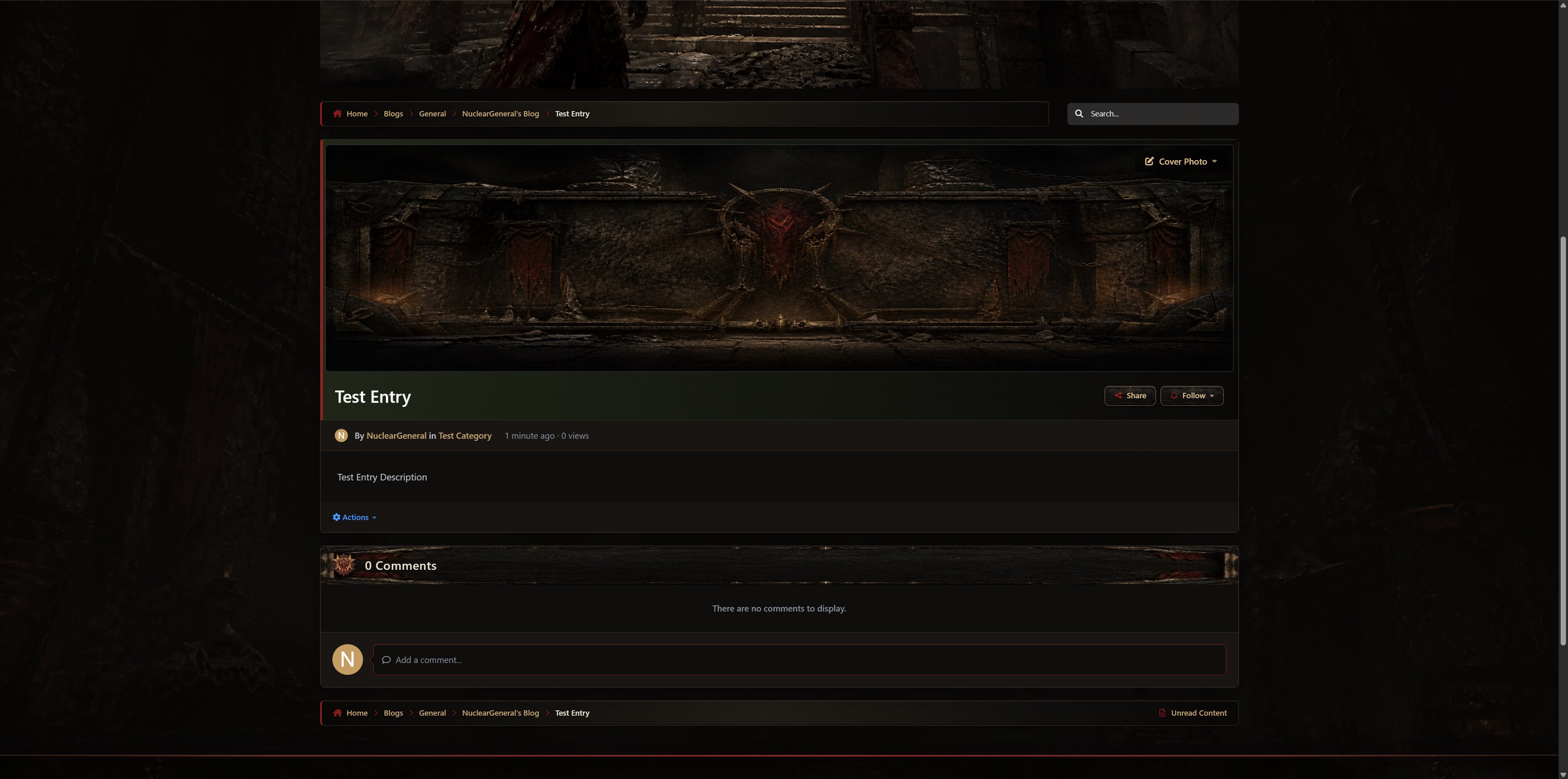
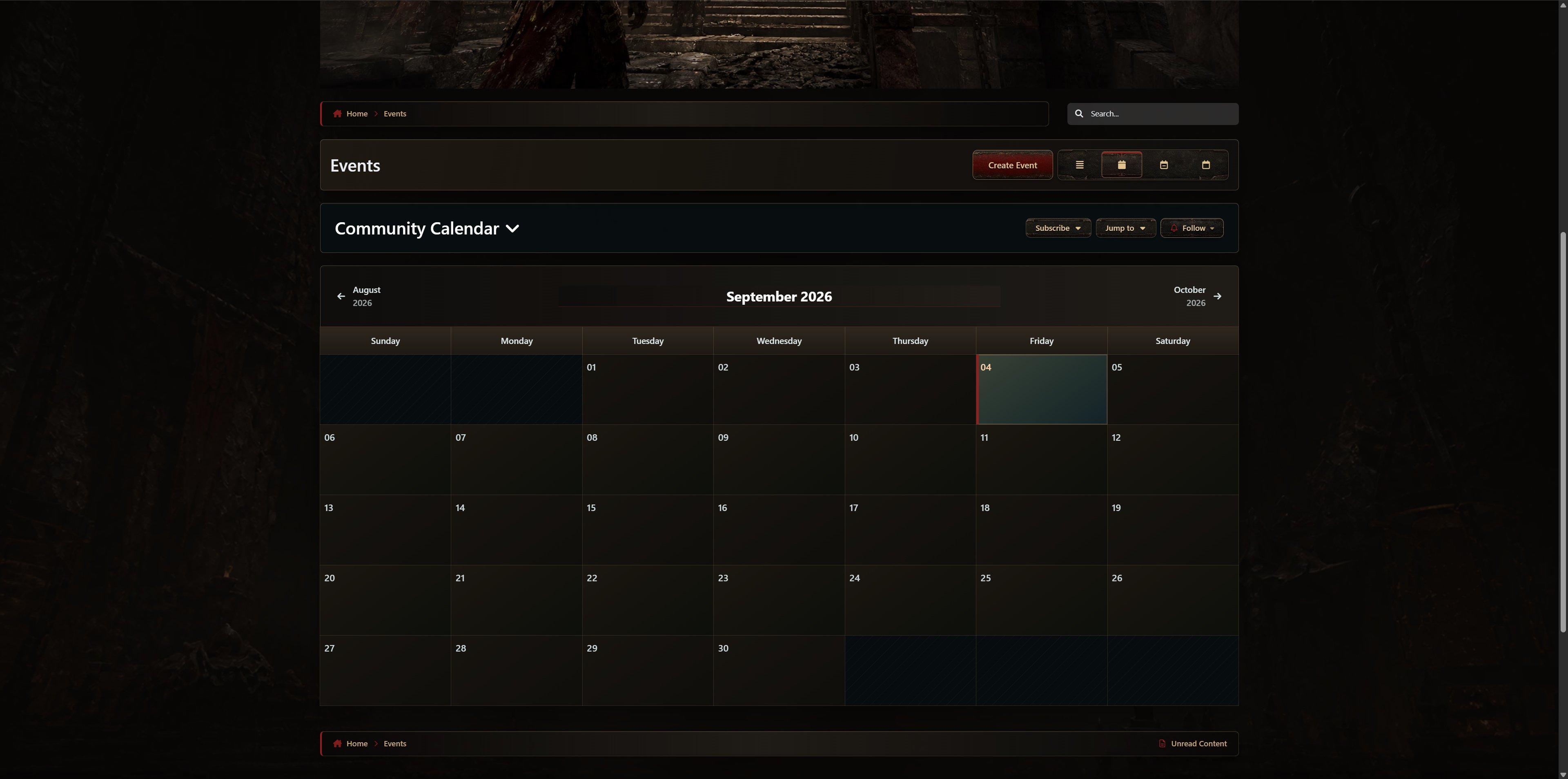
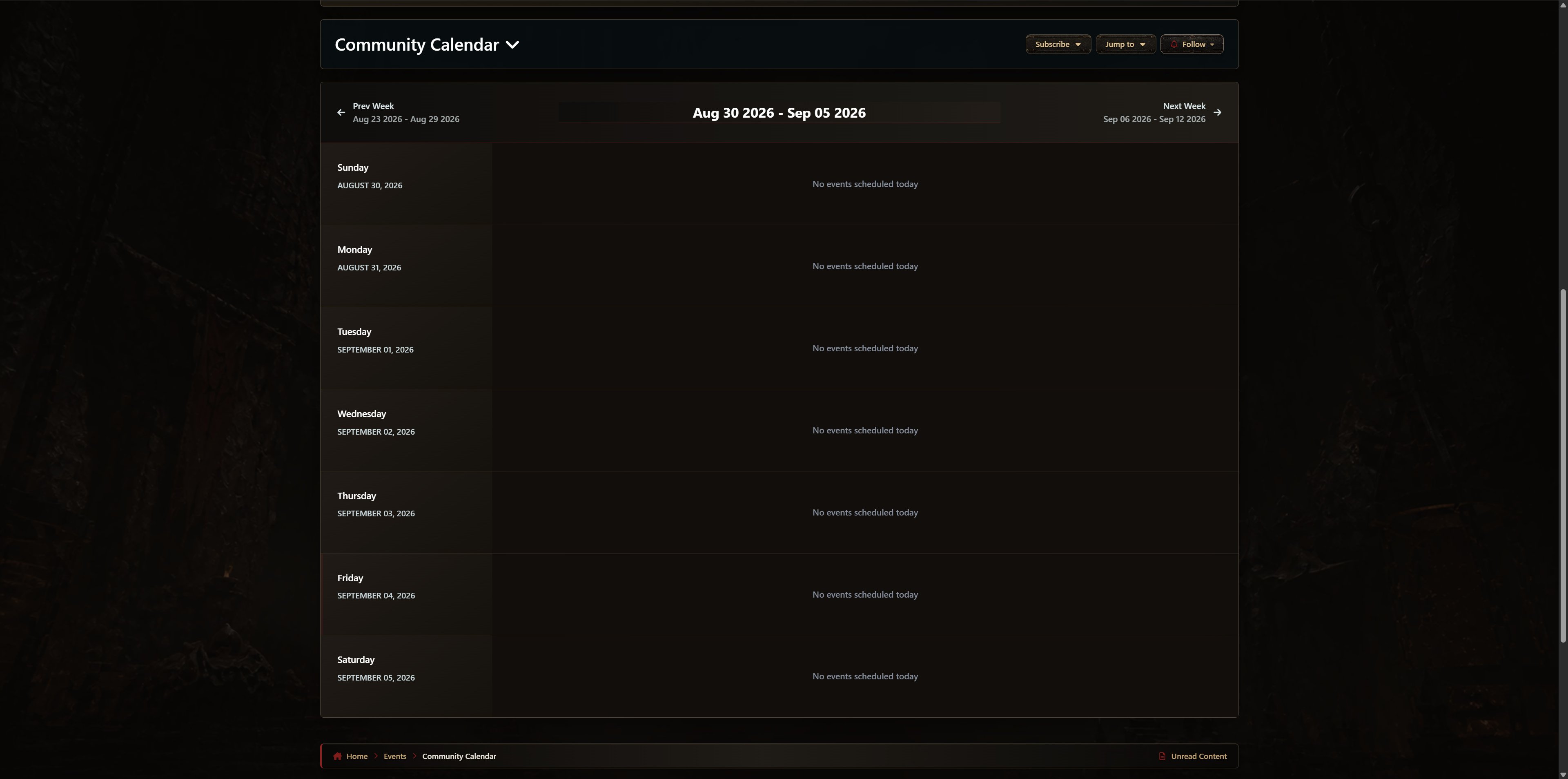
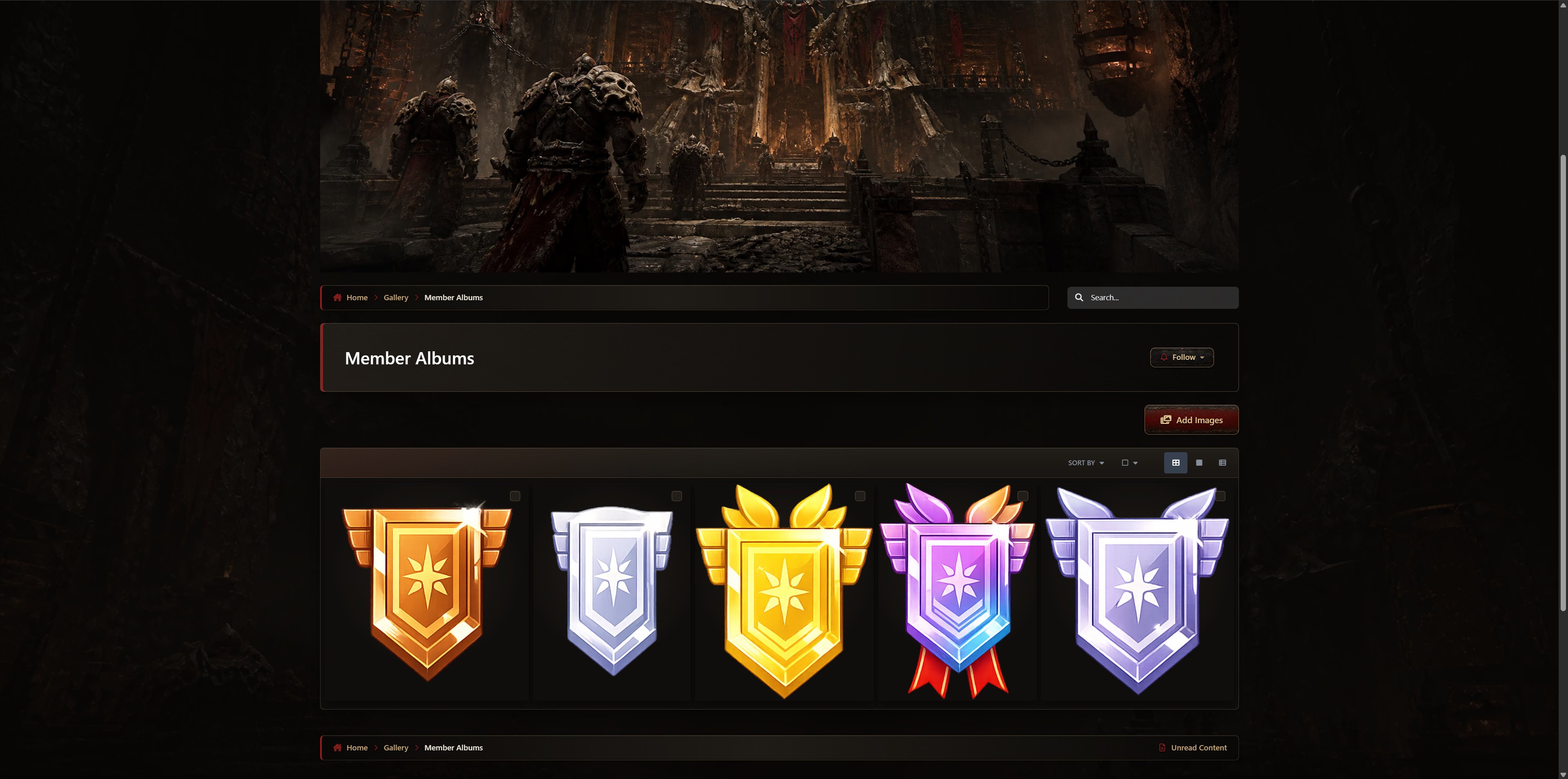
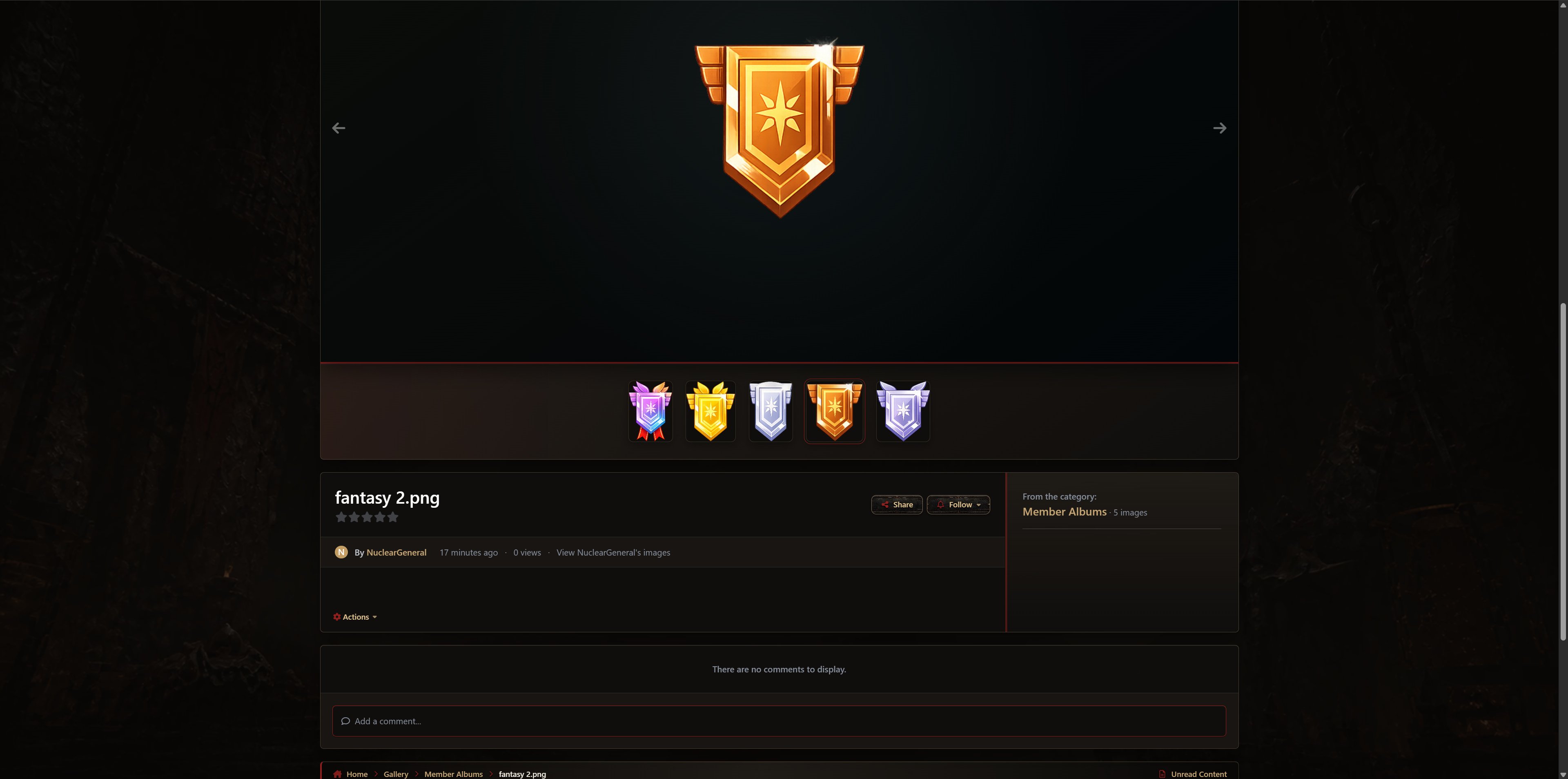
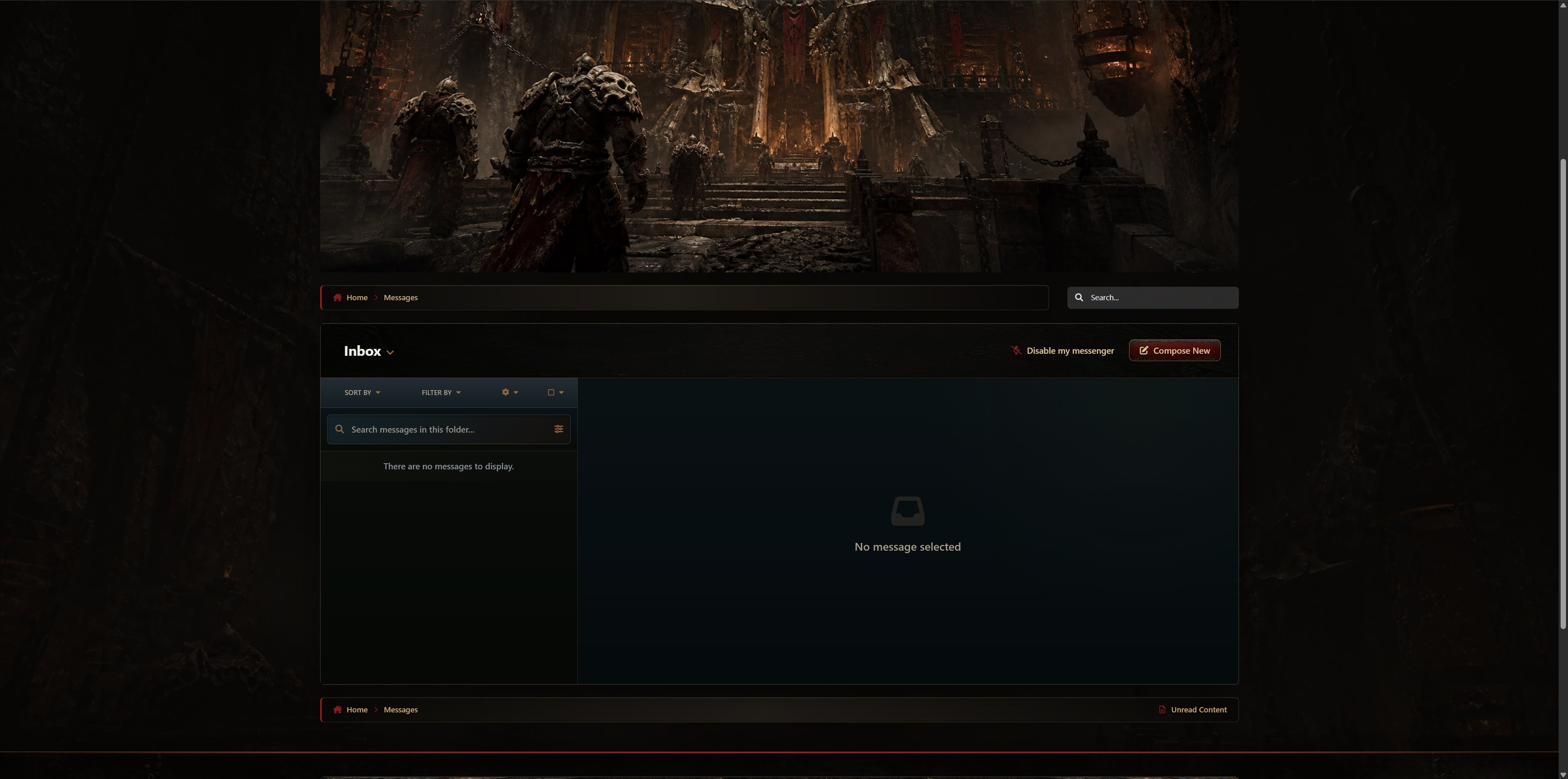
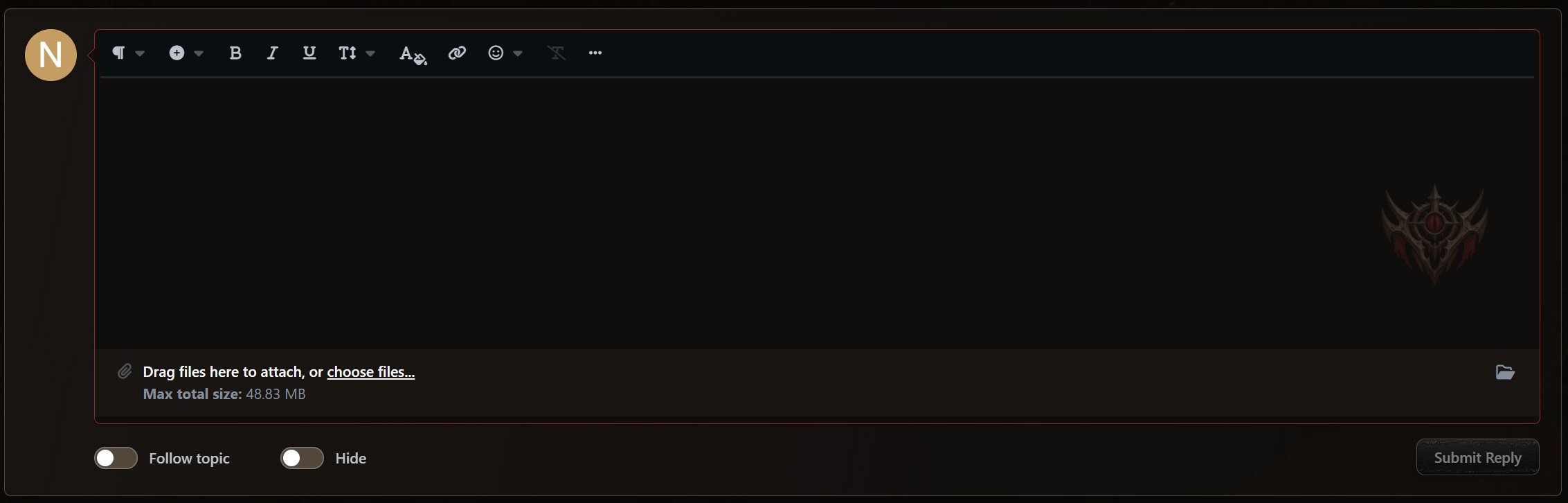
The visual treatment reaches across Forums, Downloads, Gallery, Blogs, Events, Courses, Commerce, Pages, Messenger, profiles, and clubs. Custom fallback images replace generic application artwork, while themed buttons, menus, alerts, application insignias, widget frames, cover photos, and editor and forum-post watermarks reinforce the Locust identity throughout the platform.
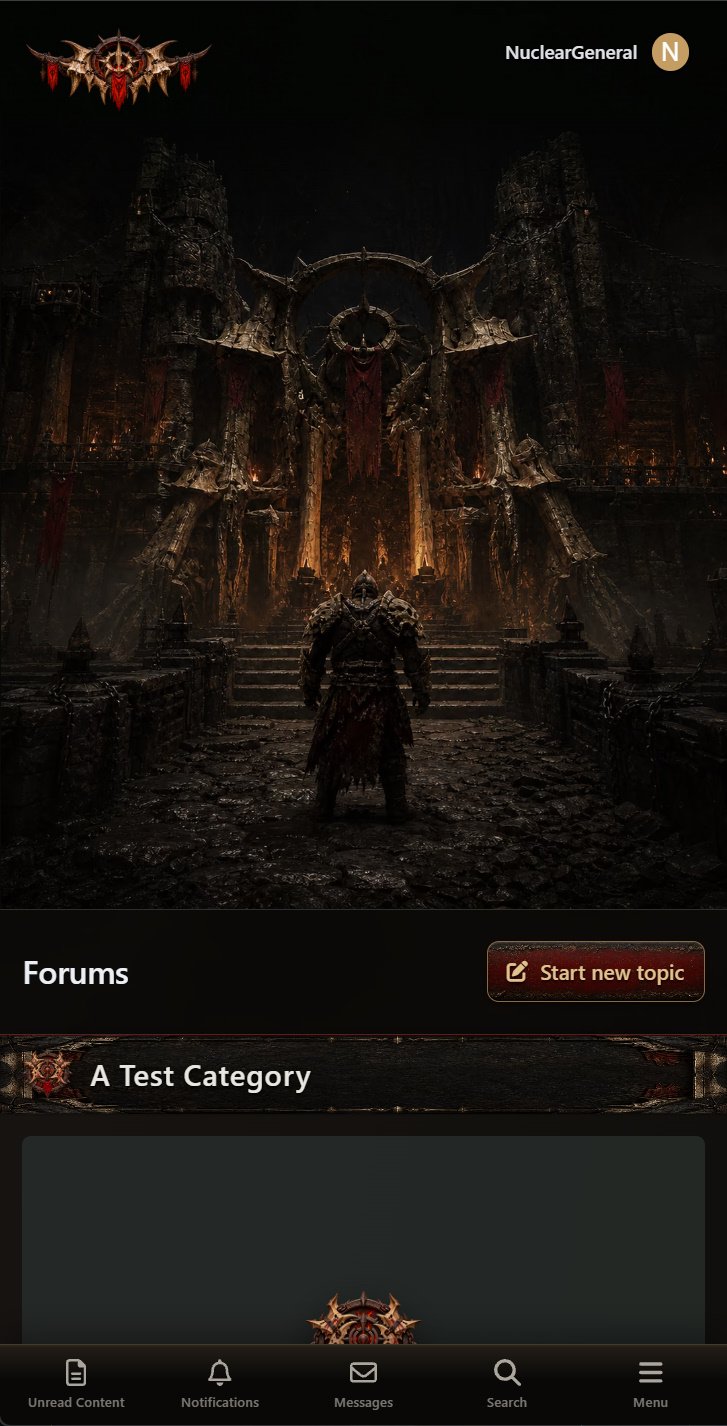
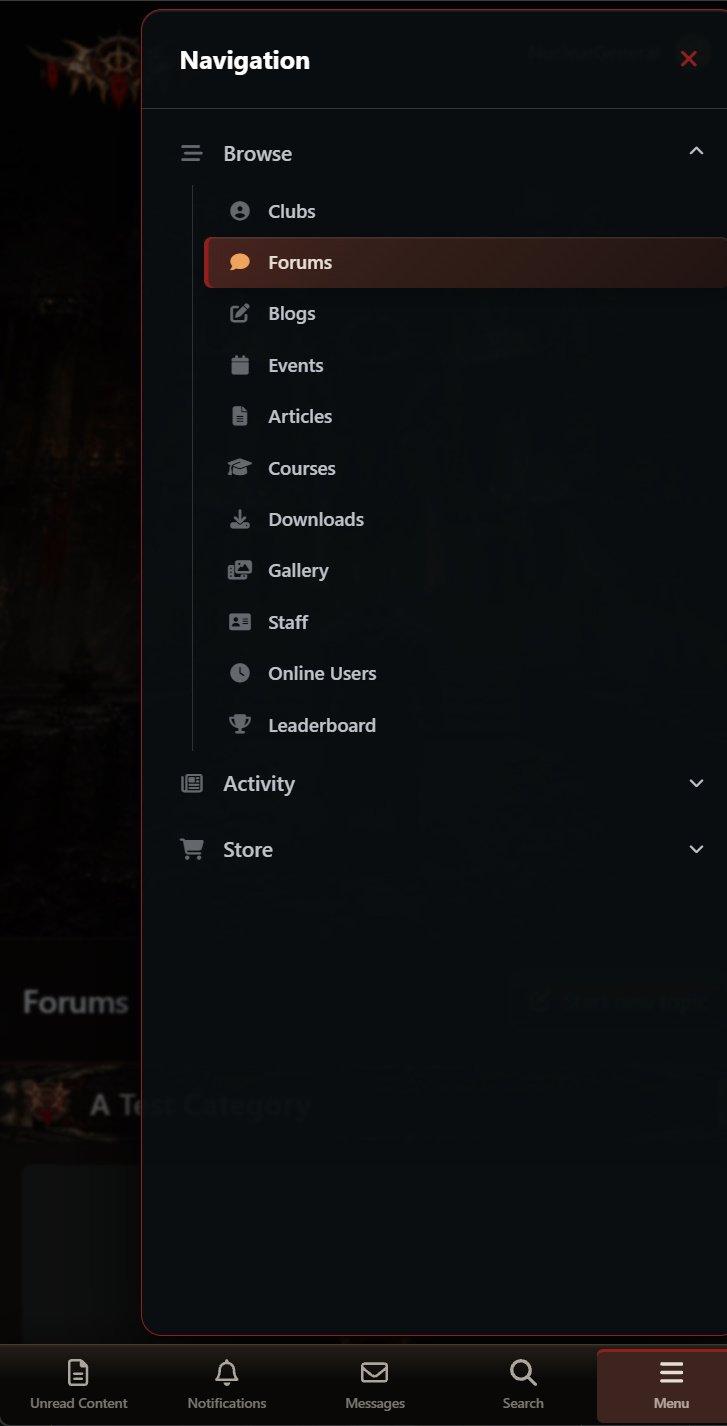
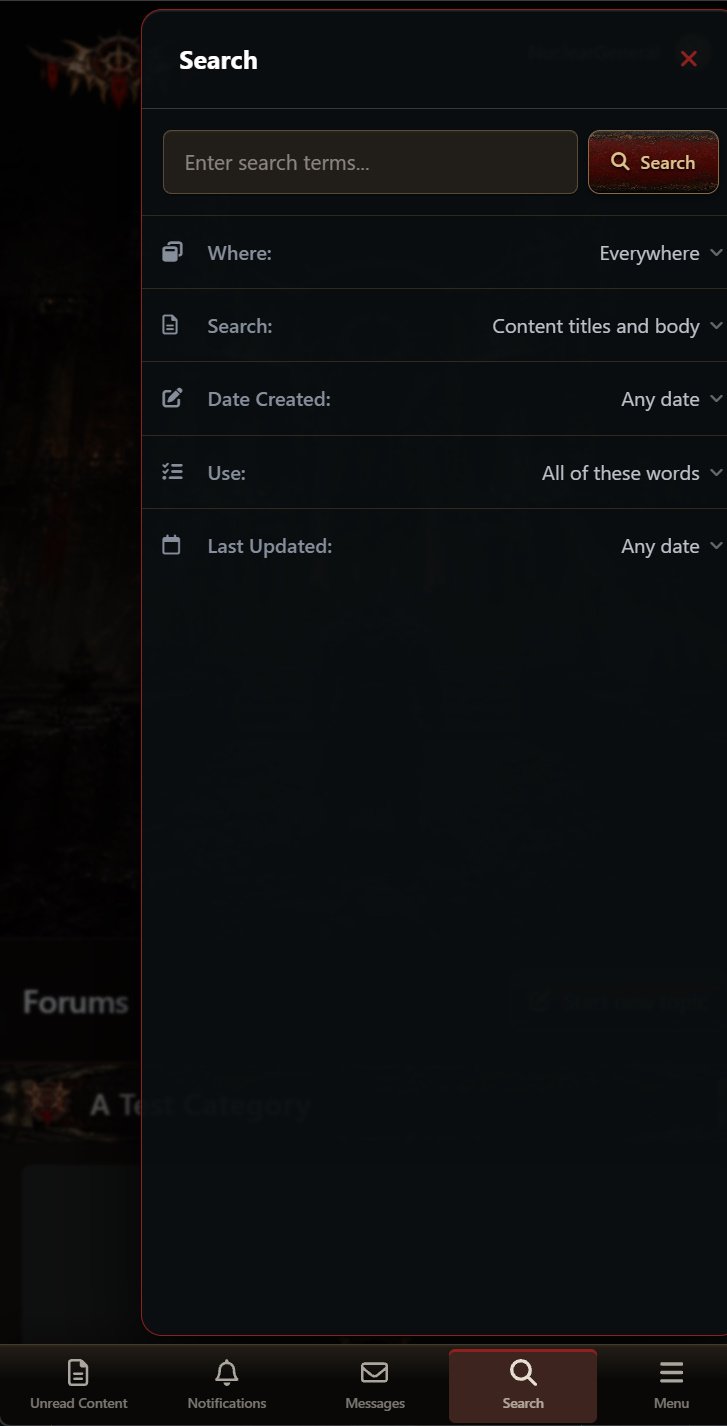
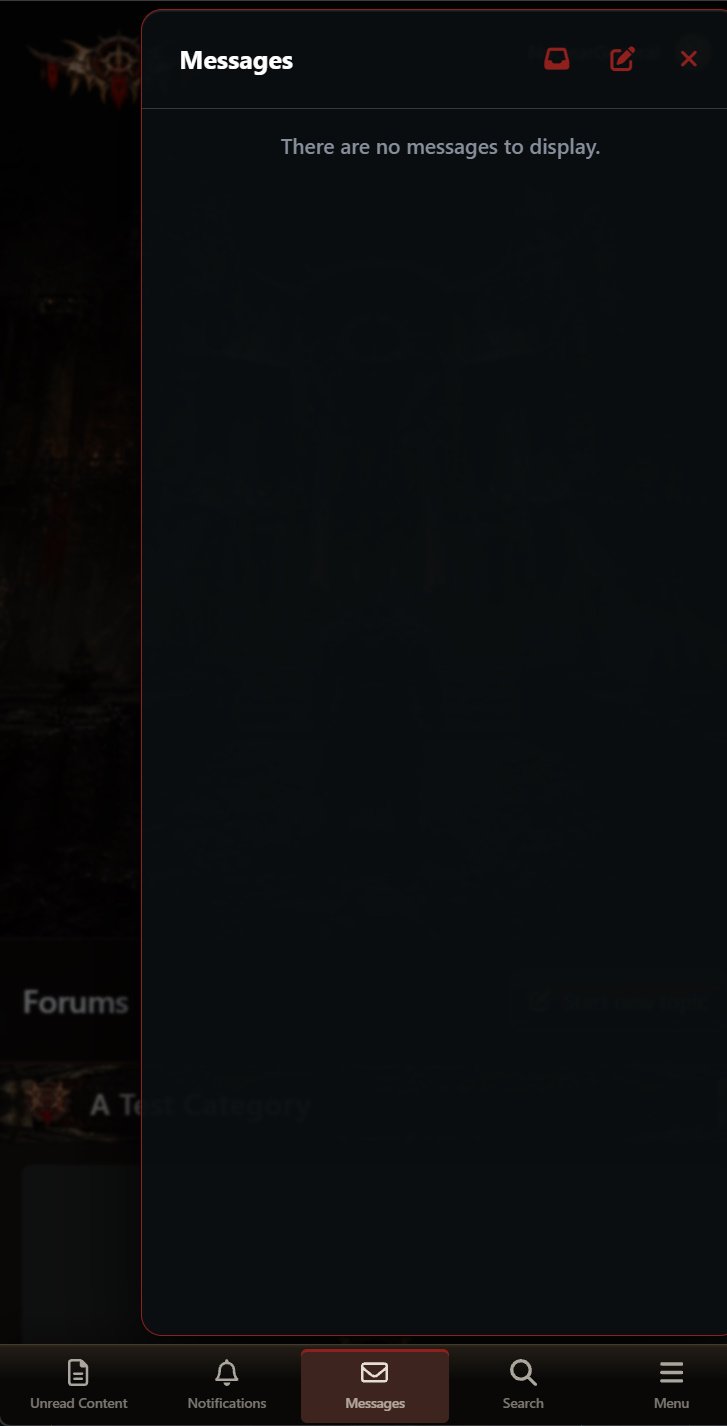
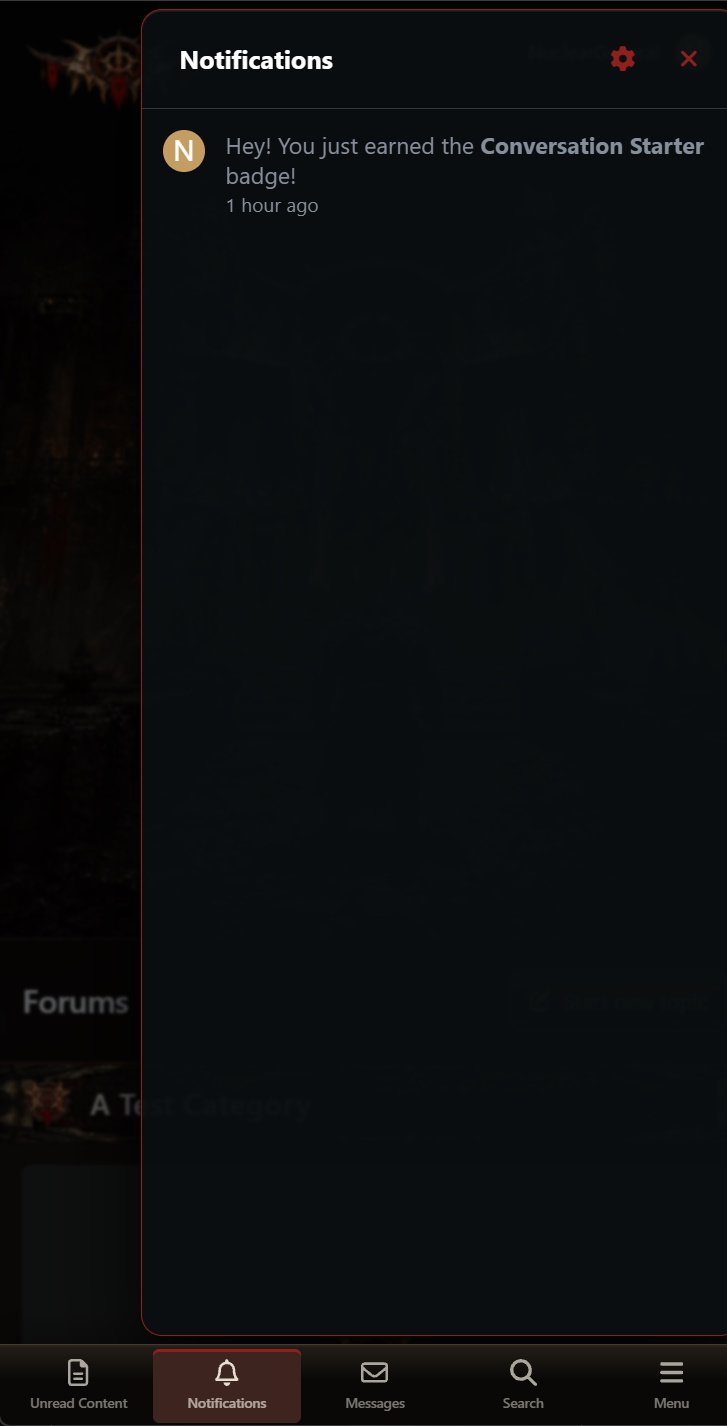
Responsive mastheads are individually composed for desktop, tablet, and mobile rather than relying on one image for every display. The theme supports both Classic and Sidepanel layouts while preserving the familiar Invision Community functionality, including responsive menus, sticky message navigation, editors, dropdowns, forms, moderation tools, and official application behaviors.
There are no reviews to display.