- Category Widgets
- Downloads 57
- Compatibility IC5: 5.0.0+
- Updated
Description
Community Stats — one block that fits wherever you put it
Invision's built-in stats block shows three things: total members, most ever online, and the newest member. No posts, no topics, no sense of whether any of it is growing.
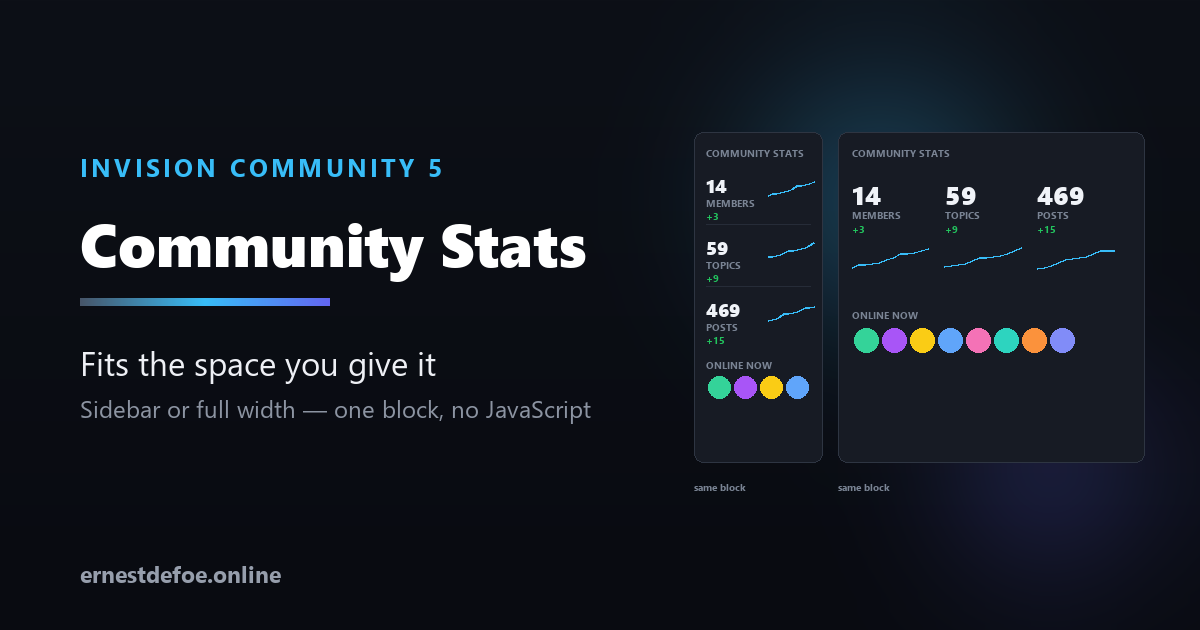
This shows what a visitor actually wants to know, with the trend behind it — and it reflows to whatever space you give it.
The same block, both orientations
It measures its own container, not the browser window. Drop it in a 260px sidebar and it renders as a neat stacked list. Drop it across a content column and the same block becomes a row of tiles. Nothing to configure and no second block to maintain — a normal responsive block cannot do this, because a viewport media query cannot tell a narrow sidebar from a wide page.
If you would rather decide yourself, you can force it to always stack or always tile.
Who's online, with faces
A row of avatars linking to profiles, with an overflow count when there are more than will fit.
Anonymous browsing is respected, properly. A member who has chosen to browse anonymously is never shown and never counted — and neither are guests or search engine spiders. The number beside the avatars is derived from the same list that draws them, so the count and the faces can never disagree with each other.
Figures that mean something
Counts | Members, topics, posts, online now, newest member |
|---|---|
And, if you run them | Files, images, blog entries, events |
Trend | A rise or fall over a period you choose |
Sparkline | A 30-day line beside each figure |
Only the figures your community can actually produce are offered — install Gallery and an image count appears in the list by itself. Nothing runs a query for something you are not showing.
Trends work on the first day
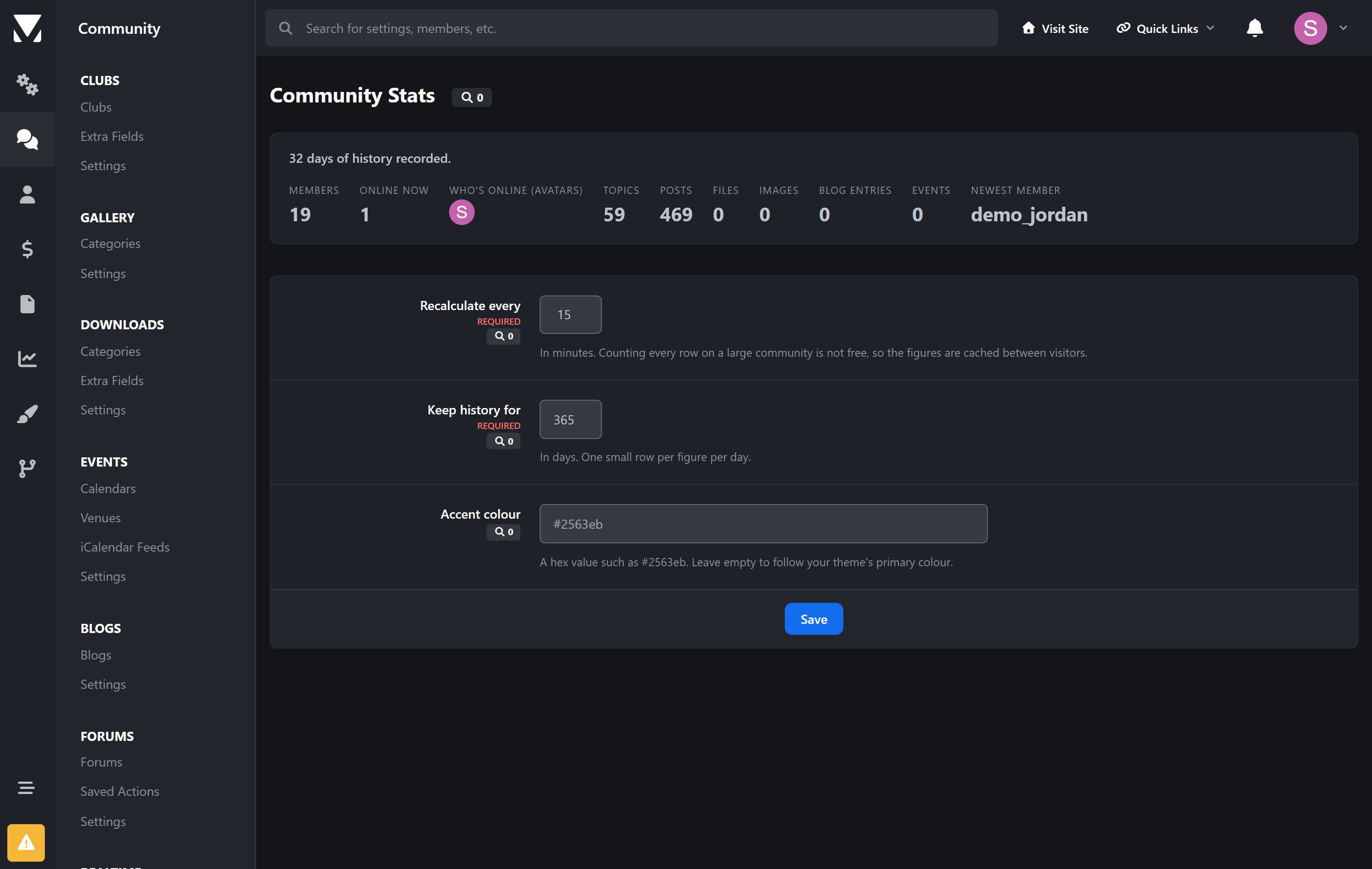
Members, topics and posts can be rebuilt from their own timestamps, so one click gives you a month of history immediately rather than asking you to wait a month for the block to look finished. Everything else starts recording from now.
And until there is real history, no trend is shown at all. A "+0" on a fresh install would be a lie dressed up as data.
Built to sit on a busy page
Cached. Counting every row on a large community is not free, so figures are shared between visitors for an interval you set.
No JavaScript. The sparklines are drawn inline as SVG — no charting library is loaded, on any page the block appears on.
Big numbers stay readable. 12,300 becomes 12.3k rather than breaking the layout of a sidebar.
Follows your theme, or takes an accent colour of your choosing.
No core files are edited. Upgrading Invision Community will not break it.
Requirements
Invision Community 5.0 or newer (self-hosted)
Forums, Downloads, Gallery, Blog and Calendar are all optional — the block simply offers whatever you have
Create an account or sign in to leave a review
There are no reviews to display.