Invision Community 5
- Category Integrations
- Downloads 88
- Compatibility IC5: 5.0.0+
- Updated
Overview
Gravatar Support adds optional Gravatar integration to your Invision Community, allowing members to automatically use their Gravatar as a profile photo.Description
Gravatar is widely adopted and used by millions of users across the web, making it a familiar and low-friction option for profile photos.
Gravatar Support adds optional Gravatar integration to your Invision Community, allowing members to automatically use their Gravatar as a profile photo.
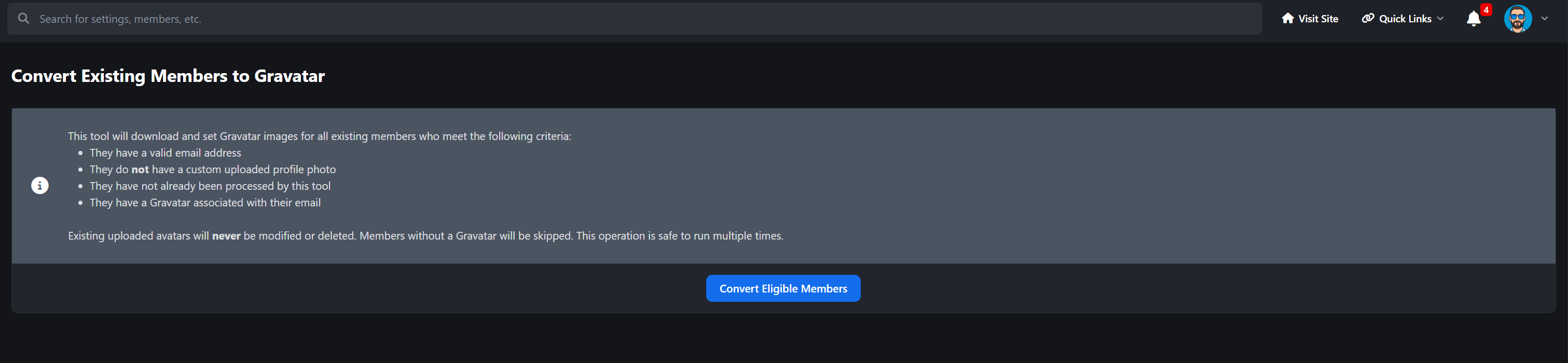
When enabled, it automatically grabs their Gravatar if they haven’t uploaded a custom avatar/photo. Uploaded profile photos are always respected and never overridden. For communities with existing users, an optional ACP conversion tool lets administrators safely enable Gravatar for eligible members with a single click.
The app is lightweight, non-intrusive, and fully compatible with Invision Community v5.
Key features:
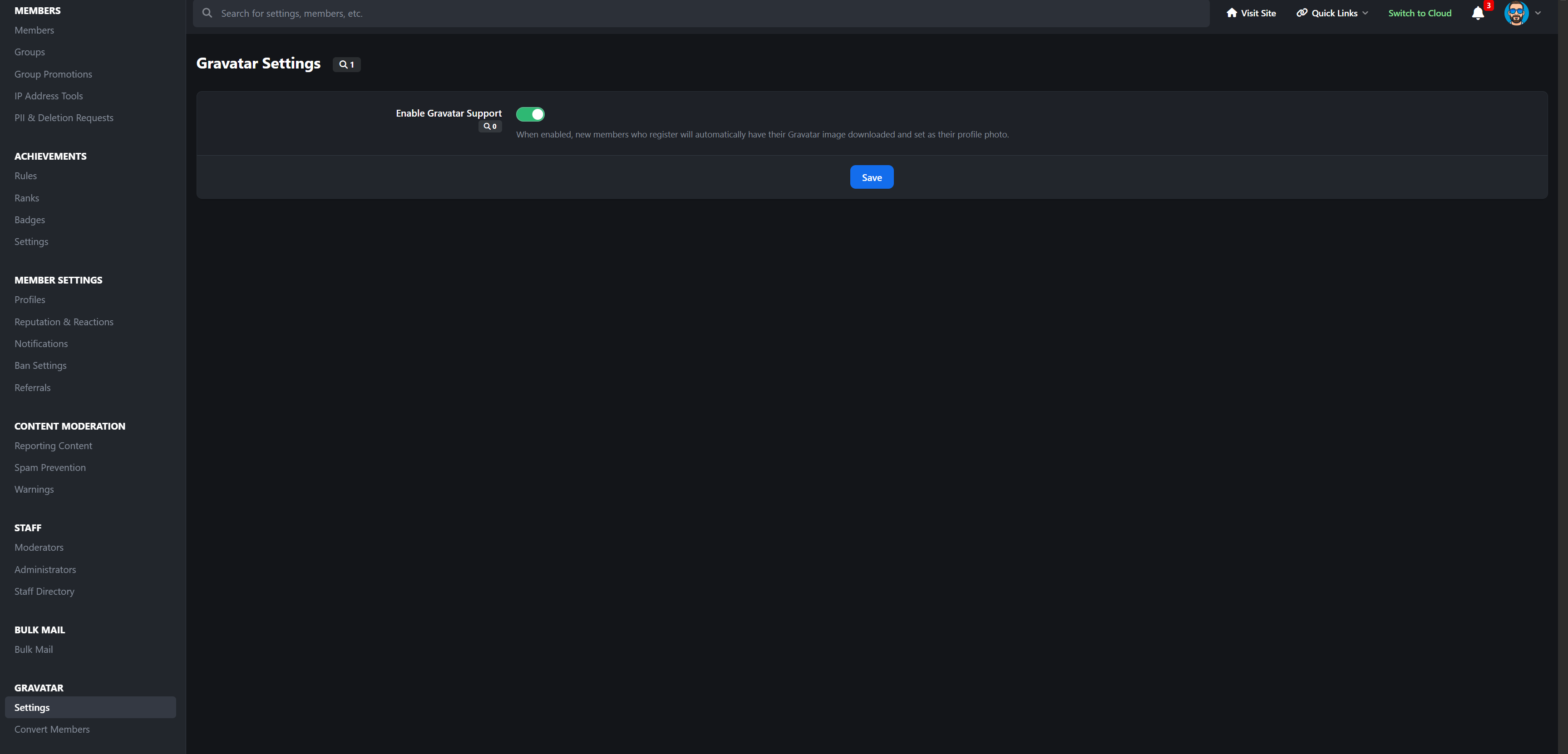
Global ACP toggle for Gravatar support
Safe fallback to default IPS avatars
Optional ACP tool to enable Gravatar for existing members
No impact on uploaded profile photos
Perfect for communities that want effortless profile photos with zero disruption.
Create an account or sign in to leave a review
There are no reviews to display.