Jump to content
View in the app

A better way to browse. Learn more.

Invision Marketplace

A full-screen app on your home screen with push notifications, badges and more.

To install this app on iOS and iPadOS
  1. Tap the Share icon in Safari
  2. Scroll the menu and tap Add to Home Screen.
  3. Tap Add in the top-right corner.
To install this app on Android
  1. Tap the 3-dot menu (⋮) in the top-right corner of the browser.
  2. Tap Add to Home screen or Install app.
  3. Confirm by tapping Install.

Everything you need for your community

We will be moving to a new server soon, some downtime is expected.

Everything you need for your community

Invision Community 5
  • Category Multimedia
  • Downloads 60
  • Compatibility IC5: 5.0.0+
  • Updated
Bring your Downloads section to life with HoverShots

Overview

Bring your Downloads section to life with HoverShots

Description

Bring your Downloads section to life with HoverShots - a smooth, eye-catching way to preview multiple screenshots right from the file card.

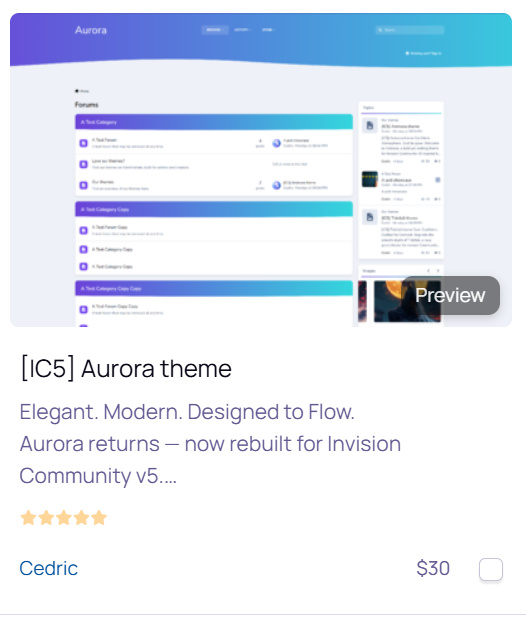
On desktop, simply hover over a file’s thumbnail and watch the screenshots cycle automatically. On mobile, a discreet Preview button appears inside the image, letting visitors tap to start a short preview without opening the file page.

HoverShots works seamlessly in category listings, the main Downloads page, and other grid-based displays. It respects mobile usability as it skips small/minimal grid items, and avoids interfering with clicks or navigation.

Give your files the attention they deserve and make browsing more engaging for your community.

User Feedback

Create an account or sign in to leave a review

There are no reviews to display.

Configure browser push notifications

Chrome (Android)
  1. Tap the lock icon next to the address bar.
  2. Tap Permissions → Notifications.
  3. Adjust your preference.
Chrome (Desktop)
  1. Click the padlock icon in the address bar.
  2. Select Site settings.
  3. Find Notifications and adjust your preference.