Invision Community 5
- Category Themes
- Downloads 129
- Compatibility IC5: 5.0.0+
- Updated
Overview
A Vampiric Theme for Invision Community v5Description
Blood Red — A Vampiric Theme for Invision Community v5
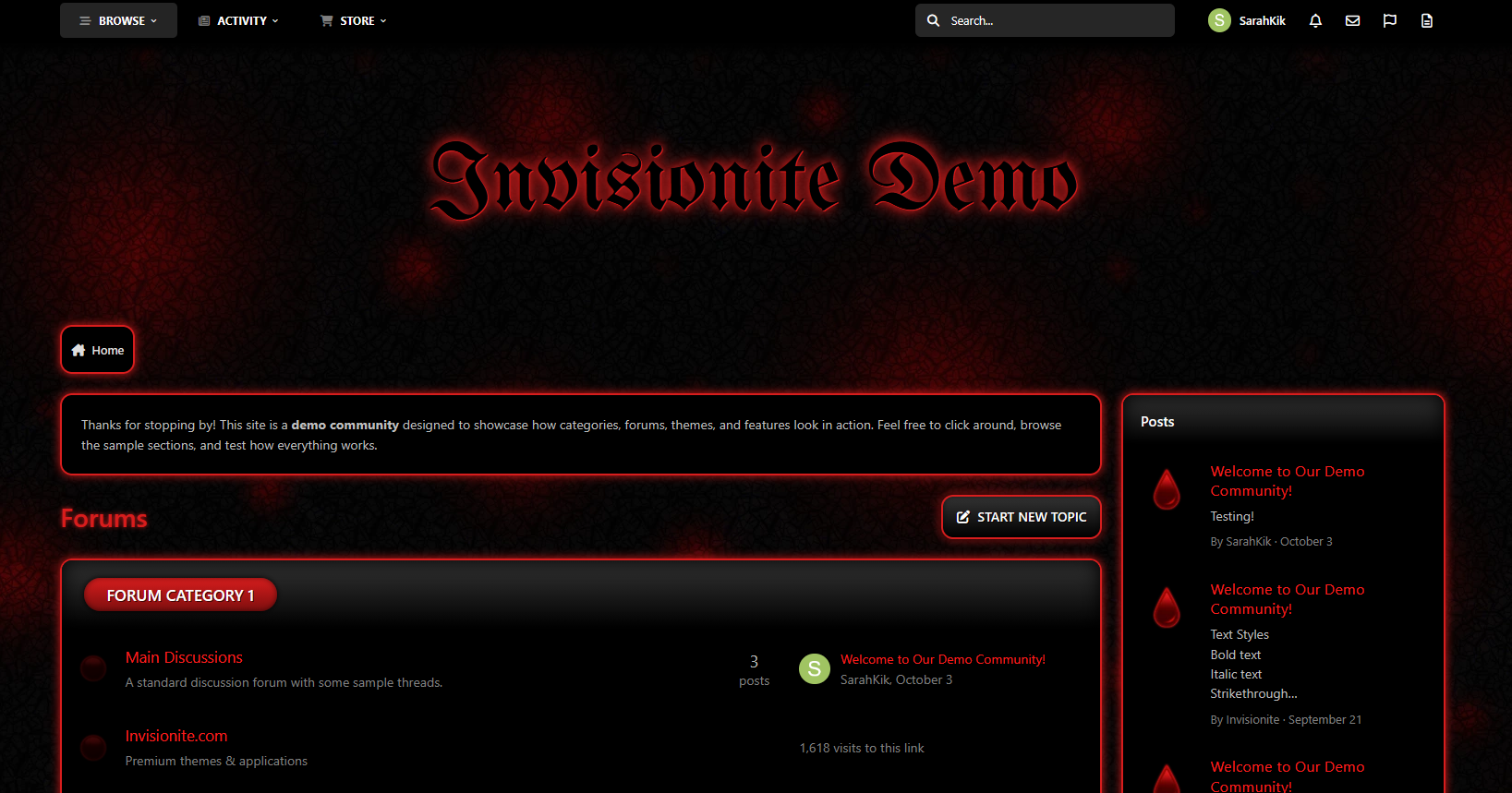
Blood Red is a red counterpart to Acid, this time decked out with a creepy dark background and pops of vibrant crimson; perfect for communities dedicated to vampire related franchises or horror forums!
Live Demo (select Blood Red)
Highlights
Gothic fantasy
The dark textured background with glows of blood red provides a moody, broody atmosphere.
Vampire vibes
Blood drops and a medieval, bold header font with a sinister red glow embraces a look you might find in vampire coven interiors.
Moody and stylish
The visual tone feels both elegant and menacing, finding balance between gothic luxury and supernatural dread.
Built for Invision Community v5
Developed using v5’s updated template structure, ensuring modern design standards, improved responsiveness, and compatibility with all core apps.
What’s Included
Complete Invision Community v5 theme
Styled widgets and forum containers
Custom background, forum icons and accents
Create an account or sign in to leave a review
There are no reviews to display.