[IC5] Azurea theme
- Category Themes
- Downloads 72
- Compatibility IC5: 5.0.0+
- Updated
Description
Bright. Balanced. Calm by Design.
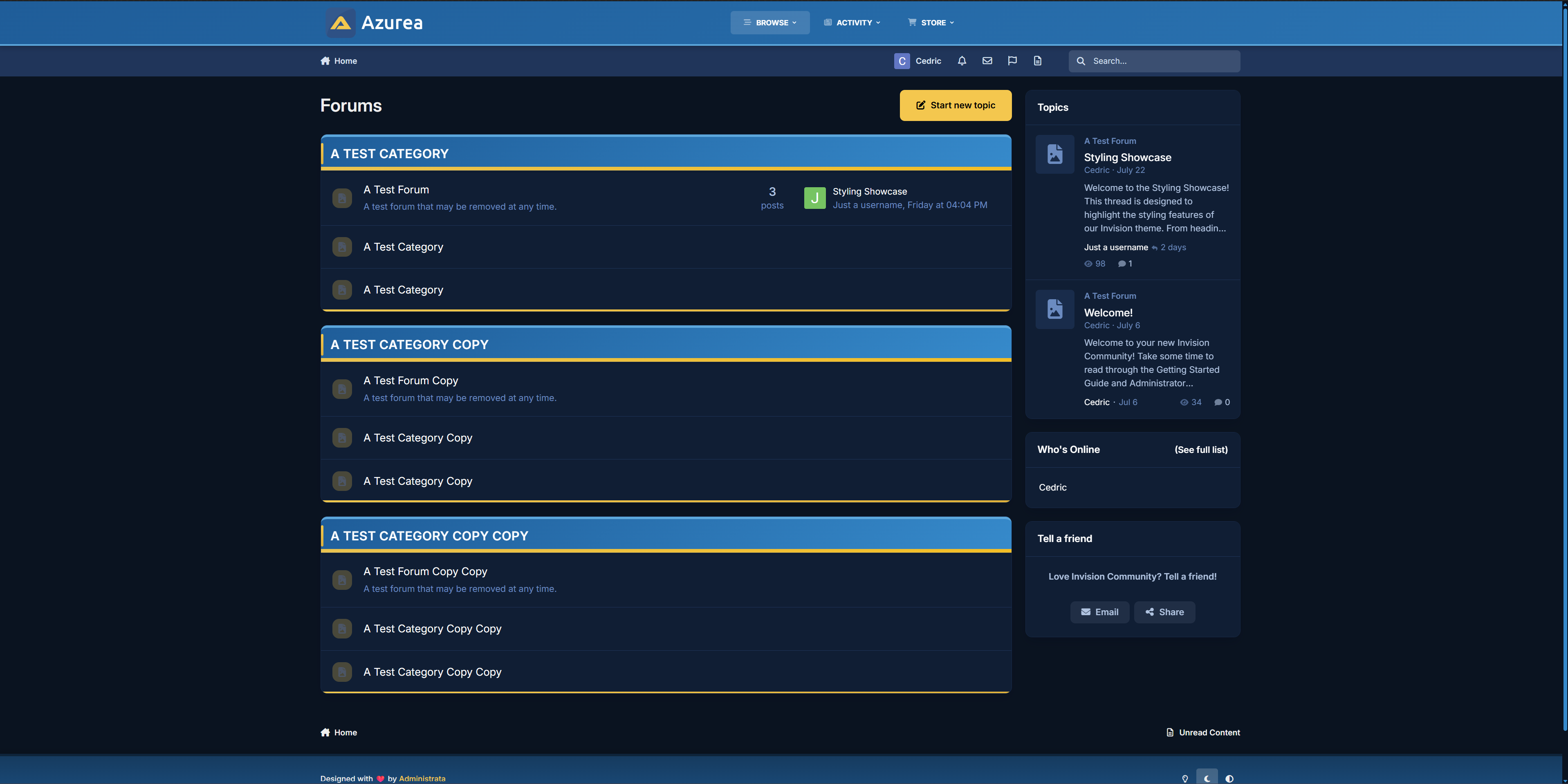
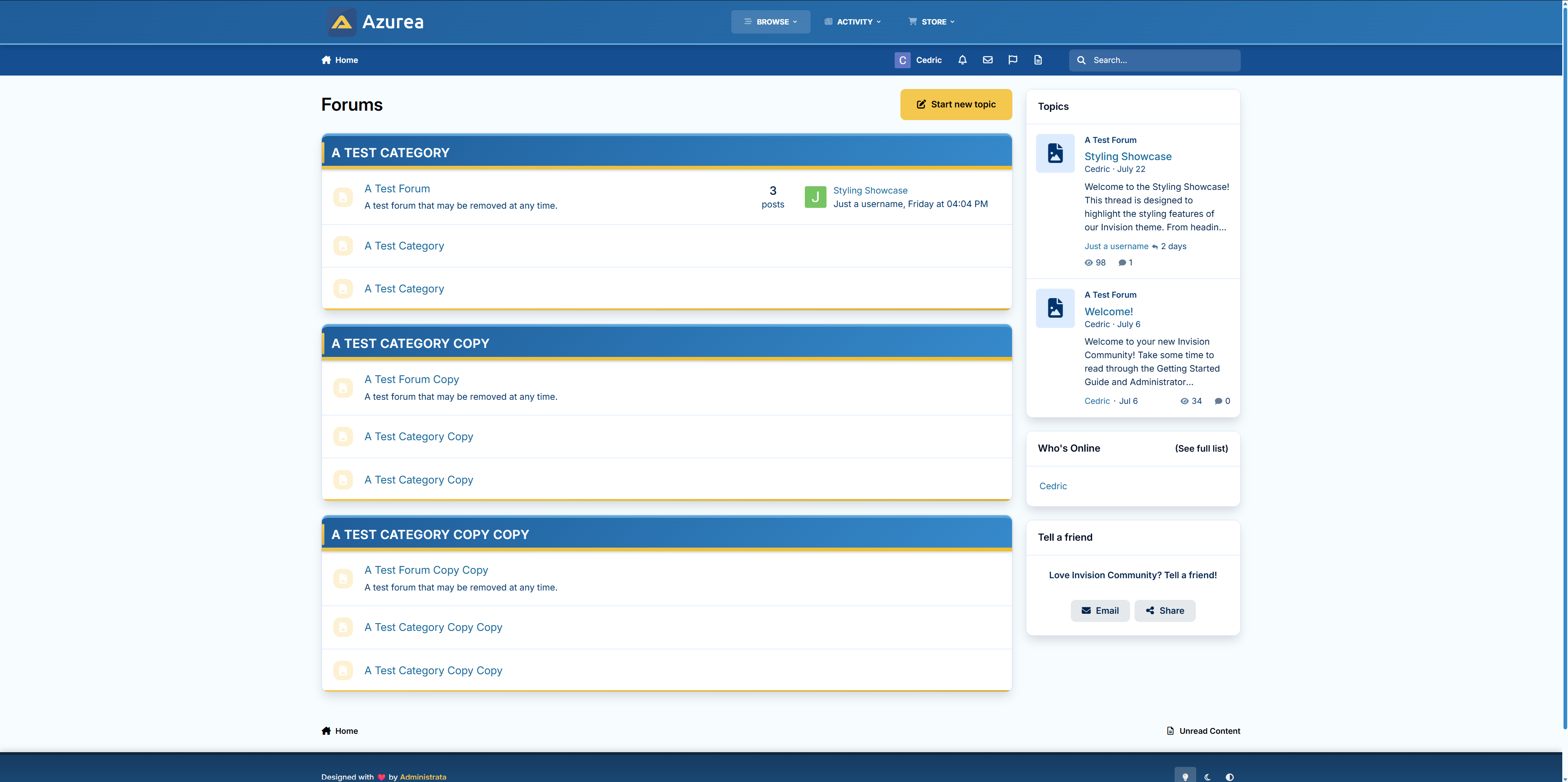
Step into the tranquil clarity of Azurea, a blue-forward theme for Invision Community v5 that blends soft gradients with subtle detail. Azurea is for communities that want to feel uplifting without being flashy — clean, calm, and carefully styled to get out of your way and let the content shine.
✔️Cool Blue Palette – A spectrum of glacial and ocean blues, designed for calm readability with a fresh edge.
✔️ Subtle Gradient Elements – Category headers, progress bars, and nav panels fade naturally across tones for soft depth.
✔️ Fine Accent Lines – Highlights and trims in light blue or yellow add energy without breaking serenity.
✔️ Minimal Visual Noise – Rounded boxes, smooth hover effects, and intuitive navigation let your forum breathe.
✔️ Custom Scrollbars & Icons – Every UI detail—from scrollbars to buttons—feels like part of the same system.
✔️ Fully Responsive – Whether you're on desktop, tablet, or mobile, Azurea adapts beautifully.
Ideal for forums that want a lightweight, professional aesthetic without sacrificing warmth.
Create an account or sign in to leave a review
There are no reviews to display.