[IC5] Tidefall theme
- Category Themes
- Downloads 116
- Compatibility IC5: 5.0.0+
- Updated
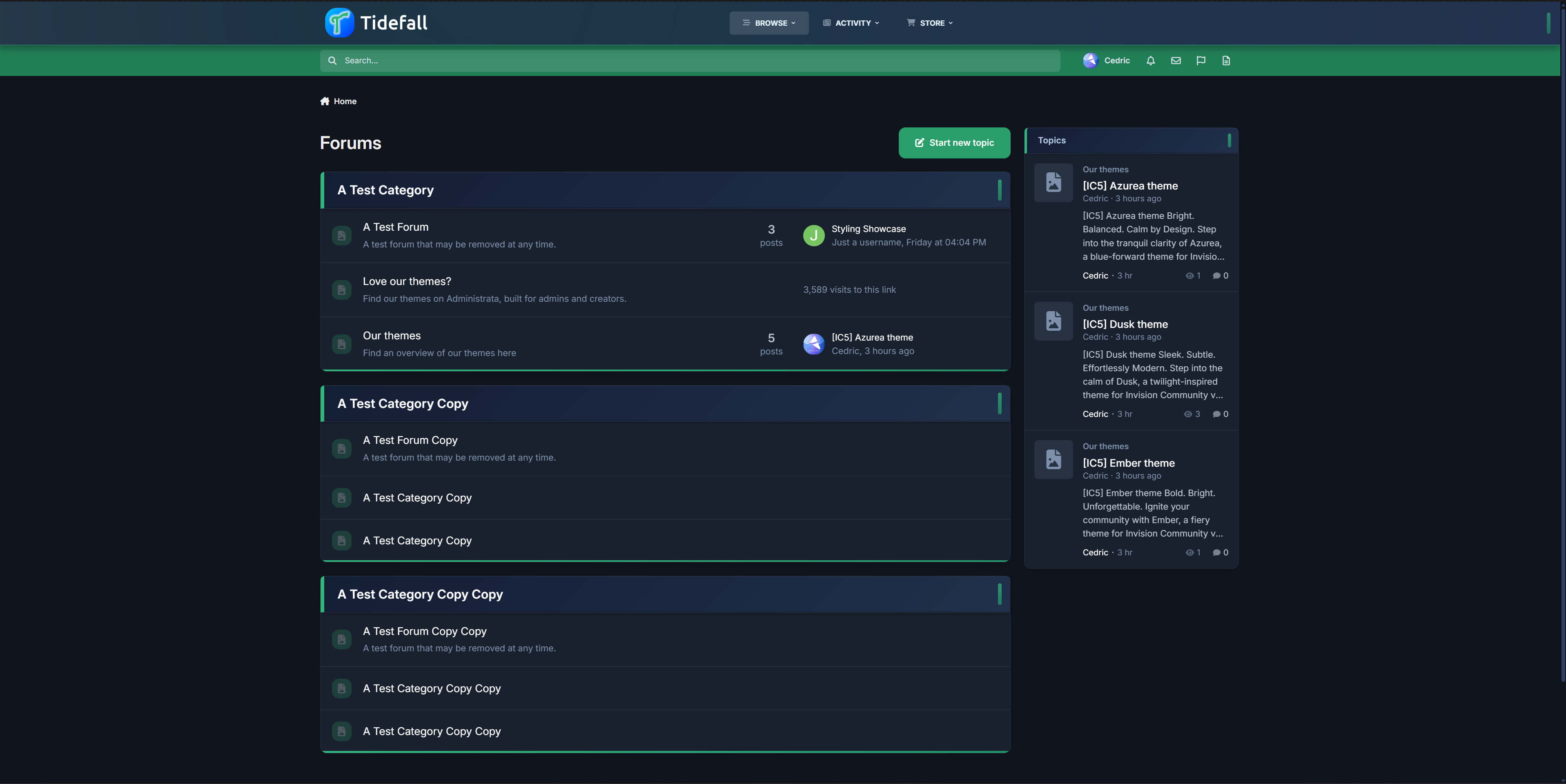
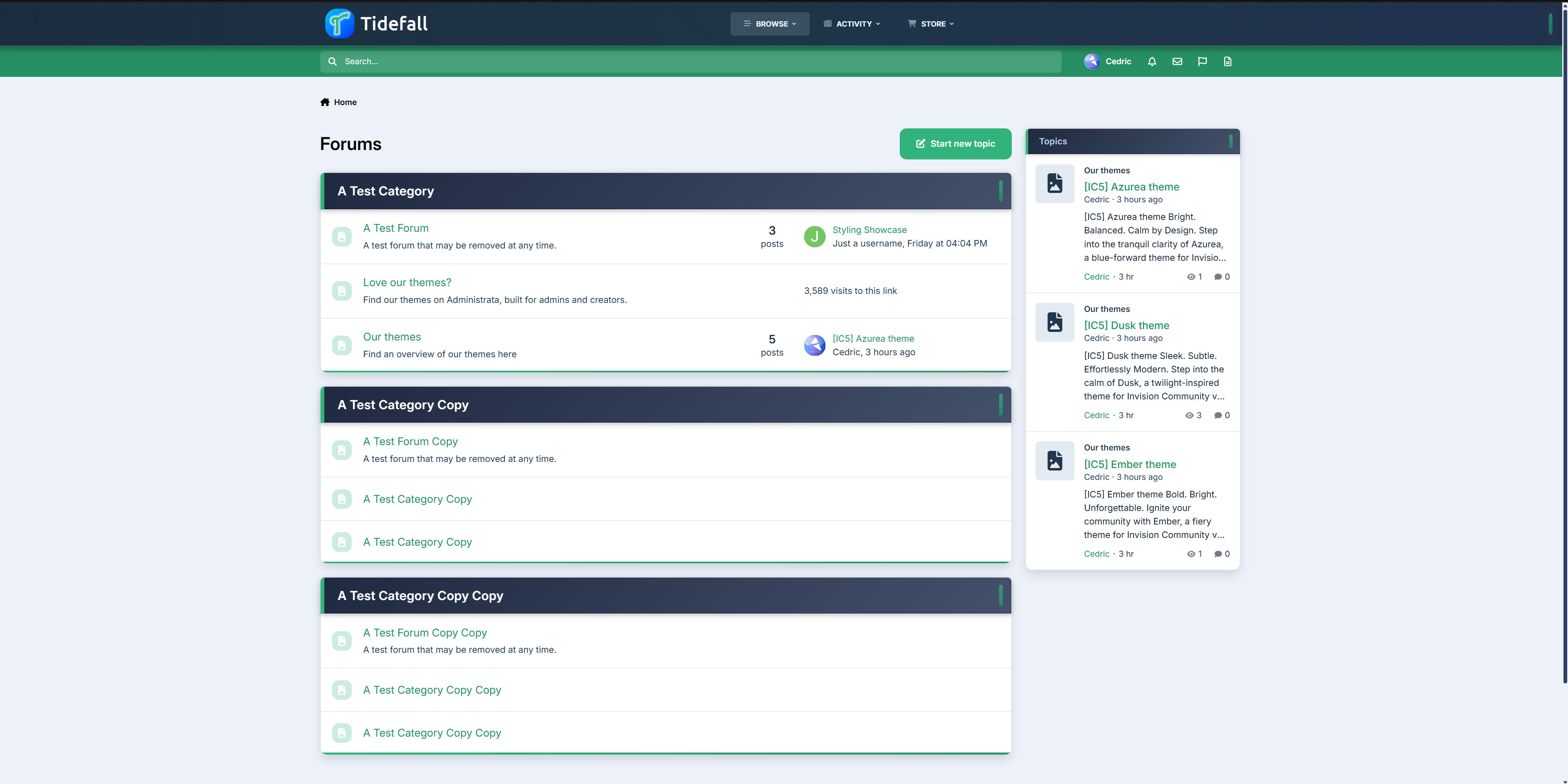
Description
Cool. Confident. Crafted for Contrast.
Step into the smooth depth of Tidefall, a navy-green theme for Invision Community v5 that balances vibrant clarity with grounded style. With a shifting header, soft blurs, and crisp lines, Tidefall brings a modern edge to any forum—quietly bold, intentionally clean.
✔️ Deep Navy & Emerald Palette – Designed for contrast and readability, with rich blues and a refined, confident green.
✔️ Modern Box Styling – Frosted headers, soft shadows, and vertical accent pills give your categories just the right touch of presence.
✔️ Animated Header Gradient – The primary header smoothly shifts tones, adding movement without noise.
✔️ Subtle Gradient Highlights – Forum bars and buttons use delicate fades to keep the interface lively and engaging.
✔️ Refined UI Elements – Custom scrollbars, clean navigation, and minimalist icons tie the whole theme together.
✔️ Light & Dark Included – Every detail adjusted for both modes, with consistent branding and polish.
Ideal for communities that want a sharp, distinctive style without being overbearing.
Create an account or sign in to leave a review
There are no reviews to display.