Invision Community 5
- Category Themes
- Downloads 90
- Compatibility IC5: 5.0.0+
- Updated
Overview
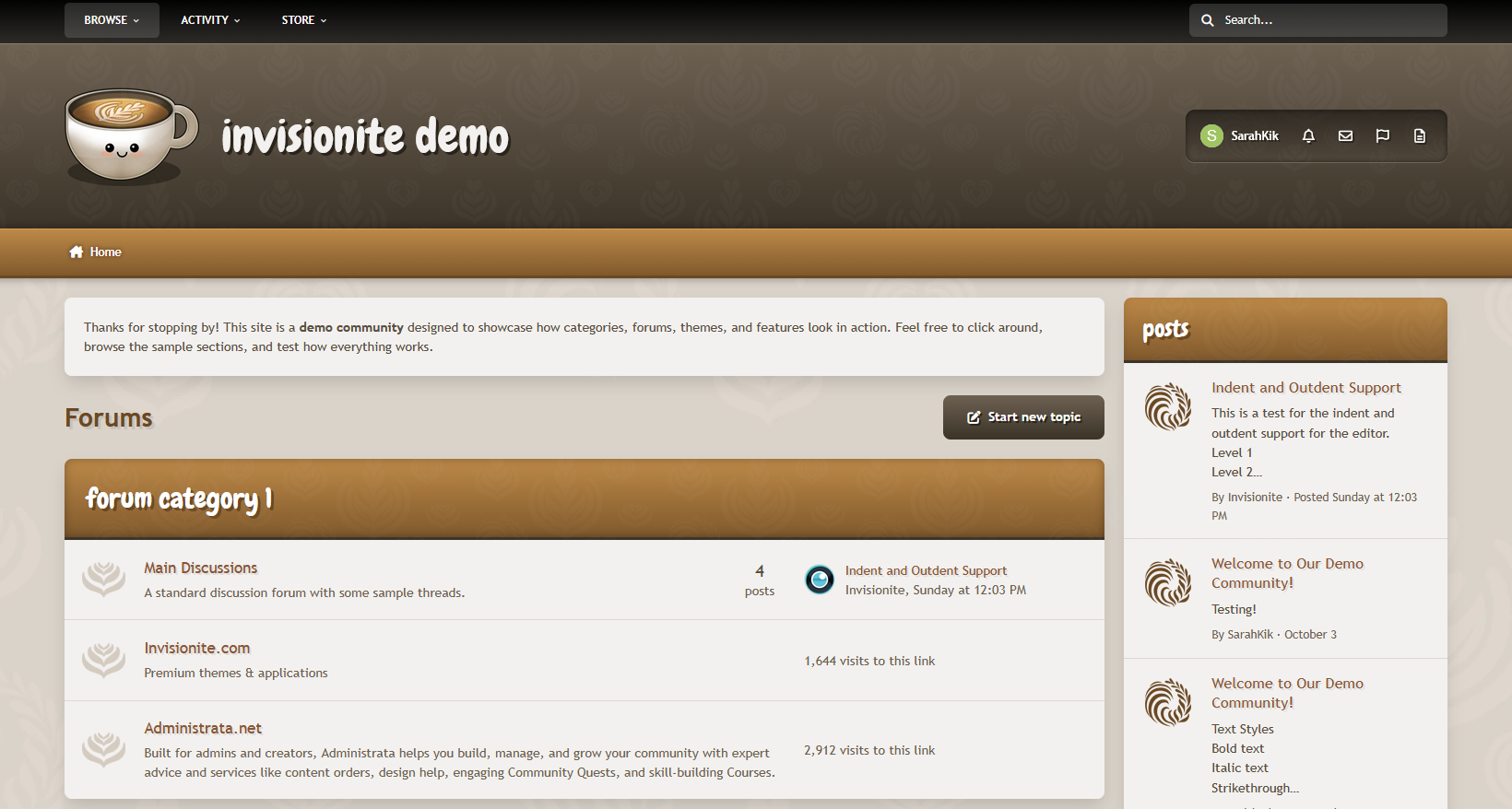
Oh-la-latte is a warm coffee inspired theme that uses neutral, soft colours for an inviting feel.Description
Oh-la-latte — A Cozy Theme for Invision Community v5
Oh-la-latte is a warm coffee inspired theme that uses neutral, soft colours for an inviting feel.
Live Demo (select Oh-la-latte)
Highlights
Friendly, playful and relaxed
Decorative icons and a cute, smiley logo to help communities feel more inviting and warm, like a nice hot cup of coffee!
Cozy layout
The warm browns, caramel hues, and creamy beige colours blend together smoothly for a comfortable mood.
Easy to navigate, clean and readable
Elements are easy on the eyes while remaining content focused, and subtle background patterns add texture without being too distracting.
Built for Invision Community v5
Developed using v5’s updated template structure, ensuring modern design standards, improved responsiveness, and compatibility with all core apps.
What’s Included
Complete Invision Community v5 theme
Custom header, footer, and background artwork
Styled widgets and forum containers
Forum icons and accents
Create an account or sign in to leave a review
There are no reviews to display.