Member Tools
-
IPS5.0.0+
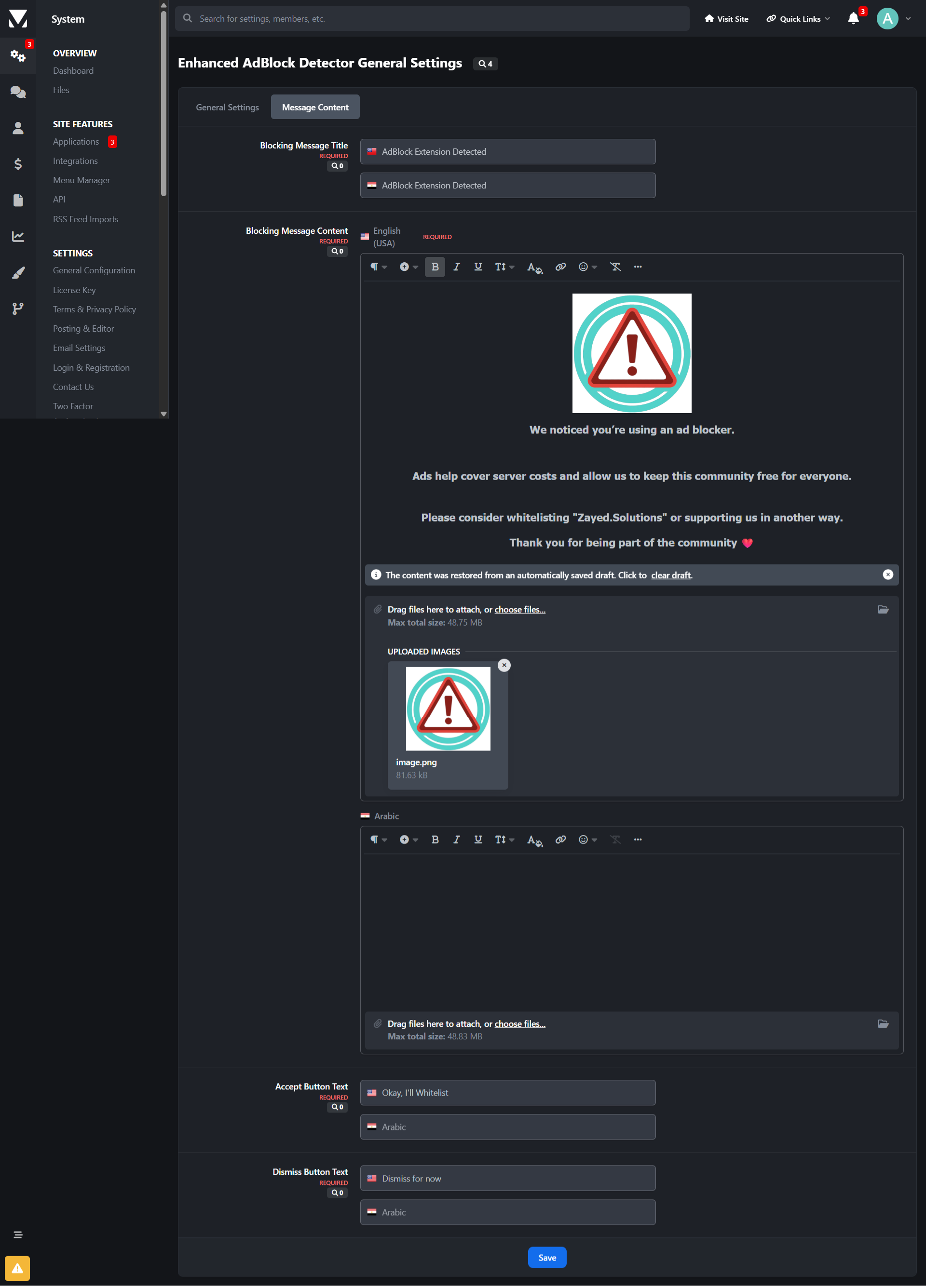
With AdBlock Extension Detector, you can detect when users are blocking ads on your website and take action based on your community’s rules.
When an ad blocker is detected, the application displays a blocking message that can partially or fully restrict access to your website until the user disables their ad blocker or takes an allowed action.
The application is highly configurable and supports modern ad blockers, making it suitable for communities of all sizes.
Key Features
Advanced AdBlock Detection
Supports popular ad blockers including:
AdBlock
AdBlock Plus
User Group Control
Choose exactly which user groups are affected when an ad blocker is detected.
Optional Full Site Blocking
Display a modal message that can:
Disable interaction
Prevent page scrolling
Dismiss & Remember Options
Allow users to dismiss the message (optional)
Remember the user’s choice via cookies
Fully Customizable Message
Custom header text
Rich-text message body (Translatable messages support)
Custom button labels
Flexible Display Modes
Small modal
Medium modal
Full-screen blocking message
UX Controls
Enable or disable the vertical scrollbar
Control how aggressive the enforcement should be
Optimized for Invision Community
AJAX-safe
Compatible with IPS dialogs
Works with modern IPS themes and navigation
Benefits
Helps increase advertising revenue
Encourages fair usage of your content
Offers balanced enforcement instead of hard lockouts
Reduces bounce rate compared to aggressive blockers
Suitable for forums, communities, news sites, and content platforms
⚠️Important Notice Before Purchasing
While AdBlock Extension Detector uses multiple detection techniques and is actively updated to improve detection accuracy, no client-side solution can guarantee 100% detection of all ad blockers.
Ad blockers continuously evolve, and some privacy-focused browsers or DNS-based solutions may partially or fully bypass detection.
By purchasing this application, you acknowledge that:
Detection accuracy may vary by browser and configuration
Updates may be required to adapt to new ad-blocking techniques
Results depend on how users configure their blockers
-
IPS5.0.0+
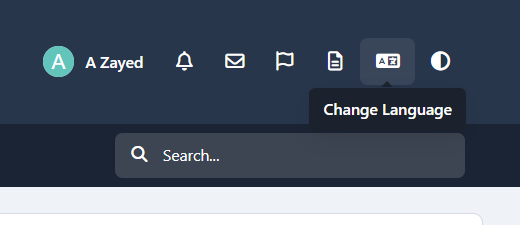
Give users faster access to theme selection.
This lightweight application allows community members to switch themes directly from the top user bar, eliminating the need to use the bottom theme selection menu.
By moving theme controls to a more visible and accessible location, the app improves usability and enhances the overall user experience, especially for users who frequently change themes.
-
IPS5.0.0+
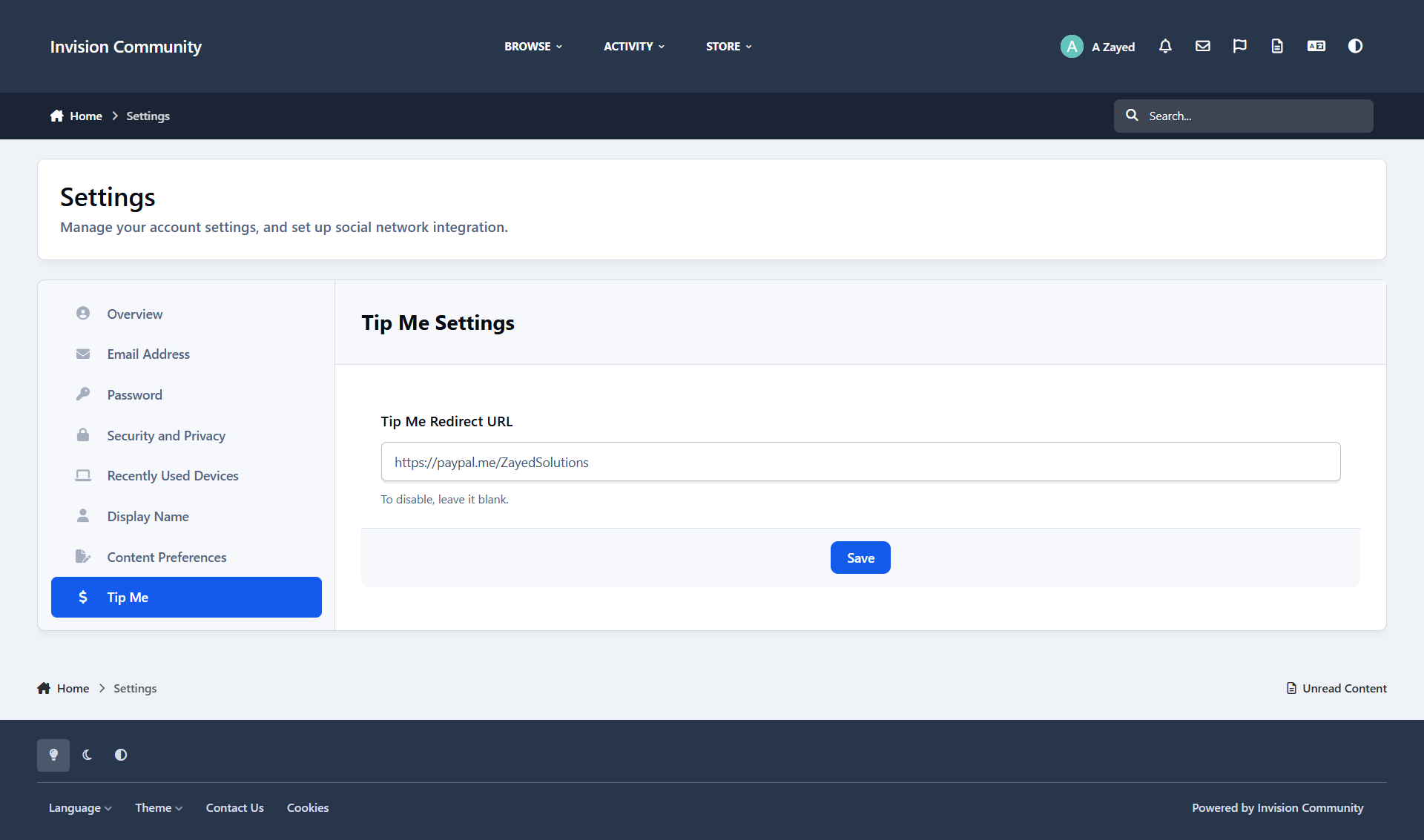
Enable secure, customizable tipping across your community.
This app allows administrators to control which user groups can set their own tip-jar URLs or tip other users, customize tip button text, and define supported payment services.
Admins can view all user-defined URLs in one place, track every tip-related click from a centralized page, and monitor engagement across the platform.
Tipping is supported throughout forum topics, blog entries, profile pages, hovercards, messenger messages, and downloadable files, ensuring seamless monetization wherever users interact.
Features
Role-based tipping permissions
Custom tip button text
Multiple payment service support
Centralized URL management
Unified click tracking and analytics
Platform-wide tipping integration
-
IPS5.0.0+
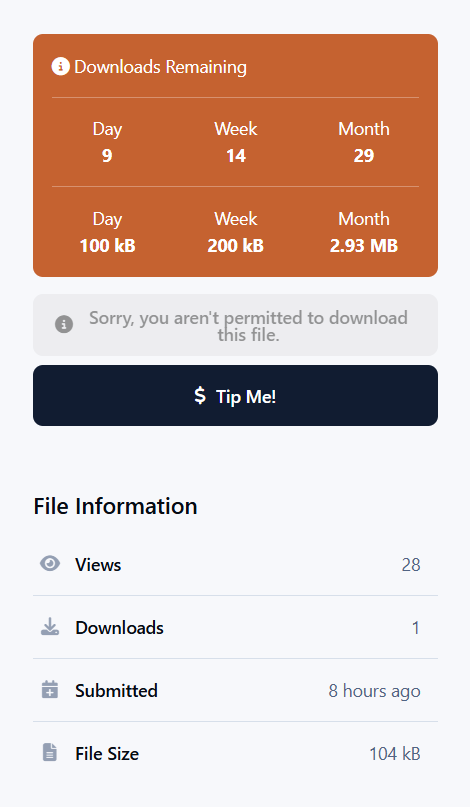
Download smarter with real-time visibility into your remaining downloads and bandwidth.
-
IPS5.0.0+
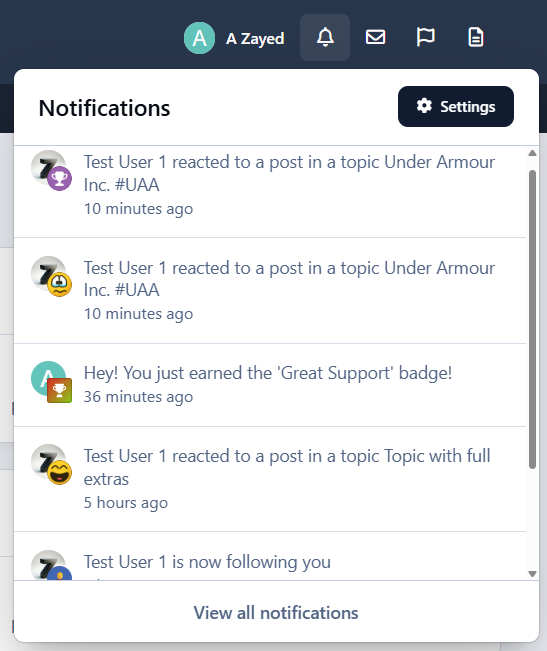
The application offers full customization of notification icons and background styles, allowing administrators to visually distinguish different notification types with ease. Whether it’s new content, reactions, moderation alerts, or member interactions, the application ensures users instantly understand what each notification represents.
"Notifications Icons" integrates seamlessly with existing notification systems with the built in IPS5 icon/emoji picker form field, giving you access to a wide range of familiar and professional icons.
Key Features
Icon support for inline notifications and AJAX notification box
Fully customizable icons and backgrounds
Covers all content-based and member-based notifications
Default fallback icon for custom notifications
Lightweight and performance-friendly
Easy setup and configuration
Installation Notes
Some communities may need to clear caches after installation for icons to display correctly.
Why Choose "Notifications Icons"?
Because notifications should be seen, understood, and acted on instantly - not read twice.
-
IPS5.0.0+
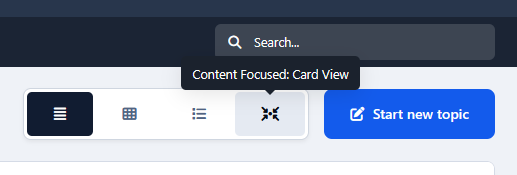
This application restores an IPS4 feature that allows members to switch between forum index layout views quickly. Currently, members can switch between views on Account Settings -> Content Preferences, enable Change layout views, and then choose a view on the Forum Index View.
Note
This feature must be enabled by an administrator in the ACP -> Members -> edit any group -> Group Settings tab -> enable Can change layouts.
Available choices:
Table view
Grid view
Fluid view
Modern view
Requirement:
Forums application.
-
IPS5.0.0+
A lot of communities are more active than they look.
Members visit.
They browse.
They read.
They come back.
But unless someone is posting right now, that presence is invisible.
Active Members makes that activity visible - quietly and visually.
It adds a simple Active Members widget that shows real members who’ve been around recently, helping your forum feel alive without turning it into a status board.
Presence That Matches the Page
Active Members adapts to where it’s shown.
On a topic, it shows members who’ve been active in that discussion
On a forum, it shows members who’ve been active in that forum
On pages that don’t track individual activity, it gracefully falls back to a global community view
Every placement feels relevant, not recycled.
This makes the widget feel contextual and intentional - not like the same block repeated everywhere.
Clean, Adaptive Layout
The avatar display automatically adjusts to available space:
Shows as many avatars as fit
Neatly collapses extras into a “+X” indicator
Looks good on desktop, tablet, and mobile
You don’t need to design around it.
It adapts on its own.
Presence
Controls who counts as “active”.
Presence time window
Numeric value (e.g. 24)
Time unit
Minutes, hours, days, weeks, or year
Together, these define which members are considered active and eligible to appear in the widget.
Example:
“Members who visited in the past 24 hours” or “past year”.
Display
Controls how the widget looks and behaves.
Avatar Display
Default avatar size
Maximum avatars
Adaptive avatar count
Visual Indicators
Online indicator
Online indicator color
Text Display
Summary text
Time period text
Widget-Level Overrides
Each widget instance can override global settings, including:
Custom title
Presence window & unit
Context mode (auto / global / forum / topic)
Avatar size
Maximum avatars
Online indicator and color
Tooltips
Summary text options
This allows the same app to behave differently depending on where it’s placed.
-
IPS5.0.0+
Every community remembers this moment.
A new member signs up.
They post for the first time.
And then… nothing happens.
No replies.
No acknowledgement.
No reason to come back.
First Post Spotlight fixes that.
It gently highlights new members’ first-ever topics so they don’t go unnoticed - encouraging regular members to jump in, reply, and make newcomers feel welcome from day one.
Simple idea.
Big impact.
Introducing: First Post Spotlight
First Post Spotlight helps your community give new members a better first experience by drawing attention to their very first topics.
When a new member posts for the first time, their topic is clearly marked in forum listings - making it easy for others to spot and respond.
The indicator quietly disappears when the Maximum Topic Age setting is met.
First Posts That Don’t Get Lost
New topics can easily get buried - especially in busy forums.
First Post Spotlight makes sure first-time posts stand out by adding a subtle First Post indicator on the topic title.
You stay in control:
Show the indicator only for recent topics
Enable or disable it per forum
Choose how it looks - badge only or a gentle background highlight
And importantly:
New members don’t see the indicator on their own topics
(so it never feels awkward or self-focused)
New Member Topics Widget
First Post Spotlight also includes an optional widget that highlights topics created by new members.
The widget:
Shows only first-ever topics
Respects forum permissions
Automatically hides topics that no longer qualify
Stays out of the way when there’s nothing to show
It’s a simple way to encourage replies where they matter most.
Why Your Community Should Use First Topic Spotlight
New members get replies faster
Fewer first posts go unanswered
Communities feel more welcoming
Better chances new members stick around
You don’t need more rules or reminders - just better visibility at the right moment.
Designed to Feel Native
First Post Spotlight blends naturally into your community.
It:
Fits seamlessly into topic listings
Uses clean, familiar styling
Works with widgets and page layouts
Doesn’t change how your forum works
Members don’t notice a “feature”.
They just notice people replying more.
Who Is First Post Spotlight For?
First Post Spotlight is ideal for:
Growing communities
Support forums
Niche discussion boards
Any forum that values new members
If you care about first impressions, this app earns its place quickly.
-
IPS5.0.0+
Every community has the same quiet problem.
Good topics don’t get replies.
Members come back after a break… and don’t know where to start.
Conversations stall, not because people don’t care - but because nothing guides them.
Catch Up fixes that.
Catch Up helps your community focus on the conversations that actually need attention - and helps returning members quickly see what they missed, without dumping them into a wall of activity.
It’s subtle.
It’s helpful.
And it makes your forum feel more alive.
Introducing: Catch Up
Catch Up is an engagement-focused app for Invision Community that highlights unanswered topics and gently guides members back into active discussions.
Instead of relying on members to hunt for things to reply to, Catch Up brings those conversations to them - at the right time, in the right place.
Unanswered Topics, Finally Visible
Ever notice how topics with no replies quietly disappear?
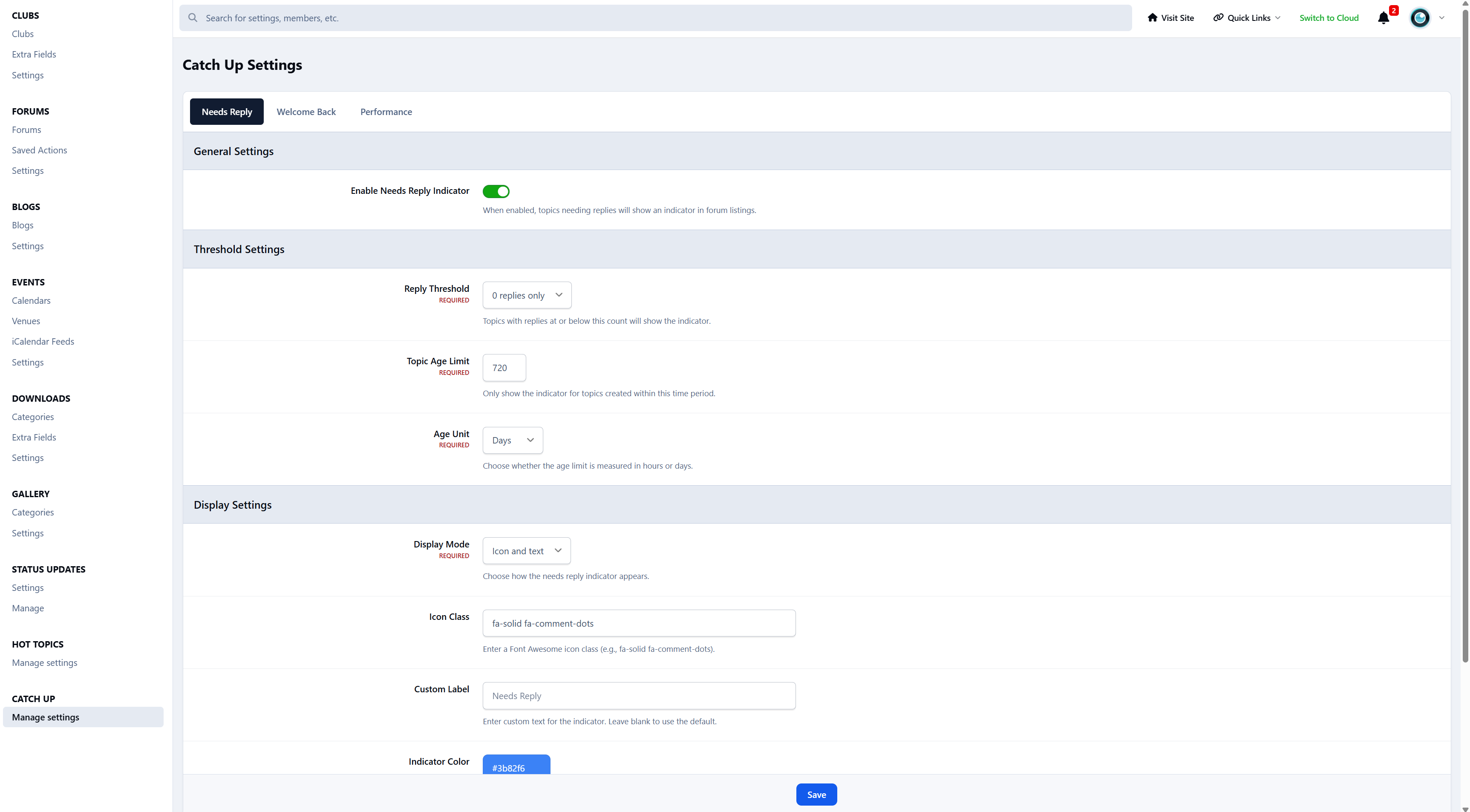
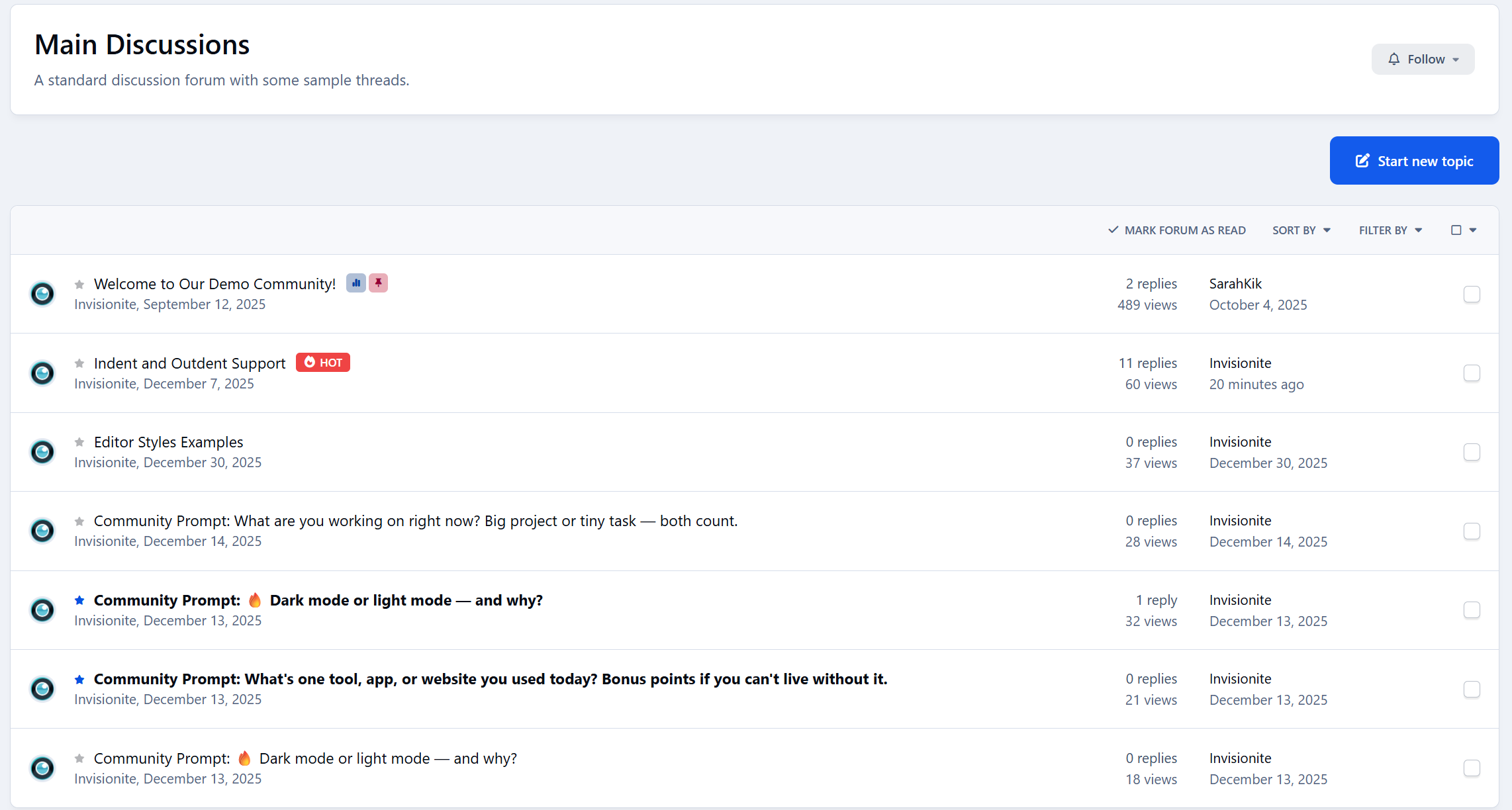
Catch Up fixes that by highlighting topics that need replies directly in topic listings.
Topics that:
Have no replies (or only one, if you choose)
Are still recent
Haven’t been forgotten yet
They get a clear “Needs Reply” indicator - and once someone replies, the indicator disappears automatically.
This works especially well for:
Support communities
Small or growing forums
Any community where unanswered topics hurt engagement
Unanswered Topics Widget
Catch Up also includes an optional widget that lists topics still waiting for replies.
It shows:
Topics that genuinely need attention
Only forums members can access
Only topics that still qualify
When there’s nothing to show, it stays out of the way.
Welcome Back (That Actually Feels Personal)
This is where Catch Up really shines.
When members return after being away, Catch Up can show them a Welcome Back widget that answers one simple question:
Instead of a generic activity feed, members see:
Replies to their topics
New activity in topics they follow
Recent discussions they haven’t read yet
Each item includes clear context like:
Your topic
Following
+X new replies
Why Your Community Should Use Catch Up
Fewer unanswered topics
Faster replies
More return engagement
Less “dead” content
Members feel guided, not lost
Catch Up doesn’t try to change how your community works.
It just helps conversations keep moving.
Designed to Feel Native
Catch Up is built to blend in, not stand out.
It:
Fits naturally into forum listings
Uses clean, familiar layouts
Works with widgets and page builders
Respects permissions and visibility
Members don’t need to learn anything new.
They just start replying more.
Who Is Catch Up For?
Catch Up works best for:
Support communities
Niche forums
Growing communities
Any forum where replies matter
If unanswered topics bother you - even a little - Catch Up is for you.
Would you like to see it in action? Visit Administrata.
-
IPS5.0.0+
Hot Topics helps bring attention to the discussions that matter most on your community. By highlighting active topics and showing what’s currently popular, members can quickly spot conversations worth jumping into instead of scrolling past pages of quiet threads.
Using a smart activity-based scoring system and a configurable Popular Now widget, Hot Topics makes it easier to discover ongoing discussions, encourages more clicks and replies, and helps your forum feel active and alive - even during quieter periods. It adds modern engagement cues without getting in the way or adding unnecessary complexity.
Features
Hot Topic Indicator
Displays a hot indicator after the topic title in forum listings
Automatically detects active discussions based on replies, views, and recent activity
Fully configurable thresholds and time windows
Choose between an icon, text label, or icon + text and change the color to your preference.
Enable or disable per forum
Popular Now Widget
Shows trending topics based on recent activity
Works in sidebar areas
Configurable time ranges (1h, 6h, 24h, or custom)
Adjustable topic limits and forum filtering
Focuses on current conversations, not old popular threads
Smart Activity Scoring
Weighted scoring using replies, views, and recency
Uses exponential decay to prevent older topics from staying “hot” forever
Designed to prioritise momentum and recent engagement
Admin Control
Dedicated ACP settings panel with clearly organised tabs
Global and per-forum configuration options
Sensible defaults, with full control when you want to fine-tune
Would you like to see it in action? Visit Administrata.
-
IPS5.0.0+
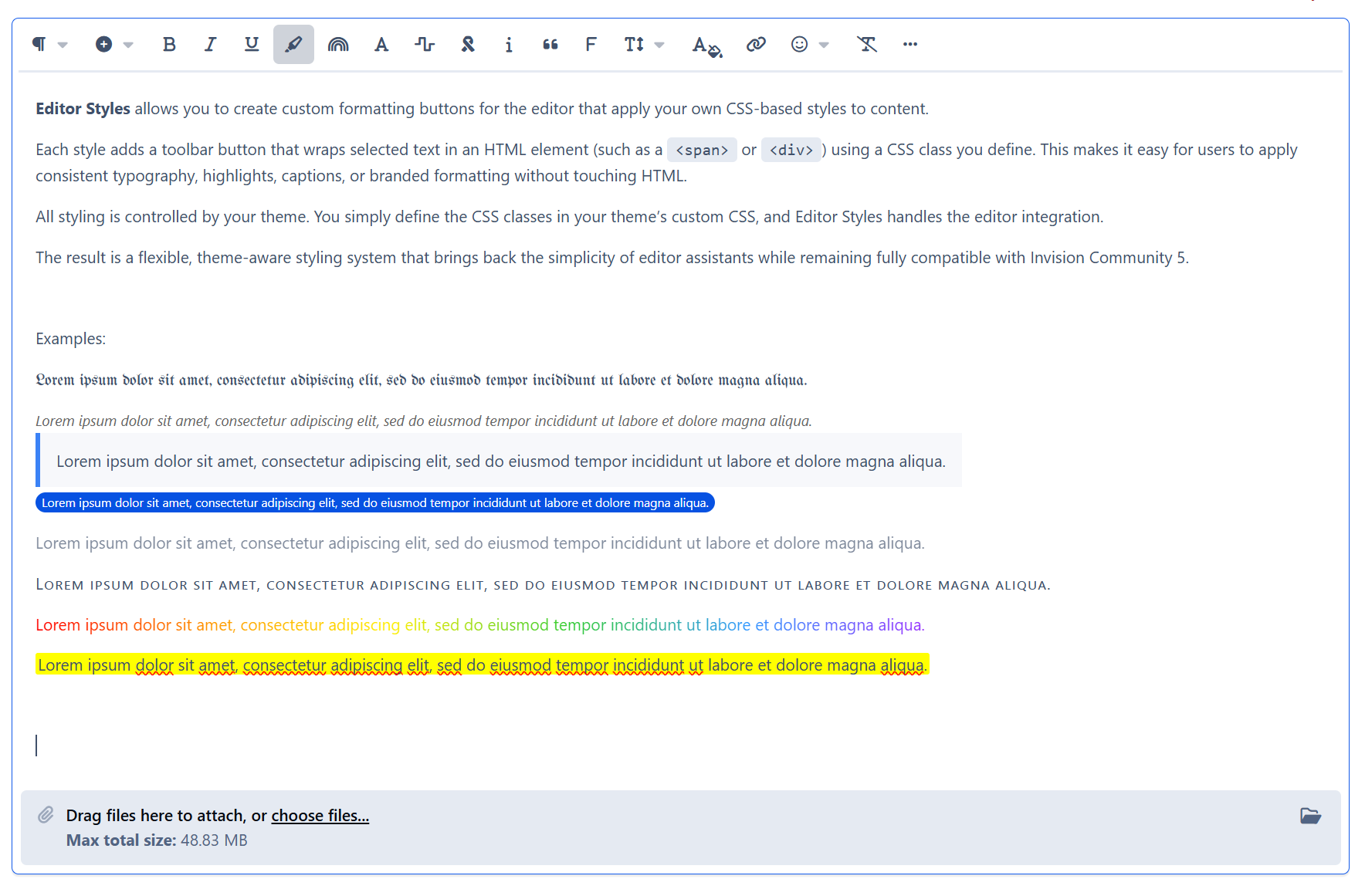
Editor Styles allows you to create custom formatting buttons for the editor that apply your own CSS-based styles to content.
Each style adds a toolbar button that wraps selected text in an HTML element (such as a <span> or <div>) using a CSS class you define. This makes it easy for users to apply consistent typography, highlights, captions, or branded formatting without touching HTML.
All styling is controlled by your theme. You simply define the CSS classes in your theme’s custom CSS, and Editor Styles handles the editor integration.
The result is a flexible, theme-aware styling system that brings back the simplicity of editor assistants while remaining fully compatible with Invision Community 5. You can add as many as you like, and as crazy as you want to go.
Live Demo: https://demo.invisionite.com/index.php?/topic/12-editor-styles-examples/ (Due to theme-awareness, you must select the default Invision theme)
-
IPS5.0.0+
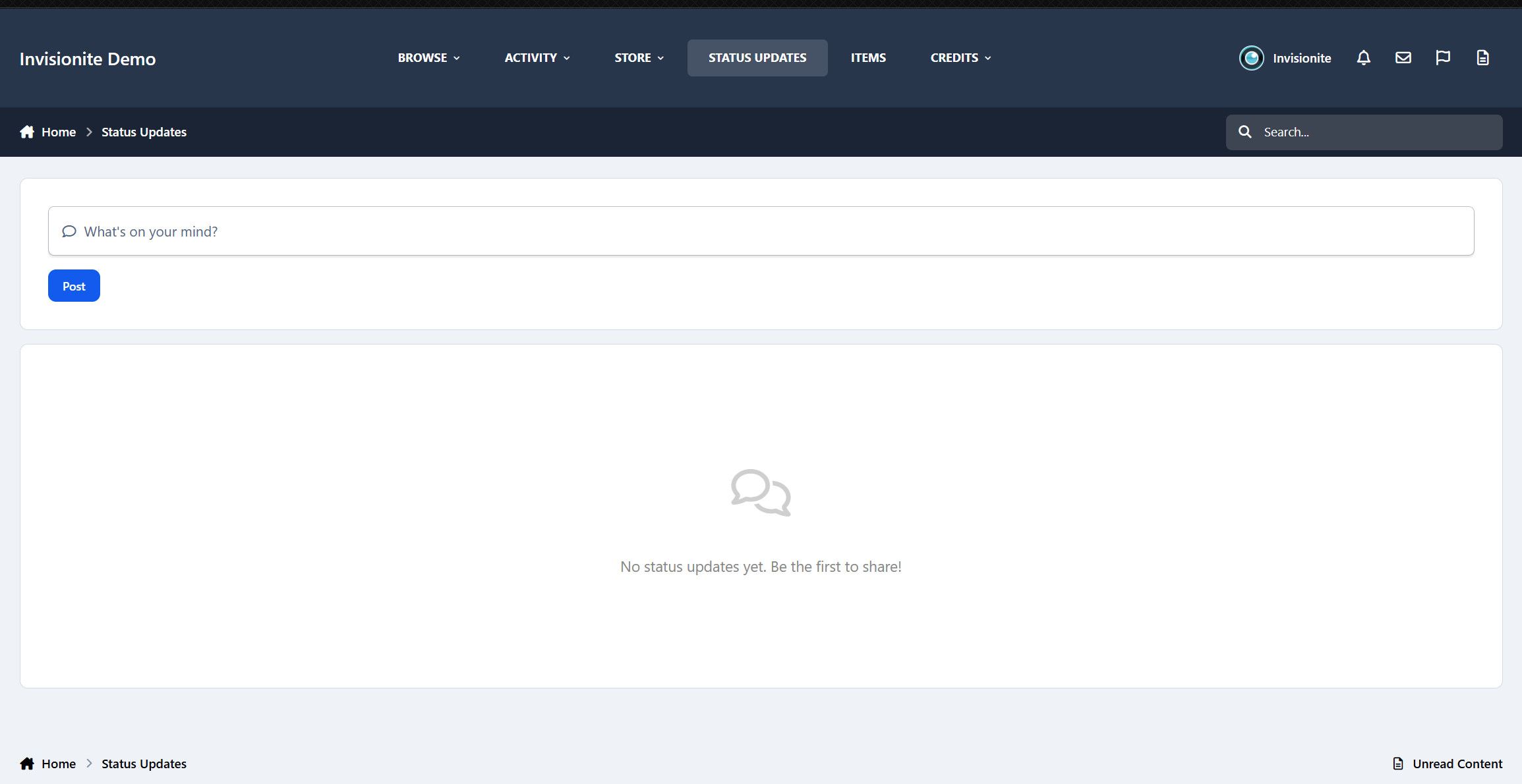
Statuses are back.
Invision Community v5 removed status updates, and a lot of communities felt that loss. Sometimes members don’t want to start a full topic - they just want to share a quick thought, update, or reaction.
Status Updates brings that back in a modern, clean, and fully integrated way.
It adds a lightweight social layer to your community, giving members an easy way to stay active, visible, and connected without cluttering your forums.
Live Demo: https://demo.invisionite.com/
What Is Status Updates?
Status Updates lets members post short updates - similar to classic profile statuses - directly on their own profile or on other members’ profiles.
Think of it as:
Quick thoughts
Casual updates
Short announcements
Friendly wall posts
All without the pressure of creating full discussion topics.
Why This Matters
Not every interaction needs to be a thread.
Status Updates lowers the barrier to participation, which:
Encourages quieter members to post
Keeps profiles feeling alive
Adds social interaction without turning your community into a chat app
It’s simple, familiar, and effective.
Key Features
Post Status Updates
Members can post short updates using the full IPS editor:
Text formatting
Embeds
Images and attachments
Comments & Reactions
Statuses support:
Threaded comments
Native IPS reactions
Real conversations, not just one-liners
Everything feels familiar and consistent with the rest of the suite.
Profile Integration
Each member gets:
A dedicated Statuses tab on their profile
A clean list of their updates
A latest status blurb displayed prominently at the top of the profile
Profiles instantly feel more personal and active.
Wall Posts
Members can post statuses directly on other members’ profiles, creating friendly, social interactions - just like classic profile walls.
Notifications
Members are notified when:
Someone comments on their status
Someone posts on their profile
No spam, just relevant activity.
Widgets
Built-in widgets let you showcase activity across your community:
Latest Status Updates
My Latest Status
Perfect for the forum index or sidebars.
Moderation & Controls
Admins stay in full control:
Moderate, hide, or delete statuses and comments
Flood control to prevent spam
Minimum and maximum character limits
Simple, clear ACP settings
Designed to Feel Native
Status Updates is built to look and behave like part of Invision Community:
Clean, modern layout
IPS-style reactions and comments
No heavy UI or clutter
Works naturally with existing themes
It doesn’t replace forums - it complements them.
Coming Next
Status Updates is designed to grow over time. Some of the planned features include:
Follow / Following system
See updates from members you care about in a dedicated feed
Privacy & visibility controls
Decide who can see specific statuses
Hashtags
Clickable tags, trending topics, and hashtag discovery
Mood indicators
Let members attach a mood to their updates
Additional ideas like polls and media-focused features are also planned.
-
IPS5.0.0+
Credits & Shop adds a full credit economy to your Invision Community, allowing members to earn credits naturally through participation and spend them on perks, rewards, and upgrades - all while staying fully under your control.
No pressure.
No forced engagement.
Just a system that rewards people for being part of your community.
Earning credits feels natural
Members earn credits simply by doing what they already do:
Creating topics and replies
Receiving reactions
Having solutions accepted
Daily visits and login bonuses
Unlocking achievements and milestones
Uploading images, files, blogs, or events
Referrals and general participation
You control everything:
How much each action earns
Per-forum or per-area values
Daily caps and cooldowns
Group-based rules and exclusions
Credits are earned because members are active - not because they’re chasing points.
A real, transparent credit system
Members can:
View a full transaction history
Transfer credits to other members
Donate credits
Store items for later use
Apply temporary earning boosts
Optionally purchase credits
Optionally withdraw credits to account credit
Admins can:
Adjust balances
Reverse transactions
Set limits, fees, and permissions
See exactly where credits come from and where they go
Every change is logged.
Nothing happens silently.
The Members Shop
Credits can be spent in a built-in Members Shop
Example shop items:
Username or profile changes
Badges and cosmetic perks
Password protected forum unlocks
Temporary or permanent group upgrades
Mystery boxes and random rewards
Credit boosts
Games and chance-based items
Unlocks and special abilities
Custom items
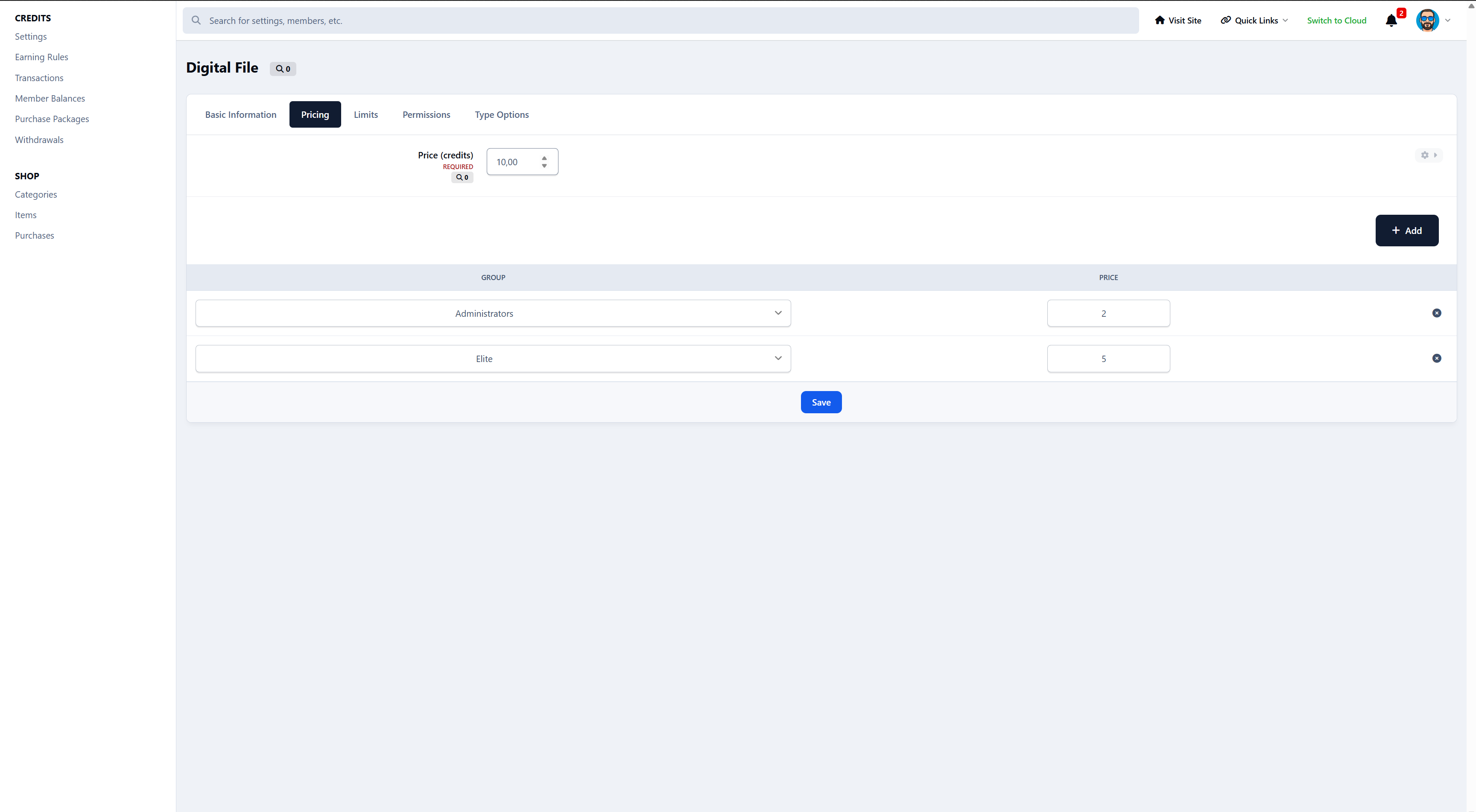
Digital downloads allows you to sell downloads for credits.
Members can:
Buy and use items instantly
Store items in their inventory
Gift items to other members
Admins stay in full control:
Pricing per group
Stock limits
Cooldowns
Permissions
Manual or automatic rewards
Use as much or as little of the shop as you like.
Games, bonuses & optional extras
When it fits your community, you can enable fun extras like:
Lottery system
Spin the wheel
Scratch cards
Rock / Paper / Scissors
Number guessing games
Daily, weekly, or monthly bonus credits
These are entirely optional.
Turn them on for engagement - or leave them off for a more serious setup.
Optional: Sell credits directly to members
If you want, you can also sell credits directly to your members.
Create credit packages
Set prices and amounts
Let members buy credits instantly
Automatically deliver credits after successful payment
This works perfectly alongside earned credits, giving members two paths:
earn credits through activity
or buy credits when they want something now
You decide if selling credits makes sense for your community - it’s completely optional.
Optional: Convert credits into real account credit
For communities using Commerce, Credits & Shop can turn engagement into something tangible.
Members can optionally convert their earned credits into Commerce account credit, which they can then use to:
Purchase products from your IPS store
Pay for subscriptions or upgrades
Or, if you choose, request an actual payout
This creates a strong incentive to stay active - without turning your community into a grind.
How withdrawals work
You stay fully in control.
Members request a withdrawal
You can approve or decline each request
Set a conversion rate (credits → account credit)
Apply a withdrawal fee (or none at all)
Define minimum and maximum withdrawal amounts
Restrict withdrawals by user group
Nothing is automatic unless you want it to be.
Why this matters for engagement
This feature bridges the gap between:
activity → rewards → real value
Members aren’t just earning points “for fun”.
They’re earning something that can be used across your Commerce ecosystem - or even withdrawn.
That means:
More participation
More motivation
More reasons to stick around
And because it’s optional and controlled, it works just as well for:
hobby communities
creator communities
support forums
marketplaces
UPDATE 1.1.2
Collections & Trading Expansion
A complete digital collectibles system for Invision Community 5
Expands the Credits system into a fully-featured collectible, trading, and reward ecosystem.
Perfect for digital cards, profile gifts, seasonal items, rarity-based rewards, and community engagement systems.
Core Collection Features
Collection Categories - Organize items into themed categories (e.g., Pokémon, Retro Gaming)
Collection Items - Individual collectible items with:
Name, description, icon, and full image
Rarity levels (Common, Uncommon, Rare, Epic, Legendary, Special)
Purchaseable toggle with credit pricing
Tradeable toggle (per-item and per-category)
One-per-member restriction option
Game reward drop chance configuration
Serial number tracking per item instance
New shop item: Collection Booster Packs allows you to gamify the collection by adding packs with rarity drops
Inventory System
Personal Inventory - Members own instances of collection items
Acquisition Methods - Track how items were obtained (purchase, trade, gift, game, admin, other)
Showcase System - Members can feature favorite items on their profile
Serial Numbers - Unique serial numbers for each item instance
Trading System
Trade Creation - Propose trades with other members
Trade Offers Include:
Multiple collection items from your inventory
Optional credit amounts (initiator and/or recipient)
Personal message with the offer
Trade Workflow:
Pending → Accepted/Declined/Cancelled
Only recipient can accept/decline
Either party can cancel while pending
Trade Notifications:
New trade offer received
Trade accepted
Trade cancelled
Trade History - Full history of all trades with status filtering
User Preferences (Account Settings)
Trading Preferences Tab - New tab in Account Settings
Allow Trade Offers - Toggle to opt-out of receiving trade offers
Matches IPS Content Preferences styling
Admin Features
Collection Management (ACP):
Create/edit categories
Create/edit items with full configuration
Issue items directly to members
Trading Bans (ACP):
Ban members from trading
View list of banned members
Unban members
Actions logged to member history
Member Restrictions Integration:
Trading ban shows in member profile restrictions
Can ban/unban from member profile "Edit Restrictions"
Collection Item Purchase
Direct Purchase - Buy collection items with credits
Confirmation Form - Confirm before purchase
Transaction Logging - Records purchase in credit history
Profile Integration
Collection Showcase - Display favorite items on member profile
Collection Statistics - Show completion progress
For any feature requests and bug reports, please use the forums. I'm open for any wanted change or additional feature.
-
IPS5.0.8
Advanced Topic Summaries
📋 Overview
Advanced Topic Summaries is a comprehensive IPS v5 application that automatically generates intelligent summaries of forum topics, combining AI-powered analysis with community-driven content curation. The application helps members quickly understand long discussions, identifies key posts, tracks topic health metrics, and encourages community participation through voting and highlighting systems.
🎯 Core Features
1. Intelligent Summary Generation
Three Summary Types:
AI-Powered Summaries: Natural language summaries generated by AI that analyze the entire discussion
Extracted Summaries: Community-driven summaries based on key posts, statistics, and metrics
Hybrid Summaries: Combines AI-generated text with extracted key posts and statistics
Two AI Provider Options:
Google Gemini: Support for Gemini 2.5 Flash, Gemini Pro, and other Gemini models
OpenAI: Support for GPT-4, GPT-4 Turbo, GPT-4o, GPT-3.5 Turbo, and GPT-5 models
Extended timeout support for GPT-5 reasoning models (up to 10 minutes)
Separate token limits for standard models vs. GPT-5/o1 models
Configurable AI Parameters:
Custom system prompts for tailored summary generation
Temperature control (0.0 = focused, 1.0 = creative)
Max tokens for response length
Maximum posts to analyze (to avoid API limits)
Poll data integration (AI can mention poll trends)
Media metadata integration (AI can reference images/videos/attachments)
Summary Length Options:
Brief: Short summary with key statistics only
Standard: Balanced summary with statistics and highlights
Detailed: Comprehensive summary with all available information (timeline, key posts, contributors, health scores)
Automatic Generation:
Auto-generate summaries when topics reach minimum post count
Auto-regenerate when topics receive X new posts (configurable threshold)
Forum-specific enablement (choose which forums have summaries)
Minimum post requirement (default: 10 posts)
2. Key Posts Identification System
Automatically identifies and highlights the most important posts based on multiple criteria:
Best Answer: Posts marked as the solution to question-style topics
Helpful Posts: Posts manually marked as helpful by moderators/authors
Staff Highlights: Posts manually highlighted by moderators (with optional approval workflow)
Community Votes: Posts voted as important by community members
High Reactions: Posts with the most community reactions
First Post: Always included in AI summaries (guaranteed inclusion)
Key Posts Display:
Configurable number of key posts to display (default: 5)
Two display styles:
List View: Compact list layout with content on left, actions on right
Grid View: column card grid layout
Post excerpts with configurable length (default: 200 characters)
Reason badges showing why each post was selected
Direct links to view full posts in context
3. Community Voting System
Vote Types:
Vote to Include: Members vote for posts they think should be in the summary
Vote to Exclude: Members vote to exclude posts from the summary (requires group permission)
Vote Features:
Vote counts displayed on posts (optional)
Vote weight system (different groups can have different vote weights: 1.0x to 5.0x)
Vote weight badges (show members their vote multiplier)
Daily vote limits per member (configurable, 0 = unlimited)
Per-topic vote limits (configurable, 0 = unlimited)
Members can toggle their votes on/off
Votes automatically excluded from key posts if score is negative
Highlighted posts cannot be voted on (staff curation takes precedence)
First post cannot be voted on (guaranteed inclusion)
Vote Statistics:
Total voters count
Total votes cast
Top voted post with score
Vote history tracking in member profiles
Vote Management:
ACP Management: View, and remove all votes
ModCP Integration: Moderators can manage votes from ModCP
Member Management: Members can view and remove their own votes
4. Staff Highlights System
Highlight Features:
Manual post highlighting by moderators/staff (group permissions)
Optional approval workflow for highlights
Auto-approve for trusted groups (group permissions)
Priority levels (1-10) for highlight importance
Custom reason/notes for each highlight
Highlight badges on posts (optional)
Priority display in badge tooltips (optional)
Daily highlight limits per member (configurable)
Per-topic highlight limits (configurable)
Highlight Management:
ACP Management: View, approve, and remove all highlights
ModCP Integration: Moderators can manage highlights from ModCP
Member Management: Members can view and remove their own highlights (requires group permission)
Notifications: Members receive notifications when their posts are highlighted
5. Topic Health Scores & Analytics
Three Health Metrics:
Overall Health Score: Composite score (0-100%) based on engagement and quality
Engagement Score: Measures activity, participation, and interaction patterns
Quality Score: Evaluates content quality based on reactions, helpful posts, and best answers
Engagement Scoring:
New Topics (< threshold age): Scored based on posts per day (rewards active discussions)
Old Topics (> threshold age): Scored based on total posts (rewards comprehensive guides)
Evergreen Bonus: Topics that continue receiving views long after creation get bonus points
Configurable thresholds:
Old topic threshold (default: 365 days)
Comprehensive posts target (default: 100 posts)
Evergreen age requirement (default: 90 days)
Evergreen views per month (default: 10)
Quality Scoring:
Post length analysis (longer, detailed posts score higher)
Reaction counts (community appreciation)
Best answers and helpful posts
Featured/pinned status
Community voting activity (optional)
Approved highlights count (optional)
Visual Display:
Native IPS progress bars showing each metric
Percentage scores displayed prominently
Color-coded indicators (blue primary color)
Responsive design for all screen sizes
6. Statistics & Analytics
Topic Statistics:
Total posts count
Total views count
Topic age (days since creation)
Posts per day average
Reading time estimates:
Summary reading time
Full topic reading time
Time saved by reading summary
Voting Statistics:
Total voters
Total votes cast
Top voted post with score and link
Activity Timeline:
Visual timeline showing topic activity over time
Posts grouped by time periods
Identify when discussions were most active
Only shown in detailed summary length
7. Top Contributors
Features:
Identifies members who contributed most to the topic
Configurable number of contributors to display (default: 10)
Two display styles:
Inline List: Horizontal list with names and post counts
Small Avatars: Avatar grid with post count badges
Member preference for display style
Clickable member profiles
8. Display Options & Customization
Three Display Locations:
Sidebar: Compact widget in topic sidebar (similar to Clubs app)
Topic Title Header: Summary displayed in topic header
Below Topic Action Buttons/Poll: Summary displayed after topic action buttons/poll
Admin Controls:
Enable/disable each display location
Set default display location
Set default collapsed state for guests and new members
Member Preferences:
Choose preferred display location (from admin-enabled options)
Choose summary length (brief, standard, detailed)
Start summaries collapsed or expanded
Choose contributors display style
Choose key posts display style
Collapsible Summaries:
IPS-style +/- toggle button (matches forum category toggles)
Smooth slide animations
Persistent collapsed state (saved per member)
9. Permissions & Group Settings
Member Group Permissions:
Can highlight posts: Allow group to highlight posts for summaries
Highlights auto-approve: Skip approval workflow for trusted groups
Can remove own highlights: Allow members to remove their highlights
Highlight daily limit: Max highlights per day (0 = unlimited)
Highlight per-topic limit: Max highlights per topic (0 = unlimited)
Can vote on posts: Allow group to vote on posts
Can vote to exclude: Allow voting to exclude posts from summaries
Vote weight: Multiplier for vote value (1.0 to 5.0)
Show vote weight: Display vote weight badge to members
Can remove own votes: Allow toggling votes on/off
Voting daily limit: Max votes per day (0 = unlimited)
Voting per-topic limit: Max votes per topic (0 = unlimited)
Moderator Permissions:
Can approve highlights: Approve pending highlights
Can remove any highlights: Remove any member's highlights
Can manage votes: Manage/remove any member's votes
Can regenerate summaries: Manually regenerate summaries
Can edit summaries: Edit summary content
Can delete summaries: Delete summaries
10. Member Integration
Account Settings Tabs:
Summaries Tab: Configure display preferences, location, length, collapsed state, display styles
Highlights Tab: View and manage own highlights with filtering and sorting
Votes Tab: View and manage own votes with filtering and sorting
Member ACP Profile Blocks:
Summary Preferences: View member's summary display settings
Highlight History: View all highlights created by or received by member
Vote History: View all votes cast by member
Activity Log: Track member's summary-related actions
Member Profile Tab:
Topics Highlighted: Public tab showing topics where member has highlighted posts
Member History Tracking:
Highlights created
Highlights received
Highlights removed
Votes cast (include/exclude)
Votes removed
Summaries regenerated
Full history with dates, actions, and context
11. Notifications System
Notification Types:
Highlight Approved: Notify when your post is highlighted by staff
Highlight Pending: Notify moderators when highlights need approval
Summary Generated: Notify topic author when summary is generated (optional)
Notification Channels:
Inline notifications (in-app)
Email notifications (optional)
Push notifications (optional)
12. Dashboard & Statistics
ACP Dashboard Widgets:
Summaries Overview: Total summaries, AI vs. extracted breakdown, recent activity
Most Highlighted Posts: Topics with the most staff highlights
Most Voted Posts: Topics with the most community votes
Statistics Dashboard:
Summary generation statistics
AI usage and cost tracking
Highlight statistics
Voting statistics
Health score distributions
Topic engagement metrics
13. ModCP Integration
ModCP Tabs:
Highlights: View and manage pending/approved highlights
Votes: View and manage community votes
Moderator Actions:
Approve/reject highlights
Remove highlights
Remove votes
Regenerate summaries
View highlight/vote history
14. Admin Management
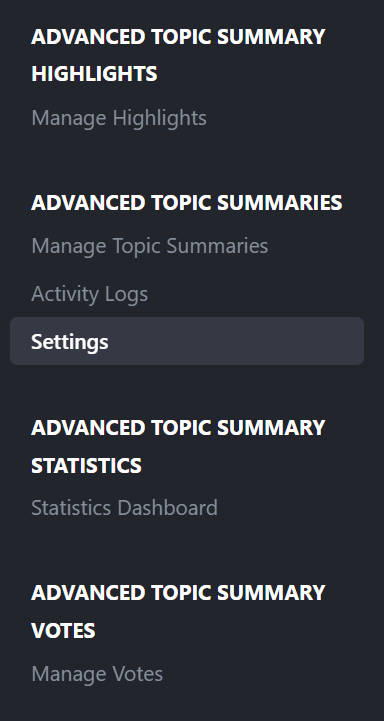
ACP Controllers:
Manage Summaries: View, edit, delete, and regenerate summaries
Settings: Comprehensive settings with multiple tabs
Manage Highlights: View, approve, and remove all highlights
Manage Votes: View and manage all votes
Statistics Dashboard: View application-wide statistics
Activity Logs: View all summary-related actions
Settings Tabs:
General Settings:
Enable/disable summaries
Auto-generation settings
Minimum posts requirement
Forum selection
Auto-update threshold
Display location options
Default collapsed state
Enable user preferences
Display Settings:
Show/hide statistics
Show/hide timeline
Show/hide key posts
Key posts count
Max key posts
Show/hide top contributors
Contributors count
Max contributors
Show/hide health scores
Include best answers
Include helpful posts
Excerpt length
Voting Settings:
Enable/disable voting
Show vote counts
Voting groups
Highlights Settings:
Enable/disable highlights
Highlight groups
Show highlight badges
Show priority in badges
AI Settings:
Enable/disable AI
AI provider selection (Gemini or OpenAI)
Gemini API key
OpenAI API key
Model selection (provider-specific)
Temperature control
Max tokens (standard models)
Max completion tokens (GPT-5/o1 models)
Custom system prompt
Max posts to analyze
Include poll data
Include media metadata
Health Score Settings:
Old topic threshold (days)
Comprehensive posts target
Evergreen age requirement (days)
Evergreen views per month
Include voting in quality score
Include highlights in quality score
History Settings:
Enable/disable version history
Number of versions to keep (0 = unlimited)
Performance Settings:
Cache TTL (time-to-live in seconds)
15. Version History
Keep history of summary versions
Track changes over time
Configurable retention (number of versions to keep)
View previous versions
Compare versions
16. Background Processing
Queue System: Summary generation runs in background queues
Batch Processing: Efficient handling of multiple summaries
Timeout Protection: Long-running AI requests handled gracefully
Error Recovery: Automatic fallback to extracted summaries on AI failures
Logging: Comprehensive error logging for debugging
💡 Use Cases
Support Forums: Help members quickly understand support topics and find solutions
Discussion Forums: Summarize long debates and highlight key arguments
Community Engagement: Encourage participation through voting and highlighting
Content Curation: Staff can highlight the best content for new members
Time Savings: Members can quickly scan summaries instead of reading hundreds of posts
Quality Control: Health scores help identify high-quality discussions
Knowledge Base: Evergreen content identification for reference material
Moderation: Moderators can quickly assess topic quality and importance
📋 Requirements
IPS Community Suite: v5.0.0 or higher
AI Provider (choose one):
Google Gemini API key, OR
OpenAI API key
🎉 Why Choose Advanced Topic Summaries?
This application transforms how your community interacts with long topics by:
✅ Saving Time: Members can quickly understand discussions without reading every post
✅ Encouraging Quality: Health scores and voting systems reward high-quality content
✅ Empowering Community: Members participate in content curation through voting
✅ Supporting Moderators: Tools to highlight important content and manage summaries
✅ Leveraging AI: Optional AI integration for natural language summaries
✅ Providing Flexibility: Extensive customization options for admins and members
✅ Maintaining Performance: Background processing and caching for optimal speed
✅ Ensuring Compatibility: Native IPS v5 integration with no core modifications
Transform your forum into an intelligent, community-driven knowledge platform! 🚀
-
IPS5.0.0+
Most communities are full of valuable information.
The problem isn’t content - it’s organization.
Great resources get buried in old threads.
Recommendations repeat.
Questions get asked again and again.
Community Items fixes that.
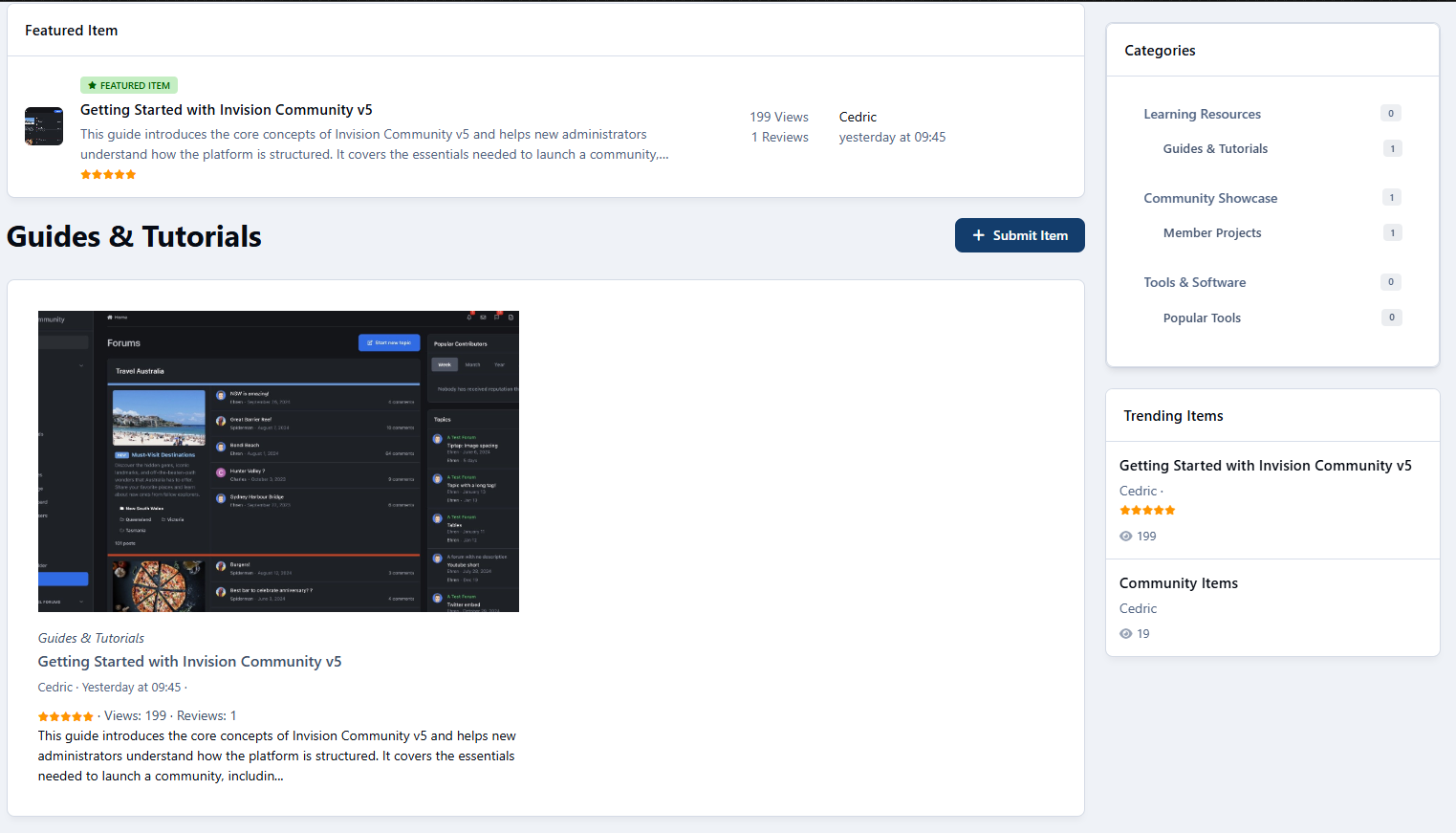
Community Items is a structured, community-driven Item Management System for Invision Community that lets members create, review, and discuss items in one clean, searchable place - without turning your forum into a database admin panel.
It feels native.
It feels familiar.
And it finally gives your best content a proper home.
Introducing: Community Items
Community Items allows your members to submit and manage items - tools, resources, projects, services, guides, or anything your community cares about - inside a dedicated item directory.
Each item becomes its own hub:
Description
Images
Reviews
Questions & answers
Discussion topics
Everything connected.
Everything easy to find.
No more “Which tool should I use?” threads every week.
No more lost recommendations.
Just structured knowledge that grows with your community.
What Can You Use Community Items For?
Honestly? A lot more than you might expect.
Here are some of the most effective (and popular) use cases.
Resource Libraries (Without the Mess)
Perfect for communities that share tools, websites, or downloads.
Examples:
“Recommended hosting providers”
“Best productivity apps”
“Community-approved plugins”
Each item has:
A clear description
Screenshots or galleries
Reviews from real members
Questions answered once - and reused forever
Instead of long recommendation threads, you get a curated library the community can actually maintain.
Project & Portfolio Showcases
Community Items isn’t just for tools - it’s great for projects.
Use it to showcase:
Member projects
Open-source tools
Community creations
Case studies
Each project becomes an item with:
A featured image
Full description
Update history
Q&A from interested members
A discussion topic that grows naturally
It’s a portfolio system without needing a custom app.
Reviews That Actually Matter
Most forums have reviews… scattered across threads.
Community Items brings them together.
Members can:
Leave 1–5 star ratings
Write full reviews
Vote reviews as helpful
Highlight or pin the best feedback
Admins can:
Moderate reviews
Highlight standout reviews
Keep low-quality noise out
The result?
Reviews that feel credible, useful, and worth reading.
Questions & Answers (Done Right)
Instead of repeating the same questions in multiple threads, each item gets its own Q&A section.
Members can:
Ask questions directly on an item
Reply with threaded answers
Mark the best answer
Item owners stay informed.
New visitors see answers instantly.
And knowledge stops being fragmented.
Automated Discussions (Without Forum Clutter)
Community Items integrates directly with your forums.
When an item is published:
A discussion topic can be created automatically
The topic is linked back to the item
Prefixes and target forums are configurable per category
This keeps conversation flowing without flooding your forums with duplicate or messy threads.
Items stay structured.
Discussions stay social.
Category-Based Organization That Makes Sense
Not everything belongs in one big list.
Community Items supports:
Hierarchical categories
Category-specific custom fields
Per-category forums for discussion
Category-based widgets and listings
Each category can be tailored to the type of items it contains - whether that’s software, services, tutorials, or projects.
Designed to Feel Native (Because It Is)
Community Items isn’t bolted on.
It:
Uses IPS permissions
Integrates with reactions and notifications
Supports widgets across your community
Feels at home in list or grid layouts
Members don’t have to learn a new system.
They just start using it.
Widgets That Surface the Good Stuff
Community Items includes widgets to keep items visible and relevant:
Category navigation
Trending items
Featured items
Statistics
Configurable item lists (grid or list)
Your best content stays in front of your members - not buried three pages deep.
Built for Growth (And What’s Coming Next)
Community Items already handles:
Items
Reviews
Ratings
Q&A
Galleries
Notifications
Auto-topics
And the roadmap goes even further:
Per-category permissions
File downloads
Achievements & badges
Item recommendations
Multi-author items
With more features coming soon, it’s designed to scale as your community does.