Member Tools
-
IPS5.0.x
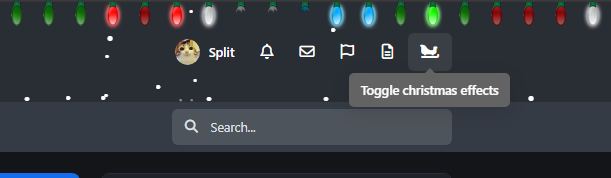
This plugin adds a customizable snow effect to your website, bringing a festive and wintery atmosphere.
Key features:
Attach snow to specific elements – choose from a list of available page elements and have the snow appear only on them.
Lightweight and easy to use – adds visual flair without slowing down your site.
Perfect for adding a seasonal touch or holiday spirit to your website with precise control over where the effect appears.
-
IPS5.0.x
Holiday Addons is a lightweight and easy-to-use application that adds festive, seasonal visual effects to your website. With just a few clicks, you can bring a warm and wintery atmosphere to your community.
Current features include:
Falling Snow Effect – fully customizable (amount, speed, direction, flake style)
Classic Holiday Lights – animated decorative lights that gently blink to create a cozy holiday ambiance
Smashable Lights – interactive lights that break when hovered over, providing a playful effect
Widgets Decoration – extra decorations and visual options for widgets
Main Widgets and Sidebar Widgets Decorations – decorate both main widgets and sidebar elements for a complete festive look
Easter Eggs – hidden surprises and interactive elements for users to discover
Personalizable Switcher – a flexible toggle that lets users enable or disable specific effects according to their preferences
More decorations and visual options are coming soon to give you even greater flexibility in styling your site for the holiday season.
A perfect solution if you want to quickly and beautifully decorate your forum or website — without complexity or hassle.
-
IPS5.0.12+
🎓 Community Experts for Invision Community
Recognize and showcase your community's most knowledgeable members with automatic or manual expert designation.
📋 Overview
Community Experts is a powerful application for Invision Community that identifies and highlights expert members within specific forums. The application displays visual badges next to expert posts, tracks expert assignments through comprehensive logging, and provides both manual and automatic expert assignment capabilities based on member reputation and activity.
✨ Key Features
Expert Badge System
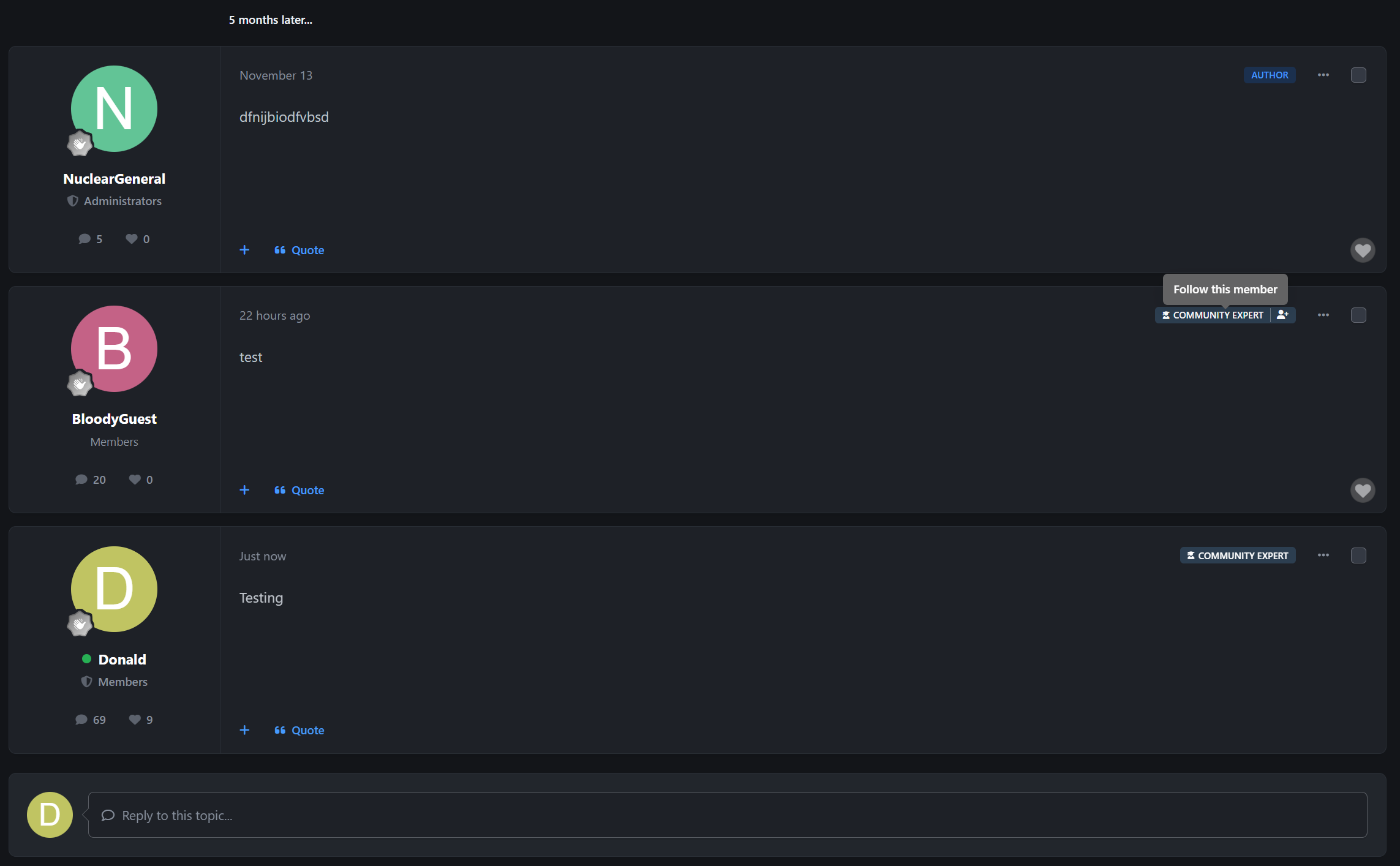
Visual Recognition - Display customizable expert badges on posts within designated forums
Custom Icons - Choose from Font Awesome icons or upload custom badge graphics
Follow Integration - Quick-follow buttons on expert badges for non-logged-in members
Forum-Specific - Experts are designated per-forum, allowing members to be experts in their areas of knowledge
Flexible Assignment Methods
Manual Assignment
Admin Control - Administrators can manually assign/remove expert status for any member
Forum Selection - Assign experts to specific forums through an intuitive interface
Reason Tracking - Optional reason field for documenting why expert status was granted/removed
Bulk Management - Manage all experts from a centralized table view
Automatic Assignment
Reputation-Based - Automatically promote members based on reputation points
Post Count Criteria - Set minimum post requirements for automatic expert status
Smart Forum Detection - Multiple strategies for determining which forums to assign:
Active Forums - Assign to forums where member is most active
All Forums - Assign expert status across all forums
Top Forums - Assign to member's top-performing forums by reputation
Scheduled Task - Background task processes automatic assignments periodically
Real-time Sync - Member listener detects reputation changes and triggers automatic updates
Hybrid Mode
Both Manual & Automatic - Combine manual assignments with automatic promotion
Flexible Control - Administrators can override automatic assignments
🎯 Member Features
Opt-In/Opt-Out System
Member Choice - Members can opt-out of expert designation in account settings
Privacy Respect - Automatic assignments respect member preferences
Account Settings Integration - Easy toggle in member account preferences
Expert Status Visibility
Profile Integration - Expert status visible on member profiles
Profile Hovercard - Expert status visible in member hovercard
Post Badges - Badges appear on posts within designated forums
Member History - Expert assignments logged in member history with full details
🛠️ Administrative Tools
Settings & Configuration
Enable/Disable - Global on/off switch for the entire feature
Group Restrictions - Limit expert eligibility to specific member groups
Badge Customization - Configure badge icon and appearance
Assignment Mode - Choose between Manual, Automatic, or Both
Reputation Threshold - Set minimum reputation points for automatic assignment (default: 100)
Post Threshold - Set minimum post count for automatic assignment (default: 30)
Forum Strategy - Configure how automatic assignments determine target forums
Expert Management
Centralized Table - View all current experts in a sortable, searchable table
Quick Actions - Add or remove experts with one click
Member Search - Find and manage experts by member name or ID
Forum Filtering - Filter experts by forum assignment
Batch Operations - Manage multiple expert assignments efficiently
Comprehensive Logging
Action Tracking - Every expert assignment/removal is logged
Assignment Type - Distinguish between manual and automatic assignments
Administrator Attribution - Track which admin made manual changes
Reason Documentation - Store reasons for manual assignments
Forum Details - Log which forums were affected
IP Address Logging - Security tracking for all actions
Date/Time Stamps - Full audit trail with timestamps
Member History Integration - Expert changes appear in member's ACP history
ACP Integration
Dedicated Menu - "Community Experts" section in ACP
Three Controllers:
Settings - Configure all application options
Manage Experts - Add, remove, and view current experts
Logs - View comprehensive audit trail of all expert actions
Permission System - Granular ACP permissions for each controller
📊 Use Cases
Support Communities
Identify members who consistently provide helpful answers
Build trust by highlighting knowledgeable support providers
Encourage quality contributions through recognition
Technical Forums
Showcase subject matter experts in specific technology areas
Help members find reliable information sources
Build credibility for your community
Educational Communities
Recognize educators and experienced practitioners
Guide students to trusted knowledge sources
Foster mentorship relationships
Gaming Communities
Highlight expert players in specific game modes or characters
Build competitive credibility
Encourage knowledge sharing
🎨 Customization Options
Badge Icon - Choose any Font Awesome icon or upload custom graphics
Badge Text - Customize the "Expert" label text
CSS Styling - Full control over badge appearance through custom CSS
Language Strings - All text is translatable for multi-language communities
🔒 Security & Privacy
Member Opt-Out - Respects member privacy preferences
Group Restrictions - Control which member groups can become experts
Permission System - Granular ACP permissions for administrators
Audit Trail - Complete logging of all administrative actions
IP Tracking - Security logging for accountability
📈 Benefits
✅ Increase Engagement - Recognize and reward knowledgeable members
✅ Build Trust - Help members identify reliable information sources
✅ Reduce Moderation - Experts can help answer questions and guide discussions
✅ Encourage Quality - Incentivize members to provide valuable contributions
✅ Improve Retention - Recognition keeps valuable members engaged
✅ Enhance Credibility - Professional appearance builds community reputation
-
IPS5.0.0+
Features:
Select a group for trial accounts.
Trial days limit, the account will be deleted after a certain number of days.
Set redirect URL after creating a trial account.
Allow trial account users to register after a certain number of minutes.
Trial account can not change password, email, username...
Captcha protection.
Check multiple accounts from the same IP address and User Agent.
Delay creating trial accounts from the same IP address for a certain number of minutes.
Display a message to trial users when they are about to be deleted.
-
IPS5.0.x
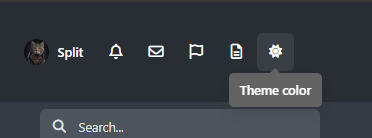
The app adds a theme selector to the top panel, giving users a quick and convenient way to switch between themes. It uses the original theme changer code and bypasses the “system” appearance option in the footer.
Advantages:
Bypasses footer theme changes – avoids conflicts with the default footer theme selector.
One-click theme switching – no dropdown menus; the theme changes instantly with a single click.
Settings are remembered – user preferences are saved for future visits.
Uses original IC5 JavaScript code – fully compatible with Invision Community 5, ensuring stability and reliability.
This makes theme switching faster, cleaner, and more user-friendly for your community.
-
IPS5.0.0
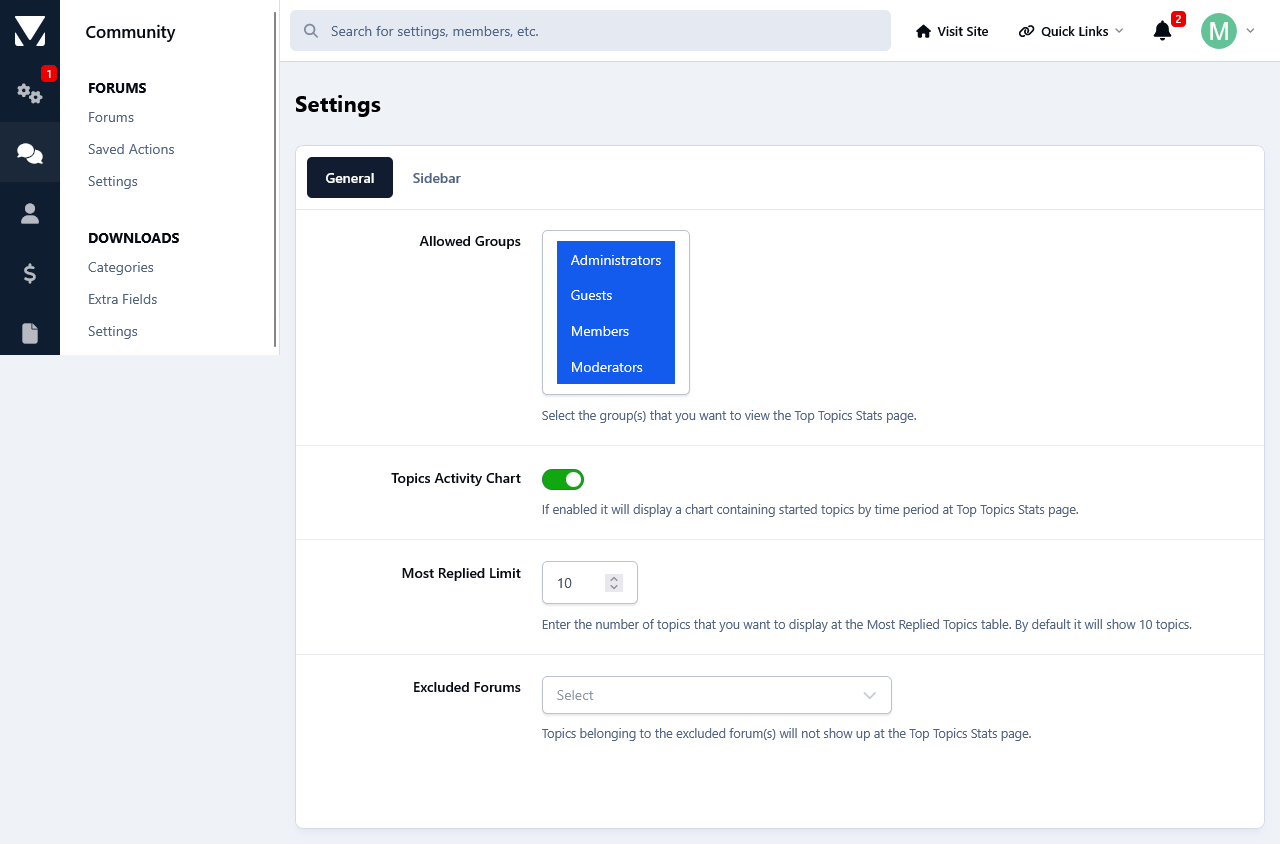
This app will add a new page to your forum linked to the navigation which will display the Most Replied Topics, Most Viewed Topics, Most Liked Topics and Most Topic Starters. A chart to display the new topics based on a time period is also available. Each block can be enabled/disabled individually. The topic viewing permissions are respected. Meaning users will not be able to see topics that they aren't supposed to. You can also select a forum or forums to exclude their topics from being displayed. Access to the page is group permission based.
-
IPS5.0.0
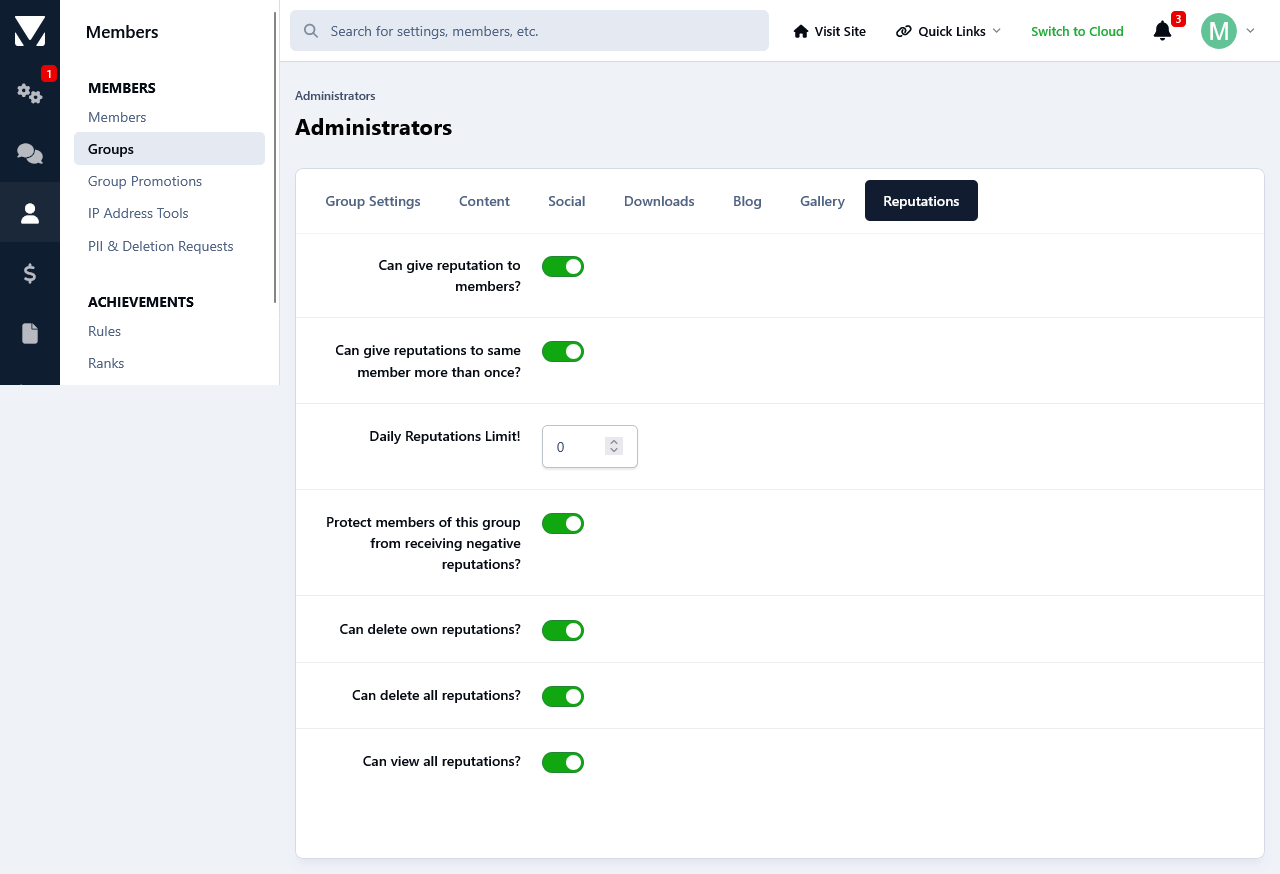
This app will give the members at your forum the possibility to leave reputations feedback to each other. Reputation feedback are positive,neutral and negative. After a member has received a reputation feedback, they will receive a notification letting them know about it. The Reputation notification can be enabled/disabled from members notification settings page. Depending on their permissions members can delete reputations that they have given themselves or all reputations.
Permissions:
You can set the permissions for groups to use it on a group per group basis.
Restrictions:
Banned members can't receive reputation feedback.
The same goes for members that are on someone's ignore list.
Depending on the group permissions members can give the same member either only one specific reputation feedback or unlimited.
Group based daily reputation feedback limit.
Group based negative feedback protection.
Privacy:
From their Account Settings->Reputation Privacy, members can set it so only their followers will be able to give them reputation feedback, everyone or disable it completely so none one will be able to send them reputations. Members with the appropriate permissions will still be able to give them reputation feedback regardless of the privacy setting.
Display:
A new page linked to the navigation manager has been added that will display all the reputation feedback that members have given and received. Reputations can be filtered based on their status and a search option is available for member to search through the reputations.
Three sidebar blocks are available that will list the most positive/negative members as well as a total of all reputations stats.
A new tab has been added on members profiles where they can see all reputations that they have received.
Members reputations stats will be displayed on their postbits.
Logs:
Whenever someone is deleting a reputation feedback, that action will be logged at the Moderators log page.
-
I have a bit of clients hosted offshore and seems a mix between high latency and IPS default chunk size was causing larger uploads to his -200 error.
The fix I found for this issue was to patch plupload options to 5mb instead of the default. This will also add in a retry so if one chunk fails it will retry that chunk instead of failing.
This is likely only needed when very specific environment conditions are met, but I needed it so maybe it will help you as well.
-
IPS5.0.0+
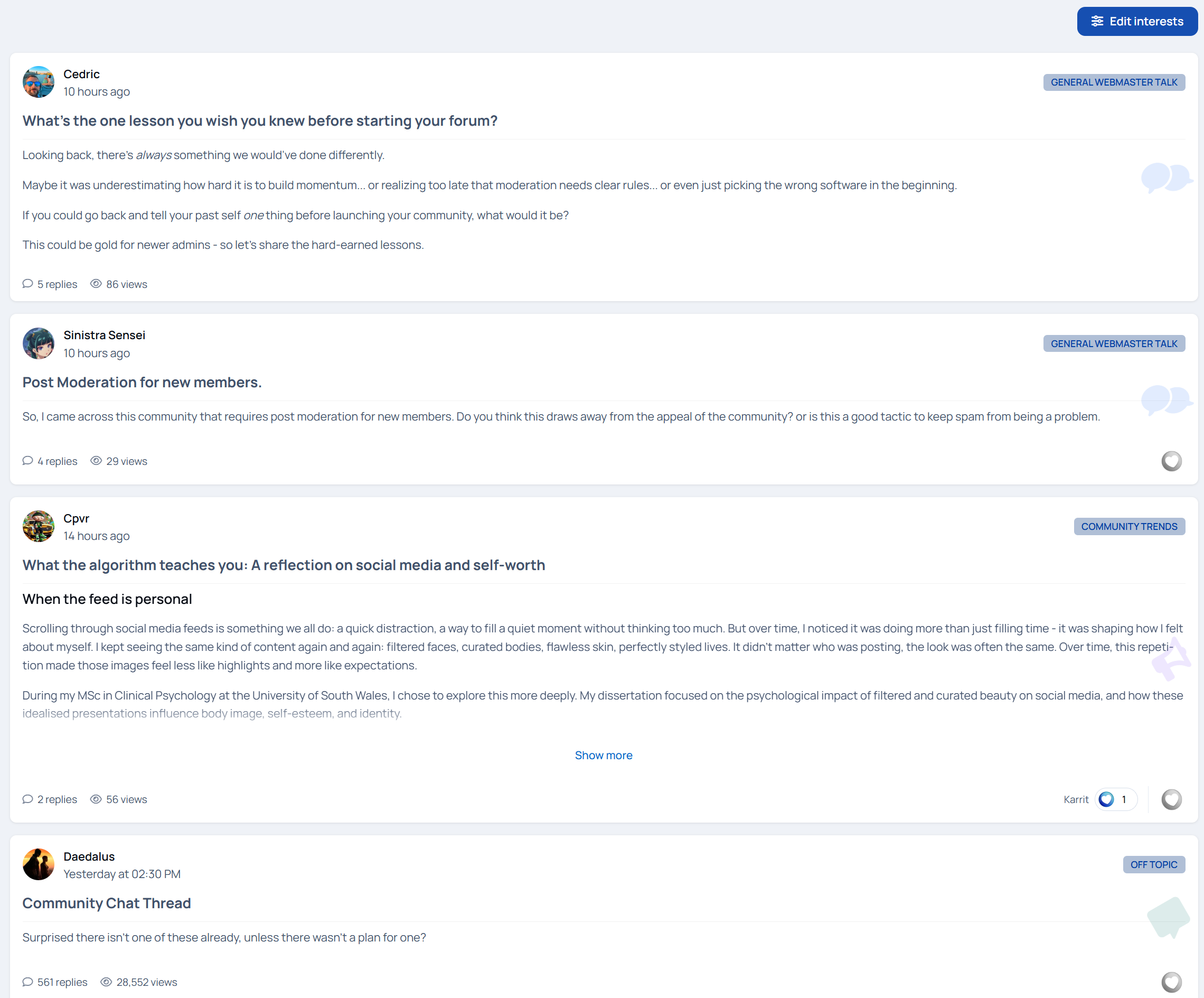
Explore Feeds 2.0
A smarter, more social way to experience your community
Explore Feeds reimagines how members discover and interact with content. Instead of forcing people to browse forums the “old way,” it delivers a personalized, living feed that feels familiar, engaging, and effortless.
Members choose what they care about.
Explore Feeds does the rest.
Want cars and design? That’s what shows up.
Only interested in writing or business? Your feed reflects it.
No clutter. No digging. Just relevant content, front and center.
Now fully interactive
Version 2 turns Explore Feeds from a passive browsing experience into an active, social one.
Members can now reply directly inside the feed, create new topics without leaving the page, react to posts, and edit their content in place. The feed stays alive, updating automatically as new replies and topics come in - just like a modern activity stream.
Everything happens where the content lives.
Built for engagement, not empty pages
Explore Feeds is now fully enabled for both guests and members by default. That means no empty feeds and no dead first impressions. You can confidently use it as your landing page, showing fresh, active content the moment someone arrives.
Navigation stays smooth too - users remain on the feed instead of being redirected away when interacting with content.
Clear signals, better conversations
To help members instantly understand what’s happening, Explore Feeds now includes engagement labels right in the stream:
Fast • 6/day • Active 10 minutes ago
Be the first to reply
First topic
Recently active discussions
These subtle cues encourage participation and make active conversations impossible to miss.
Replies now display with newest at the top, keeping discussions current and reducing scrolling friction. “Show older replies” lets members dig deeper when they want to.
More than just forums
Explore Feeds now supports blogs and articles, allowing you to surface editorial content alongside forum discussions in one unified feed. Long-form writing, announcements, or community discussions, everything flows together naturally.
Choose between interests-based or the forum filter system to give users even more control over what they see.
Key Features
Interest-based personalized feeds
Inline replying and topic creation
Reactions directly in the feed
Engagement labels for activity awareness
Blog and article support
Auto-updating feed and reply stream
Guest-ready feeds (perfect for landing pages)
Forum filtering system
Infinite scroll for continuous discovery
“Show more” handling for long posts
Smart synonyms system with customizable JSON support
A live demo can be found on Administrata.
What’s New (1.0.0 → 1.2.2)
Added inline replying directly inside the feed
Added topic creation from the feed
Added reactions support within the feed
Added topic engagement labels (Fast, activity rate, last active time, First Topic, Be the first to reply, etc.)
Added full blog content support
Added full article content support (Pages / Articles)
Added post and reply edit functionality
Enabled feeds for guests and members by default (no empty feeds)
Feed can now be used as a landing page
Added forum filter system
Reversed reply order (newest replies now appear at the top)
Updated redirection logic to keep users on the feed page
Fixed an issue where topic creation remembered previously posted topics
Renamed “Show more replies” to “Show older replies”
Increased username font size by 2px
Improved mobile reaction layout to prevent viewport overflow
Added auto-updating feed using All Activity logic
Added full auto-updating reply and post streams
Added live update indicator for new content
-
IPS5.0.0+
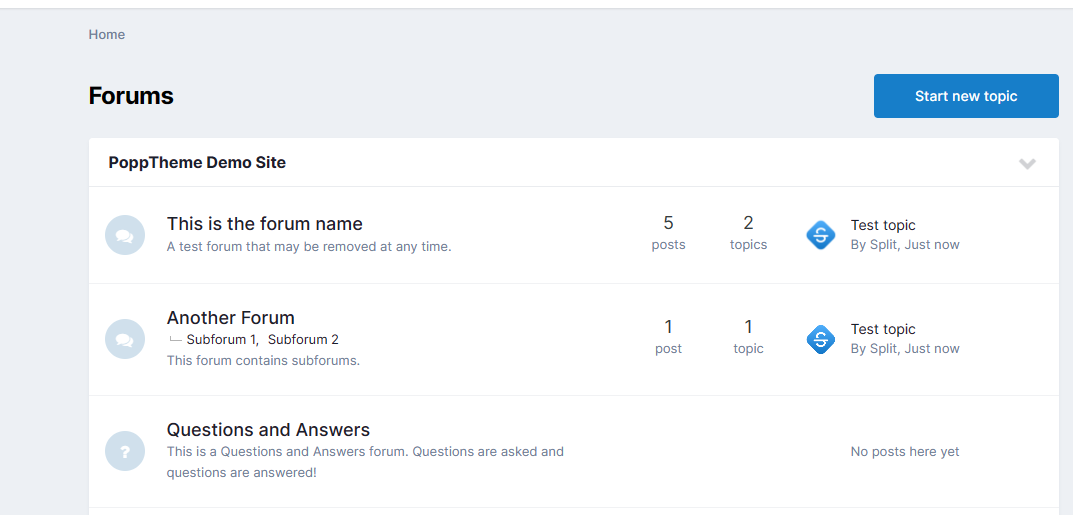
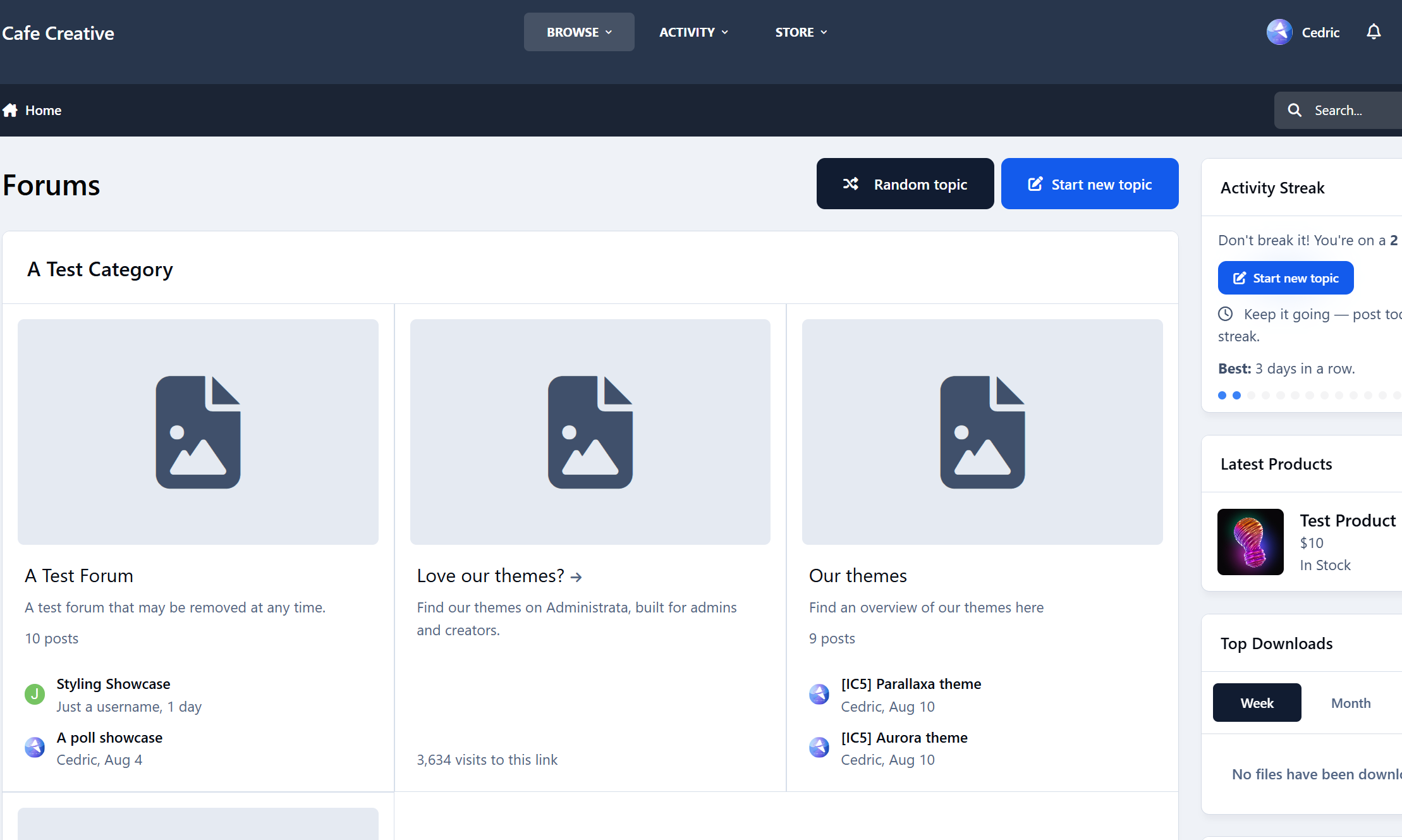
A tiny app that drops members into a random discussion to help them discover great topics they’d otherwise miss. It adds a “Random Topic” button right next to “Start new topic.” The buttons are placed intentionally so members can keep hitting that button again and again.
Drive engagement
Surface long-tail content: Old-but-gold threads get fresh eyes, comments, and reactions.
Reduce choice paralysis: One click, one destination - perfect for new or casual visitors.
Boost session depth: Random jumps keep people moving, increasing time on site and pageviews.
Pro tip: Pair with onboarding or your “Welcome” widget - new members love a guided first click.
Changelog
v1.0.0 – Initial release.
Feedback, bugs, or feature requests? Don’t hesitate to reach out.
-
IPS5.0.0+
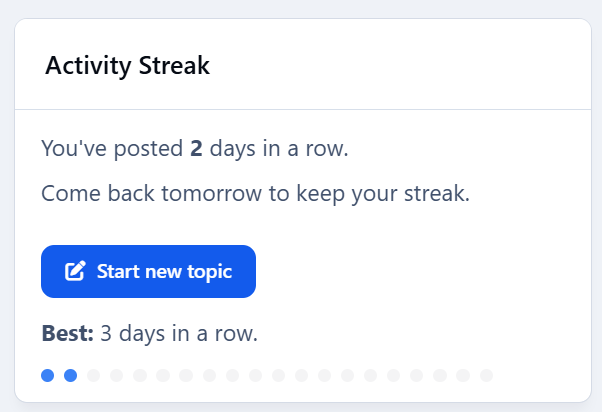
Drive engagement - give members a reason to come back tomorrow. Activity Streaks tracks consecutive posting days, shows a friendly widget, and plugs into Achievements so you can award points/badges at milestones (3, 7, 14, 30, 100… you choose).
Highlights
Streak widget with multiple visualizations: Dots (classic), Weekly goal meter, Big number badge, Milestone progress bar, Compact sparkline, Donut meter.
“Best streak” label (member & profile sidebar support).
Achievements action: Streak reaches N days — award points/badges at the exact day threshold.
Admin-friendly rules: create multiple thresholds (e.g., 3/7/14/30/100) with your own points/badges.
End-of-day nudge (optional): configurable reminder hour.
Visibility controls: limit the widget to selected member groups.
Performance aware: lightweight queries with caching; adjustable TTL.
No external services: respects IPS permissions; zero tracking.
nudge.mp4
"Enable end-of-day nudge by default" will show a subtle effect reminding people to post.
Admin controls
Per-widget override of visualization style.
Fixed or auto milestones for bar/donut views.
Optional custom donut goals (CSV).
Group visibility allow-list.
Cache TTL (seconds).
What’s included
Application
Example rule presets to import.
Install & setup (2 minutes)
Upload & install the app in ACP.
Add the Activity Streak widget to a sidebar or block area.
(Optional) In Achievements → Rules, add rules like:
3 days → 10 pts + “Getting Warm” badge
7 days → 25 pts + “1-Week Streak” badge
14 days → 50 pts + “Two Weeks on Fire” badge
30 days → 100 pts + Silver badge
100 days → 300 pts + Gold badge
Save. Members earn awards the moment they hit each threshold.
Notes
Streaks are based on days with at least one qualifying post (or allowed content) - not logins.
Timezone behavior follows your IPS configuration.
Changelog
v1.0.0 – Initial release.
Feedback, bugs or feature requests? Don't hesitate to let me know.
-
IPS5.0.0+
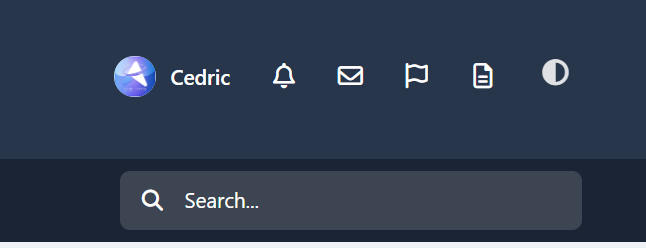
A tiny add-on that puts a single theme icon next to the user area. Tap it to choose Light, Dark, or System—using IPS’s built-in color-scheme logic. Clean, fast, and theme-friendly.
Highlights
One neutral “theme” icon with a dropdown (Light / Dark / System).
Works in the desktop header and mobile header (same UX everywhere).
Uses IPS core controller—no custom JS frameworks, no settings, no bloat.
Respects safe areas, tooltips, accessibility labels, and your header colors.
-
IPS5.0.0+
Topper — smart “back to top” button for Invision Community v5
A tiny, polished utility that adds a floating Back to Top button across your community. It stays out of the way at the top of a page and appears only after you scroll halfway (or near the bottom). On desktop you can also show a “go down” button; on mobile the Up button is placed precisely above bottom bars and iOS safe areas (including PWAs).
Highlights
Clean UI with optional circular progress ring around the button.
Mobile-perfect placement (safe-area aware, PWA-aware, above the hamburger bar).
Desktop/phone behavior tuned separately (Down button hidden on mobile).
Keyboard access: press T to jump to the top.
Admin controls (ACP)
Find it under Customization → Appearance → Topper.
You can configure:
Position: bottom-right / bottom-left / top-right / top-left
Offsets (X/Y) + a separate mobile offset
Visibility: “Always show”, or show after N px (button also shows when near the bottom)
Size (desktop + mobile), shape (circle / rounded)
Colors: background, hover, icon, opacity
Smooth scroll on click
Progress ring toggle
Show on mobile toggle
Keyboard shortcut (T) toggle
Compatibility
Invision Community v5 (tested on recent builds)
Works with light/dark themes and custom themes
1.0.0
Initial release: progress ring, mobile/PWA safe positioning, desktop “Down” button, keyboard shortcut, half-page/near-bottom reveal logic, full ACP settings.
-
IPS5.0.0
This app will give your members a new option for their profiles, which is who can view them.
Privacy Settings:
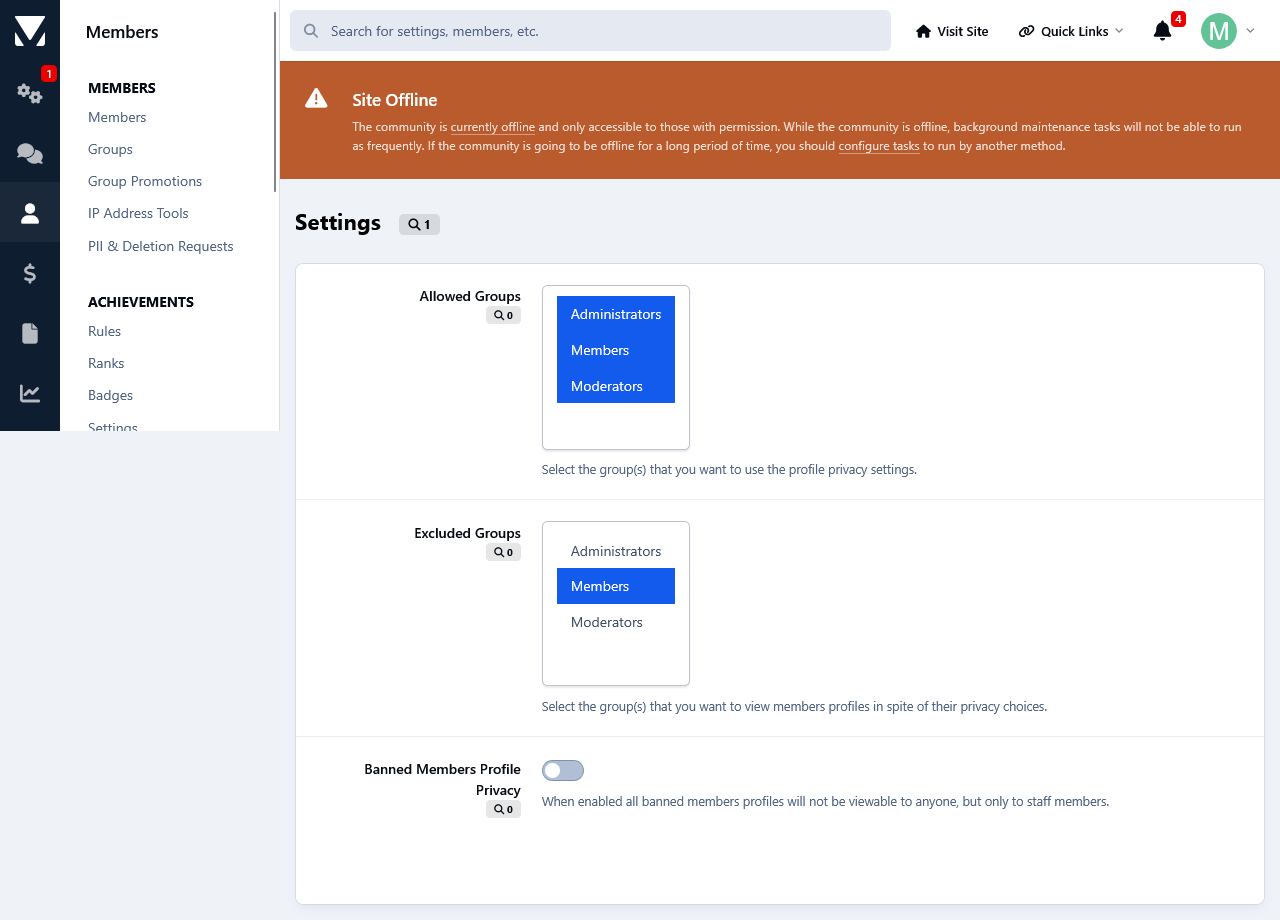
Members can turn their profiles visible for members only, for their followers only or they can turn them private so no one will be able to view them but groups with the appropriate permissions set by the admin. By default it is set to everyone.
Members History Logs:
Admins can view how members set their privacy from members history logs.
Logs:
Admins can view all members privacy settings from the app's log page. There they can edit members privacy settings as well as reset all privacy settings to Everyone.
Filtering:
Admins can filter each privacy setting to see the members who selected them.
Search:
From the log page admins can also search for a member 's privacy settings.
Banned Members:
Admins can make banned members profiles unviewable for everyone, but the staff members.