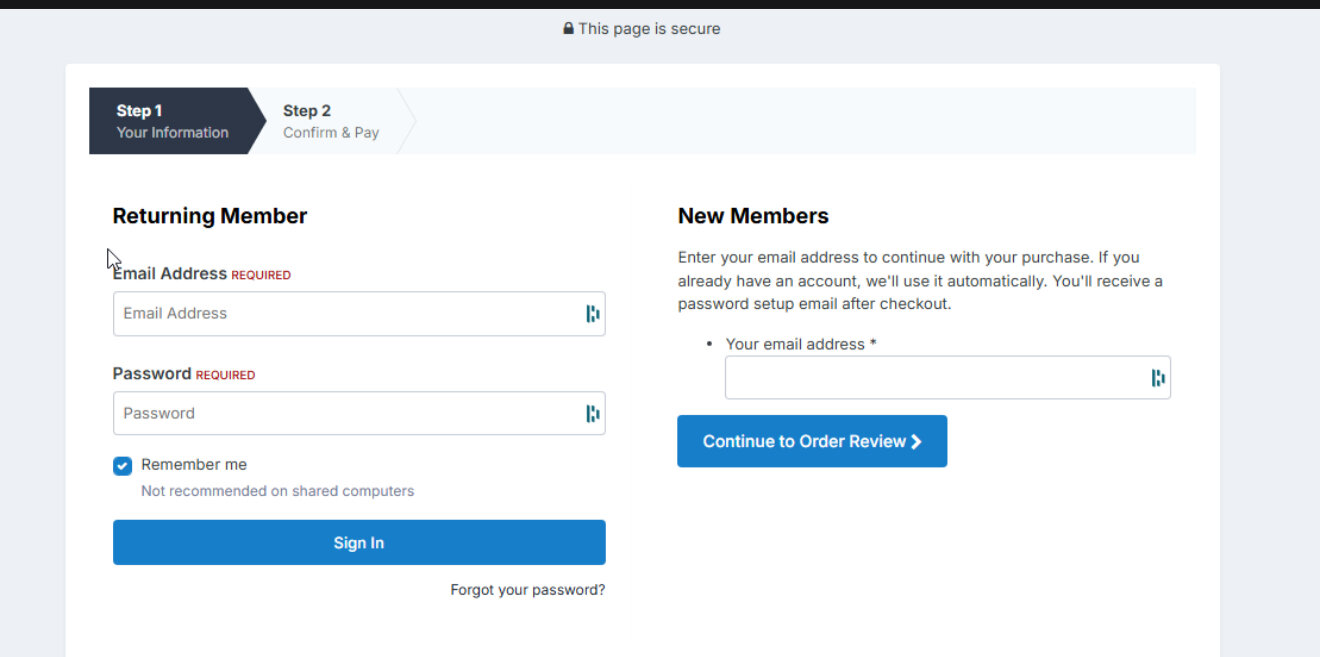
this plugin will allow your users to complete checkout without needing to register. simply input your email for your new or existing account and new users it will automatically create their user and existing users it will tie the order to your existing account!
this plugin will allow your users to complete checkout without needing to register. simply input your email for your new or existing account and new users it will automatically create their user and existing users it will tie the order to your existing account!
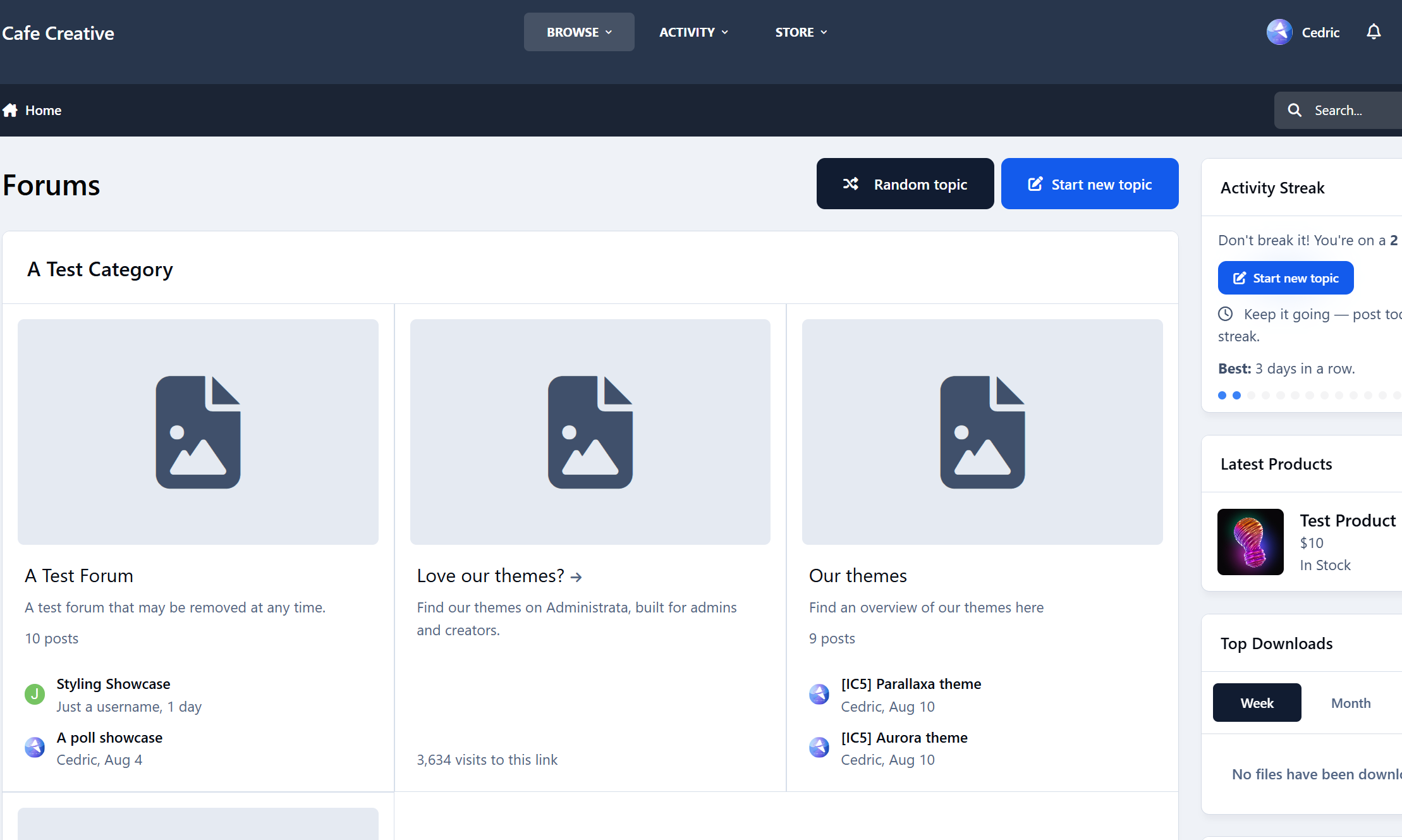
A tiny app that drops members into a random discussion to help them discover great topics they’d otherwise miss. It adds a “Random Topic” button right next to “Start new topic.” The buttons are placed intentionally so members can keep hitting that button again and again.
Drive engagement Surface long-tail content: Old-but-gold threads get fresh eyes, comments, and reactions. Reduce choice paralysis: One click, one destination - perfect for new or casual visitors. Boost session depth: Random jumps keep people moving, increasing time on site and pageviews.
Pro tip: Pair with onboarding or your “Welcome” widget - new members love a guided first click.
Changelog v1.0.0 – Initial release. Feedback, bugs, or feature requests? Don’t hesitate to reach out.
IPS5.0.0+
A tiny app that drops members into a random discussion to help them discover great topics they’d otherwise miss. It adds a “Random Topic” button right next to “Start new topic.” The buttons are placed intentionally so members can keep hitting that button again and again.
Drive engagement Surface long-tail content: Old-but-gold threads get fresh eyes, comments, and reactions. Reduce choice paralysis: One click, one destination - perfect for new or casual visitors. Boost session depth: Random jumps keep people moving, increasing time on site and pageviews.
Pro tip: Pair with onboarding or your “Welcome” widget - new members love a guided first click.
Changelog v1.0.0 – Initial release. Feedback, bugs, or feature requests? Don’t hesitate to reach out.
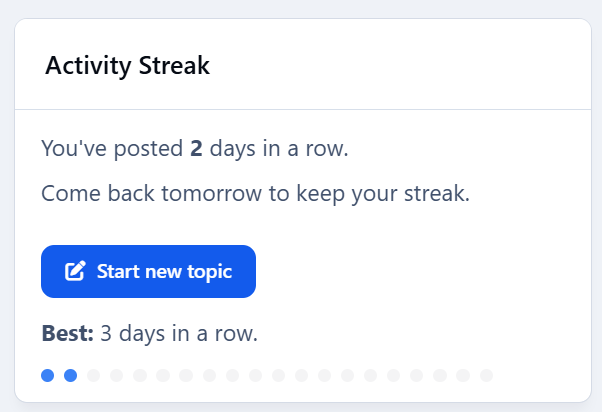
Drive engagement - give members a reason to come back tomorrow. Activity Streaks tracks consecutive posting days, shows a friendly widget, and plugs into Achievements so you can award points/badges at milestones (3, 7, 14, 30, 100… you choose).
Highlights Streak widget with multiple visualizations: Dots (classic), Weekly goal meter, Big number badge, Milestone progress bar, Compact sparkline, Donut meter. “Best streak” label (member & profile sidebar support). Achievements action: Streak reaches N days — award points/badges at the exact day threshold. Admin-friendly rules: create multiple thresholds (e.g., 3/7/14/30/100) with your own points/badges. End-of-day nudge (optional): configurable reminder hour. Visibility controls: limit the widget to selected member groups. Performance aware: lightweight queries with caching; adjustable TTL. No external services: respects IPS permissions; zero tracking.
nudge.mp4 "Enable end-of-day nudge by default" will show a subtle effect reminding people to post.
Admin controls Per-widget override of visualization style. Fixed or auto milestones for bar/donut views. Optional custom donut goals (CSV). Group visibility allow-list. Cache TTL (seconds). What’s included Application Example rule presets to import. Install & setup (2 minutes) Upload & install the app in ACP. Add the Activity Streak widget to a sidebar or block area. (Optional) In Achievements → Rules, add rules like: 3 days → 10 pts + “Getting Warm” badge 7 days → 25 pts + “1-Week Streak” badge 14 days → 50 pts + “Two Weeks on Fire” badge 30 days → 100 pts + Silver badge 100 days → 300 pts + Gold badge Save. Members earn awards the moment they hit each threshold. Notes Streaks are based on days with at least one qualifying post (or allowed content) - not logins. Timezone behavior follows your IPS configuration.
Changelog v1.0.0 – Initial release.
Feedback, bugs or feature requests? Don't hesitate to let me know.
IPS5.0.0+
Drive engagement - give members a reason to come back tomorrow. Activity Streaks tracks consecutive posting days, shows a friendly widget, and plugs into Achievements so you can award points/badges at milestones (3, 7, 14, 30, 100… you choose).
Highlights Streak widget with multiple visualizations: Dots (classic), Weekly goal meter, Big number badge, Milestone progress bar, Compact sparkline, Donut meter. “Best streak” label (member & profile sidebar support). Achievements action: Streak reaches N days — award points/badges at the exact day threshold. Admin-friendly rules: create multiple thresholds (e.g., 3/7/14/30/100) with your own points/badges. End-of-day nudge (optional): configurable reminder hour. Visibility controls: limit the widget to selected member groups. Performance aware: lightweight queries with caching; adjustable TTL. No external services: respects IPS permissions; zero tracking.
nudge.mp4 "Enable end-of-day nudge by default" will show a subtle effect reminding people to post.
Admin controls Per-widget override of visualization style. Fixed or auto milestones for bar/donut views. Optional custom donut goals (CSV). Group visibility allow-list. Cache TTL (seconds). What’s included Application Example rule presets to import. Install & setup (2 minutes) Upload & install the app in ACP. Add the Activity Streak widget to a sidebar or block area. (Optional) In Achievements → Rules, add rules like: 3 days → 10 pts + “Getting Warm” badge 7 days → 25 pts + “1-Week Streak” badge 14 days → 50 pts + “Two Weeks on Fire” badge 30 days → 100 pts + Silver badge 100 days → 300 pts + Gold badge Save. Members earn awards the moment they hit each threshold. Notes Streaks are based on days with at least one qualifying post (or allowed content) - not logins. Timezone behavior follows your IPS configuration.
Changelog v1.0.0 – Initial release.
Feedback, bugs or feature requests? Don't hesitate to let me know.
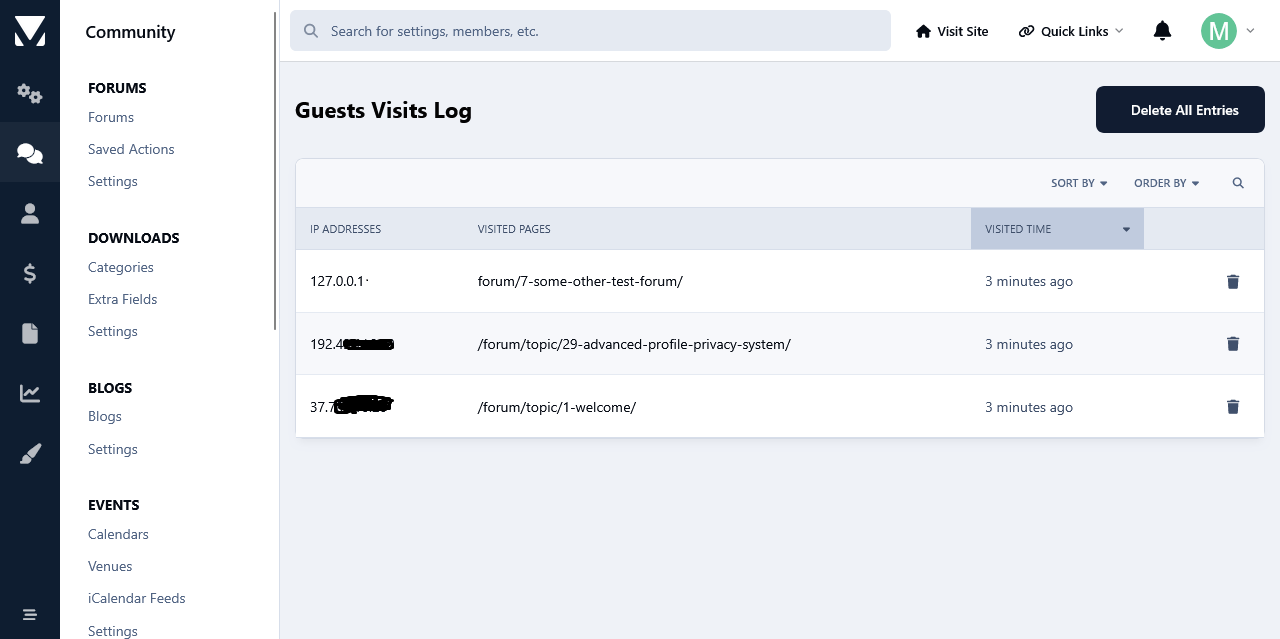
This app will log all guests visits at your forum from the moment that it's installed and it will display them in the app's log page. Like that you will have an overview as to what pages hold the interest of your guests. Logs can be then searched based on ip addresses and visit time frame. Another feature of this app is the use cookies to limit the number of times that your guests can view pages at your forum. The limit will be for a day, after which it will expire and it will be repeated again after the number of page view limit has been reached again. The whole idea behind this concept is to hopefully motivate guests to register. The search bots will not be impacted by this when it comes to spidering your site, because usually bots do not generally use cookies. However, this is an on/off setting.
IPS5.0.0
This app will log all guests visits at your forum from the moment that it's installed and it will display them in the app's log page. Like that you will have an overview as to what pages hold the interest of your guests. Logs can be then searched based on ip addresses and visit time frame. Another feature of this app is the use cookies to limit the number of times that your guests can view pages at your forum. The limit will be for a day, after which it will expire and it will be repeated again after the number of page view limit has been reached again. The whole idea behind this concept is to hopefully motivate guests to register. The search bots will not be impacted by this when it comes to spidering your site, because usually bots do not generally use cookies. However, this is an on/off setting.
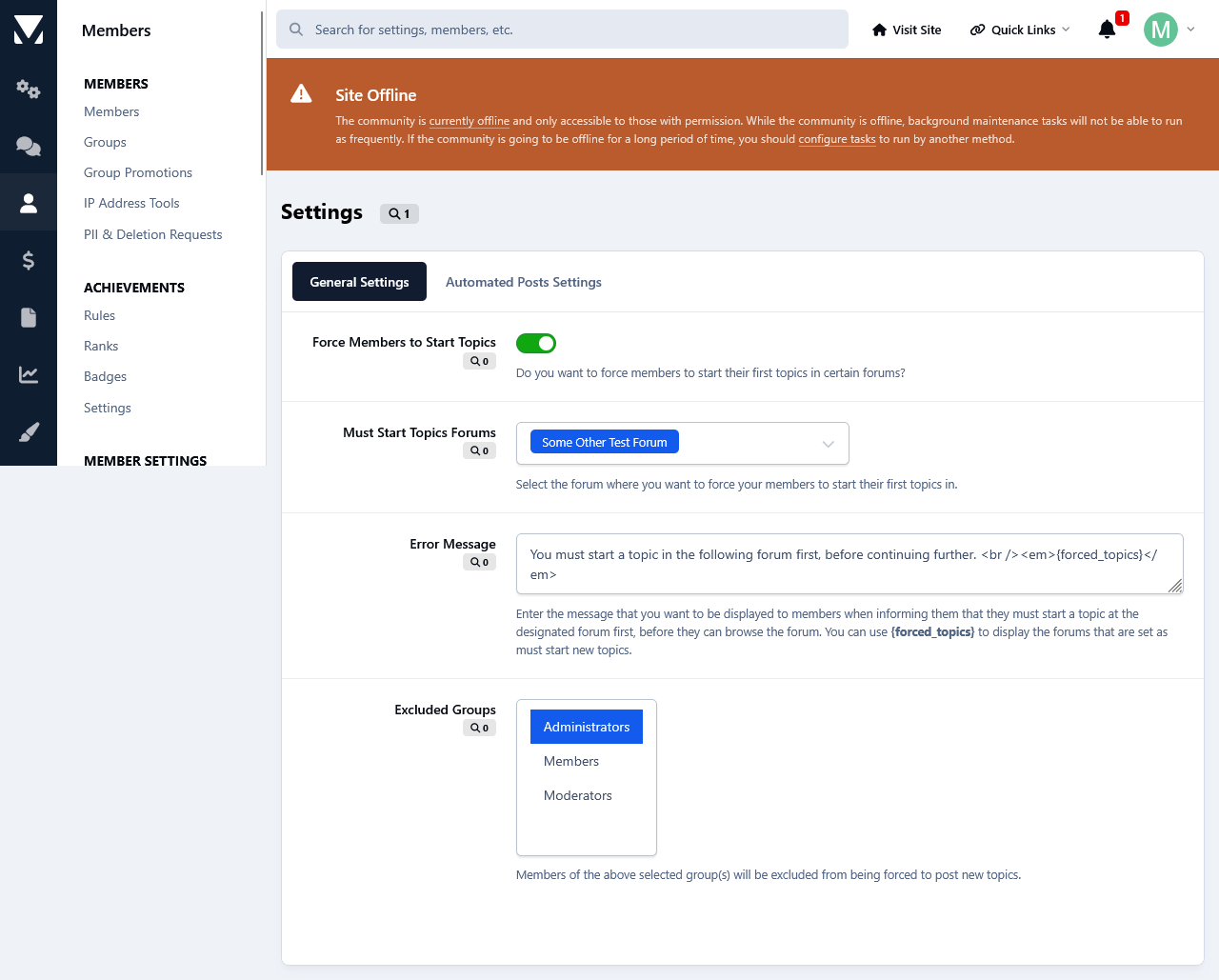
This app will force members to make their first topic in the forum of your choice in order to browse the forums and topics at your forum. From the app's settings you can enable/disable the app, select the forum where you want your members to post their first topic, enter your custom error message and exclude groups from this restriction.
IPS5.0.0
This app will force members to make their first topic in the forum of your choice in order to browse the forums and topics at your forum. From the app's settings you can enable/disable the app, select the forum where you want your members to post their first topic, enter your custom error message and exclude groups from this restriction.
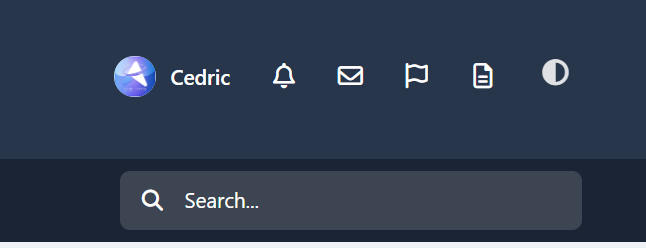
A tiny add-on that puts a single theme icon next to the user area. Tap it to choose Light, Dark, or System—using IPS’s built-in color-scheme logic. Clean, fast, and theme-friendly. Highlights One neutral “theme” icon with a dropdown (Light / Dark / System). Works in the desktop header and mobile header (same UX everywhere). Uses IPS core controller—no custom JS frameworks, no settings, no bloat. Respects safe areas, tooltips, accessibility labels, and your header colors.
IPS5.0.0+
A tiny add-on that puts a single theme icon next to the user area. Tap it to choose Light, Dark, or System—using IPS’s built-in color-scheme logic. Clean, fast, and theme-friendly. Highlights One neutral “theme” icon with a dropdown (Light / Dark / System). Works in the desktop header and mobile header (same UX everywhere). Uses IPS core controller—no custom JS frameworks, no settings, no bloat. Respects safe areas, tooltips, accessibility labels, and your header colors.
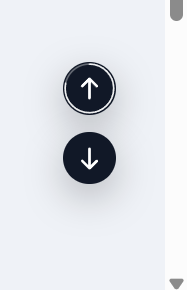
Topper — smart “back to top” button for Invision Community v5 A tiny, polished utility that adds a floating Back to Top button across your community. It stays out of the way at the top of a page and appears only after you scroll halfway (or near the bottom). On desktop you can also show a “go down” button; on mobile the Up button is placed precisely above bottom bars and iOS safe areas (including PWAs).
Highlights Clean UI with optional circular progress ring around the button. Mobile-perfect placement (safe-area aware, PWA-aware, above the hamburger bar). Desktop/phone behavior tuned separately (Down button hidden on mobile). Keyboard access: press T to jump to the top.
Admin controls (ACP) Find it under Customization → Appearance → Topper. You can configure: Position: bottom-right / bottom-left / top-right / top-left Offsets (X/Y) + a separate mobile offset Visibility: “Always show”, or show after N px (button also shows when near the bottom) Size (desktop + mobile), shape (circle / rounded) Colors: background, hover, icon, opacity Smooth scroll on click Progress ring toggle Show on mobile toggle Keyboard shortcut (T) toggle Compatibility Invision Community v5 (tested on recent builds) Works with light/dark themes and custom themes
Topper — smart “back to top” button for Invision Community v5 A tiny, polished utility that adds a floating Back to Top button across your community. It stays out of the way at the top of a page and appears only after you scroll halfway (or near the bottom). On desktop you can also show a “go down” button; on mobile the Up button is placed precisely above bottom bars and iOS safe areas (including PWAs).
Highlights Clean UI with optional circular progress ring around the button. Mobile-perfect placement (safe-area aware, PWA-aware, above the hamburger bar). Desktop/phone behavior tuned separately (Down button hidden on mobile). Keyboard access: press T to jump to the top.
Admin controls (ACP) Find it under Customization → Appearance → Topper. You can configure: Position: bottom-right / bottom-left / top-right / top-left Offsets (X/Y) + a separate mobile offset Visibility: “Always show”, or show after N px (button also shows when near the bottom) Size (desktop + mobile), shape (circle / rounded) Colors: background, hover, icon, opacity Smooth scroll on click Progress ring toggle Show on mobile toggle Keyboard shortcut (T) toggle Compatibility Invision Community v5 (tested on recent builds) Works with light/dark themes and custom themes
Bring your Downloads section to life with HoverShots - a smooth, eye-catching way to preview multiple screenshots right from the file card. On desktop, simply hover over a file’s thumbnail and watch the screenshots cycle automatically. On mobile, a discreet Preview button appears inside the image, letting visitors tap to start a short preview without opening the file page. HoverShots works seamlessly in category listings, the main Downloads page, and other grid-based displays. It respects mobile usability as it skips small/minimal grid items, and avoids interfering with clicks or navigation. Give your files the attention they deserve and make browsing more engaging for your community.
preview.mp4
IPS5.0.0+
Bring your Downloads section to life with HoverShots - a smooth, eye-catching way to preview multiple screenshots right from the file card. On desktop, simply hover over a file’s thumbnail and watch the screenshots cycle automatically. On mobile, a discreet Preview button appears inside the image, letting visitors tap to start a short preview without opening the file page. HoverShots works seamlessly in category listings, the main Downloads page, and other grid-based displays. It respects mobile usability as it skips small/minimal grid items, and avoids interfering with clicks or navigation. Give your files the attention they deserve and make browsing more engaging for your community.
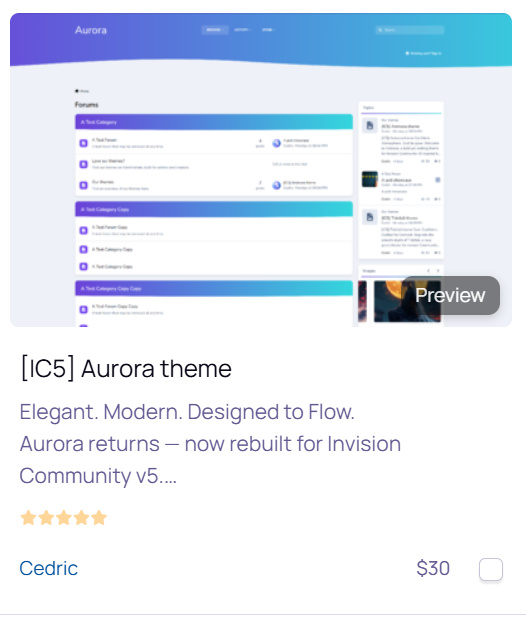
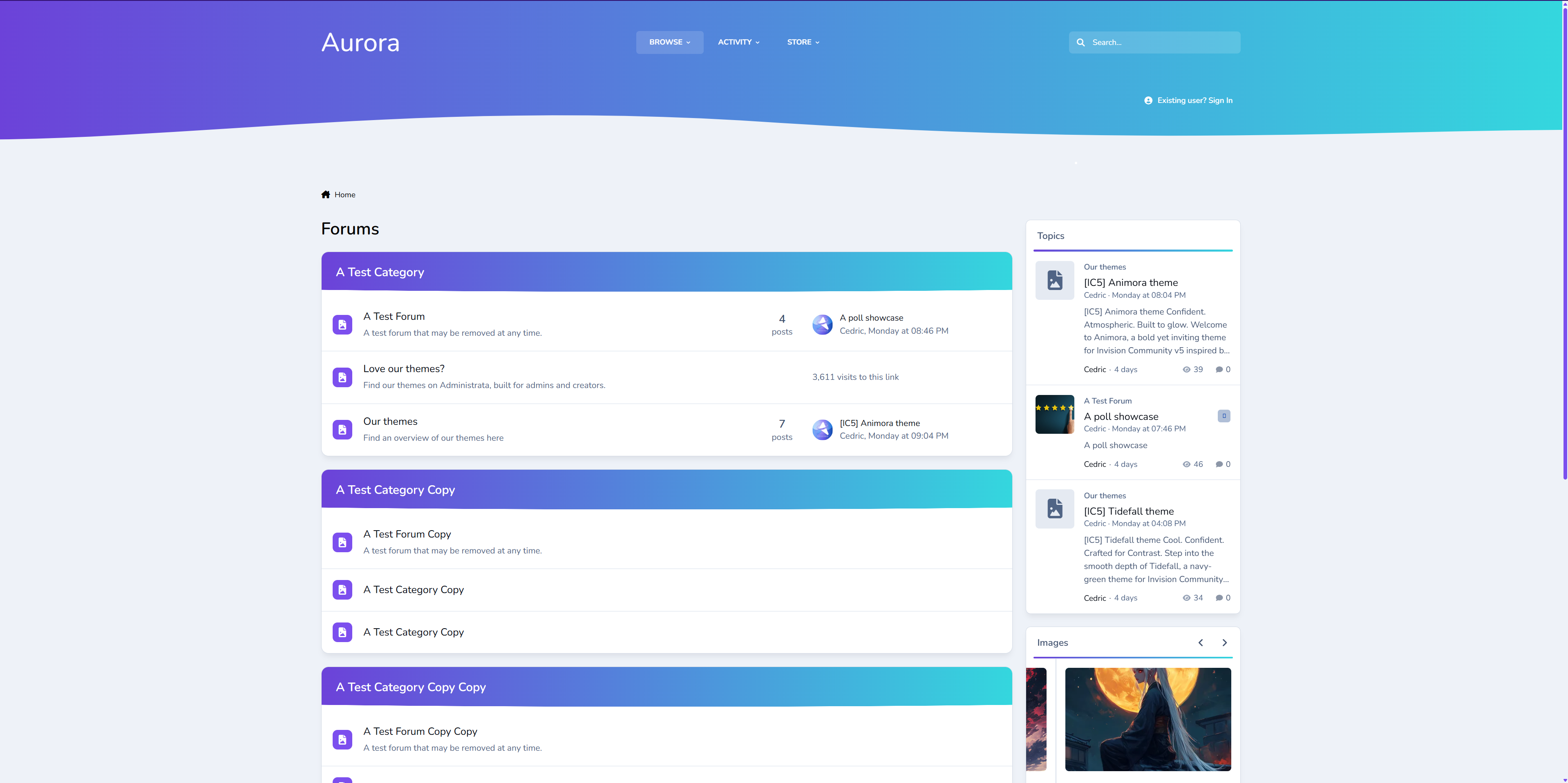
Elegant. Modern. Designed to Flow. Aurora returns — now rebuilt for Invision Community v5. A refined remake of our popular XenForo variant, this version of Aurora blends soft gradients, clean panels, and adaptive dark/light modes for a theme that feels as smooth as it looks. It’s professional without being cold, stylish without losing usability. Perfect for communities that want a premium, future-ready design that still feels effortless. Demo: Select Aurora from the theme switcher.
✔️ Classic Aurora Reimagined Our beloved XenForo Aurora design is now optimized for IPS v5 — keeping the signature flowing gradients while reworking every element for Invision’s modern framework. ✔️ Adaptive Dark & Light Modes Aurora automatically adapts to the user’s theme choice or OS setting, delivering consistent, balanced visuals in any environment. ✔️ Gradient Category & Widget Headers Forum categories and widgets feature Aurora’s signature gradient trim — crisp, modern, and seamlessly blending with the rest of the UI. ✔️ Smooth UI Panels, widgets, and dropdowns keep it clean, assuring focus on your content while adding depth. ✔️ Styled Scrollbars & Details Custom-themed scrollbars, button accents, and header lines ensure even the smallest details feel consistent. ✔️ Pixel-Perfect for Any Niche From tech forums to creative communities, Aurora delivers a clean canvas that’s ready for your brand and content.
We've redefined Aurora — A more polished experience built for today’s IPS communities. If you loved the XenForo version, you’ll feel right at home here.
IPS5.0.0+
Elegant. Modern. Designed to Flow. Aurora returns — now rebuilt for Invision Community v5. A refined remake of our popular XenForo variant, this version of Aurora blends soft gradients, clean panels, and adaptive dark/light modes for a theme that feels as smooth as it looks. It’s professional without being cold, stylish without losing usability. Perfect for communities that want a premium, future-ready design that still feels effortless. Demo: Select Aurora from the theme switcher.
✔️ Classic Aurora Reimagined Our beloved XenForo Aurora design is now optimized for IPS v5 — keeping the signature flowing gradients while reworking every element for Invision’s modern framework. ✔️ Adaptive Dark & Light Modes Aurora automatically adapts to the user’s theme choice or OS setting, delivering consistent, balanced visuals in any environment. ✔️ Gradient Category & Widget Headers Forum categories and widgets feature Aurora’s signature gradient trim — crisp, modern, and seamlessly blending with the rest of the UI. ✔️ Smooth UI Panels, widgets, and dropdowns keep it clean, assuring focus on your content while adding depth. ✔️ Styled Scrollbars & Details Custom-themed scrollbars, button accents, and header lines ensure even the smallest details feel consistent. ✔️ Pixel-Perfect for Any Niche From tech forums to creative communities, Aurora delivers a clean canvas that’s ready for your brand and content.
We've redefined Aurora — A more polished experience built for today’s IPS communities. If you loved the XenForo version, you’ll feel right at home here.
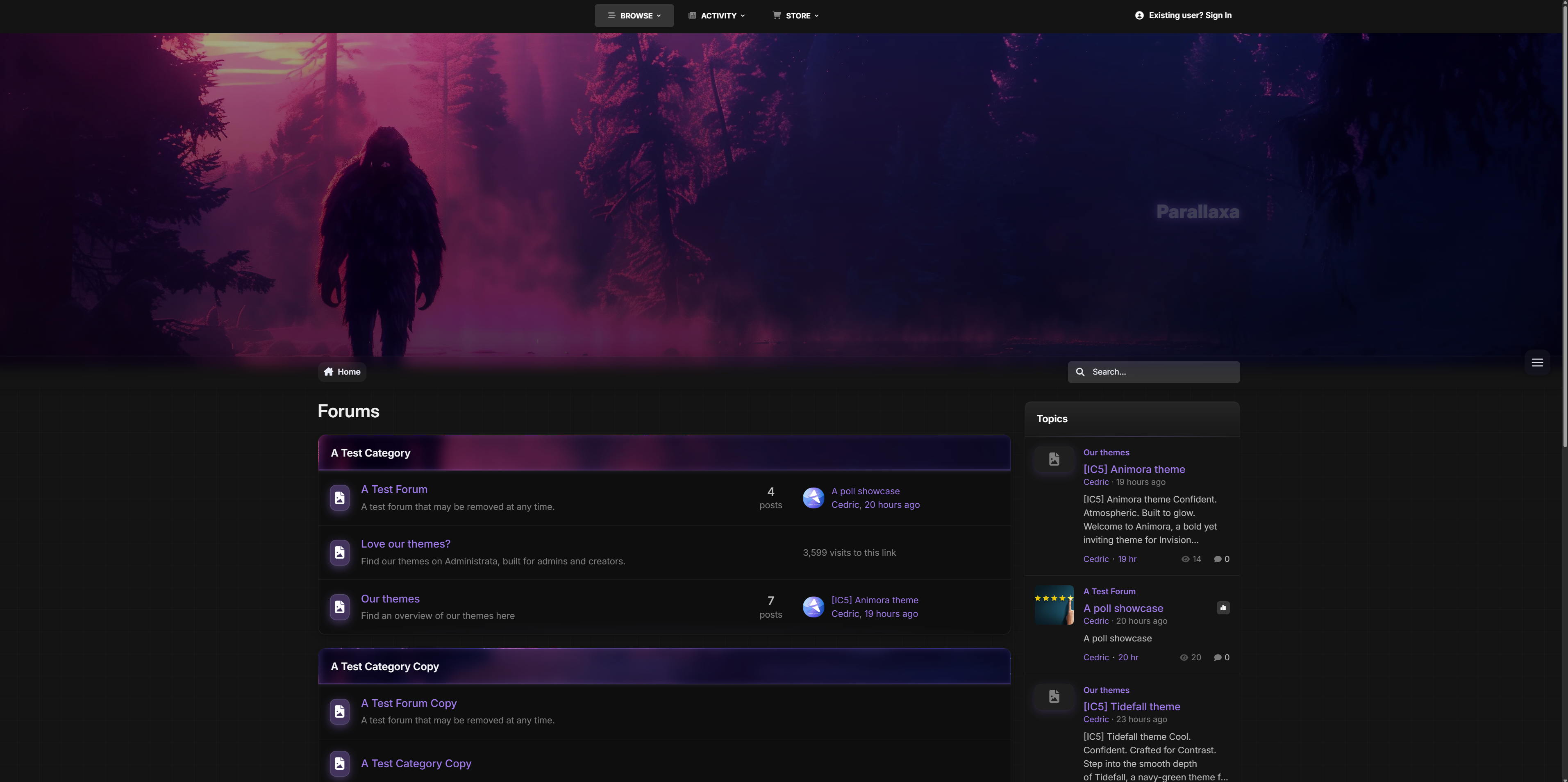
Striking. Immersive. Built for motion. Step into Parallaxa, a game-inspired Invision Community v5 theme designed for depth, energy, and customization. With a responsive parallax header, animated accents, glass surfaces, and dynamic color presets, Parallaxa sets the stage for communities that want more than just a basic skin — they want a vibe. Whether you run a gaming forum, creative project hub, or a content-heavy platform, Parallaxa delivers immersive style with functional clarity. Demo: Select Parallaxa from the theme switcher.
✔️ Live Parallax Header A responsive hero header with optional background selector, layered gradients, and gentle movement to add dimension and presence. ✔️ Dynamic Background Selector Let your users switch between multiple thematic backgrounds with a seamless, mobile-friendly overlay — complete with animated previews and dark blur effect. ✔️ Accent Color Presets Switch between vibrant preset colors like blue, red, lime, purple, and more. All UI elements update instantly — from icons to buttons to glow effects. ✔️ Glass UI with Depth Menus, widgets, and content areas feature soft blurs and transparent panels, evoking that frosted-glass feel while keeping everything readable and responsive. ✔️ Shiny Buttons & Animated Glow Buttons are styled with a layered gloss and animated sheen. Hover states glow, but never feel jarring. Perfect for modern, sleek navigation. ✔️ Adaptive Widgets & Headers Box headers match your current background with darkened blur overlays and subtle glowing trims for contrast. Widget headers are styled to blend into the theme softly. ✔️ Built-in Game-Style Elements From neon-glow badges to pill-style icons and soft-animated dropdowns, Parallaxa brings subtle game UI cues without overwhelming your content.
Ideal for modern forums, gaming clans, project showcases, and creative platforms that want to combine visual punch with polished design.
Need help adding your own backgrounds or expanding the presets? Just ask - Parallaxa was built for flexibility.
IPS5.0.0+
Striking. Immersive. Built for motion. Step into Parallaxa, a game-inspired Invision Community v5 theme designed for depth, energy, and customization. With a responsive parallax header, animated accents, glass surfaces, and dynamic color presets, Parallaxa sets the stage for communities that want more than just a basic skin — they want a vibe. Whether you run a gaming forum, creative project hub, or a content-heavy platform, Parallaxa delivers immersive style with functional clarity. Demo: Select Parallaxa from the theme switcher.
✔️ Live Parallax Header A responsive hero header with optional background selector, layered gradients, and gentle movement to add dimension and presence. ✔️ Dynamic Background Selector Let your users switch between multiple thematic backgrounds with a seamless, mobile-friendly overlay — complete with animated previews and dark blur effect. ✔️ Accent Color Presets Switch between vibrant preset colors like blue, red, lime, purple, and more. All UI elements update instantly — from icons to buttons to glow effects. ✔️ Glass UI with Depth Menus, widgets, and content areas feature soft blurs and transparent panels, evoking that frosted-glass feel while keeping everything readable and responsive. ✔️ Shiny Buttons & Animated Glow Buttons are styled with a layered gloss and animated sheen. Hover states glow, but never feel jarring. Perfect for modern, sleek navigation. ✔️ Adaptive Widgets & Headers Box headers match your current background with darkened blur overlays and subtle glowing trims for contrast. Widget headers are styled to blend into the theme softly. ✔️ Built-in Game-Style Elements From neon-glow badges to pill-style icons and soft-animated dropdowns, Parallaxa brings subtle game UI cues without overwhelming your content.
Ideal for modern forums, gaming clans, project showcases, and creative platforms that want to combine visual punch with polished design.
Need help adding your own backgrounds or expanding the presets? Just ask - Parallaxa was built for flexibility.
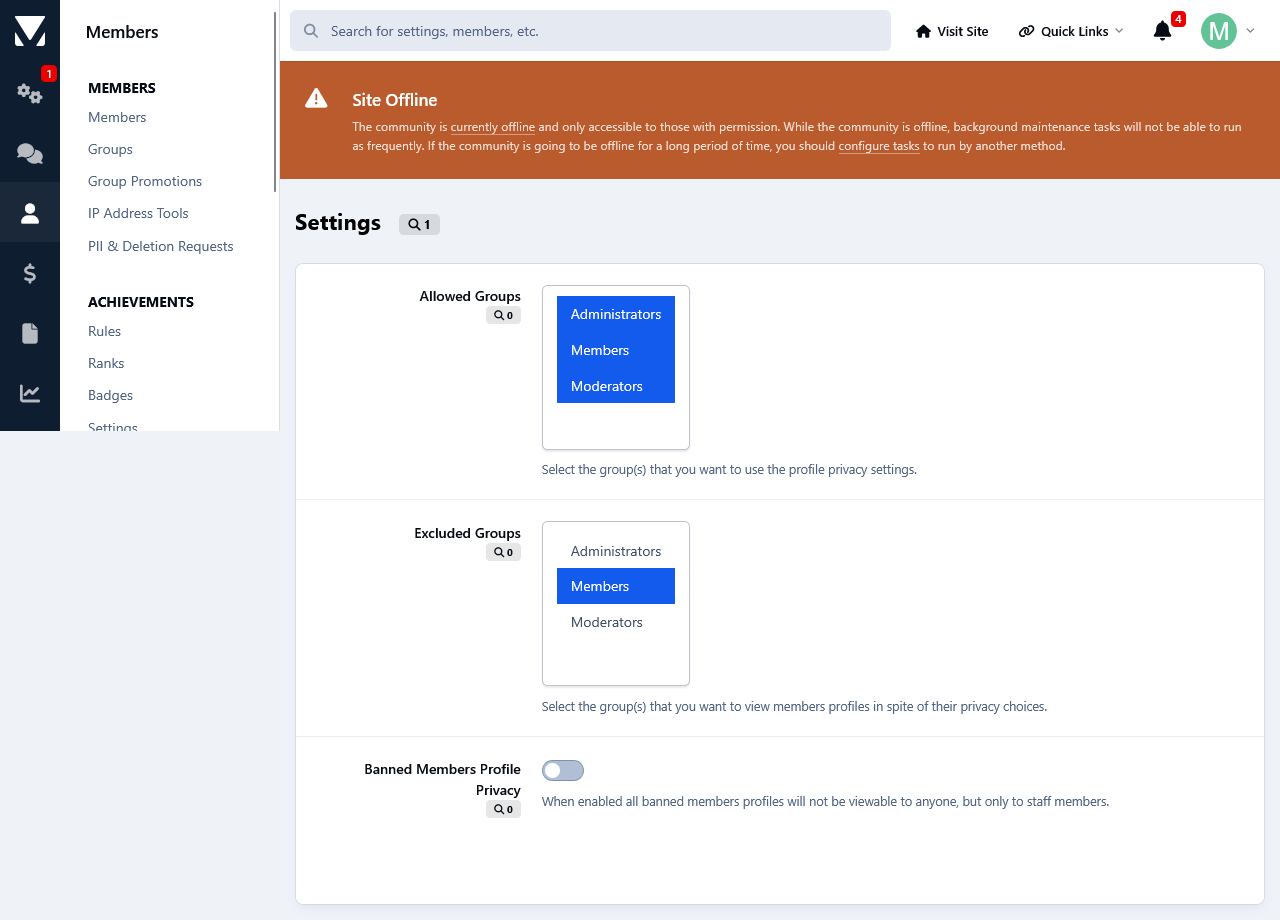
This app will give your members a new option for their profiles, which is who can view them. Privacy Settings: Members can turn their profiles visible for members only, for their followers only or they can turn them private so no one will be able to view them but groups with the appropriate permissions set by the admin. By default it is set to everyone. Members History Logs: Admins can view how members set their privacy from members history logs. Logs: Admins can view all members privacy settings from the app's log page. There they can edit members privacy settings as well as reset all privacy settings to Everyone. Filtering: Admins can filter each privacy setting to see the members who selected them. Search: From the log page admins can also search for a member 's privacy settings. Banned Members: Admins can make banned members profiles unviewable for everyone, but the staff members.
IPS5.0.0
This app will give your members a new option for their profiles, which is who can view them. Privacy Settings: Members can turn their profiles visible for members only, for their followers only or they can turn them private so no one will be able to view them but groups with the appropriate permissions set by the admin. By default it is set to everyone. Members History Logs: Admins can view how members set their privacy from members history logs. Logs: Admins can view all members privacy settings from the app's log page. There they can edit members privacy settings as well as reset all privacy settings to Everyone. Filtering: Admins can filter each privacy setting to see the members who selected them. Search: From the log page admins can also search for a member 's privacy settings. Banned Members: Admins can make banned members profiles unviewable for everyone, but the staff members.
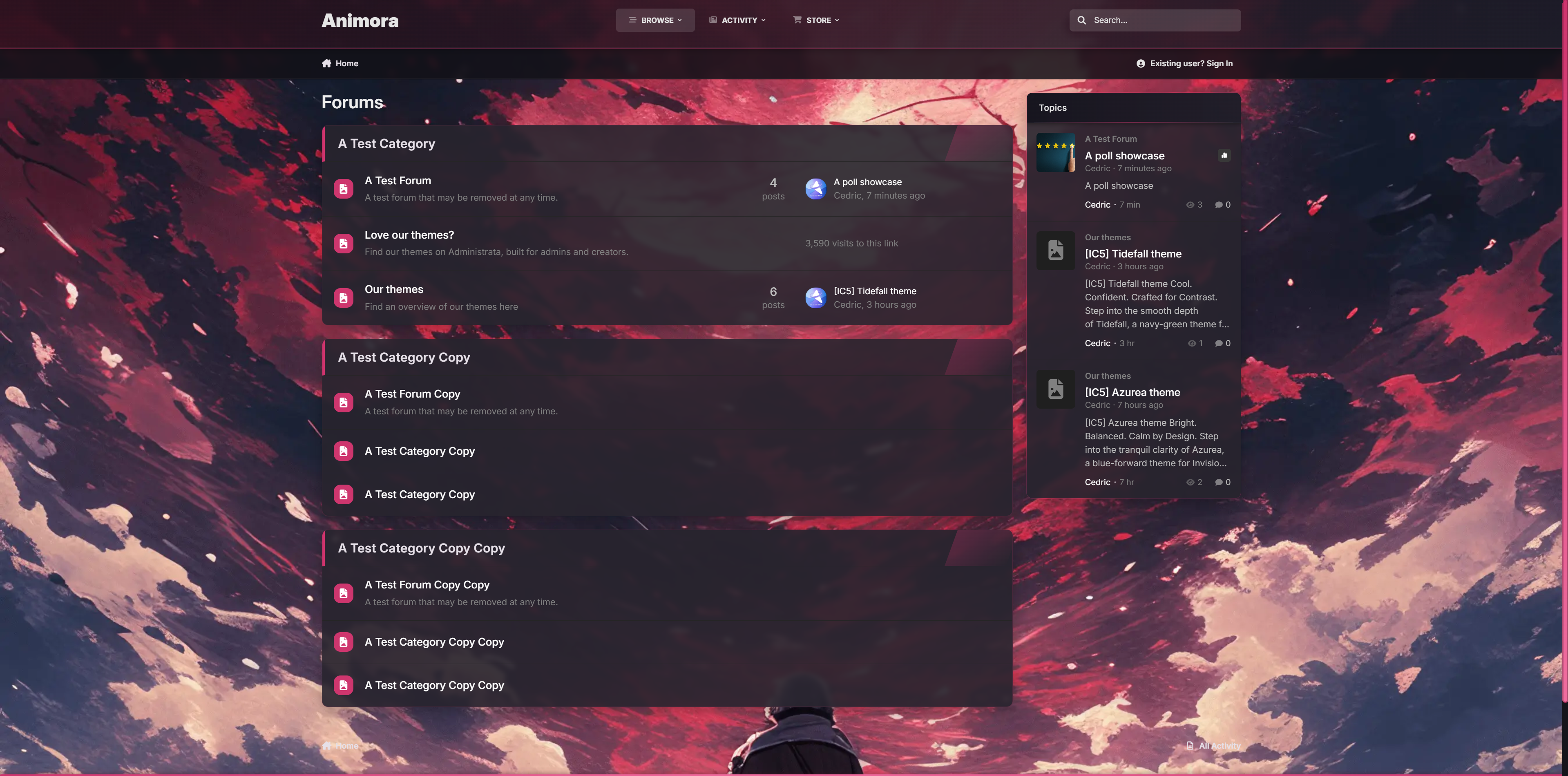
Confident. Atmospheric. Built to glow. Welcome to Animora, a bold yet inviting theme for Invision Community v5 inspired by the ambiance of animated landscapes. With smooth blurs, glowing accents, and a selectable background system, Animora gives your forum a sense of motion and personality without sacrificing readability or performance. Perfect when you're building a cozy creative space, an anime community, or just want something that feels alive, Animora blends beauty with usability in all the right ways.
Demo: Select Animora from the theme switcher.
✔️ Background Selector System Let your members personalize their view. Choose from 4 animated-style background scenes. ✔️ Floating Glass Interface Light blurs, glowing buttons, and modern transparency give everything a soft, premium touch. ✔️ Warm Highlighting & Accent Glow From buttons to borders, subtle pink gradients add a radiant glow that lifts the design without overpowering it. ✔️ Fully Responsive Picker UI The background selector opens in a modal-style overlay, works on all devices, and adapts with custom scrollbars and animated highlights. ✔️ Pink Line Borders & Pill Headers Widgets and boxes feature frosted edges with glowing trims for structure and contrast. ✔️ Optional Background Sync Users can preview backgrounds instantly.
Ideal for communities that love expressive visuals but want to stay sleek and usable.
If you would like to have different backgrounds, feel free to ask for a how-to.
IPS5.0.0+
Confident. Atmospheric. Built to glow. Welcome to Animora, a bold yet inviting theme for Invision Community v5 inspired by the ambiance of animated landscapes. With smooth blurs, glowing accents, and a selectable background system, Animora gives your forum a sense of motion and personality without sacrificing readability or performance. Perfect when you're building a cozy creative space, an anime community, or just want something that feels alive, Animora blends beauty with usability in all the right ways.
Demo: Select Animora from the theme switcher.
✔️ Background Selector System Let your members personalize their view. Choose from 4 animated-style background scenes. ✔️ Floating Glass Interface Light blurs, glowing buttons, and modern transparency give everything a soft, premium touch. ✔️ Warm Highlighting & Accent Glow From buttons to borders, subtle pink gradients add a radiant glow that lifts the design without overpowering it. ✔️ Fully Responsive Picker UI The background selector opens in a modal-style overlay, works on all devices, and adapts with custom scrollbars and animated highlights. ✔️ Pink Line Borders & Pill Headers Widgets and boxes feature frosted edges with glowing trims for structure and contrast. ✔️ Optional Background Sync Users can preview backgrounds instantly.
Ideal for communities that love expressive visuals but want to stay sleek and usable.
If you would like to have different backgrounds, feel free to ask for a how-to.
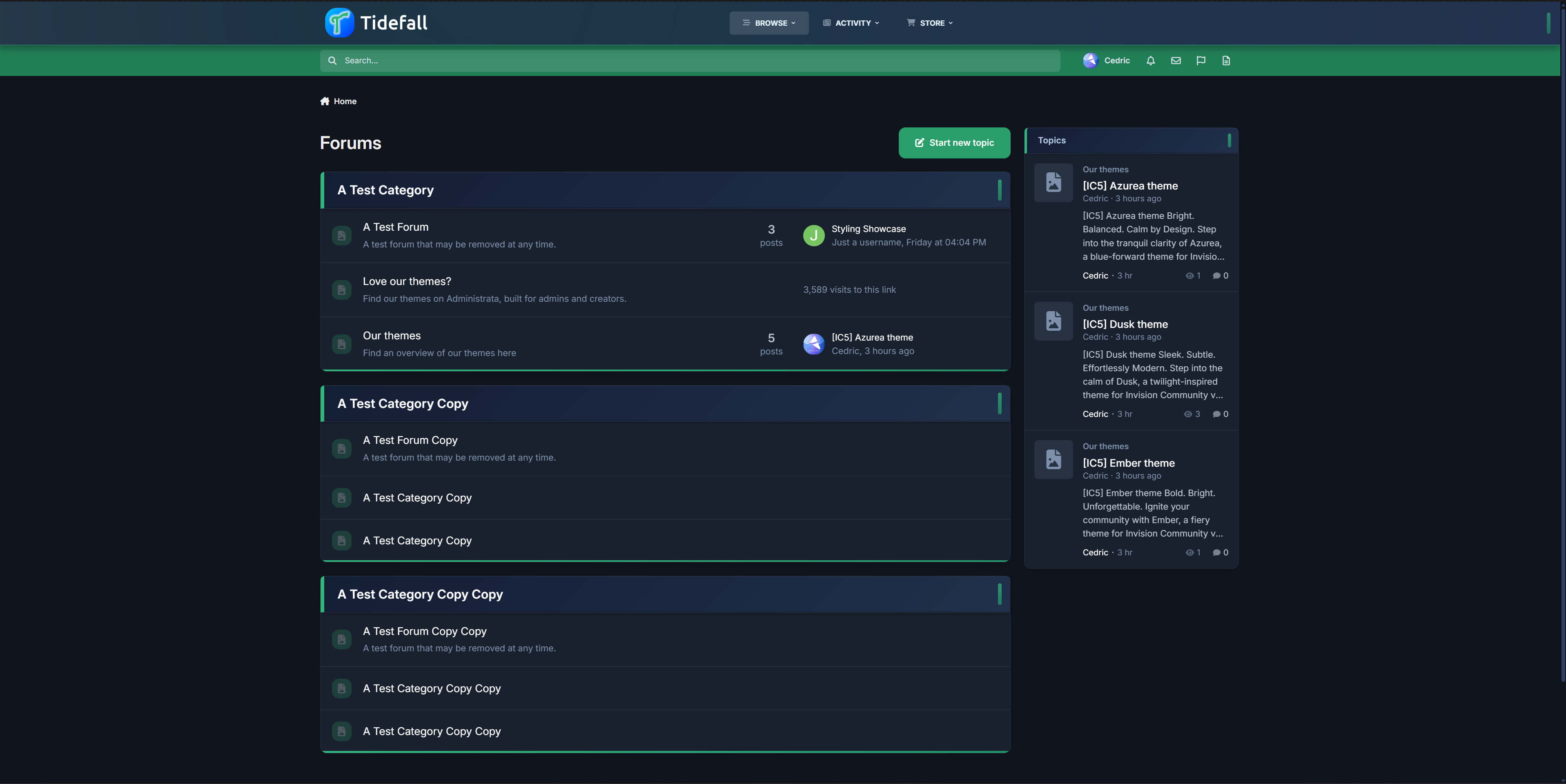
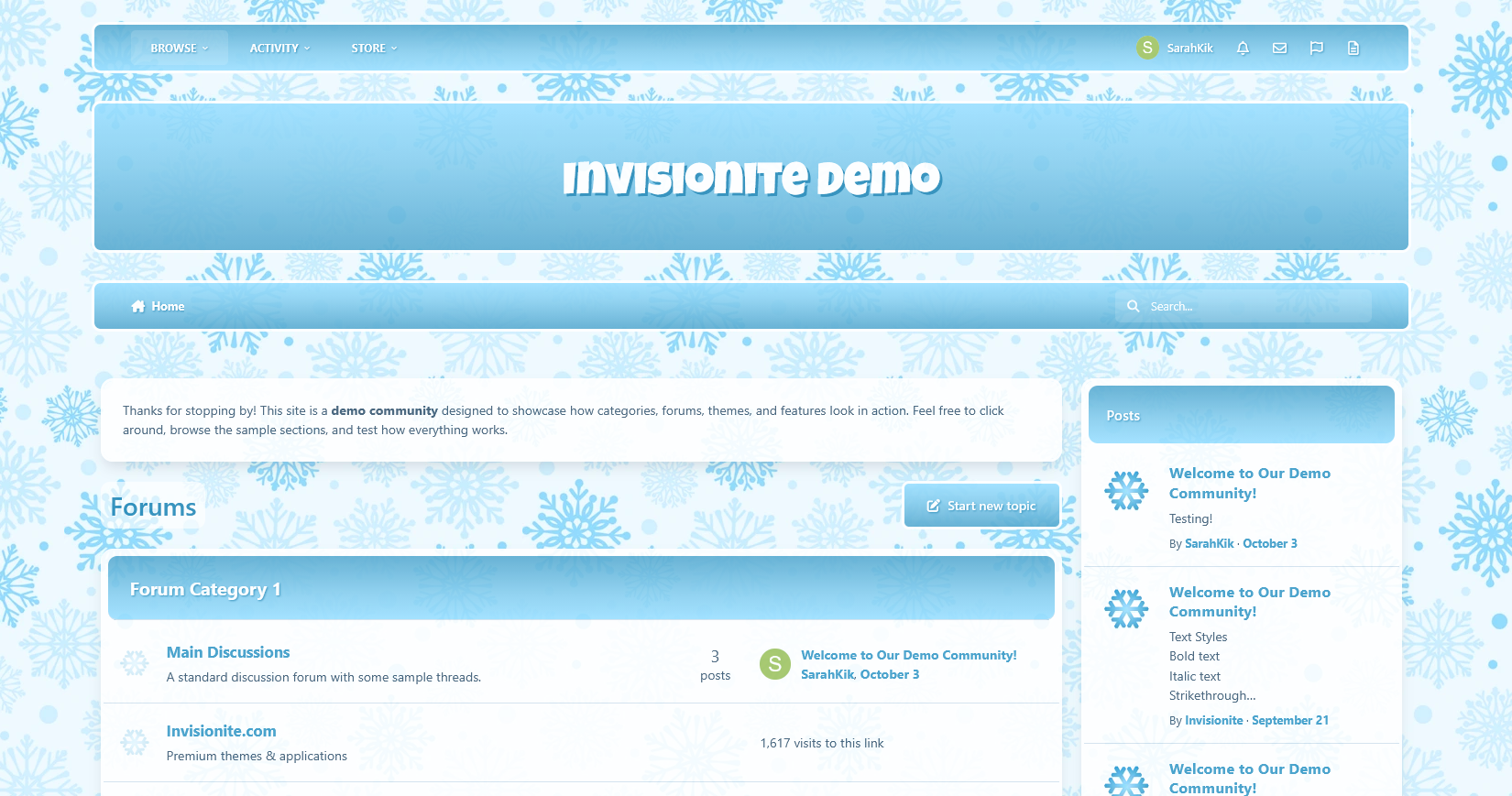
Cool. Confident. Crafted for Contrast. Step into the smooth depth of Tidefall, a navy-green theme for Invision Community v5 that balances vibrant clarity with grounded style. With a shifting header, soft blurs, and crisp lines, Tidefall brings a modern edge to any forum—quietly bold, intentionally clean. Demo – Select Tidefall ✔️ Deep Navy & Emerald Palette – Designed for contrast and readability, with rich blues and a refined, confident green. ✔️ Modern Box Styling – Frosted headers, soft shadows, and vertical accent pills give your categories just the right touch of presence. ✔️ Animated Header Gradient – The primary header smoothly shifts tones, adding movement without noise. ✔️ Subtle Gradient Highlights – Forum bars and buttons use delicate fades to keep the interface lively and engaging. ✔️ Refined UI Elements – Custom scrollbars, clean navigation, and minimalist icons tie the whole theme together. ✔️ Light & Dark Included – Every detail adjusted for both modes, with consistent branding and polish.
Ideal for communities that want a sharp, distinctive style without being overbearing.
IPS5.0.0+
Cool. Confident. Crafted for Contrast. Step into the smooth depth of Tidefall, a navy-green theme for Invision Community v5 that balances vibrant clarity with grounded style. With a shifting header, soft blurs, and crisp lines, Tidefall brings a modern edge to any forum—quietly bold, intentionally clean. Demo – Select Tidefall ✔️ Deep Navy & Emerald Palette – Designed for contrast and readability, with rich blues and a refined, confident green. ✔️ Modern Box Styling – Frosted headers, soft shadows, and vertical accent pills give your categories just the right touch of presence. ✔️ Animated Header Gradient – The primary header smoothly shifts tones, adding movement without noise. ✔️ Subtle Gradient Highlights – Forum bars and buttons use delicate fades to keep the interface lively and engaging. ✔️ Refined UI Elements – Custom scrollbars, clean navigation, and minimalist icons tie the whole theme together. ✔️ Light & Dark Included – Every detail adjusted for both modes, with consistent branding and polish.
Ideal for communities that want a sharp, distinctive style without being overbearing.
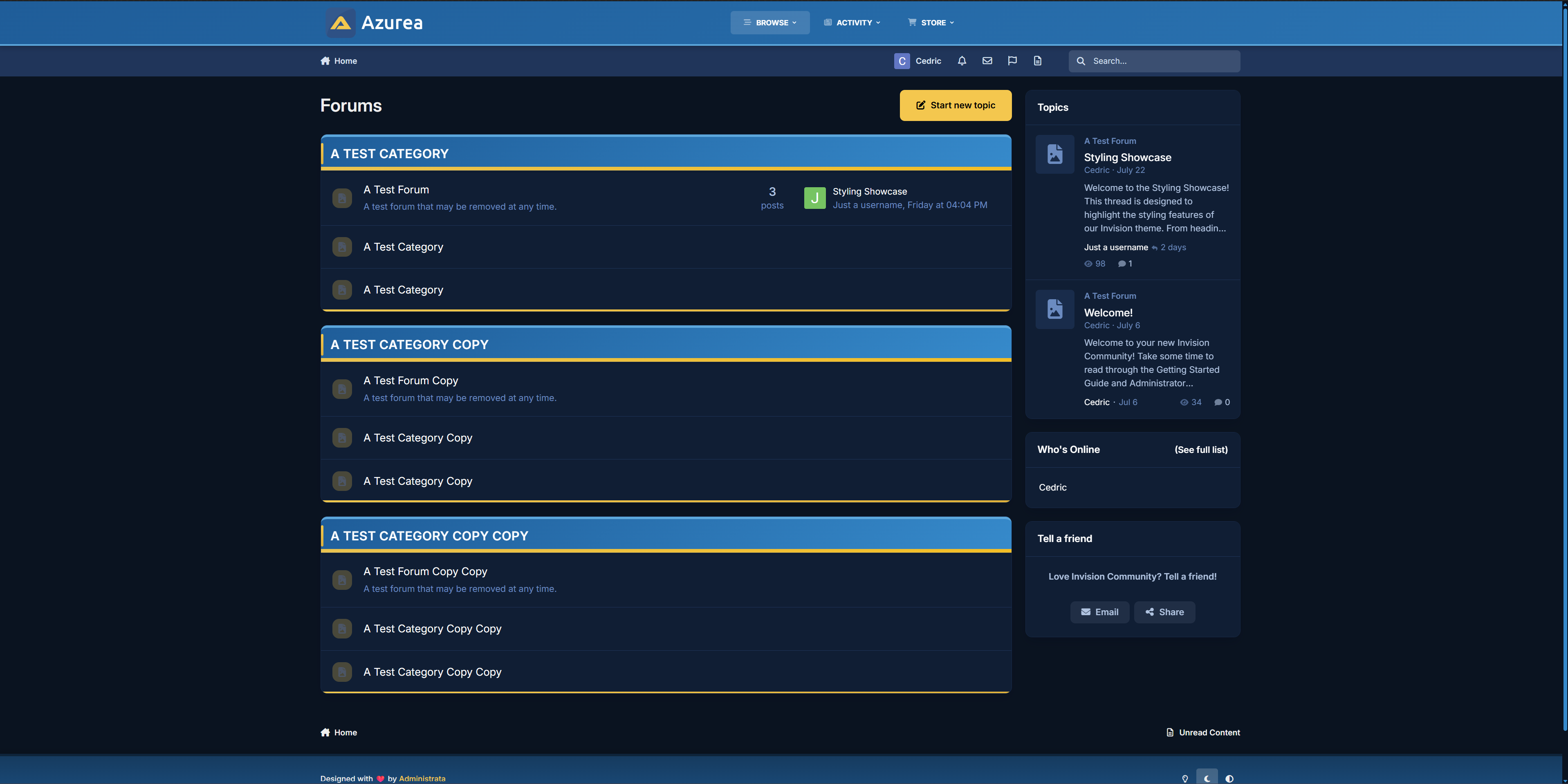
Bright. Balanced. Calm by Design. Step into the tranquil clarity of Azurea, a blue-forward theme for Invision Community v5 that blends soft gradients with subtle detail. Azurea is for communities that want to feel uplifting without being flashy — clean, calm, and carefully styled to get out of your way and let the content shine. Demo – Select Azurea ✔️Cool Blue Palette – A spectrum of glacial and ocean blues, designed for calm readability with a fresh edge. ✔️ Subtle Gradient Elements – Category headers, progress bars, and nav panels fade naturally across tones for soft depth. ✔️ Fine Accent Lines – Highlights and trims in light blue or yellow add energy without breaking serenity. ✔️ Minimal Visual Noise – Rounded boxes, smooth hover effects, and intuitive navigation let your forum breathe. ✔️ Custom Scrollbars & Icons – Every UI detail—from scrollbars to buttons—feels like part of the same system. ✔️ Fully Responsive – Whether you're on desktop, tablet, or mobile, Azurea adapts beautifully.
Ideal for forums that want a lightweight, professional aesthetic without sacrificing warmth.
IPS5.0.0+
Bright. Balanced. Calm by Design. Step into the tranquil clarity of Azurea, a blue-forward theme for Invision Community v5 that blends soft gradients with subtle detail. Azurea is for communities that want to feel uplifting without being flashy — clean, calm, and carefully styled to get out of your way and let the content shine. Demo – Select Azurea ✔️Cool Blue Palette – A spectrum of glacial and ocean blues, designed for calm readability with a fresh edge. ✔️ Subtle Gradient Elements – Category headers, progress bars, and nav panels fade naturally across tones for soft depth. ✔️ Fine Accent Lines – Highlights and trims in light blue or yellow add energy without breaking serenity. ✔️ Minimal Visual Noise – Rounded boxes, smooth hover effects, and intuitive navigation let your forum breathe. ✔️ Custom Scrollbars & Icons – Every UI detail—from scrollbars to buttons—feels like part of the same system. ✔️ Fully Responsive – Whether you're on desktop, tablet, or mobile, Azurea adapts beautifully.
Ideal for forums that want a lightweight, professional aesthetic without sacrificing warmth.
This app helps users connect and build friendships with others in an easy and engaging way. Features: Friend Requests: Users can send friend requests to connect with others. Notifications: Get notified when: You receive a new friend request. Your friend request has been accepted. Users can manage notification preferences, choosing to enable/disable them or receive alerts via email or inline notifications. Friend Display: A Friends icon on the top navigation bar appears on every page. A Friends tab is available on the profile page. One-click access to send private messages (PM) or chat (requires Chatbox+). Quick friend search for easy access to connections. Privacy Settings: Users have control over their privacy, with options to set: Who can view their profile. Who can send them private messages. Who can see their friends list on their profile. Support the uStatus application with the permission: Who can post on your profile. Suggested Friends Widget: A widget displays random users you may know, available in slider or grid view for easy browsing. Mutual Friends Display: Mutual friends are shown on the profile page and in the suggested friends widget, making it easy to find common connections.
IPS5.0.0+
This app helps users connect and build friendships with others in an easy and engaging way. Features: Friend Requests: Users can send friend requests to connect with others. Notifications: Get notified when: You receive a new friend request. Your friend request has been accepted. Users can manage notification preferences, choosing to enable/disable them or receive alerts via email or inline notifications. Friend Display: A Friends icon on the top navigation bar appears on every page. A Friends tab is available on the profile page. One-click access to send private messages (PM) or chat (requires Chatbox+). Quick friend search for easy access to connections. Privacy Settings: Users have control over their privacy, with options to set: Who can view their profile. Who can send them private messages. Who can see their friends list on their profile. Support the uStatus application with the permission: Who can post on your profile. Suggested Friends Widget: A widget displays random users you may know, available in slider or grid view for easy browsing. Mutual Friends Display: Mutual friends are shown on the profile page and in the suggested friends widget, making it easy to find common connections.
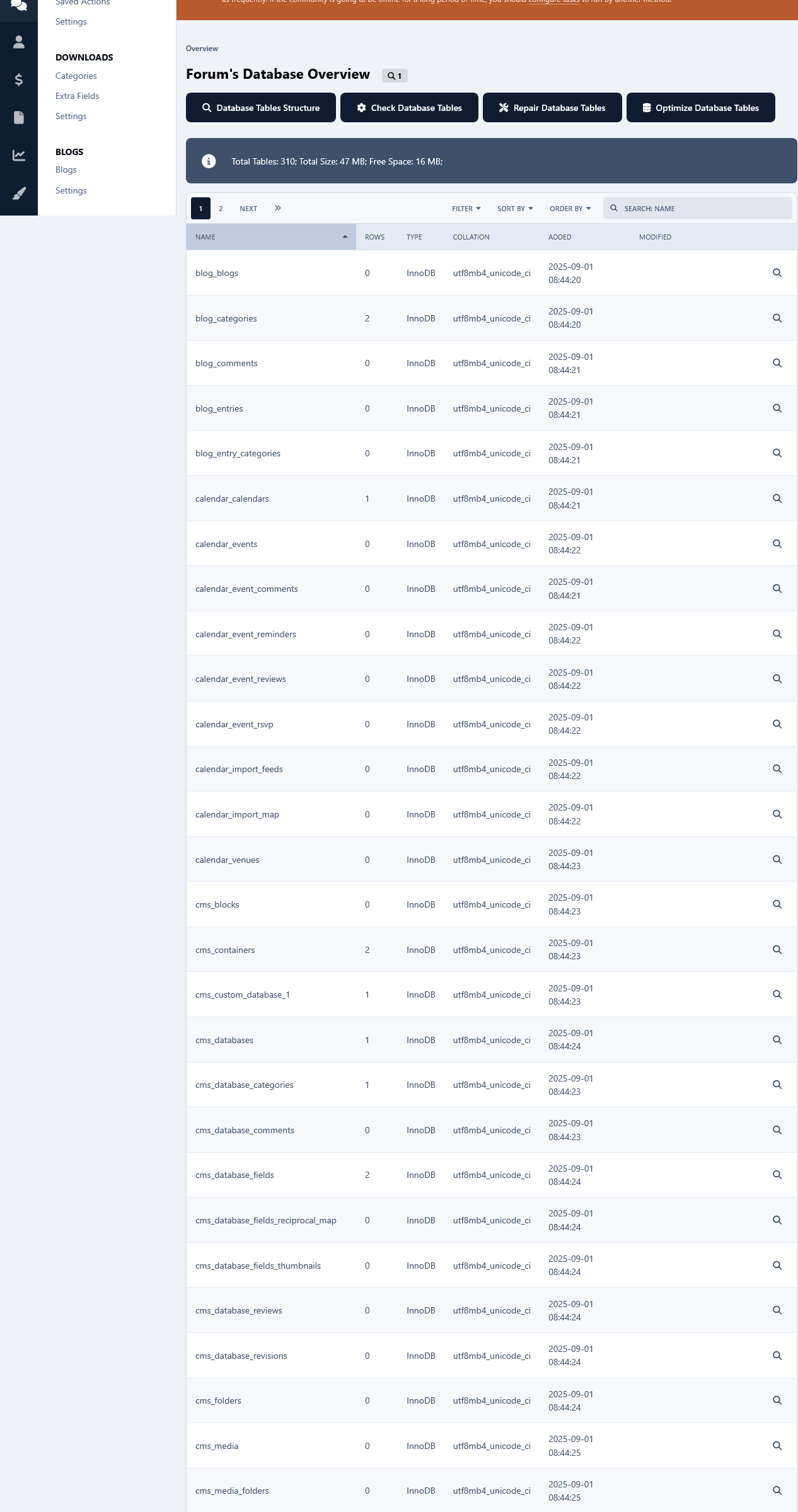
I want to verify exactly what it covers. Could you clarify if it handles the following scenarios? Database Corruption from Updates: Will this actually repair a database table or index that became corrupted during a previous software update, plugin update or Application update? Leftover Plugin/App Data: Will this clean up leftover tables, rows, or orphaned settings left behind by previous system updates, uninstalled applications or plugins? Block Editor Sidebar Glitches: Will this resolve a corrupted sidebar layout or "side block" issue that occurred after adding or removing elements in the block editor? Thanks for clarifying.
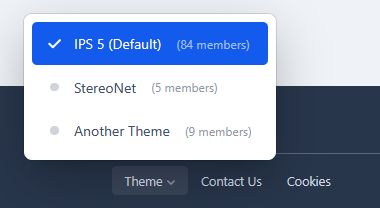
This is very cool, as I don't know of any other means of seeing how many people use what. So, I can't guage which themes are popular, but this is a brilliant idea that executes it well.
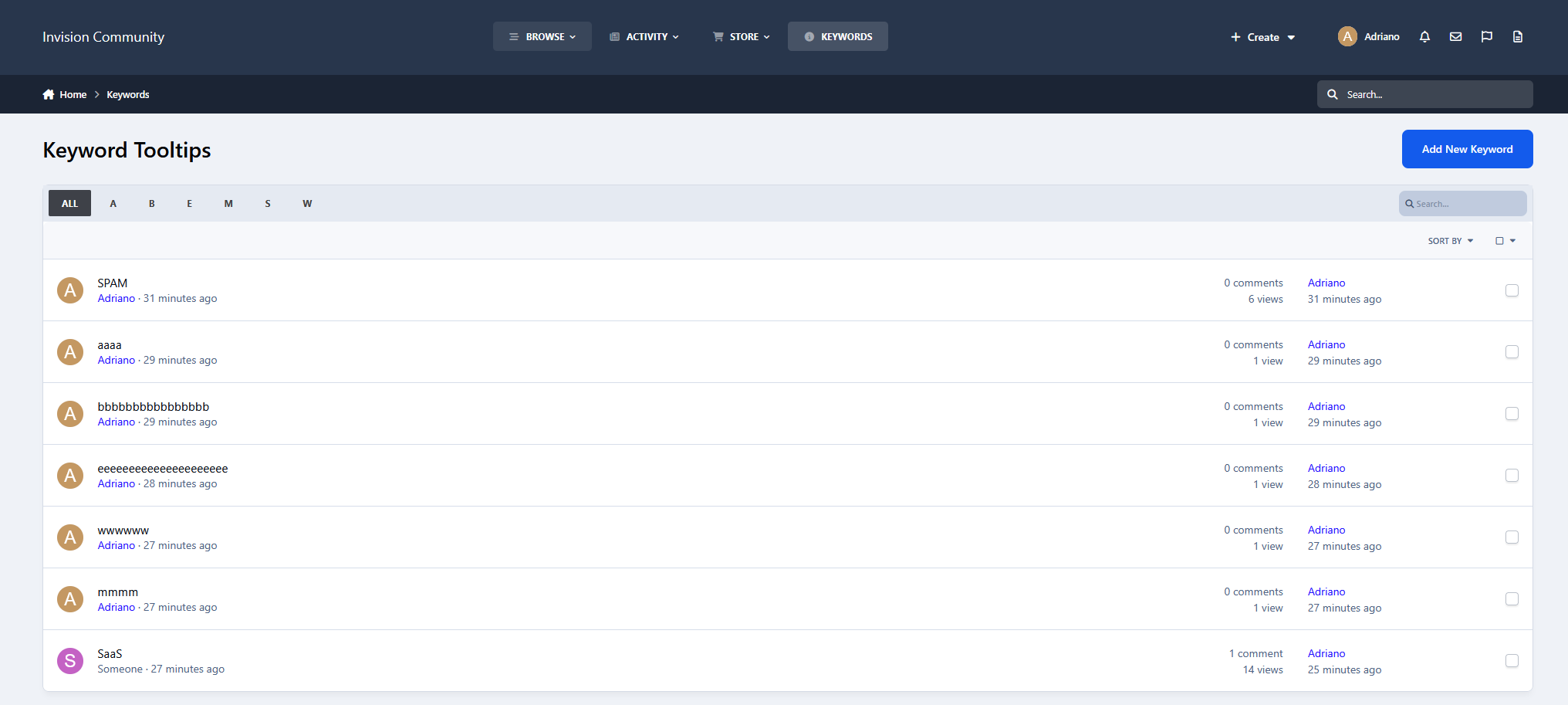
If you are running an IPS community, this Keywords tool is an absolute must-have. We run a highly technical site, and this app has been a lifesaver for our members. We use it to define complex industry terms and acronyms site-wide, and the rich pop-up tooltips make the user experience flawless. What really blows me away is the rebuild. It doesn't feel like a clunky third-party add-on; it feels like a native part of the IPS framework. It has its own search integration, reactions, comments, and follow system. As an admin, the moderation controls are fantastic. Being able to set up approval workflows for new keywords and comments means we can keep our technical definitions accurate without babysitting the system. If you want to enrich your forum's content and keep your users engaged, look no further. Five stars!
I have missed this so much, and finding out that it has been recreated and improved was a great discovery. Cedric is very active and works to improve this even further. 5 out of 5 is the max I can give in this review, but it is more like 6 out of 5 or even 7 out of five!
Very nice back end options, nicely restrained icon which is also well placed to hide forums or topics. Overall I would have given it five out of five stars except for one small issue ... it seems recognize categories as forums. Clicking on ignore does not ignore category or the sub forums associated with that category. Actually I would expect/prefer categories not be able to be ignored. The hide icon/text should not show since nothing can be actually posted in them ... the opposite would be that all sub forms would also be hidden. But if that was the intent it's not working. One new optional feature that could be added is a way to identify specific forums that cannot be hidden by members.